

This guide uses ms-365-mcp-server (npm:
@softeria/ms-365-mcp-server), a community project by Softeria. It is not made by TypingMind or Microsoft. This guide was tested with version 0.178.0.What you can do
With the OneDrive tools enabled, the AI can:- List your drives, and list or search files and folders
- Get file details and download files
- Upload files and create folders
- Move, rename, copy, and delete files
- Create share links
Requirements
- Node.js 20 or later installed on your computer. The MCP Connector needs Node.js 18+, and Softeria recommends Node.js 20+ for this server.
- A Microsoft account (personal, or work/school).
- The TypingMind MCP Connector running on the same computer you use TypingMind on.
- An AI model that supports plugins/tool calling.
Step-by-step setup
1
Set up the MCP Connector
In TypingMind, go to Settings → Model Context Protocol → Setup MCP Connector and choose This Device.Copy the command shown on the screen, run it in a terminal (Terminal on macOS, Windows Terminal on Windows), and keep the terminal open:When the dialog shows Server ready! and the status becomes Ready, the connector is running.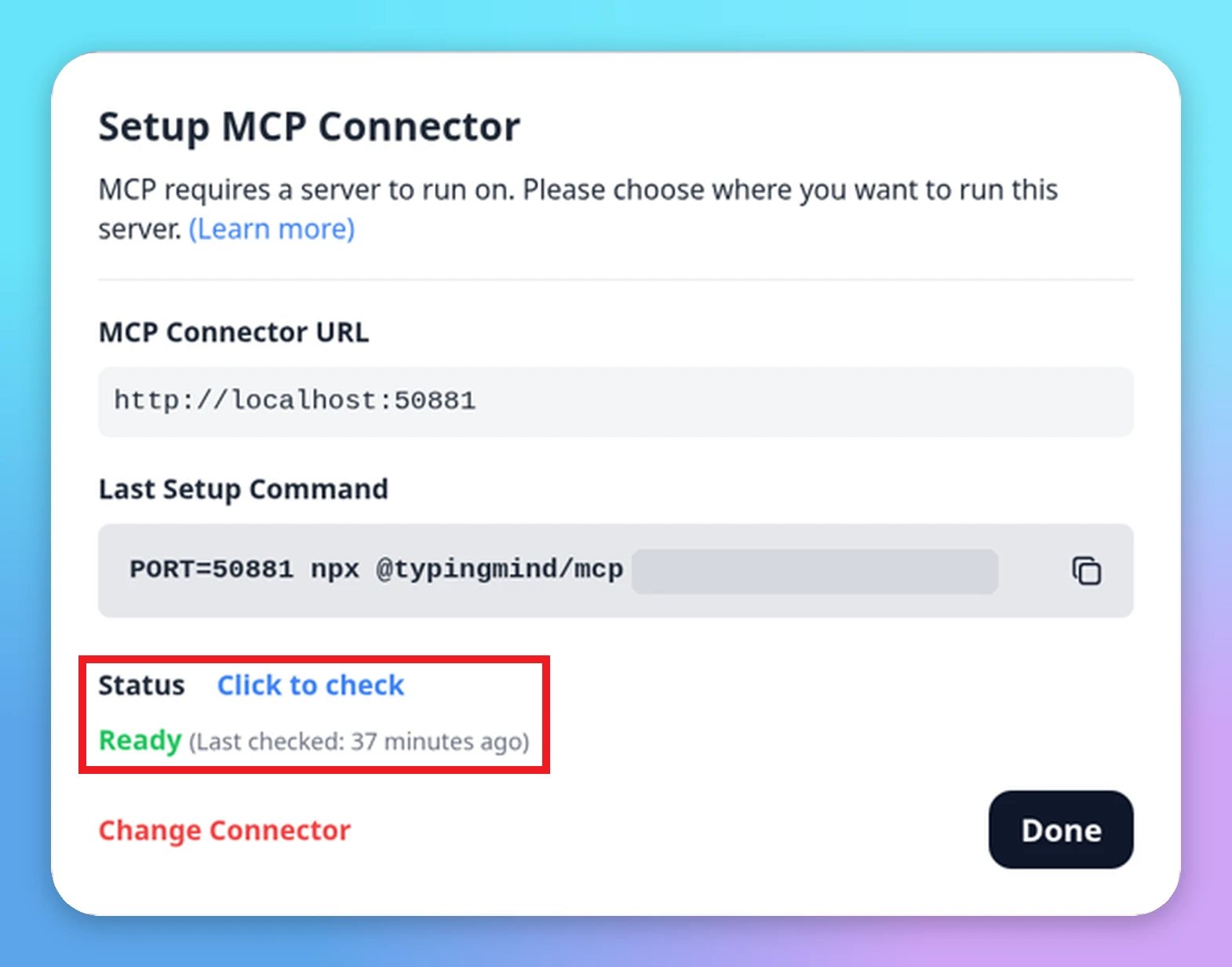
2
Add the Microsoft 365 server
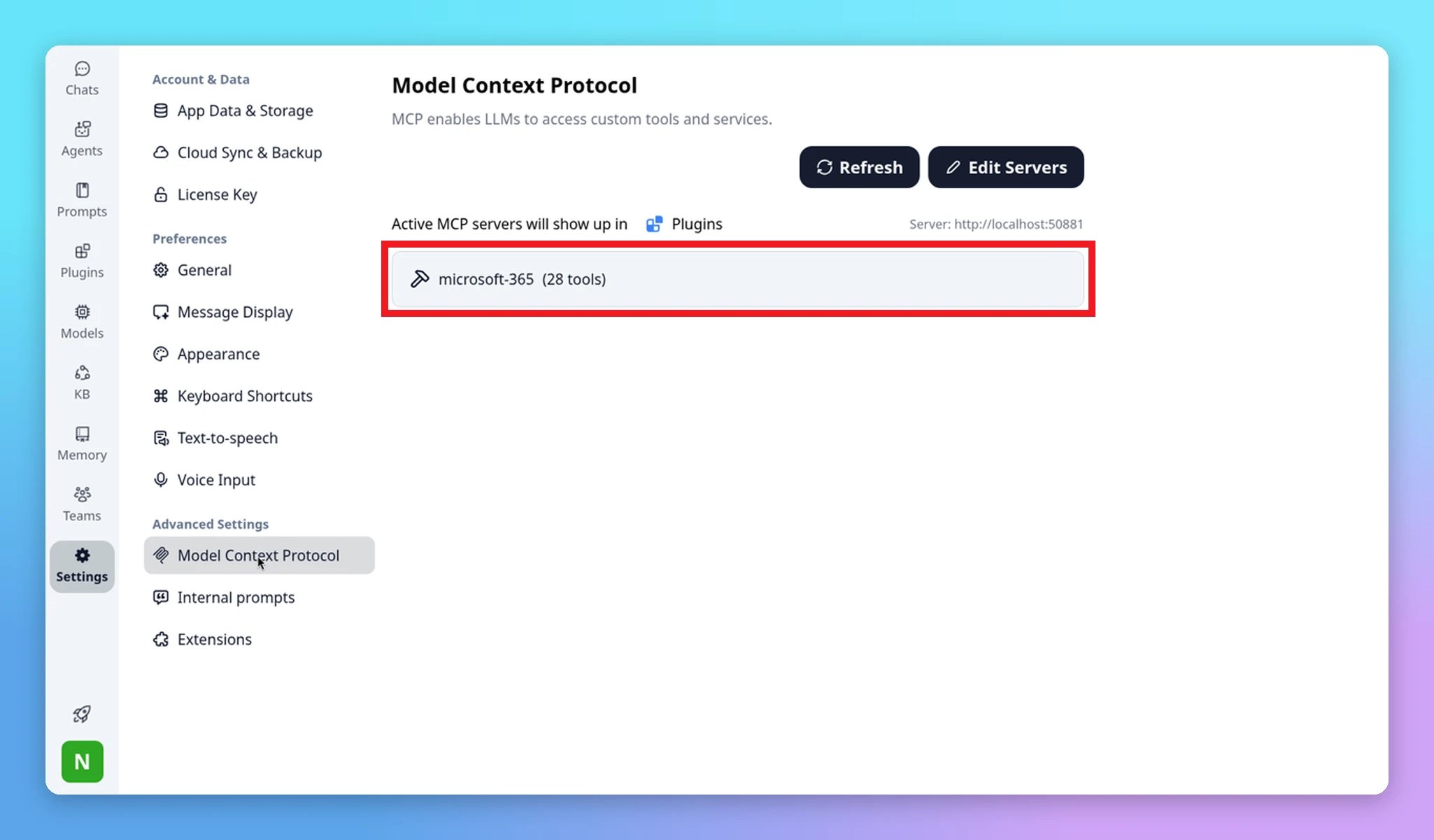
Click Edit Servers, paste the config for your account type, then save.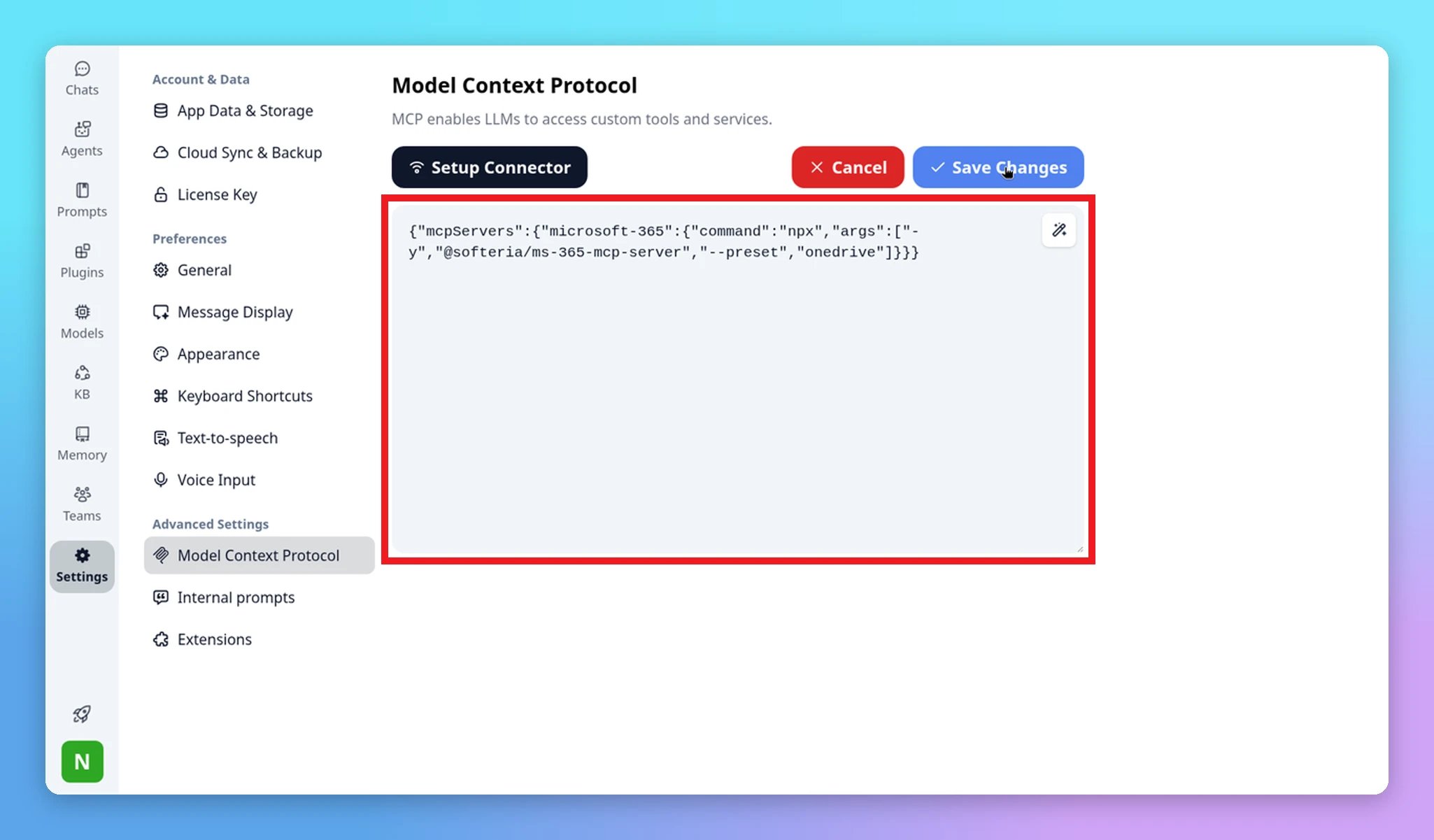
For personal accounts, the Softeria README recommends adding
"env": { "MS365_MCP_TENANT_ID": "consumers" } to the server config. With the default tenant, your session can expire after about an hour.3
Enable the microsoft-365 plugin
Start a new chat, open the Plugin Selector (next to the Model Selector), and turn on microsoft-365.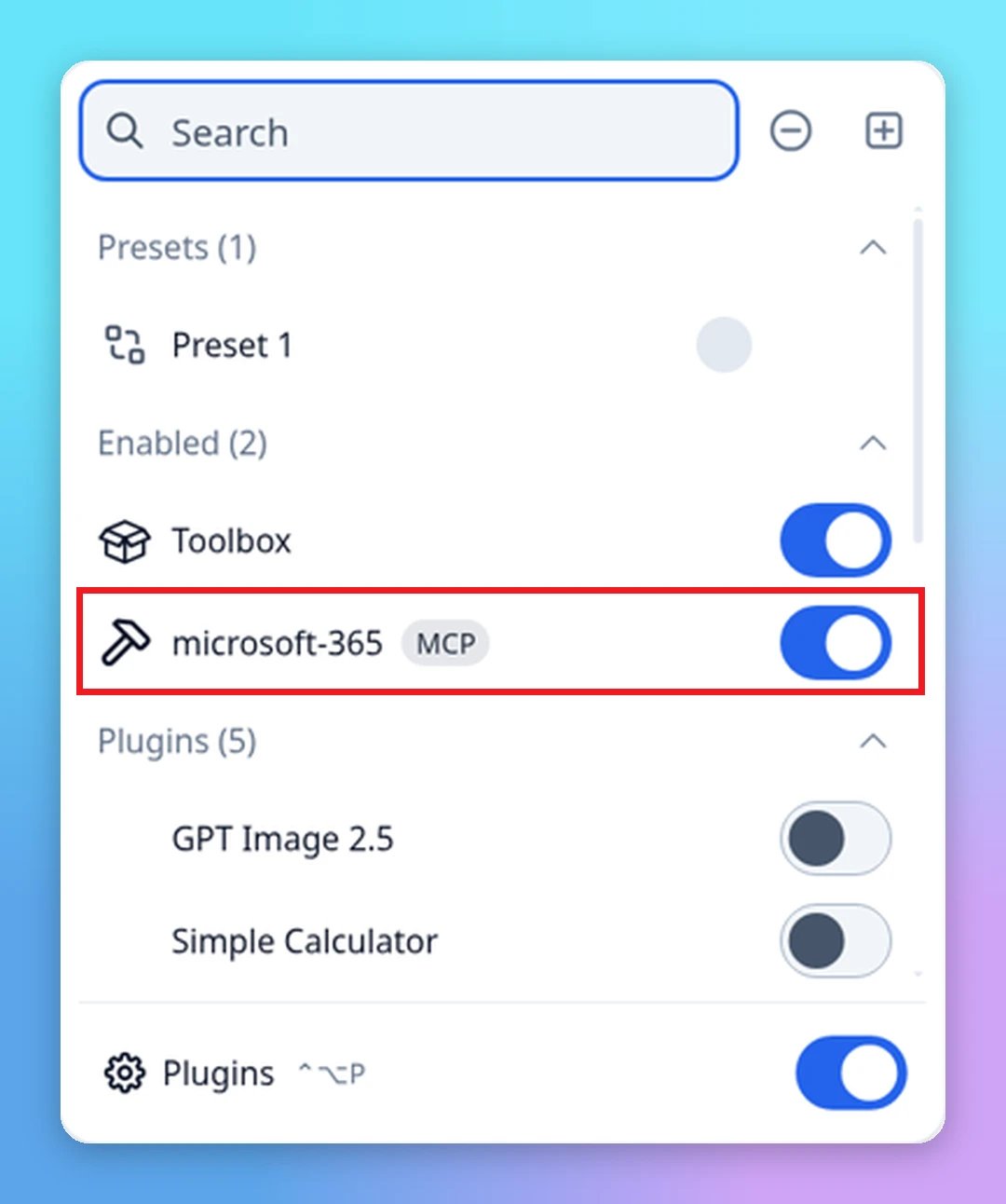
4
Sign in to Microsoft
Start a chat, enable the microsoft-365 plugin, and ask:The AI replies with a link (
https://www.microsoft.com/link or https://login.microsoft.com/device) and a code.- Open the link within 15 minutes and enter the code.
- Sign in with your Microsoft account.
-
Accept the permission request for the Softeria app (
Files.ReadWrite).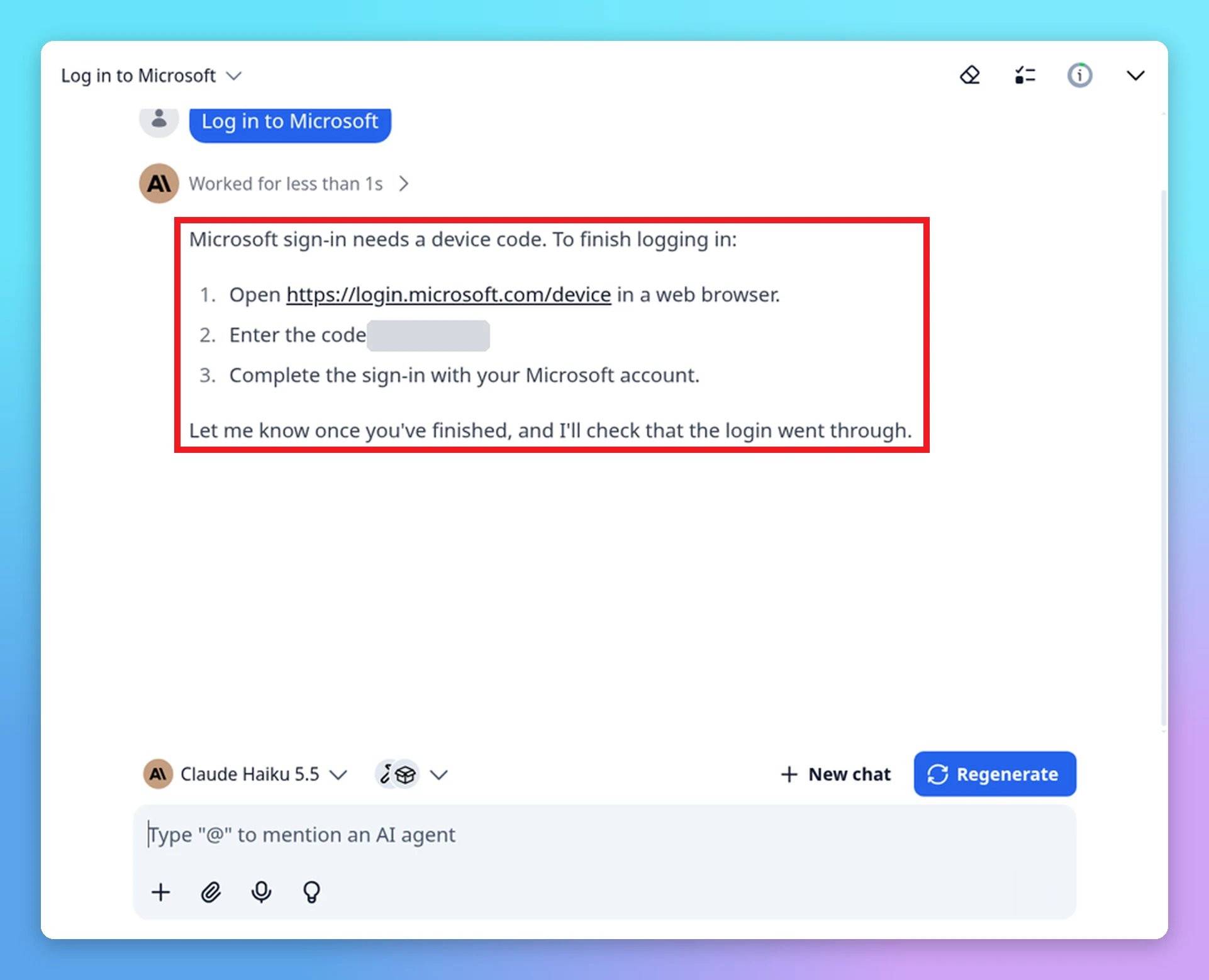
Alternative: sign in from the terminal
Alternative: sign in from the terminal
Run this once in a terminal and follow the instructions:For a personal account, if you added the
consumers setting from the note above, also set MS365_MCP_TENANT_ID=consumers in the terminal first.If you ask the AI to “verify login”, it may show a 403 error for Graph profile access. This is expected with the
onedrive preset. The file tools still work.5
Test it
Make sure the microsoft-365 plugin is enabled in the chat’s Plugin Selector (next to the Model Selector), and choose a model that supports tool calling.Try:The AI calls 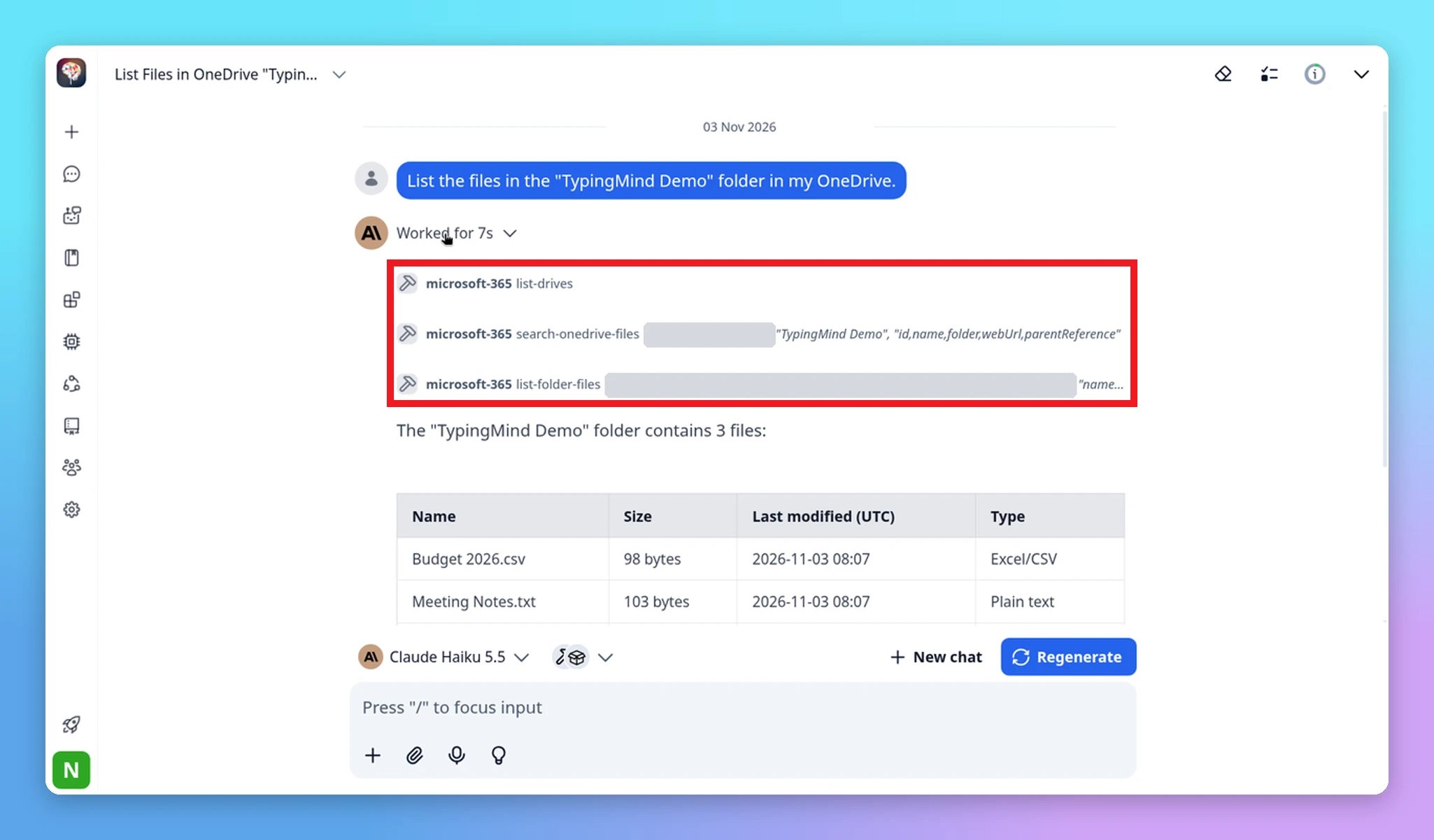
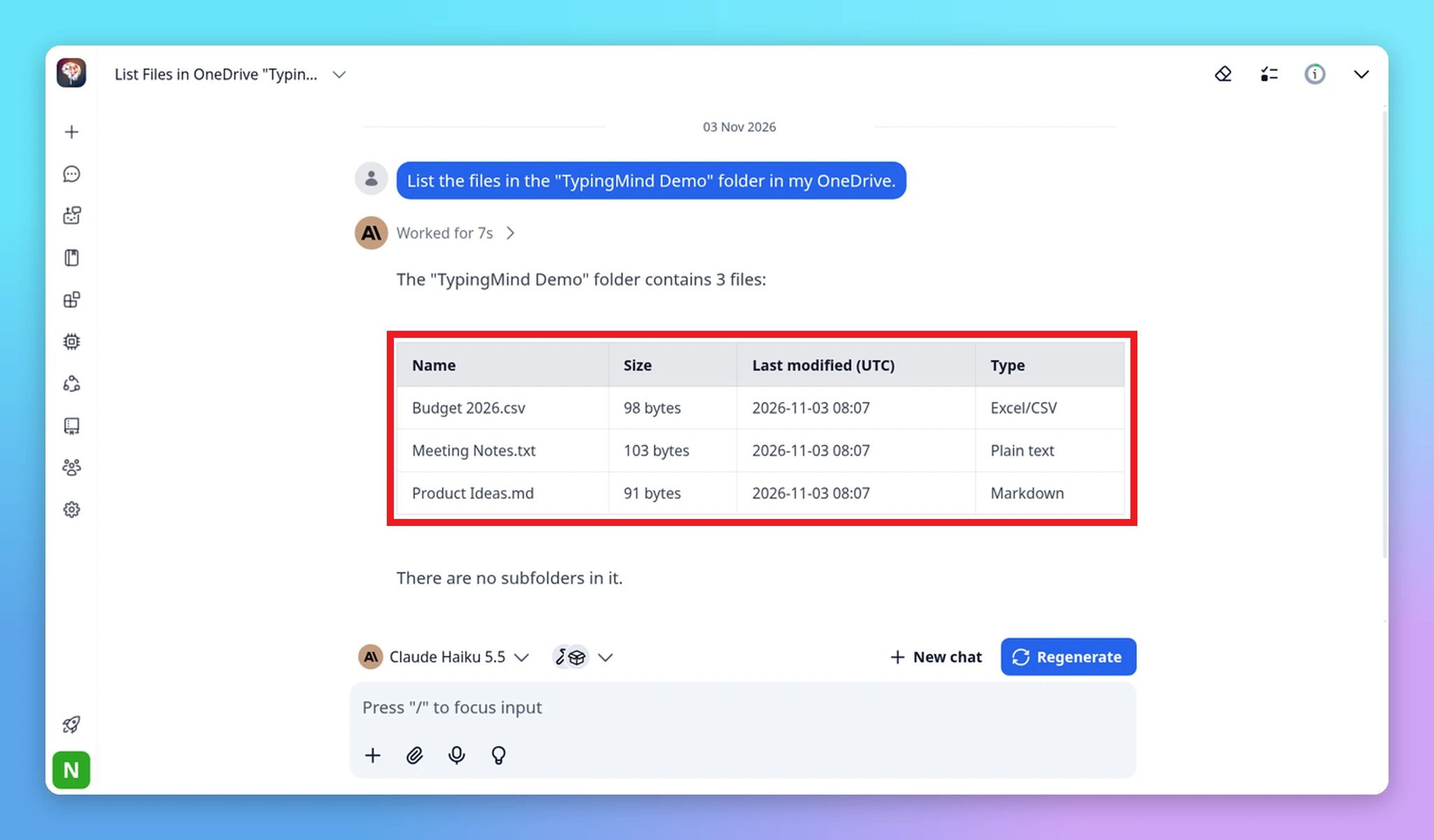
list-drives, search-onedrive-files, and list-folder-files:- “Search my OneDrive for files with ‘invoice’ in the name.”
- “Create a folder called Reports in my OneDrive.”
- “Give me a share link for Budget.xlsx.”
Available tools
Some of the tools included in theonedrive preset:
Edit Word and PowerPoint files
The server can’t change what’s inside a.docx or .pptx file. You can combine it with the built-in Toolbox plugin instead. Toolbox runs code that can create and edit Office files, and the AI moves the files between Toolbox and your OneDrive for you.
- Enable both the microsoft-365 and Toolbox plugins in the same chat.
- Ask the AI to do the whole job in one message. For example:
- When it’s done, ask the AI to list the folder to confirm the new file is there.
The AI may take a few minutes on these requests because it checks the file before and after uploading.
Security notes
- Your Microsoft sign-in tokens are stored locally on your computer:
- macOS / Linux:
~/.config/ms-365-mcp-server - Windows:
%APPDATA%\ms-365-mcp-server
- macOS / Linux:
- Work or school accounts may need admin approval before the Softeria app can access your files. Contact your IT admin if sign-in is blocked.
- Your AI model provider receives the file names and content that the AI reads, the same as any chat.
Troubleshooting
The MCP Connector is not Ready
The MCP Connector is not Ready
- Make sure the terminal running
npx @typingmind/mcp <your-token>is still open. - Check your Node.js version with
node -v. Use Node.js 20 or later. - Run the connector on the same computer you use TypingMind on.
"No accounts found. Please login first."
"No accounts found. Please login first."
You’re not signed in yet. Ask the AI to “log in to Microsoft” and complete Step 4.
The login code expired
The login code expired
Codes are valid for 15 minutes. Ask the AI to “log in to Microsoft” again to get a new code.
I get disconnected after about an hour (personal account)
I get disconnected after about an hour (personal account)
Add
"env": { "MS365_MCP_TENANT_ID": "consumers" } to the server config, restart the server, then sign in again.My work or school account says I need admin approval
My work or school account says I need admin approval
Some organizations block users from granting app permissions. Ask your Microsoft 365 admin to approve the app, then sign in again. You don’t need to create any Microsoft API key or app registration yourself.