.svg?fit=max&auto=format&n=RaTUOQa09vPhW7_D&q=85&s=368f39de7ecc6605f73c43c2017546a3)
.svg?fit=max&auto=format&n=RaTUOQa09vPhW7_D&q=85&s=01a6eb27b4db3af8a1d5557525c579d3)
What is Toolbox?
Toolbox is a free, built-in TypingMind plugin that lets your AI assistants analyze uploaded file, run code, and hand back finished documents, charts, and media. Instead of only describing what to do, the AI writes Python or JavaScript, runs it, and gives you the result in the chat.- Runs in your browser. Code executes locally on your device. There is no server to set up and no external service processing your files.
- Private by default. Network access is disabled by default, so code running in Toolbox cannot send your data anywhere.
- Free with TypingMind. No extra subscription or API key is needed for Toolbox itself. You only pay for the AI model you already use.
- Work with any AI models: Toolbox works with AI models that support plugins/tool calling in TypingMind.
Getting started
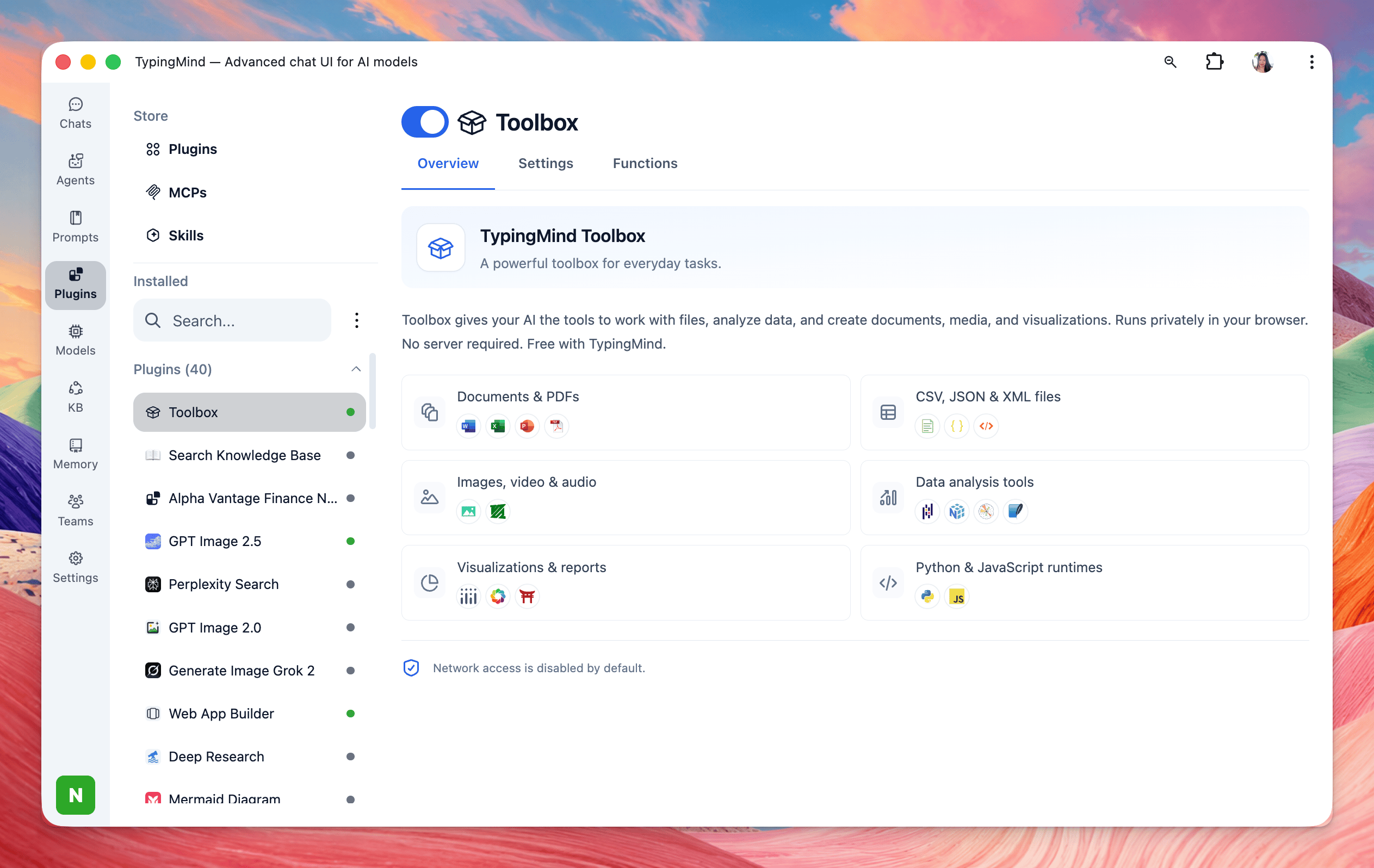
Turning Toolbox on takes about 30 seconds and only needs to be done once.- Click Plugins in the left sidebar.
- Under Installed, select Toolbox from your plugin list.
- Flip the toggle next to the Toolbox title so it turns blue.
- Network access is disabled by default for this plugin. If you want to enable it, please switch to Settings tab to enable.
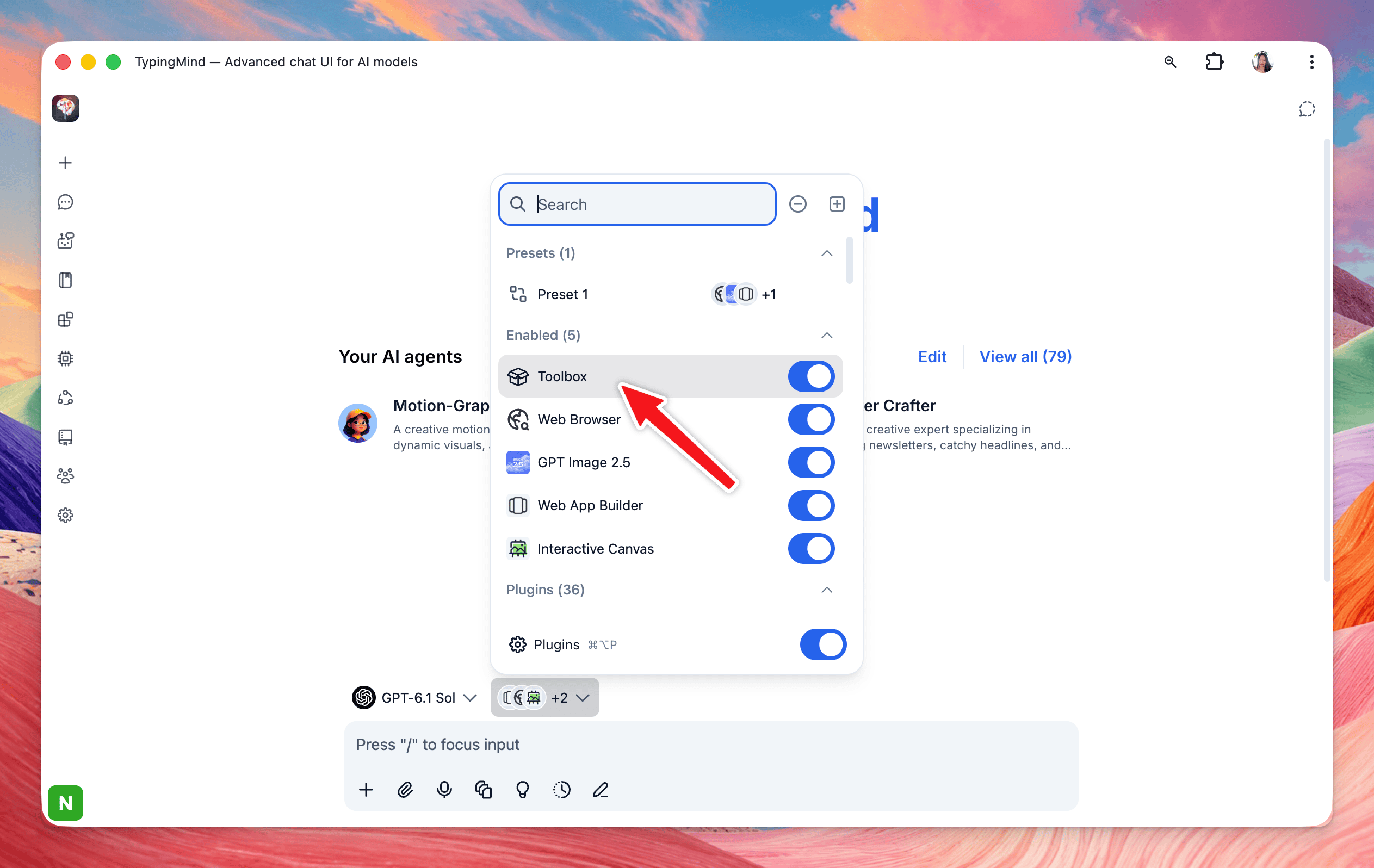
What Toolbox can do
Toolbox covers six areas, from reading office files to running full Python data analysis. Each area below lists the formats and libraries shown in the Toolbox panel.
You don’t need to know any of these libraries. Describe the result you want in plain language, and the AI picks the right tool.
How it works in a chat
You ask in plain language; the AI writes and runs code in Toolbox, checks the result, and keeps going until the output is ready.- Describe your task. Ask your AI to perform calculations, analyze data, create reports, process media, or generate outputs. Attach files when your task requires them.
- Your AI selects the tools. Depending on the request, your AI can use Python, JavaScript, or other supported Toolbox capabilities to execute the necessary operations.
- Toolbox executes the task. The AI can run code, perform calculations, manipulate data, and process files directly in your browser. Complex tasks may involve multiple tool calls.
- Review the results. Get calculations, explanations, charts, and other results directly in the conversation.
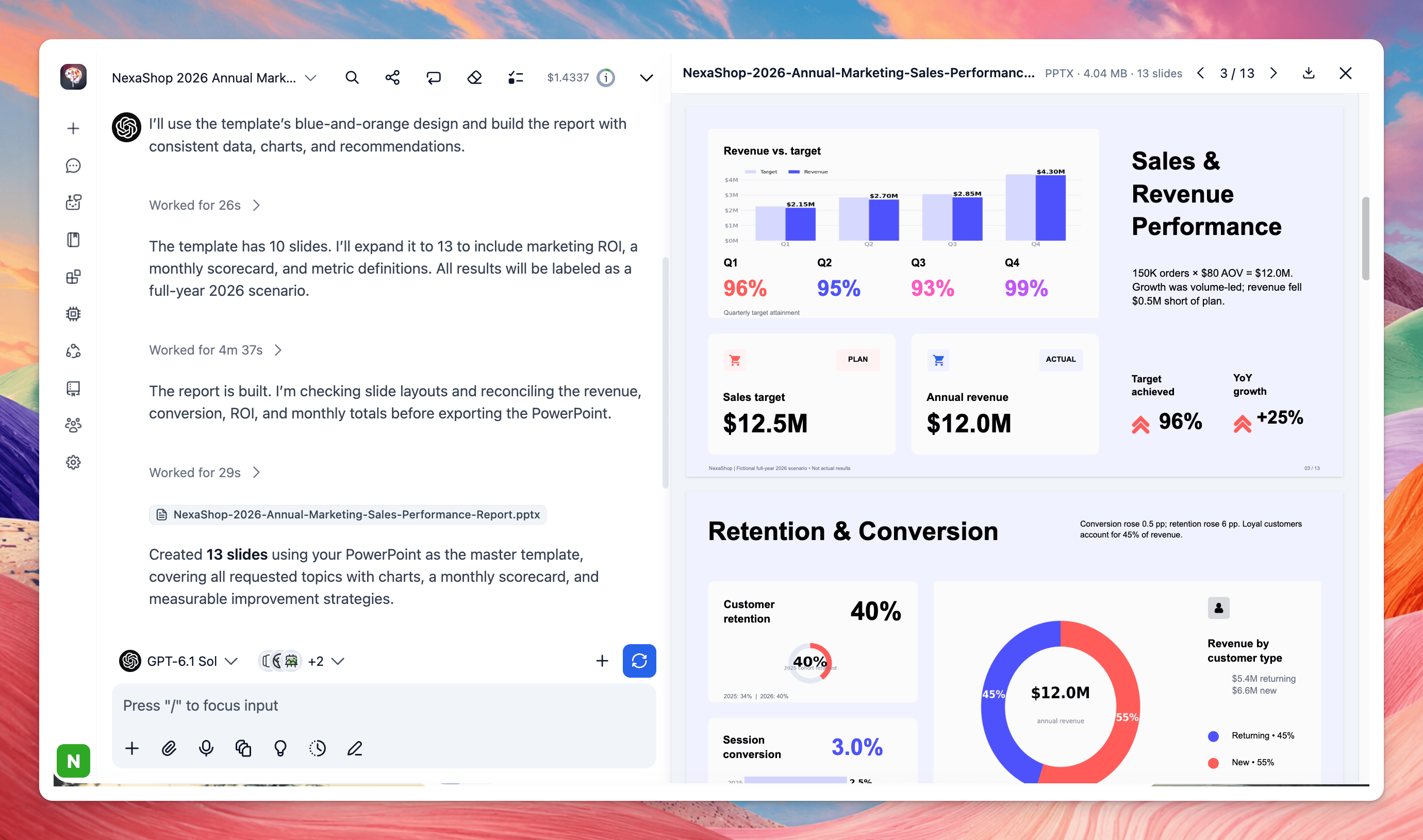
- Preview and download files. When your task produces files, open supported formats in TypingMind’s preview panel or download them to your device.
Privacy, security and network access
Toolbox runs code inside your browser, and network access is off by default, so the code it runs cannot reach the internet.- Where code runs: on your own device, in a sandbox inside the browser tab. TypingMind does not run your files on a server.
- What the AI model sees: the AI provider you chose still receives your messages and whatever the AI reads from your files in order to reason about them, the same as any chat. Toolbox doesn’t change your model provider’s data policy.
- Network access: disabled by default. With it off, code can’t download packages, call APIs, or fetch web pages. If you need data from the web, save the page or file and attach it instead (see the “Saved web page → pricing analysis” use case).
- Sensitive files: because processing happens locally, Toolbox is a good fit for financial data, customer lists, and internal documents. Still follow your organization’s rules about which AI models may see that data.
Practical use cases to try
Below are some common use cases, each with a ready-to-paste prompt.Data analysis
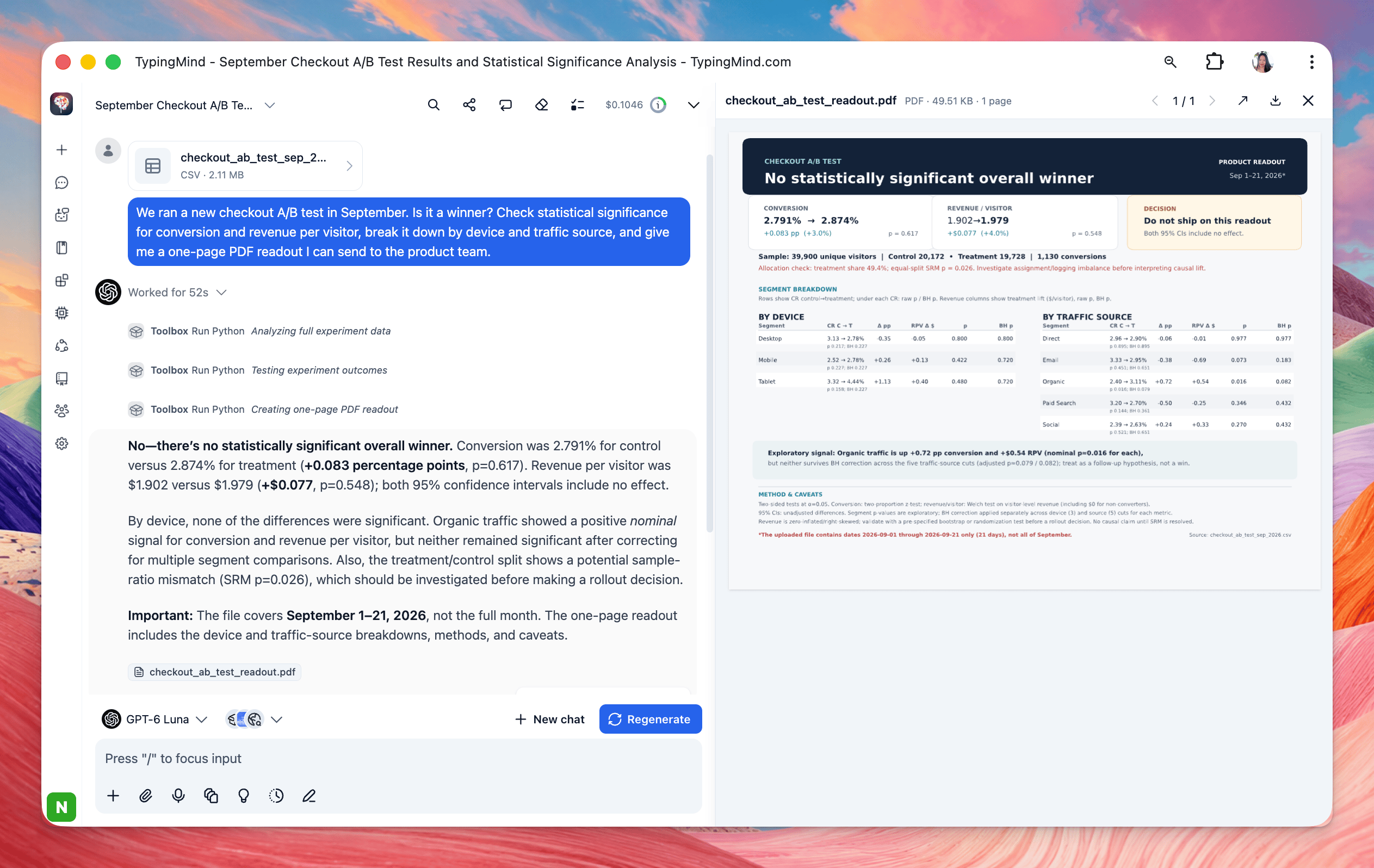
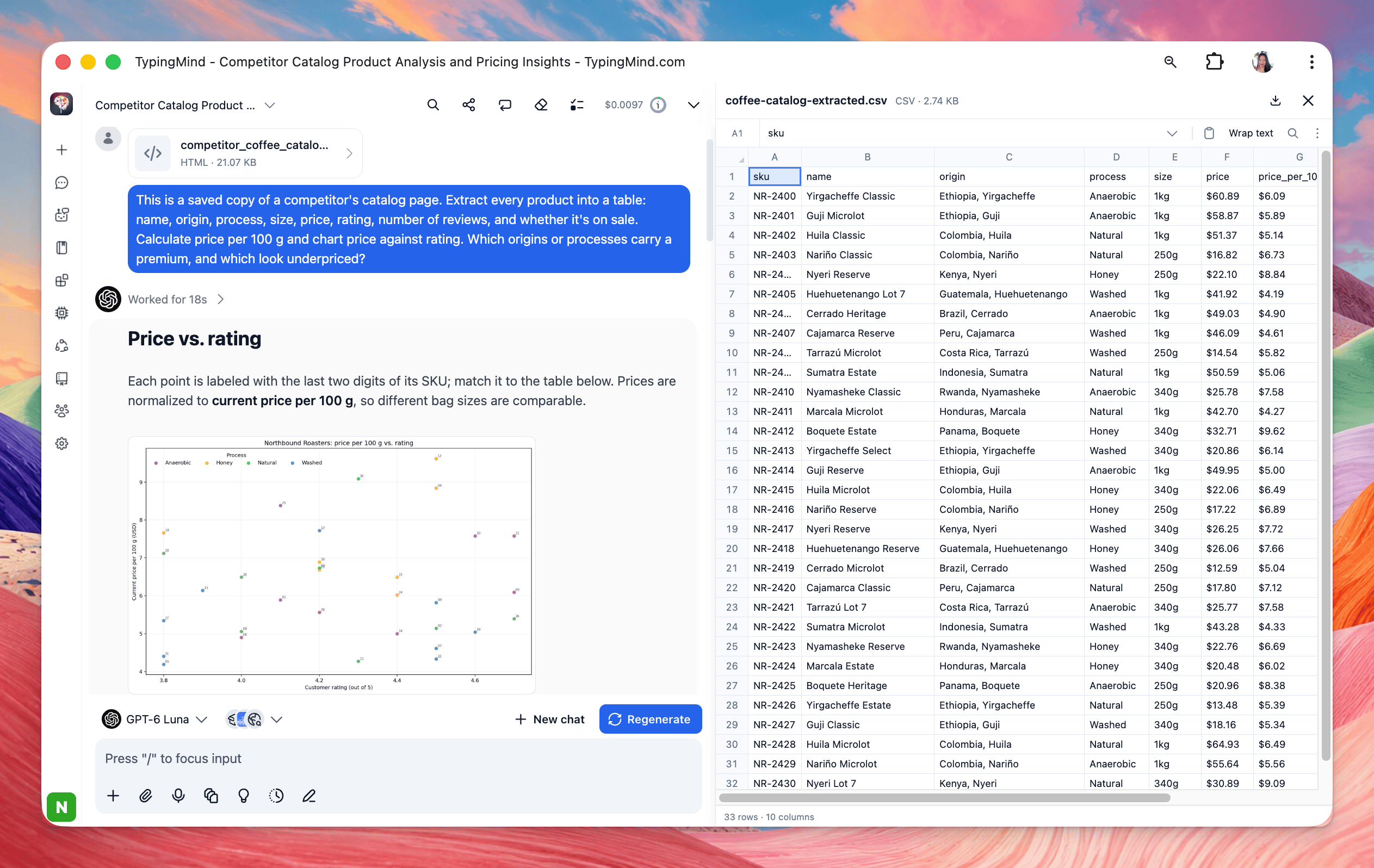
1. Insights dashboard from a sales export. Attach a CSV or Excel export of orders, sign-ups, or licenses. You get a multi-panel chart plus a short explanation of each finding.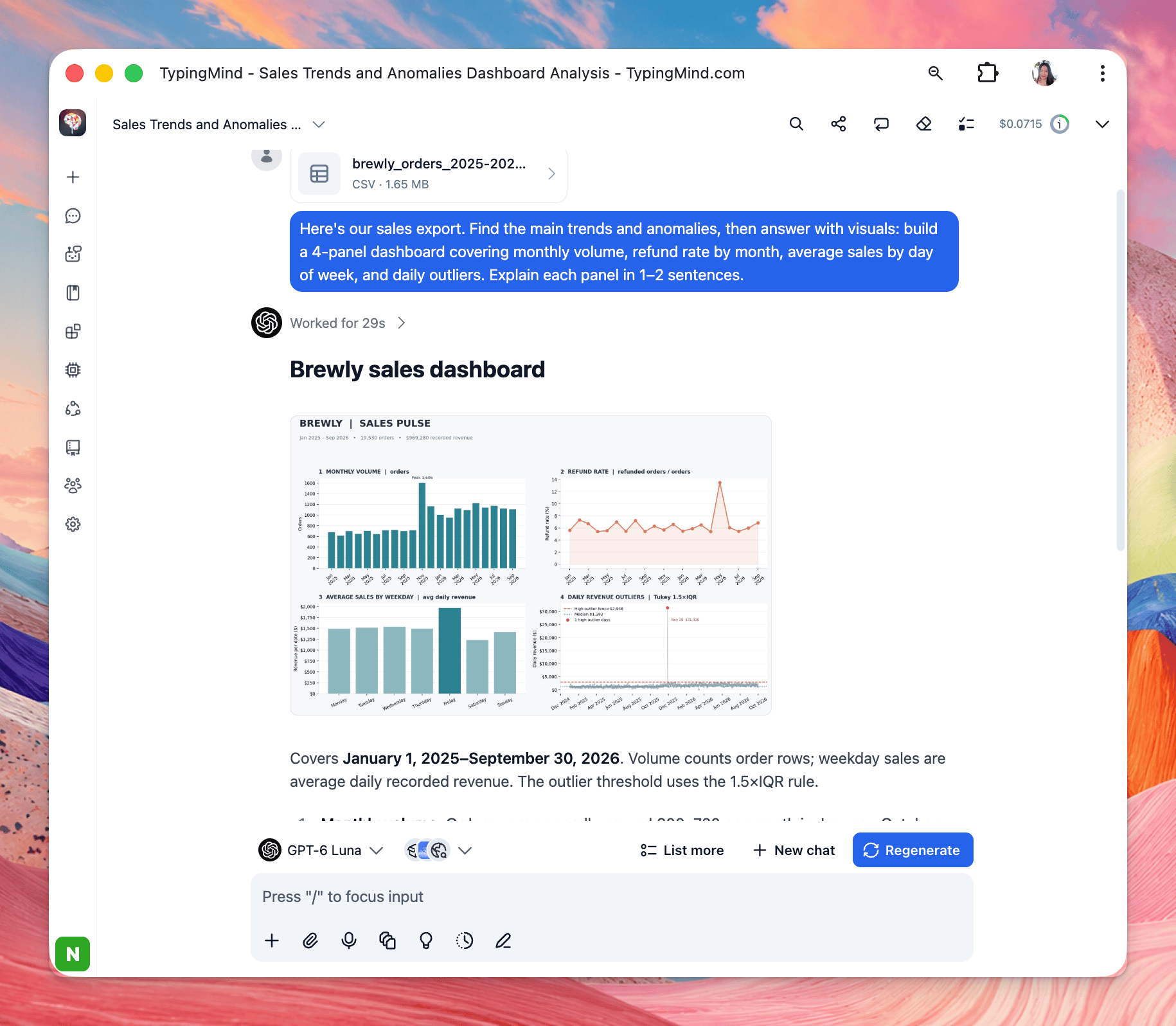
Documents, PDFs and reports
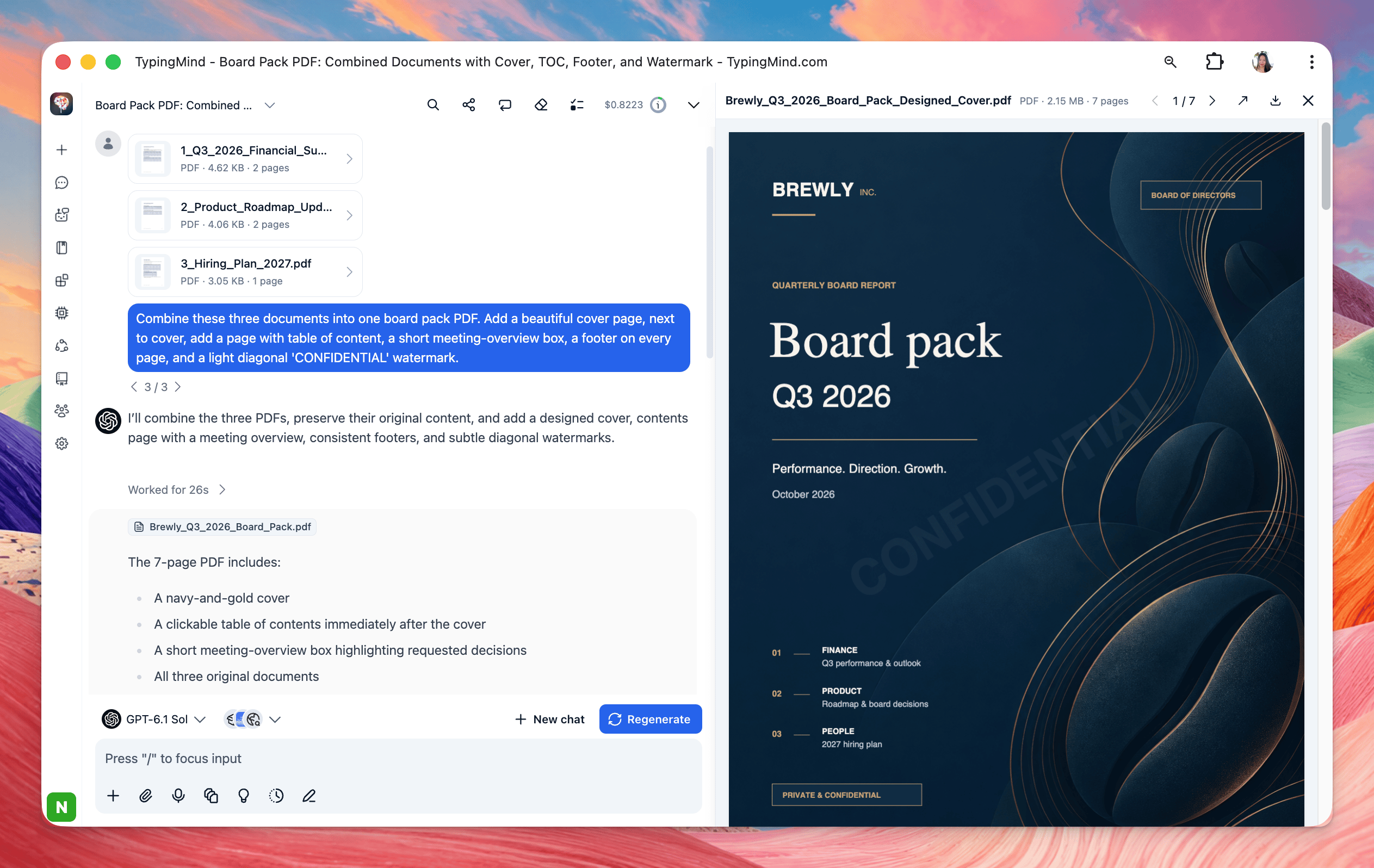
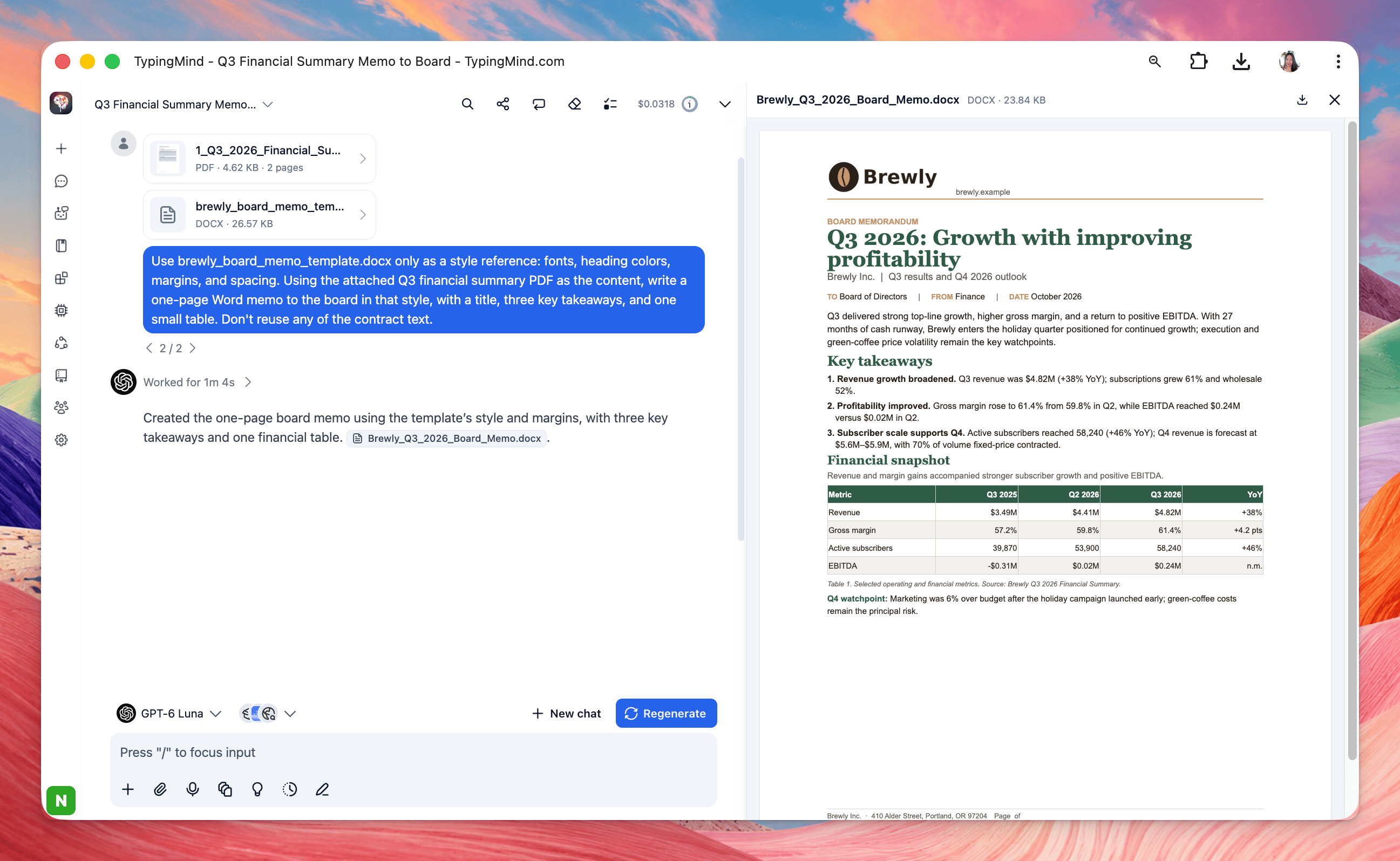
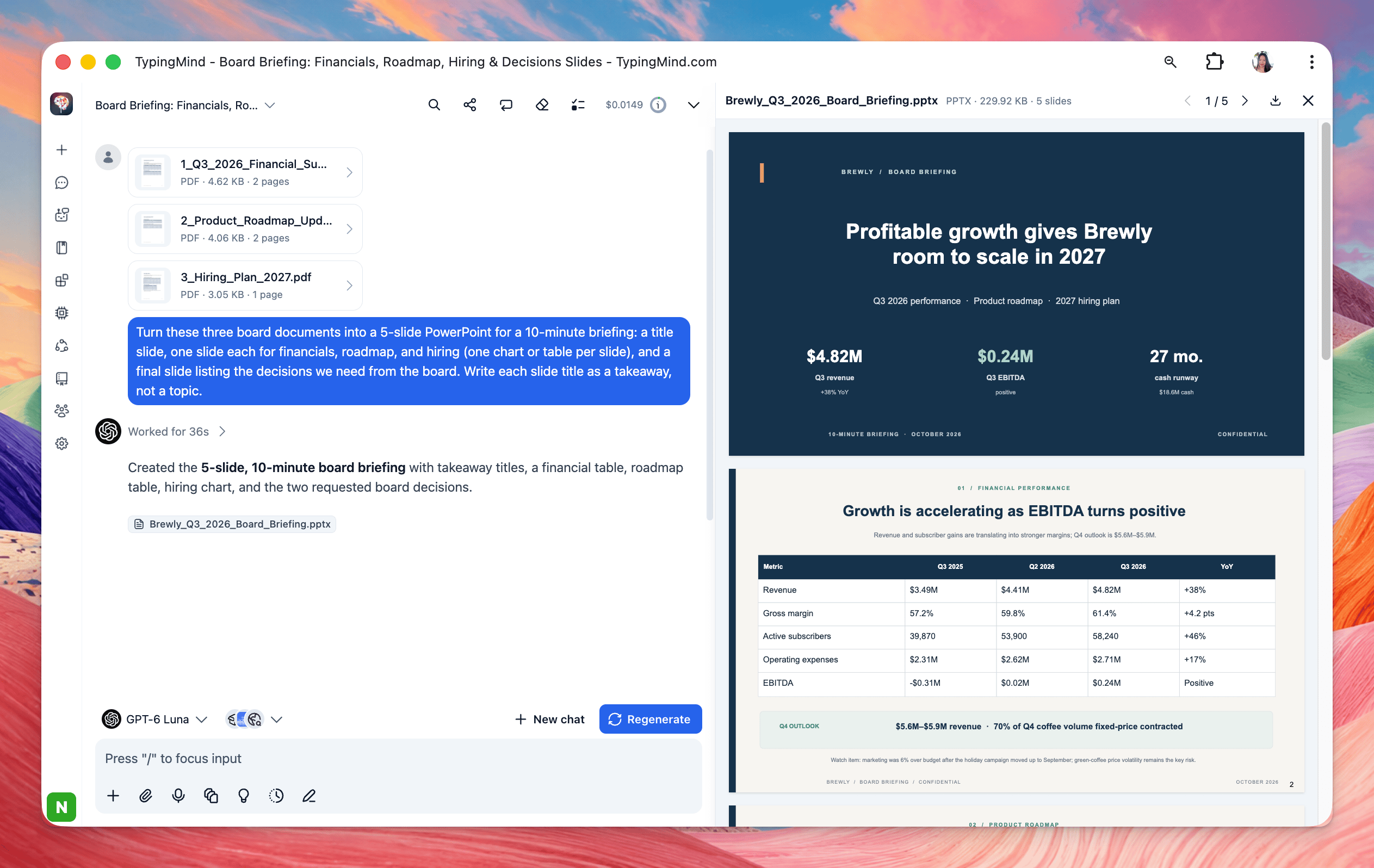
Generate downloadable files such as PDFs, XLSXs, PPTXs, DOCXs, ZIPs and more. You can also upload a template and ask the AI model to match the style of your templates (including fonts, headings, colors, designs)
Images, Videos and audio
7. Batch watermark and resize images. Attach your images (and a logo, if you have one). You get every image watermarked in the same spot.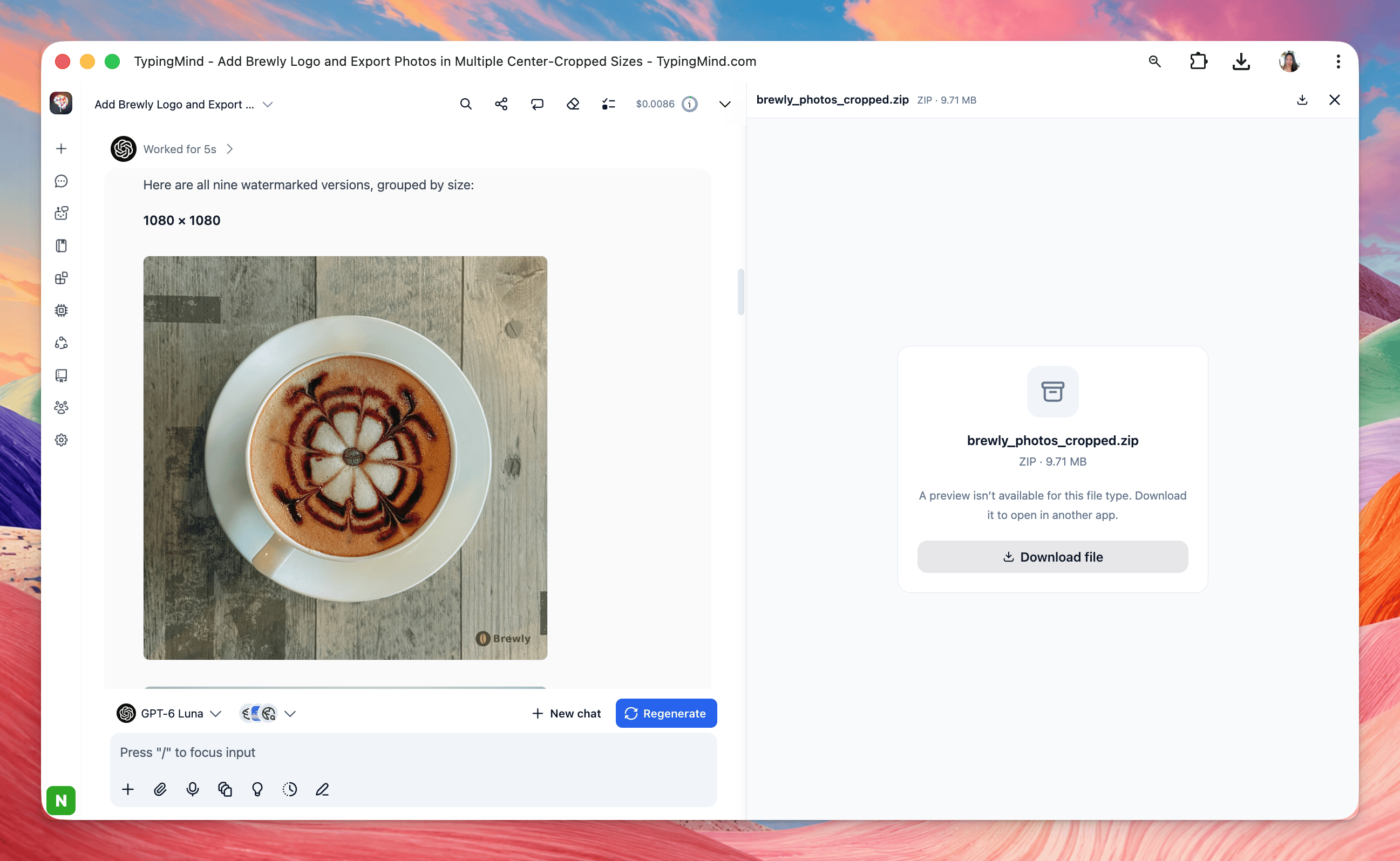

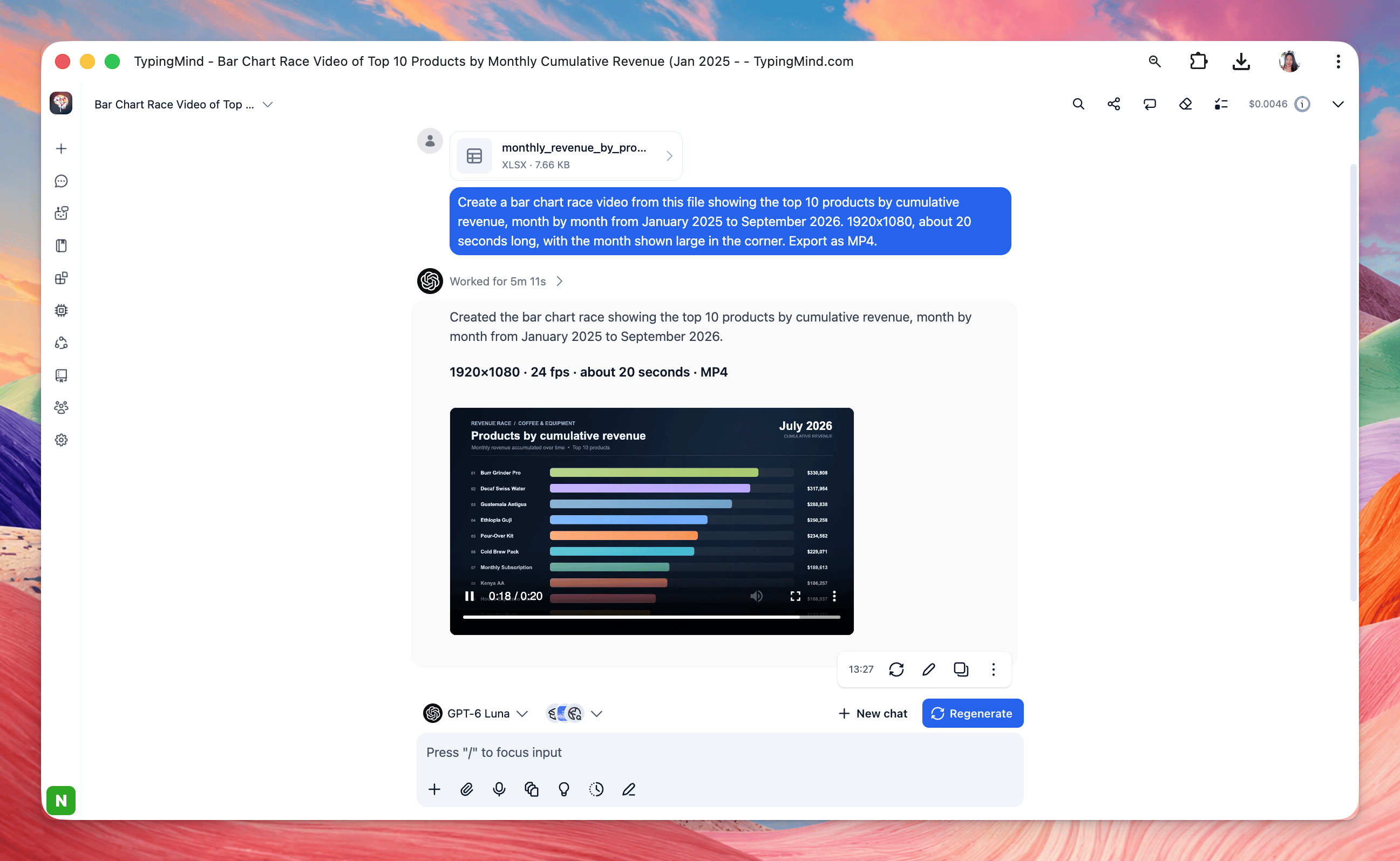
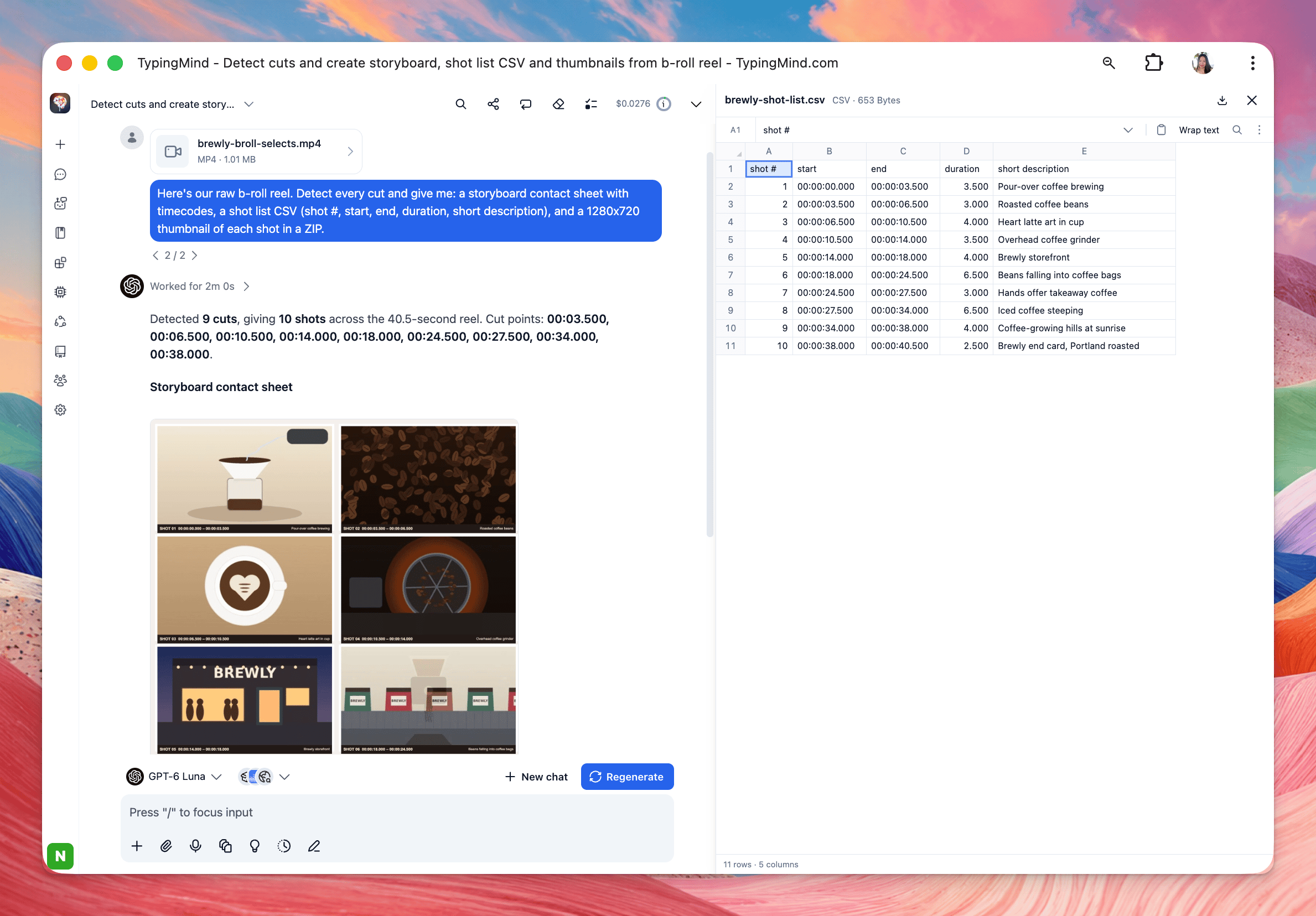
Tips for best results
The clearer you are about the final output, the better Toolbox performs.- Name the deliverable. Say “give me an Excel file”, “a one-page PDF”, or “answer with visuals”. Without it, you may get a text answer only.
- Say who it’s for. “A readout I can send to the product team” or “for the board” changes the tone, length, and polish.
- Explain your data. Mention what key columns mean, the date range, and known quirks (“refunds appear as negative amounts”, “the West file has a footer row”).
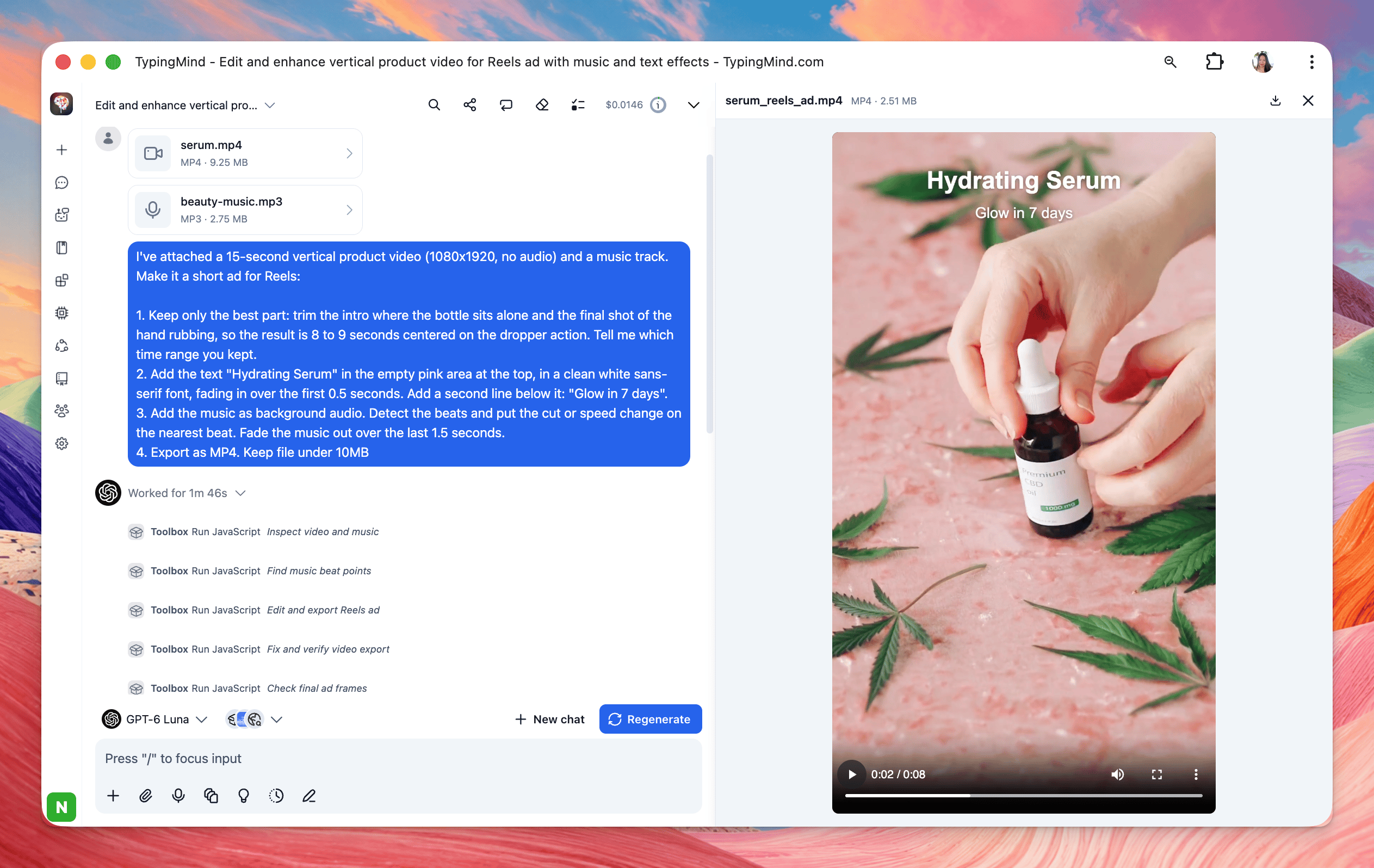
- Be precise with media. Give exact timestamps (“02:15 to 02:45”), pixel sizes or aspect ratios (“1080x1920”, “9:16”), the output format, and a target file size (“under 25 MB”).
Limitations and troubleshooting
Most issues come from Toolbox being off for the chat, a request that doesn’t ask for an output, or a file too large for the browser.
Media limitations: Toolbox can edit and convert existing images, videos, and audio files, but it doesn’t include AI-powered features such as image generation, background removal, or speech transcription. These tasks require additional AI models or tools.