.svg?fit=max&auto=format&n=RaTUOQa09vPhW7_D&q=85&s=368f39de7ecc6605f73c43c2017546a3)
.svg?fit=max&auto=format&n=RaTUOQa09vPhW7_D&q=85&s=01a6eb27b4db3af8a1d5557525c579d3)
1. Import Your Existing ChatGPT Conversations
Your previous chats are often the most valuable part of your AI workspace: research notes, writing drafts, support answers, coding discussions, internal documentation, and reusable ideas. TypingMind supports importing your exported ChatGPT conversation history. To migrate your chats:- Export your data from ChatGPT through Settings → Data Controls → Export Data.
- Download the export file provided by OpenAI.
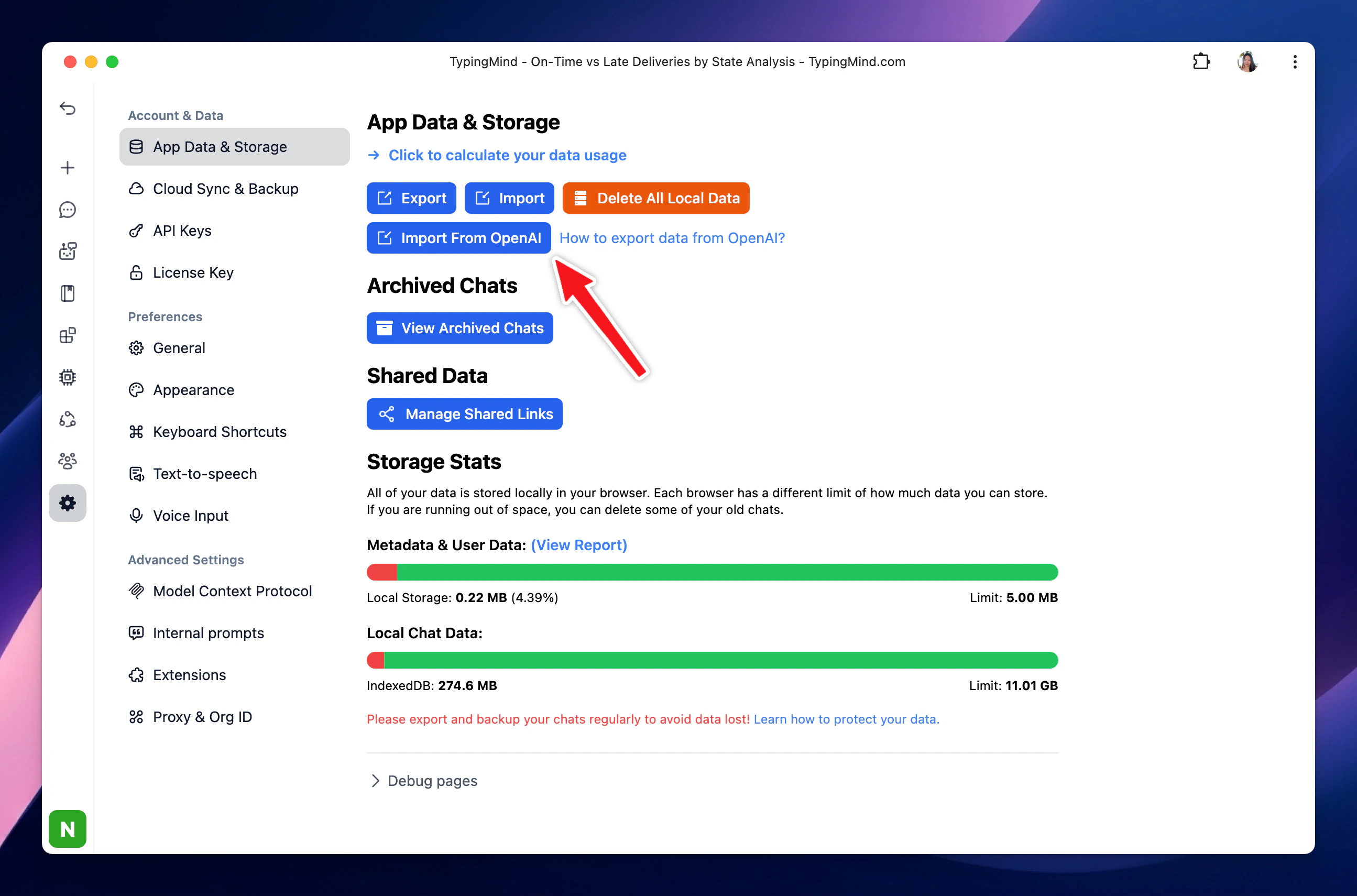
- In TypingMind, go to App Settings → All Data → Import From OpenAI.
- Select your exported ChatGPT data and import your conversations.
2. Your ChatGPT Memory
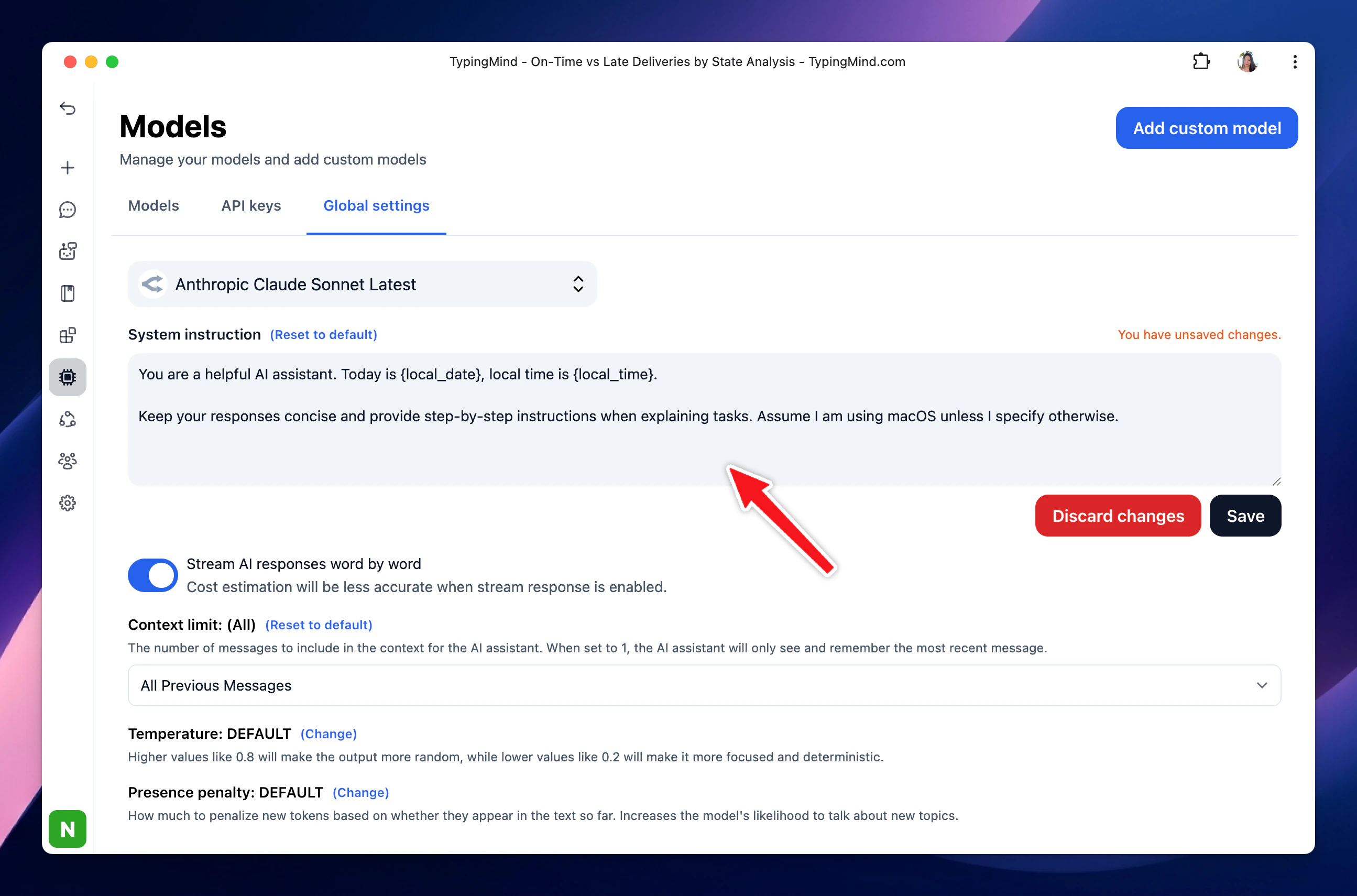
ChatGPT Saved memories are details ChatGPT remembers for future conversations, such as your preferences, goals, writing style, or background context. OpenAI allows you to view and manage saved memories in ChatGPT settings. You can migrate ChatGPT memory to TypingMind by adding your memory as:- Custom System Instructions for your preferred tone, output format, language, or working rules.
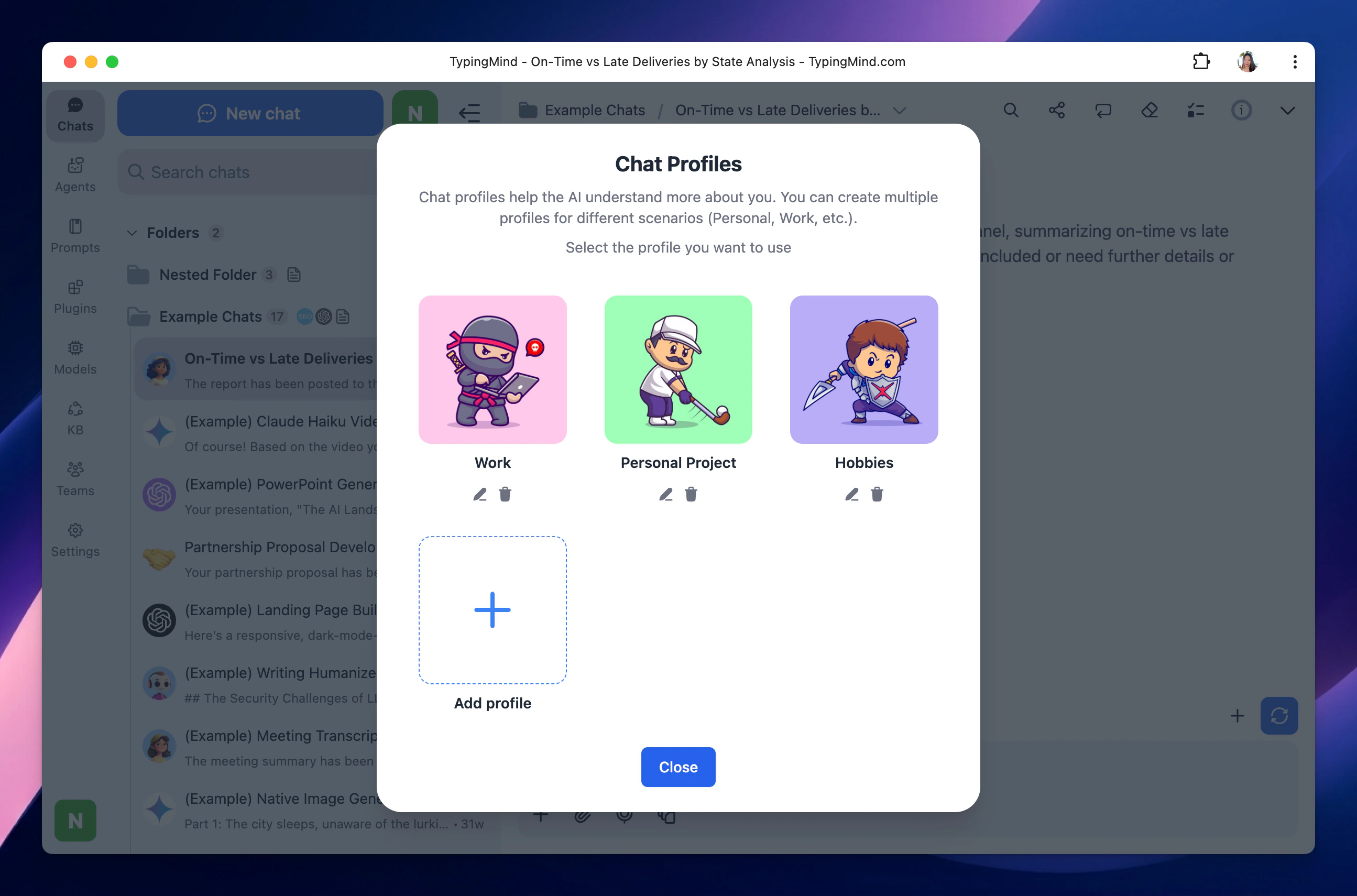
- Profiles for different working identities or use cases.
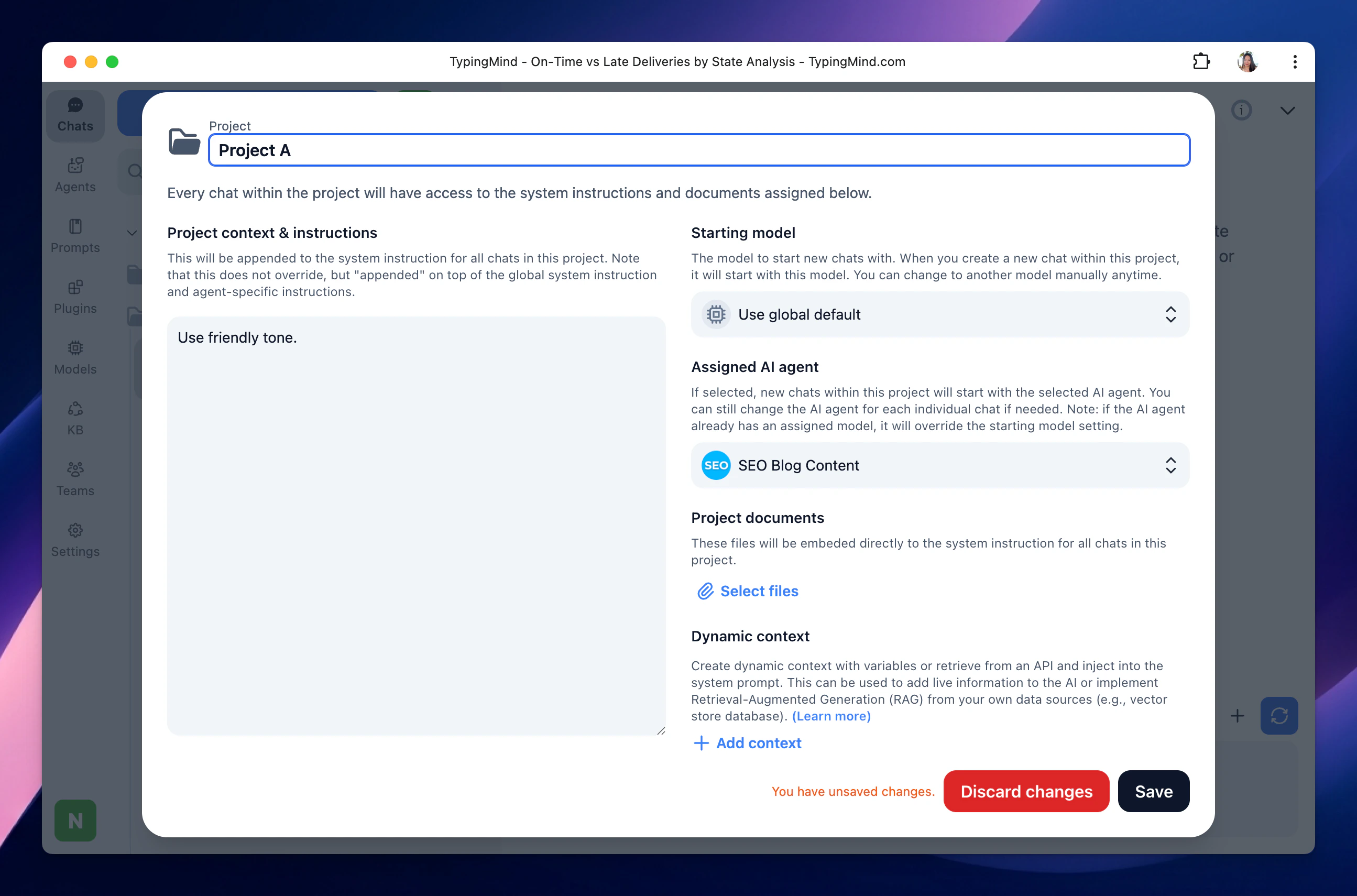
- Project Folders for project-specific instructions, files, models, and agents.
- AI Agents for reusable assistants with specialized instructions, knowledge, and plugins.
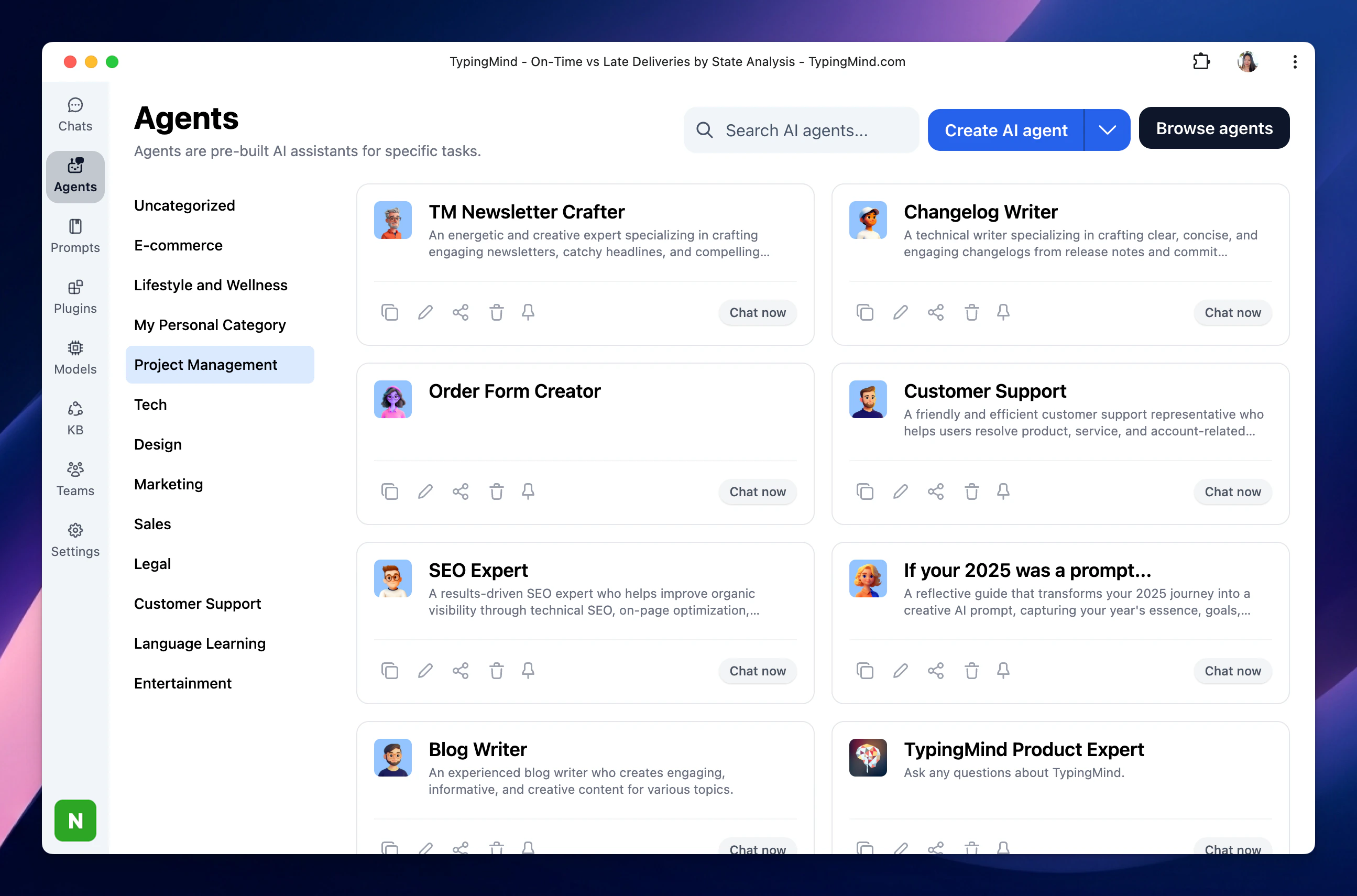
3. Replace Custom GPTs with TypingMind AI Agents
If you previously used Custom GPTs in ChatGPT, the closest equivalent in TypingMind is AI Agents - specialized AI assistants similar to GPT Assistants in ChatGPT, with additional customization options and the ability to work across different AI model providers.- Custom instructions.
- A selected AI model.
- Uploaded knowledge files or RAG-based knowledge sources.
- Plugins and external tools.
- Dynamic APIs and integrations.
- Text-to-speech capabilities.
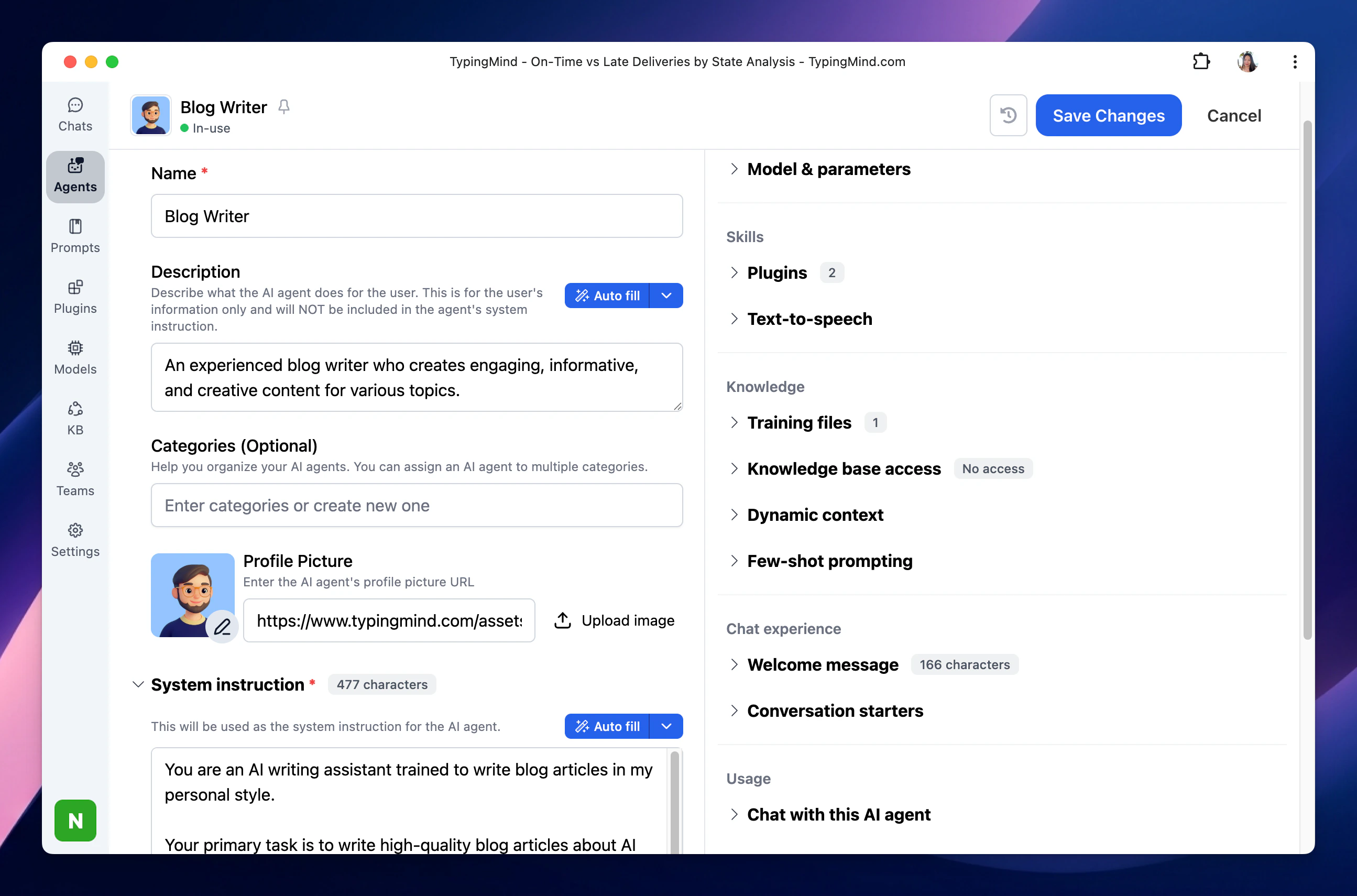
This means your assistants are no longer tied only to OpenAI models. The same research agent, support agent, writing assistant, or coding agent can be configured to work with GPT, Claude, Gemini, Kimi, DeepSeek, Mistral, or other supported providers.
4. Continue Using Web Browsing, Images, Code and File Generation
Switching to TypingMind does not mean losing advanced AI capabilities. TypingMind extends models through provider tools and plugins, so you can continue performing tasks such as web research, image creation, data analysis, interactive content generation, and document creation.Web Search and Browsing
TypingMind supports web access through model-provider tools and plugins.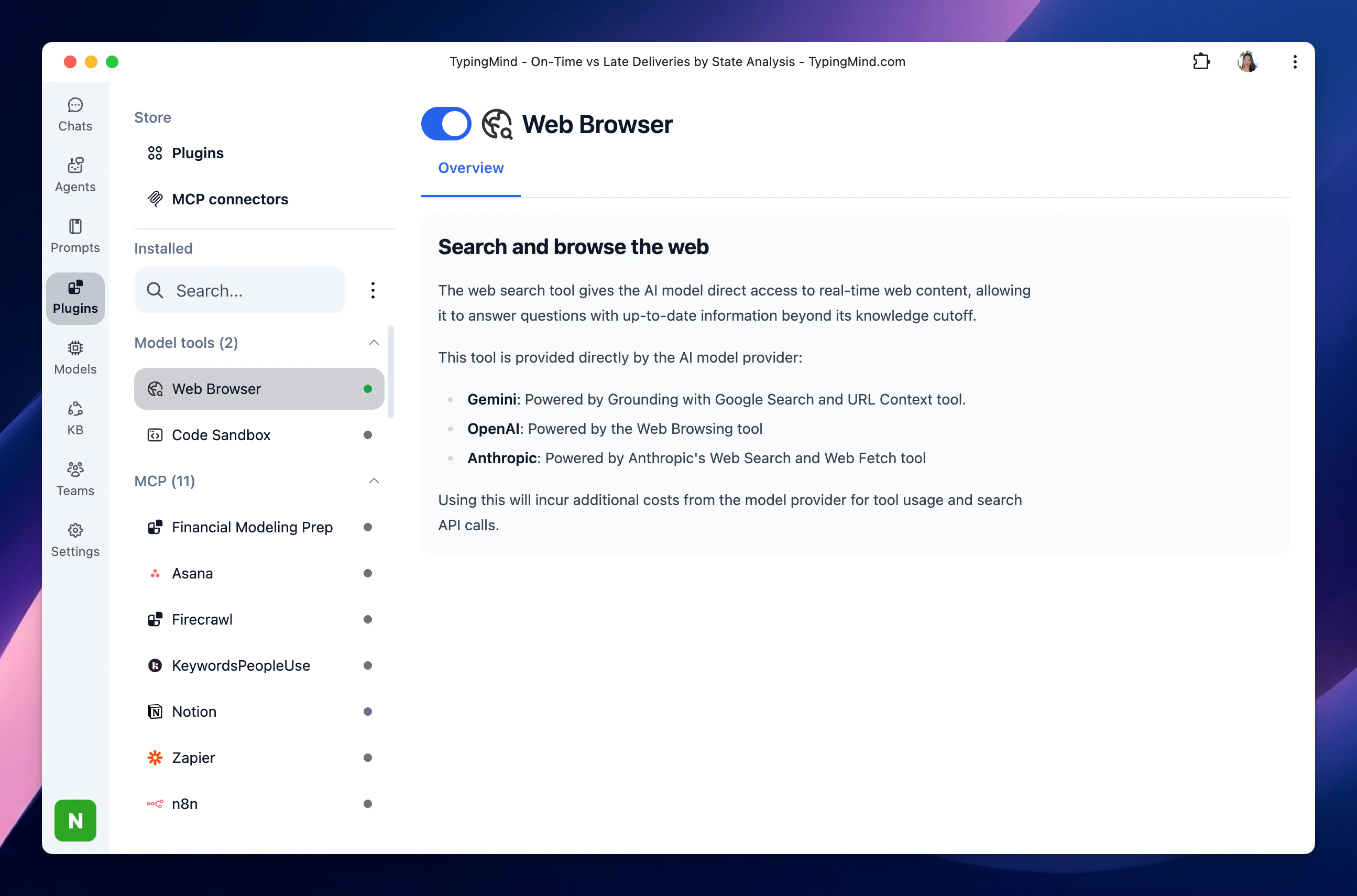
- OpenAI Web Browsing tools.
- TypingMind plugins such as Perplexity Search or Web Search via SerpAPI.
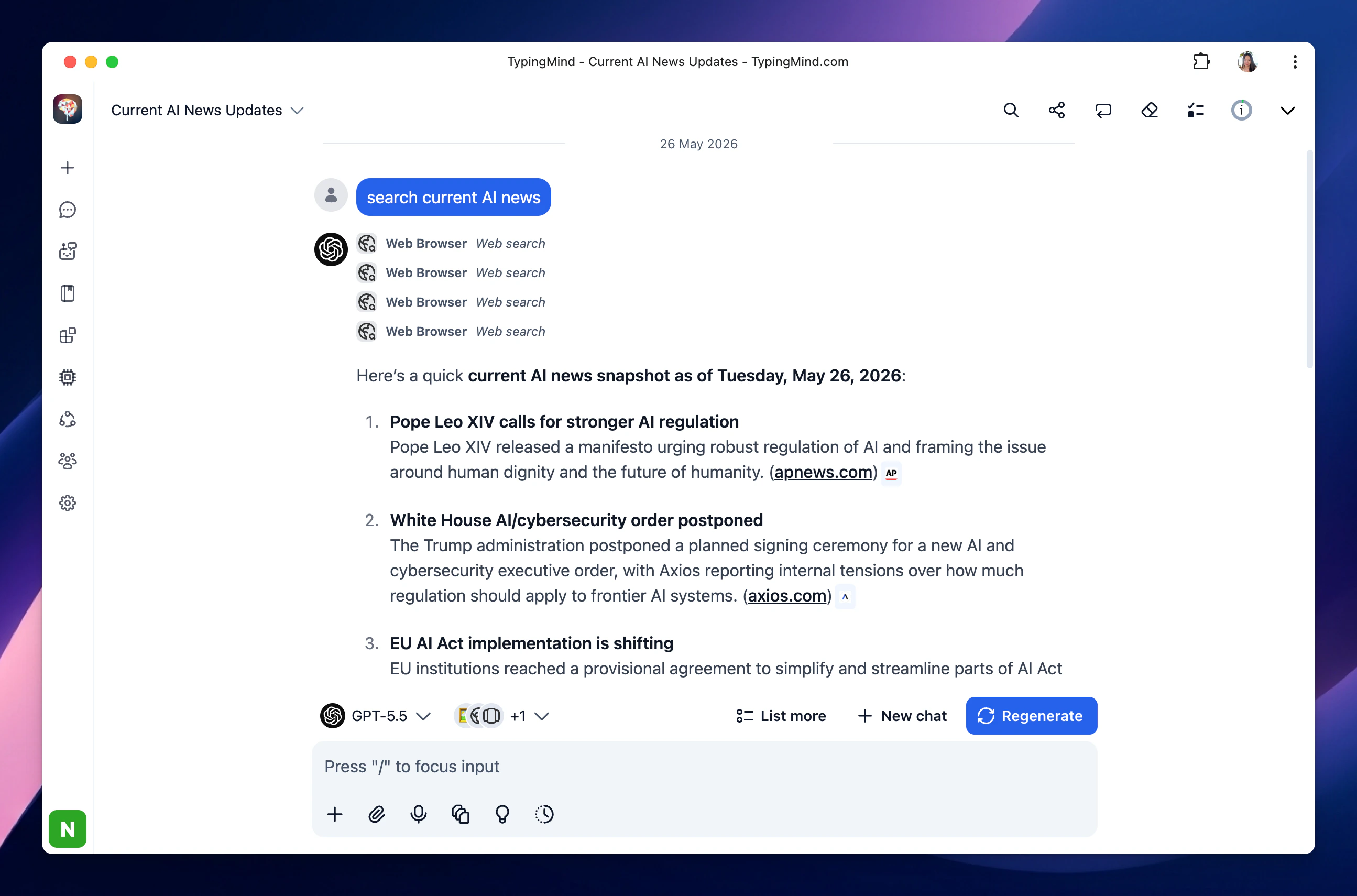
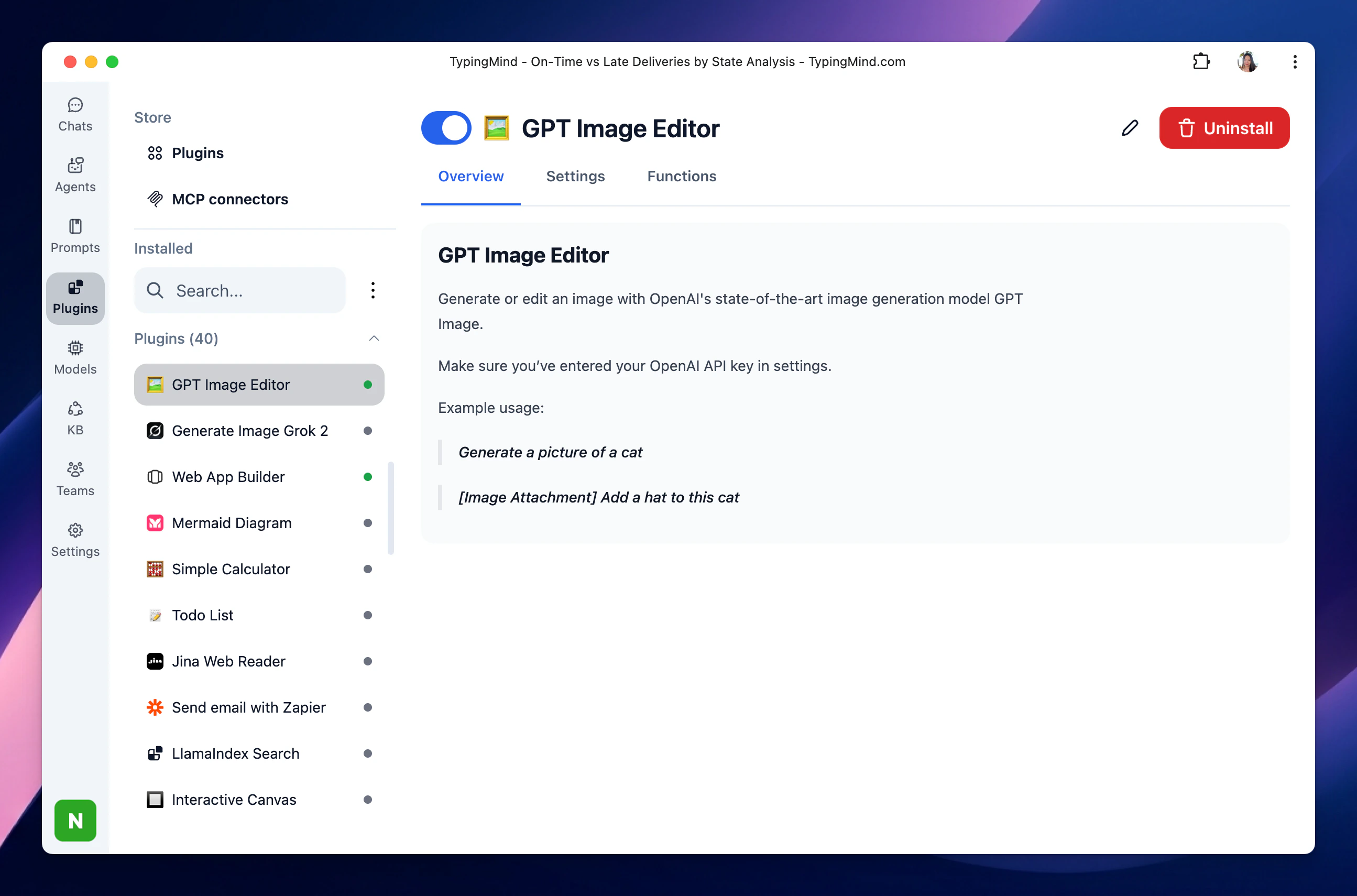
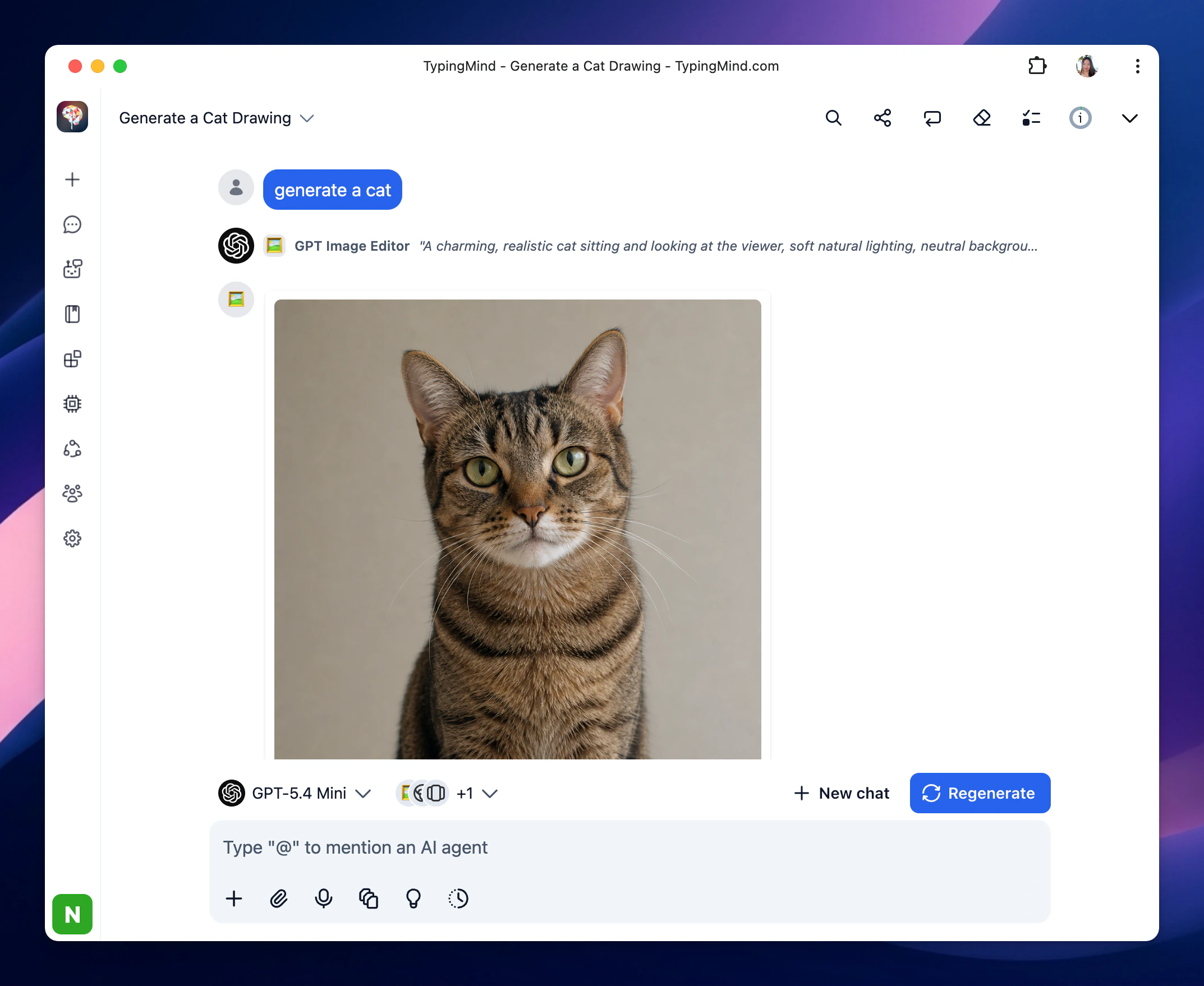
Image Generation and Visual Tasks
TypingMind supports image generation through plugins including:- GPT Image Editor.
- Stable Diffusion.
Advanced Analysis and Downloadable Files
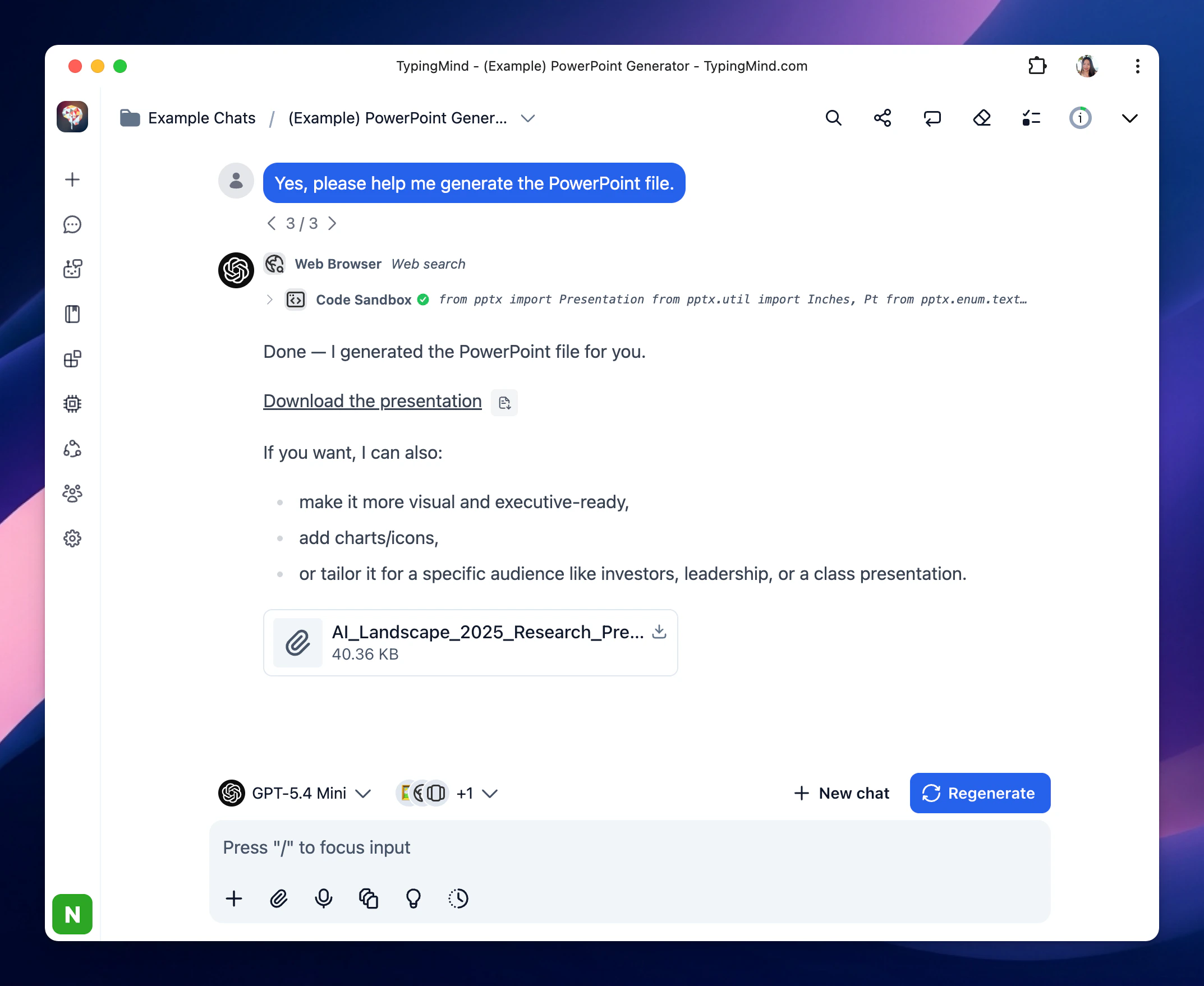
TypingMind supports Code Sandbox, a provider-native tool that allows supported AI models to generate and run Python code while working through a task.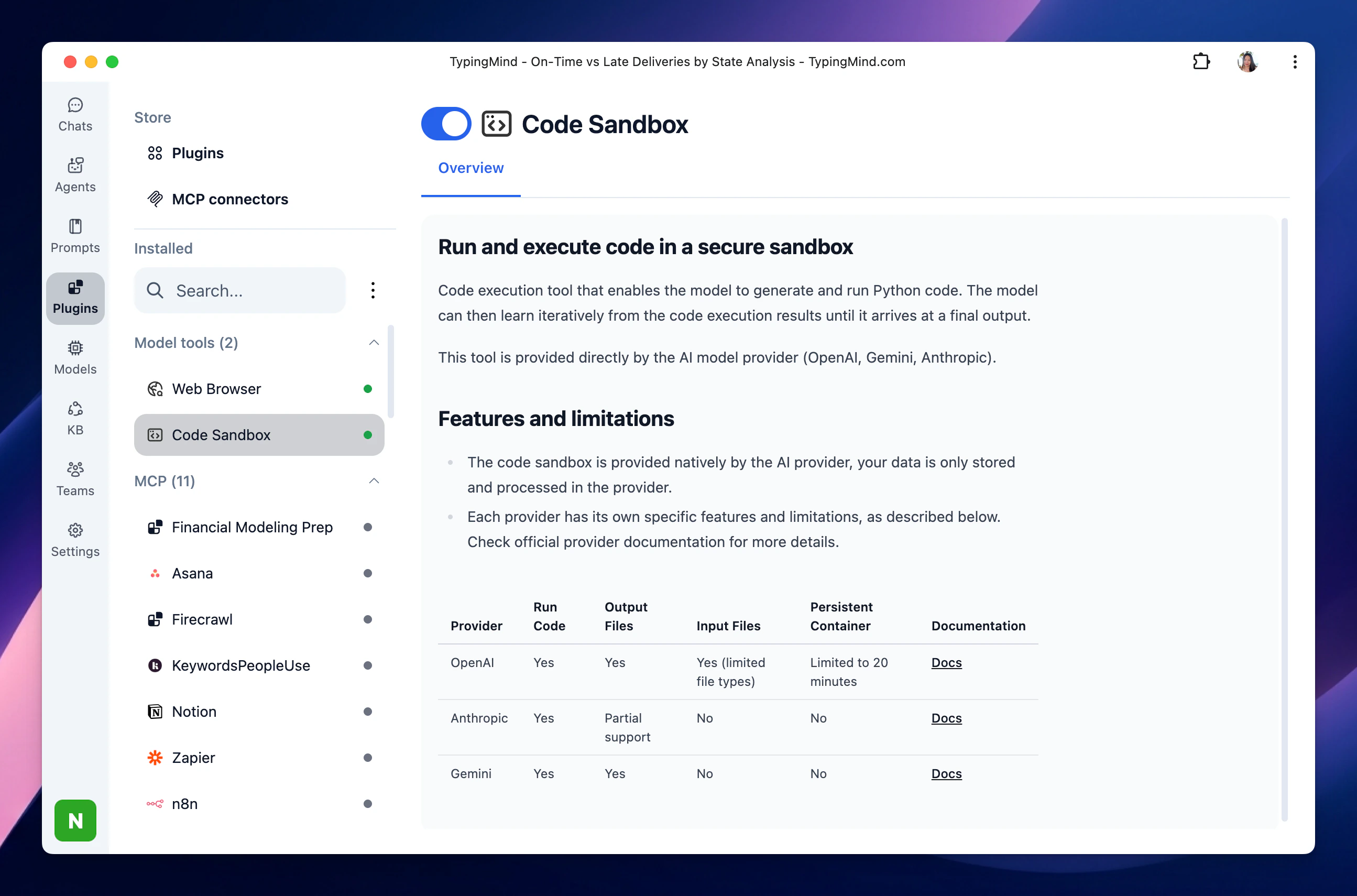
- Analyzing datasets.
- Processing uploaded files.
- Creating charts.
- Generating structured outputs.
- Producing downloadable files.
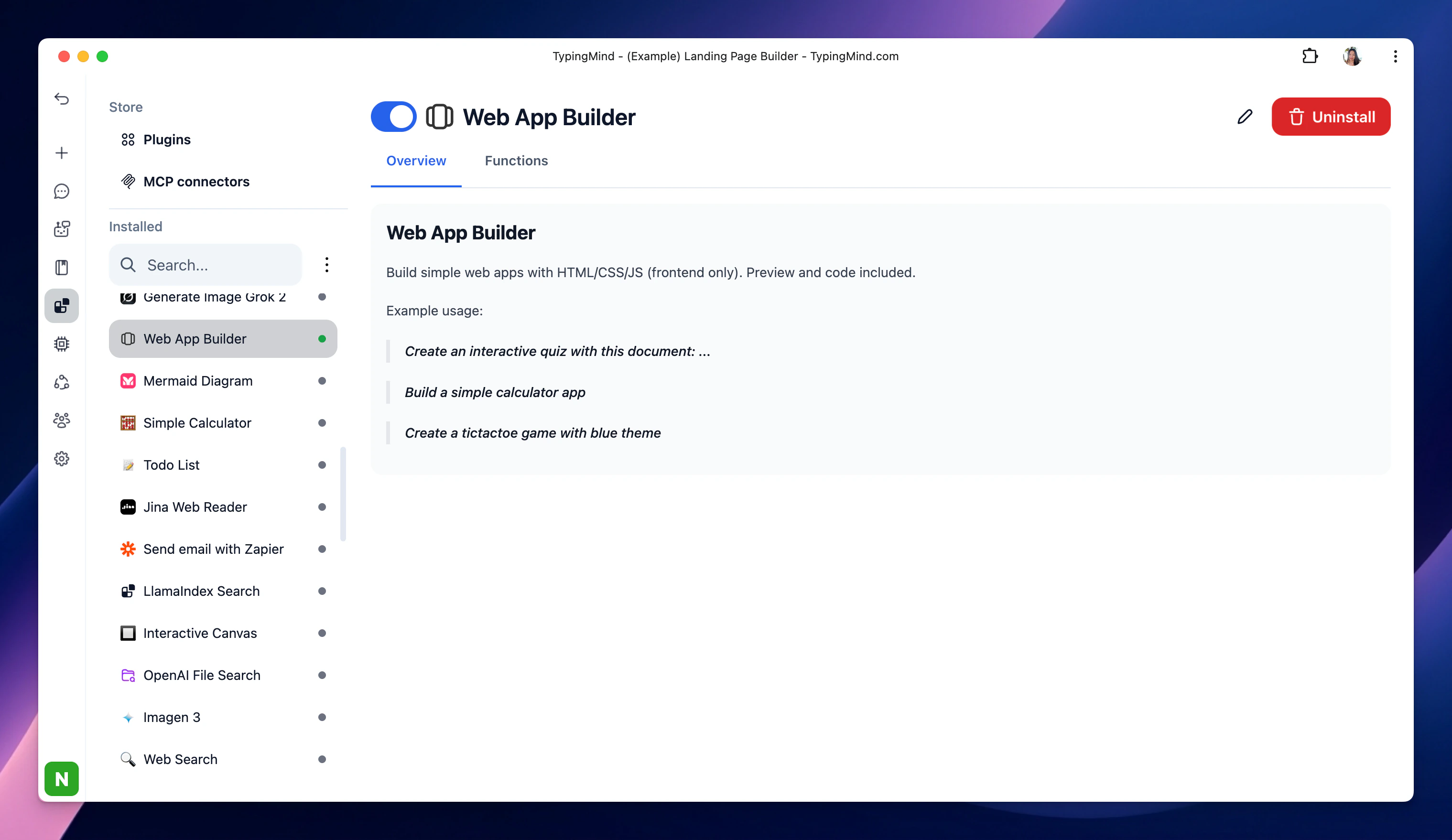
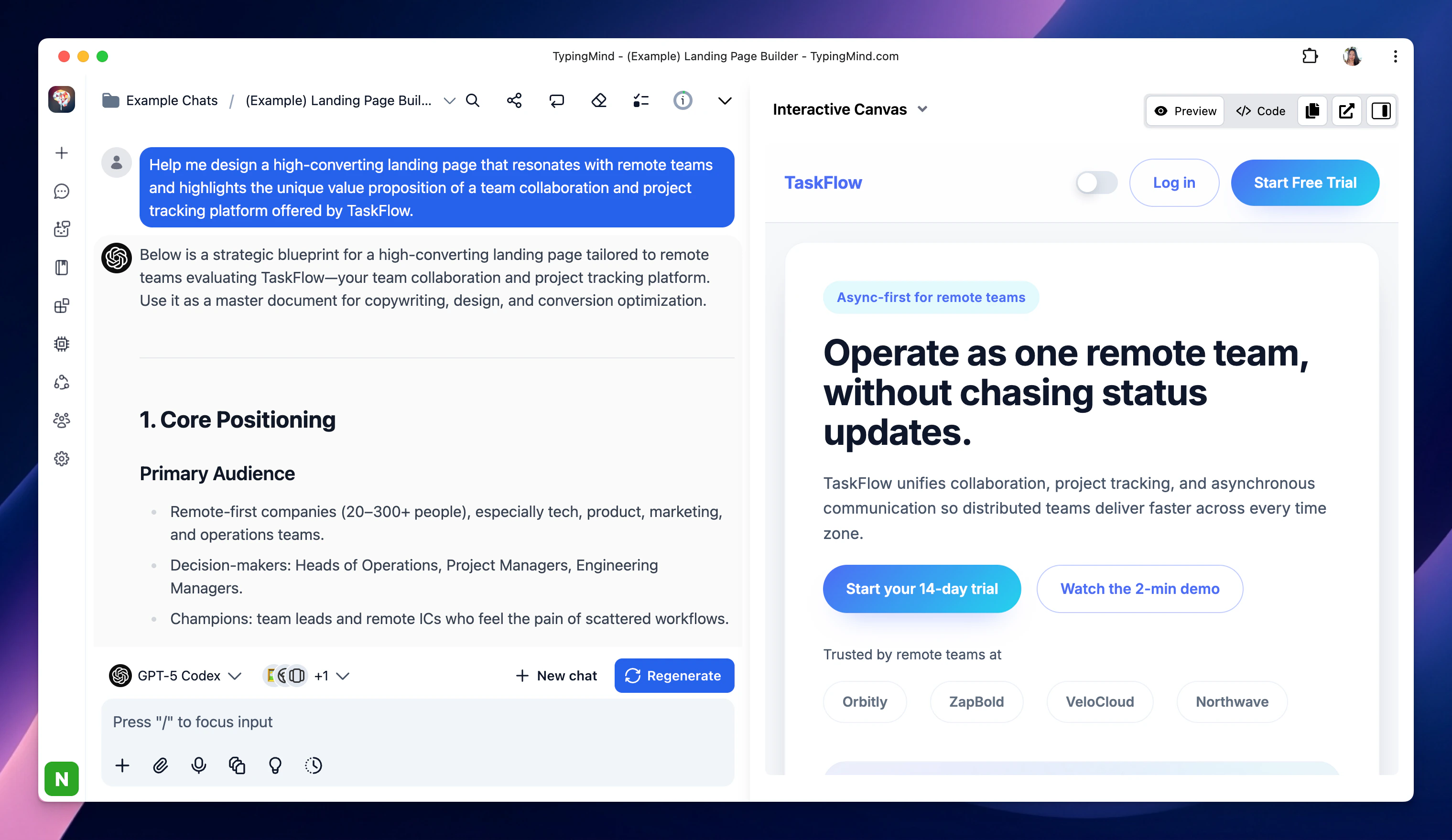
Artifacts, Canvas and Interactive Outputs
TypingMind includes Artifacts and interactive plugins for creating and editing structured outputs such as:- Documents.
- Code snippets.
- Dashboards.
- HTML/CSS/JavaScript web apps.
- Interactive prototypes.
- Charts and diagrams.
5. Organize ChatGPT Projects as TypingMind Project Folders
ChatGPT Projects help keep related chats, files and instructions together. In TypingMind, the equivalent workspace concept is Project Folders. A TypingMind Project Folder can include:- A dedicated AI model or AI Agent.
- Custom system instructions.
- Relevant uploaded documents.
- Chats related to the same project or task.
- Customer Support.
- Product Research.
- Marketing Content.
- Software Development.
- Internal Documentation.
6. Continue Working with Voice Input and Text-to-Speech
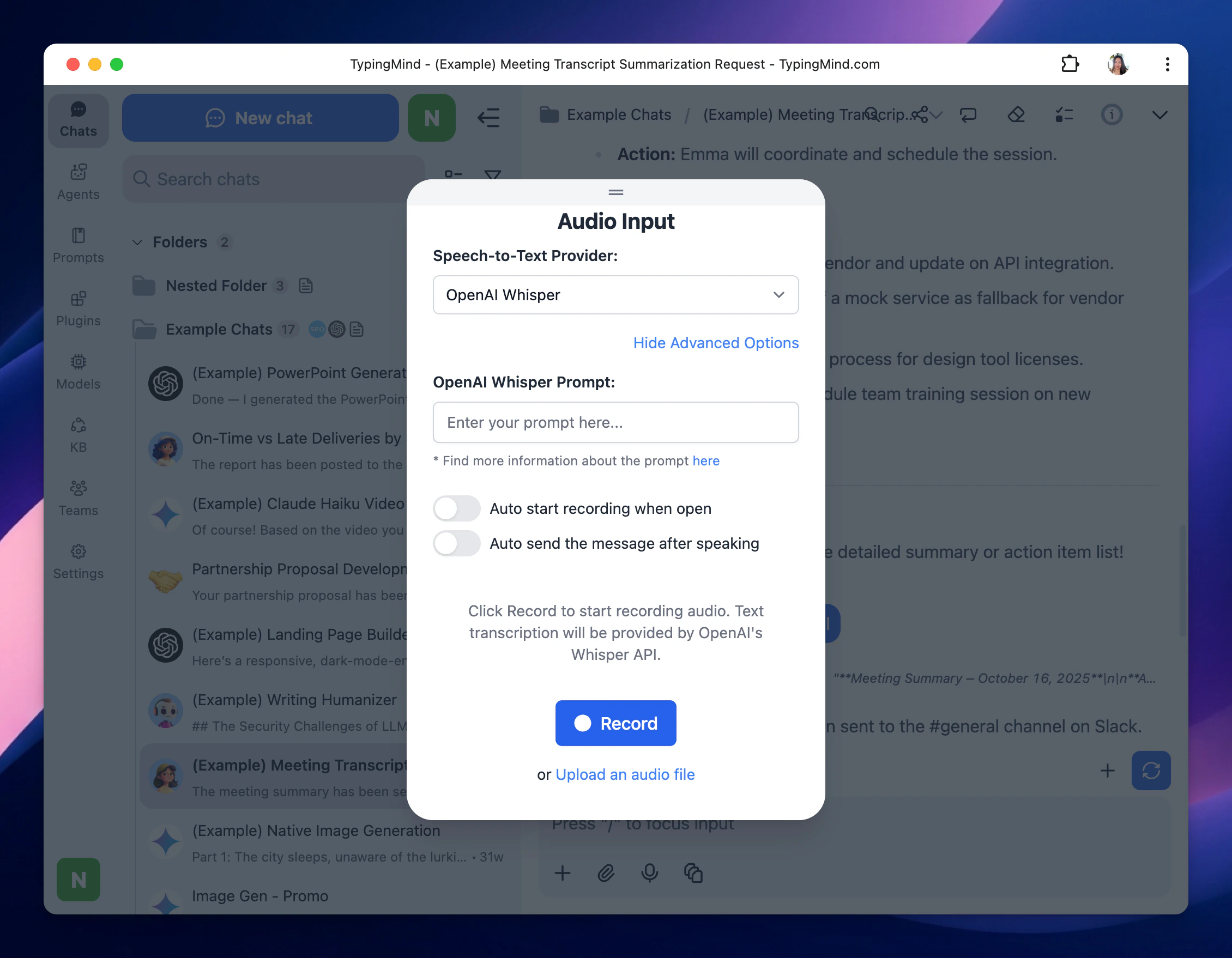
TypingMind supports both voice input and spoken AI responses. For speech-to-text, TypingMind supports:- Browser Web API.
- OpenAI Whisper.
- Groq Whisper.
- Azure Whisper.
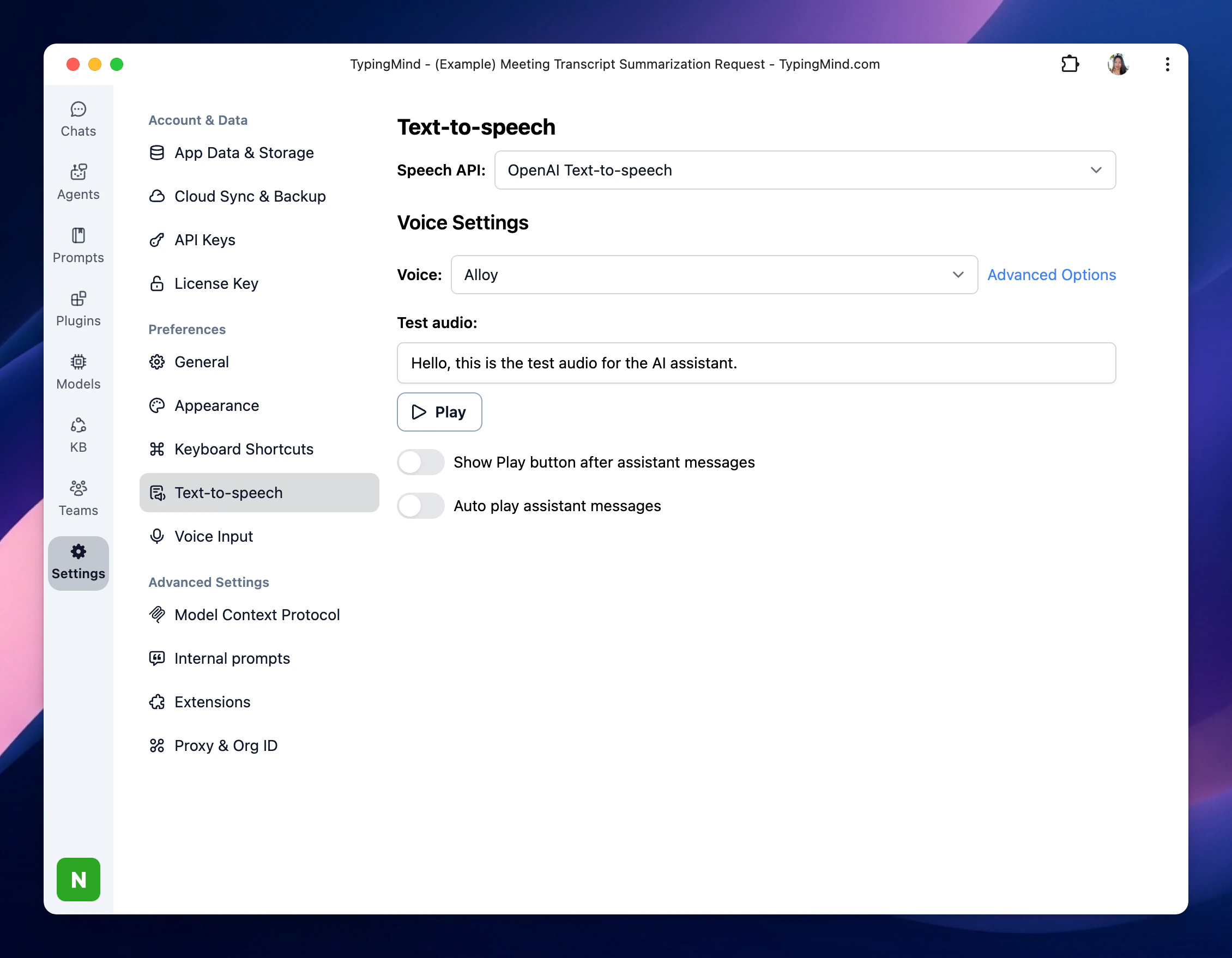
- Browser-native Web Speech.
- OpenAI Text-to-speech
- ElevenLabs.
7. Go Beyond OpenAI Models
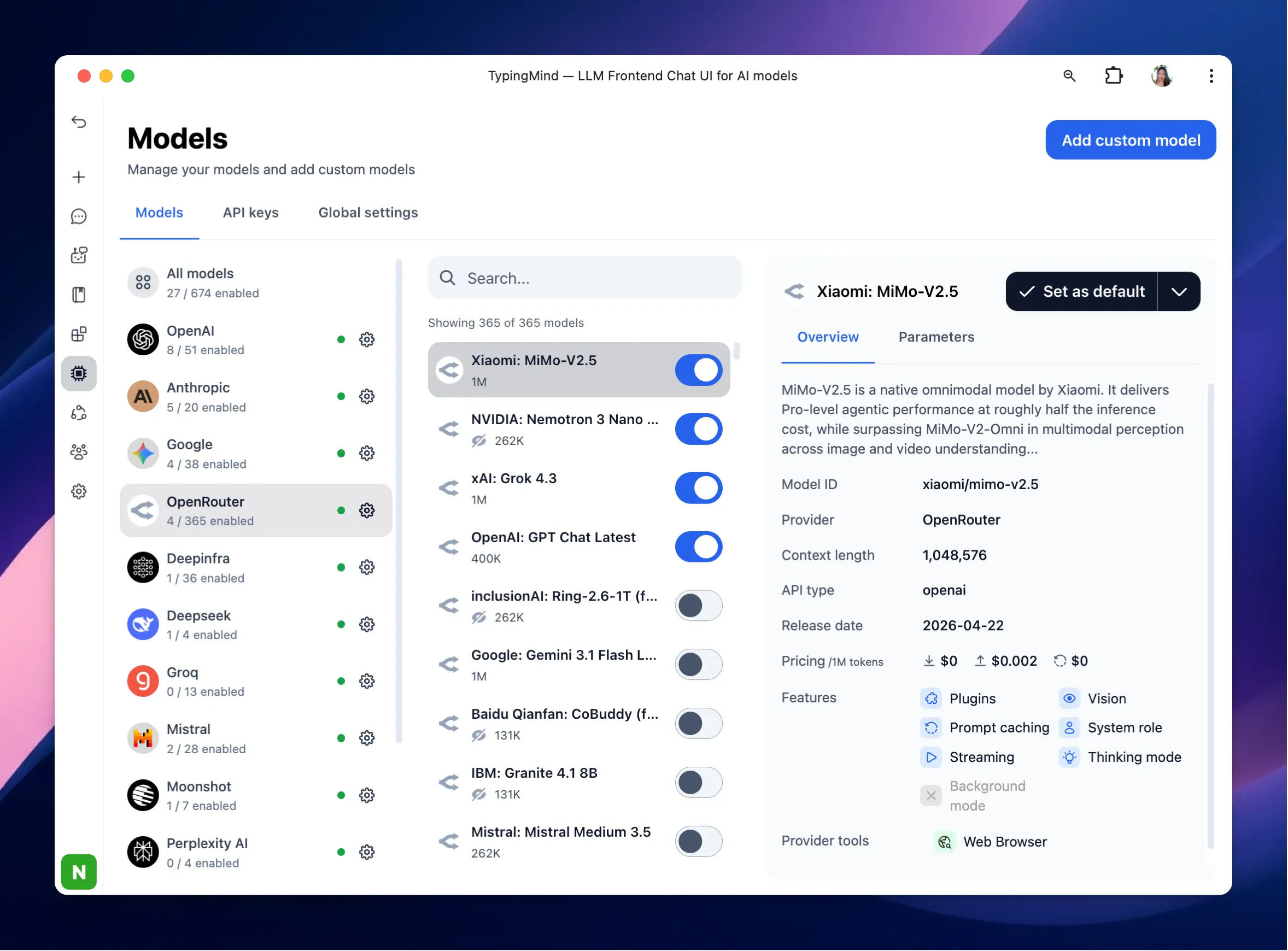
ChatGPT is primarily an OpenAI model experience. TypingMind is designed as a multi-model AI workspace. You can connect and use models from providers such as:- OpenAI GPT models.
- Anthropic Claude.
- Google Gemini.
- Mistral.
- DeepSeek.
- Groq.
- Moonshot / Kimi.
- xAI.
- OpenRouter.
- Perplexity.
- Z.ai.
- Compatible custom endpoints.
8. Billing Difference: Bring Your Own API Key
ChatGPT Plus is a subscription-based product. TypingMind uses a different model: you connect your own API keys and pay the AI provider based on your actual usage. This means:- You do not need a ChatGPT Plus subscription to use OpenAI models in TypingMind.
- Your ChatGPT Plus subscription does not cover OpenAI API usage.
- You can add API keys from multiple providers.
- You pay providers directly according to the models and tokens you use.
- TypingMind provides token and cost estimation features to help monitor usage.
9. Keep Control of Your Privacy and API Keys
By default, TypingMind is designed as a local-first interface. According to TypingMind documentation:- Chat conversations and prompts are stored locally in your browser by default.
- API keys are stored locally on your device.
- API keys can be protected with optional password-based encryption.
- API requests are sent directly from your browser to the connected AI provider.
- Cloud Sync is optional if you want to access your chats across devices.
- A static self-hosted version is available for licensed users who want their own private deployment.