.svg?fit=max&auto=format&n=RaTUOQa09vPhW7_D&q=85&s=368f39de7ecc6605f73c43c2017546a3)
.svg?fit=max&auto=format&n=RaTUOQa09vPhW7_D&q=85&s=01a6eb27b4db3af8a1d5557525c579d3)
Step-by-Step Guide
- Make a Home on Render:
- Go to Render’s website and create your free account.
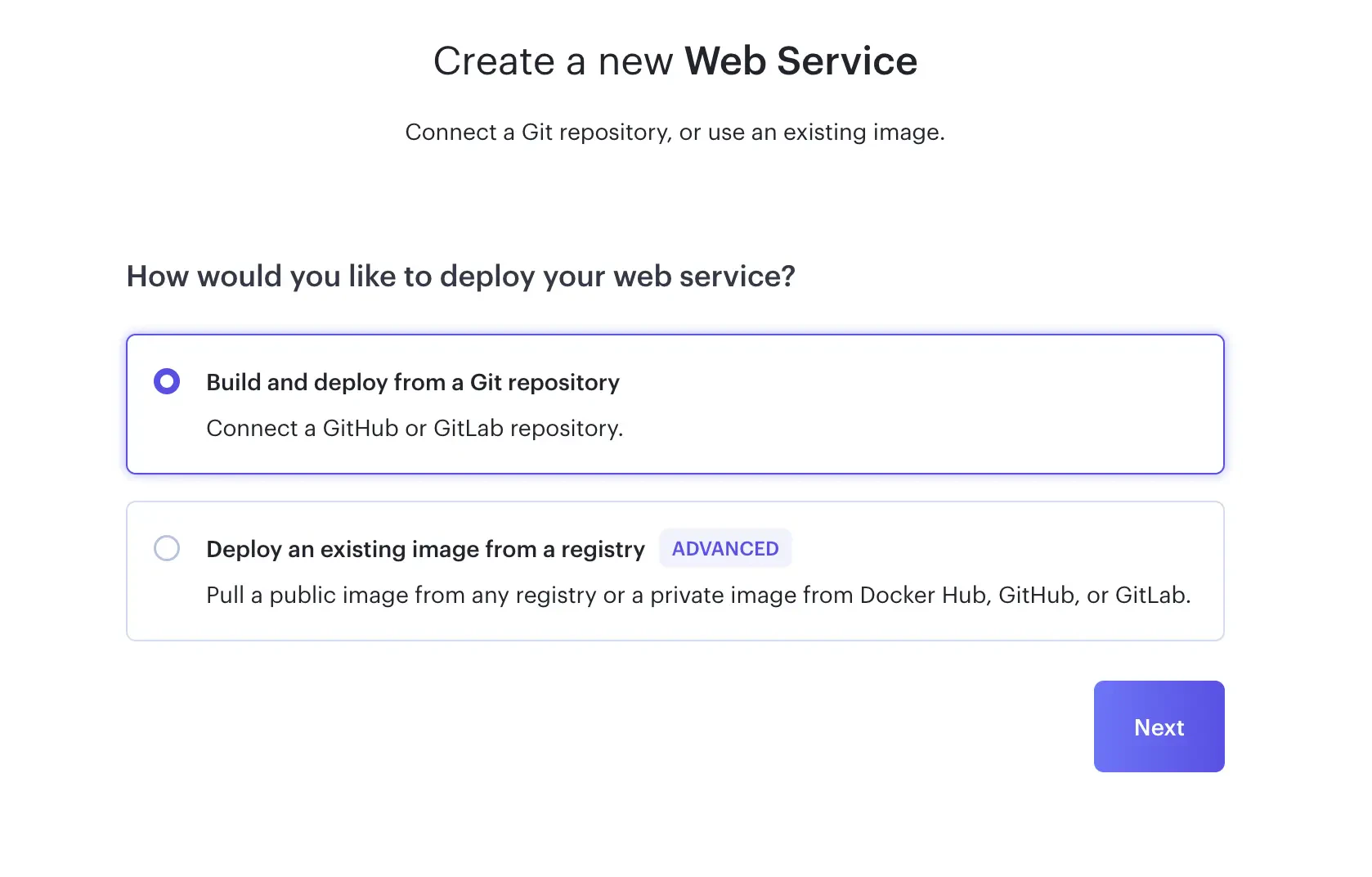
- Click to create a new “Web Service”
- on the next screen enter the URL of the TypingMind plugin repository
https://github.com/TypingMind/plugins-serverto continue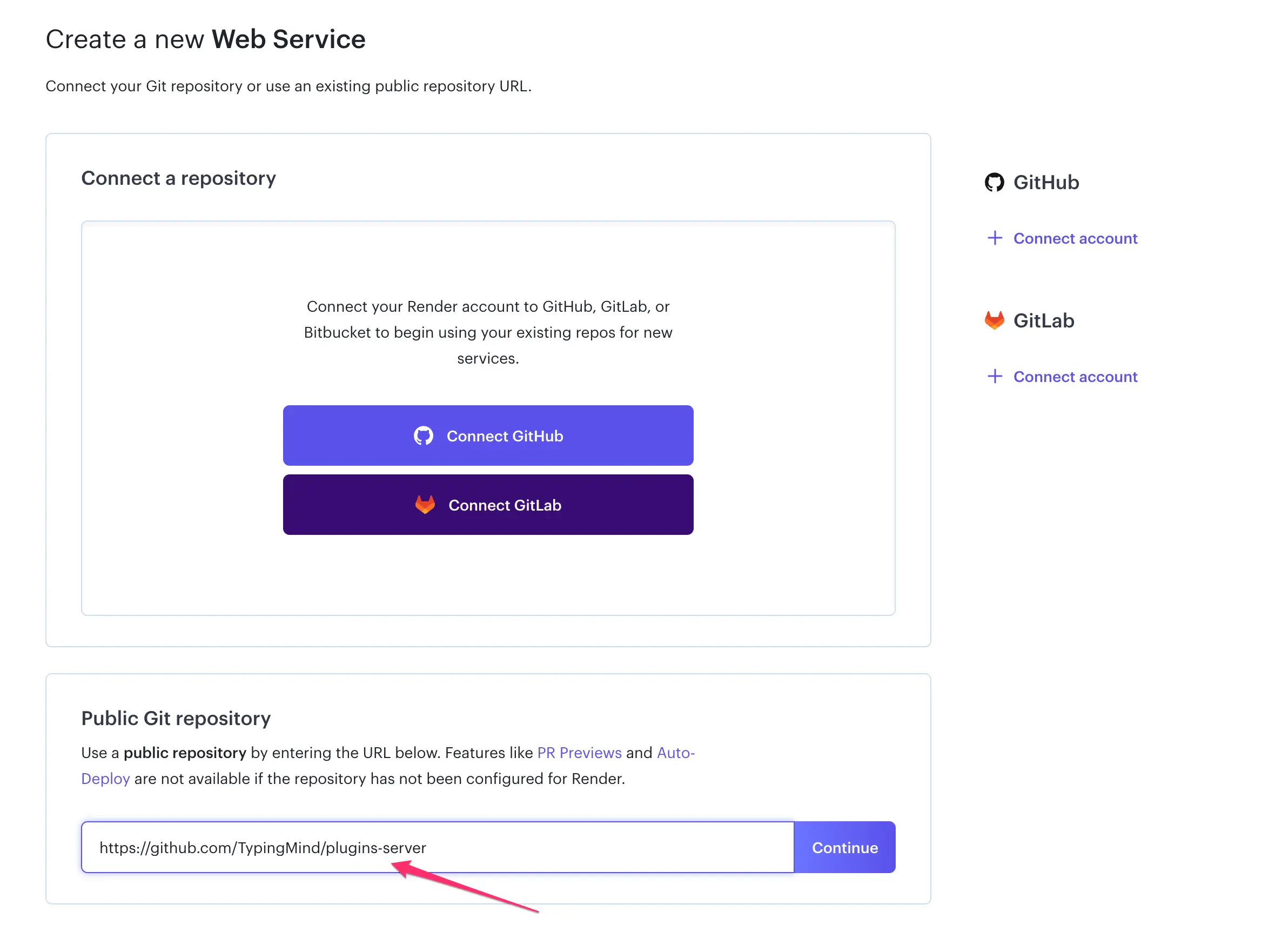
- Make sure the value looks right
- The project requires configuration settings. The Branch should be set to
main, Runtime toDocker. You may set the region to any desired region.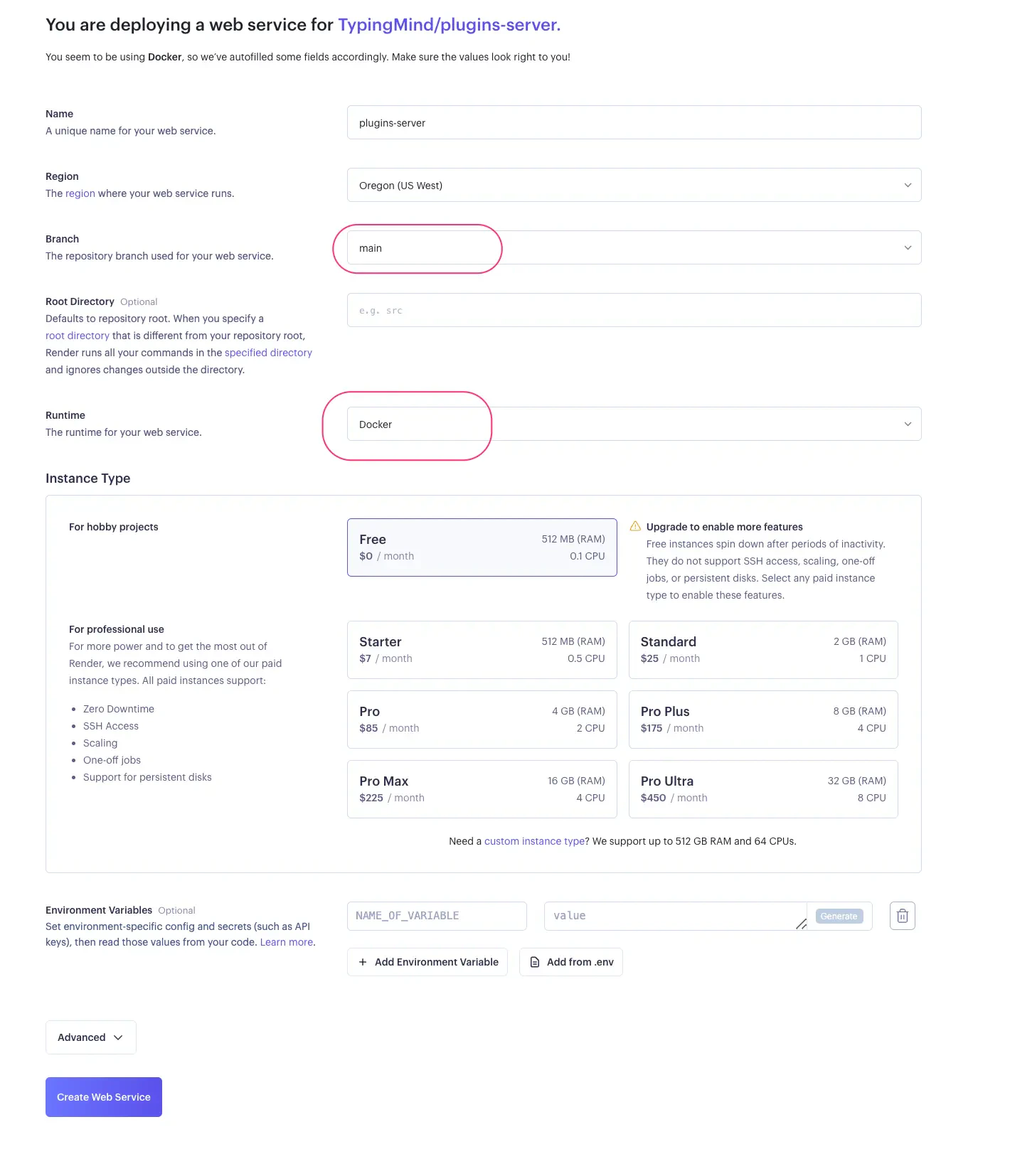
- There is no requirement to include environment variables.
- The project requires configuration settings. The Branch should be set to
- Complete the deployment process.
- Look for the “Create Web Service” button on Render. Click it and wait a little bit – it’s building your project!
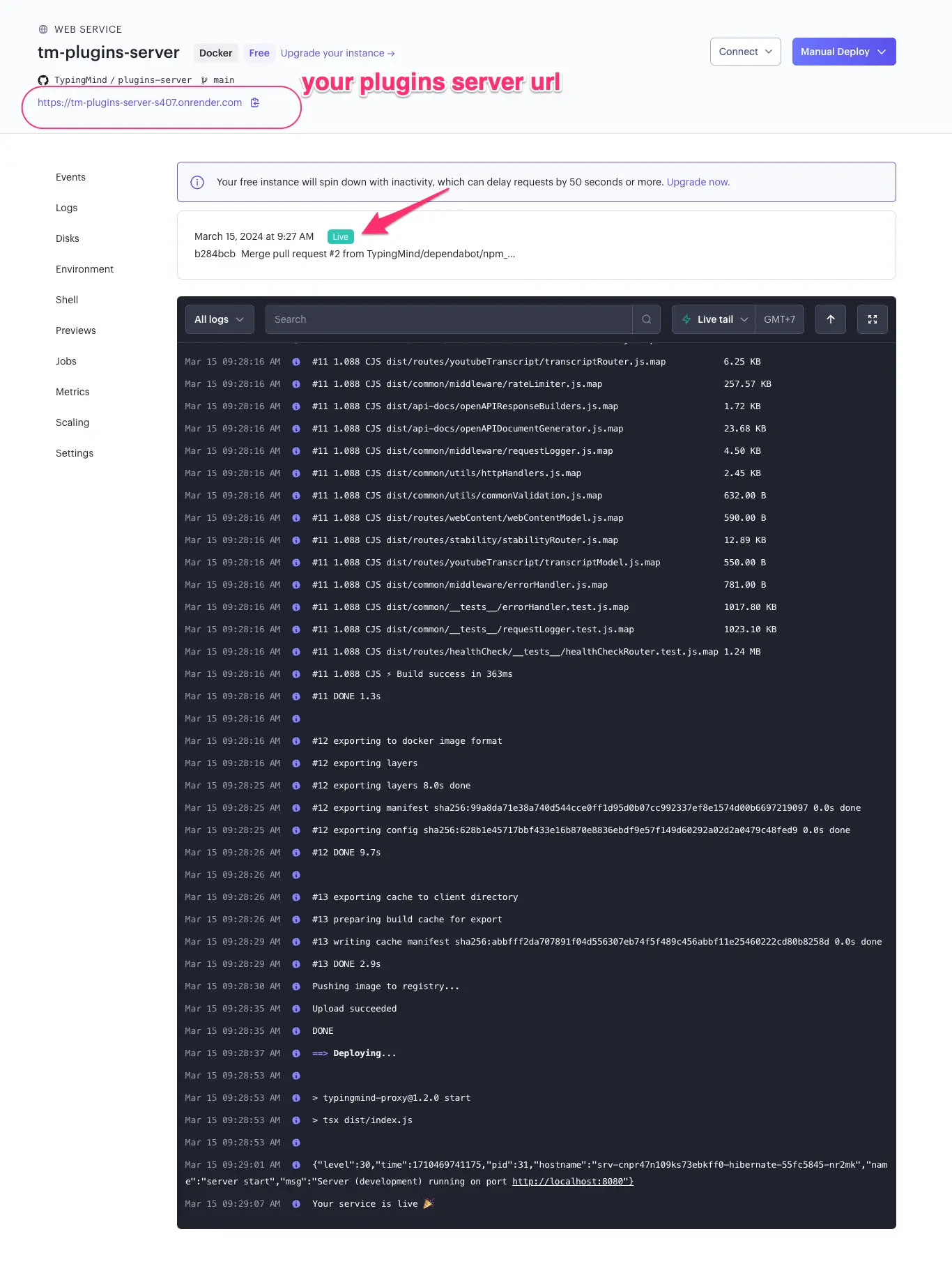
- Look for the “Create Web Service” button on Render. Click it and wait a little bit – it’s building your project!
- Configure the plugin to use your server.
- Inside your TypingMind Plugin settings, there’s probably a place to put the address of your project that’s now live on Render.
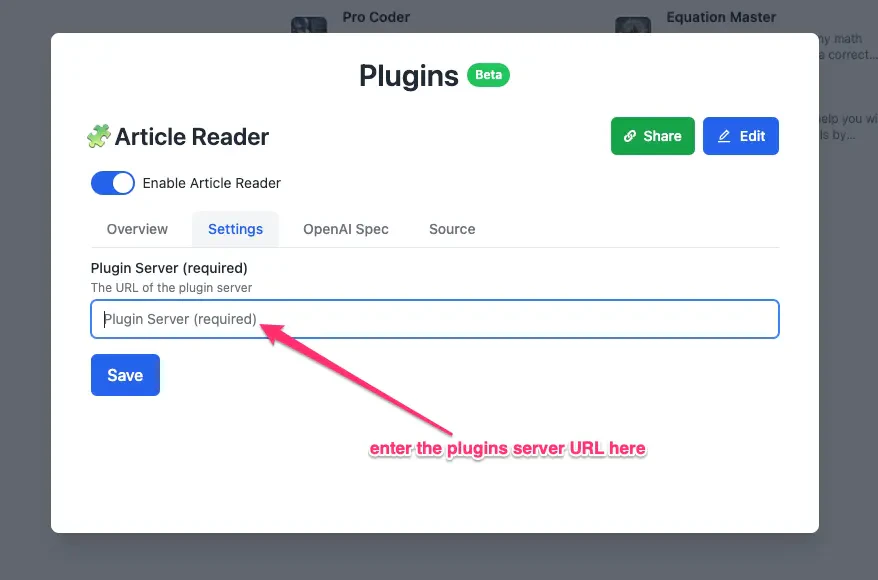
- Inside your TypingMind Plugin settings, there’s probably a place to put the address of your project that’s now live on Render.