.svg?fit=max&auto=format&n=RaTUOQa09vPhW7_D&q=85&s=368f39de7ecc6605f73c43c2017546a3)
.svg?fit=max&auto=format&n=RaTUOQa09vPhW7_D&q=85&s=01a6eb27b4db3af8a1d5557525c579d3)
- Access the latest information in real-time
- Generate images, graphs, and visual content
- Integrate with your vector database
- And much more!
Use Provider Tools
These tools are provided directly by the AI model provider (no setup needed).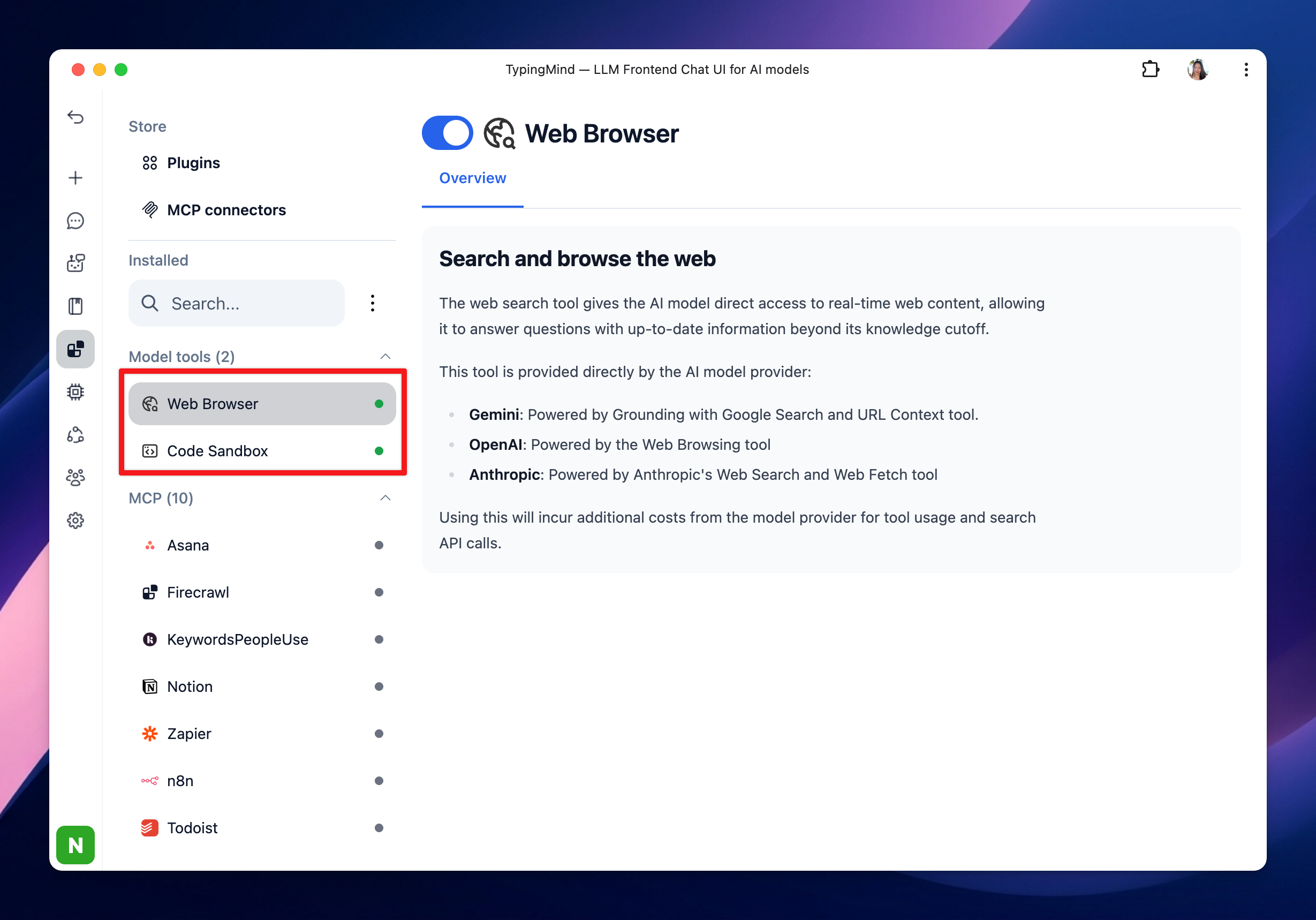
1. Web Search
This tool gives the AI model direct access to real-time web content, allowing it to answer questions with up-to-date information beyond its knowledge cutoff. It is provided directly by the AI model provider:- Gemini: Powered by Grounding with Google Search and URL Context tool.
- OpenAI: Powered by the Web Browsing tool
- Anthropic: Powered by Anthropic’s Web Search and Web Fetch tool
2. Code Sandbox
The code sandbox is provided natively by the AI provider, your data is only stored and processed in the provider. This tool enables the model to generate and run Python code. The model can then learn iteratively from the code execution results until it arrives at a final output. To use Web Browser and Code Sandbox, you just need to enable the tool via Plugins (left-side panel) or right within your chat: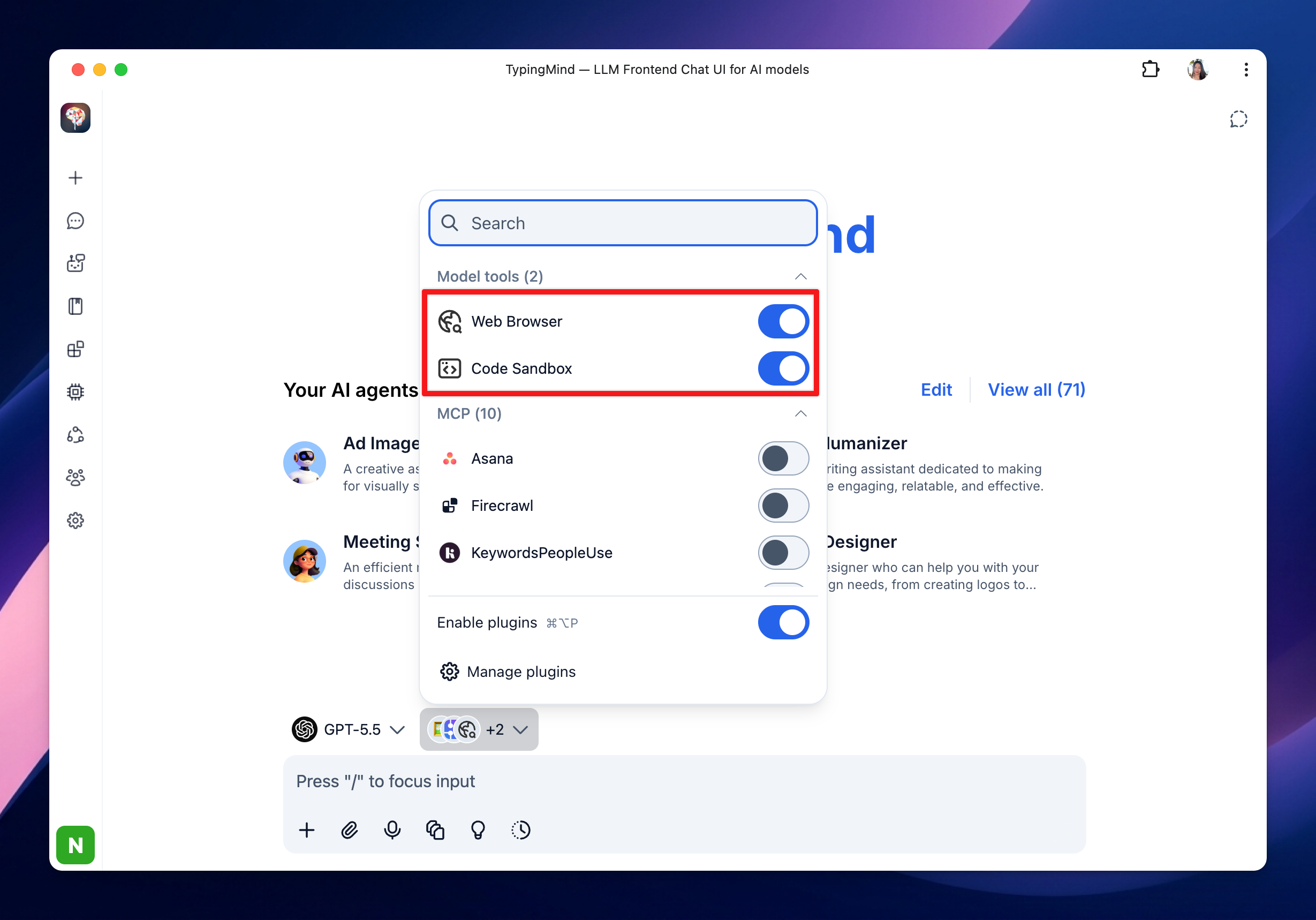
Use Built-in Plugins
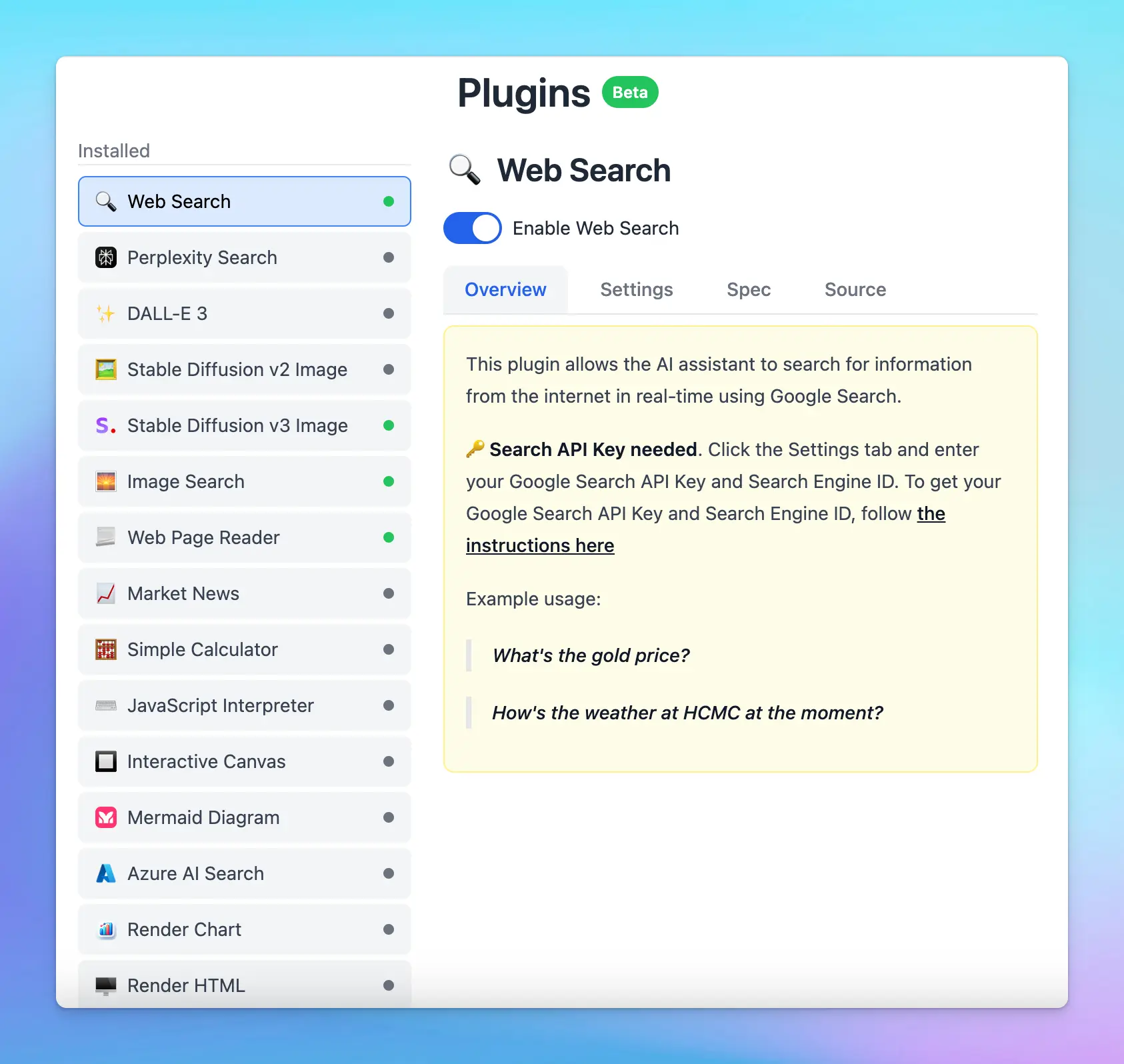
To use plugins on TypingMind app:- Go to Plugins on the left-side panel
- Browse the plugin library and click “Install” to install plugins you want to use
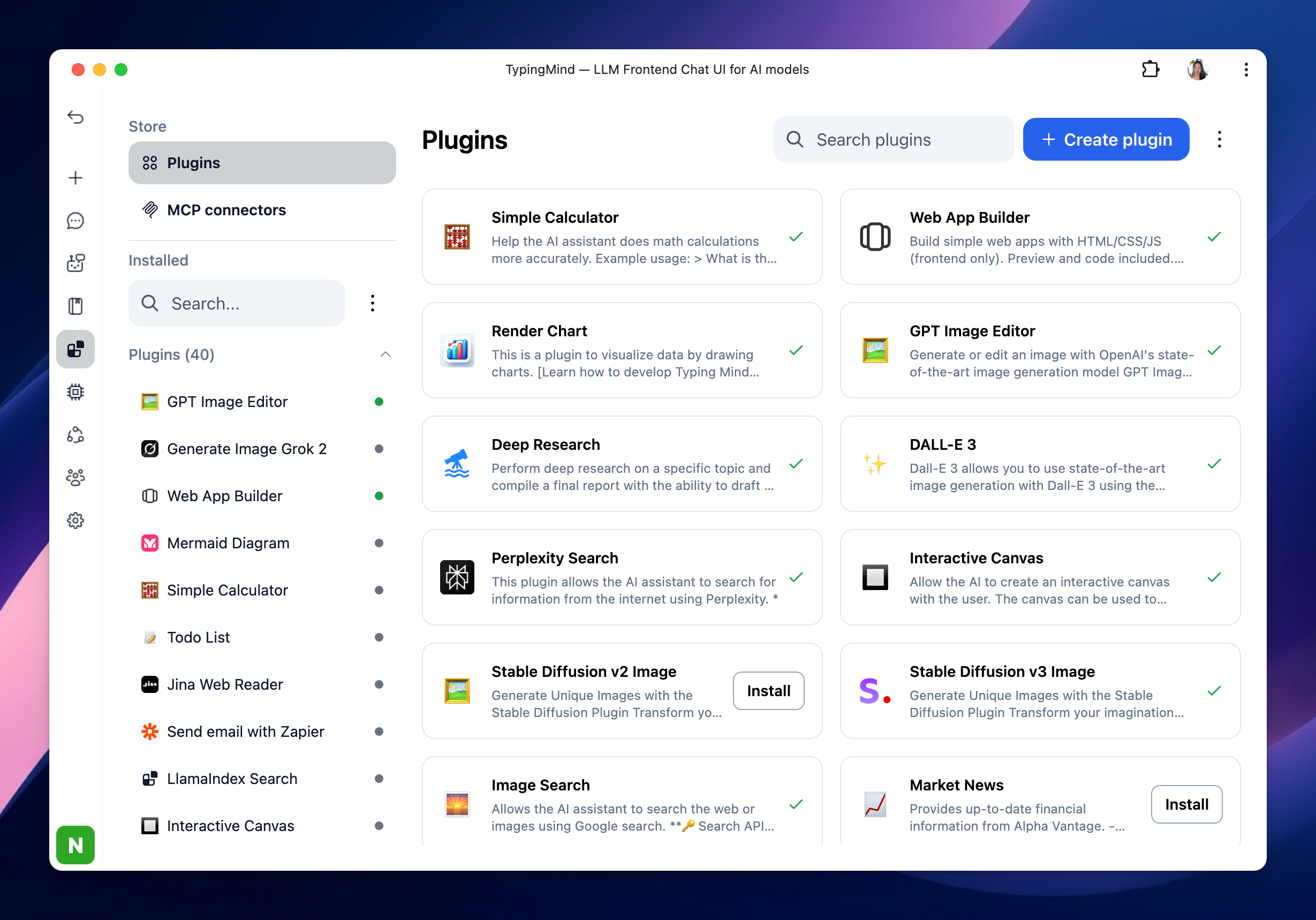
- Click on the installed plugin and switch to Settings (if any) to configure the plugin.
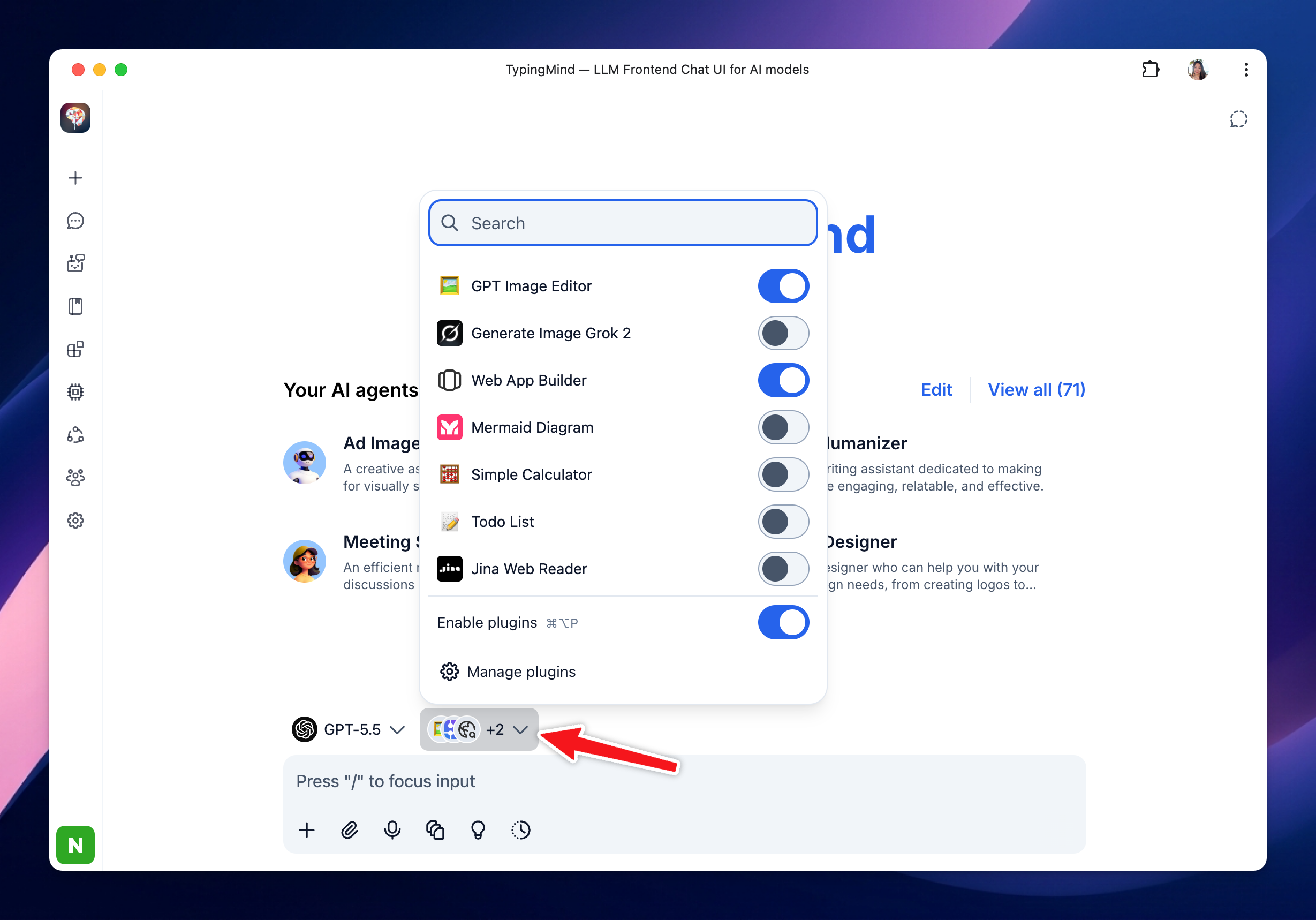
- After configuring your plugin, make sure to enable the plugin
- Go back to your chat, next to the model selector, you will be able to control your plugin
Plugin List
Here are some plugins that TypingMind supports natively:- Perplexity Search: allows AI models to search for information from the internet using Perplexity.
- Web Search (Serp): allows the AI assistant to search for information from the internet in real-time using Google Search via SerpAPI.
- Interactive Canvas: allow the AI to create an interactive canvas with the user. The canvas can be used to create forms, HTML/JS/CSS code, games, visualizations, or any other interactive content. It can show images from the chat.
- Web App Builder: build simple web apps with HTML/CSS/JS (frontend only). Preview and code included. It can show images from the chat.
- Render Chart: help visualize data by drawing charts.
- Mermaid Diagram: generate and render diagrams using the Mermaid.js library. This can be used to render various types of diagrams, including Flowchart, Sequence Diagram, Class Diagram, etc.
- Dall-E 3: allow AI model to generate image using Dall-E 3
- Stable Diffusion v2 and v3: allow AI model to generate an image using Stable Diffusion
- Image Search: search the web for images using Google search.
- Azure AI Search: this plugin connects TypingMind to your training data in Azure AI Search (Cognitive Search).
Best practices
- Be specific with your requests: clearly specify what you need to trigger the correct plugin. For example, if you need the latest market data, include terms like “financial news” or “latest market trends” in your prompt.
- Combine plugins when needed: leverage multiple plugins in a single prompt to maximize efficiency. For example, you can search the latest fashion trend (Web Search) and visualize it (Render Chart).
- Test and experiment: familiarize yourself with different plugins by testing them in various scenarios to understand their full capabilities and limitations.