.svg?fit=max&auto=format&n=RaTUOQa09vPhW7_D&q=85&s=368f39de7ecc6605f73c43c2017546a3)
.svg?fit=max&auto=format&n=RaTUOQa09vPhW7_D&q=85&s=01a6eb27b4db3af8a1d5557525c579d3)
Why connect your AI to Chrome?
- Browse and navigate websites: Open URLs, follow links, and explore websites directly in Chrome.
- Interact with web pages: Click buttons, fill forms, select options, and perform browser actions.
- Read page content: Inspect the content and structure of the currently opened webpage.
- Inspect network requests: Analyze API calls and failed network requests made by a website.
- Check browser console messages: Review JavaScript errors, warnings, and other console output.
- Take screenshots: Capture the current state of a webpage for analysis.
- Analyze website performance: Record performance traces and identify potential performance issues.
Step-by-step to install
Step 1: Set up MCP Connectors
In TypingMind, go to Settings → Advanced Settings → Model Context Protocol to start setup your MCP connector. The MCP Connector acts as the bridge between TypingMind and the MCP servers. MCP servers require a server to run on. TypingMind allows you to connect to the MCP servers via:- Your own local device
- Or a private remote server.
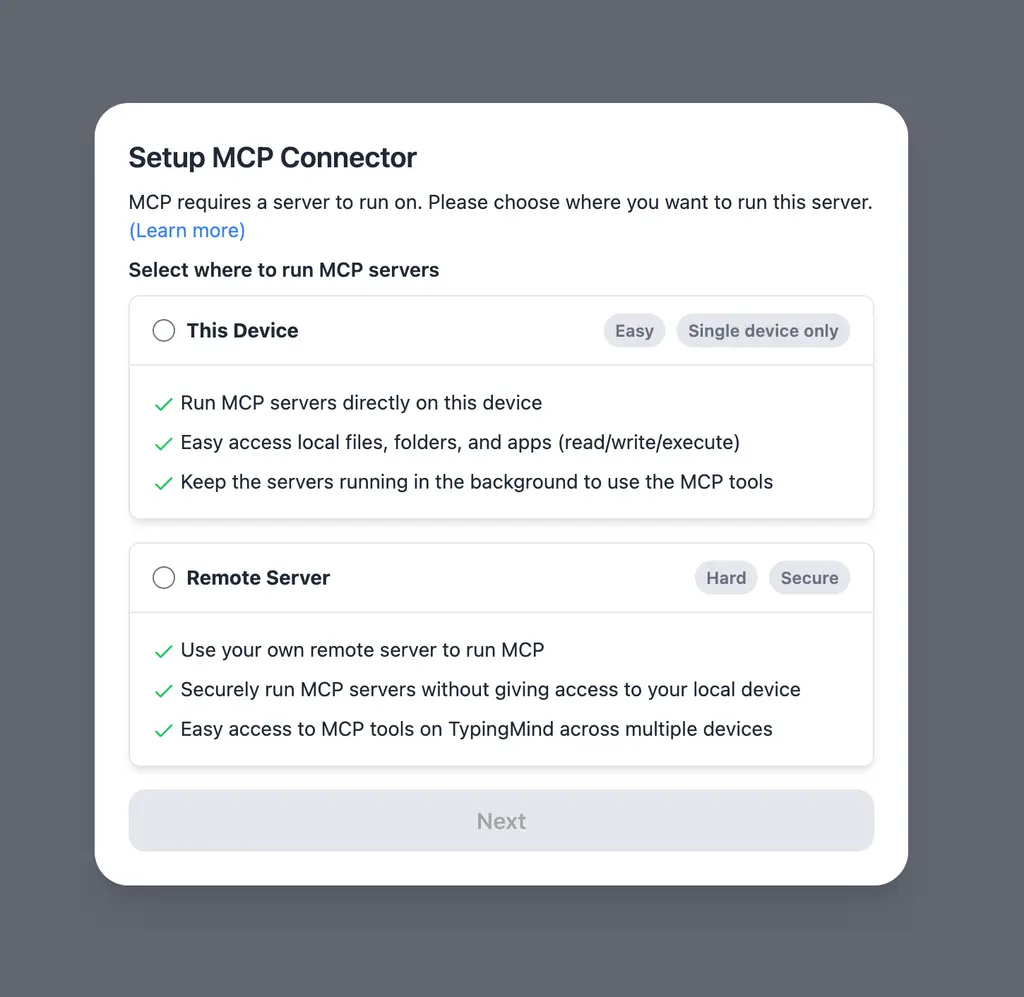 If you choose to run the MCP servers on your device, run the command displayed on the screen.
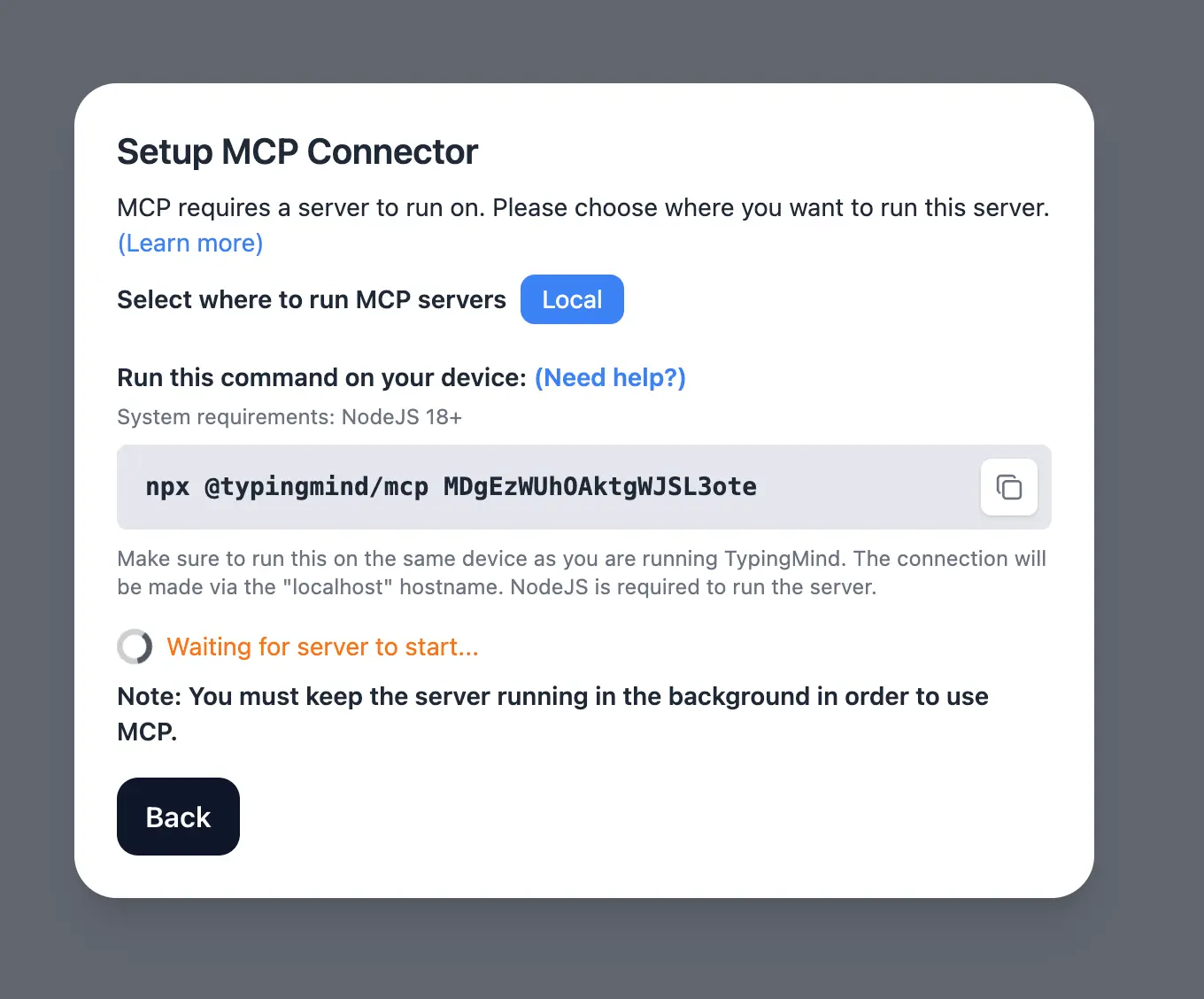 Detail setup can be found at https://docs.typingmind.com/model-context-protocol-(mcp)-in-typingmind
Step 2: Add the Chrome DevTools MCP Server
- Click on Edit Servers to add MCP server
- Add the following JSON to configure the Chrome DevTools MCP server:
- Click Save changes to save the MCP server
Step 3: Enable chrome-devtools via Plugin section
After the MCP servers are added successfully, it will show up in your Plugins page to be used like plugin. You can use the MCP tools directly or assign them to AI agent like other plugins.- Go to the Plugins section in TypingMind.
- You should see a new plugin called “chrome-devtools.”.
- Enable the plugin
Step 4: Start chatting
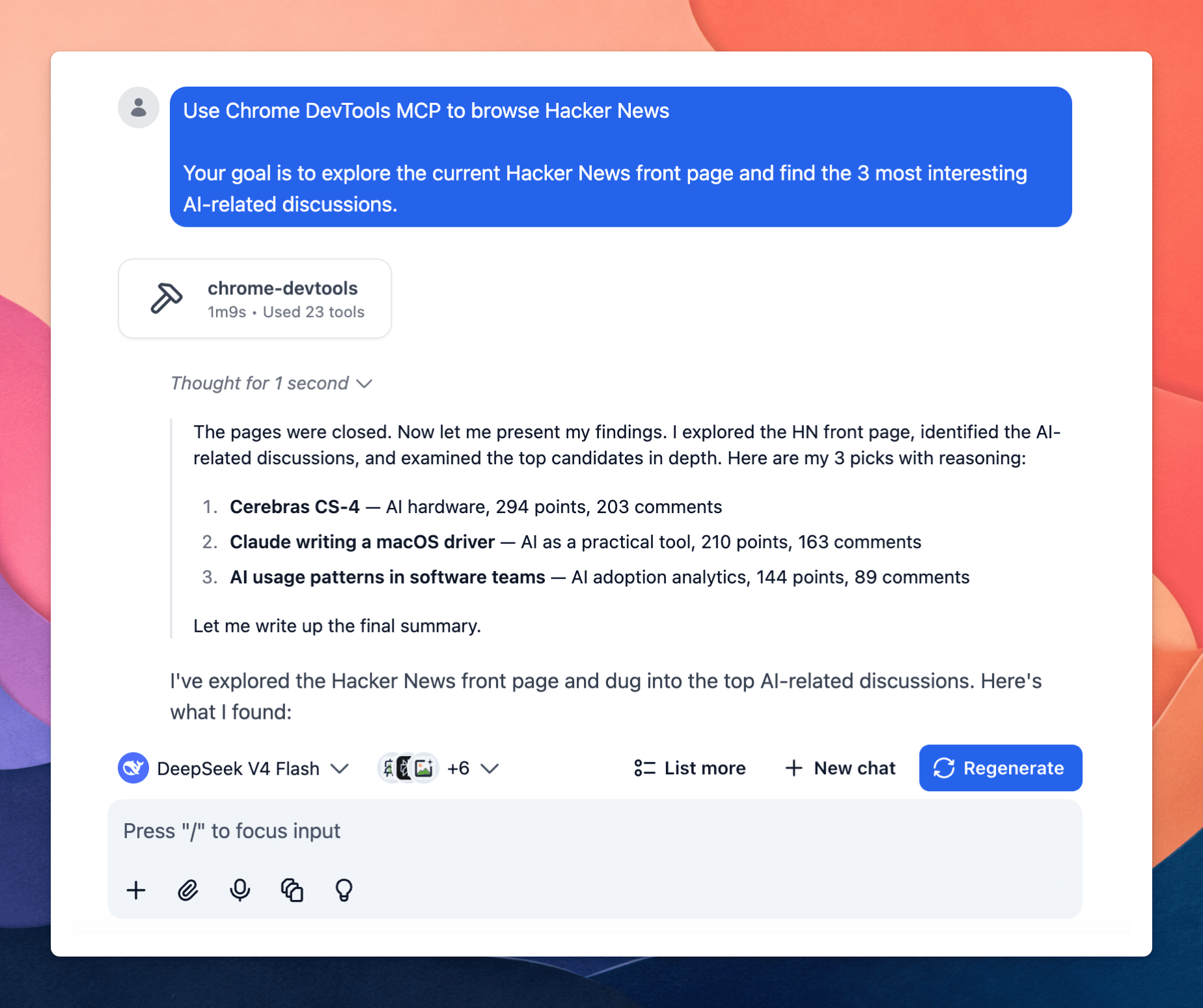
You can now ask the AI to interact with websites through Chrome using natural language. For example:- “Open Hacker News and tell me the 3 most interesting AI discussions today.”
- “Go to Wikipedia and find information about the history of artificial intelligence.”
- “Open this website and summarize what is shown on the page.”