.svg?fit=max&auto=format&n=RaTUOQa09vPhW7_D&q=85&s=368f39de7ecc6605f73c43c2017546a3)
.svg?fit=max&auto=format&n=RaTUOQa09vPhW7_D&q=85&s=01a6eb27b4db3af8a1d5557525c579d3)
Step 1: Create a Moonshot API account
Go to https://platform.kimi.ai/console and create a new Moonshot API account./image.webp?fit=max&auto=format&n=7fxalBaEFNO2seEf&q=85&s=151fcb05f9fbf46217945ca9b0580402)
Step 2: Set up Moonshot API account
To use the model via API, you’ll need to add balance to your account. Visit https://platform.kimi.ai/console/pay to top up — you can start with as little as $1 to test it out./image%201.webp)
Step 3: Get your Moonshot API key
Go to https://platform.kimi.ai/console/api-keys and create a new API key. Be sure to copy and save it securely — you’ll need it to set up Kimi K2 on TypingMind.Step 4: Use Kimi models on TypingMind
- Go to typingmind.com
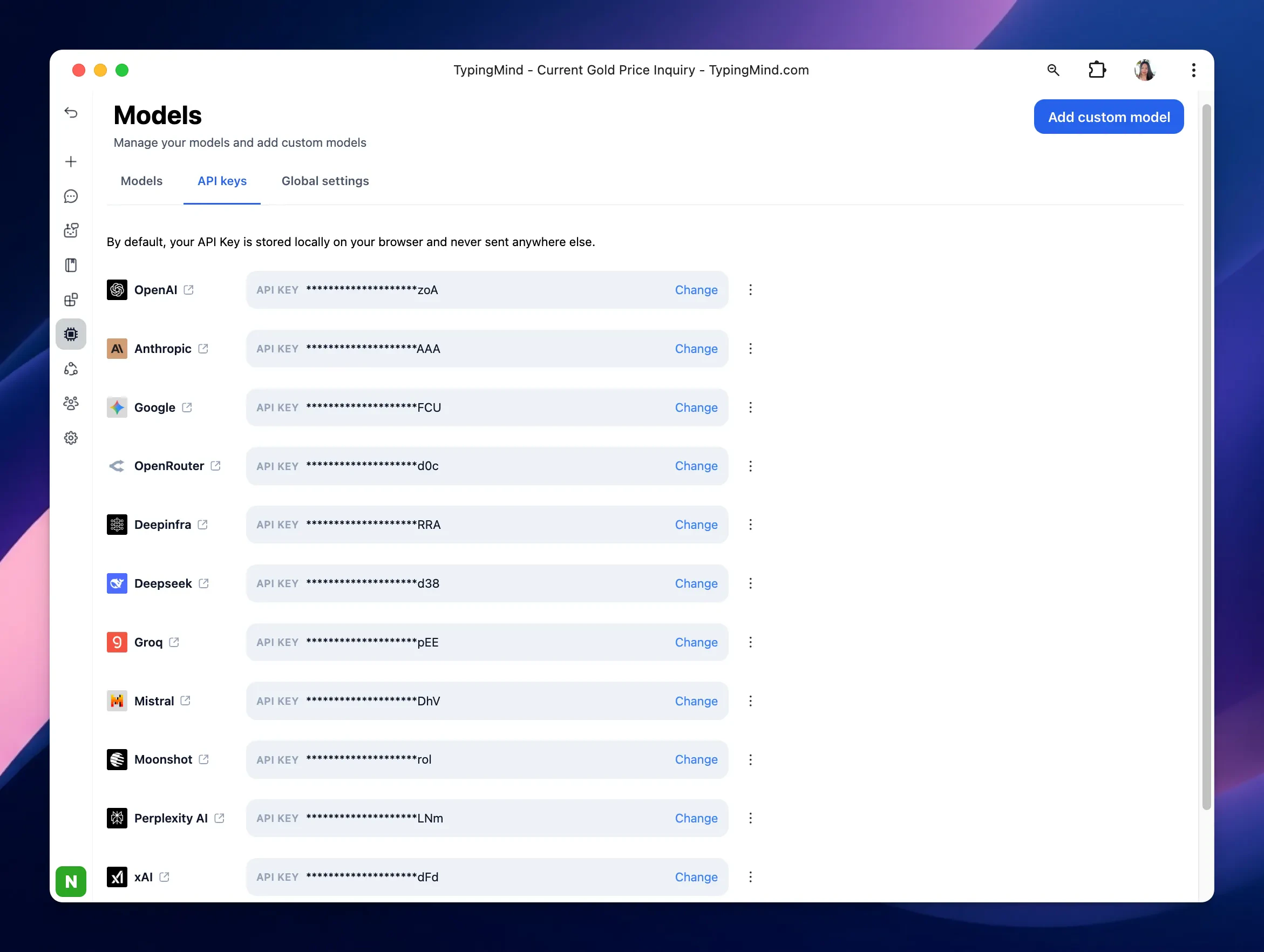
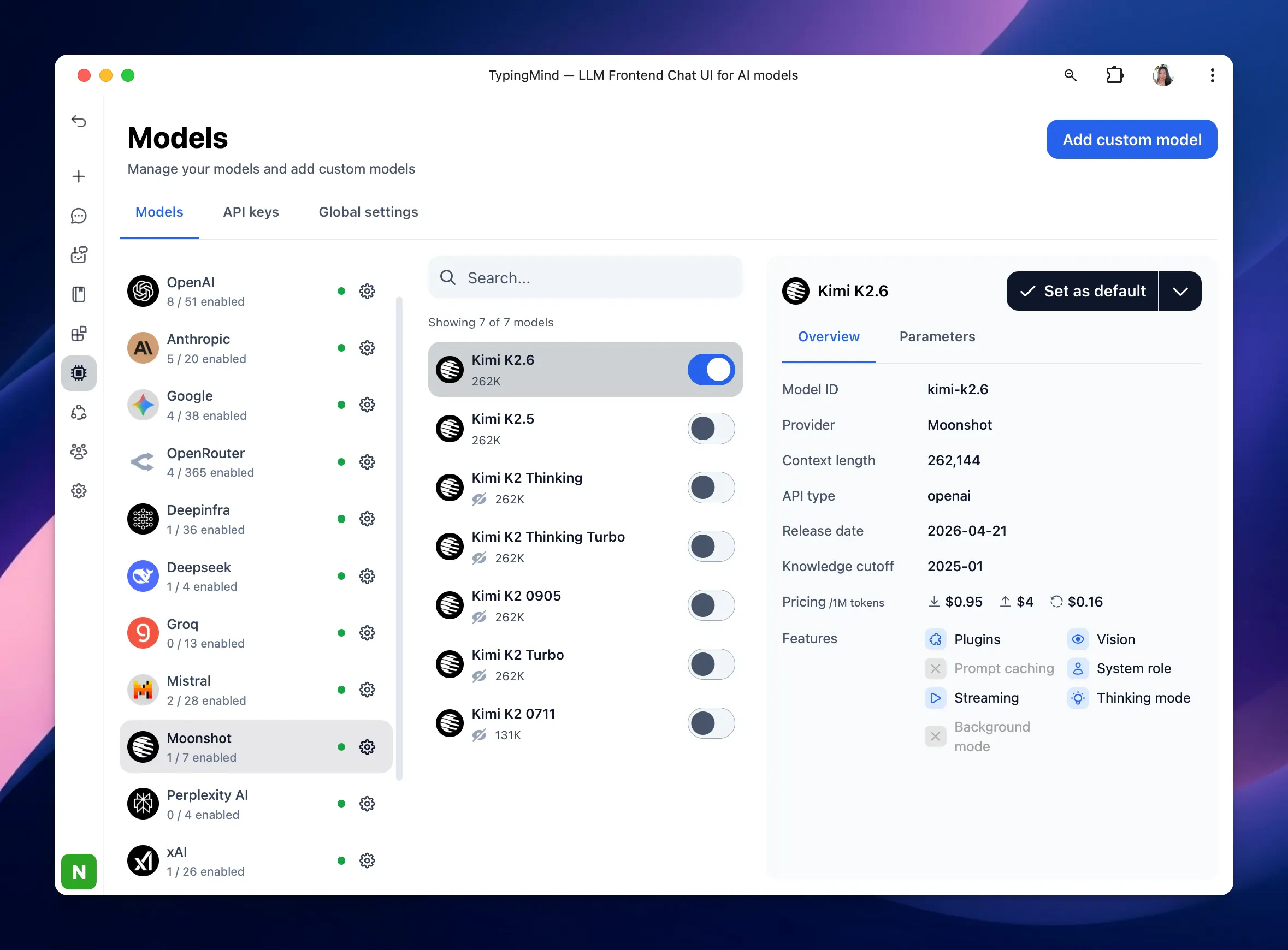
- Navigate the Models menu on the left sidebar → Switch to API key tab
- Input the copied API key for Moonshot.