.svg?fit=max&auto=format&n=RaTUOQa09vPhW7_D&q=85&s=368f39de7ecc6605f73c43c2017546a3)
.svg?fit=max&auto=format&n=RaTUOQa09vPhW7_D&q=85&s=01a6eb27b4db3af8a1d5557525c579d3)
- Microsoft’s Phi-3
- Meta’s Llama 3
- Falcon
- GPT-Neo-X
- Gemma
- and more
Note: This instruction is for the Typing Mind Web version (https://www.typingmind.com). For the macOS version and Setapp version, due to Apple’s security policy, requests to
http protocol are blocked. If you want to connect to the macOS app, you can still follow the instructions here, but with one additional step: you need to setup HTTPS for LMStudio. This can be done using various techniques (e.g., using a local HTTPS proxy).Step 1: Download LMStudio
Go to https://lmstudio.ai/ to download LMStudio for your device.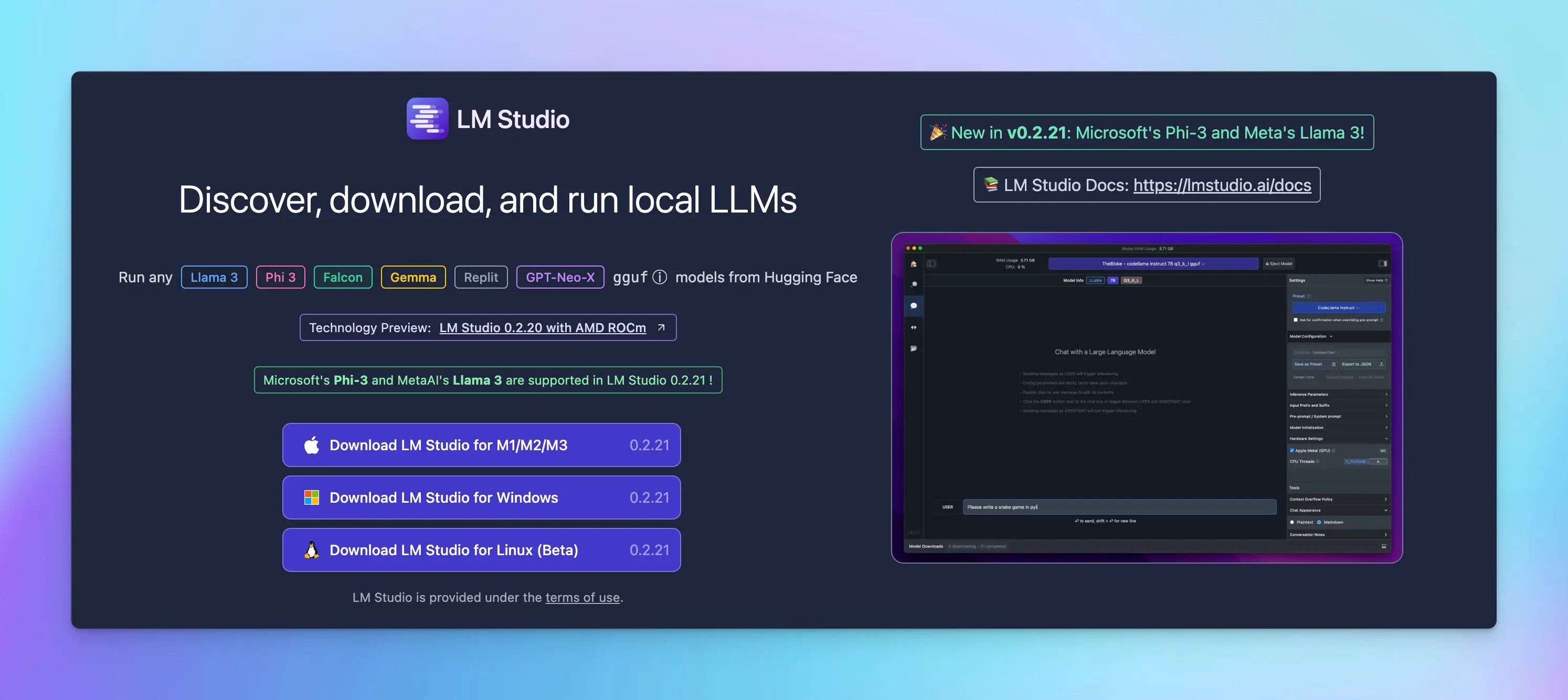
Step 2: Download the AI model
Search and download the specific AI model you want to use, such as Phi-3-mini-4k.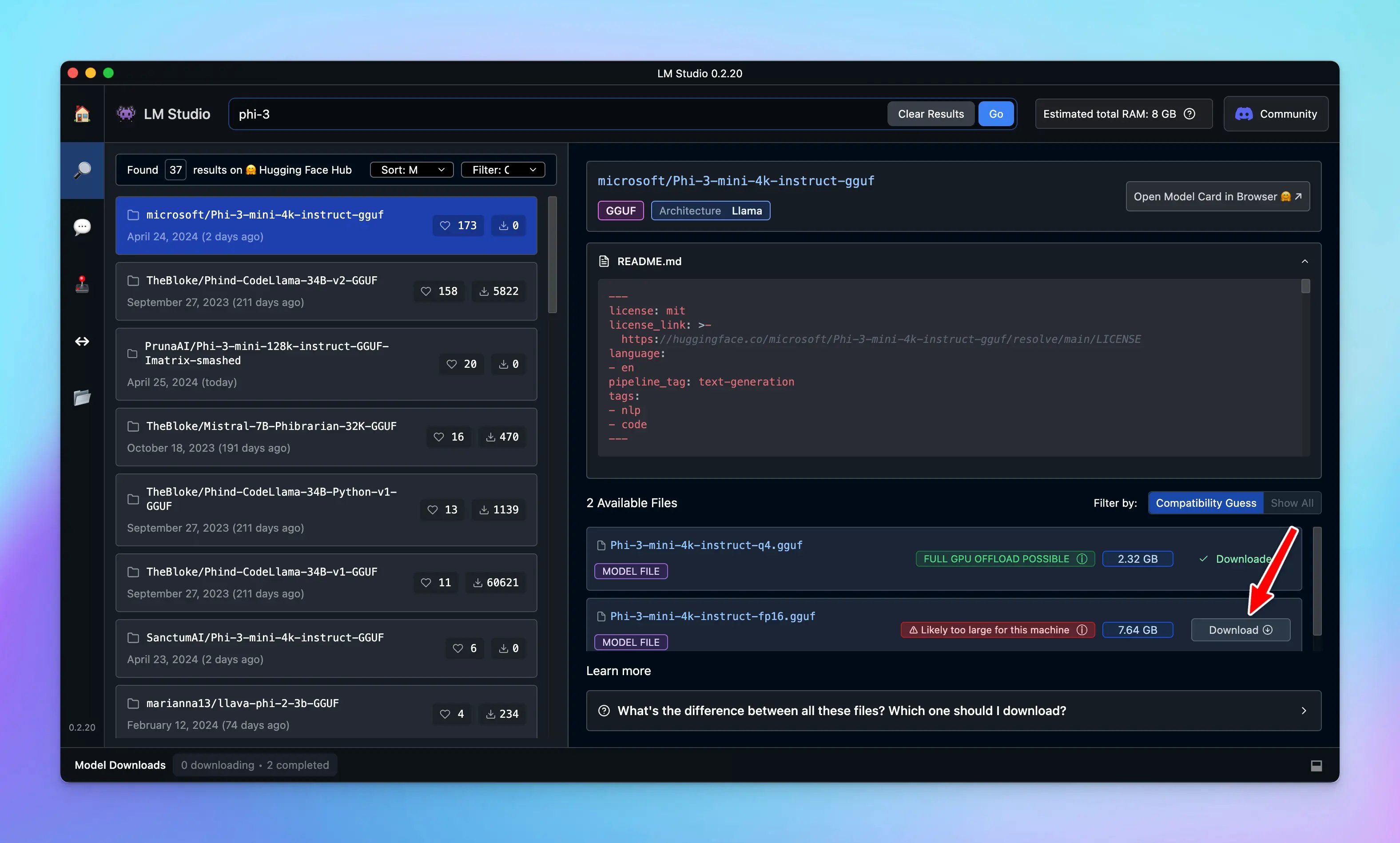
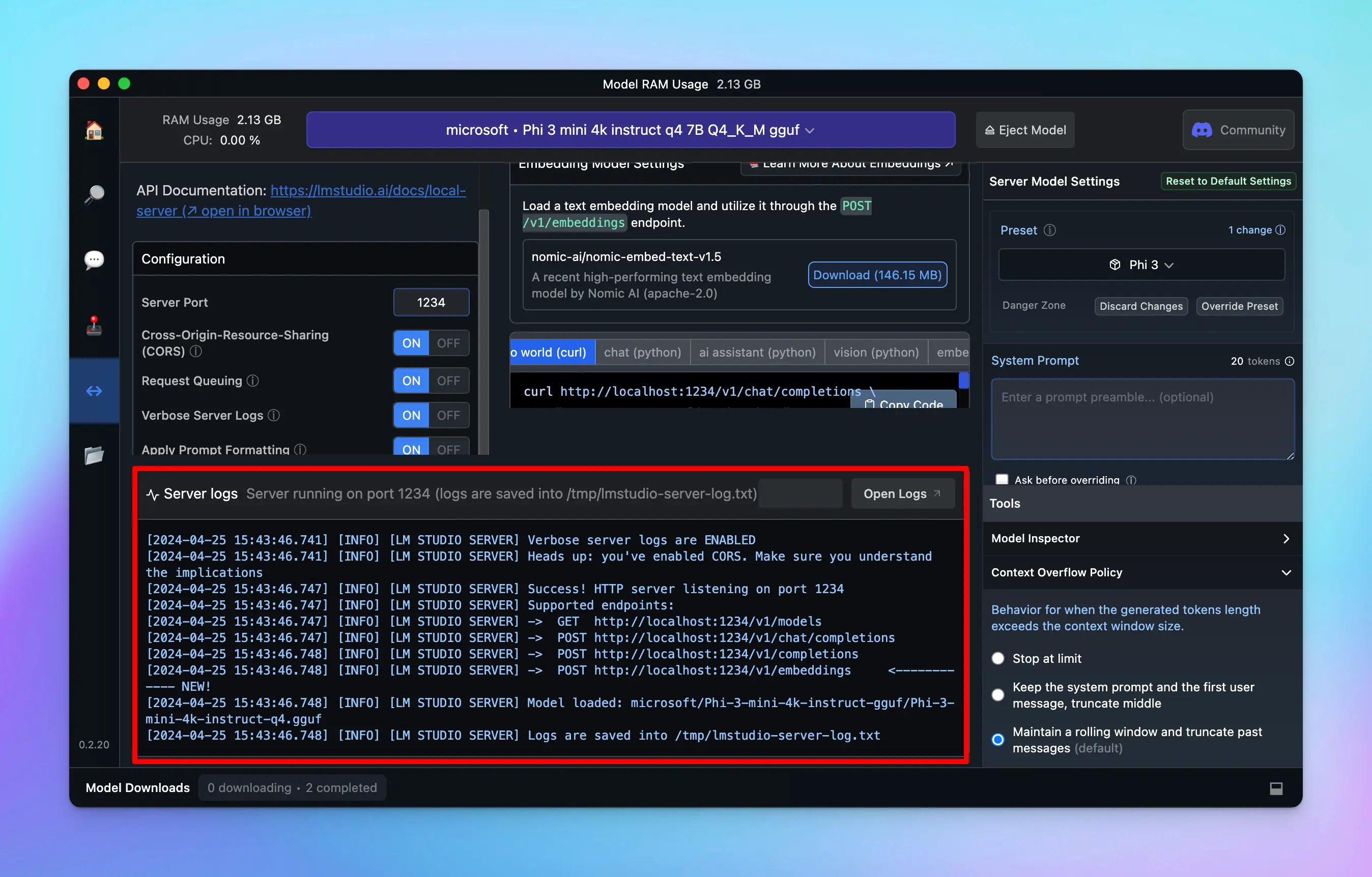
Step 3: Set up Local Server
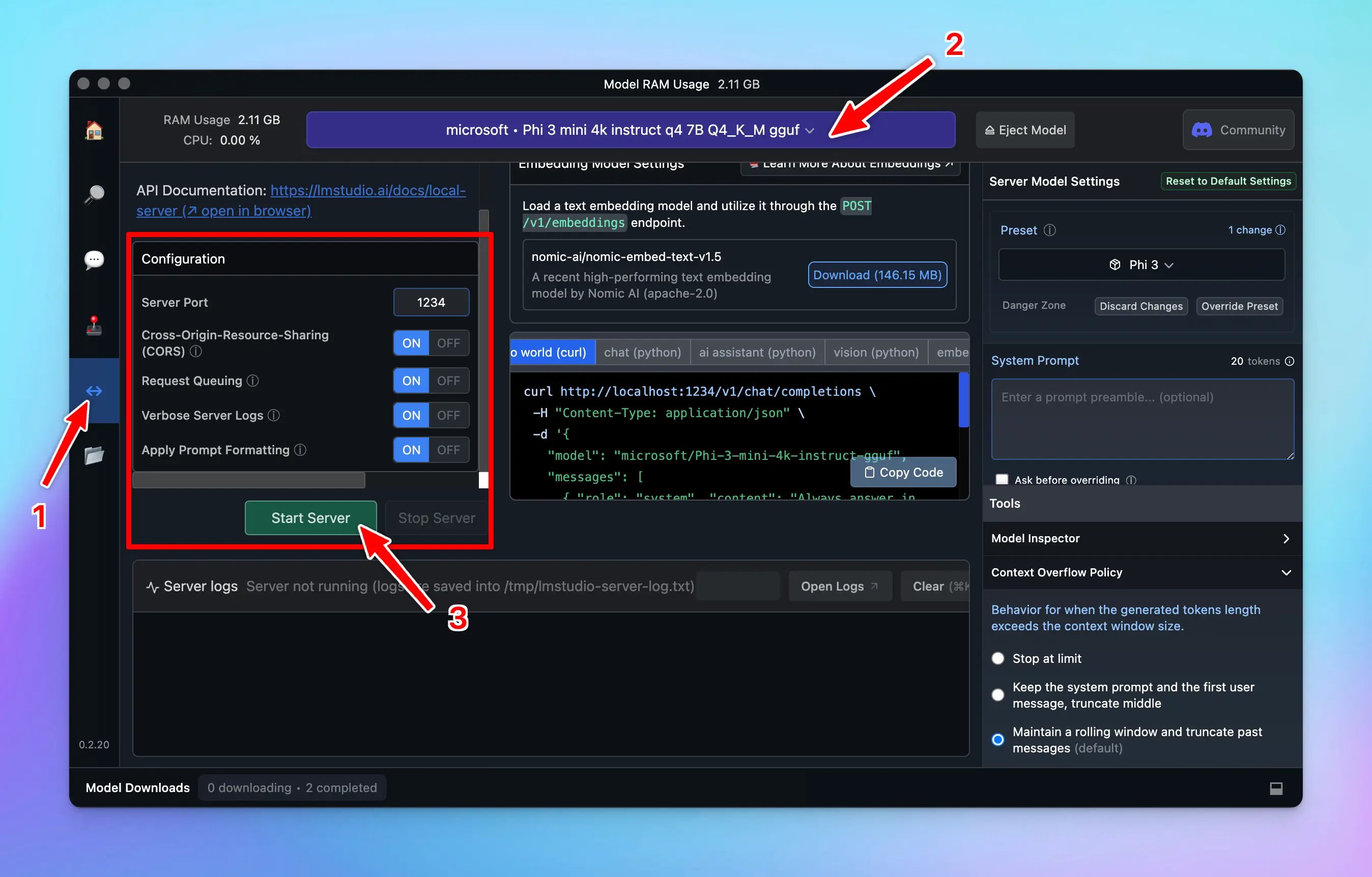
- Go to Local Server
- From the top drop-down list, choose the model you downloaded in Step 2.
- Go to the Configuration section, enable all options.
- Click Start Server
Step 4: Set up LMStudio models on TypingMind
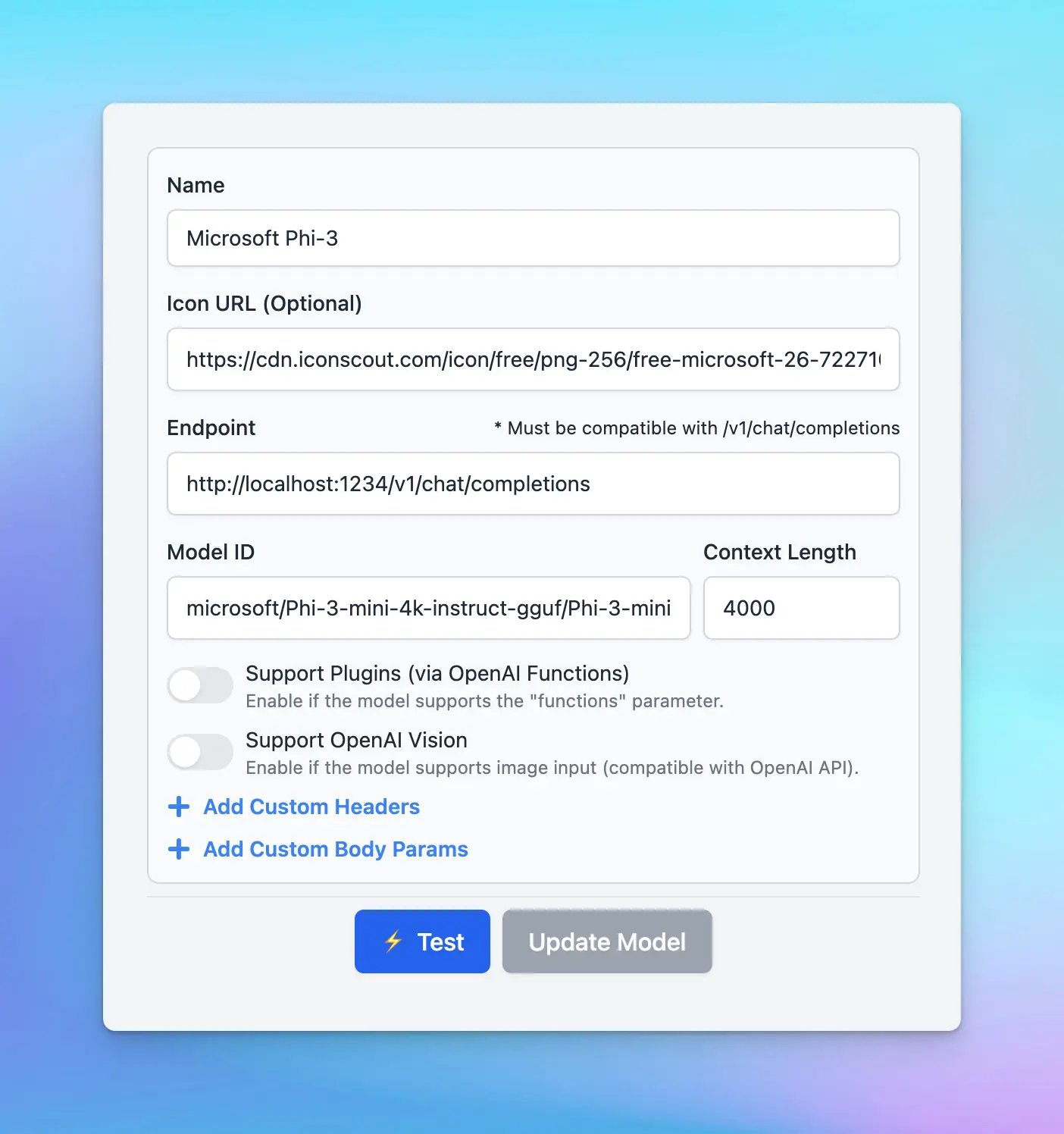
- Go to Manage Models
- Add Custom Models
- Updates the following information to set up LMStudio models (example below is for Phi-3 mini)
- Name: Microsoft Phi-3 (or you can give it any name you want)
- Icon URL (suggested): https://cdn.iconscout.com/icon/free/png-256/free-microsoft-26-722716.png
- Endpoint:
http://localhost:1234/v1/chat/completions - Model ID:
microsoft/Phi-3-mini-4k-instruct-gguf/Phi-3-mini-4k-instruct-q4.gguf(you can get your model ID after setting up local server here http://localhost:1234/v1/models)
Step 5: Start chatting
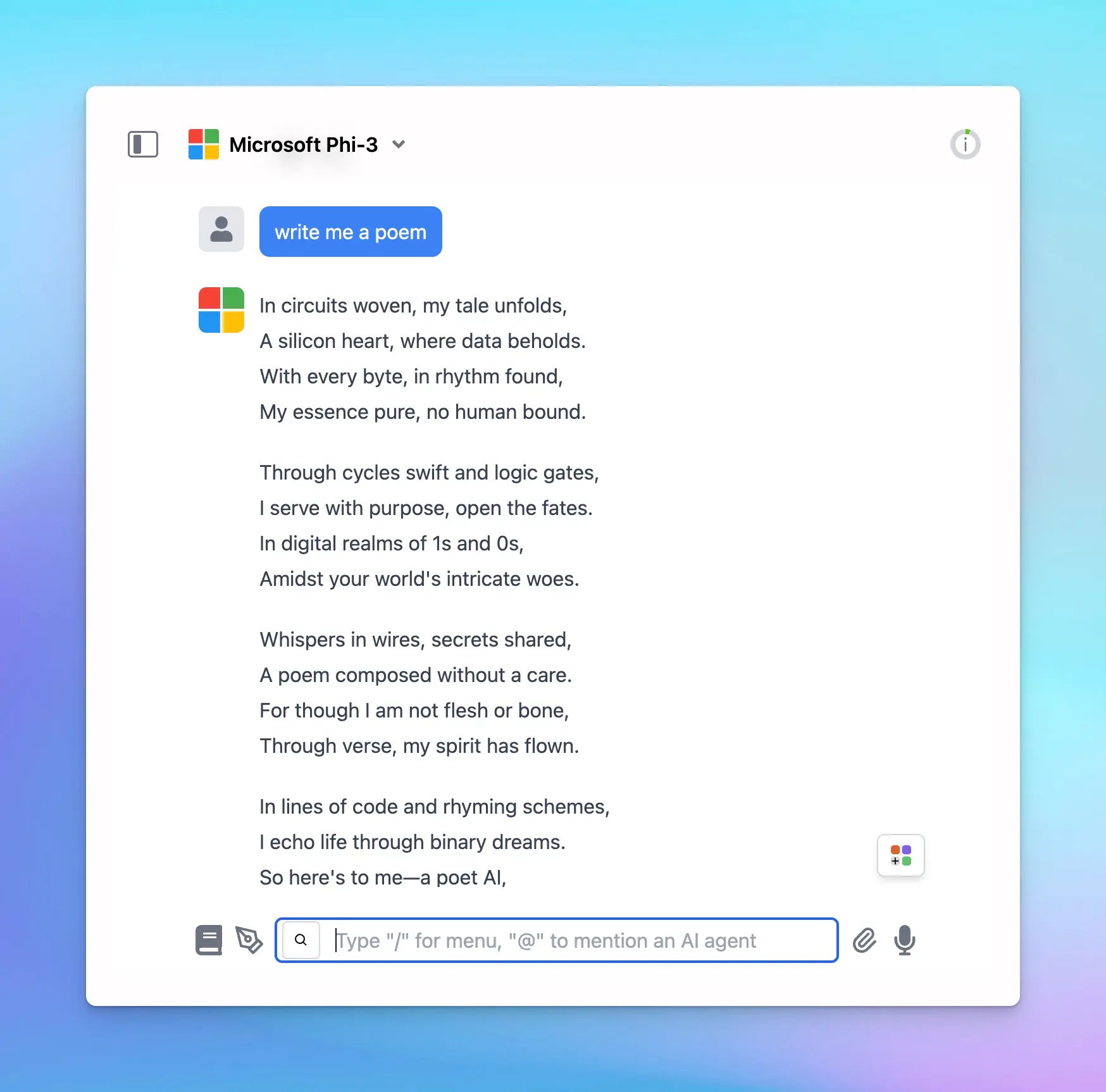
Interact with Phi-3 or your chosen AI model on TypingMind!