
Amazon Bedrock (aws.amazon.com/bedrock) is a fully managed AWS service that gives you access to 100+ foundation models from leading AI providers — including Anthropic Claude, Meta Llama, Mistral, and more — through a single OpenAI-compatible API.
Here is how to use Amazon Bedrock models on TypingMind.
1. Create an AWS Account
Go to aws.amazon.com and create an AWS account if you don't have one. Amazon Bedrock provides automatic access to serverless foundation models in your AWS Region — no manual model enablement required.
⚠️ Note: Anthropic models (e.g., Claude) are enabled by default but require a one-time usage form submission before first use. You can complete this through the Amazon Bedrock console.
2. Generate a Bedrock API Key
Amazon Bedrock supports two types of API keys:
- Long-term key — Valid from 1 day up to 365 days (or never expires). Linked to a specific IAM user. Best for quick exploration.
- Short-term key — Valid up to 12 hours. Uses AWS Signature V4. Best for secure, session-based access.
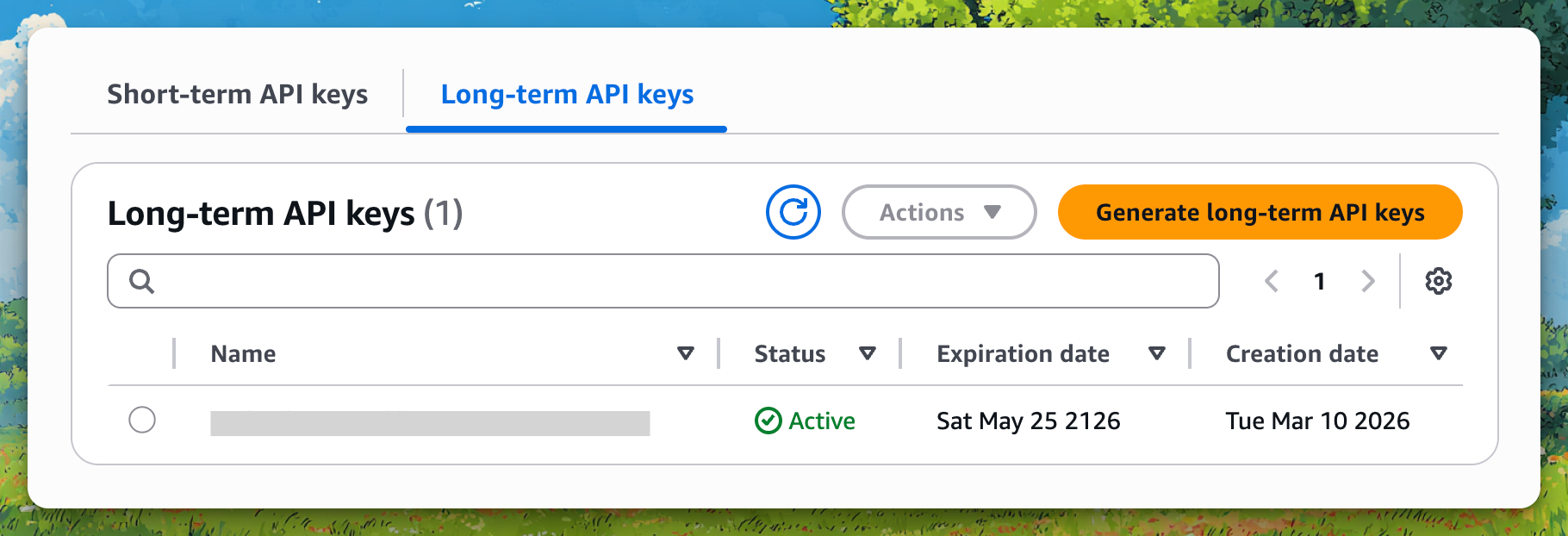
To generate a long-term API key:
- Go to the Amazon Bedrock Console
- Navigate to API keys (under your account/settings area)
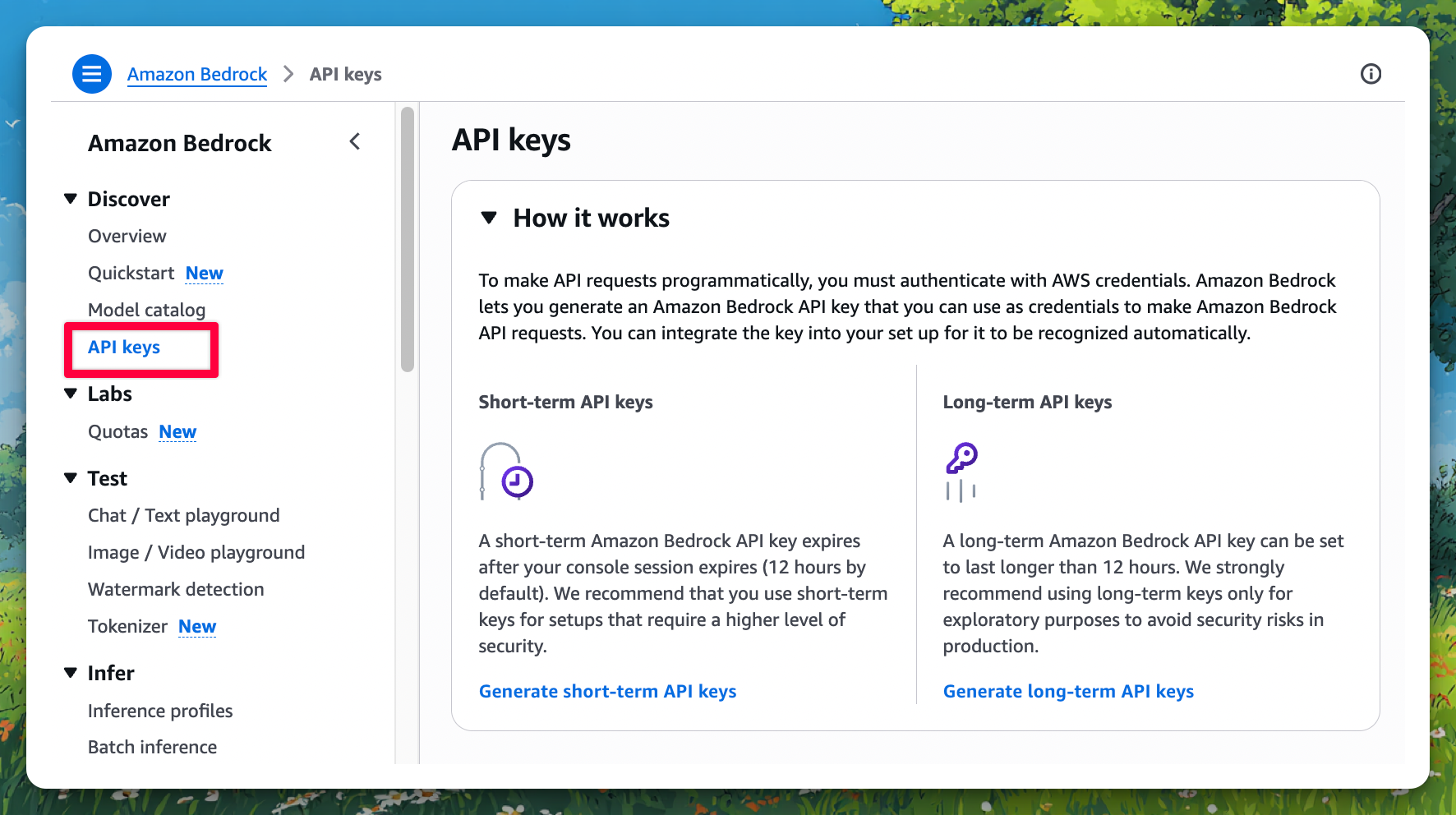
- Click Generate API key
- Set an expiration (or leave it for long-term)
- Copy and save the generated API key securely — you won't be able to see it again
3. Find the Model ID You Want to Use
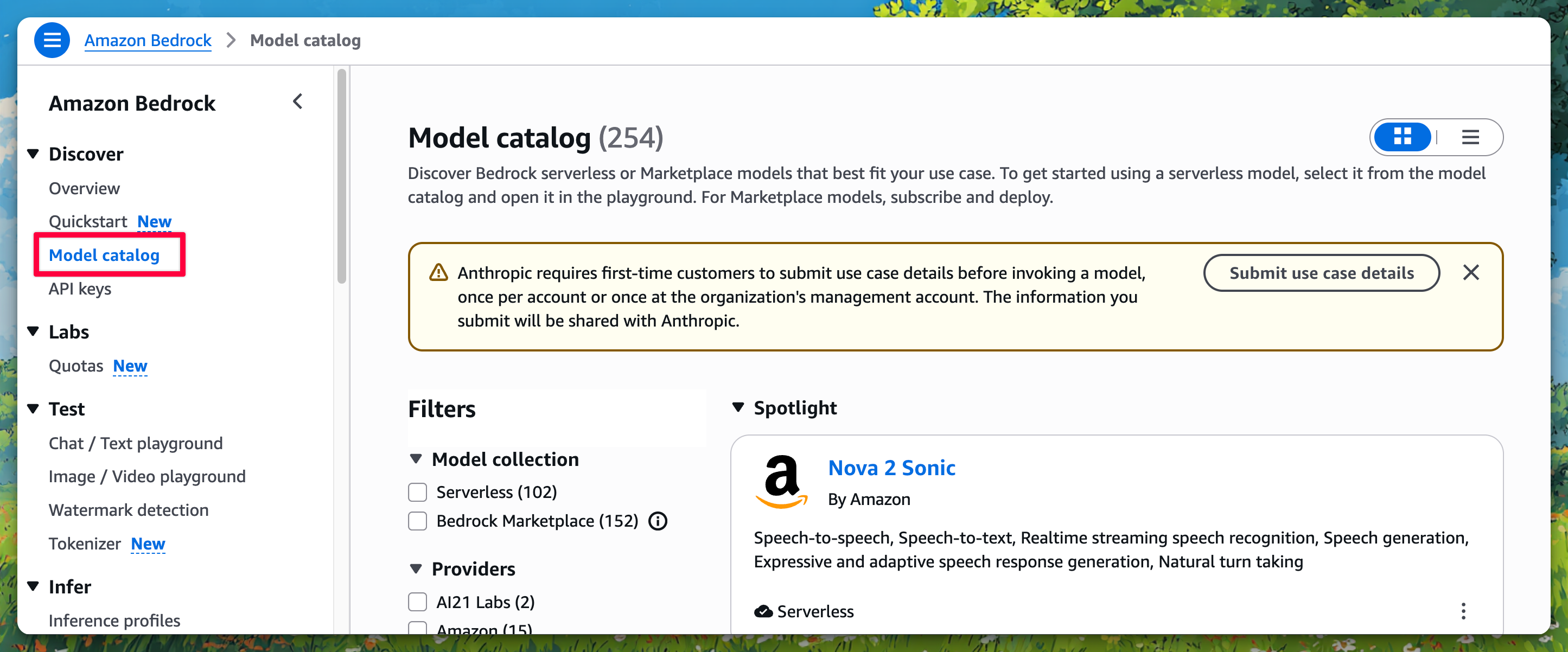
Amazon Bedrock supports 100+ foundation models. You'll need the exact Model ID when setting up TypingMind.
Some popular examples:
Model | Model ID |
Anthropic Claude Opus | anthropic.claude-opus-4-6-v1 |
Meta Llama 3 | meta.llama3-70b-instruct-v1:0 |
Mistral Large | mistral.mistral-large-2402-v1:0 |
Amazon Titan Text | amazon.titan-text-express-v1 |
OpenAI GPT OSS 120B (via Bedrock) | openai.gpt-oss-120b |
You can browse the full model list in the Amazon Bedrock Model Catalog.
4. Add a Custom Model to TypingMind
Go to typingmind.com, click the Models tab on the left workspace bar, then click "Add Custom Model" in the top right corner.
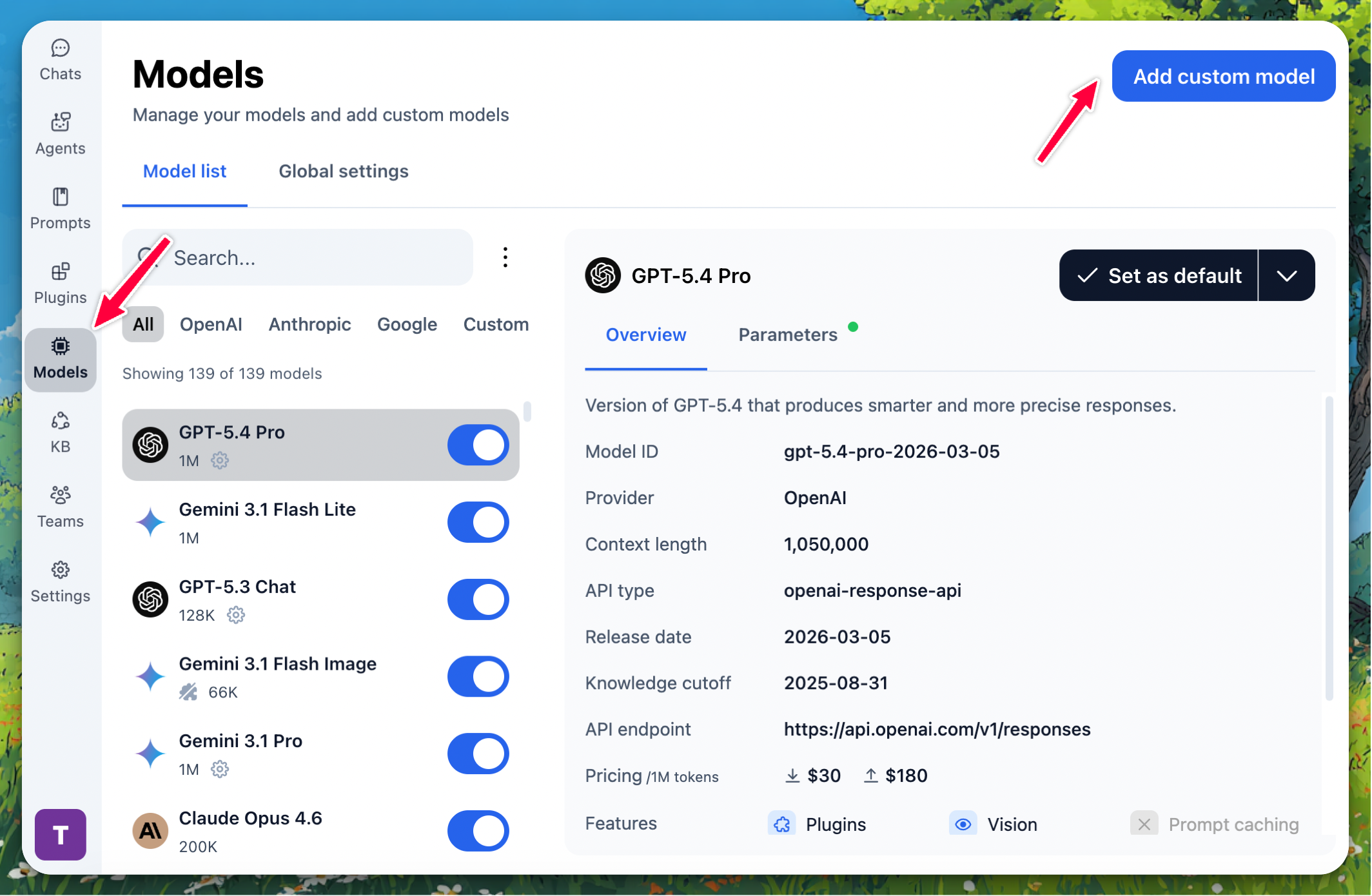
Select "Create Manually" as the creation method.
Fill in the following fields:
- Name:
Bedrock openai.gpt-oss-120b(or any name you prefer)
- API Type:
OpenAI Chat Completions API
- Endpoint URL:
https://bedrock-mantle.{your-region}.api.aws/v1/chat/completions - Replace
{your-region}with your AWS region, e.g.us-east-1 - Example:
https://bedrock-mantle.us-east-1.api.aws/v1/chat/completions
- Model ID: The exact model ID from Step 3, e.g.
openai.gpt-oss-120b
- Context Length: Enter the context length of your chosen model (e.g.,
200000for Claude,128000for GPT OSS 120B)
- Scroll down to the Authentication section and set:
- Authentication Type:
API Key via HTTP Header Header - Values:
Header Key: AuthorizationHeader Value: Bearer {{API key}}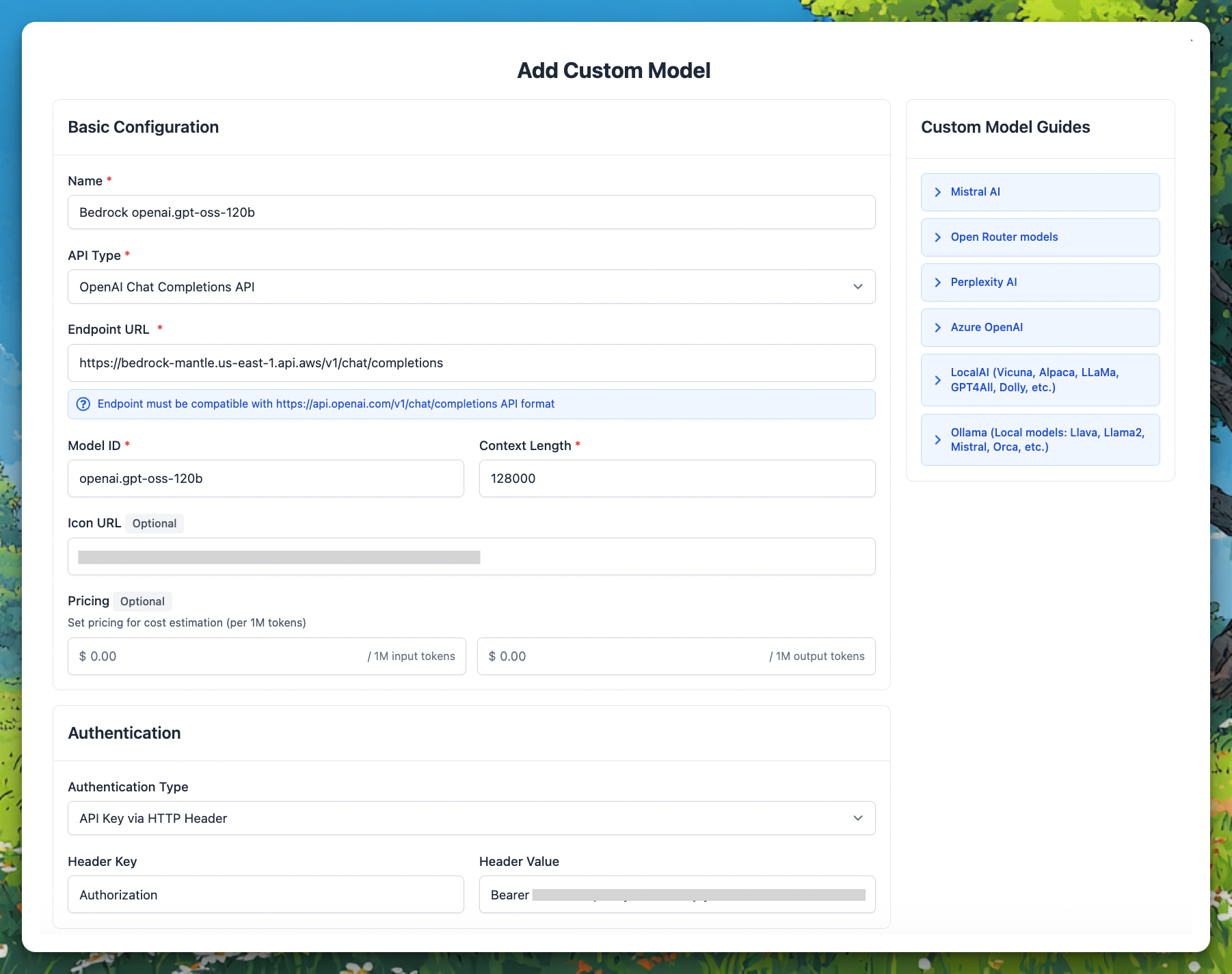
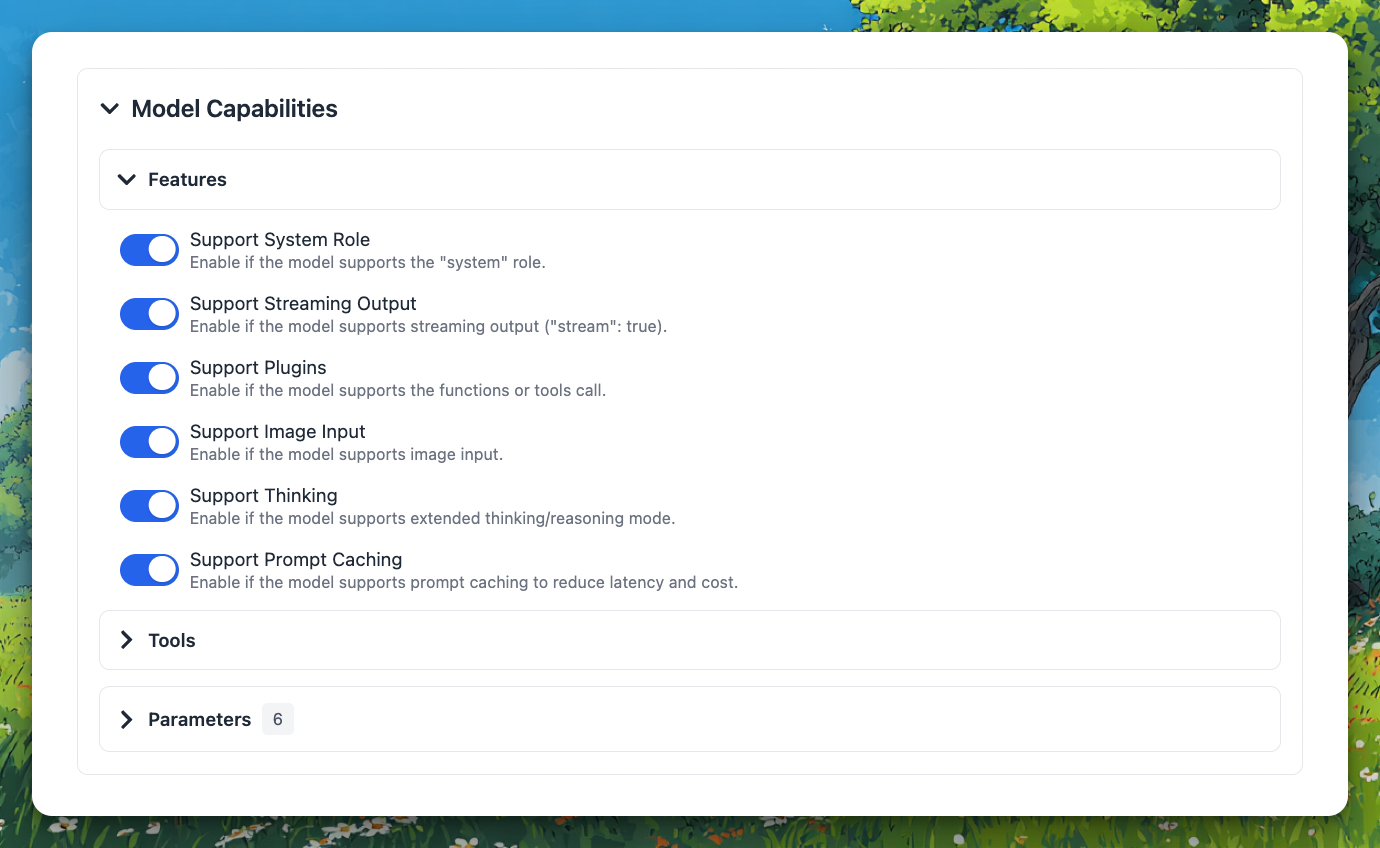
Under Model Capabilities, enable the features supported by your chosen model:
- ✅ Support System Role — recommended for most models
- ✅ Support Streaming Output — recommended for all models
- ☑️ Support Plugins — enable if the model supports function/tool calling (e.g., Claude, Llama 3)
- ☑️ Support Image Input — enable for vision-capable models (e.g., Claude)
- ☑️ Support Thinking — enable for reasoning/thinking models (e.g., Claude with extended thinking)
After filling in all fields, click "Test". If everything is set up correctly, you will see the message "Nice, the endpoint is working!"
Click "+ Add Model" to finish.
5. Use the Model
Now you can select your newly added Bedrock model from the model picker and start chatting!