.svg?fit=max&auto=format&n=RaTUOQa09vPhW7_D&q=85&s=368f39de7ecc6605f73c43c2017546a3)
.svg?fit=max&auto=format&n=RaTUOQa09vPhW7_D&q=85&s=01a6eb27b4db3af8a1d5557525c579d3)
Getting started
Retrieval-Augmented Generation (RAG) is a technique that enhances Large Language Models (LLMs) by allowing them to access and incorporate external knowledge sources, like databases or documents, to generate more accurate and contextually relevant responses. TypingMind supports a built-in RAG system with the Knowledge Base feature. You can upload files to TypingMind and then allow AI agents to access these files and get more context to answer your questions more accurately during the conversation.
Upload your files
- Open TypingMind, then click the “KB” (Knowledge Base) tab.
- Click Add Data Source and start uploading your files.
- Currently supported files are: Text files, PDF, CSV, Excel, Word. We will continue to support more file types.
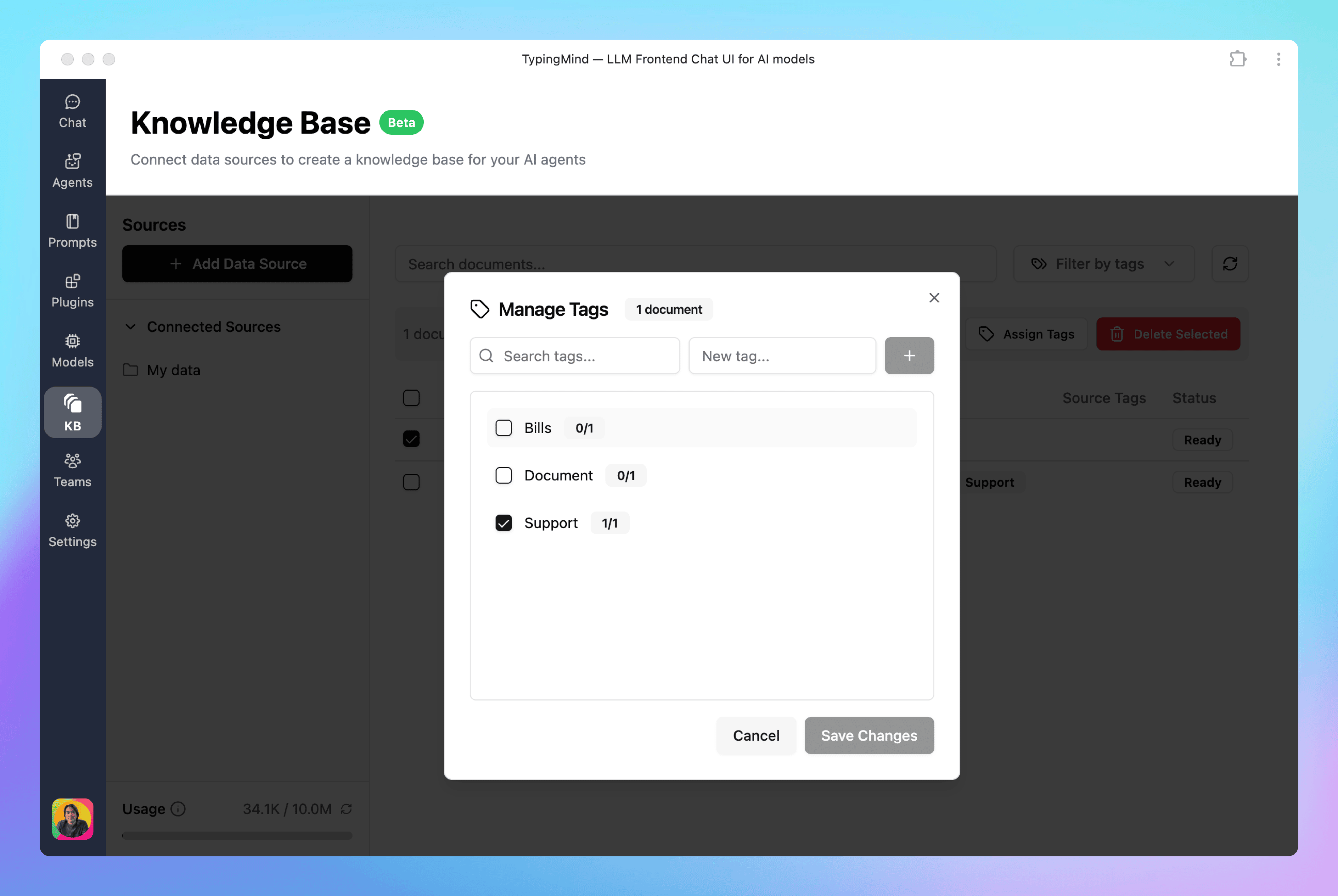
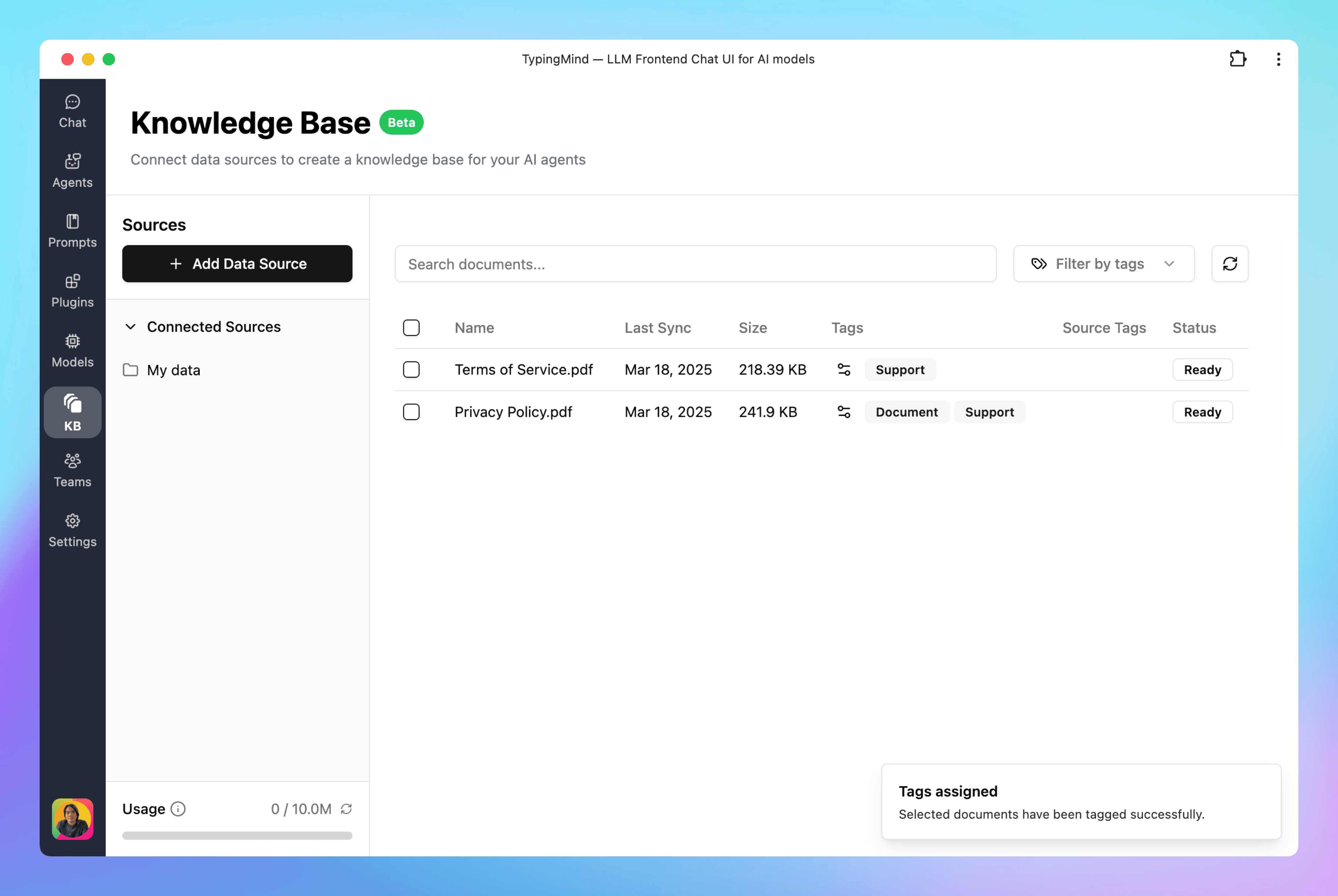 You can tag your documents to be used by AI agents later. This helps you split your KB into different topics/categories that can later be used by different AI agents.
Connect External Sources
Beside uploading your internal documents, you can also connect other sources such as Github, Notion, Google Drive or Web Scraping. Click on the source you want to connect and follow the prompts to complete connecting the expected sources.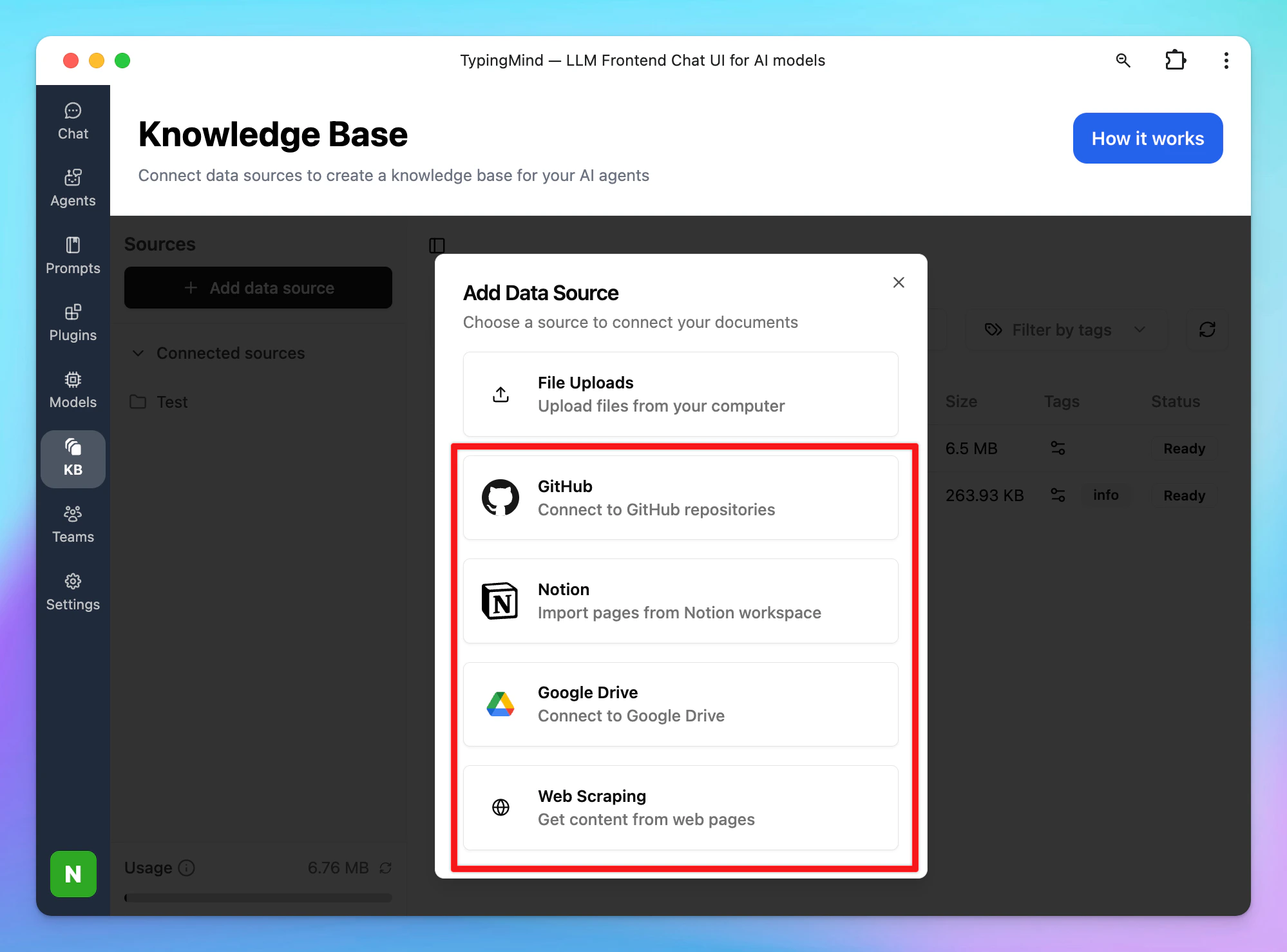
Use Knowledge Base in Chat
You will need to toggle the Knowledge Base access button within the message area to enable knowledge base access for your chat.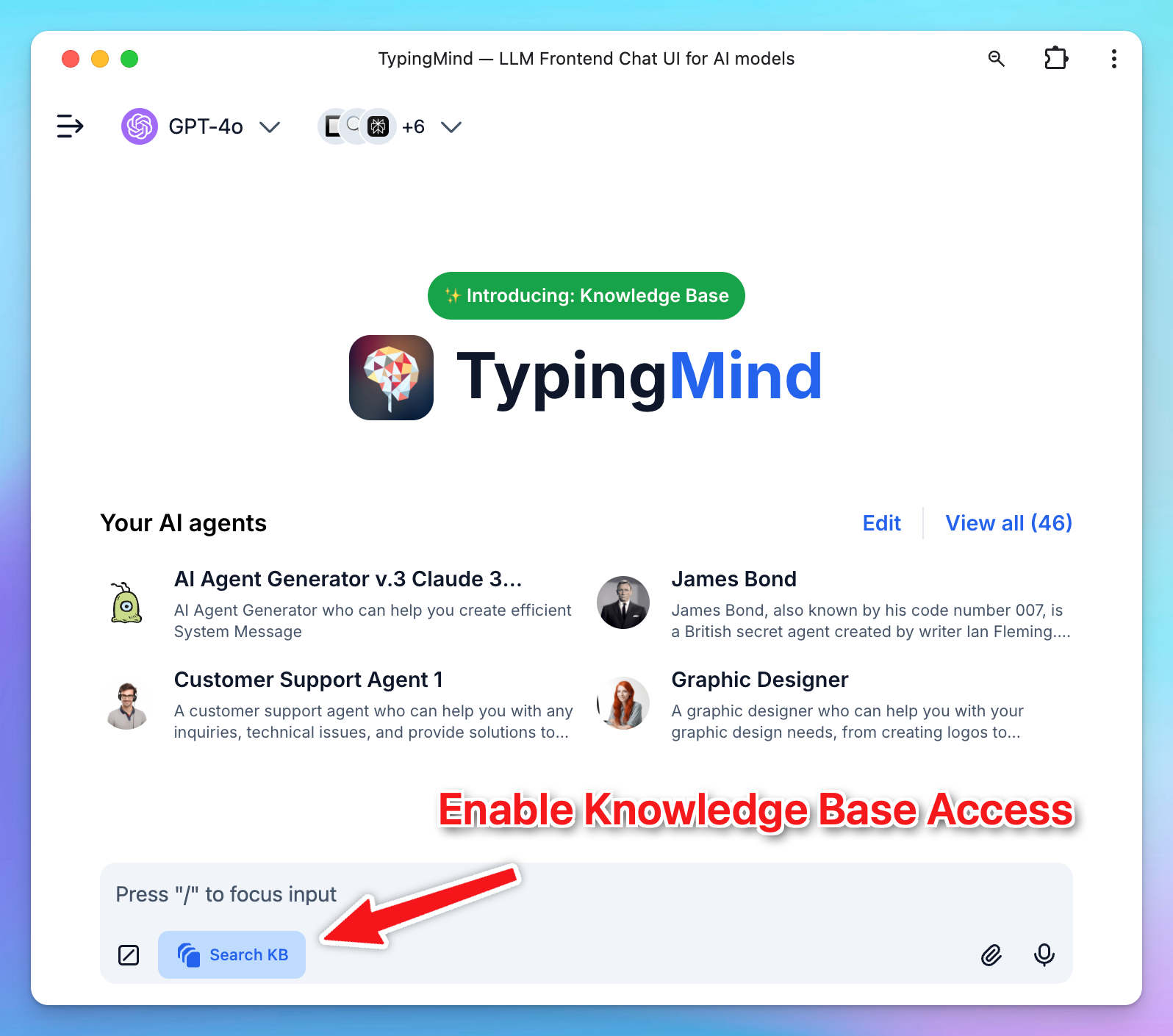
1. Direct chat
You can access knowledge base by initiating a conversation with any AI models. Just need to ask questions related to your data and the system will help look up relevant information to provide answer.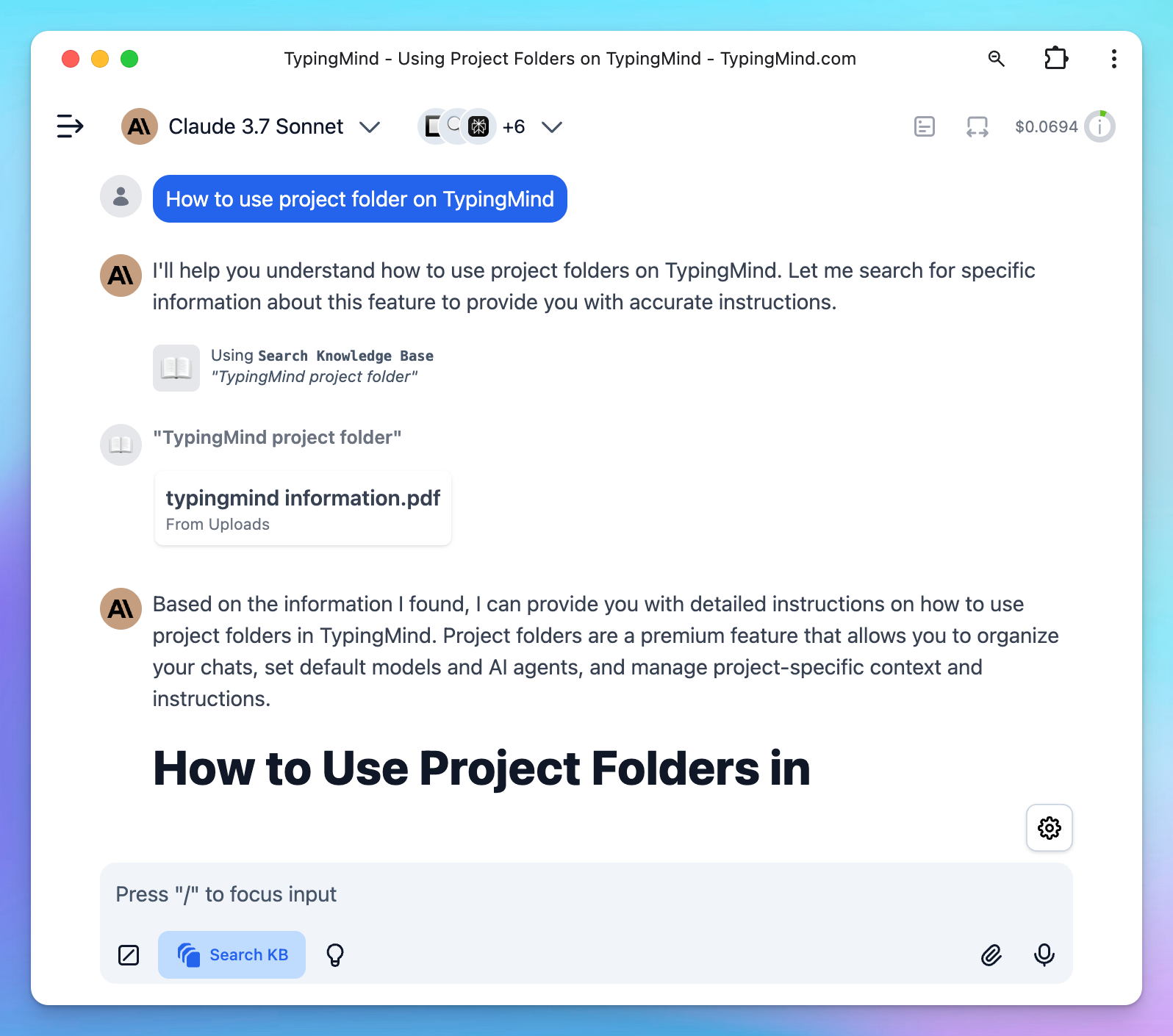
2. Access via Agent
Once the data is uploaded, assign the KB access to your AI agents by going to Agents → Edit or create an AI agent → Knowledge Base Access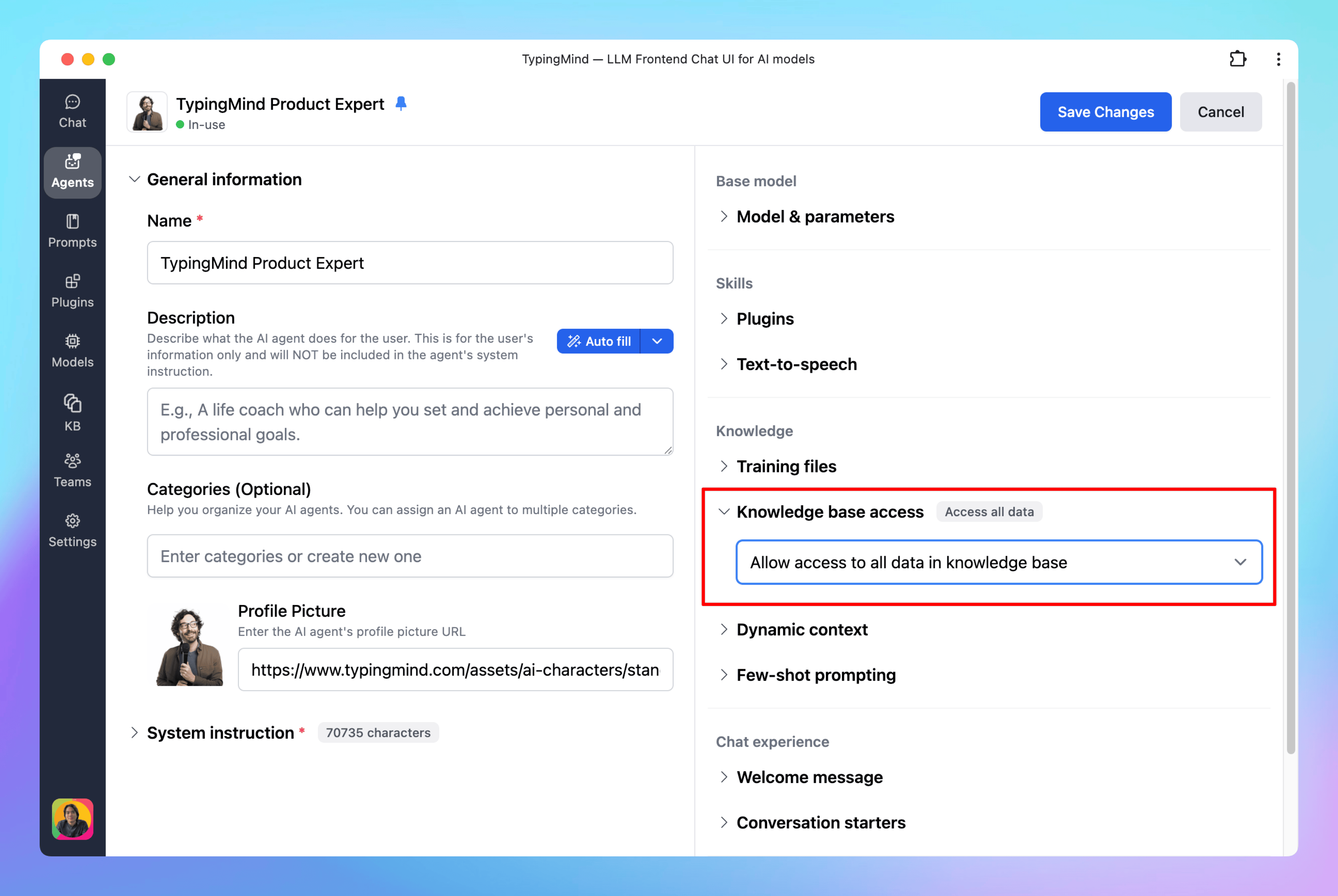
- Access all data in the knowledge base
- Access only documents with specific tags
- If you set multiple tags, the agent will have access to documents that have any of the tags assigned (OR condition used for tags matching).
- Tags are identified by their name. If you later change the tag of the documents from KB, you need to update it again in the AI agent setting.
Connect Your Own Knowledge Base
RAG has been supported by TypingMind for a long time. Knowledge Base is just a built-in integration to make it easier for users. You can connect TypingMind with your own knowledge base by doing the following:- Use a plugin (or create a new one): Provide a way for the AI agents to look up additional information when needed
- Use Dynamic Context: This provides AI agents with context about what kind of data they have access to, so if they need to look up additional information, they can trigger a plugin. This will improve retrieval performance and accuracy. Dynamic Context can also be embedded directly into the plugin with Plugin Context (you will see this section when creating new plugins in TypingMind).
Compare with Training Files
Knowledge Base and Training Files are two different ways to add context to an AI agent. We recommend experimenting with both options to achieve the best result. For your reference, here are some key differences:
For a full comparison, see this page:
Training Files vs Knowledge Base
Limitations
KB is available for free for all licensed users with the following limitations:- The supported data source currently is File Upload, Google Drive, Notion, GitHub, Web Scraping. More data sources soon.
- Supported file types for File Upload: Text files, PDF, CSV, Excel, Word
- The Knowledge Base limit is based on your TypingMind Cloud plan. This means there’s no restriction on the number of documents you can upload — it depends on the available cloud storage in your account.