.svg?fit=max&auto=format&n=RaTUOQa09vPhW7_D&q=85&s=368f39de7ecc6605f73c43c2017546a3)
.svg?fit=max&auto=format&n=RaTUOQa09vPhW7_D&q=85&s=01a6eb27b4db3af8a1d5557525c579d3)
Overview
Typing Mind Extensions allows users to embed custom JavaScript code into Typing Mind. The JavaScript code will have access to all internal data and application state of Typing Mind, allowing the users to add custom logic and application behavior to fit their workflow.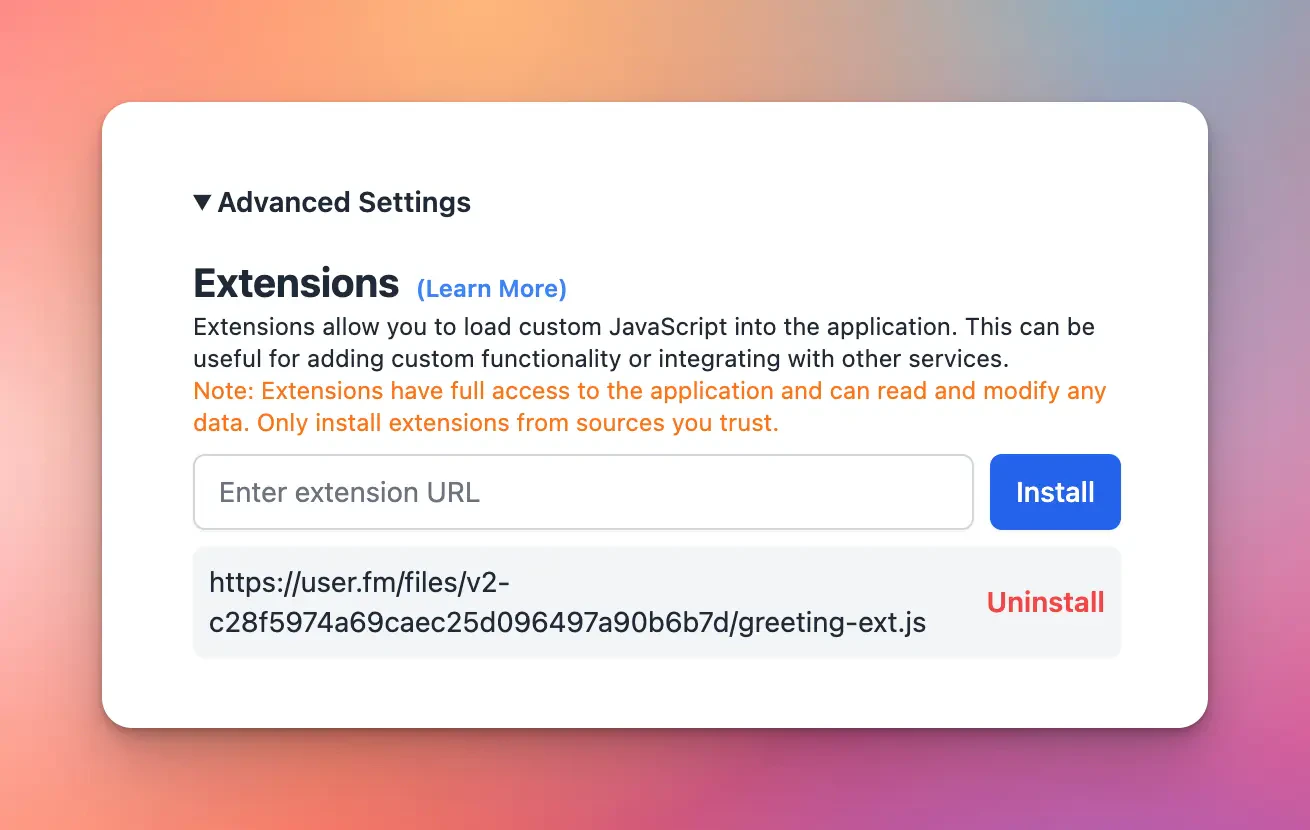
How it works
In general, Typing Mind Extensions works like a typical browser extension. The only difference is that you can install the extensions on the macOS app and mobile apps (PWA). The user installs a new extension by providing a script URL (JavaScript), then Typing Mind will load and execute it when the app is loaded. Some facts:- The URL must be hosted at a publicly accessible endpoint, must have the mime type of
application/javascriptortext/javascript, and can be loaded from the Typing Mind web app (proper CORS settings needed). - Extensions are loaded once when the app starts.
- Extensions are installed locally on the user’s browser.
- Extensions are synced across multiple devices by default (included in the “Preferences” sync group)
Use cases
- Add additional backup & sync sources (AWS S3, Google Drive, private server, etc.)
- Embed a widget to Typing Mind (e.g., live chat widget)
- Adding custom keyboard shortcuts
- Customize message rendering
Access Typing Mind’s App UI
Various places on the Typing Mind’s app havedata-element-id attributed assigned. For example, the New Chat button has attribute data-element-id="new-chat-button-in-side-bar"
You can use these attribute to target a specific element in the application UI. If you need to access a certain UI elements that do not have a element ID yet, please let us know.
Access Typing Mind’s Data
All of the user’s data is located in the browser’s local data storage:- Local Storage - General app settings and preferences
- IndexedDB - Chat messages and other user generated data
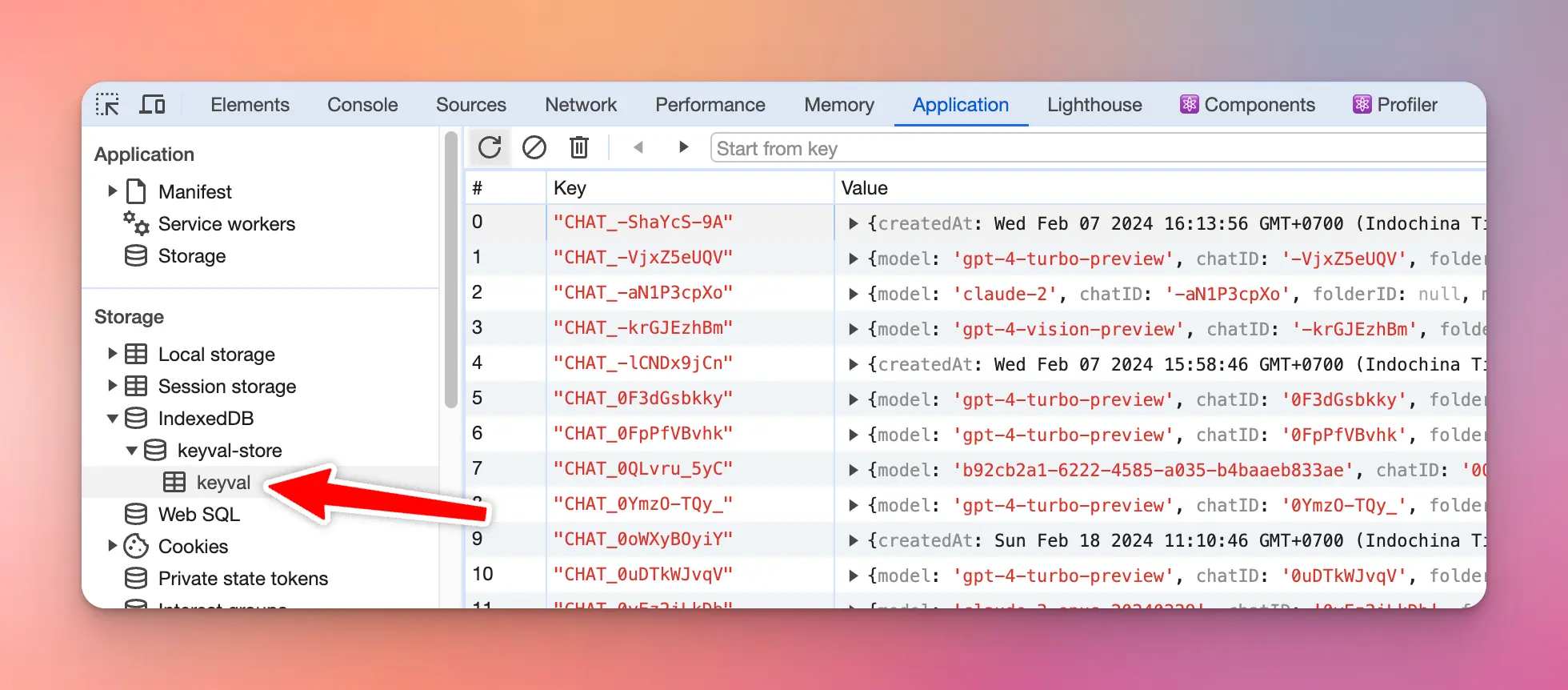 If your extension needs to make use of the app data, here are some best practices:
- All read operations are generally safe.
- If you need to modify/write the user’s data or Typing Mind’s internal data, make sure to test your extension carefully across the multiple devices and browsers. If the internal data get corrupted, the user may not be able to use the app at all (see No Extensions Mode to learn how to deal with this case).
Common Issues
Example extension
Below is an example extension that changes the “New Chat” button label toGood Morning!, Good Afternoon! or Good Evening! depends on the time of day.
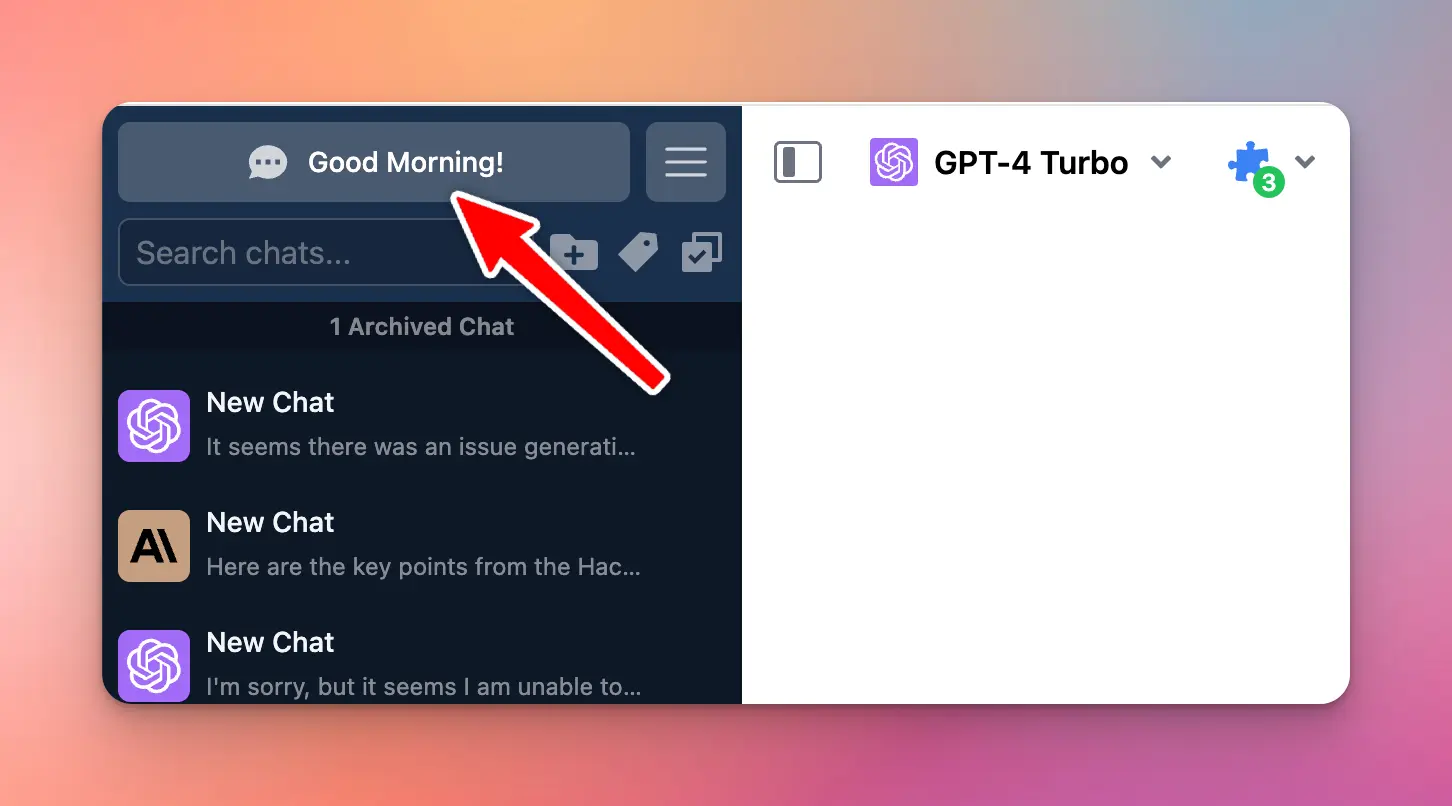 File greeting-ext.js:
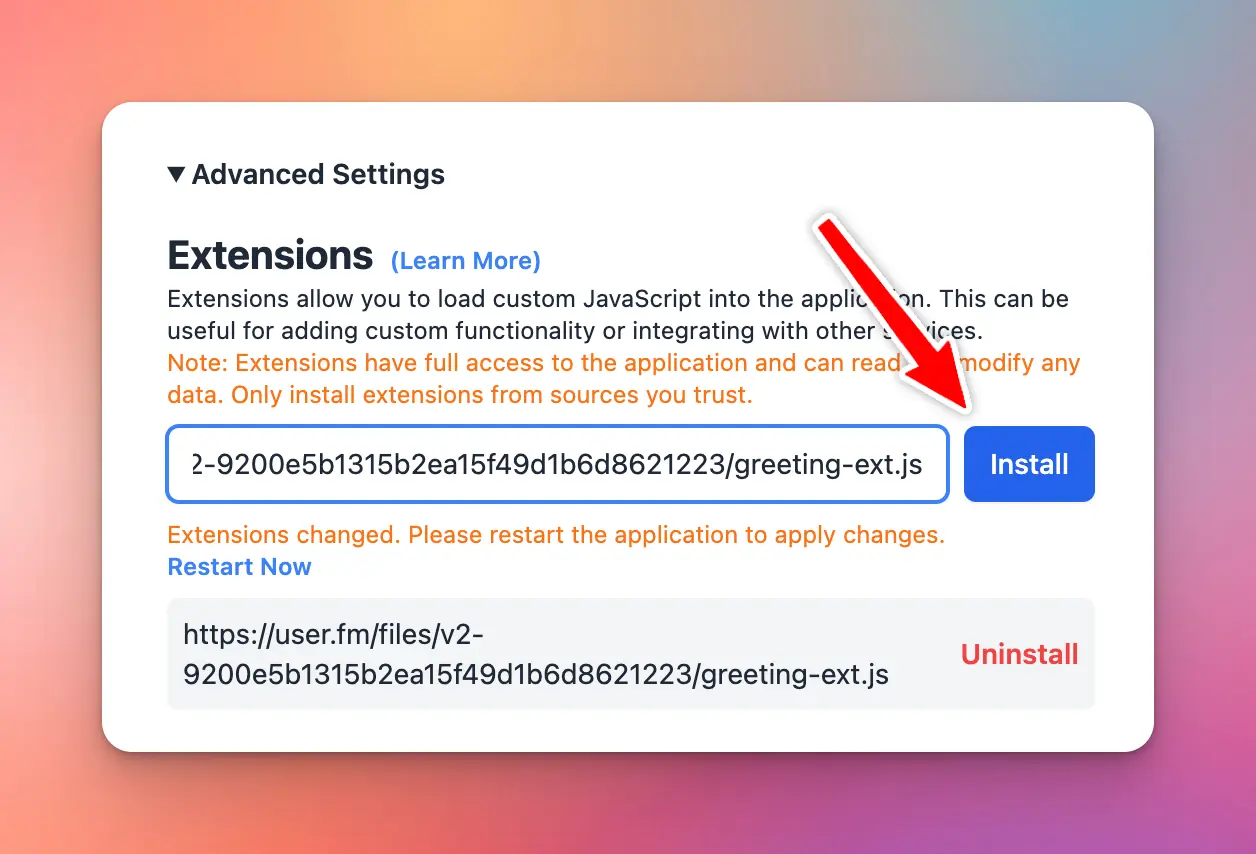 Once installed, you need to restart the app for the change to take effect.
Safe Mode (No Extensions Mode)
Sometimes, your extension crashes or make Typing Mind unusable for the user. You can load Typing Mind in Safe Mode to debug and troubleshoot the issue. In Safe Mode, extensions will not be loaded. The user can uninstall the corrupted extensions to continue using Typing Mind. To activate Safe Mode, load the app with?safe_mode=1 in the URL. For example: