.svg?fit=max&auto=format&n=RaTUOQa09vPhW7_D&q=85&s=368f39de7ecc6605f73c43c2017546a3)
.svg?fit=max&auto=format&n=RaTUOQa09vPhW7_D&q=85&s=01a6eb27b4db3af8a1d5557525c579d3)
What is LlamaIndex?
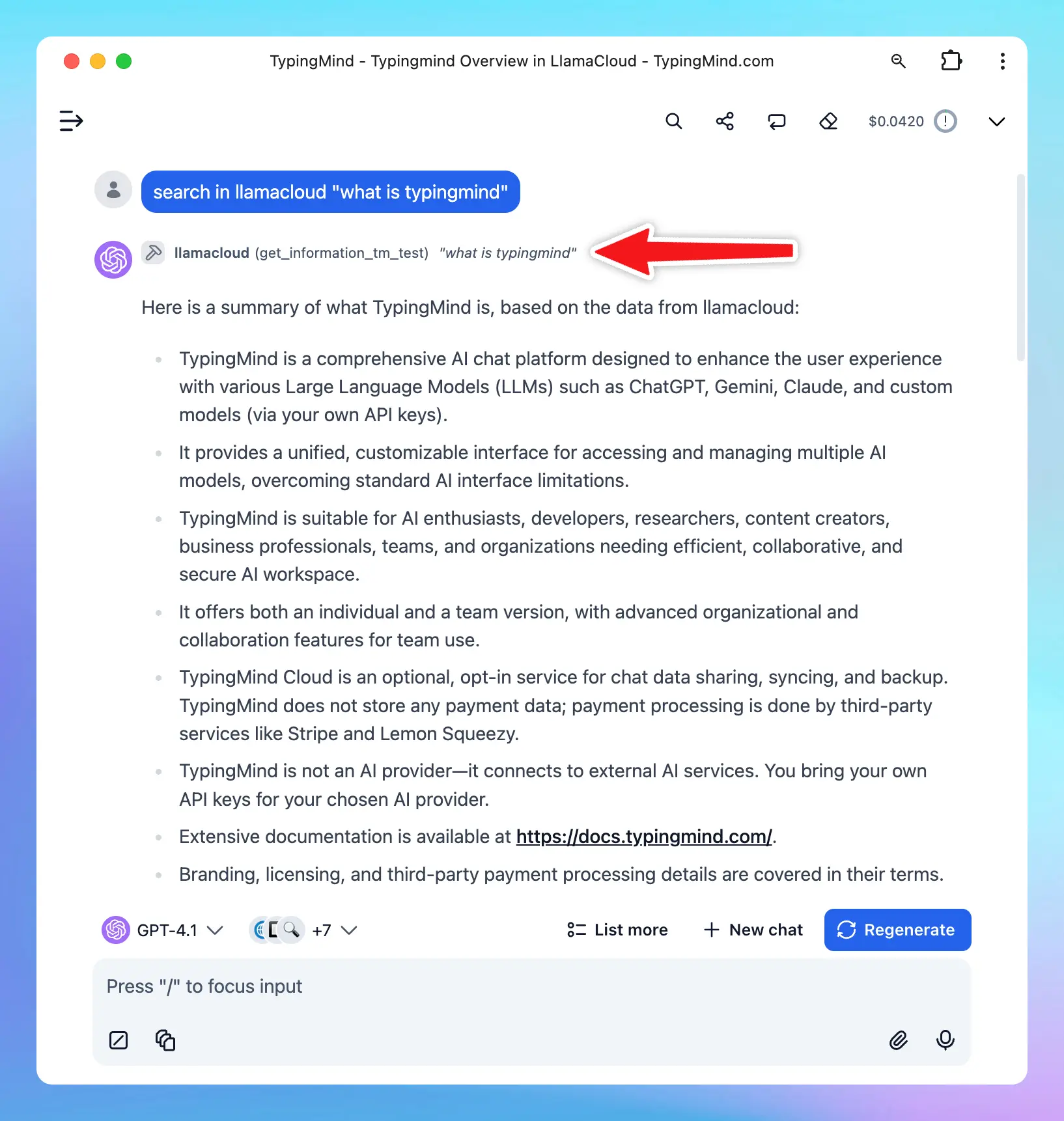
LlamaIndex is a data framework that lets you connect AI models to your private or organizational data. By creating an index, you can structure and retrieve information from multiple data sources such as documents, databases, or APIs. When connected to TypingMind, you can ask questions and run deep research across your own indexed data.
How to set up LlamaIndex on TypingMind
You can connect LlamaIndex on TypingMind using MCP server.Step 1: Create an Index in LlamaIndex
- Sign up for a LlamaIndex account (if you don’t already have one).
- Go to Index and create a new index.
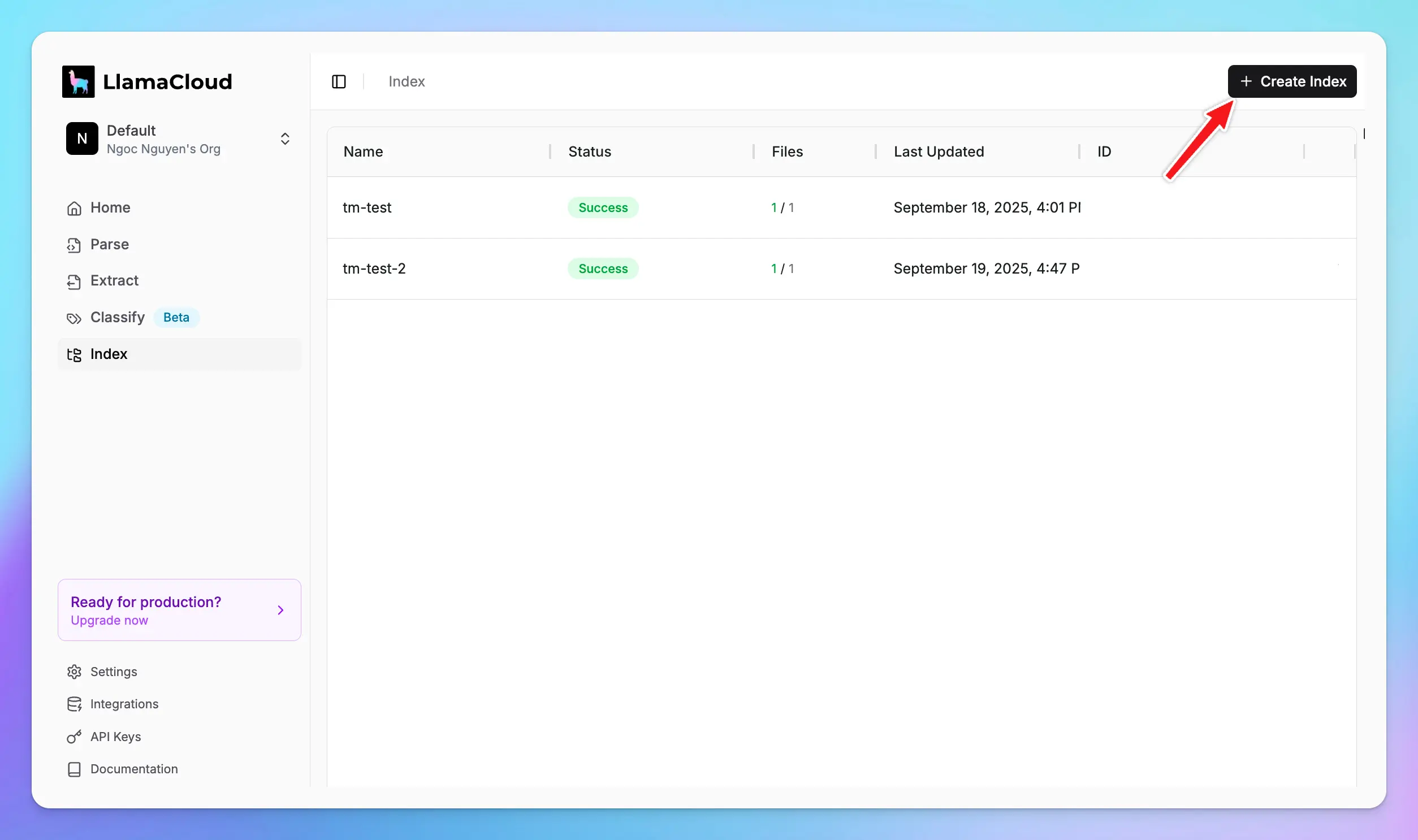
- Connect your index to your data sources (e.g., Google Drive, Notion, databases, and more)
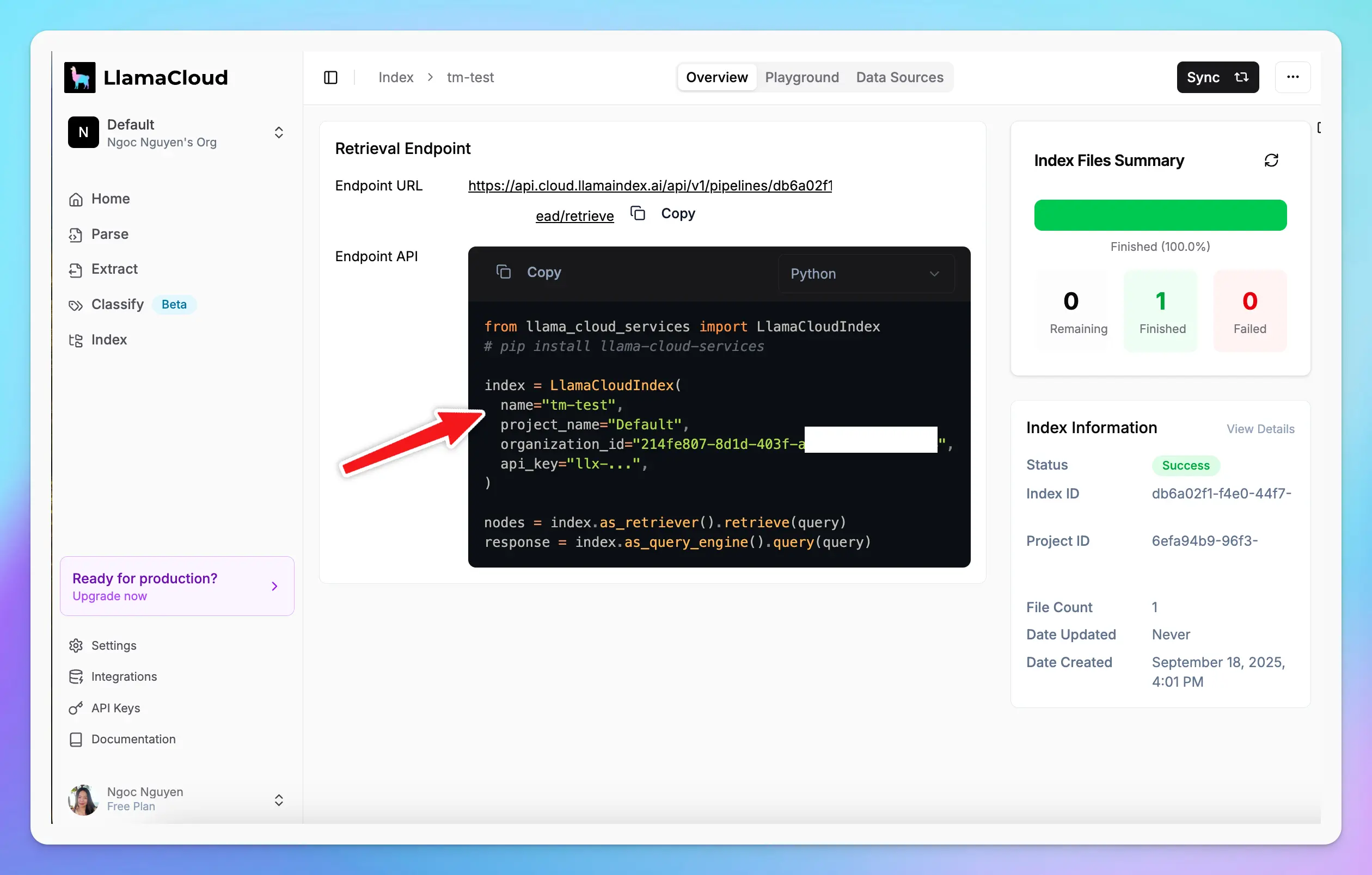
- Once created, note down your:
- Index name
- Project name
- Organization ID
Step 2: Get your LlamaIndex API Key
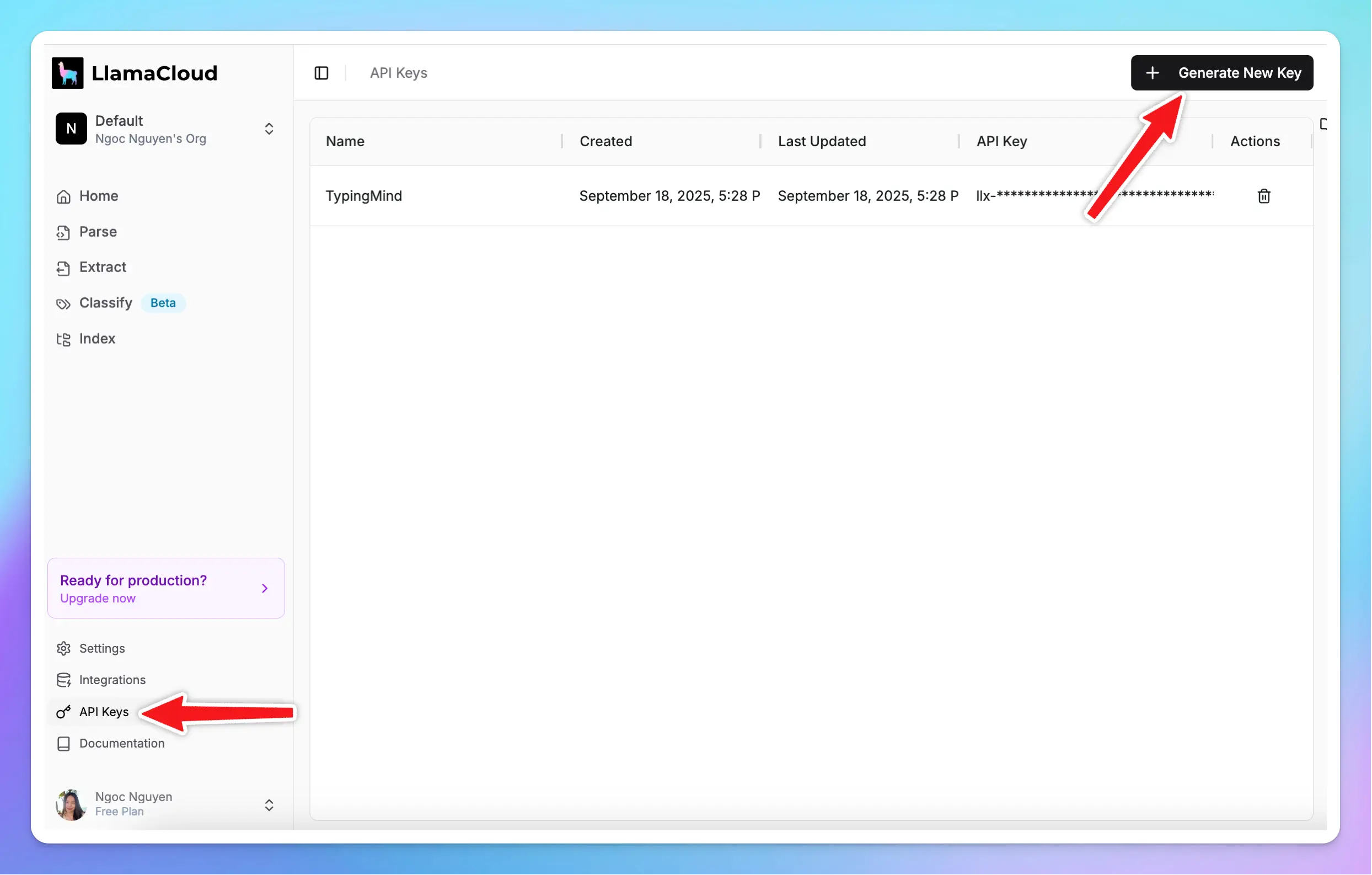
- Go to API Keys
- Generate New Key
Step 3: Set up MCP Connectors on TypingMind
In TypingMind, go to Settings → Advanced Settings → Model Context Protocol to start setup your MCP connector. The MCP Connector acts as the bridge between TypingMind and the MCP servers. MCP servers require a server to run on. TypingMind allows you to connect to the MCP servers via:- Your own local device
- Or a private remote server.
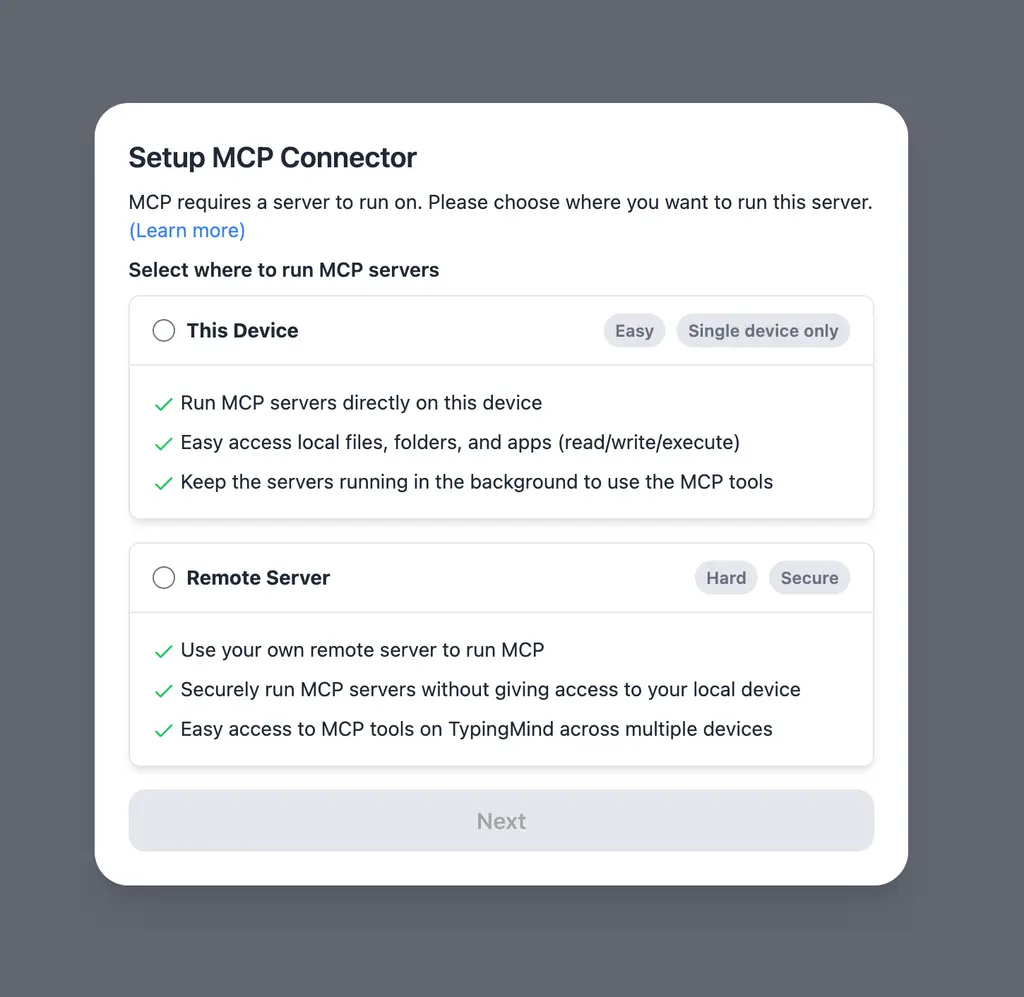 If you choose to run the MCP servers on your device, run the command displayed on the screen.
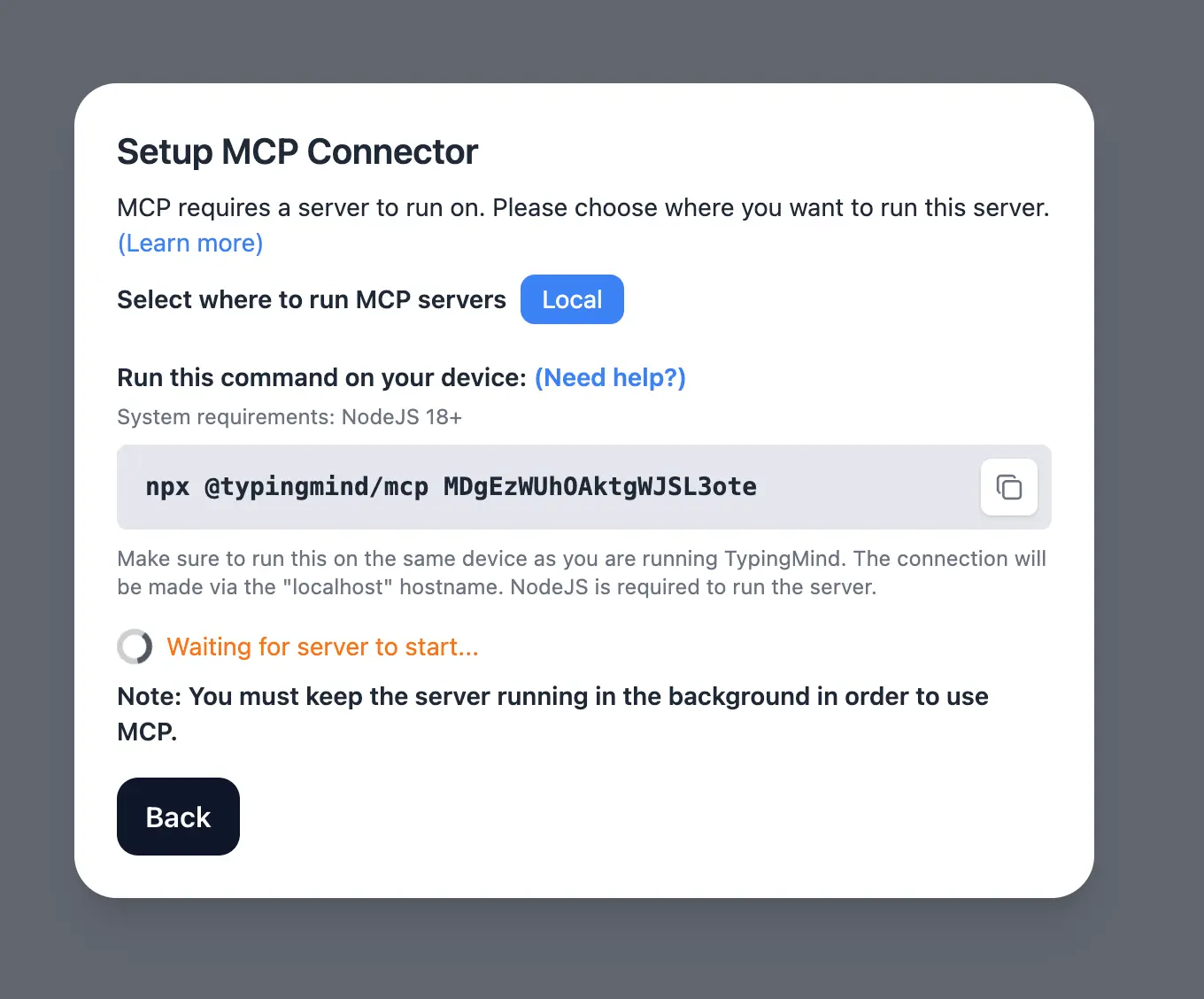 Detail setup can be found at https://docs.typingmind.com/model-context-protocol-(mcp)-in-typingmind
Step 4: Configure LlamaCloud MCP on TypingMind
Add the following JSON configuration under MCP Servers in TypingMind settings:- Replace
<your-index-name>and<your-index-description>with your actual index details in step 1. - You can add multiple indexes by repeating the
-indexand-descriptionarguments. - Replace
<YOUR_API_KEY>with your Llama Cloud API key in step 2. - You can also optionally specify
--topKto limit the number of results. - The
LLAMA_CLOUD_PROJECT_NAMEenvironment variable is optional and defaults toDefaultif not set.
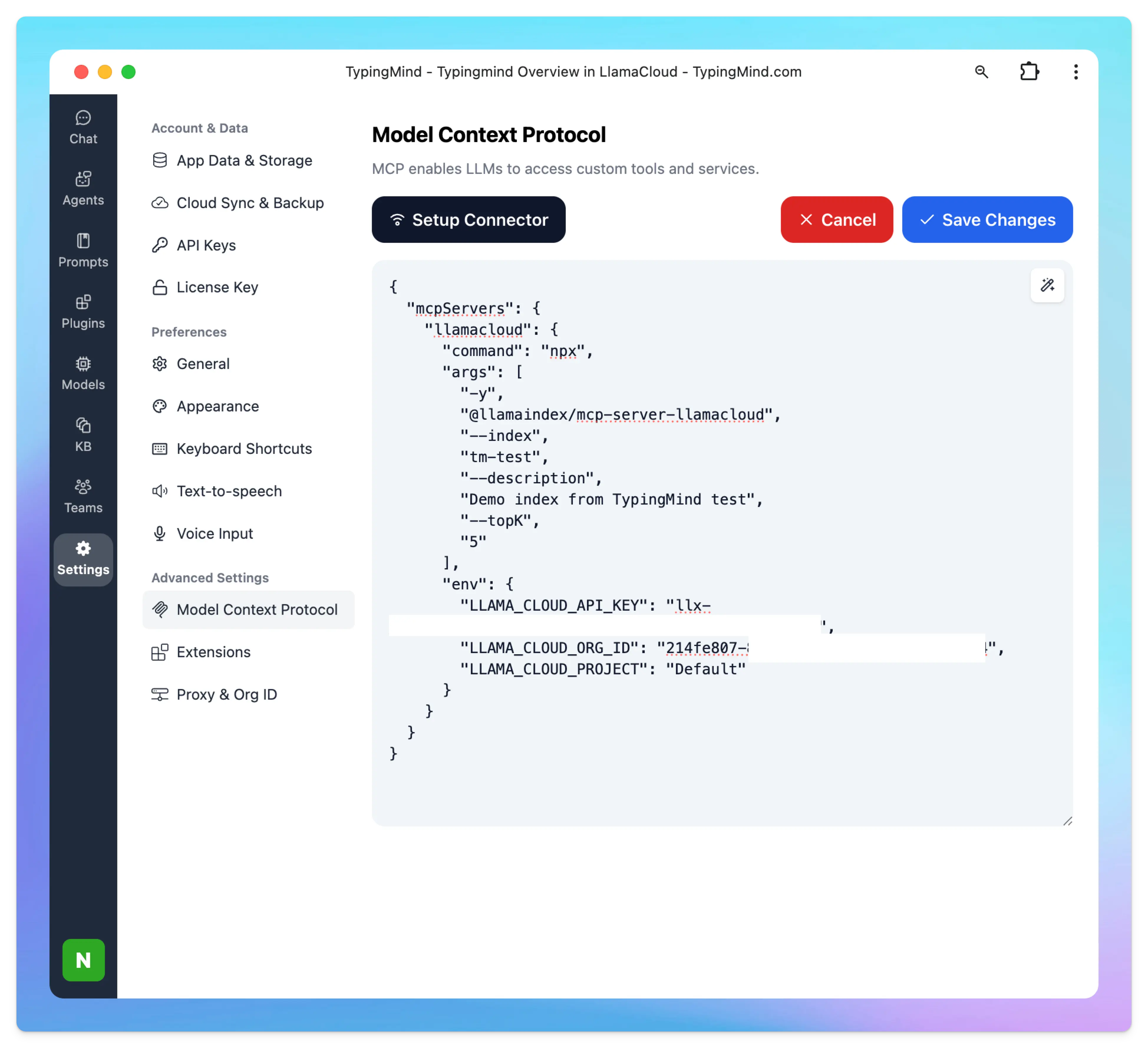 More information about LlamaCloud MCP
Step 5: Enable and Use LlamaIndex in TypingMind
After saving your MCP configuration:- Enable LlamaCloud plugin in TypingMind.
- Start asking questions and running research directly on your indexed data.