.svg?fit=max&auto=format&n=RaTUOQa09vPhW7_D&q=85&s=368f39de7ecc6605f73c43c2017546a3)
.svg?fit=max&auto=format&n=RaTUOQa09vPhW7_D&q=85&s=01a6eb27b4db3af8a1d5557525c579d3)
/image.png) Here’s how!
Here’s how!
Step 1: Create an xAI account
Go to https://console.x.ai/ to sign up for an xAI account if you don’t have one yet./image%201.png)
Step 2: Create an xAI team
Next, you will need to create an xAI team to get into the console:- Create a new team by entering a Team name and description.
- Click Create Team.
- You can skip inviting members if not necessary.
- Skip the API key creation for now - we’ll handle that later.
- Click Go to Home to return to the console dashboard.
/image%202.png)
/image%203.png)
Step 3: Purchase API credits
To use the API, you’ll need to purchase credits:- Go to Billing.
- Click on Credits.
- Select Purchase Credits.
/image%204.png)
Step 4: Create API key
- Go to API Keys in the console.
- Click Create API Key.
/image%205.png)
- Click to copy to API key to a safe place to set up on TypingMind.
Step 5: Use xAI on TypingMind
- Go to typingmind.com
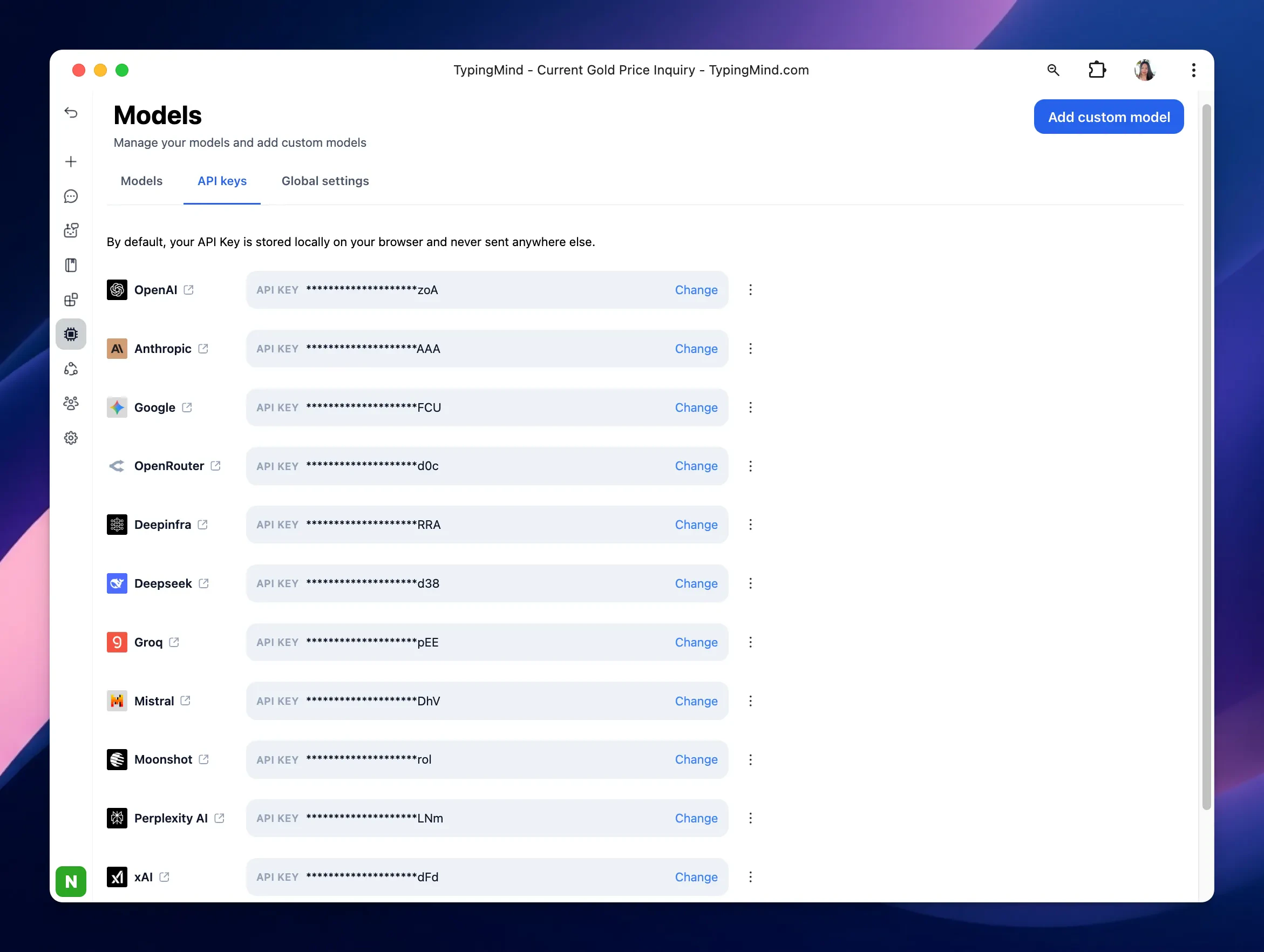
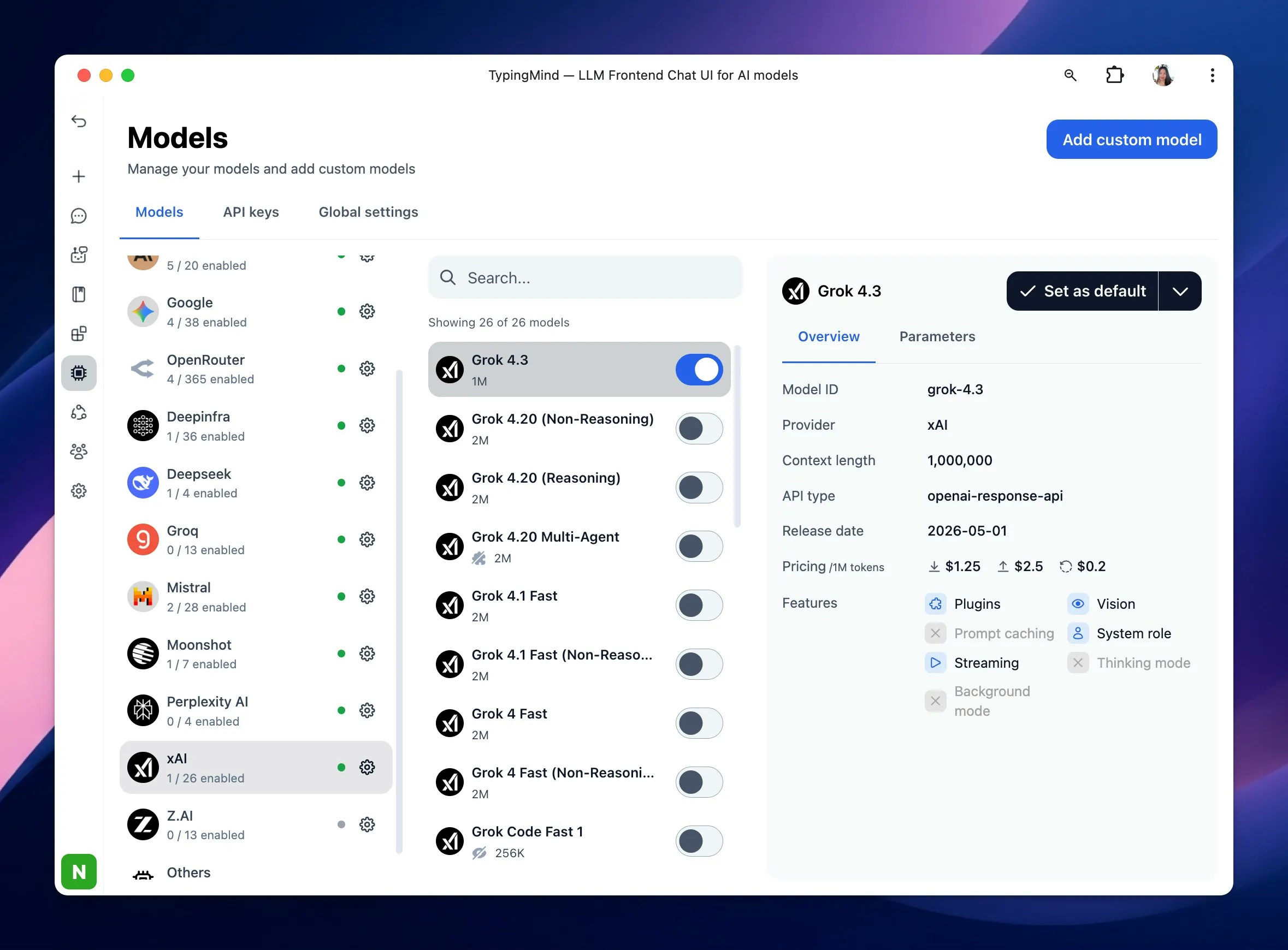
- Navigate the Models menu on the left sidebar → Switch to API key tab
- Input the copied API key for xAI.