.svg?fit=max&auto=format&n=RaTUOQa09vPhW7_D&q=85&s=368f39de7ecc6605f73c43c2017546a3)
.svg?fit=max&auto=format&n=RaTUOQa09vPhW7_D&q=85&s=01a6eb27b4db3af8a1d5557525c579d3)
🔥 What’s New?
Edit in Canvas on TypingMind is great for editing and revising the AI response to improve AI-generated responses that meet your goals without switching back-and-forth within your conversation.Edit in Canvas can make your work smoother and more effective by allowing you to:- Edit text or code directly: make changes instantly, add or adjust your text or code.
- Rewrite specific parts of your text or the entire message: make your text longer, shorter, friendlier or enter custom prompts to adjust tone, voice, style of your text.
- Use markdown formatting: you update basic styles for your text including bold, italics, headers, lists, quotes, and more.
🏁 How it works
- You can pick an AI model and start a conversation to work on your project.
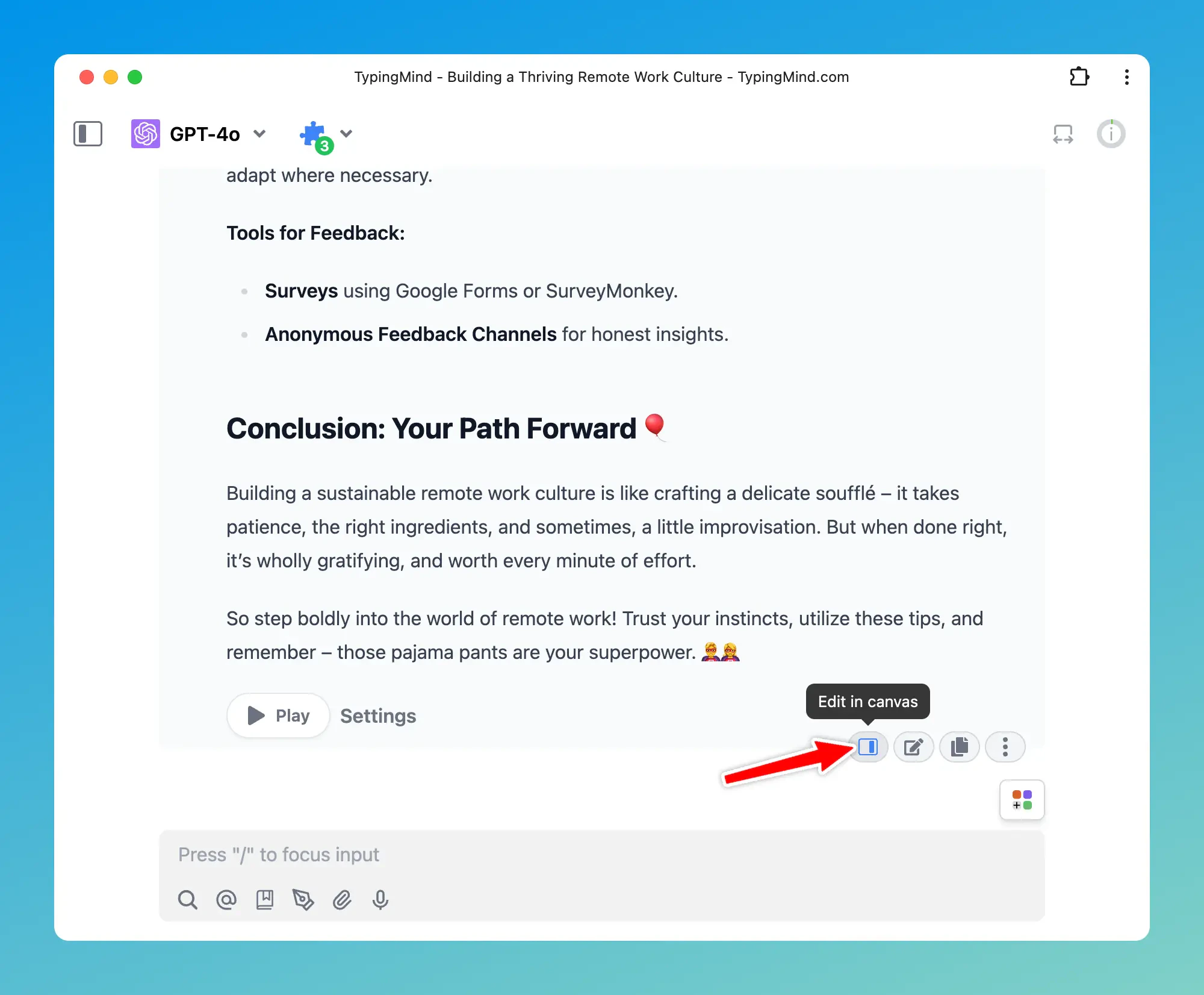
- When you receive an AI response, hover over it and click “Edit in Canvas.”
- Clicking “Edit in Canvas” opens a window on the right where you can easily see and edit the response.