.svg?fit=max&auto=format&n=RaTUOQa09vPhW7_D&q=85&s=368f39de7ecc6605f73c43c2017546a3)
.svg?fit=max&auto=format&n=RaTUOQa09vPhW7_D&q=85&s=01a6eb27b4db3af8a1d5557525c579d3)
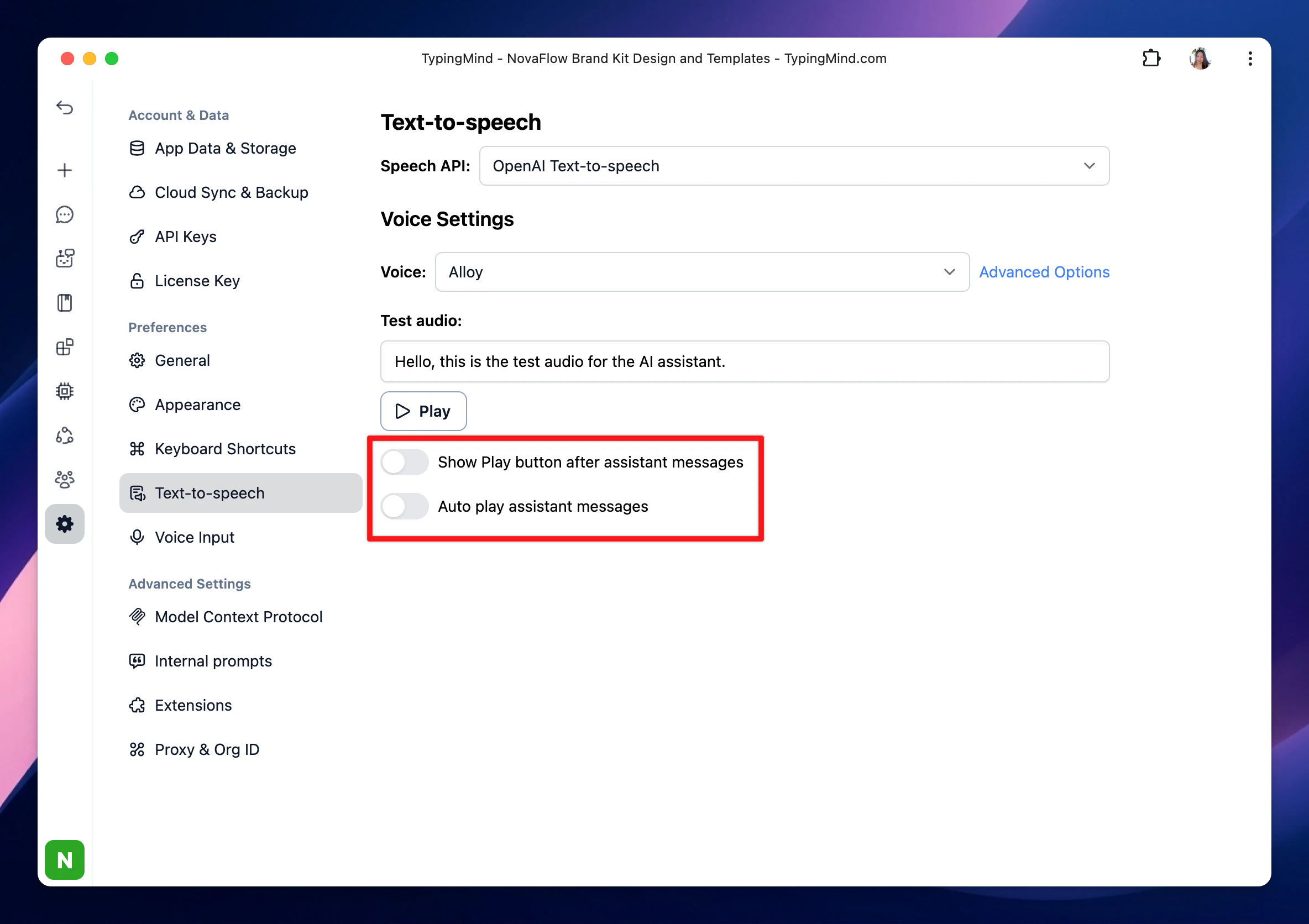
Step 1. Set up Text-to-speech
- Click on the Settings menu on the left panel
- Select Text-to-speech tab to set up a voice for the AI assistant
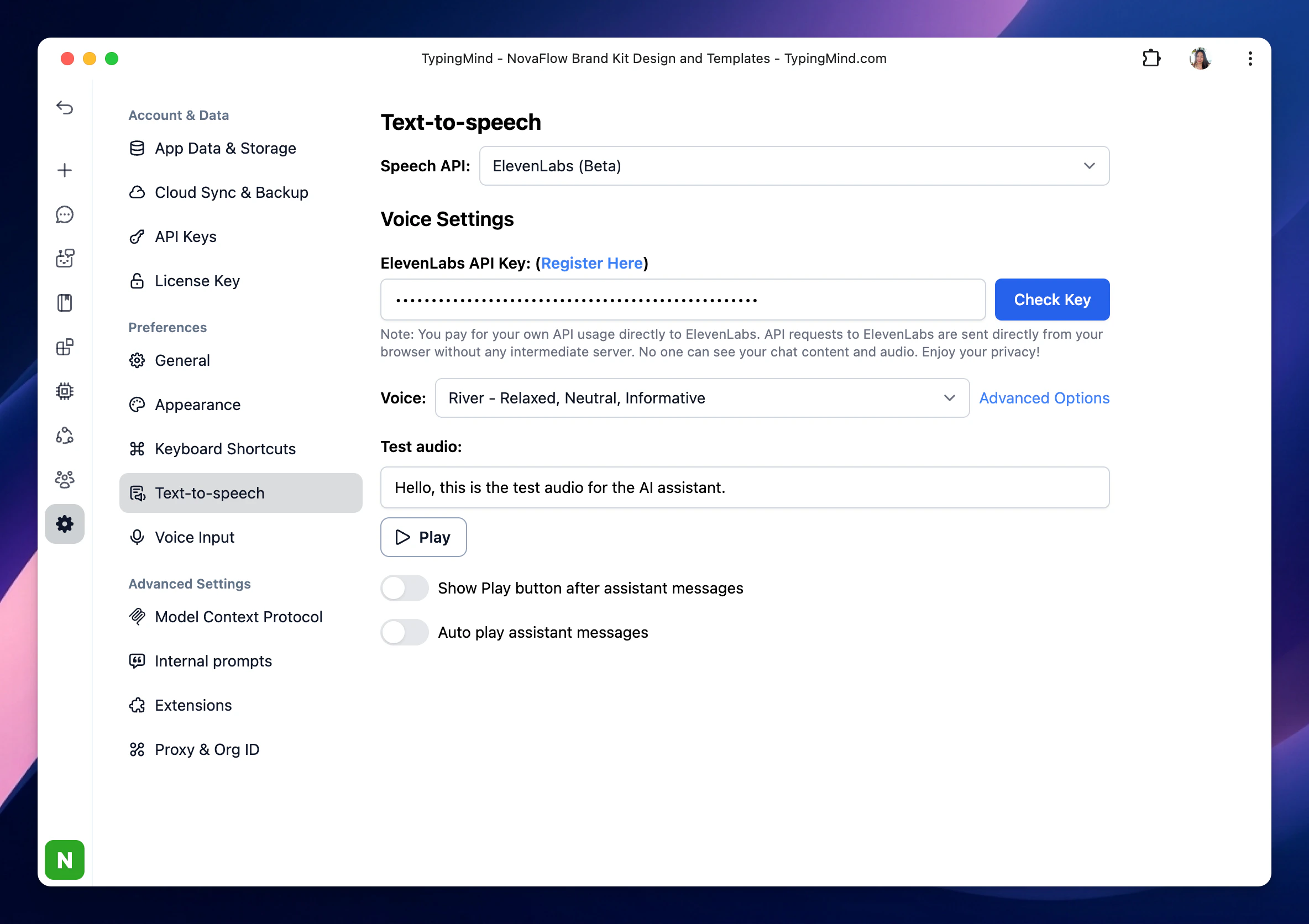
Step 2. Select a speech provider
You need to choose a Speech API to enable text-to-speech feature, there’re currently 3 options from the drop-down options:- Browser (Web Speech API)
- ElevenLabs
- OpenAI Text-to-speech
Browser (Web Speech API)
This option doesn’t require an API key and can be used for free, just choose a voice and start a conversation.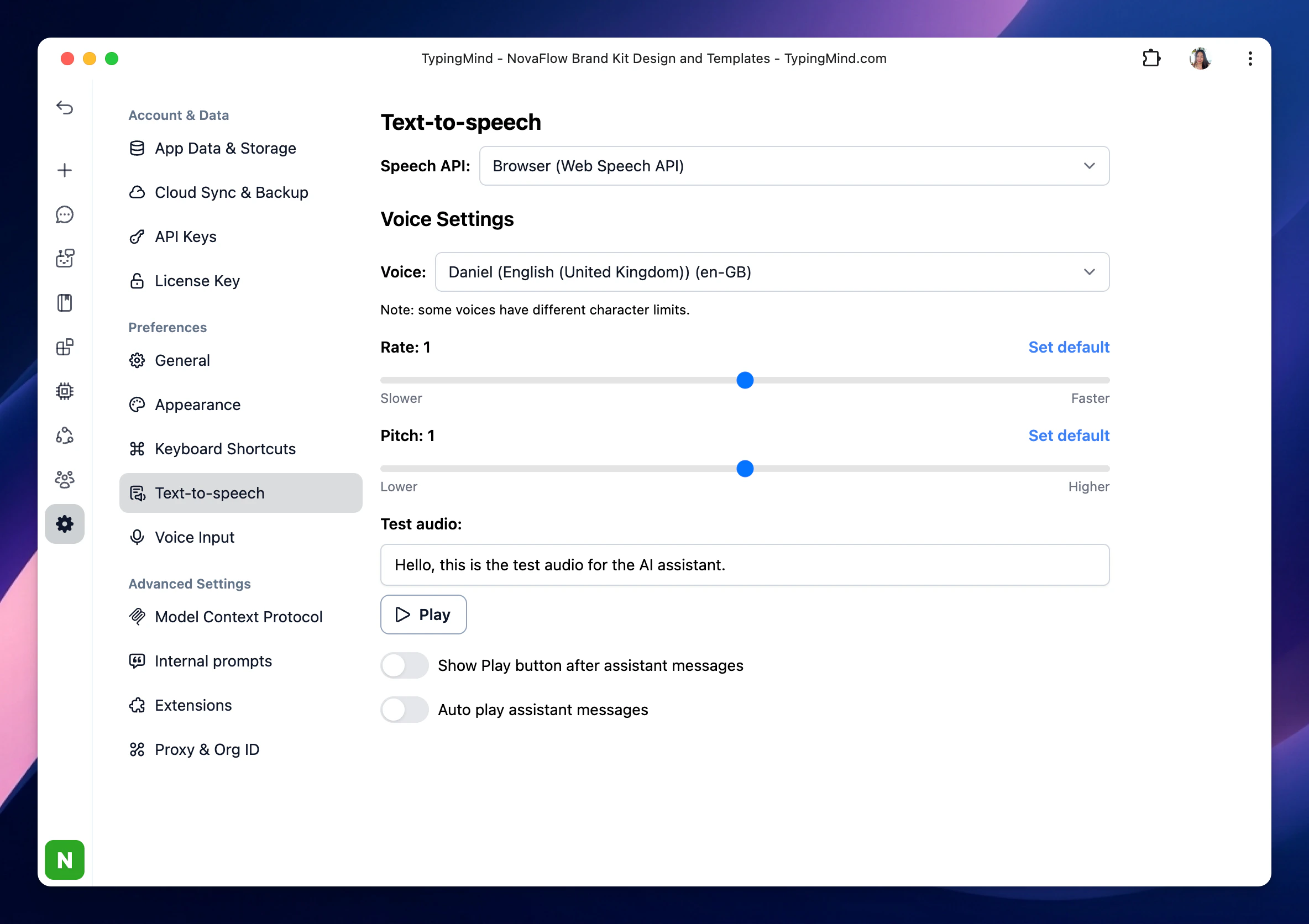
Please note that the available voices will also depend on the browser you are using.
ElevenLabs
To use voices on ElevenLabs, you will need an API key: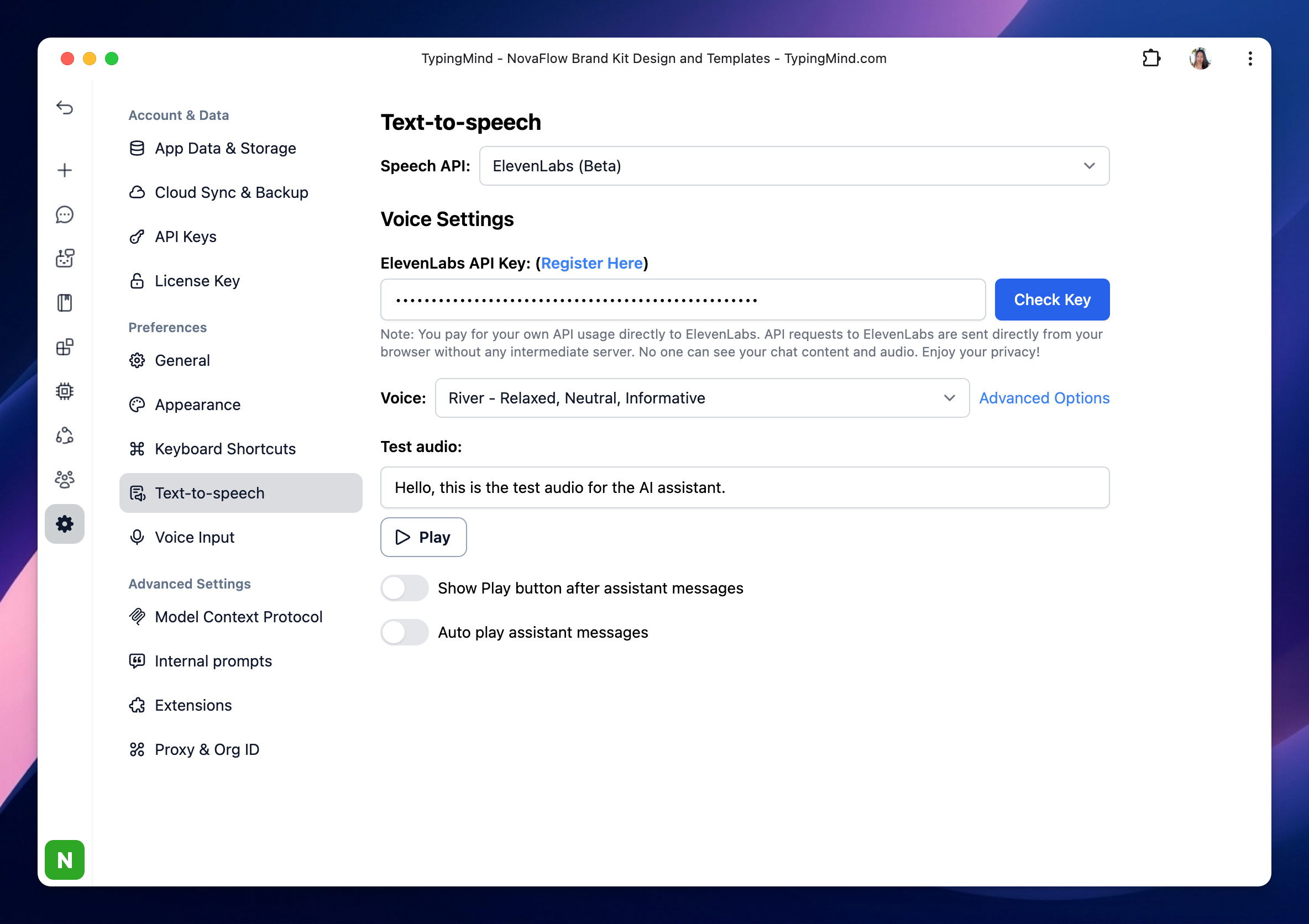
- Sign up for ElevenLabs: https://elevenlabs.io/app/sign-up
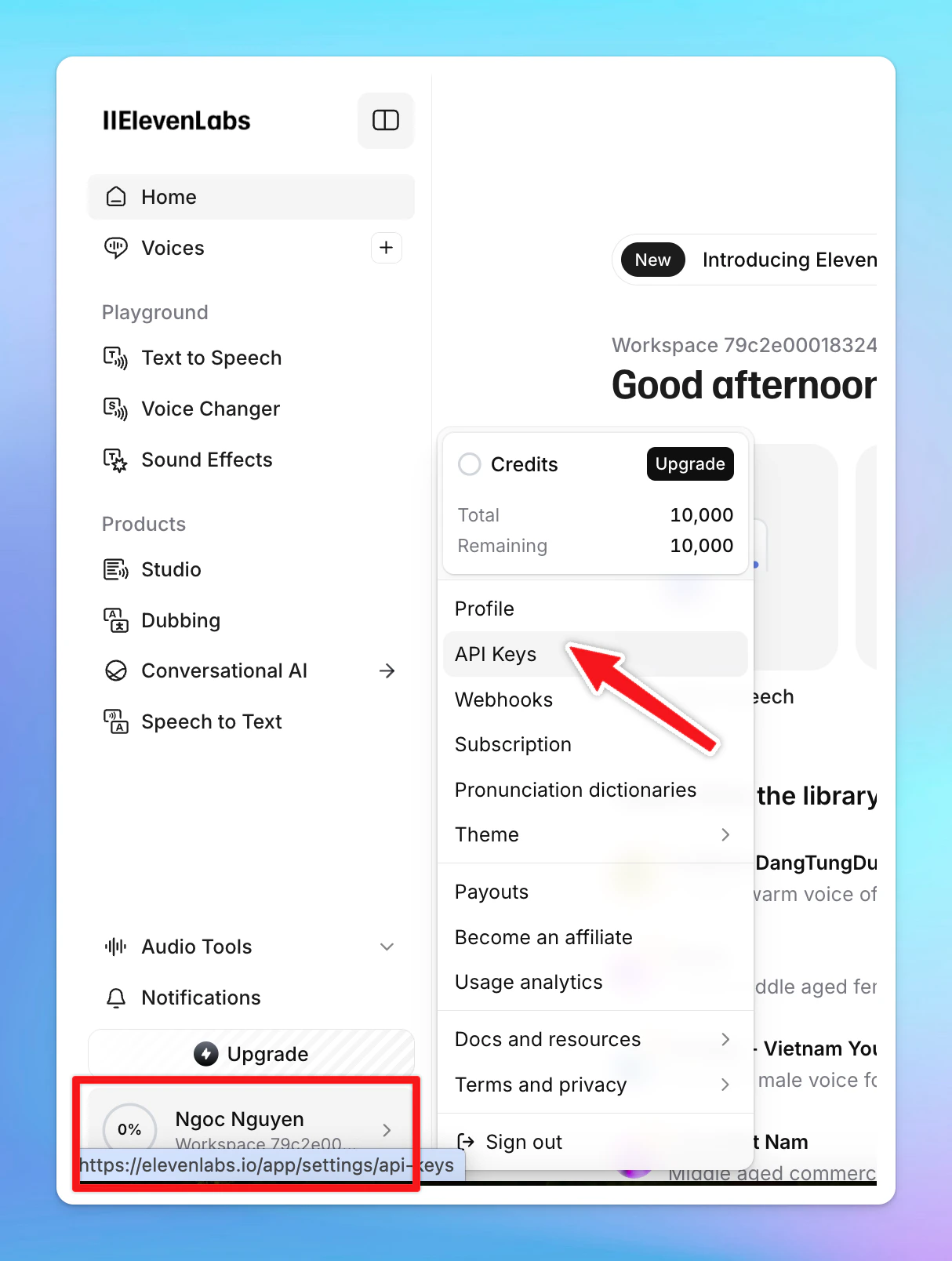
- Click on your profile picture on the bottom left corner of the app and select API keys (or you can directly go to https://elevenlabs.io/app/developers/api-keys)
- Copy the API Key to TypingMind and click “Check key” to see if the key is working or not.
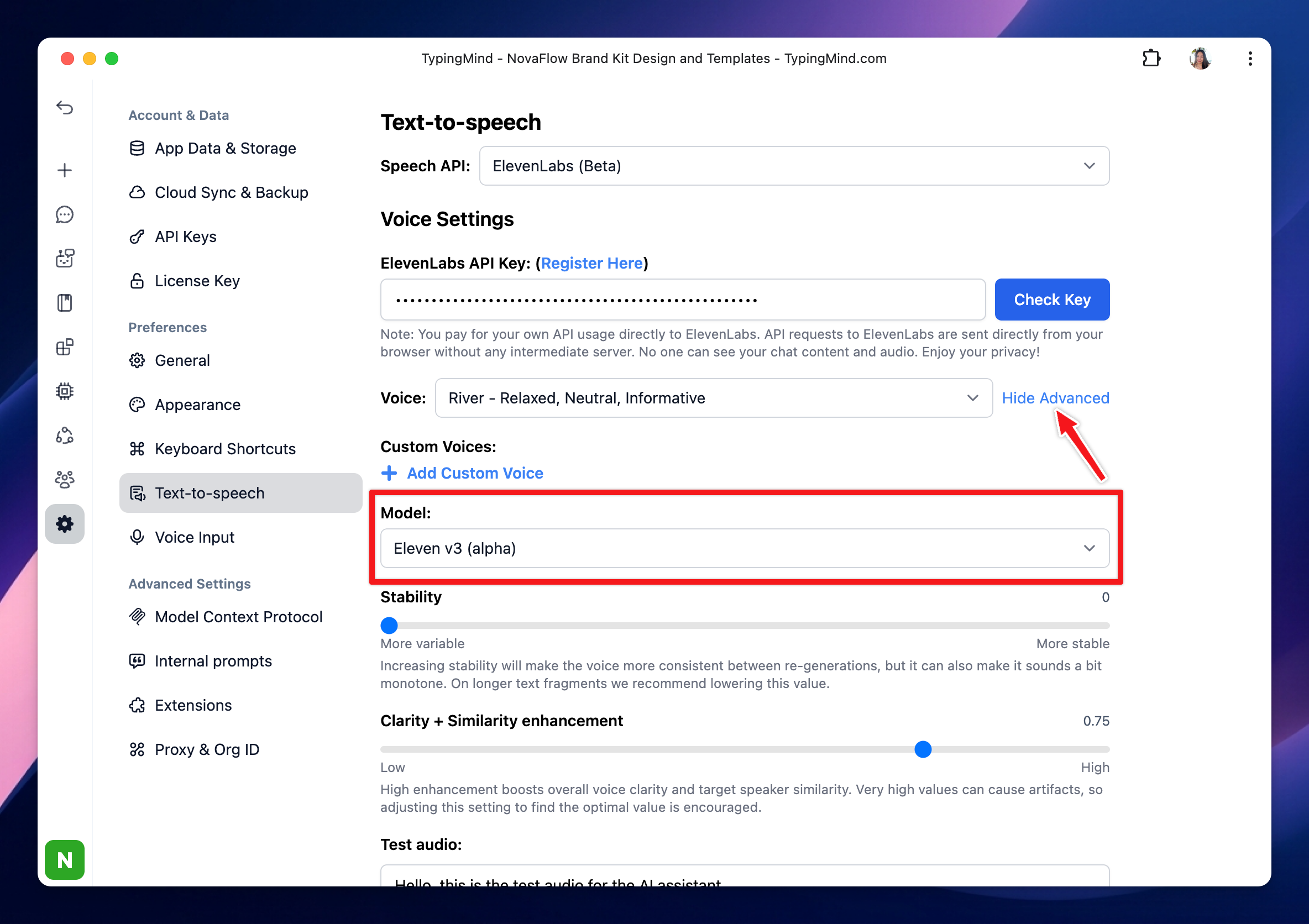
Please note that if your usage surpasses the free limit provided by ElevenLabs API, it is necessary to upgrade to a ElevenLabs’ paid plan.
OpenAI Text-to-speech
Use voices from OpenAI also requires an OpenAI API key: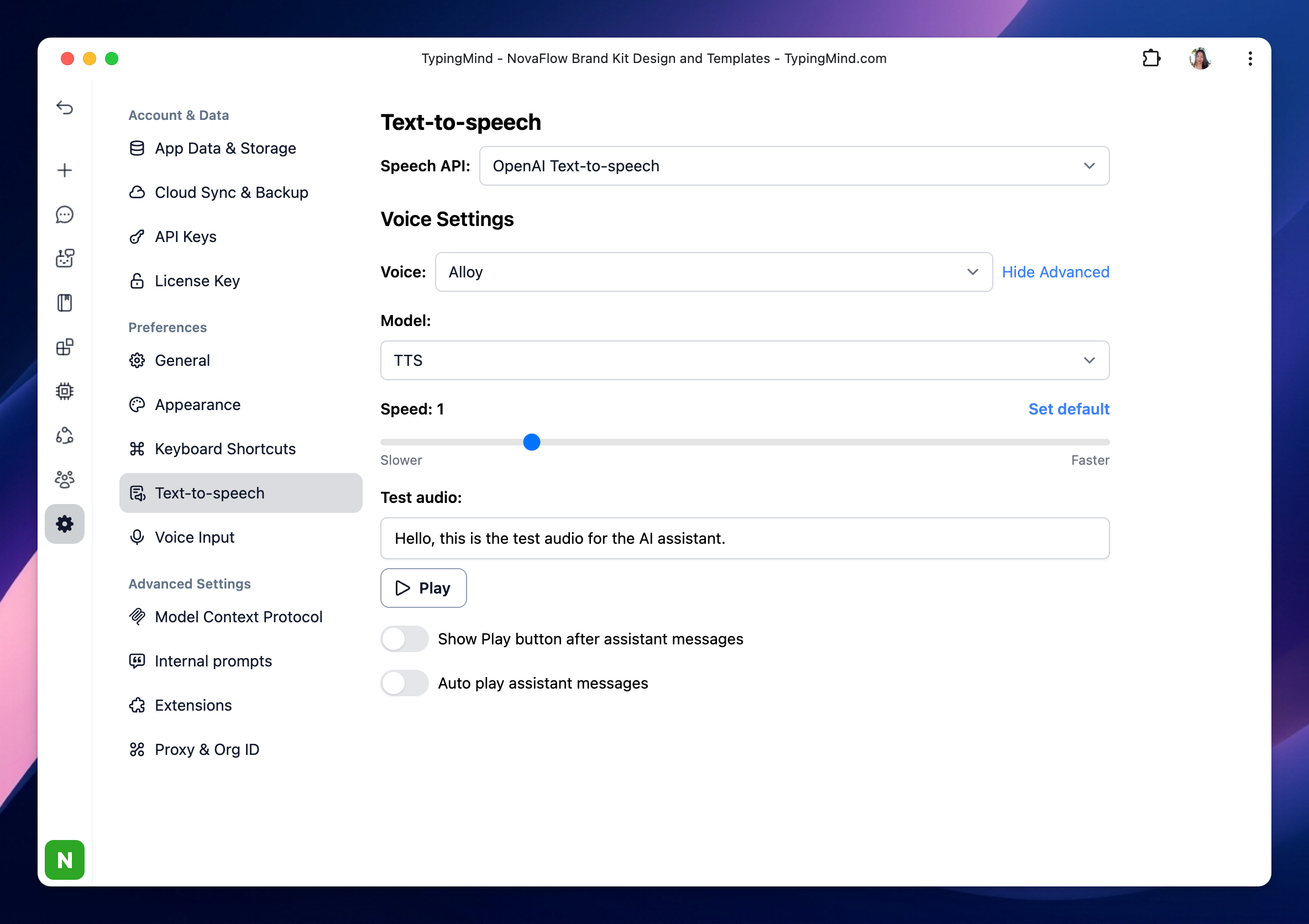
Step 3. Let the AI speak!
After you done the setup, you can start a conversation, when you receive the AI response, there will be a Play button right below the answer so you can play the audio for the AI assistant manually.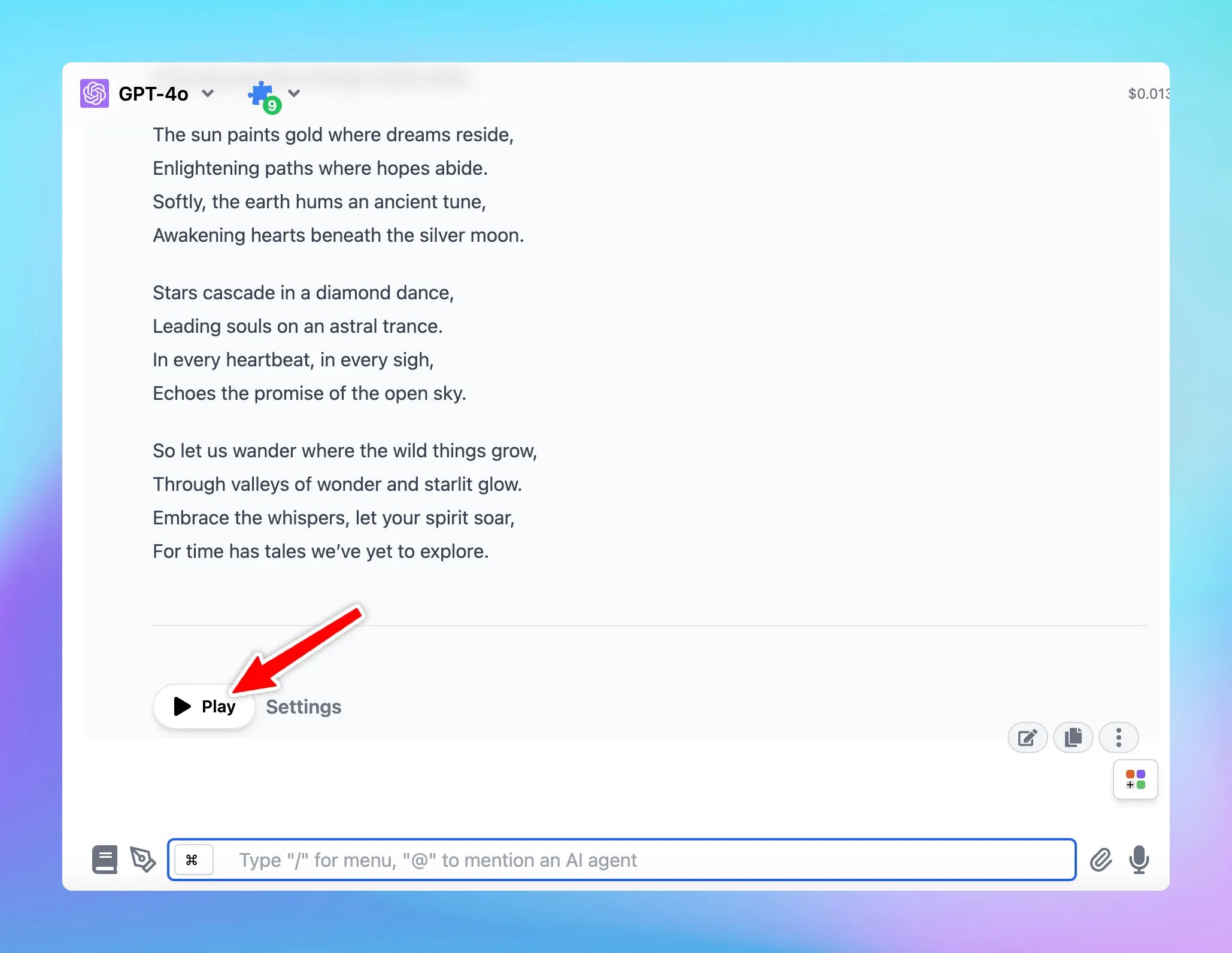
Please note that you can:
- Enable/disable the Play button
-
Allow auto-play AI message so you don’t need to click manually