Plugin has been removed because it relied on a legacy plugin server. Please use Code Sandbox to generate files instead.
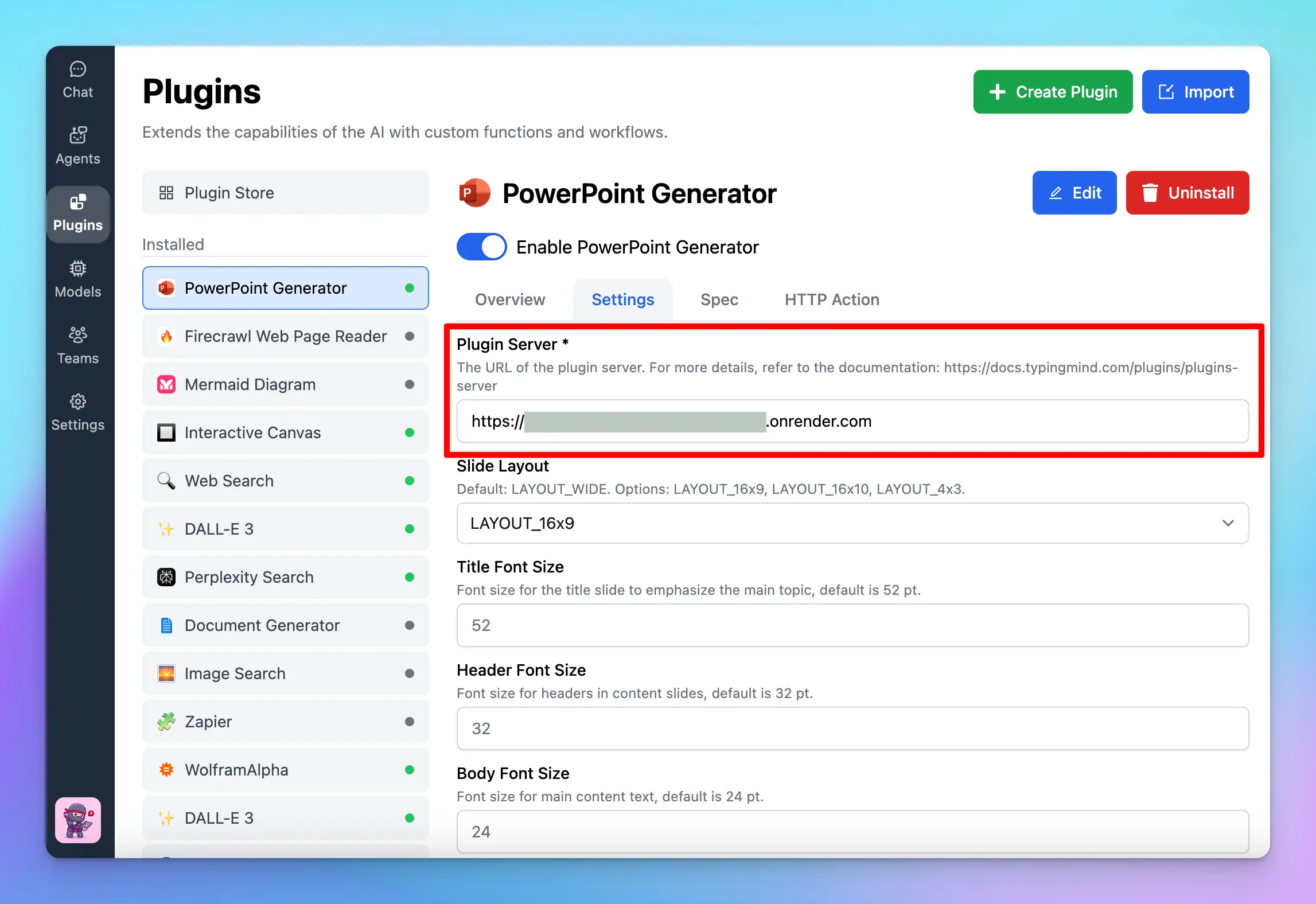
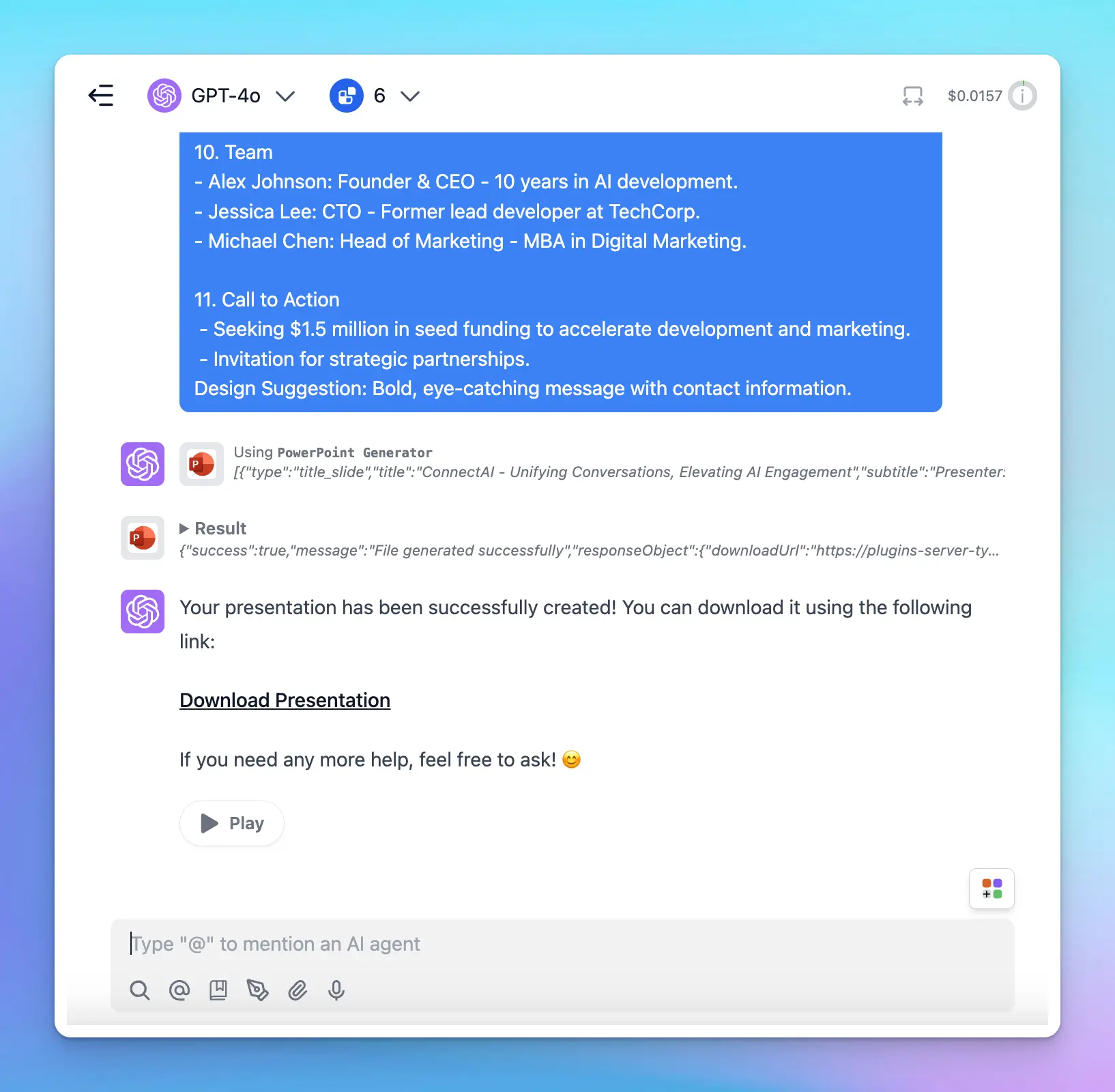
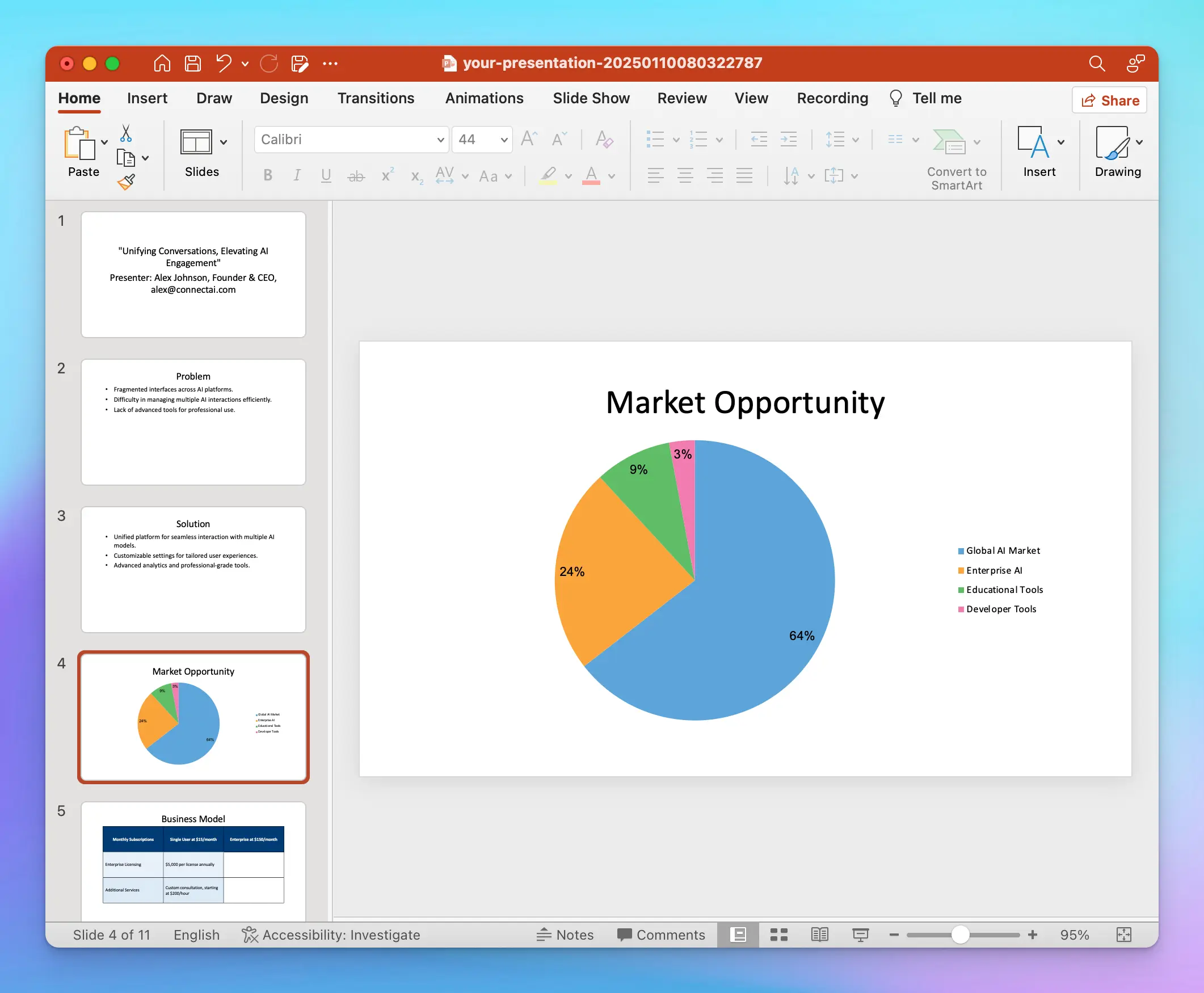
The PowerPoint Generator plugin allows you to quickly create PowerPoint slides with customizable layouts, fonts, and colors. Follow these steps to set up and configure the plugin on your app.
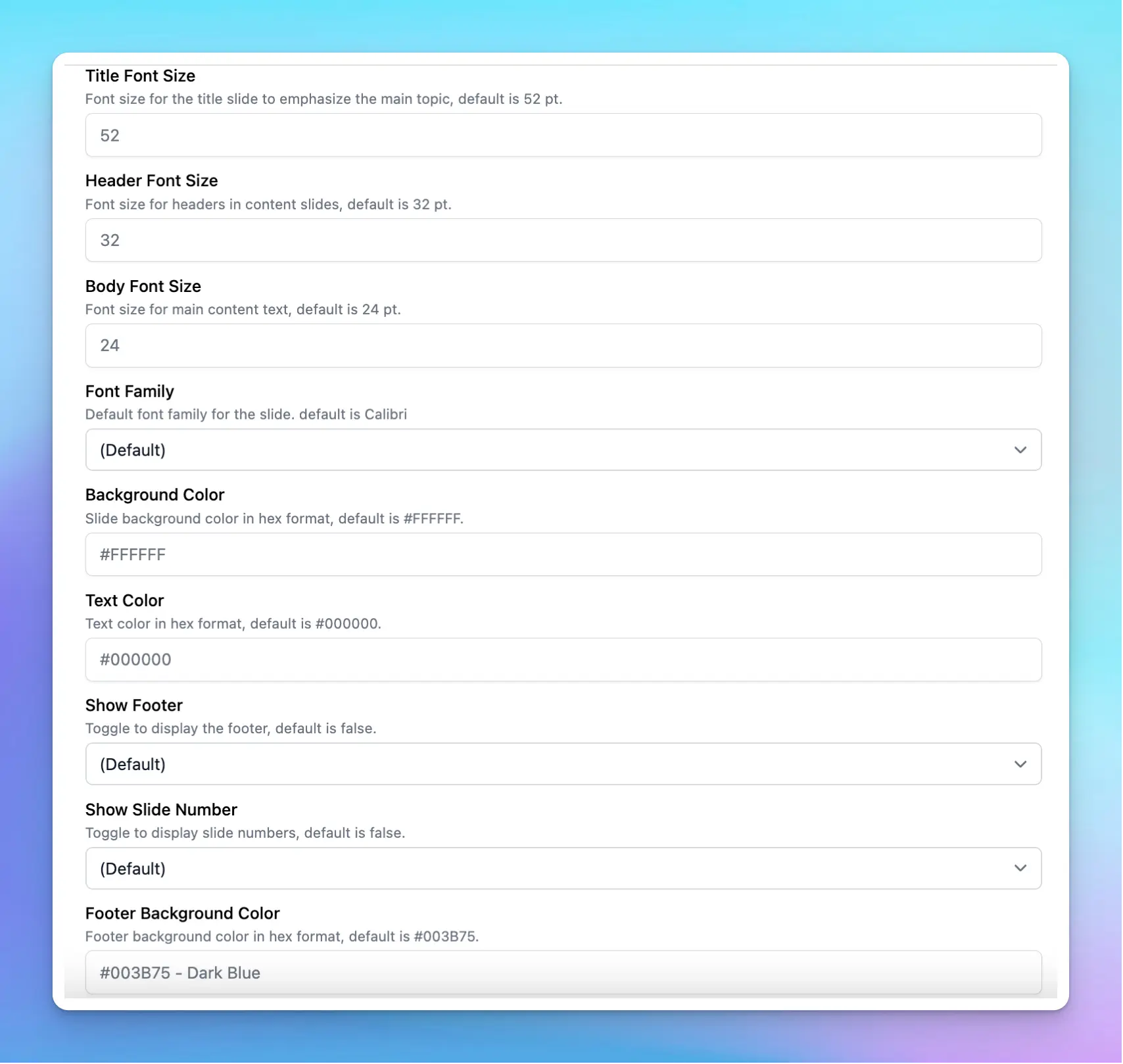
After setting up the Plugin server, you can customize how the slides will look by adjusting some settings such as Title font size, Header font size, Body font size, Font family, Background color, Text color, Show footer, etc.
The generated PowerPoint files will be automatically removed after one hour.
The plugin does not yet support image embedding in PowerPoint files.
Was this page helpful?
{"docsConfig":{"theme":"mint","$schema":"https://mintlify.com/docs.json","name":"TypingMind Docs","description":"Your go-to resource for getting the most out of TypingMind","colors":{"primary":"#1539a3","light":"#1e4bd4","dark":"#102c7f"},"logo":{"light":"https://mintcdn.com/typingmind/RaTUOQa09vPhW7_D/images/logo-light(3).svg?fit=max\u0026auto=format\u0026n=RaTUOQa09vPhW7_D\u0026q=85\u0026s=368f39de7ecc6605f73c43c2017546a3","dark":"https://mintcdn.com/typingmind/RaTUOQa09vPhW7_D/images/logo-dark(3).svg?fit=max\u0026auto=format\u0026n=RaTUOQa09vPhW7_D\u0026q=85\u0026s=01a6eb27b4db3af8a1d5557525c579d3","href":"https://www.typingmind.com/?utm_source=docs"},"favicon":"https://mintcdn.com/typingmind/pm53BB_D69NXvWmb/images/logotypingmind3.webp?fit=max\u0026auto=format\u0026n=pm53BB_D69NXvWmb\u0026q=85\u0026s=a689e470c2dc7a6b4fd8efa9a7549ae8","background":{"color":{"light":"#ffffff","dark":"#000000"}},"navbar":{"links":[{"href":"mailto:support@typingmind.com","label":"Support"},{"href":"https://feedback.typingmind.com/changelog","label":"Changelog"}]},"footer":{"socials":{"x":"https://x.com/TypingMindApp","linkedin":"https://www.linkedin.com/company/typingmind","youtube":"https://www.youtube.com/@TypingMind","website":"https://www.typingmind.com/?utm_source=docs"}},"seo":{"indexing":"all"},"icons":{"library":"lucide"},"interaction":{"drilldown":false},"styling":{"latex":true},"navigation":{"pages":[]}},"deployment":{"deploymentMetadataValue":{"subdomain":"typingmind","hasAudioNarration":false,"actualSubdomain":"typingmind","customDomains":["docs.typingmind.com"],"gitSource":{"type":"github","owner":"typingmindinternal","repo":"typingmind-docs","deployBranch":"main","contentDirectory":"","isPrivate":true,"mountPath":"","label":""},"chroma":{"liveDeploymentHistoryId":"6ad9e2482cd1c8b6f014cb92","collectionId":"223f21e7-6801-4591-9803-bd0e77355f65","schemaVersion":"v3","latestBuiltDeploymentHistoryId":"6ad9e2482cd1c8b6f014cb92"},"feedback":{"thumbs":true},"entitlements":{"AI_CHAT":{"status":"DISABLED"}},"buildId":"6ad9e2482cd1c8b6f014cb92","clientVersion":"0.0.3939","searchFilterCounts":[{"language":"default","tag":"Documentation","count":189},{"language":"default","tag":"TypingMind Teams","count":66},{"language":"default","tag":"AI Models","count":37},{"language":"default","tag":"Plugins","count":31},{"language":"default","tag":"Account \u0026 support","count":28},{"language":"default","tag":"Supported Models","count":21},{"language":"default","tag":"Model Context Protocol (MCP)","count":20},{"language":"default","tag":"Get started","count":19},{"language":"default","tag":"Chat Management","count":18},{"language":"default","tag":"Workspace Setup","count":18}]},"assistantConfig":{"enableAskAiButton":false,"enableStarterQuestions":false,"enableContextualStarterQuestions":false,"enableAskAiSearchBar":true},"hasChatPermissions":false,"hasWebMcpPermissions":false,"toggles":[],"isAtlas":false,"googleFontsInlined":false},"customCss":[],"page":{"pagePath":"plugins/powerpoint-generator","slug":"/plugins/powerpoint-generator","pageMetadata":{"title":"Powerpoint Generator","description":null,"href":"/plugins/powerpoint-generator"},"pageType":"default","mdx":{"mdxSource":{"compiledSource":"\"use strict\";const{Fragment:_Fragment,jsx:_jsx,jsxs:_jsxs}=arguments[0];const{useMDXComponents:_provideComponents}=arguments[0];function _createMdxContent(props){const _components={a:`a`,li:`li`,p:`p`,strong:`strong`,ul:`ul`,..._provideComponents(),...props.components},{Heading,OptimizedImage,Warning}=_components;if(!Heading)_missingMdxReference(`Heading`,true);if(!OptimizedImage)_missingMdxReference(`OptimizedImage`,true);if(!Warning)_missingMdxReference(`Warning`,true);return _jsxs(_Fragment,{children:[_jsx(Warning,{children:_jsx(_components.p,{children:`Plugin has been removed because it relied on a legacy plugin server. Please use Code Sandbox to generate files instead.`})}),`\n`,_jsx(_components.p,{children:`The PowerPoint Generator plugin allows you to quickly create PowerPoint slides with customizable layouts, fonts, and colors. Follow these steps to set up and configure the plugin on your app.`}),`\n`,_jsx(Heading,{level:`2`,id:`step-1-install-the-powerpoint-generator-plugin`,children:`Step 1: Install the Powerpoint Generator Plugin`}),`\n`,_jsxs(_components.ul,{children:[`\n`,_jsxs(_components.li,{children:[`Open the `,_jsx(_components.strong,{children:`Plugins`}),` tab from the left sidebar in the app.`]}),`\n`,_jsxs(_components.li,{children:[`Click on `,_jsx(_components.strong,{children:`Plugin Store`}),` to browse available plugins.`]}),`\n`,_jsxs(_components.li,{children:[`Click `,_jsx(_components.strong,{children:`Install (+ icon)`}),` to install the Powerpoint Generator plugin`]}),`\n`]}),`\n`,_jsx(OptimizedImage,{src:`https://mintcdn.com/typingmind/opSCEY2I4lETWL2B/plugins/powerpoint-generator/image.webp?fit=max\u0026auto=format\u0026n=opSCEY2I4lETWL2B\u0026q=85\u0026s=19810946fb71374b74e8a3fc5deee2f3`,alt:`image.png`,\"data-og-width\":`2464`,width:`2464`,\"data-og-height\":`1576`,height:`1576`,\"data-path\":`plugins/powerpoint-generator/image.webp`,\"data-optimize\":`true`,\"data-opv\":`3`,srcset:`https://mintcdn.com/typingmind/opSCEY2I4lETWL2B/plugins/powerpoint-generator/image.webp?w=280\u0026fit=max\u0026auto=format\u0026n=opSCEY2I4lETWL2B\u0026q=85\u0026s=76306a3a881cb8ac7cb90586b5121e3b 280w, https://mintcdn.com/typingmind/opSCEY2I4lETWL2B/plugins/powerpoint-generator/image.webp?w=560\u0026fit=max\u0026auto=format\u0026n=opSCEY2I4lETWL2B\u0026q=85\u0026s=f2eec44bc7abbc0df987bdd5a67ce0af 560w, https://mintcdn.com/typingmind/opSCEY2I4lETWL2B/plugins/powerpoint-generator/image.webp?w=840\u0026fit=max\u0026auto=format\u0026n=opSCEY2I4lETWL2B\u0026q=85\u0026s=4189222d346ea32d3f8983b157eeb635 840w, https://mintcdn.com/typingmind/opSCEY2I4lETWL2B/plugins/powerpoint-generator/image.webp?w=1100\u0026fit=max\u0026auto=format\u0026n=opSCEY2I4lETWL2B\u0026q=85\u0026s=7b6b00996fe6415cc61d68640652fdcc 1100w, https://mintcdn.com/typingmind/opSCEY2I4lETWL2B/plugins/powerpoint-generator/image.webp?w=1650\u0026fit=max\u0026auto=format\u0026n=opSCEY2I4lETWL2B\u0026q=85\u0026s=0a594eaac3fc767b2894a558d26f5dee 1650w, https://mintcdn.com/typingmind/opSCEY2I4lETWL2B/plugins/powerpoint-generator/image.webp?w=2500\u0026fit=max\u0026auto=format\u0026n=opSCEY2I4lETWL2B\u0026q=85\u0026s=2915d6fe51d77e21b860182745f794ea 2500w`}),`\n`,_jsx(Heading,{level:`2`,id:`step-2-configure-the-plugin`,children:`Step 2: Configure the plugin`}),`\n`,_jsxs(_components.p,{children:[`To use the Powerpoint Generator, you will need to set up a Plugin Server following this guide: `,_jsx(_components.a,{href:`/plugins/create-a-plugin-server-url/how-to-deploy-plugins-server-on-render`,children:_jsx(_components.strong,{children:`How to set up a Plugin Server on Render`})})]}),`\n`,_jsx(OptimizedImage,{src:`https://mintlify.s3.us-west-1.amazonaws.com/typingmind/plugins/powerpoint-generator/image%201.webp`,alt:`image.png`}),`\n`,_jsx(Heading,{level:`2`,id:`step-3-customize-the-slides-generated`,children:`Step 3: Customize the slides generated`}),`\n`,_jsx(_components.p,{children:`After setting up the Plugin server, you can customize how the slides will look by adjusting some settings such as Title font size, Header font size, Body font size, Font family, Background color, Text color, Show footer, etc.`}),`\n`,_jsx(OptimizedImage,{src:`https://mintlify.s3.us-west-1.amazonaws.com/typingmind/plugins/powerpoint-generator/image%202.webp`,alt:`image.png`}),`\n`,_jsx(Heading,{level:`2`,id:`step-4-save-configuration`,children:`Step 4: Save configuration`}),`\n`,_jsx(_components.p,{children:`After configuring the settings, scroll down to save the changes.`}),`\n`,_jsx(Heading,{level:`2`,id:`step-5-start-a-conversation`,children:`Step 5: Start a conversation!`}),`\n`,_jsx(_components.p,{children:`Once the PowerPoint Generator plugin is installed and configured, you can start generating PowerPoint slides:`}),`\n`,_jsx(OptimizedImage,{src:`https://mintlify.s3.us-west-1.amazonaws.com/typingmind/plugins/powerpoint-generator/image%203.webp`,alt:`image.png`}),`\n`,_jsx(OptimizedImage,{src:`https://mintlify.s3.us-west-1.amazonaws.com/typingmind/plugins/powerpoint-generator/image%204.webp`,alt:`image.png`}),`\n`,_jsx(Heading,{level:`2`,id:`important-notes`,children:`Important notes`}),`\n`,_jsxs(_components.ul,{children:[`\n`,_jsx(_components.li,{children:`The generated PowerPoint files will be automatically removed after one hour.`}),`\n`,_jsx(_components.li,{children:`The plugin does not yet support image embedding in PowerPoint files.`}),`\n`]})]})}function MDXContent(props={}){const{wrapper:MDXLayout}={..._provideComponents(),...props.components};return MDXLayout?_jsx(MDXLayout,{...props,children:_jsx(_createMdxContent,{...props})}):_createMdxContent(props)}return{default:MDXContent};function _missingMdxReference(id,component){throw new Error(`Expected `+(component?`component`:`object`)+\" `\"+id+\"` to be defined: you likely forgot to import, pass, or provide it.\")}","frontmatter":{},"scope":{"config":{},"pageMetadata":{"title":"Powerpoint Generator","description":null,"href":"/plugins/powerpoint-generator"}}},"mdxSourceWithNoJs":null},"mdxExtracts":{"tableOfContents":[{"title":"Step 1: Install the Powerpoint Generator Plugin","slug":"step-1-install-the-powerpoint-generator-plugin","depth":2,"children":[]},{"title":"Step 2: Configure the plugin","slug":"step-2-configure-the-plugin","depth":2,"children":[]},{"title":"Step 3: Customize the slides generated","slug":"step-3-customize-the-slides-generated","depth":2,"children":[]},{"title":"Step 4: Save configuration","slug":"step-4-save-configuration","depth":2,"children":[]},{"title":"Step 5: Start a conversation!","slug":"step-5-start-a-conversation","depth":2,"children":[]},{"title":"Important notes","slug":"important-notes","depth":2,"children":[]}],"codeExamples":{}},"jsLinks":["/_mintlify/custom/typingmind/27b7ba6d2da1a086/custom-script.js"],"subdomain":"typingmind","siteName":"TypingMind Docs","title":"Powerpoint Generator - TypingMind Docs","navMaps":{"firstHrefInVersion":{},"firstHrefInLanguage":{}},"lastModified":"2026-10-22T10:16:23.193Z","originalFileLocation":"plugins/powerpoint-generator.md"},"headHtml":"\u003cscript data-mint-head>(function(){var d=document.documentElement,p=null;if(!p){try{p=localStorage.getItem(\"isDarkMode\")}catch(e){}if(p==='true')p='dark';else if(p==='false')p='light';if(p!=='light'\u0026\u0026p!=='dark'\u0026\u0026p!=='system')p=\"system\"}var r=p==='system'?(matchMedia(\"(prefers-color-scheme: dark)\").matches?'dark':'light'):p;d.classList.remove(r==='dark'?'light':'dark');d.classList.add(r);d.setAttribute(\"data-theme-preference\",p)})();\u003c/script>\u003cmeta data-mint-head name=\"application-name\" content=\"TypingMind Docs\">\u003cmeta data-mint-head name=\"generator\" content=\"Mintlify\">\u003clink data-mint-head rel=\"icon\" type=\"image/png\" sizes=\"192x192\" href=\"/mintlify-assets/_mintlify/favicons/typingmind/JFYYJ0dnVuWlZb7w/_generated/favicon/android-chrome-192x192.png\" media=\"(prefers-color-scheme: light)\">\u003clink data-mint-head rel=\"apple-touch-icon\" type=\"image/png\" sizes=\"180x180\" href=\"/mintlify-assets/_mintlify/favicons/typingmind/JFYYJ0dnVuWlZb7w/_generated/favicon/apple-touch-icon.png\">\u003clink data-mint-head rel=\"icon\" type=\"image/png\" sizes=\"16x16\" href=\"/mintlify-assets/_mintlify/favicons/typingmind/JFYYJ0dnVuWlZb7w/_generated/favicon/favicon-16x16.png\" media=\"(prefers-color-scheme: light)\">\u003clink data-mint-head rel=\"icon\" type=\"image/png\" sizes=\"32x32\" href=\"/mintlify-assets/_mintlify/favicons/typingmind/JFYYJ0dnVuWlZb7w/_generated/favicon/favicon-32x32.png\" media=\"(prefers-color-scheme: light)\">\u003clink data-mint-head rel=\"shortcut icon\" type=\"image/x-icon\" href=\"/mintlify-assets/_mintlify/favicons/typingmind/JFYYJ0dnVuWlZb7w/_generated/favicon/favicon.ico\" media=\"(prefers-color-scheme: light)\">\u003clink data-mint-head rel=\"icon\" type=\"image/png\" sizes=\"192x192\" href=\"/mintlify-assets/_mintlify/favicons/typingmind/JFYYJ0dnVuWlZb7w/_generated/favicon-dark/android-chrome-192x192.png\" media=\"(prefers-color-scheme: dark)\">\u003clink data-mint-head rel=\"icon\" type=\"image/png\" sizes=\"16x16\" href=\"/mintlify-assets/_mintlify/favicons/typingmind/JFYYJ0dnVuWlZb7w/_generated/favicon-dark/favicon-16x16.png\" media=\"(prefers-color-scheme: dark)\">\u003clink data-mint-head rel=\"icon\" type=\"image/png\" sizes=\"32x32\" href=\"/mintlify-assets/_mintlify/favicons/typingmind/JFYYJ0dnVuWlZb7w/_generated/favicon-dark/favicon-32x32.png\" media=\"(prefers-color-scheme: dark)\">\u003clink data-mint-head rel=\"shortcut icon\" type=\"image/x-icon\" href=\"/mintlify-assets/_mintlify/favicons/typingmind/JFYYJ0dnVuWlZb7w/_generated/favicon-dark/favicon.ico\" media=\"(prefers-color-scheme: dark)\">\u003cmeta data-mint-head property=\"og:title\" content=\"Powerpoint Generator - TypingMind Docs\">\u003cmeta data-mint-head property=\"og:site_name\" content=\"TypingMind Docs\">\u003cmeta data-mint-head property=\"og:url\" content=\"https://docs.typingmind.com/plugins/powerpoint-generator\">\u003cmeta data-mint-head property=\"og:type\" content=\"website\">\u003cmeta data-mint-head property=\"og:image\" content=\"https://typingmind.mintlify.app/_mintlify/api/og/v2?division=Productivity\u0026amp;title=Powerpoint+Generator\u0026amp;theme=7c04f062e25525ad4cacb65c\u0026amp;signature=26d6bf0c85f58a23a5910d78f27e0e2dea6af2ed55bb0744fa1b89217c6ecc48\">\u003cmeta data-mint-head property=\"og:image:width\" content=\"1200\">\u003cmeta data-mint-head property=\"og:image:height\" content=\"630\">\u003cmeta data-mint-head name=\"twitter:card\" content=\"summary_large_image\">\u003cmeta data-mint-head name=\"twitter:title\" content=\"Powerpoint Generator - TypingMind Docs\">\u003cmeta data-mint-head name=\"twitter:image\" content=\"https://typingmind.mintlify.app/_mintlify/api/og/v2?division=Productivity\u0026amp;title=Powerpoint+Generator\u0026amp;theme=7c04f062e25525ad4cacb65c\u0026amp;signature=26d6bf0c85f58a23a5910d78f27e0e2dea6af2ed55bb0744fa1b89217c6ecc48\">\u003cmeta data-mint-head name=\"twitter:image:width\" content=\"1200\">\u003cmeta data-mint-head name=\"twitter:image:height\" content=\"630\">\u003cmeta data-mint-head name=\"msapplication-config\" content=\"/mintlify-assets/_mintlify/favicons/typingmind/JFYYJ0dnVuWlZb7w/_generated/favicon/browserconfig.xml\">\u003cmeta data-mint-head name=\"apple-mobile-web-app-title\" content=\"TypingMind Docs\">\u003cmeta data-mint-head name=\"msapplication-TileColor\" content=\"#1539a3\">\u003clink data-mint-head rel=\"canonical\" href=\"https://docs.typingmind.com/plugins/powerpoint-generator\">\u003clink data-mint-head rel=\"alternate\" type=\"application/xml\" href=\"/sitemap.xml\">\u003clink data-mint-head rel=\"alternate\" type=\"text/markdown\" href=\"/plugins/powerpoint-generator.md\">\u003cscript data-mint-head type=\"application/ld+json\">{\"@context\":\"https://schema.org\",\"@graph\":[{\"@type\":\"Organization\",\"@id\":\"https://docs.typingmind.com/#organization\",\"name\":\"TypingMind Docs\",\"url\":\"https://docs.typingmind.com\",\"logo\":{\"@type\":\"ImageObject\",\"url\":\"https://mintcdn.com/typingmind/RaTUOQa09vPhW7_D/images/logo-light(3).svg?fit=max\u0026auto=format\u0026n=RaTUOQa09vPhW7_D\u0026q=85\u0026s=368f39de7ecc6605f73c43c2017546a3\"}},{\"@type\":\"WebSite\",\"@id\":\"https://docs.typingmind.com#website\",\"name\":\"TypingMind Docs\",\"url\":\"https://docs.typingmind.com\",\"publisher\":{\"@id\":\"https://docs.typingmind.com/#organization\"}},{\"@type\":\"WebPage\",\"@id\":\"https://docs.typingmind.com/plugins/powerpoint-generator#webpage\",\"url\":\"https://docs.typingmind.com/plugins/powerpoint-generator\",\"name\":\"Powerpoint Generator\",\"dateModified\":\"2026-10-22T10:16:23.193Z\",\"isPartOf\":{\"@id\":\"https://docs.typingmind.com#website\"},\"breadcrumb\":{\"@id\":\"https://docs.typingmind.com/plugins/powerpoint-generator#breadcrumb\"}},{\"@type\":\"BreadcrumbList\",\"@id\":\"https://docs.typingmind.com/plugins/powerpoint-generator#breadcrumb\",\"itemListElement\":[{\"@type\":\"ListItem\",\"position\":1,\"name\":\"Plugins\",\"item\":\"https://docs.typingmind.com/plugins\"},{\"@type\":\"ListItem\",\"position\":2,\"name\":\"Productivity\",\"item\":\"https://docs.typingmind.com/plugins/spotify-song-suggestions\"},{\"@type\":\"ListItem\",\"position\":3,\"name\":\"Powerpoint Generator\",\"item\":\"https://docs.typingmind.com/plugins/powerpoint-generator\"}]},{\"@type\":[\"Article\",\"TechArticle\"],\"@id\":\"https://docs.typingmind.com/plugins/powerpoint-generator#article\",\"headline\":\"Powerpoint Generator\",\"name\":\"Powerpoint Generator\",\"url\":\"https://docs.typingmind.com/plugins/powerpoint-generator\",\"mainEntityOfPage\":{\"@id\":\"https://docs.typingmind.com/plugins/powerpoint-generator#webpage\"},\"dateModified\":\"2026-10-22T10:16:23.193Z\",\"publisher\":{\"@id\":\"https://docs.typingmind.com/#organization\"},\"isPartOf\":{\"@id\":\"https://docs.typingmind.com#website\"}}]}\u003c/script>\u003cscript data-mint-head type=\"application/ld+json\">{\"@context\":\"https://schema.org\",\"@type\":\"WebSite\",\"name\":\"TypingMind Docs\",\"creator\":{\"@type\":\"Organization\",\"name\":\"Mintlify\",\"url\":\"https://mintlify.com\"}}\u003c/script>","siteName":"TypingMind Docs","nav":{"global":null,"tabs":[{"tab":"Documentation","pages":[{"title":"Welcome to TypingMind","icon":"sparkles","href":""},{"title":"Install TypingMind as a desktop or mobile app","sidebarTitle":"Install the app","icon":"square-arrow-down","href":"/install-typingmind-app"},{"title":"Feature List","icon":"list-check","href":"/feature-list"},{"group":"Changelog","icon":"newspaper","hidden":true,"pages":[{"title":"TypingMind","href":"/changelog/typingmind"},{"title":"TypingMind Custom","href":"/changelog/typingmind-custom"}]},{"group":"Get Started","pages":[{"title":"Quick start","hidden":true,"href":"/quickstart"},{"title":"Quickstart","icon":"rocket","href":"/quickstart/get-started-with-typingmind"},{"title":"Plans \u0026 Pricing","icon":"credit-card","href":"/quickstart/typingmind-license-plans"},{"title":"TypingMind vs ChatGPT","icon":"scale","href":"/quickstart/typingmind-vs-chatgpt-plus-vs-other-chatgpt-uis"},{"title":"Personal vs Teams","icon":"columns-2","href":"/quickstart/typingmind-vs-typingmind-team"}]},{"group":"Switch to TypingMind","pages":[{"title":"Migrate from ChatGPT","icon":"arrow-right-left","href":"/migrate-from-chat-gpt"},{"title":"Migrate from Claude","icon":"arrow-right-left","href":"/migrate-from-claude"}]},{"group":"AI Models","pages":[{"title":"Overview","icon":"bot","href":"/manage-and-connect-ai-models"},{"group":"Setup \u0026 Manage","icon":"settings","pages":[{"title":"API Keys Setup","sidebarTitle":"API Keys Setup","href":"/manage-and-connect-ai-models/set-up-api-keys"},{"title":"Manage Models","sidebarTitle":"Manage Models","href":"/manage-and-connect-ai-models/manage-ai-models"},{"title":"Which Models To Use","sidebarTitle":"Which Models To Use","href":"/manage-and-connect-ai-models/which-ai-models-should-you-use"},{"title":"Context Length","sidebarTitle":"Context Length","href":"/manage-and-connect-ai-models/model-context-length"}]},{"group":"Supported Models","icon":"grid-2x2-check","pages":[{"title":"OpenAI","href":"/manage-and-connect-ai-models/openai"},{"title":"Anthropic Claude","href":"/manage-and-connect-ai-models/anthropic-claude"},{"title":"Google Gemini","href":"/manage-and-connect-ai-models/google-gemini"},{"title":"OpenRouter","href":"/manage-and-connect-ai-models/openrouter"},{"title":"DeepSeek AI","href":"/manage-and-connect-ai-models/deepseek-ai"},{"title":"Moonshot AI","href":"/manage-and-connect-ai-models/moonshot-ai"},{"title":"Mistral AI","href":"/manage-and-connect-ai-models/mistral-ai"},{"title":"DeepInfra","href":"/manage-and-connect-ai-models/deepinfra"},{"title":"Perplexity AI","href":"/manage-and-connect-ai-models/perplexity-ai"},{"title":"Xai","href":"/manage-and-connect-ai-models/xai"},{"title":"Z.ai","href":"/manage-and-connect-ai-models/z.ai"},{"title":"Novita AI","href":"/manage-and-connect-ai-models/novita-ai"},{"title":"Chutes AI","href":"/manage-and-connect-ai-models/chutes-ai"},{"title":"Fireworks AI","href":"/manage-and-connect-ai-models/fireworks-ai"},{"title":"Minimax","href":"/manage-and-connect-ai-models/minimax"},{"title":"Groq API","href":"/manage-and-connect-ai-models/groq-api"},{"title":"Xiaomi","href":"/manage-and-connect-ai-models/xiaomi"},{"title":"Vercel","href":"/manage-and-connect-ai-models/vercel"},{"title":"Alibaba Cloud","href":"/manage-and-connect-ai-models/alibaba-cloud"},{"title":"OpenCode Go","href":"/manage-and-connect-ai-models/open-code-go"},{"title":"Ollama Cloud","href":"/manage-and-connect-ai-models/ollama-cloud"}]},{"group":"Custom Models","icon":"wrench","pages":[{"title":"Azure OpenAI","href":"/manage-and-connect-ai-models/azure-openai"},{"title":"Azure Foundry","href":"/manage-and-connect-ai-models/anthropic-models-via-azure"},{"title":"Google Gemini (Custom)","href":"/manage-and-connect-ai-models/google-gemini-as-custom-model"},{"title":"Ollama (Local)","href":"/manage-and-connect-ai-models/ollama"},{"title":"LMStudio","href":"/manage-and-connect-ai-models/lmstudio"},{"title":"AWS Bedrock Anthropic","href":"/manage-and-connect-ai-models/aws-bedrock-anthropic"},{"title":"Local AI ","href":"/manage-and-connect-ai-models/local-ai"},{"title":"Jina Deep Research","href":"/manage-and-connect-ai-models/jina-deep-research"},{"title":"OpenAI Fine-tuning Models","href":"/manage-and-connect-ai-models/openai-fine-tuning-models"},{"title":"Hugging Face models","href":"/manage-and-connect-ai-models/hugging-face-models"}]},{"title":"Multi-model Responses","icon":"workflow","href":"/manage-and-connect-ai-models/activate-multi-model-responses"}]},{"group":"Prompts","pages":[{"title":"Prompts","hidden":true,"href":"/prompts"},{"group":"Build Prompts","icon":"message-square-more","pages":[{"title":"Prompt Library","href":"/prompts/use-prompt-library"},{"title":"Prompt Examples","href":"/prompts/prompt-examples"},{"title":"Prompt Chaining","href":"/prompts/prompt-chaining"}]},{"title":"Automatic Prompt Caching","icon":"save","sidebarTitle":"Automatic Prompt Caching","href":"/prompts/automatic-prompt-caching"},{"title":"Message Syntax","icon":"code-xml","sidebarTitle":"Message Syntax","href":"/prompts/message-syntax"}]},{"group":"AI Agents","pages":[{"title":"AI Agents","hidden":true,"href":"/ai-agents"},{"group":"Build Agents","icon":"bot","pages":[{"title":"Settings","sidebarTitle":"Settings","href":"/ai-agents/ai-agents-overview"},{"title":"Agent Instructions","sidebarTitle":"Agent Instructions","href":"/ai-agents/write-effective-instruction-for-ai-agent"},{"title":"Agent Examples","sidebarTitle":"Agent Examples","href":"/ai-agents/ai-agent-examples"}]},{"group":"Agent Training","icon":"refresh-cw","pages":[{"title":"Dynamic Context via API","href":"/ai-agents/dynamic-context-via-api"},{"title":"Dynamic Context Use Cases","href":"/ai-agents/dynamic-context-use-cases"},{"title":"Agent + Custom Knowledge","sidebarTitle":"Agent + Custom Knowledge","href":"/ai-agents/train-agent-with-custom-knowledge"}]},{"title":"Multi-Agent Workflows","icon":"workflow","sidebarTitle":"Multi-Agent Workflows","href":"/ai-agents/build-multi-agent-workflow"}]},{"group":"Plugins","pages":[{"title":"Plugins","hidden":true,"href":"/plugins"},{"group":"Use \u0026 Build Plugins","icon":"blocks","pages":[{"title":"Use Plugins","sidebarTitle":"Use Plugins","href":"/plugins/use-typingmind-plugin"},{"title":"Build Custom Plugins","sidebarTitle":"Build Custom Plugins","href":"/plugins/build-a-typingmind-plugin"},{"title":"Community Plugins","sidebarTitle":"Community Plugins","href":"/plugins/user-contributed-plugins"},{"title":"Share \u0026 Import plugins","sidebarTitle":"Share \u0026 Import plugins","href":"/plugins/share-import-plugins"},{"title":"OAuth 2.0 Auth","sidebarTitle":"OAuth 2.0 Auth","href":"/plugins/oauth-2.0-authentication-for-plugins"},{"title":"Plugin JSON Schema","sidebarTitle":"Plugin JSON Schema","href":"/plugins/typingmind-plugin-json-schema"},{"title":"Plugin system update - September 30, 2026","sidebarTitle":"Plugin system update - September 30, 2026","href":"/plugins/plugin-updates-chat-files"},{"title":"Server vs. Client Plugin","sidebarTitle":"Server vs. Client Plugin","href":"/plugins/server-side-vs.-client-side-plugin"},{"title":"Create a Plugin Server URL","href":"/plugins/create-a-plugin-server-url"},{"title":"Deploy Plugins Server on Render","sidebarTitle":"Deploy Plugins Server on Render","href":"/plugins/create-a-plugin-server-url/how-to-deploy-plugins-server-on-render"}]},{"title":"Toolbox","icon":{"name":"toolbox","style":"regular","library":"lucide"},"href":"/plugins/toolbox"},{"group":"Search \u0026 Scrape","icon":"search","pages":[{"title":"Firecrawl Web Page Reader","href":"/plugins/firecrawl-web-page-reader"},{"title":"Web Page Reader","href":"/plugins/web-page-reader"},{"title":"Market News","href":"/plugins/market-news"},{"title":"Perplexity Search","href":"/plugins/perplexity-search"},{"title":"Web search \u0026 Image search (Deprecated)","href":"/plugins/web-search-and-image-search"},{"title":"Deep Research","href":"/plugins/deep-research"}]},{"group":"Image Generation","icon":"image","pages":[{"title":"Custom GPTs Are Shutting Down: What Should You Do Next?","sidebarTitle":"Migrate CustomGPTs","hidden":true,"href":"/plugins/gpt-image-editor"},{"title":"Dall-E 3 (Image Generation)","href":"/plugins/dall-e-3-(image-generation)"},{"title":"GPT-Image 2.5","href":"/plugins/gpt-image-2-5"},{"title":"Stable Diffusion (Image Generation)","href":"/plugins/stable-diffusion-(image-generation)"}]},{"group":"Productivity","icon":"briefcase-business","pages":[{"title":"Spotify Song Suggestions","href":"/plugins/spotify-song-suggestions"},{"title":"Slack Message Notifier","href":"/plugins/slack-message-notifier"},{"title":"Google Calendar","href":"/plugins/google-calendar"},{"title":"Word Generator","description":null,"href":"/plugins/word-generator"},{"title":"Powerpoint Generator","href":"/plugins/powerpoint-generator"},{"title":"Send Emails via Zapier","description":null,"href":"/plugins/send-emails-via-zapier"}]},{"group":"Visualize Outputs","icon":"wand-sparkles","pages":[{"title":"Interactive Canvas (Artifacts)","href":"/plugins/interactive-canvas-(artifacts)"}]},{"group":"RAG","icon":"file-search","pages":[{"title":"OpenAI File Search (RAG)","href":"/plugins/openai-file-search-(rag)"},{"title":"Azure AI Search (RAG)","href":"/plugins/azure-ai-search-(rag)"}]}]},{"group":"Model Context Protocol (MCP)","pages":[{"group":"Setup \u0026 Manage","icon":"settings-2","pages":[{"title":"Overview","href":"/model-context-protocol-(mcp)-in-typingmind"},{"title":"Use MCP with Private MCP Connector","href":"/model-context-protocol-(mcp)-in-typingmind/use-mcp-with-private-mcp-connector"},{"title":"Set up HTTPs for Private MCP Connector","href":"/model-context-protocol-(mcp)-in-typingmind/set-up-https-for-private-mcp-connector"},{"title":"Connect Multiple MCP Servers","href":"/model-context-protocol-(mcp)-in-typingmind/connect-multiple-mcp-servers"}]},{"group":"Connect MCP Servers","icon":"plug-zap","pages":[{"title":"TypingMind MCP + FileSystem","href":"/model-context-protocol-(mcp)-in-typingmind/typingmind-mcp-filesystem"},{"title":"TypingMind MCP + Chrome DevTools","href":"/mcp/typingmind-mcp-chrome-devtools"},{"title":"TypingMind MCP + Blender","href":"/mcp/typingmind-mcp-blender"},{"title":"TypingMind MCP + Github","href":"/model-context-protocol-(mcp)-in-typingmind/typingmind-mcp-github"},{"title":"TypingMind MCP + Figma","href":"/model-context-protocol-(mcp)-in-typingmind/typingmind-mcp-figma"},{"title":"TypingMind MCP + Sequential Thinking","href":"/model-context-protocol-(mcp)-in-typingmind/typingmind-mcp-sequential-thinking"},{"title":"TypingMind MCP + Memory","href":"/model-context-protocol-(mcp)-in-typingmind/typingmind-mcp-memory"},{"title":"TypingMind MCP + Context7","href":"/model-context-protocol-(mcp)-in-typingmind/typingmind-mcp-context7"},{"title":"TypingMind MCP + Firecrawl","href":"/model-context-protocol-(mcp)-in-typingmind/typingmind-mcp-firecrawl"},{"title":"TypingMind MCP + Zapier","href":"/model-context-protocol-(mcp)-in-typingmind/typingmind-mcp-zapier"},{"title":"TypingMind MCP + Make.com","href":"/model-context-protocol-(mcp)-in-typingmind/typingmind-mcp-make.com"},{"title":"TypingMind MCP + n8n","href":"/model-context-protocol-(mcp)-in-typingmind/typingmind-mcp-n8n"},{"title":"TypingMind MCP + Todoist","href":"/model-context-protocol-(mcp)-in-typingmind/typingmind-mcp-todoist"},{"title":"TypingMind MCP + Supabase","href":"/model-context-protocol-(mcp)-in-typingmind/typingmind-mcp-supabase"},{"title":"TypingMind MCP + Slack","href":"/model-context-protocol-(mcp)-in-typingmind/typingmind-mcp-slack"},{"title":"TypingMind MCP + Airbnb","href":"/model-context-protocol-(mcp)-in-typingmind/typingmind-mcp-airbnb"}]}]},{"group":"Skills","pages":[{"title":"Agent Skills","icon":"sparkles","href":"/skills"}]},{"group":"Chat Management","pages":[{"group":"Manage Chats","icon":"message-square-more","pages":[{"title":"Organize Chats","href":"/chat-management/organize-chats"},{"title":"Pin chats or messages","href":"/chat-management/pin-chats-or-messages"},{"title":"Fork chats","href":"/chat-management/fork-chats"},{"title":"Edit in Canvas","href":"/chat-management/edit-in-canvas"},{"title":"Chat Thread","href":"/chat-management/chat-thread"},{"title":"Side Chat (Ask or Quote)","href":"/chat-management/side-chat-(ask-or-quote)"},{"title":"Context Summary","href":"/chat-management/context-summary"},{"title":"Share / Export Chats","href":"/chat-management/shareexport-chats"}]},{"title":"Project Folders","icon":"folder-code","href":"/chat-management/project-folders"},{"group":"System Prompt","icon":"text-cursor","pages":[{"hidden":true,"title":null,"href":"/system-prompt"},{"title":"Custom Profiles with Custom API keys","href":"/system-prompt/custom-profiles-with-custom-api-keys"},{"title":"System Instruction","href":"/system-prompt/system-instruction"}]},{"group":"Parameter settings","icon":"settings-2","pages":[{"hidden":true,"title":null,"href":"/parameter-settings"},{"title":"Parameter Settings","href":"/parameter-settings/parameter-settings"},{"title":"Suggested Parameter Combinations","href":"/parameter-settings/suggested-parameter-combinations"},{"title":"Custom Parameters for Each Model","href":"/parameter-settings/custom-parameters-for-each-model"},{"title":"Custom Settings for Specific Chats","href":"/parameter-settings/custom-settings-for-specific-chats"}]},{"title":"Memory","icon":{"name":"brain","style":"regular","library":"lucide"},"href":"/memory"}]},{"group":"App Settings","pages":[{"hidden":true,"title":null,"href":"/general-settings"},{"group":"Settings","icon":"settings","pages":[{"title":null,"href":"/general-settings/general-settings"},{"title":null,"href":"/general-settings/customize-app-appearance"},{"title":null,"href":"/general-settings/keyboard-shortcuts"}]},{"group":"Cloud Sync \u0026 Backup","icon":"cloud","pages":[{"hidden":true,"title":null,"href":"/cloud-sync-and-backup"},{"title":"Overview","href":"/cloud-sync-and-backup/cloud-sync-and-backup-overview"},{"title":"Cloud Storage","href":"/cloud-sync-and-backup/cloud-storage"},{"title":"Export \u0026 import data","href":"/cloud-sync-and-backup/export-import-data"}]},{"group":"Advanced Settings","icon":"sliders-horizontal","pages":[{"title":null,"href":"/general-settings/proxy"},{"title":null,"href":"/general-settings/internal-prompts"}]},{"group":"Voice","icon":"volume-2","pages":[{"title":"Voice Input (Speech to Text)","href":"/voice-input"},{"title":"Use Text-to-speech","href":"/use-text-to-speech"}]},{"group":"Integrations","icon":"external-link","pages":[{"hidden":true,"title":"Integrations","href":"/integrations"},{"title":"Pre-Fill Chat Data via URL","href":"/integrations/pre-fill-chat-data-via-url"},{"title":"TypingMind Extensions","href":"/typingmind-extensions"}]}]},{"group":"Training \u0026 Knowledge Base","pages":[{"group":"RAG","icon":"file-search","pages":[{"title":null,"href":"/rag-knowledge-base"},{"title":"Connect to LlamaIndex","href":"/rag-knowledge-base/connect-to-llamaindex"}]},{"group":"Upload \u0026 Chat with Files","icon":"arrow-big-up","pages":[{"title":"Chat with Documents","href":"/upload-and-chat-with-files/chat-with-documents"},{"title":"Chat with Videos","href":"/upload-and-chat-with-files/chat-with-videos"}]}]},{"group":"Static Self-host","pages":[{"title":"Static Self-host","hidden":true,"href":"/static-self-host"},{"title":"Static Self-host Package \u0026 Updates","icon":"server-crash","href":"/static-self-host/static-self-host-package-and-updates"},{"title":"Static Self-host FAQs","icon":"cloud-cog","href":"/static-self-host/static-self-host-faqs"}]},{"group":"LLM Automated Workflows","pages":[{"hidden":true,"title":null,"href":"/llm-automated-workflows"},{"title":"Overview","icon":"arrow-down-right","href":"/llm-automated-workflows/overview"},{"group":"Example Workflows","icon":"network","pages":[{"title":"Ad Creative Generator","href":"/llm-automated-workflows/ad-creative-generator"},{"title":"Meeting Summarizer","href":"/llm-automated-workflows/meeting-summarizer"},{"title":"Landing Page Conversion Optimizer","href":"/llm-automated-workflows/landing-page-conversion-optimizer"}]}]},{"group":"Account \u0026 support","pages":[{"group":"Help","icon":"info","pages":[{"title":"General FAQs: everything you need to know about TypingMind","sidebarTitle":"General FAQs","href":"/general-faqs"},{"title":"Manage License \u0026 Devices","href":"/manage-license-and-devices"},{"title":"Contact Us","href":"/support"},{"title":"Zero Tolerance Policy","href":"/support/zero-tolerance-policy"}]},{"group":"Security \u0026 Compliance","icon":"shield","pages":[{"title":"End-User License Agreement","href":"/security-and-compliance/end-user-license-agreement"},{"title":"GDPR Statement","href":"/security-and-compliance/gdpr-statement"},{"title":"Terms of Service","href":"/security-and-compliance/terms-of-service"},{"title":"Privacy Policy","href":"/security-and-compliance/privacy-policy"},{"title":"Data Processing Agreement","href":"/security-and-compliance/data-processing-agreement"},{"title":"Data Usage and Model Training Policy","href":"/security-and-compliance/data-usage-and-model-training-policy"},{"title":"Vulnerability Disclosure Policy","href":"/vulnerability-disclosure-policy"},{"title":"Outbound IP addresses","href":"/security-and-compliance/outbound-ip-addresses"}]},{"title":"Referral Program","icon":"gift","href":"/support/referral-program"},{"group":"Troubleshooting","icon":"locate-fixed","pages":[{"hidden":true,"title":null,"href":"/troubleshooting"},{"title":"Get HAR file","href":"/troubleshooting/get-har-file"},{"title":"View Console Logs","href":"/troubleshooting/view-console-logs"},{"title":"License key and API key not saving?","href":"/troubleshooting/license-key-and-api-key-not-saving"},{"title":"Your chat data is lost? Causes and Solutions","href":"/troubleshooting/your-chat-data-is-lost-causes-and-solutions"},{"title":"Common Issues","href":"/troubleshooting/common-issues"},{"title":"Recent updates on new issues, troubleshooting, and incidents","href":"/troubleshooting/recent-updates-on-new-issues-troubleshooting-and-incidents"},{"title":"Does TypingMind work when you log out?","href":"/troubleshooting/does-typingmind-work-when-you-log-out"},{"title":"Error 429: Claude Rate Limit Exceeded","href":"/troubleshooting/error-429:-claude-rate-limit-exceeded"}]},{"group":"TypingMind via SetApp","icon":"app-window","pages":[{"hidden":true,"title":null,"href":"/typingmind-via-setapp"},{"title":"General FAQs","href":"/typingmind-via-setapp/general-faqs"},{"title":"Setapp Limitation","href":"/typingmind-via-setapp/setapp-limitation"}]},{"group":"Additional resources","icon":"external-link","pages":[{"title":"App Translation","hidden":true,"href":"/app-translation"},{"title":"Translation collaboration","href":"/app-translation/translation-collaboration"},{"title":"Affiliate Program (Closed)","href":"/affiliate-program-(closed)"}]}]},{"group":"Tips","pages":[{"title":"Custom GPTs Are Going Away: What Should You Do Next?","sidebarTitle":"Custom GPTs Shutdown","icon":{"name":"brain","style":"regular","library":"lucide"},"href":"/custom-gpt-retirement-and-typingmind-migration"}]}]},{"tab":"TypingMind Teams","pages":[{"title":"TypingMind Teams","href":"/typingmind-teams"}]}]},"title":"Powerpoint Generator - TypingMind Docs","buildId":"dpl_5UDDZ9hnigTkoV7QtvQ39eUp84nu","deploymentId":"dpl_5UDDZ9hnigTkoV7QtvQ39eUp84nu","dynamics":["a74be98ba7"],"chunks":["zoom-image-lightbox-ChyC7Hte.js","PlusIcon-DXkY3IBj.js","lightbox-handle-r17bVUz3.js"]}
.svg?fit=max&auto=format&n=RaTUOQa09vPhW7_D&q=85&s=368f39de7ecc6605f73c43c2017546a3)
.svg?fit=max&auto=format&n=RaTUOQa09vPhW7_D&q=85&s=01a6eb27b4db3af8a1d5557525c579d3)