.svg?fit=max&auto=format&n=RaTUOQa09vPhW7_D&q=85&s=368f39de7ecc6605f73c43c2017546a3)
.svg?fit=max&auto=format&n=RaTUOQa09vPhW7_D&q=85&s=01a6eb27b4db3af8a1d5557525c579d3)
Step 1: Open the GPT Image 2.5 plugin
- In TypingMind, look at the left sidebar and click Plugins.
- You’ll see a list of available plugins. Scroll through or use the search bar to find GPT Image 2.5.
- Click on it to open the plugin’s detail page.
Step 2: Configure the plugin in the Settings tab
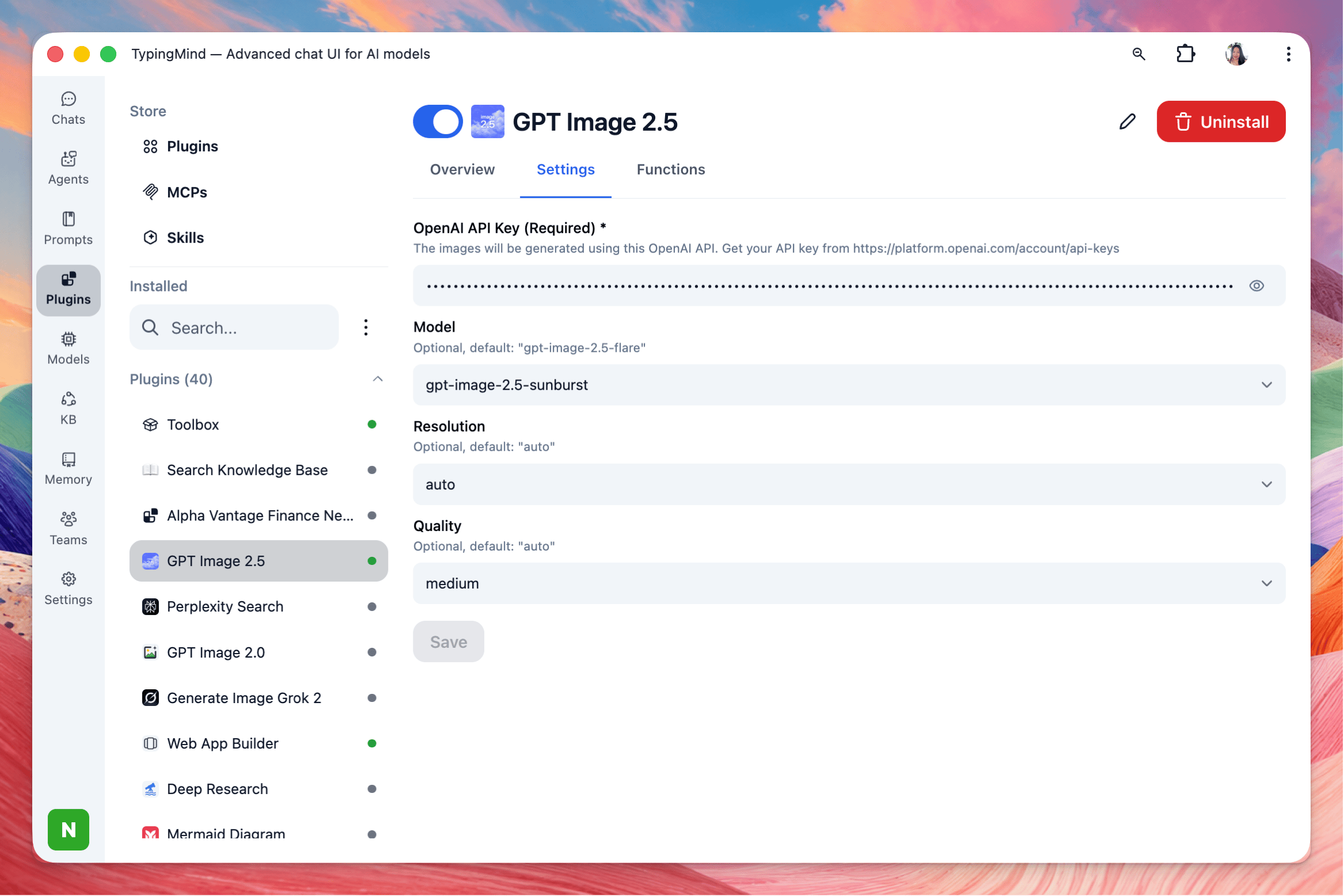
Before using the plugin, set it up so the images match what you need.- On the plugin’s detail page, switch to the Settings tab.
- Enter the OpenAI API key
- Adjust the following options:
- Model: Choose the image model you want the plugin to use.
- Quality: Choose the output quality. Higher quality produces sharper, more detailed images, but generation usually takes longer and may cost more per image. Lower quality is faster and cheaper, which is useful for quick drafts or testing ideas.
- Resolution: Choose the image dimensions or aspect ratio. Pick a square size for general use or social media posts, a landscape size for banners, slides and website headers, or a portrait size for phone wallpapers, posters and stories.
Step 3: Enable the plugin
Configuring the plugin doesn’t turn it on automatically.- On the same plugin page, find the Enable toggle.
- Switch it on.
Step 4: Go back to the chat and generate images
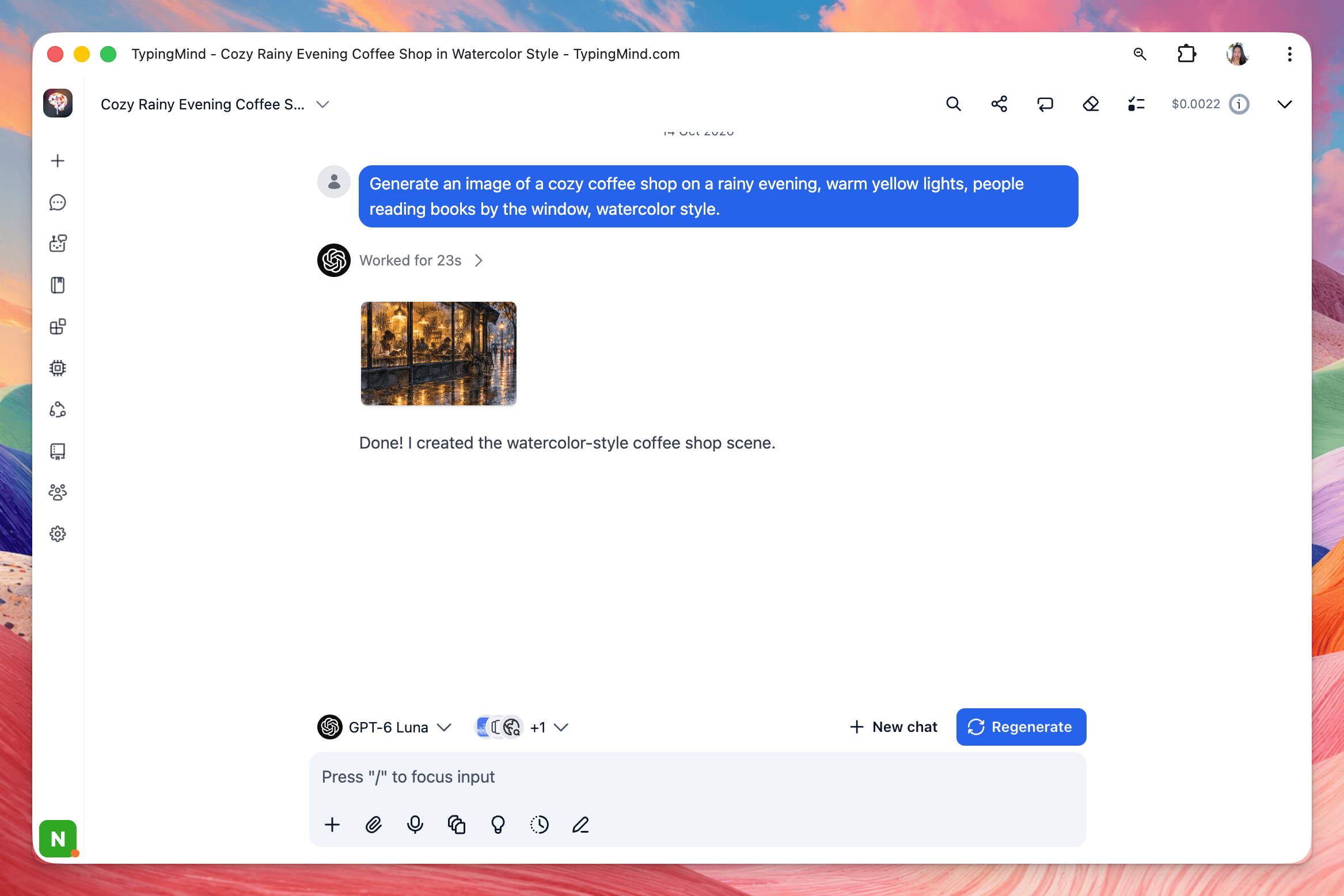
- Return to the chat screen.
- Type a request describing the image you want, then send it.
Tips for better results
- Be specific. Describe the subject, setting, colors, lighting, mood, and art style. “A cat” gives you something generic; “a fluffy orange cat sleeping on a windowsill in afternoon sunlight, photorealistic” gives you something much closer to what you imagine.
- Name the style. Words like photorealistic, watercolor, 3D render, flat illustration, anime or oil painting strongly influence the result.
Troubleshooting
- The AI replies with text instead of an image: Check that the plugin is enabled (Step 3) and active in the current chat, then try asking explicitly, e.g. “Use GPT Image 2.5 to generate…”
- An error appears when generating: Recheck your API key in the Settings tab and make sure your account has available credit.
- The image size or quality isn’t what you expected: Go back to the Settings tab, confirm your choices, and click Save again.