.svg?fit=max&auto=format&n=RaTUOQa09vPhW7_D&q=85&s=368f39de7ecc6605f73c43c2017546a3)
.svg?fit=max&auto=format&n=RaTUOQa09vPhW7_D&q=85&s=01a6eb27b4db3af8a1d5557525c579d3)
TypingMind vs OpenRouter: What’s the Difference?
OpenRouter gives you access to AI models. TypingMind gives you a workspace to use them. If you’re already using OpenRouter to access models from OpenAI, Anthropic, Google, and other providers, you might be wondering whether you also need TypingMind. The good news? You can use them together. OpenRouter handles model access and API billing, while TypingMind helps you manage conversations, organize projects, create reusable prompts, and build AI agents. In this guide, you’ll learn how the two work together and how to connect OpenRouter to TypingMind..png?fit=max&auto=format&n=R6kPQmnCXRGm73sp&q=85&s=7a4fbdb26a9c9ce1303a66ad055f6e12)
TypingMind vs OpenRouter: Key Differences
Although both products work with AI models, they serve different purposes.
The bottom line: OpenRouter provides access to models, while TypingMind provides additional tools to work with those models more effectively.
You don’t have to choose between them.
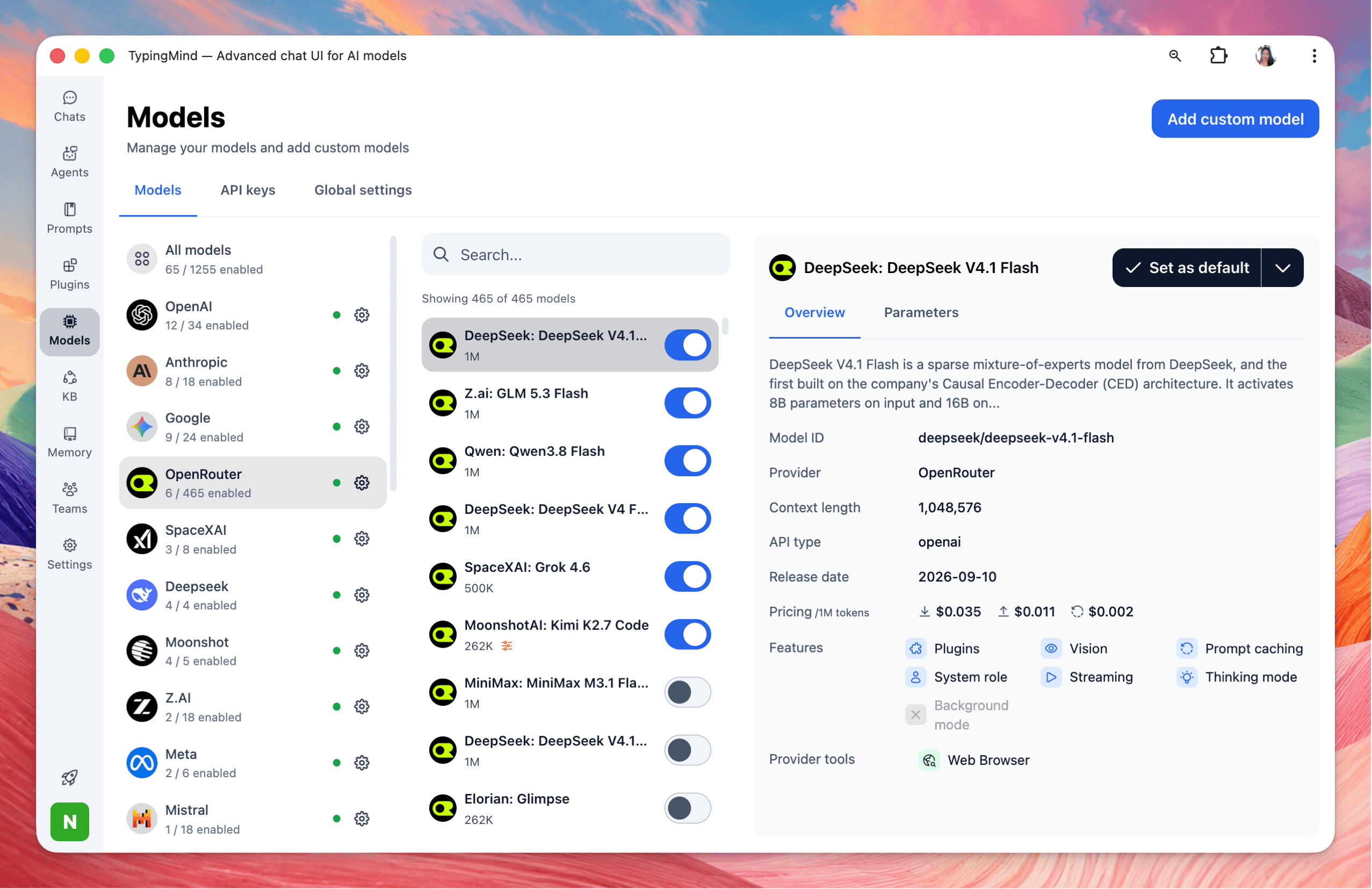
How to Use OpenRouter with TypingMind
Setting up OpenRouter in TypingMind only takes a few steps. Before starting, make sure you have:- A TypingMind account or license.
- An OpenRouter account.
- An OpenRouter API key.
- Sufficient OpenRouter credits for the models you want to use, where required.
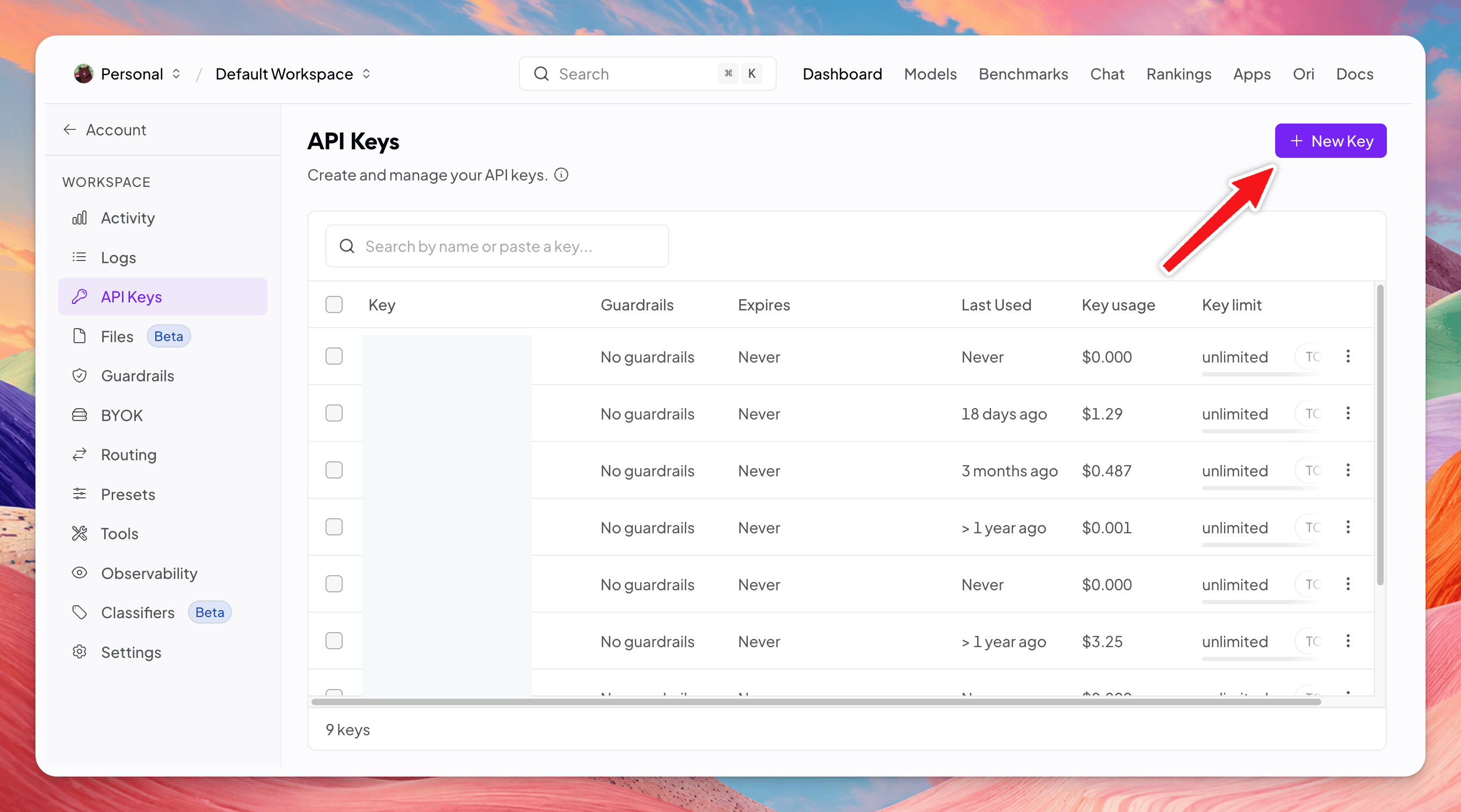
Step 1: Create an OpenRouter API Key
1. Sign in to OpenRouter Visit openrouter.ai and sign in using your preferred method. 2. Open API Keys Go to the OpenRouter API Keys page. Click Create Key. 3. Configure your API key- Name: Give the key a recognizable name, such as
TypingMind. - Credit limit: Optionally set a spending limit to help control costs.
- Expiration: Configure an expiration date if needed.
Keep your API key private. Do not share it in screenshots, public repositories, or support messages.
Step 2: Connect OpenRouter to TypingMind
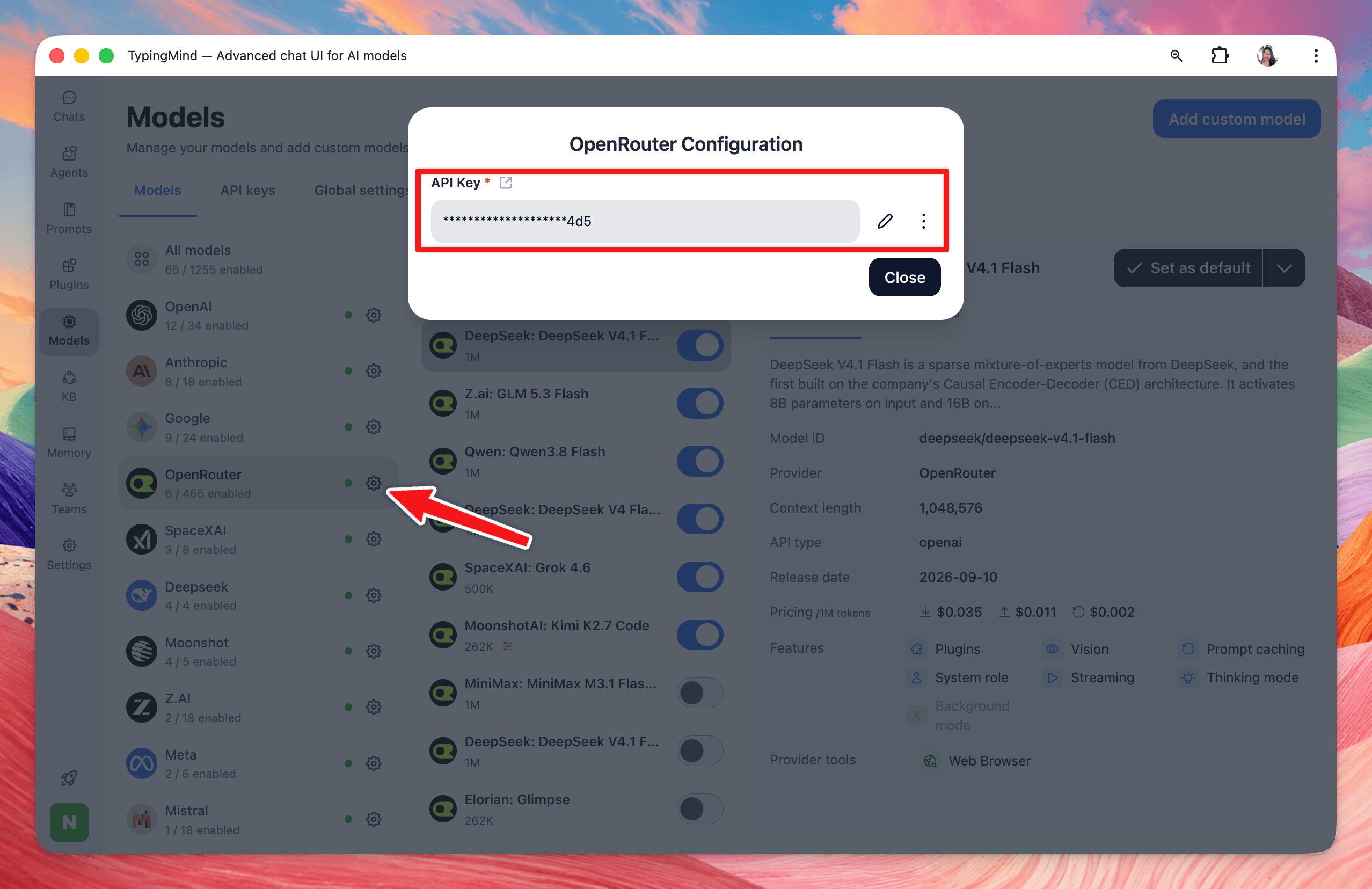
Now that you have your API key, connect it to TypingMind.- Open TypingMind.
- Select Models from the left sidebar.
- Find OpenRouter in the provider list.
- Click the gear icon next to OpenRouter.
- Paste your OpenRouter API key into the API key field.
Step 3: Enable Your AI Models
In the Models menu, find the models you want to use and enable them using the toggle next to each model. You don’t need to enable every available model. Start with two:
Choose a model based on the task, response quality, speed, and cost.
Model availability, supported capabilities, and pricing may change. Check the OpenRouter model directory for current information.
Step 4: Test Your First Conversation
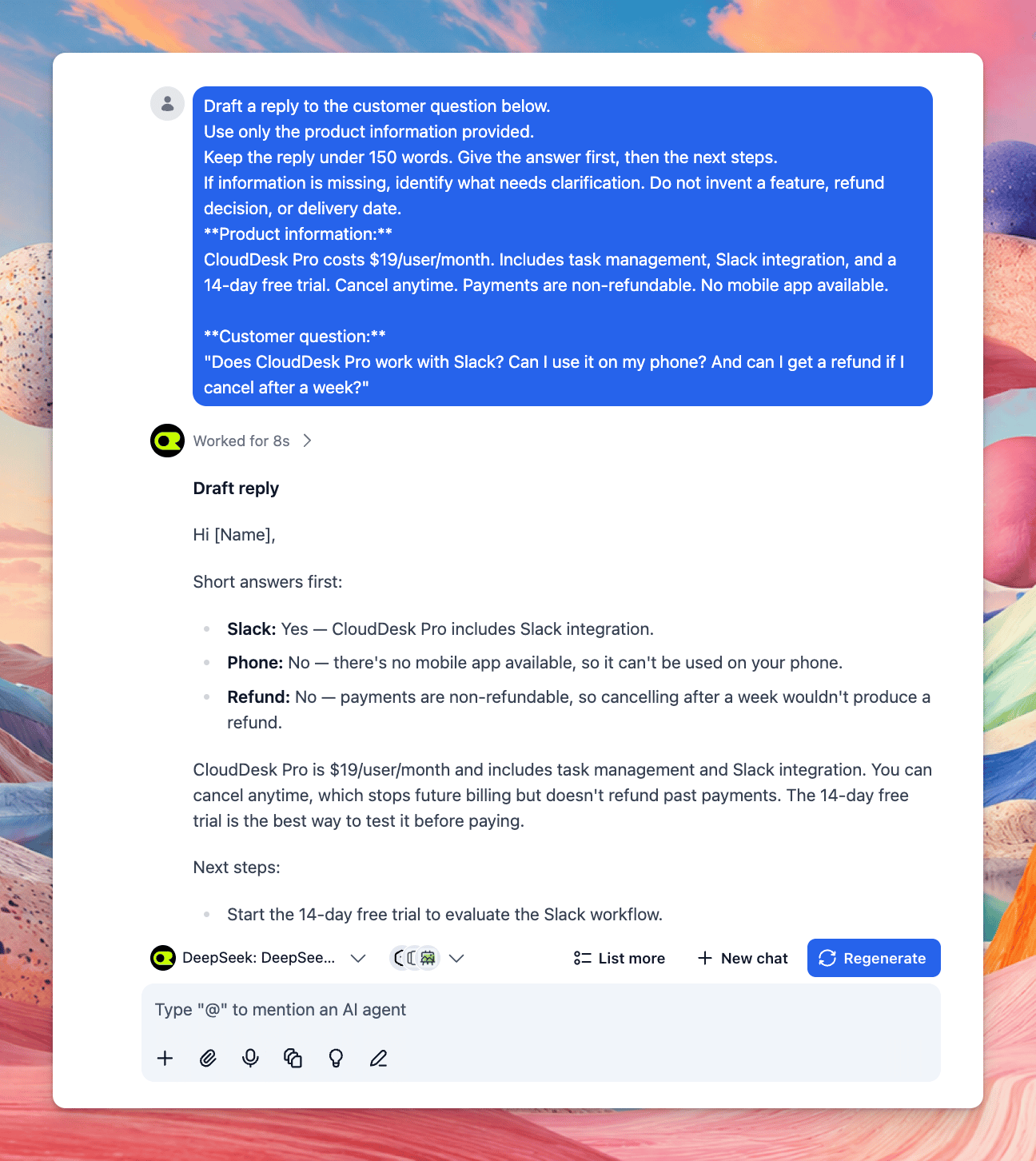
Open a new chat in TypingMind and select one of your enabled OpenRouter models. Try this example:Draft a reply to a customer asking whether they can get a refund. Product information:Run the same prompt with a second model.Keep the reply friendly, clear, and under 100 words. Do not invent additional refund conditions.
- Refunds are available within 14 days of purchase.
- Customers must contact support to request a refund.
- Accuracy: Does the response follow the provided information?
- Quality: Is it clear, helpful, and well-structured?
- Speed: How quickly does the model respond?
- Cost: Is the additional cost worthwhile?
- Editing: How much work is needed before using the response?
Get More Out of OpenRouter with TypingMind
Connecting OpenRouter is just the beginning. TypingMind provides additional features to help you turn one-off conversations into repeatable workflows.1. Save Your Favorite Prompts
If you regularly write customer emails, summarize documents, or review content, you don’t need to type the same instructions every time. Use Prompts in TypingMind to save reusable instructions. For example, create a prompt called Customer Reply Draft with instructions for tone, accuracy, and response structure. Next time, you can reuse the prompt and provide only the new customer question.2. Create Custom AI Agents
TypingMind lets you create custom AI agents with their own instructions and configurations. For example, you could create:- Writing Assistant: Helps improve emails and marketing content.
- Research Assistant: Summarizes information and identifies important findings.
- Customer Support Assistant: Drafts replies based on provided product information.
3. Organize Your Conversations
As you use AI more frequently, keeping track of conversations becomes important. TypingMind helps you organize your chats and projects so you can return to previous work. For example, you can keep conversations about product research, customer support, and content writing organized separately. This is especially useful when working on tasks that span multiple sessions.4. Switch Between AI Models
Different AI models have different strengths. With OpenRouter connected to TypingMind, you can access your enabled models from the chat interface. You might use a faster model to draft an email, then switch to a more capable model when you need deeper analysis. You can experiment with different models without setting up a separate chat application for each provider.TypingMind and OpenRouter Pricing
TypingMind and OpenRouter are billed separately.
Purchasing TypingMind does not include unlimited OpenRouter usage.
Likewise, adding credits to OpenRouter does not automatically provide a TypingMind license.
For current pricing, visit:
How to Manage Your AI Costs
If you’re experimenting with multiple AI models, here are a few ways to manage your spending:- Use an affordable model for routine tasks.
- Reserve more expensive models for tasks that benefit from deeper reasoning.
- Set an OpenRouter API key spending limit where appropriate.
- Check your model usage and costs regularly.
- Avoid sending unnecessarily large amounts of context.
Common Issues and Troubleshooting
OpenRouter isn’t working in TypingMind
First, confirm that your API key has been entered correctly. Check that:- Your API key is valid and active.
- You have sufficient OpenRouter credits if required.
- The key hasn’t reached its usage limit.
- You’ve selected an enabled OpenRouter model.