.svg?fit=max&auto=format&n=RaTUOQa09vPhW7_D&q=85&s=368f39de7ecc6605f73c43c2017546a3)
.svg?fit=max&auto=format&n=RaTUOQa09vPhW7_D&q=85&s=01a6eb27b4db3af8a1d5557525c579d3)
http protocol are blocked. If you want to connect the local custom models to the macOS app, you will need to setup HTTPS.
Here are the step-by-step to set up HTTPS to get the Local AI Models such as Ollama, LMStudio, etc. to work on TypingMind Mac App:
Step 1: Set up Node.js
- Go to https://nodejs.org/en
- Click “Download Node.js”
- Install Node.js by following the installation prompts.
node -v command and press Enter. It will return the Node JS version you installed currently (for example: v20.12.2)
Step 2: Install Homebrew
- Go to https://brew.sh/
- You’ll see a command under “Install Homebrew”. Copy this command.
/bin/bash -c "$(curl -fsSL [https://raw.githubusercontent.com/Homebrew/install/HEAD/install.sh](https://raw.githubusercontent.com/Homebrew/install/HEAD/install.sh))"
- Open your Terminal window
- Paste the copied command into the terminal and press Enter.
- Follow the on-screen instructions. It may ask for your device password; this is normal as it requires permission to install the software.
Step 3: Create a certificate for HTTPS on your local device
To securely run your application over HTTPS, you need an SSL certificate.- In your terminal, install
mkcertby running:
- If you are using Firefox, you also need to install
nss. Run:
Step 4: Install and generate local HTTPS certificate
- First, run the following command to install
mkcerton your machine:
- Generate a local certificate for “localhost”:
Step 5: Set up Local HTTPS proxy
To enable HTTPS for your local server, you’ll usenpx to run local-ssl-proxy with the following command:
-source 9000: the source port where the proxy will listen for HTTPS requests. You can choose any port number greater than 1000, but it should be different from the port your Local AI Model uses. In this example, we use9000.-target 1234: the target port where the local model is running. Replace1234with the actual port number used by your local model. We use1234here as an example because it is the port number of LMStudio.
Started proxy: [https://localhost:9000](https://localhost:9000/) → [http://localhost:1234](http://localhost:1234/)
Step 6: Set up custom model with HTTPS on TypingMind
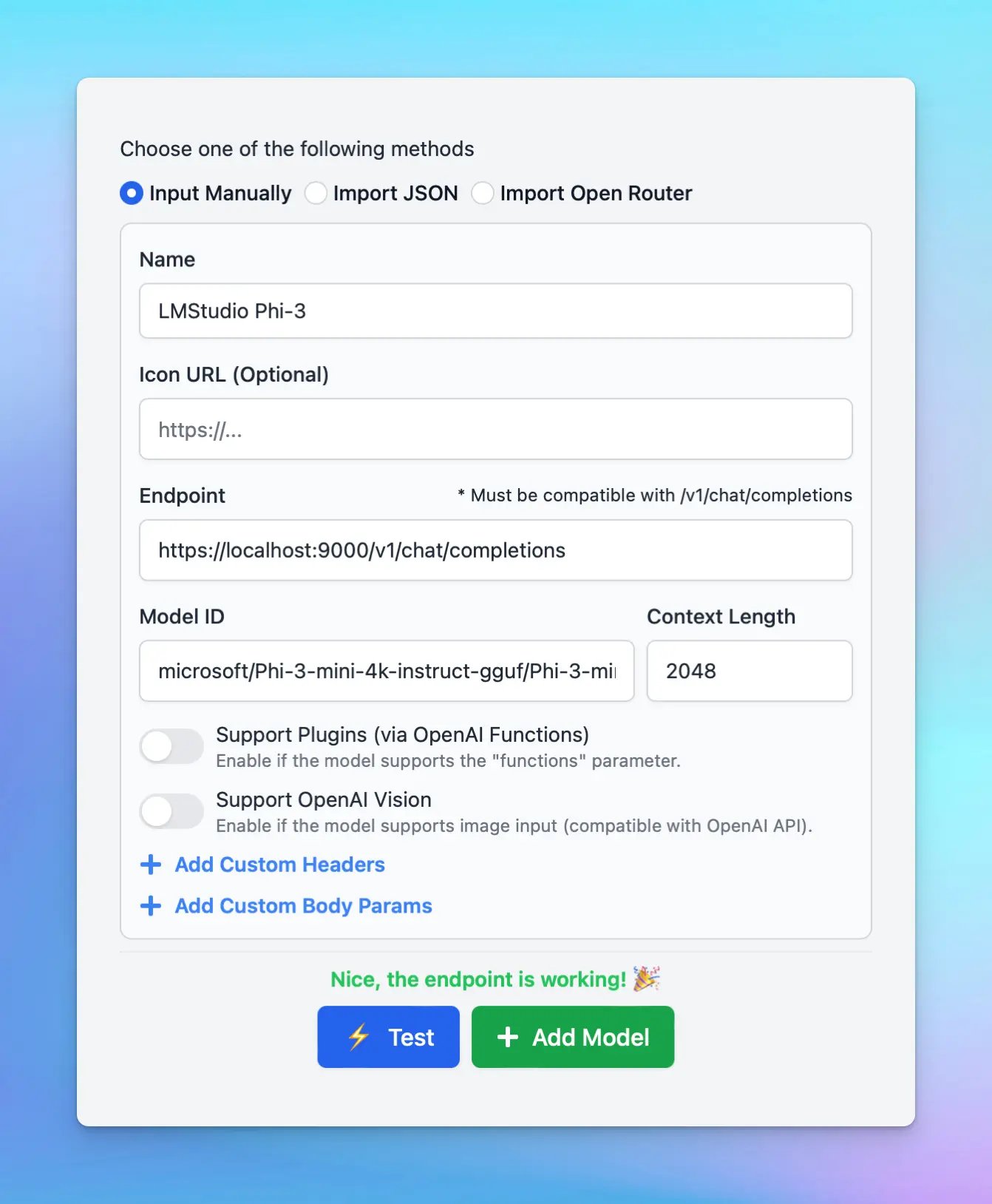
Now you can access the model endpoint usinghttps://localhost:9000 instead of http://localhost:1234.
Here’s an example to set Phi-3 via LMStudio on TypingMind MacApp: