.svg?fit=max&auto=format&n=RaTUOQa09vPhW7_D&q=85&s=368f39de7ecc6605f73c43c2017546a3)
.svg?fit=max&auto=format&n=RaTUOQa09vPhW7_D&q=85&s=01a6eb27b4db3af8a1d5557525c579d3)
What Is the Context Summary Feature?
Context Summary allows TypingMind to automatically condense older messages in long conversations so the chat stays within your model’s context limit.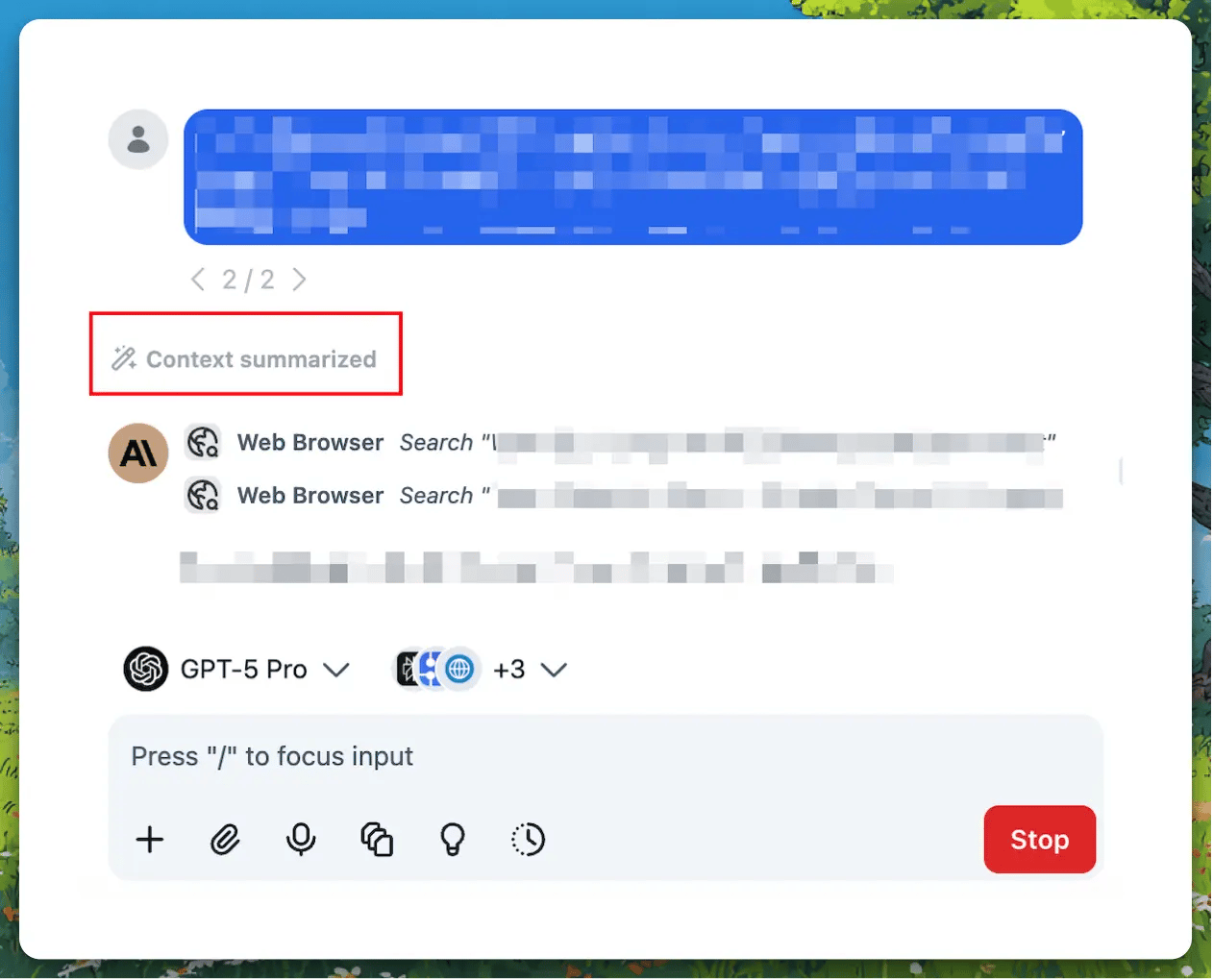
How Context Summary Works
- Automatic trigger: When the conversation uses about 70% of the model’s context window, TypingMind checks if summarization is needed.
- Summary generation: The AI creates a structured summary of the older messages (roughly the first 70% of the conversation).
- Context replacement: The summary replaces the older messages in the context sent to the model. Recent messages stay as-is.
- Checkpoint display: If enabled, a “Context summarized” checkpoint appears in the chat where the summary was inserted.
Pro Tip: You can expand the “Context summarized” checkpoint to read the full summary and verify what the AI remembered from the earlier conversation. You can also customize the summarization prompt in settings to tailor the summary to your needs.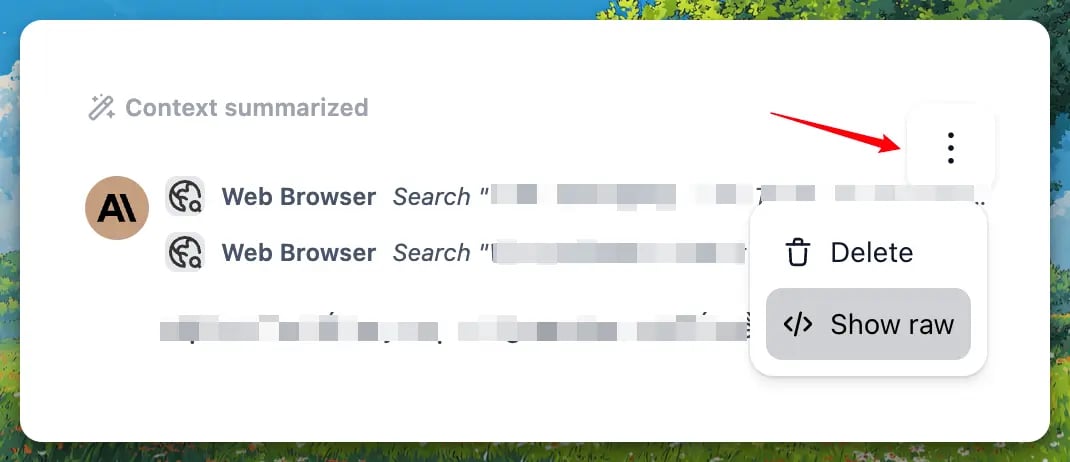
Individual Version
Note: If you’re on a team or organization instance, Context Summary is controlled by your admin. See the Team Version section below.How to Enable Context Summary
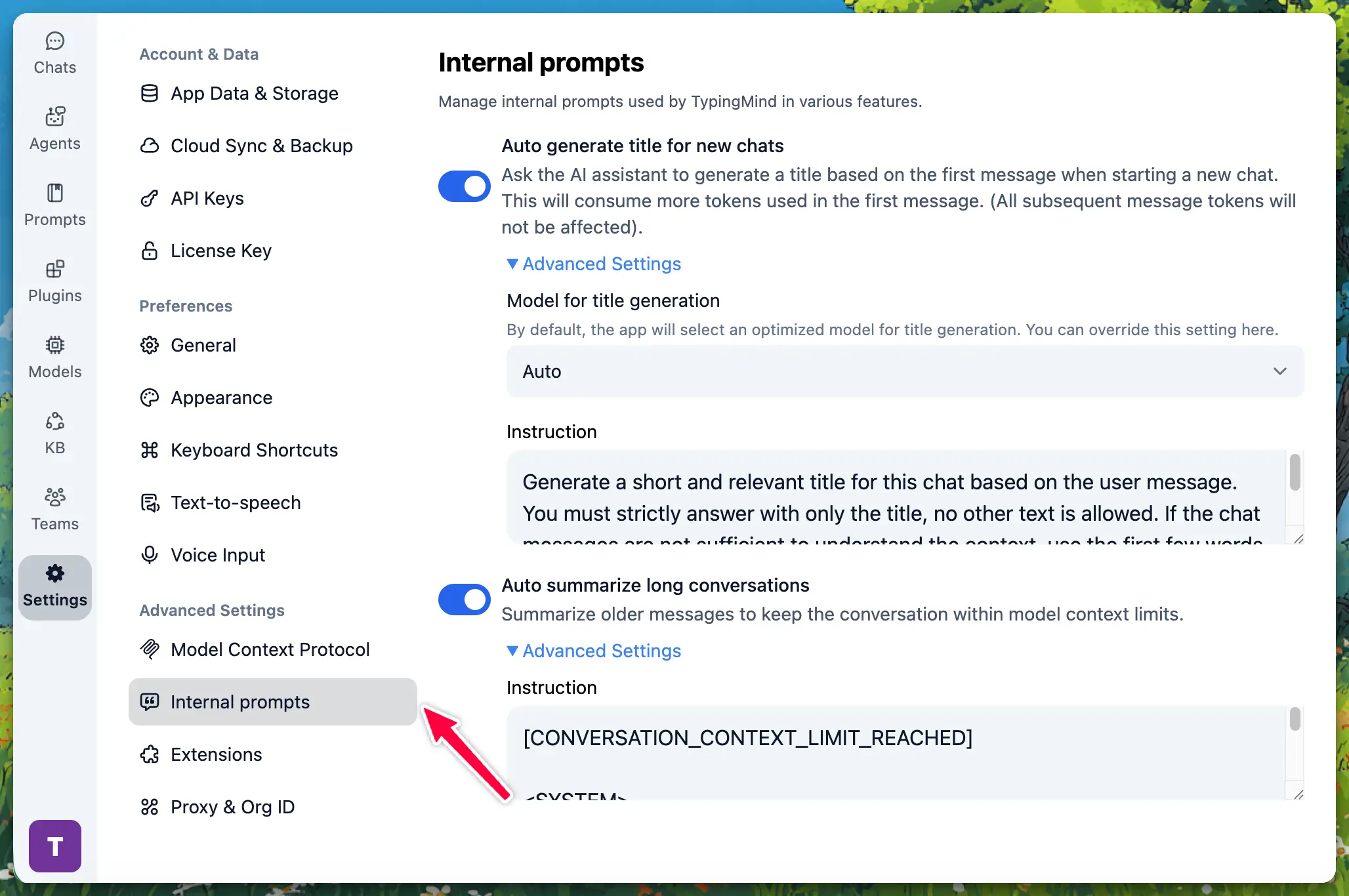
- Open Settings (gear icon in the sidebar).
- Go to Internal prompts under Advanced Settings.
- Turn on Auto summarize long conversations.
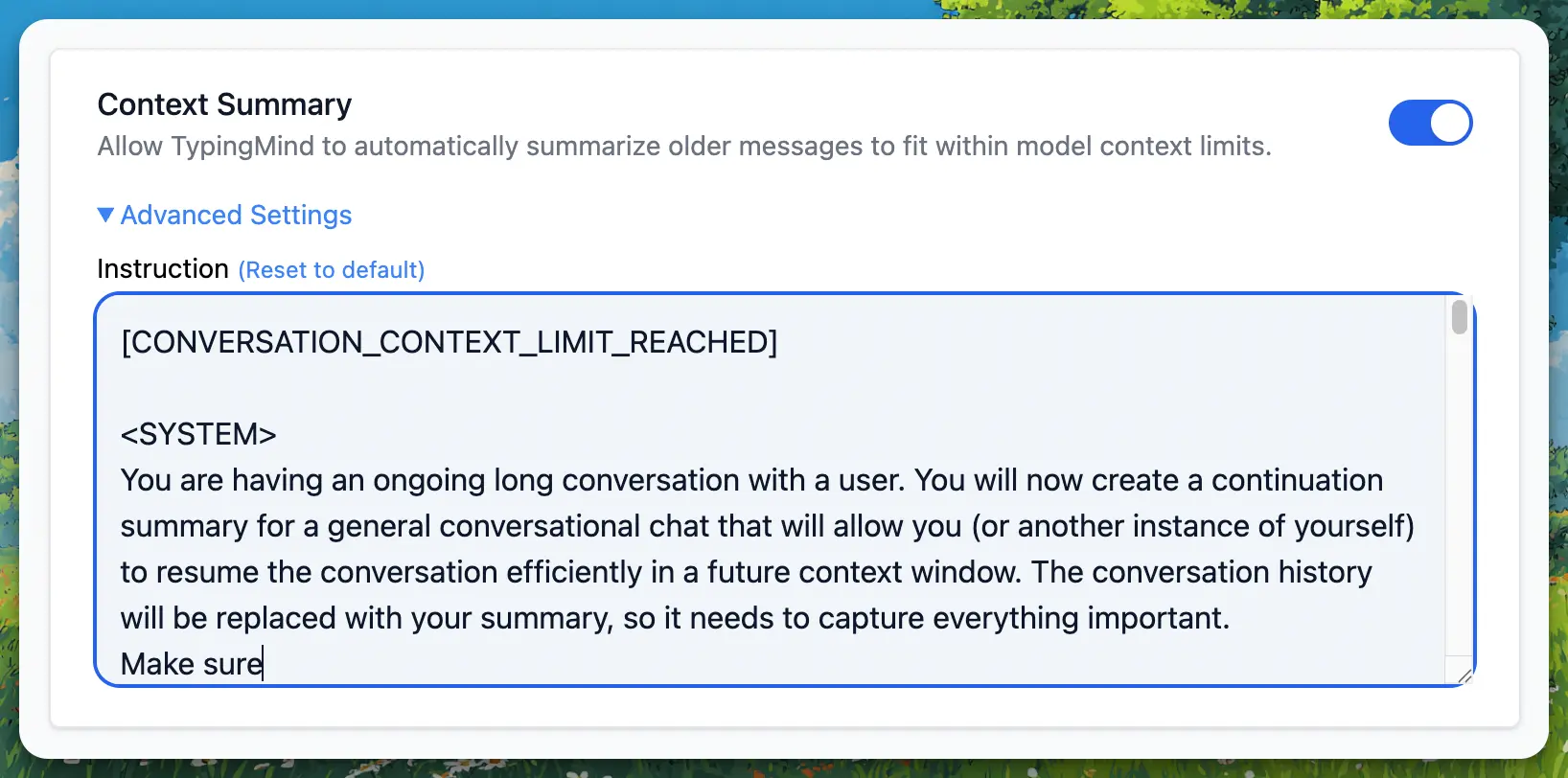
- (Optional) Expand Advanced Settings to customize the summarization prompt.
How to Customize the Summary Prompt
- In Settings → Internal prompts, ensure Auto summarize long conversations is on.
- Expand Advanced Settings under that toggle.
- Edit the text to change how the AI summarizes conversations.
- Click Reset to default to restore the built-in prompt.
Team Version
Enabling Context Summary for Your Team
- Go to Admin Panel → Chat Features.
- Enable Context Summary to allow automatic summarization for your organization.
- (Optional) Enable Show Context Summary Checkpoints so users see where summaries were inserted.
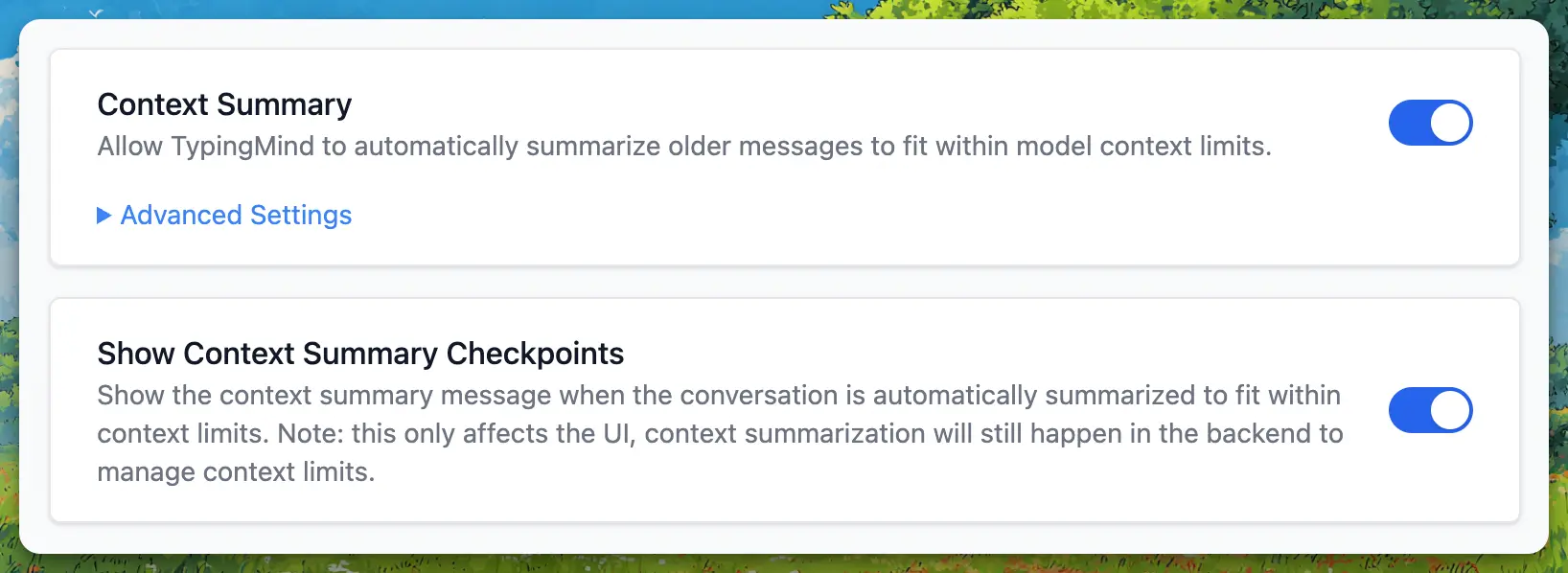
- When Context Summary is enabled, expand the Advanced Settings to set a custom Context Summary Prompt for your chat instance.
Context Summary vs. Show Context Summary
Defaults for Team Version
- Context Summary: On by default.
- Show Context Summary Checkpoints: Off by default (users don’t see the checkpoint, but summarization still happens).
User Experience in Team Version
- Users do not configure Context Summary themselves; it is controlled by admins.
- If Context Summary is enabled, long conversations are automatically summarized.
- If Show Context Summary Checkpoints is enabled, users see the “Context summarized” checkpoint and can expand it to read the summary.
FAQs
- Does context summarization delete my messages?
- When does summarization happen?
- Can I turn off context summarization?
- What if I hide the “Context summarized” checkpoint?
- Can I customize what gets summarized?
- Does summarization use extra tokens?
- What model is used for context summarization?