

Why am I asked for 2FA?
TypingMind asks for a second step after your email code (or, for admins, after Google sign-in) when:- you turned on 2FA for your account, or
- your workspace requires it. Your admins can require it for admins only or for everyone. Before it applies, you see a banner with the date. From that date, you must set it up before you can keep using the workspace.
I lost my phone
- You have a recovery code or a passkey: log in with it. At the Two-factor authentication step, click Use a recovery code instead or Use a passkey instead. Then get new recovery codes.
- You have neither: ask an admin of your workspace to reset your 2FA. The login step names who to contact. After the reset, log in with your email code and set up 2FA again on your new phone.
I’m an admin and I lost my phone and my recovery codes
Only the workspace owner can reset the 2FA of a member with an admin role. Ask the owner, or ask another admin to contact them. If you’re the owner, see the next answer.The owner lost their phone and recovery codes
Nobody in the workspace can reset the owner’s 2FA. Only TypingMind support can, and only after a waiting period. At the login step, the owner sees Lost access? As the workspace owner, contact TypingMind support at support@typingmind.com.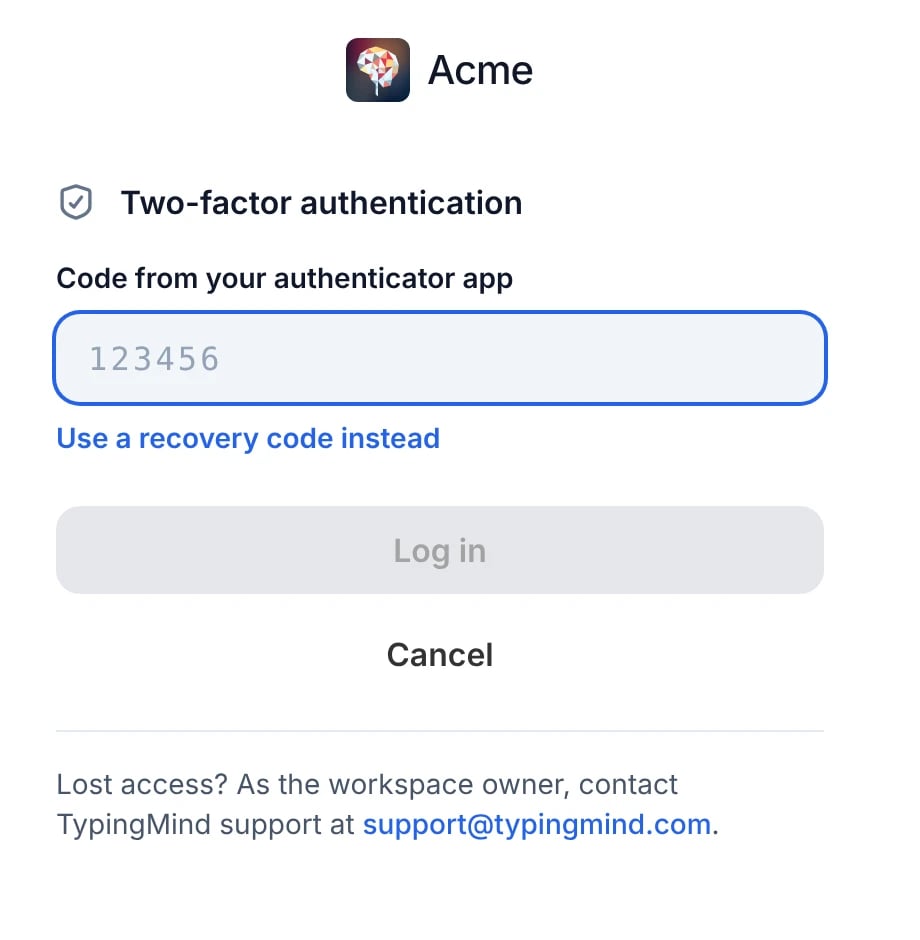
- Email support@typingmind.com. Support checks that the request comes from the workspace’s billing email and asks for a detail of a payment, such as the last 4 digits of the card, an invoice number, a transaction ID or the billing address.
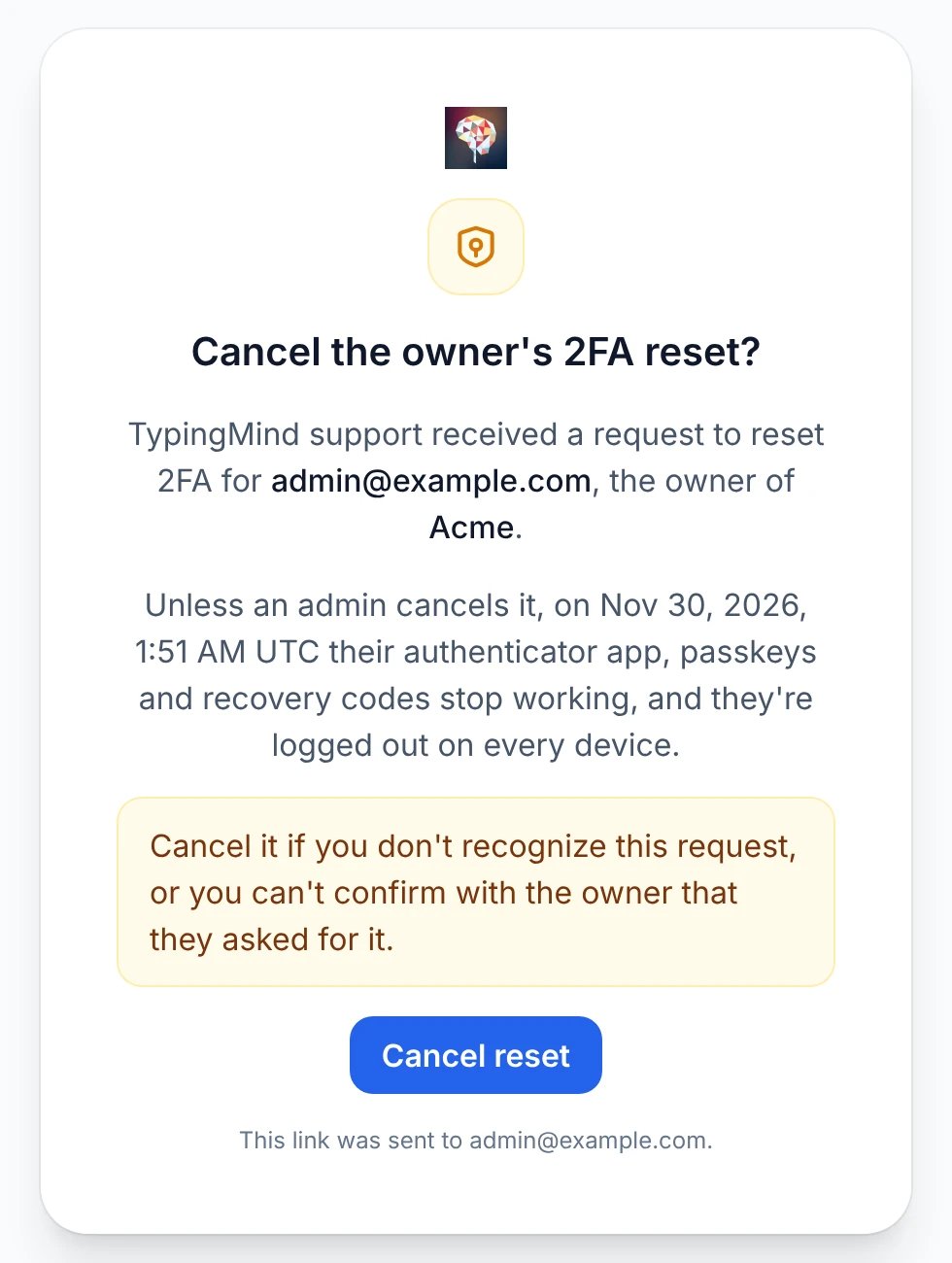
- Support starts the reset. The owner and every admin of the workspace get an email about it, each with a link to cancel it.
- The reset waits 72 hours. Until then, any admin can cancel it from the link in their email, without logging in. Cancel it if you don’t recognize the request, or you can’t confirm with the owner that they asked for it.
- If nobody cancels, after 72 hours the owner’s authenticator app, passkeys and recovery codes stop working, and they’re logged out on every device. TypingMind emails the owner. Their chats and data stay.
- The owner logs in with their email code and sets up 2FA again.
I belong to several workspaces
Each workspace has its own accounts, so you set up 2FA separately in each one, and each has its own recovery codes and passkeys. Your authenticator app shows one entry per workspace, named TypingMind (workspace name), so you can tell the codes apart. A reset in one workspace doesn’t change the others. As the owner, opening a workspace from typingmind.com/manage takes you to that workspace’s own login, with its 2FA step.My passkey doesn’t work
- Wrong web address. A passkey works only at the web address where you added it. If your workspace has a custom domain and a typingmind.com address, a passkey added at one doesn’t work at the other. Under Account → Security, a passkey that works only at one address says so, for example Works only at chat.example.com. Add a passkey at each address you use.
- “Passkeys can’t be added at this web address.” Ask your workspace admin which address to use.
- Desktop app or embedded workspace. Passkeys can’t be added there. Open your workspace in Chrome, Safari, Edge or Firefox to add one. You can still log in with a code from your authenticator app.
- “Sign in with a passkey” doesn’t find it. A passkey added before direct sign-in existed may only work as a second step after your email code. Its entry under Passkeys says so: remove it and add it again.
My authenticator code isn’t accepted
- Type the code the app shows now. Each code works once, and only for about 30 seconds.
- Check that your phone’s date and time are set automatically. A clock that’s off makes every code wrong.
- Use the entry for this workspace, TypingMind (workspace name).
- After several wrong codes, TypingMind says There were too many wrong codes. Try again in N minutes. Wait that long (up to 15 minutes), then try again. Recovery codes count toward the same limit.