

2FA applies when you log in with an email code, or, as an admin, with Google. If you log in through your company’s single sign-on (SSO) or another identity provider, that provider handles the second step, and TypingMind doesn’t ask for one.
Open your security settings
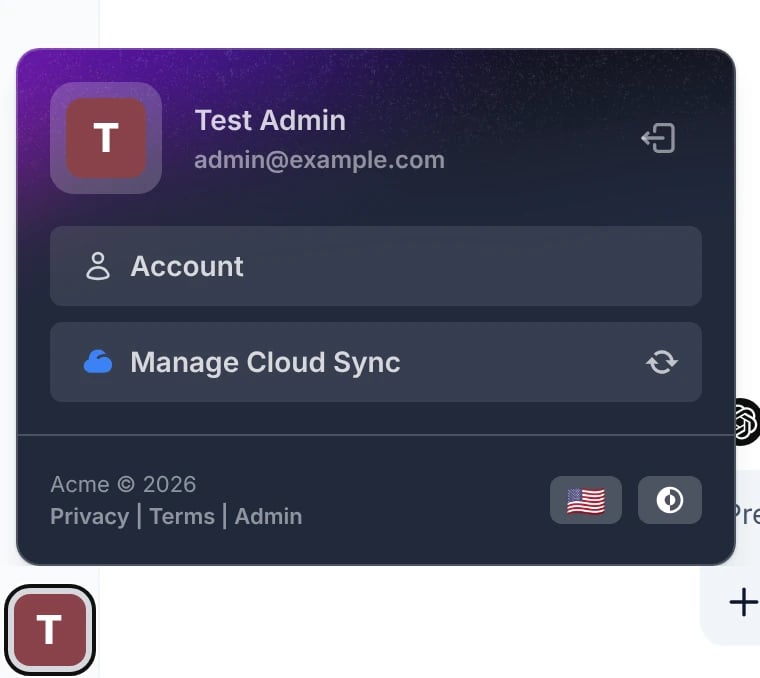
- In your workspace, open your account menu: click your avatar at the bottom left (on a phone, at the bottom right of the bottom bar).
- Click Account.
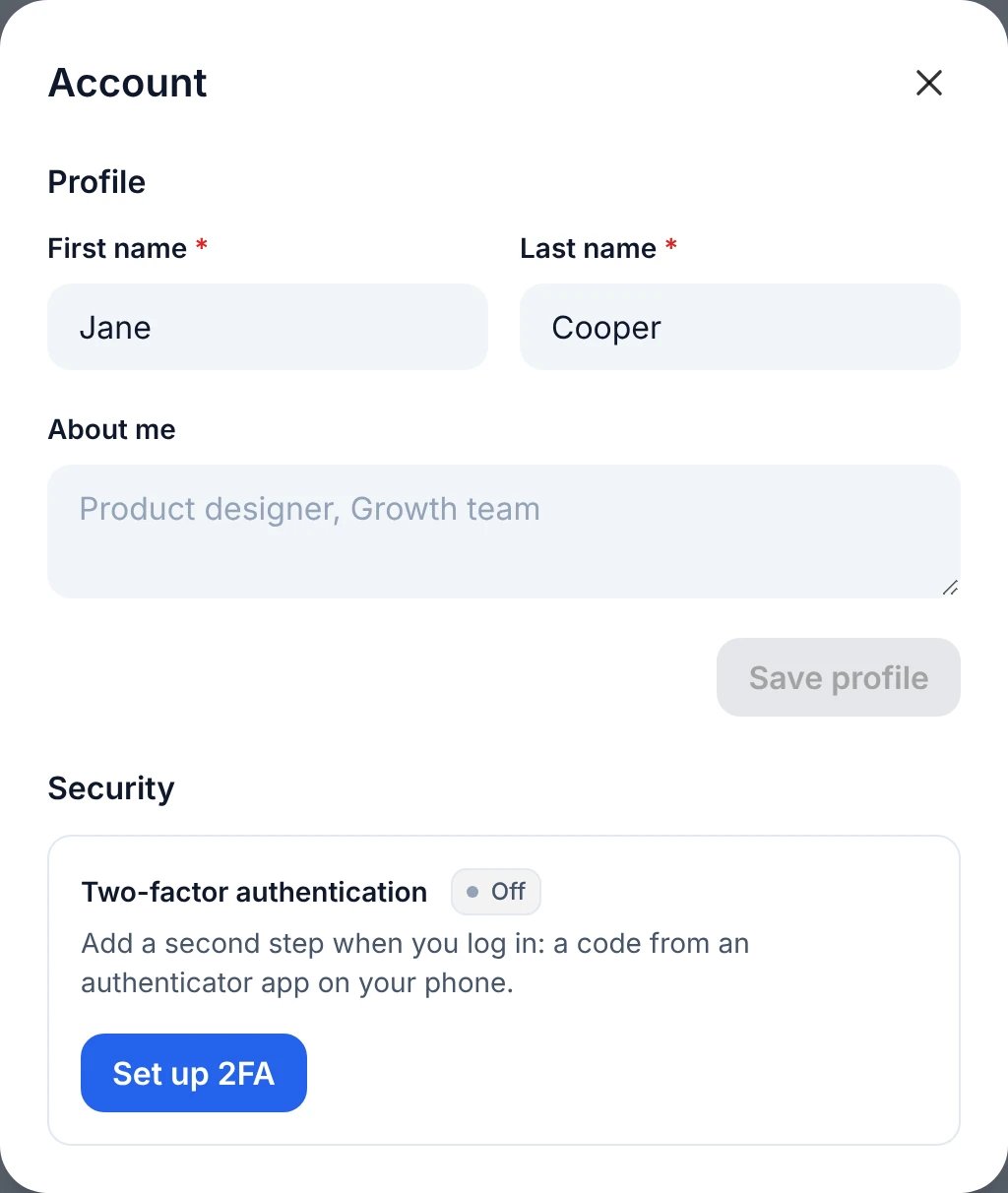
- Scroll to Security.
Set up the authenticator app
You need an authenticator app on your phone, such as Google Authenticator, Microsoft Authenticator or 1Password. It takes about 2 minutes.- Under Security, click Set up 2FA.
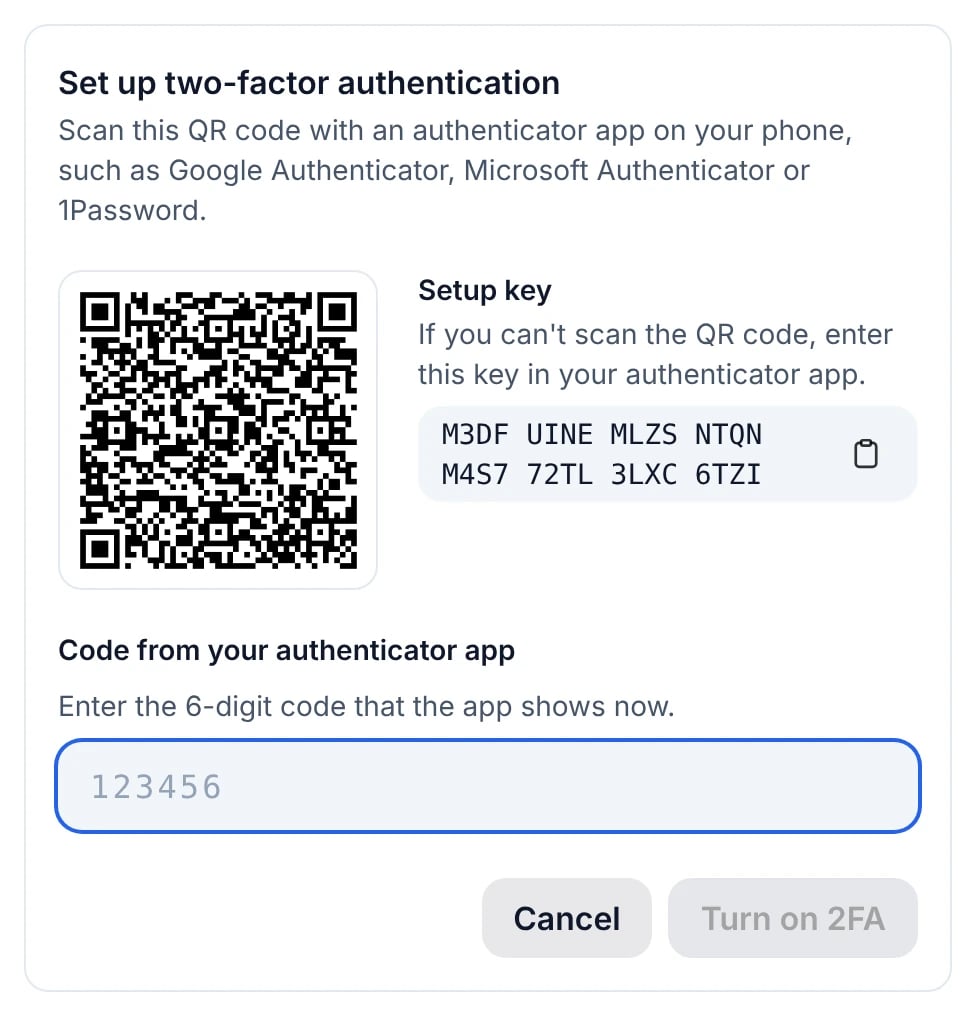
- Scan the QR code with your authenticator app. If you can’t scan it, enter the Setup key in the app instead (click the copy button next to it).
- The app adds an entry named TypingMind (your workspace name). Type the 6-digit code it shows into Code from your authenticator app.
- Click Turn on 2FA.
Save your recovery codes
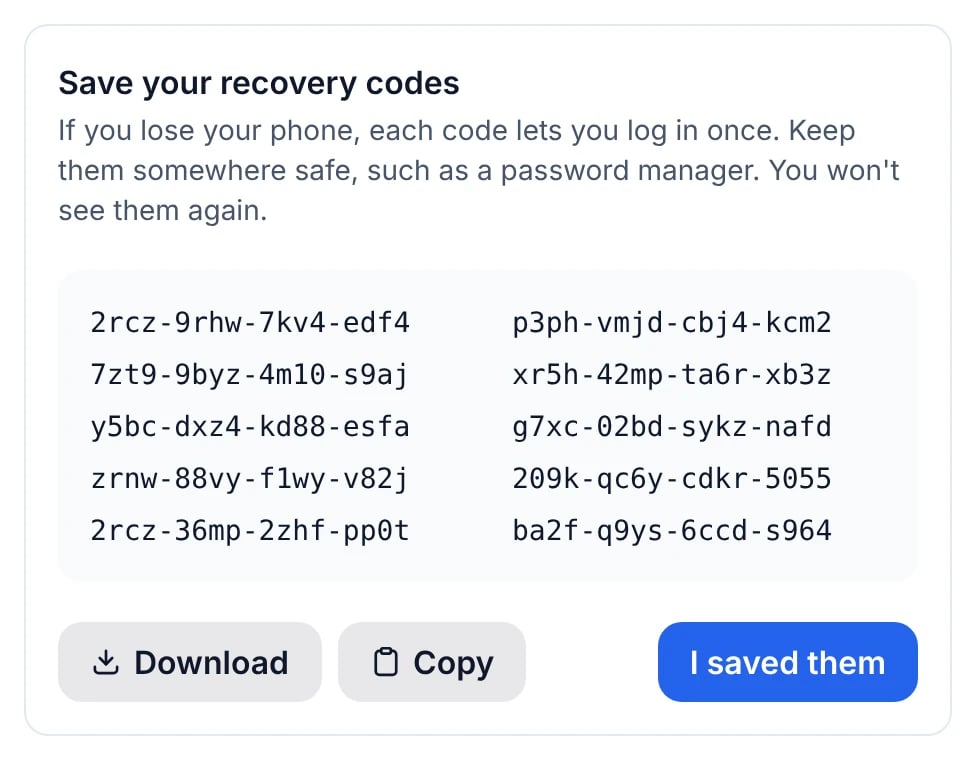
Right after setup, TypingMind shows 10 recovery codes. Each code lets you log in once if you lose your phone.- Click Download or Copy, and keep the codes somewhere safe, such as a password manager.
- Click I saved them.
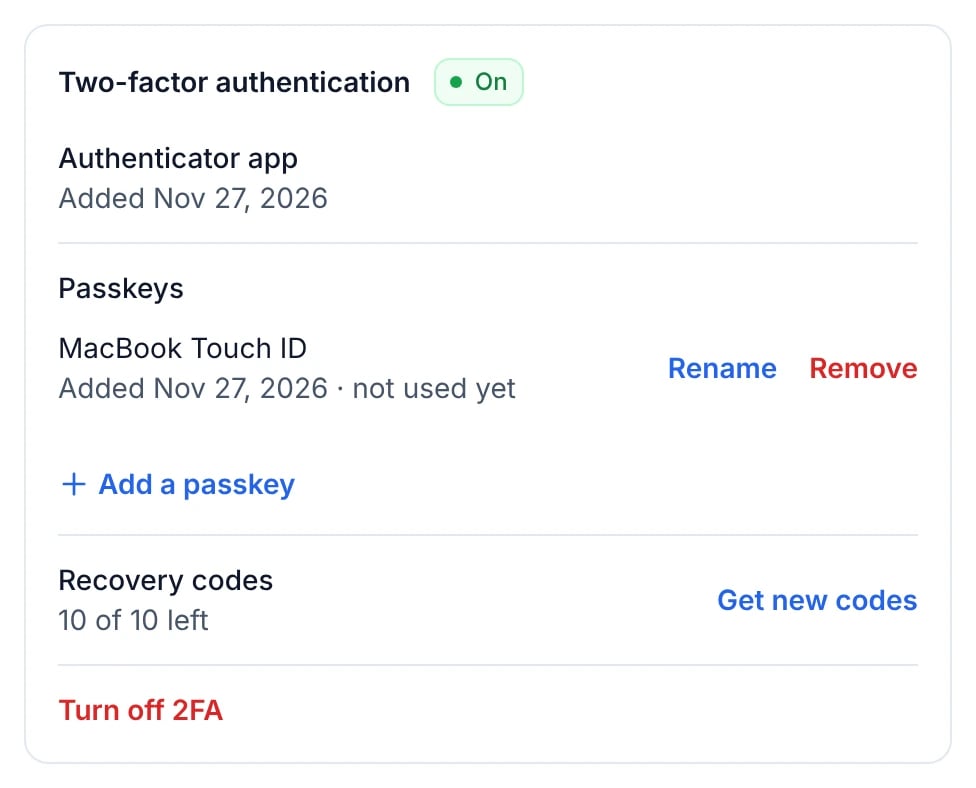
Add a passkey
A passkey lets you confirm your login with your fingerprint, your face, your device’s screen lock or a security key, instead of typing a code. You can add passkeys once the authenticator app is set up, up to 10.- Under Passkeys, click Add a passkey.
- If TypingMind asks for a code (it does when you logged in more than 10 minutes ago), enter one from your authenticator app or a recovery code, then click Continue.
- Your browser asks for your fingerprint, face, screen lock or security key. Confirm.
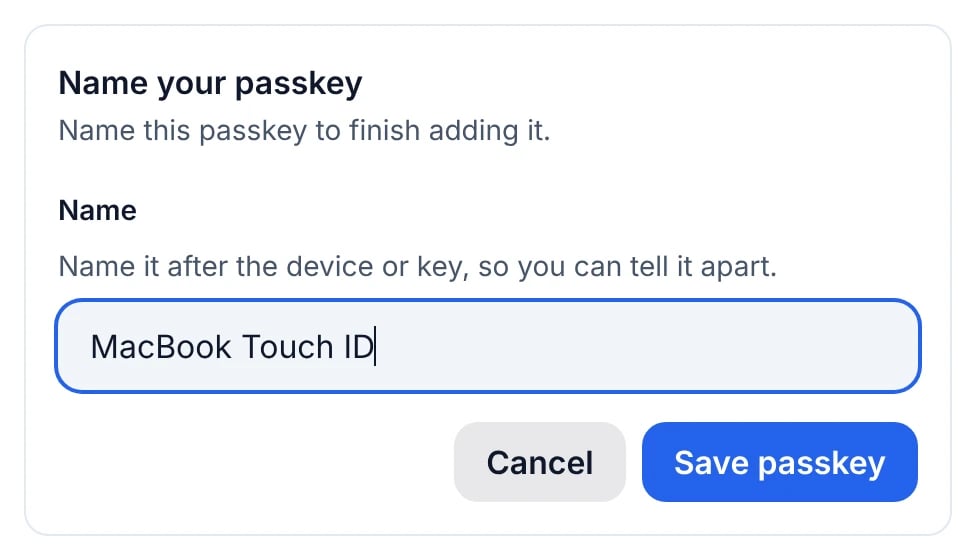
- Give the passkey a name, such as the device it’s on, and click Save passkey.
- Passkeys can’t be added in the desktop app or when the workspace is embedded in another page. Open your workspace in Chrome, Safari, Edge or Firefox to add one.
- A passkey works only at the web address where you added it. If your workspace has a custom domain, add your passkey there. A passkey that works only at one address says so, for example Works only at chat.example.com.
Log in with 2FA
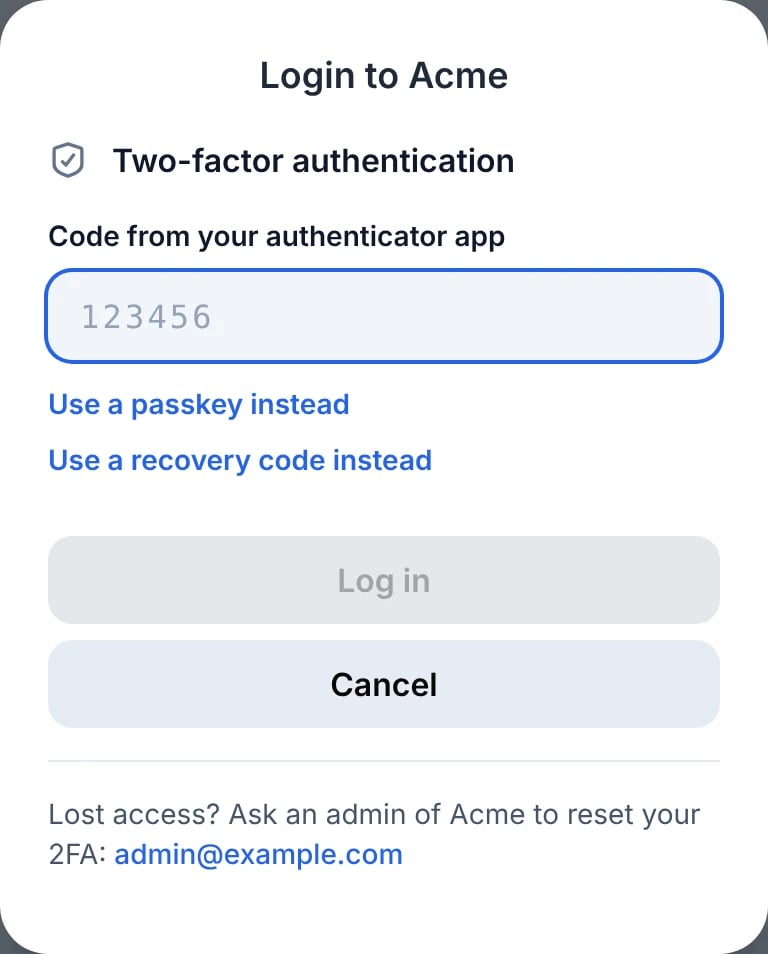
After your email code (or, for admins, after signing in with Google), TypingMind shows a Two-factor authentication step.- Enter the 6-digit code from your authenticator app, then click Log in.
- Or click Use a passkey instead (shown when you have a passkey that works at this address), and confirm with your fingerprint, face, screen lock or security key.
- Or click Use a recovery code instead, and enter one of your recovery codes.
Sign in directly with a passkey
If your workspace lets you log in with an email code, you can skip both the email and the code: on the login screen, click Sign in with a passkey and confirm with your fingerprint, face, screen lock or security key. Your browser may also offer your passkey when you click the email field.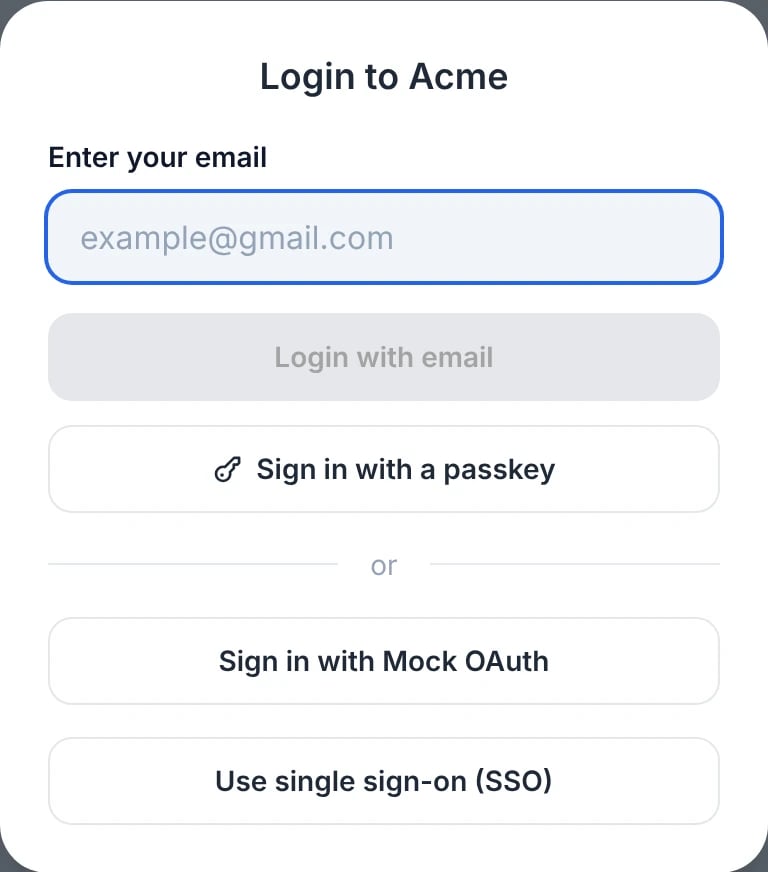
Use a recovery code
- At the Two-factor authentication step, click Use a recovery code instead.
- Enter one of your recovery codes and click Log in.
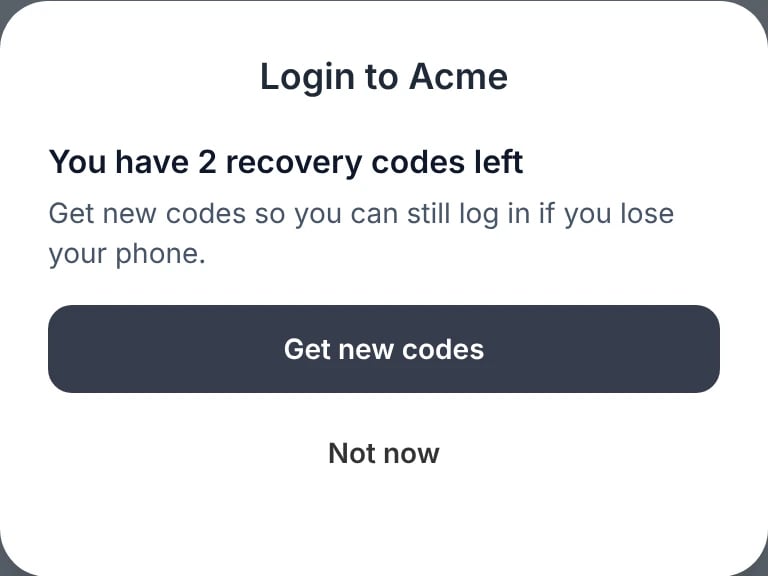
Get new recovery codes
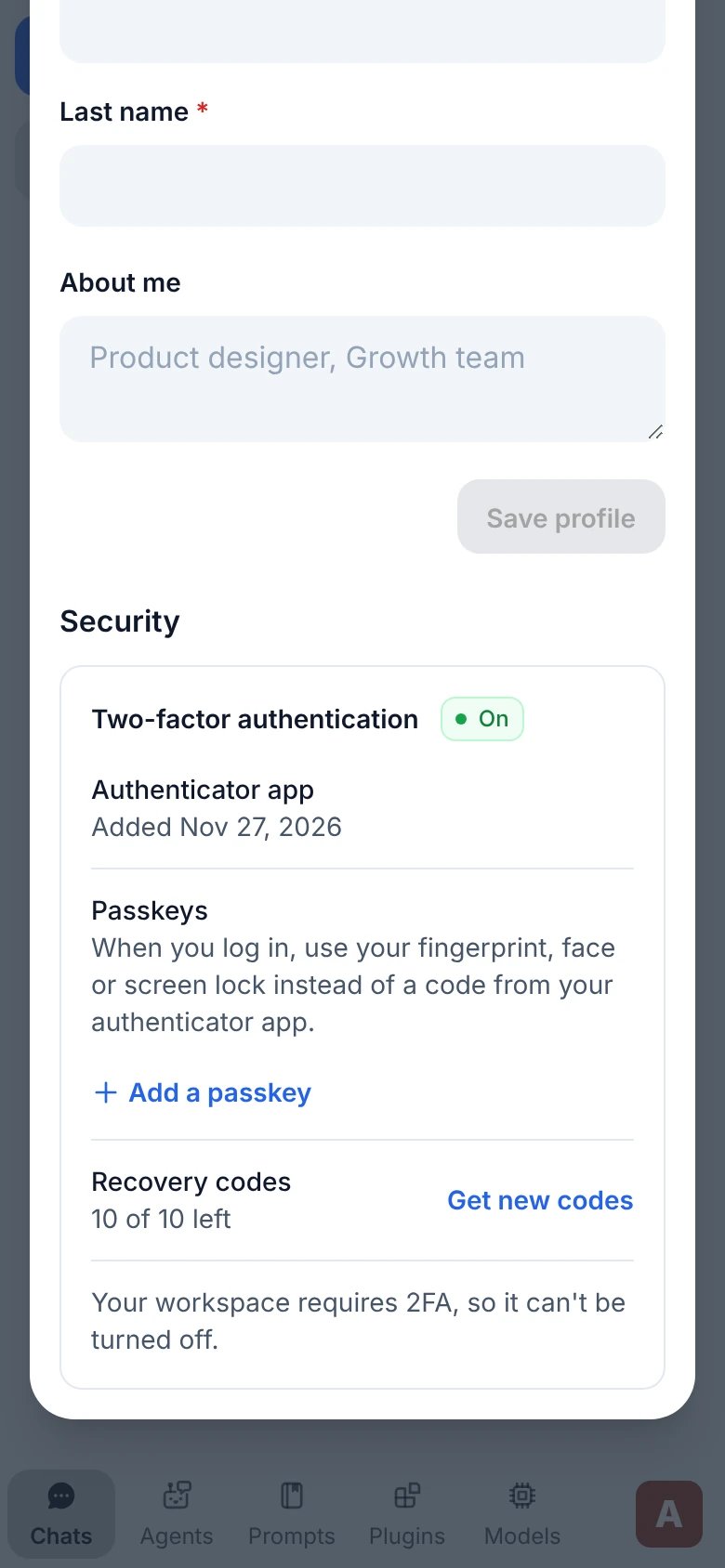
- Open Account → Security.
- Next to Recovery codes, click Get new codes, then confirm.
- If TypingMind asks for a code (it does when you logged in more than 10 minutes ago), enter one from your authenticator app or a recovery code.
- Save the new codes, then click I saved them.
Turn off 2FA
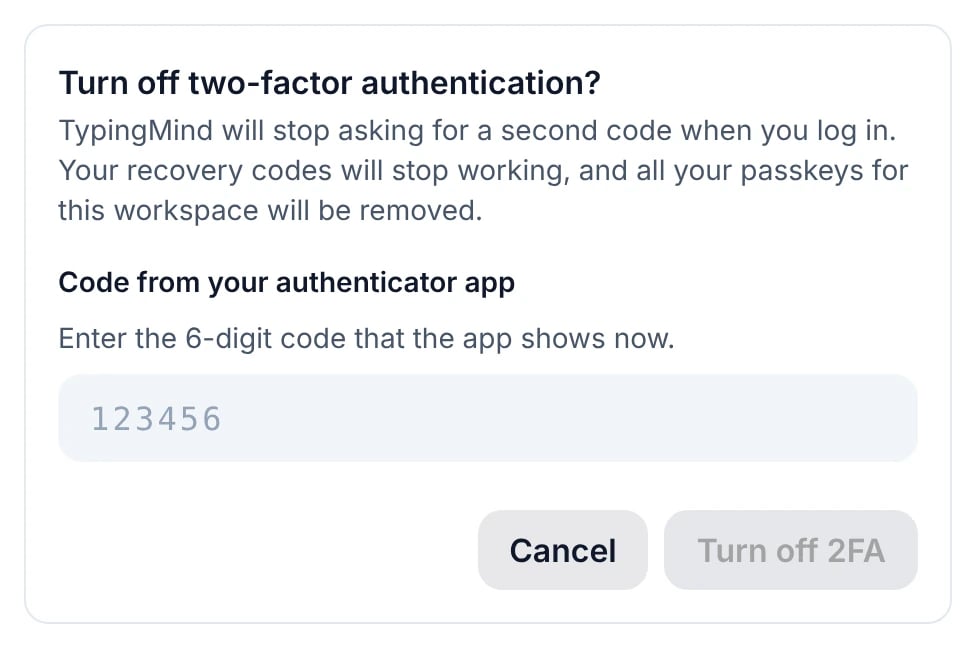
- Open Account → Security and click Turn off 2FA.
- Enter a code from your authenticator app (a recovery code isn’t accepted here), then click Turn off 2FA.
If you lose your phone
- You still have a recovery code or a passkey: log in with it. Then, within 10 minutes, open Account → Security to get new recovery codes or add a passkey on your new device without being asked for a code. To move the authenticator app itself to a new phone, ask an admin of your workspace to reset your 2FA, then set it up again: turning 2FA off needs a code from the old app.
- You have neither: ask an admin of your workspace to reset your 2FA. The login step shows who to contact. After the reset, you log in with your email code and set up 2FA again.
- You’re the workspace owner and have neither: contact TypingMind support. See Two-factor authentication FAQ.