

Which logins 2FA applies to
2FA is about how a member logs in, not about who they are:
A member who can log in both with SSO and with an email code is asked for 2FA only when they use the email code.
TypingMind support staff who log in to your workspace to help you don’t use your members’ 2FA: they must enter a code from their own authenticator app.
Require 2FA
1
Open the setting, and turn on 2FA for yourself
Go to Admin Panel → User Management → Authentication, and find Two-factor authentication. It shows how many members who log in with email or Google already have 2FA.You can’t require 2FA before you have it yourself, so you can’t lock yourself out. Until then, the section says To require 2FA, first turn it on for your own account. Click that link to set it up (it takes about 2 minutes).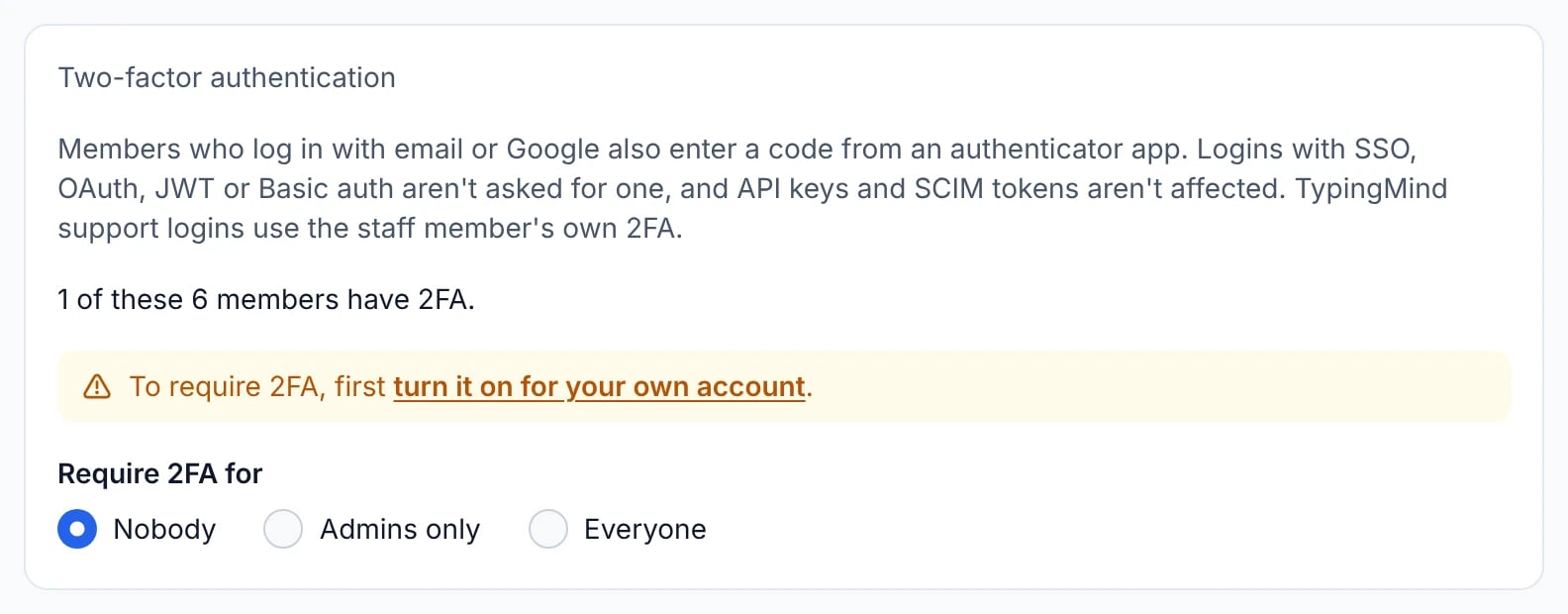
2
Choose who needs it
Under Require 2FA for, choose:
- Nobody: members choose for themselves. This is the default.
- Admins only: every member with an admin role, whether a built-in role, a custom role, or a role they get through a user group.
- Everyone: every member who logs in with an email code or Google.
3
Choose when it starts
Under Starting, choose: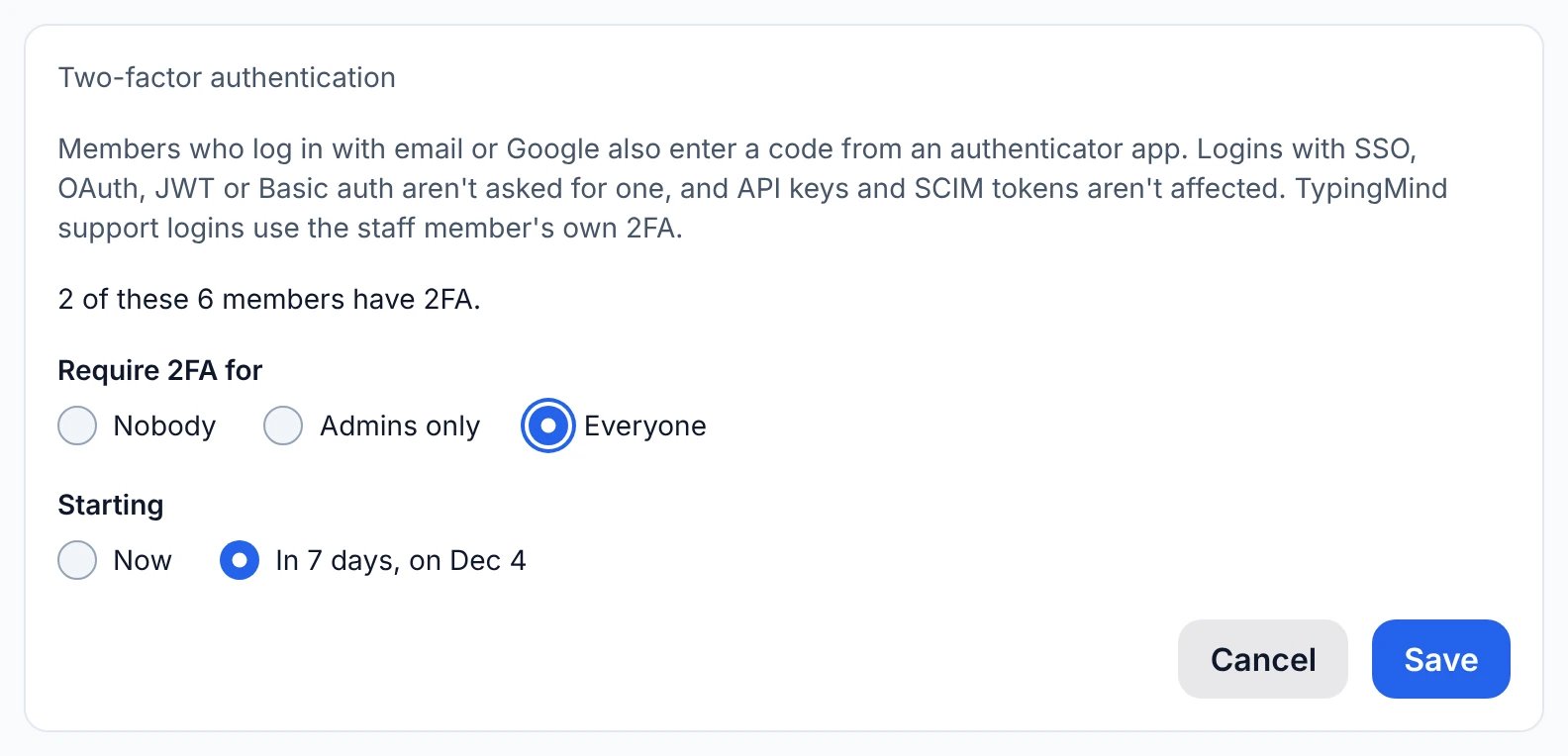
- Now: members without 2FA must set it up the next time they open TypingMind.
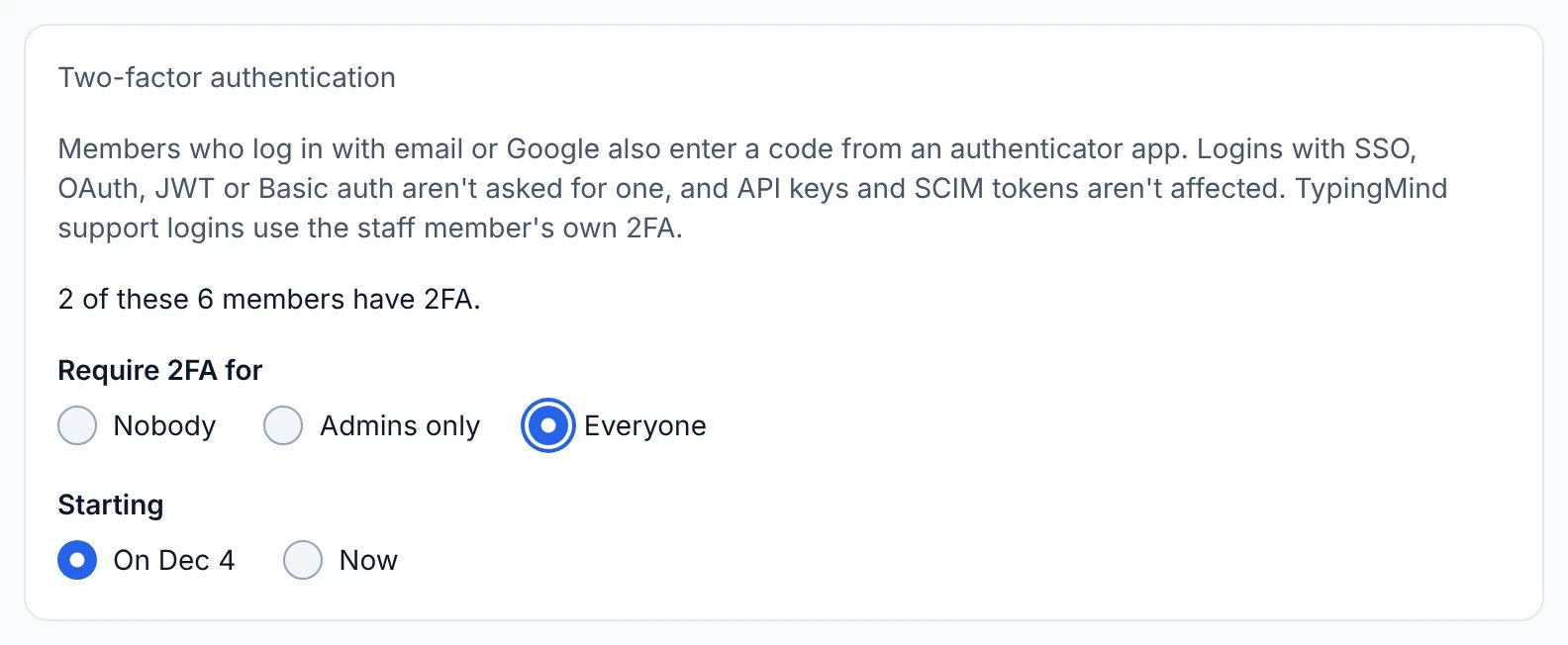
- In 7 days, on date: members without 2FA see a reminder until that date, then must set it up.
4
Confirm
The confirmation says how many of these members don’t have 2FA yet, and what happens to them. Nobody is logged out. Click Require 2FA.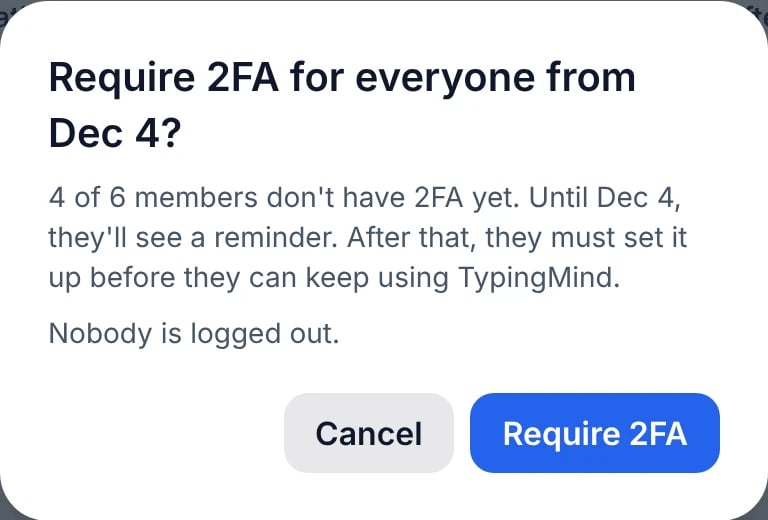
What members see
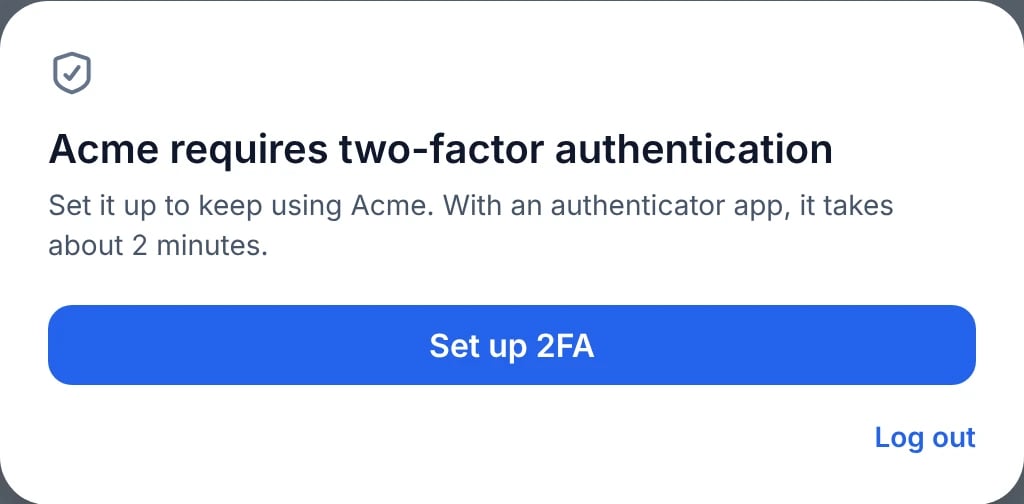
Before the start date, members without 2FA see a banner at the top of the app. Set up 2FA opens their security settings. They can dismiss it.
See who has 2FA
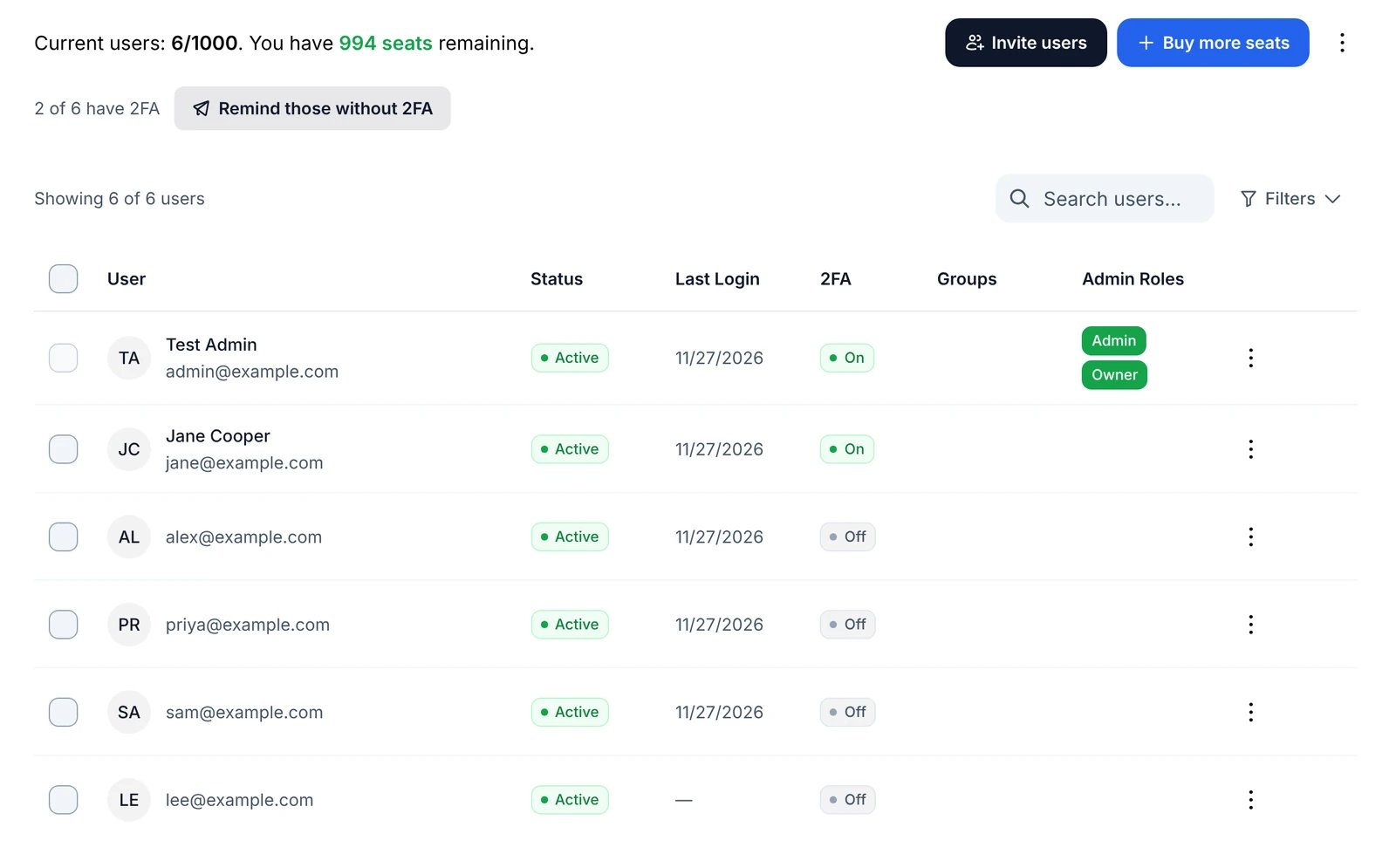
Go to Admin Panel → User Management → Users.- The 2FA column shows On, Off or Via SSO. Via SSO means the member can only log in through your identity provider (SSO or OAuth), which handles 2FA. Pending invitations show Off.
- Above the list, the count (for example 2 of 6 have 2FA) covers active members who can log in with email or Google. Members who can only log in with SSO aren’t counted.
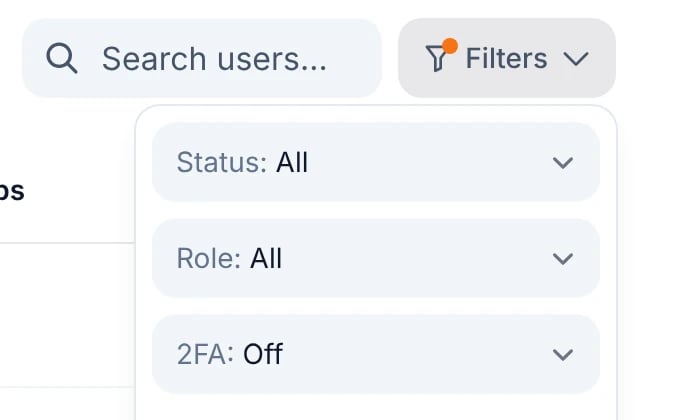
- In Filters, the 2FA filter shows only the members who have it On, Off, or Via SSO.
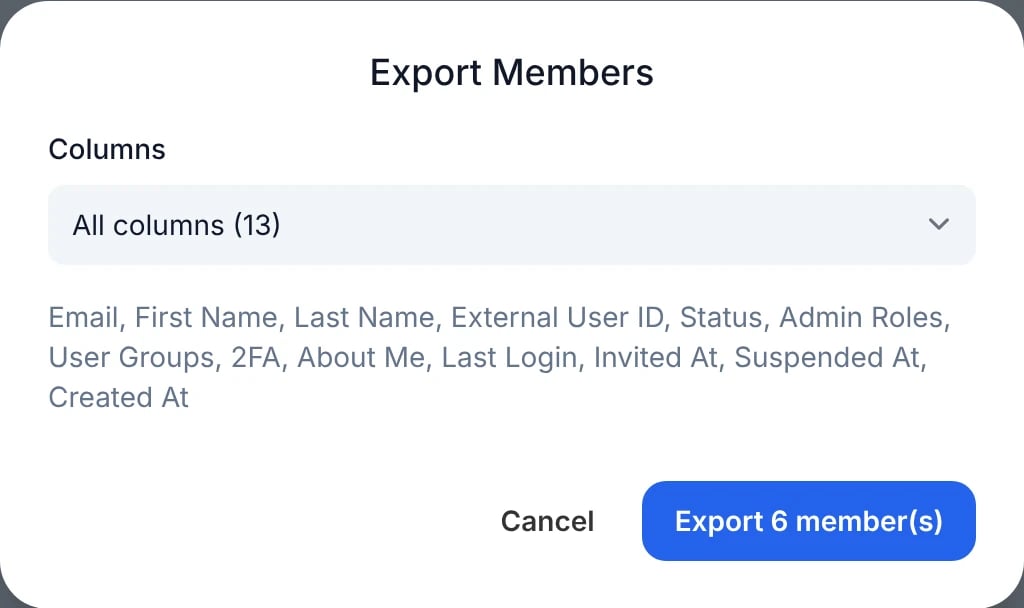
- Export members (in the ⋮ menu at the top right) includes a 2FA column in the CSV file.
Remind members without 2FA
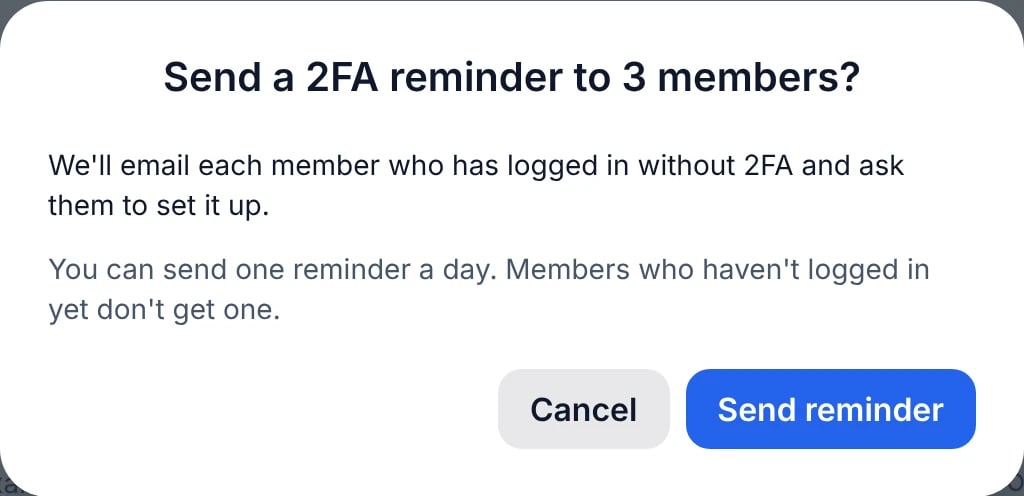
Click Remind those without 2FA, then Send reminder. TypingMind emails each member who has logged in without 2FA and asks them to set it up. If you require 2FA, the email says from when.- You can send one reminder a day. The Users page shows when you can send the next one.
- Members who haven’t logged in yet don’t get one.
Reset a member’s 2FA
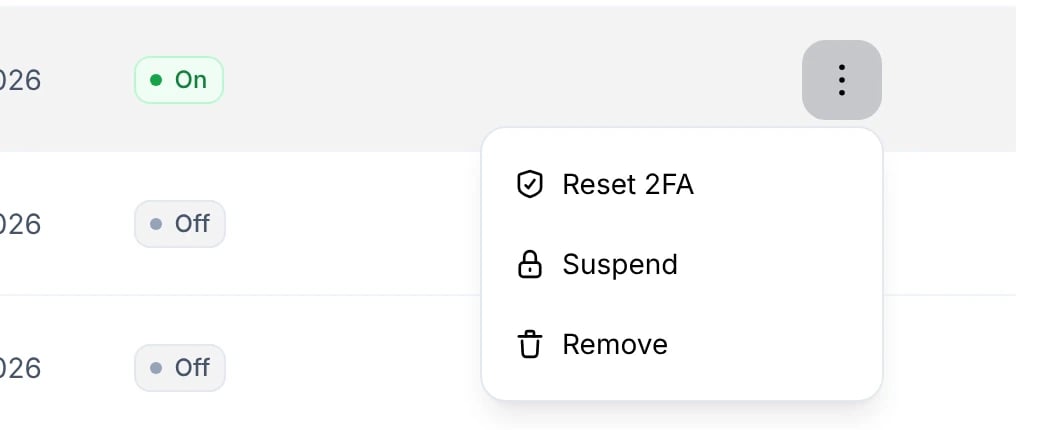
When a member loses their phone and their recovery codes, an admin can reset their 2FA:- On the Users page, open the ⋮ menu on the member’s row (or open the member), and click Reset 2FA.
- Before you confirm, make sure it’s really them, for example on a call.
- Click Reset 2FA.
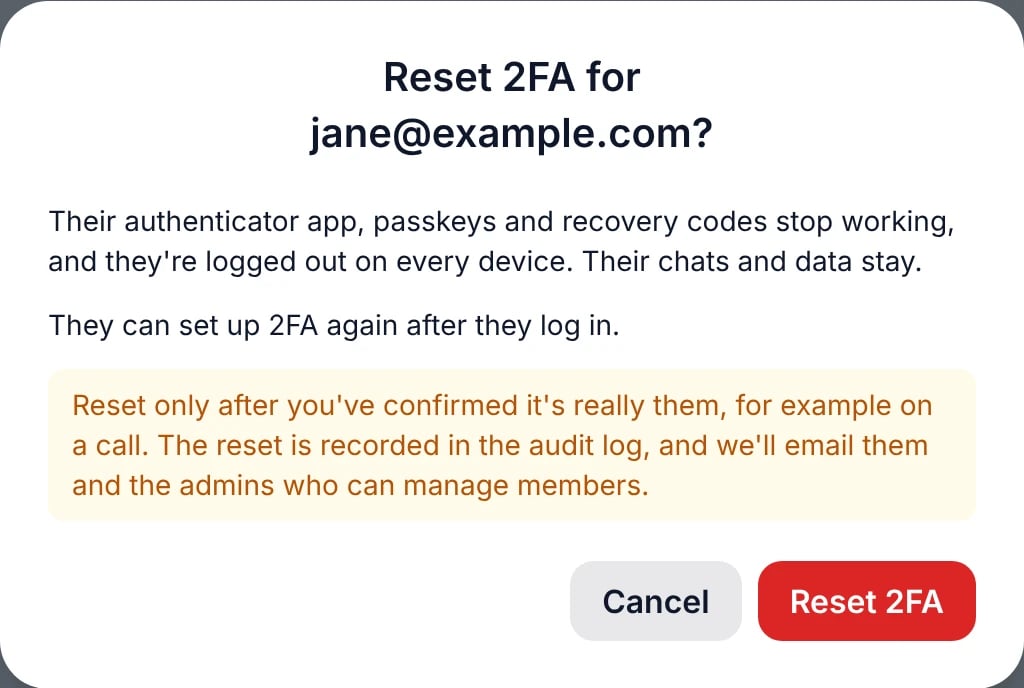
- The member’s authenticator app, passkeys and recovery codes stop working, and they’re logged out on every device. Their chats and data stay.
- They log in again with their email code and can set up 2FA again. If 2FA is required for them, they must.
- TypingMind emails the member and the admins who can view or manage members. The reset is recorded in the audit log.
- Admins who can manage members can reset the 2FA of members without an admin role.
- Only the workspace owner can reset the 2FA of a member with any admin role, including a role they get through a user group.
- Nobody can reset their own 2FA here. Members manage their own 2FA under Account → Security.
- If the owner loses access, TypingMind support can reset it, with a 72-hour wait during which any admin can cancel. See Two-factor authentication FAQ.