.svg?fit=max&auto=format&n=RaTUOQa09vPhW7_D&q=85&s=368f39de7ecc6605f73c43c2017546a3)
.svg?fit=max&auto=format&n=RaTUOQa09vPhW7_D&q=85&s=01a6eb27b4db3af8a1d5557525c579d3)
Step 1: Create user groups for your team members
Creating Groups for your team members allows you to categorize them into different groups of users, for example, Private group, Public group, BOD group, etc. Please follow these steps to create groups for your members:- Go to the Admin Panel in your workspace.
- Navigate to the Groups section under User Management.
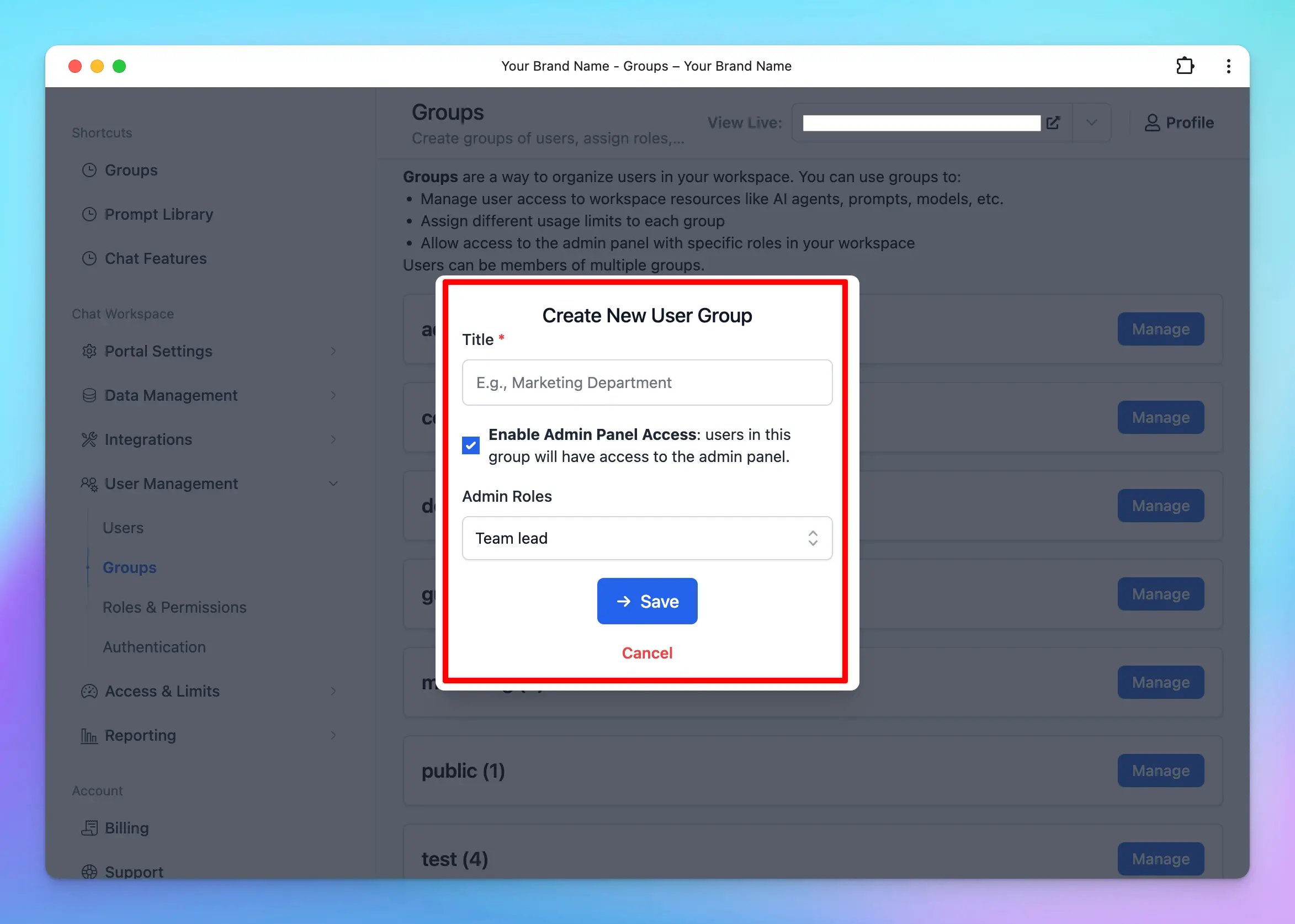
- Click on Add New Group.
/image%2020.webp)
- Enter a Group Name that reflects the purpose or role of the group.
- (Optional) Enable Admin Access for this group if they can have access to the admin panel.
- If you enable this option, ensure you assign appropriate Admin Roles to the group. These roles should align with the permissions you’ve defined in the Roles and Permissions settings.
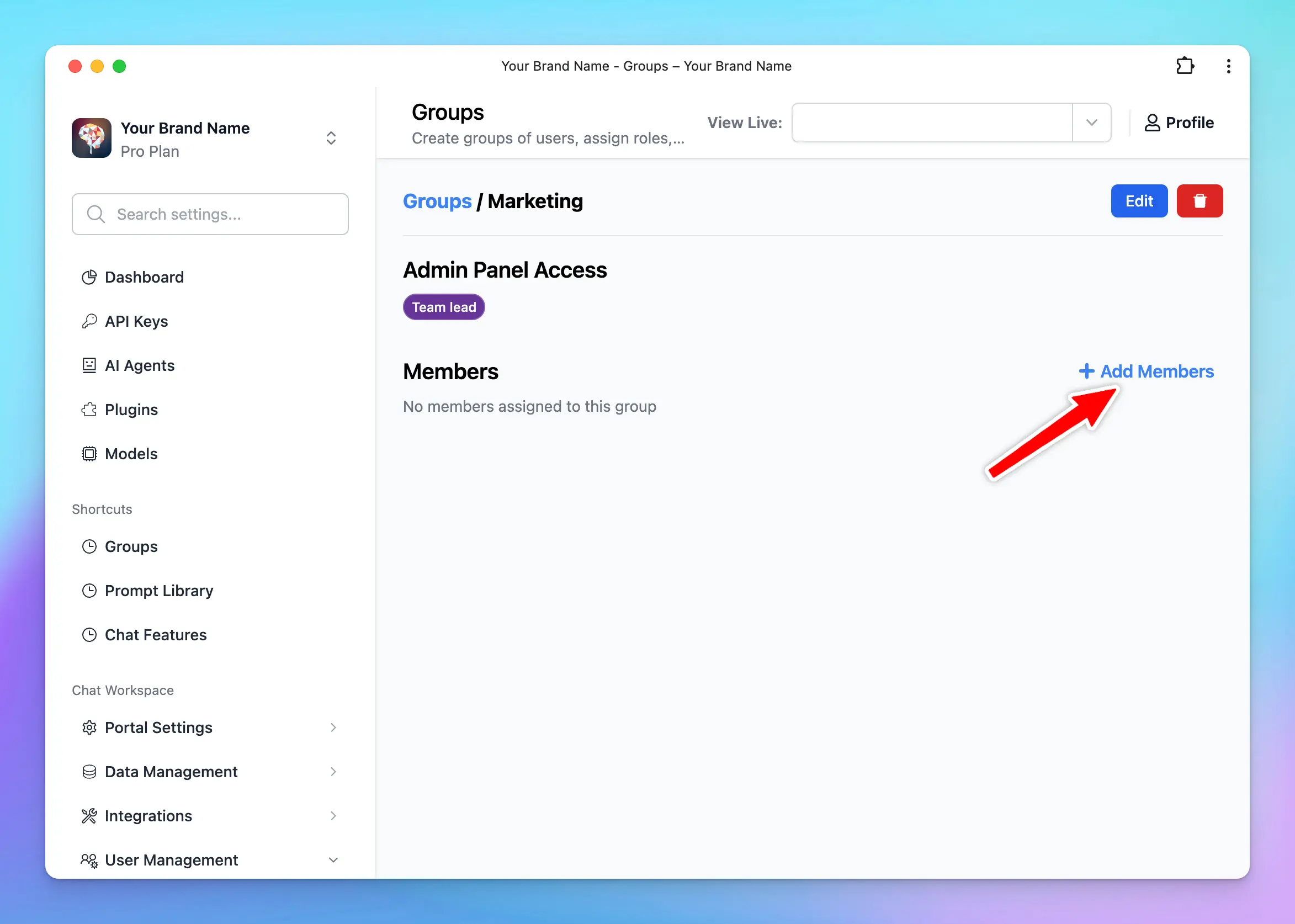
- Click Manage next to the created group
- Click Add Members
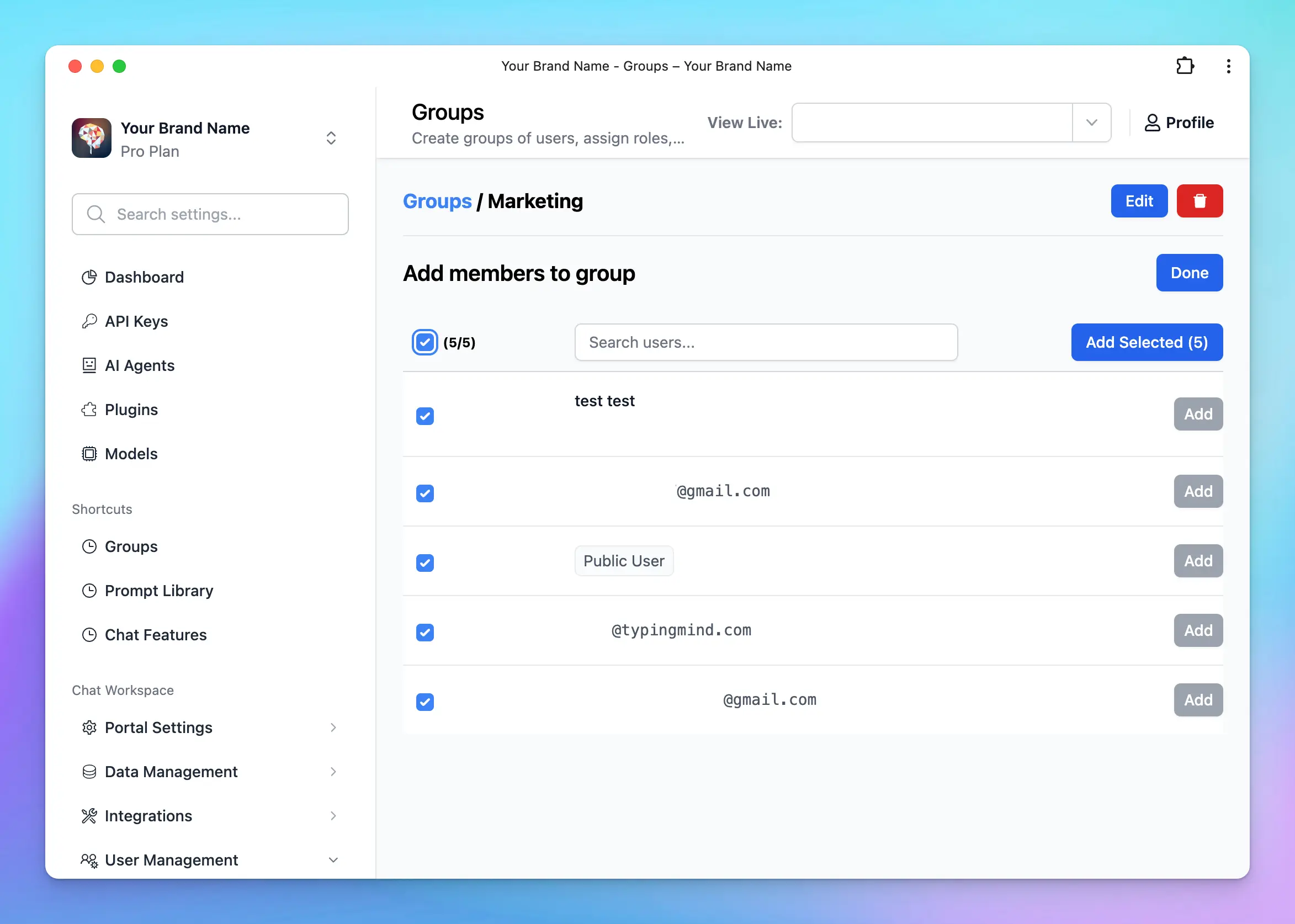
- Select the users you want to include in this group from the list.
Step 2: Assign user groups to a specific Plugin
You can manage the Plugin visibility and usage limit using User Groups following the below guidelines:Option 1: Manage via Usage Limits
- Navigate to the “Usage & Limit” under the Access & Limits section in the Admin Panel.
- Click on Plugin Limits and select Add Limit.
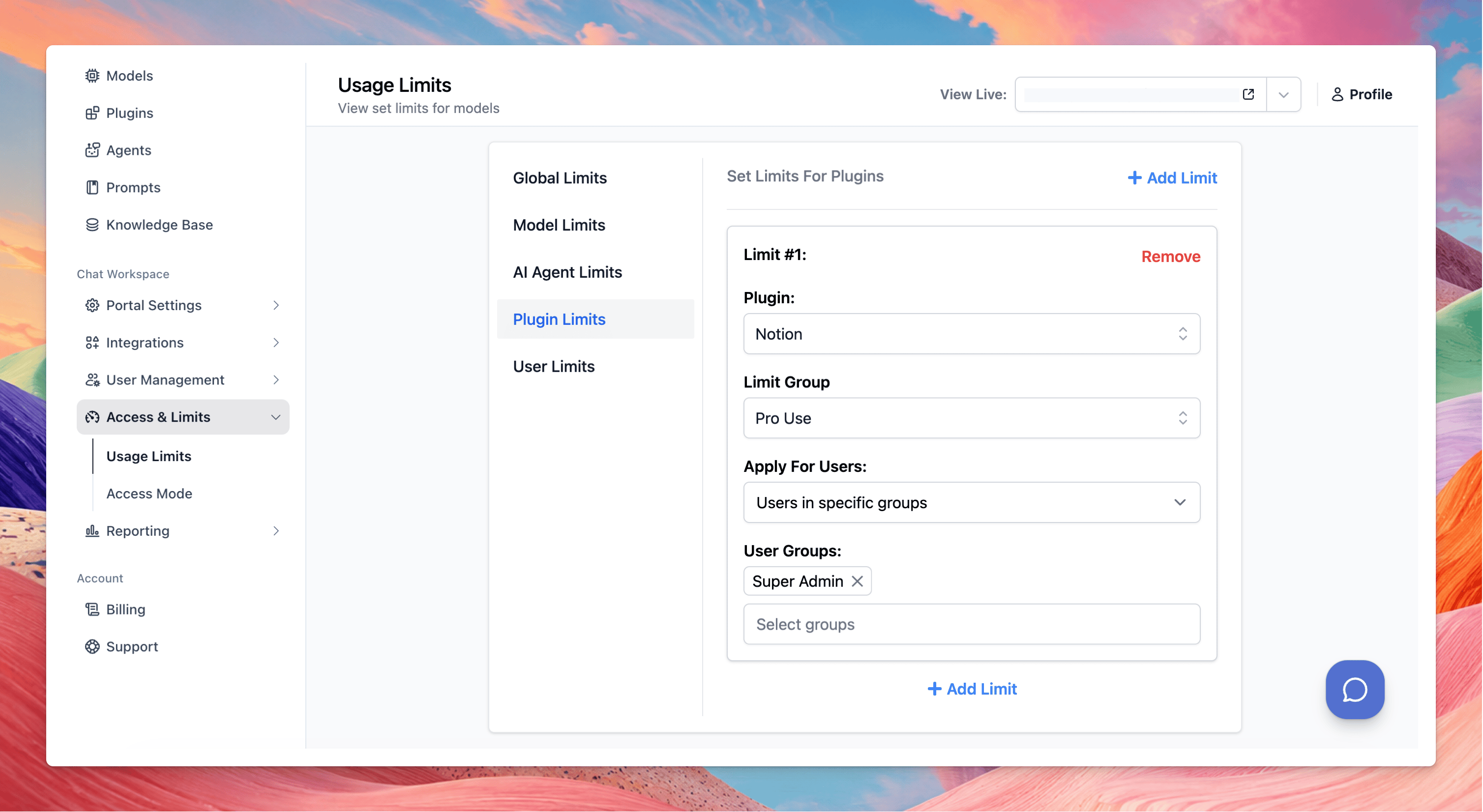
- Select the AI Agents you want to set the limit
- Click to Limit Group → scroll down to Add New Limit Group → Add limits for messages/characters/tokens
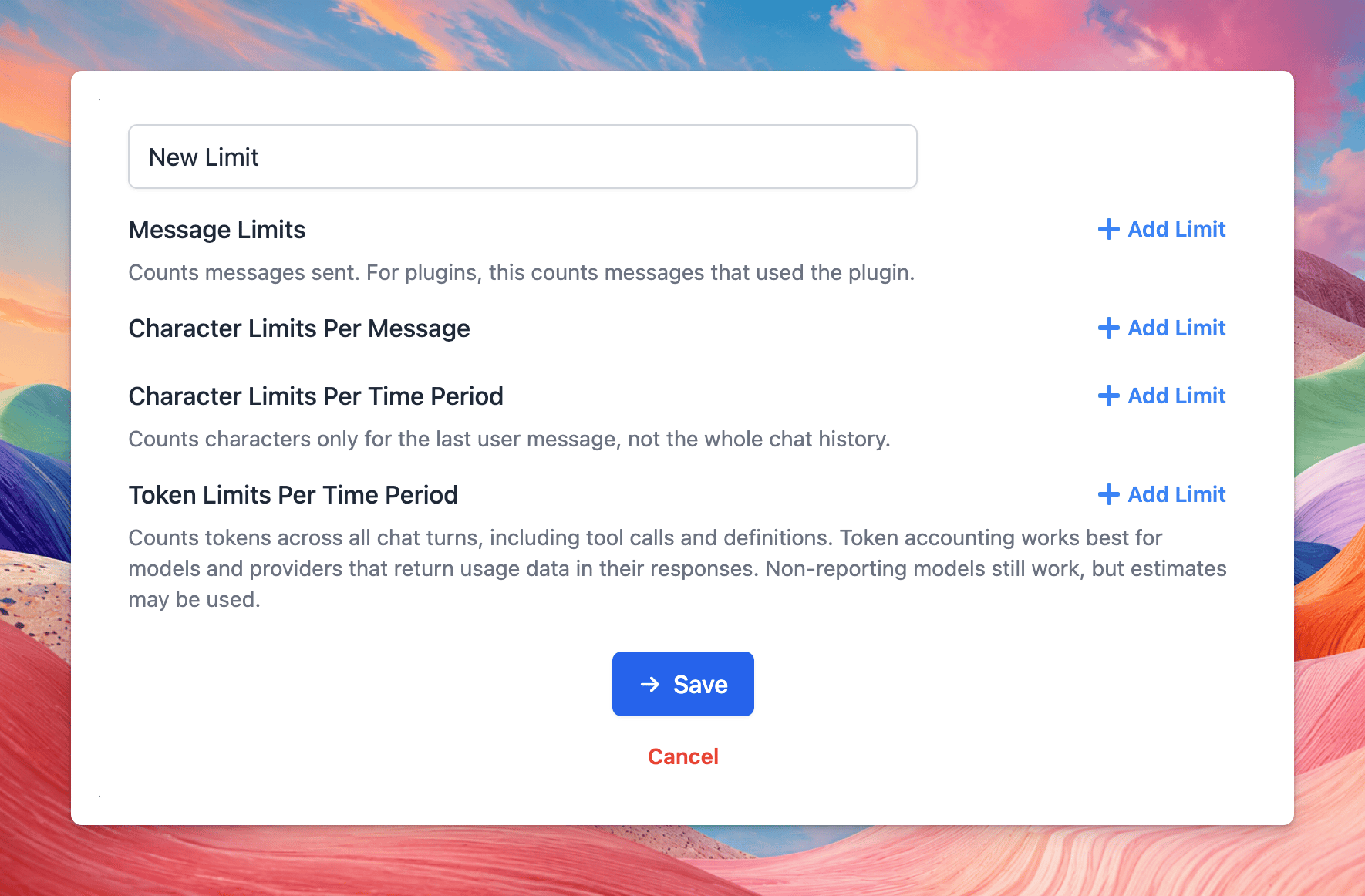
- In the Apply for User section, select the user groups you want to apply the limits to by choosing Users in specific groups / All users except users from specific groups.
Option 2: Manage limit directly within Plugin Settings
- Go to Plugins section
- Toggle your current plugin
- Switch to Access & Limit tab:
- Set up Visibility: choose the user group that can access to the Plugin
- Set up Usage limits: create a new limit group or select from existing limit groups as Option 1 to manage messages/characters/tokens users can send while using the Plugin.
Use Cases
Restrict Plugin Access for Different Departments
With TypingMind Teams, you can control which plugins each department can access based on their specific needs and responsibilities. This helps ensure that:- Employees only have access to plugins relevant to their work.
- Sensitive integrations are available only to authorized teams.
- Your workspace stays organized without unnecessary plugins.