.svg?fit=max&auto=format&n=RaTUOQa09vPhW7_D&q=85&s=368f39de7ecc6605f73c43c2017546a3)
.svg?fit=max&auto=format&n=RaTUOQa09vPhW7_D&q=85&s=01a6eb27b4db3af8a1d5557525c579d3)
What the TypingMind Team API can do?
You can use it to:- Manage users: add users, get all users, remove users, and update user details such as user tags or user groups.
- Manage chats: create a model response for a given chat conversation.
- Chat with an AI Agent: send a message to an AI Agent and receive a response.
- Use the Agent’s setup: when chatting with an AI Agent via API, it can use the enabled plugins, knowledge bases, and MCP servers in the background.
Use Cases
- User management for large team or community If you have a large team or community using your chat instance, it can be time-consuming to manually add every new user through the admin panel.
- You can automate this task with the API. When a new user joins, it is automatically added to your chat instance. This ensures that everyone in your team has access to the chat instance as soon as they join.
- And if a user’s role changes or if they leave the team or community, you can easily update their tags or remove their seats directly from your own platform using the API
- Chatbot integration
- You can create a chatbot using the training data you have, and this chatbot can be added to any platform like Discord or Telegram.
- The chatbot will give responses that are relevant and based on the data you have provided it during its training phase. This can be used with any language learning models (LLMs) such as ChatGPT, Claude, or any other custom LLMs, thus giving you the flexibility to use the model that best fits your requirements.
Get Started with TypingMind Team API
To get started with using the API:- Generate an API key by logging into your instance admin panel > go to Integrations > API Integration > Generate API key
- Once you create a new API key, an api-user-xxxx will be added to your User list. You can then:
- Set restrictions for the API user just like any other user
- Track API usage by that user
- Remove the API user if you no longer need the API key
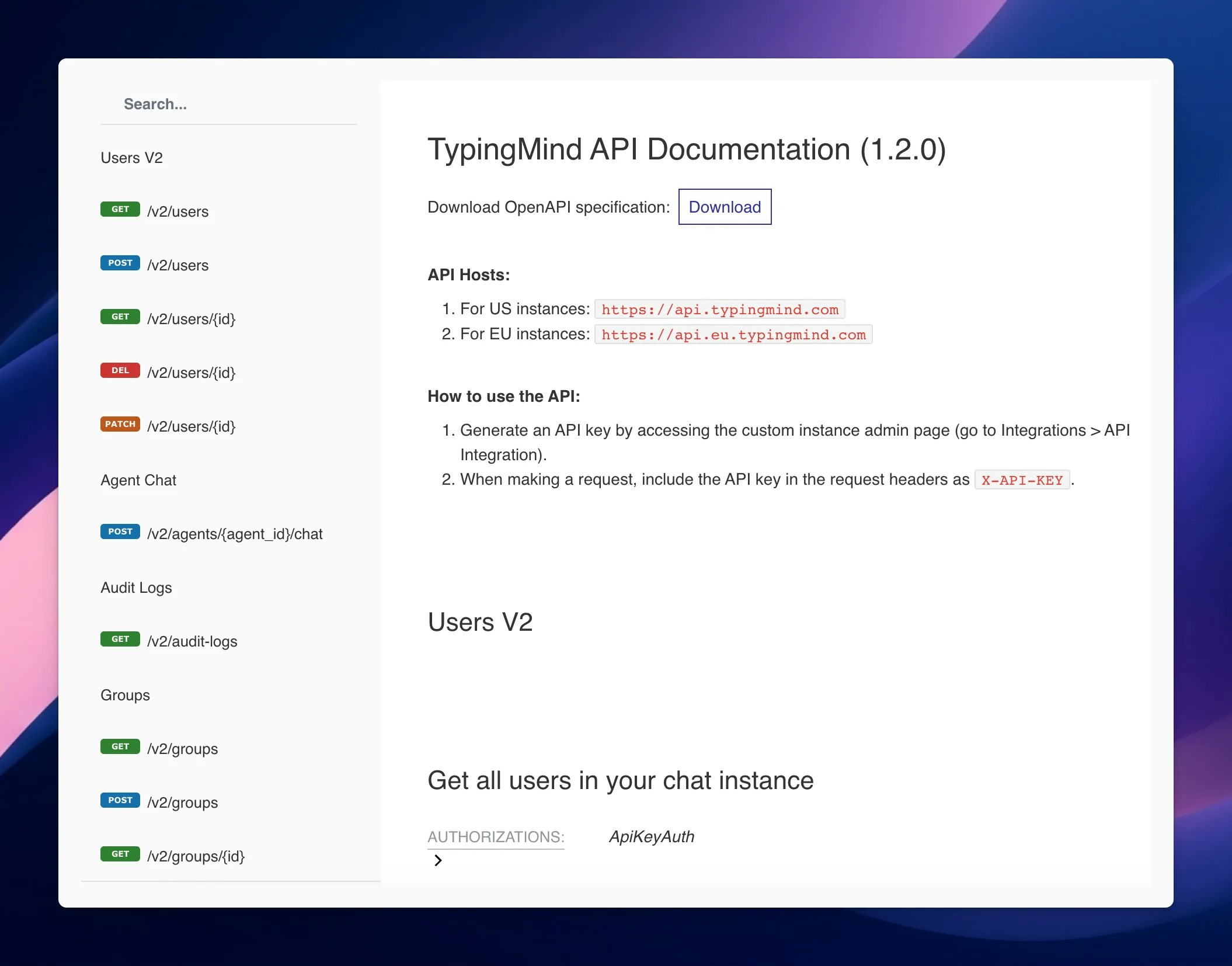
X-API-KEY.
For more request details, please check out the documentation available on api.typingmind.com/docs.
If you encounter any issues or have any questions, don’t hesitate to reach out to our support team at support@typingmind.com