.svg?fit=max&auto=format&n=RaTUOQa09vPhW7_D&q=85&s=368f39de7ecc6605f73c43c2017546a3)
.svg?fit=max&auto=format&n=RaTUOQa09vPhW7_D&q=85&s=01a6eb27b4db3af8a1d5557525c579d3)
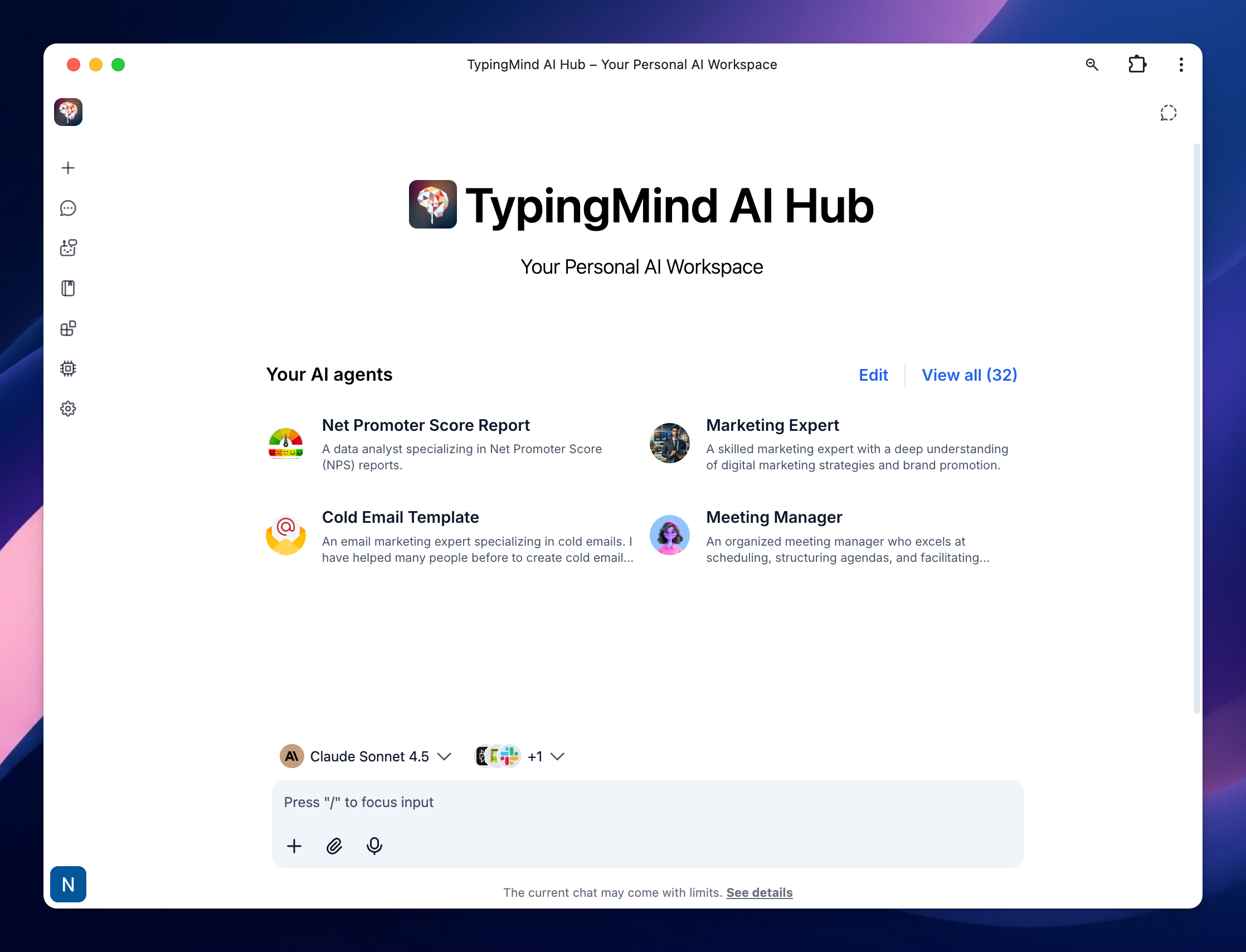
1. Brand Your Chat Instance
Start by branding your chat instance with your company’s name, logo, and tagline. Go to Portal Settings > Scroll down to the Branding section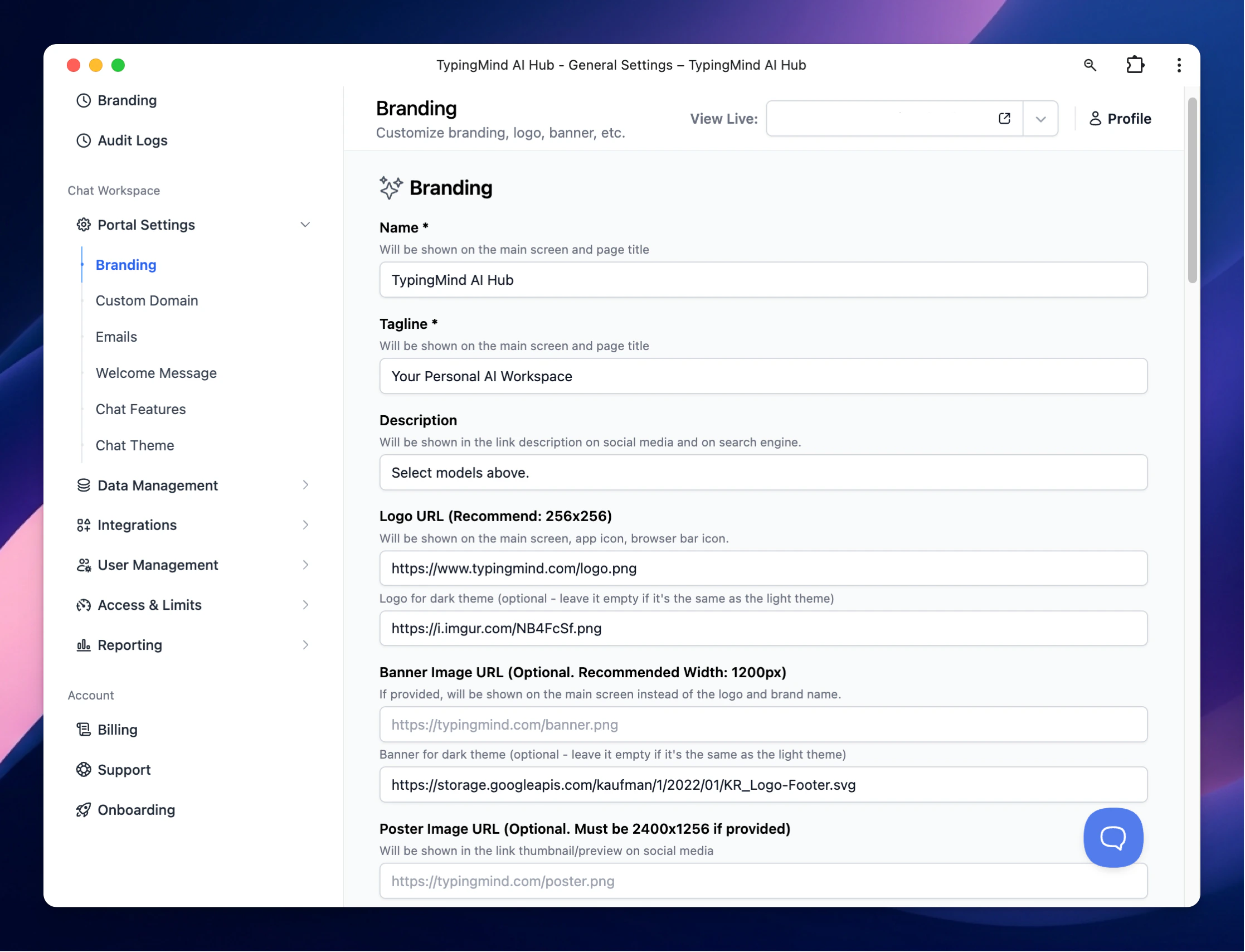
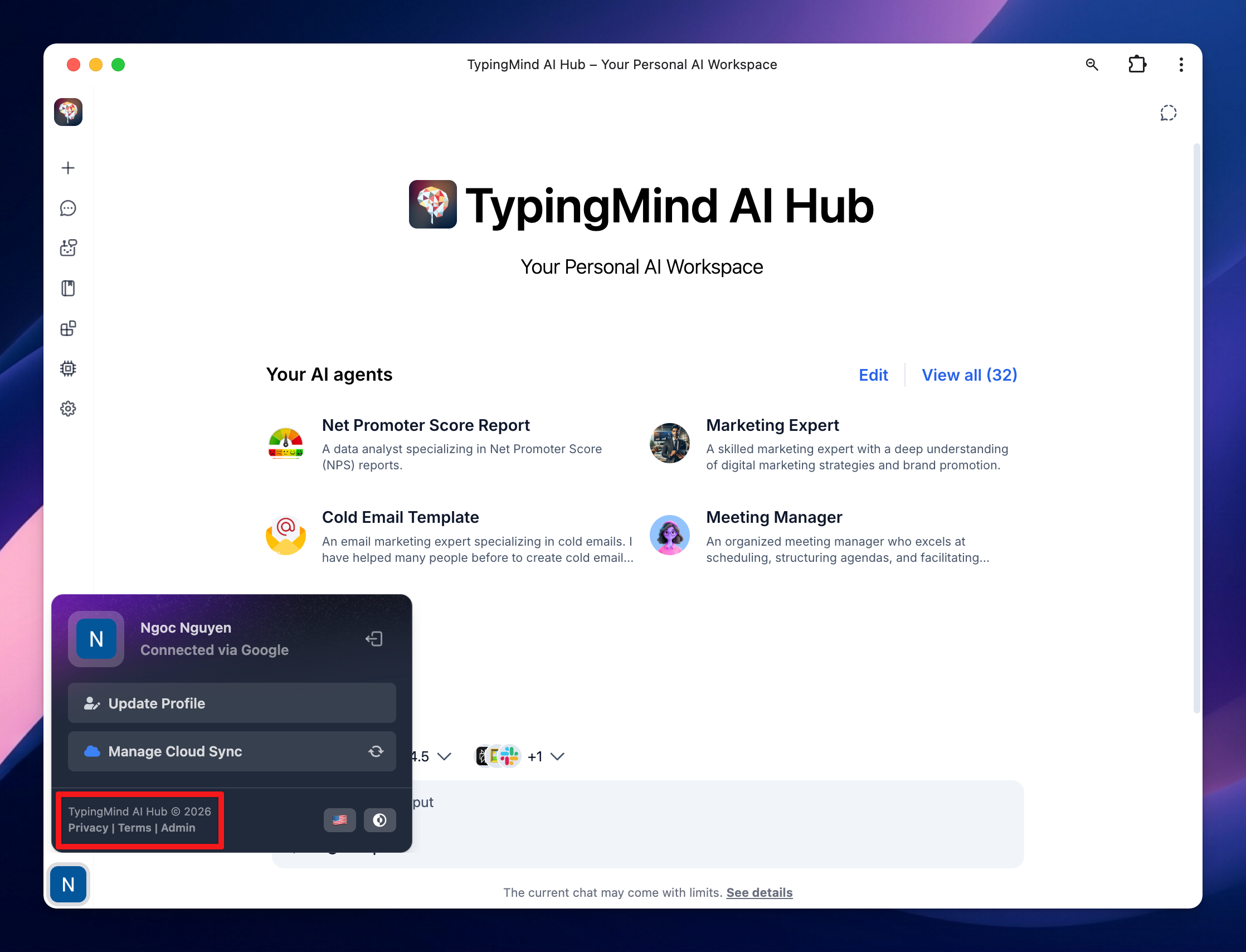
2. Customize Footer Links
Customize the footer links with your FAQs, Terms & Condition, Privacy Policy, and Feedback email. Go to Portal Settings > Scroll down to the Links section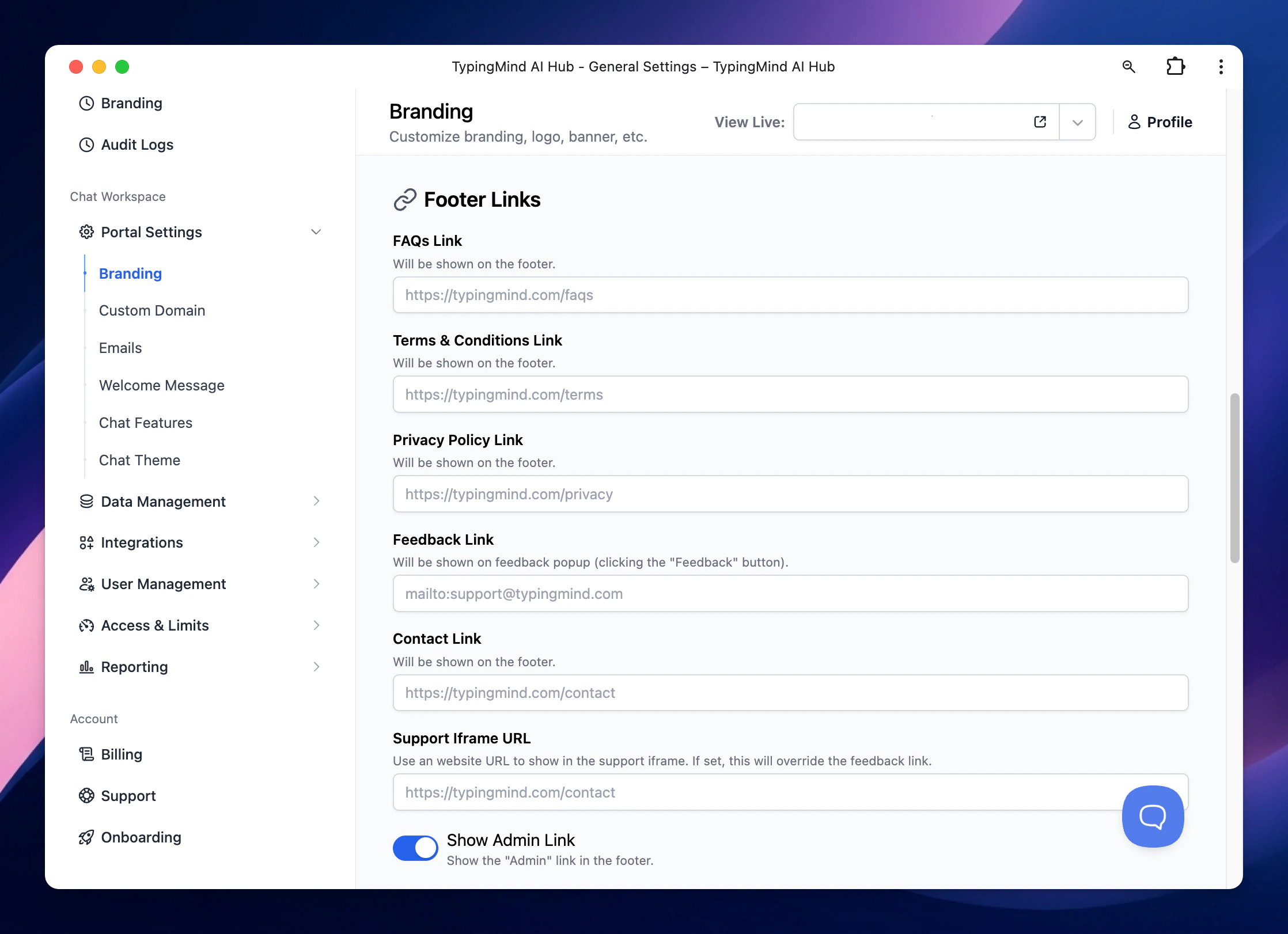
3.Change the Document Links
You can change the document links that are included within the chat interface such as Plugins docs, OpenRouter guide, Azure OpenAI guide, etc.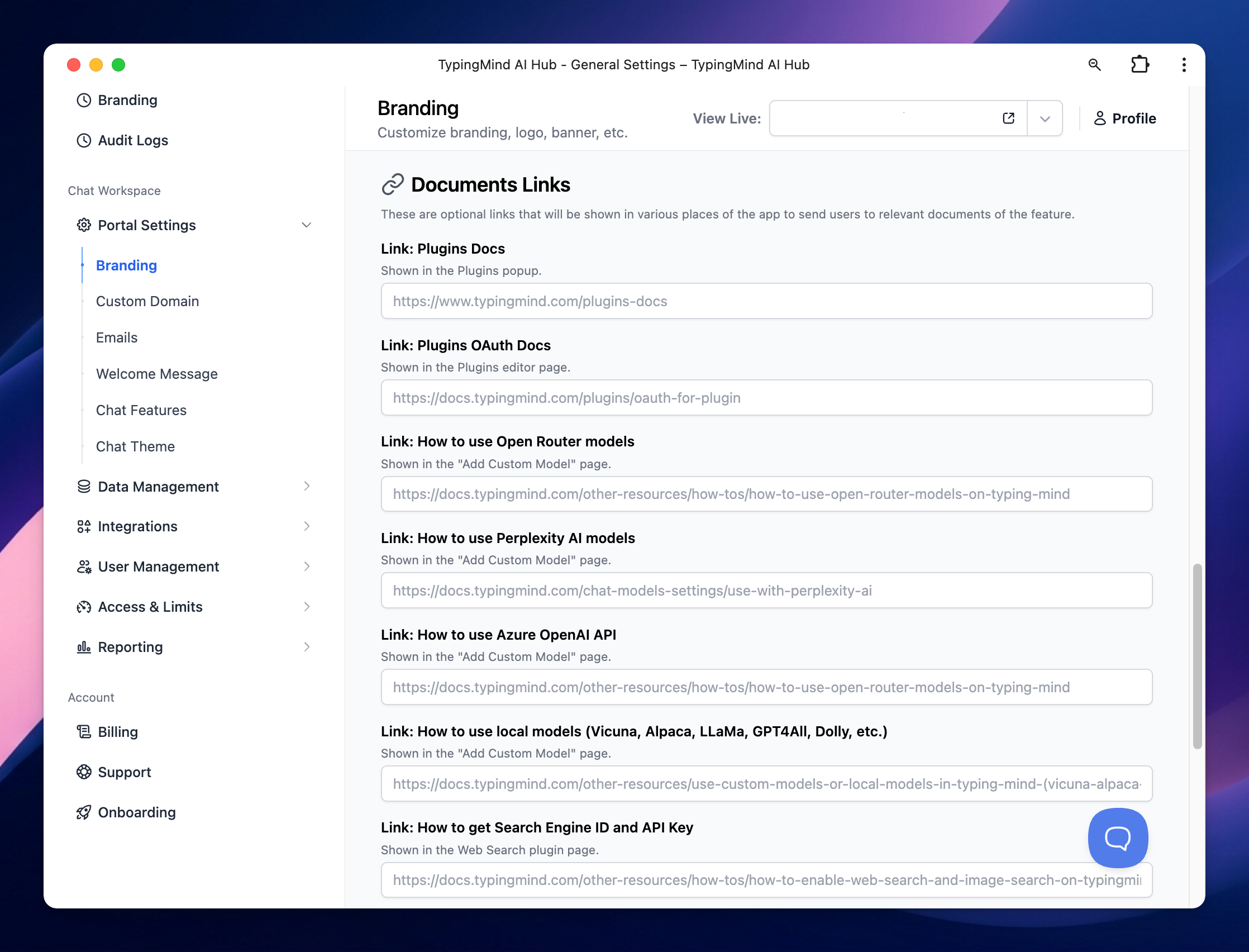
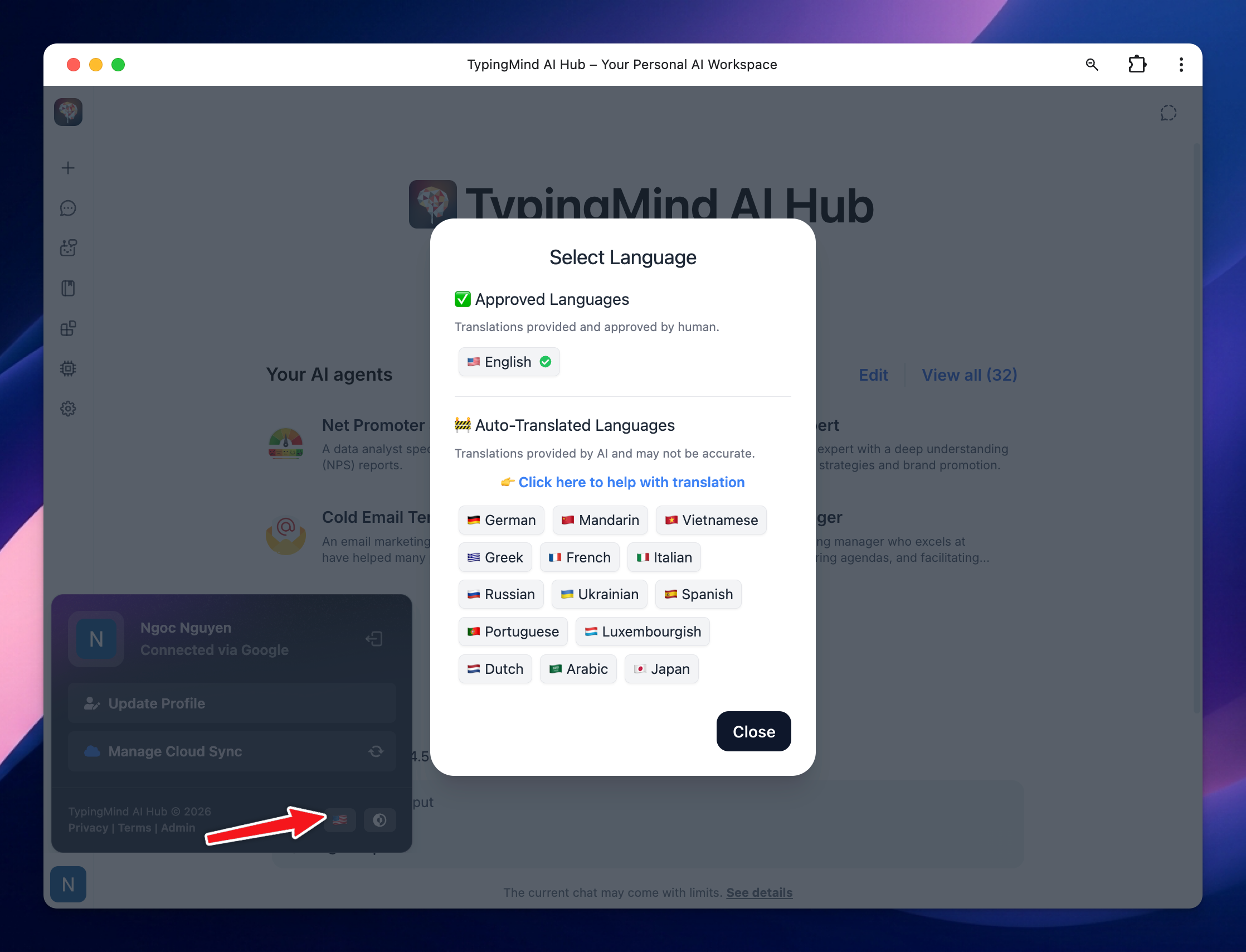
4. Customize to your local language
Adapt the chat interface to your local language to enhance user engagement. Go to Portal Settings > Choose your preferred language for the UI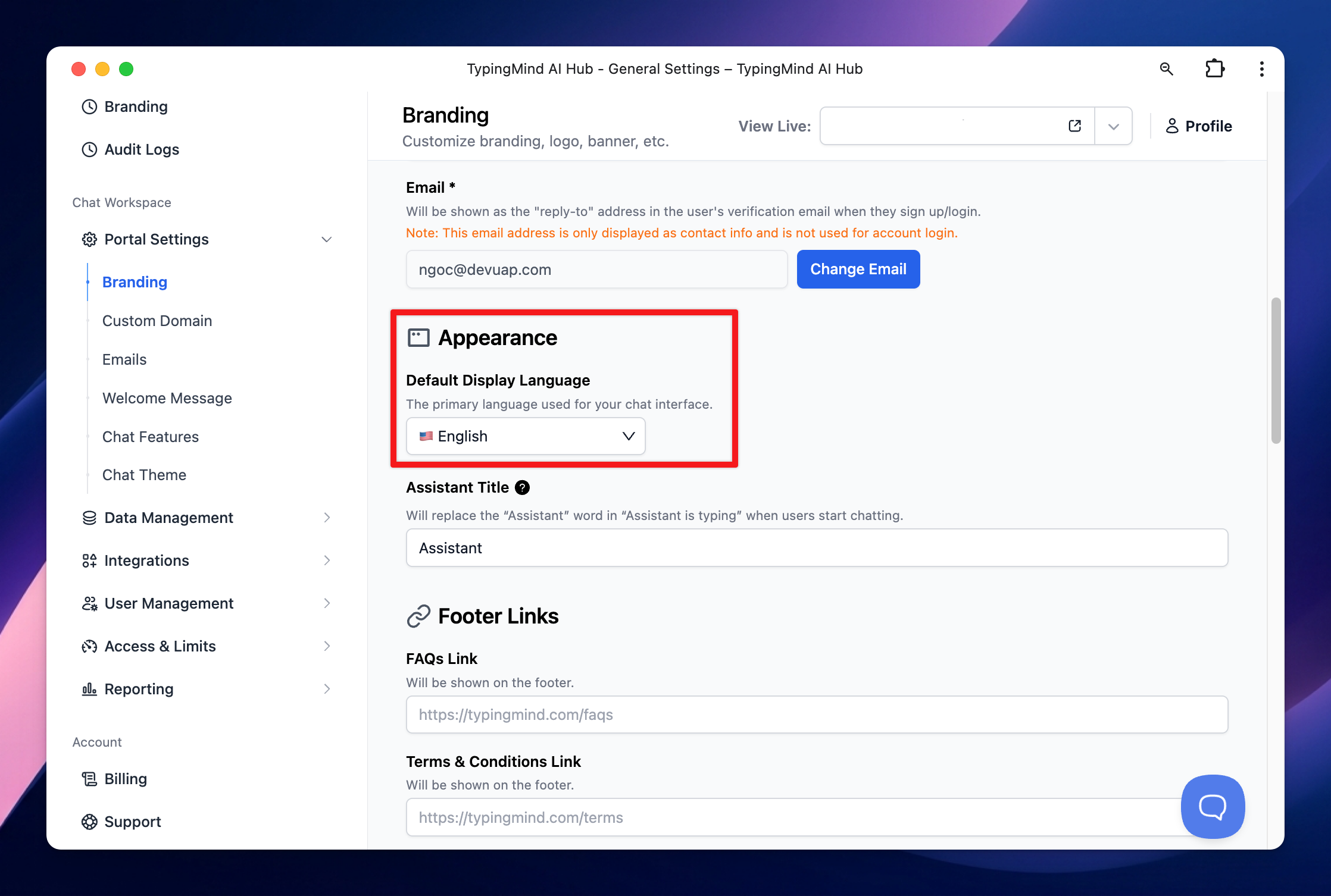
5. Edit Welcome Messages
Customize the welcome messages to easily onboard your users. You can provide them with guidance on how to use the chat instance. Go to Welcome Message > input your messages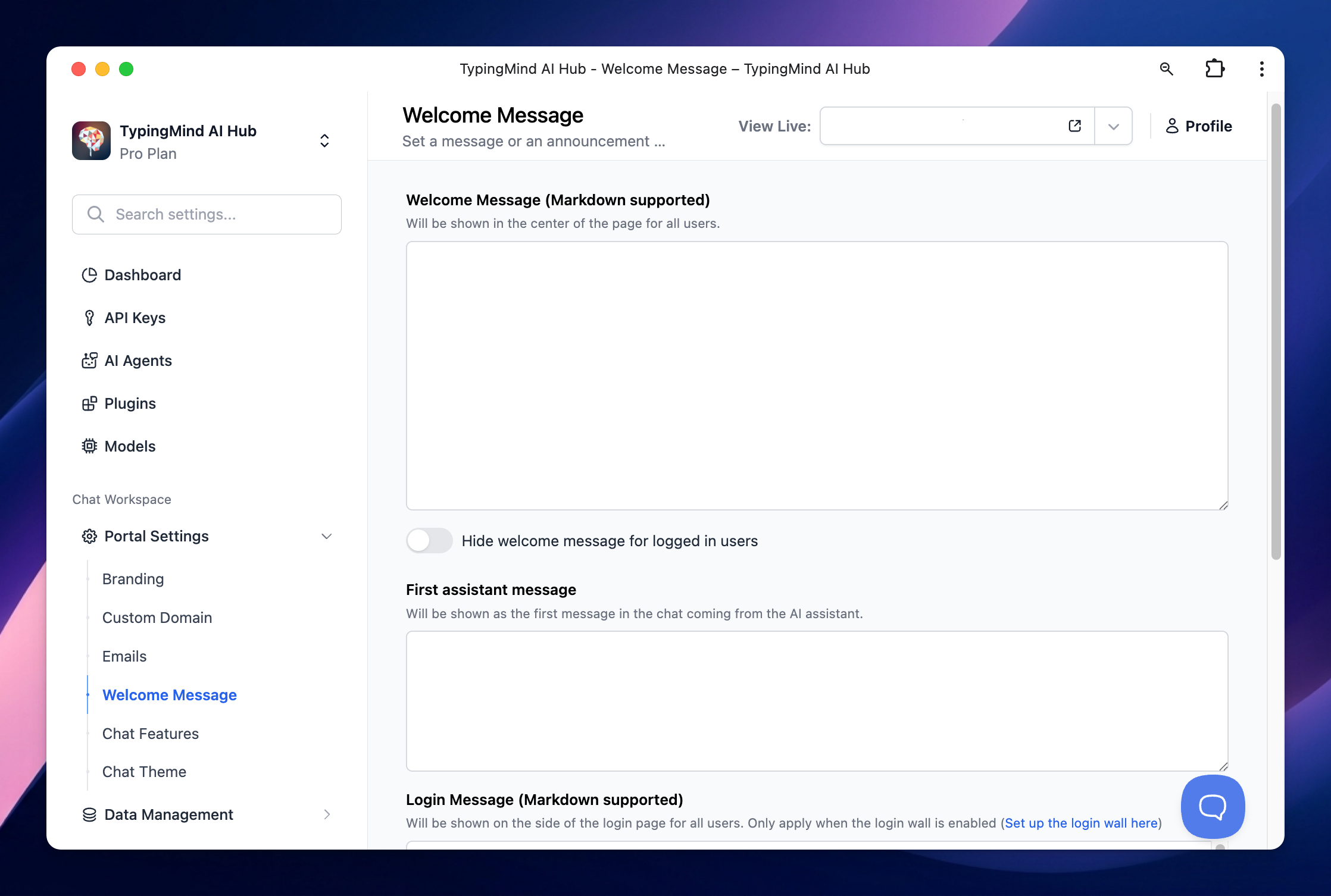
6. Use Your Own Domain
You can set up a custom domain for your chat interface. Go to Custom Domain > Set up your custom domain as instructions in the app.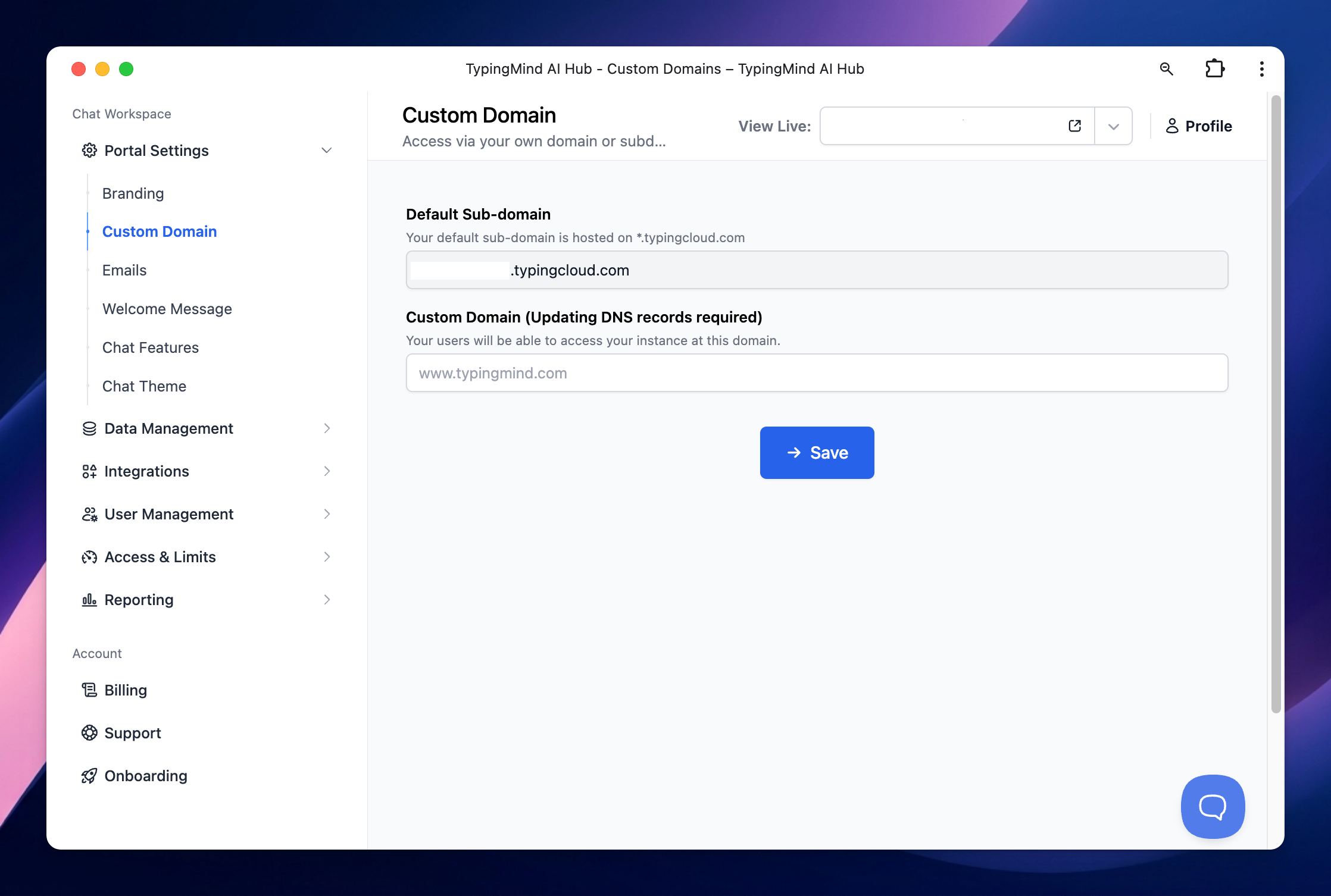
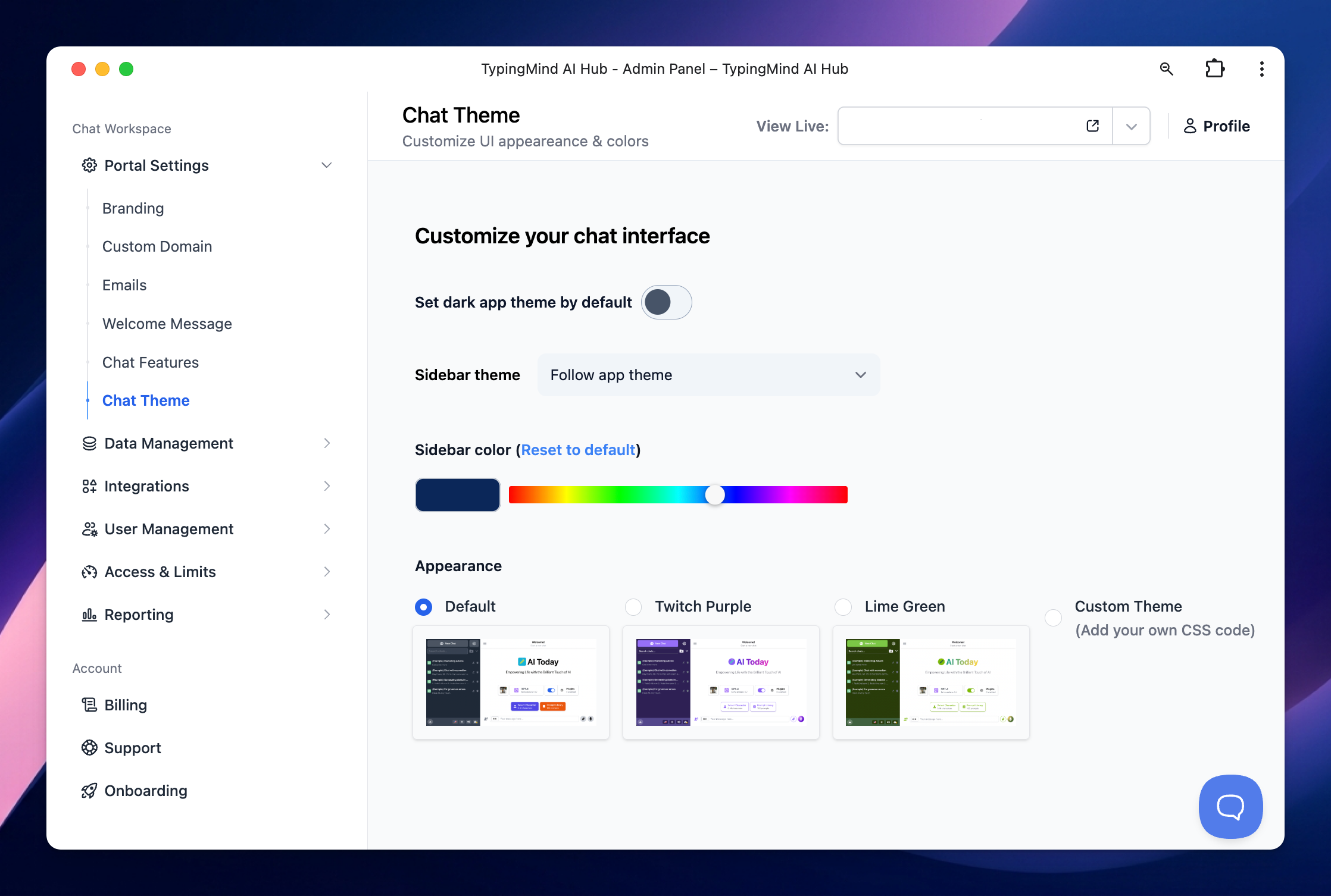
7. Customize the Chat Interface Theme
Customize the chat interface theme to match your brand color. You can use built-in themes or create a custom theme by adding your CSS code. This ensures a seamless integration of the chat interface with your brand’s visual identity. Go to Chat Theme > Choose your preferred theme or add your custom theme