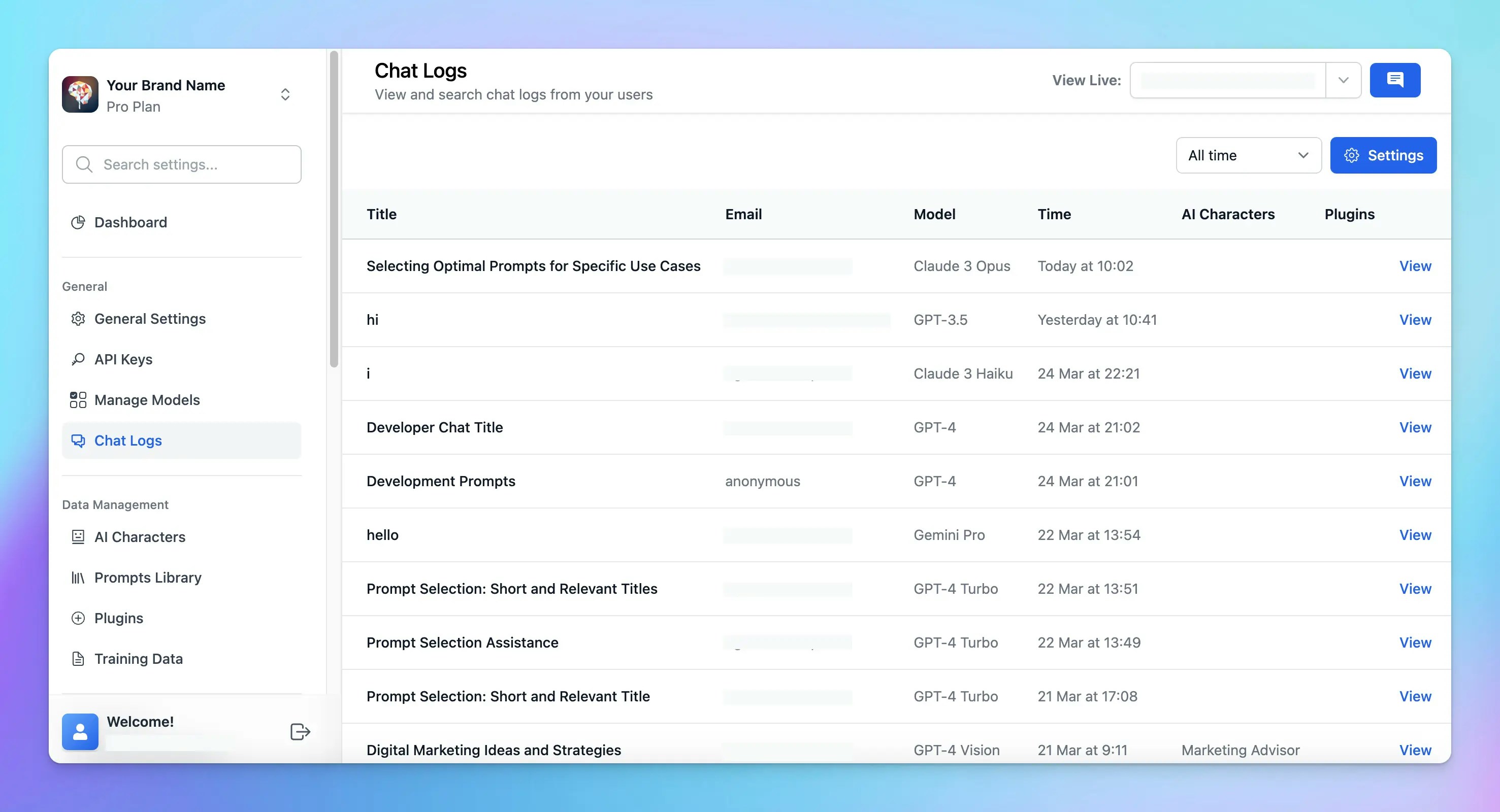
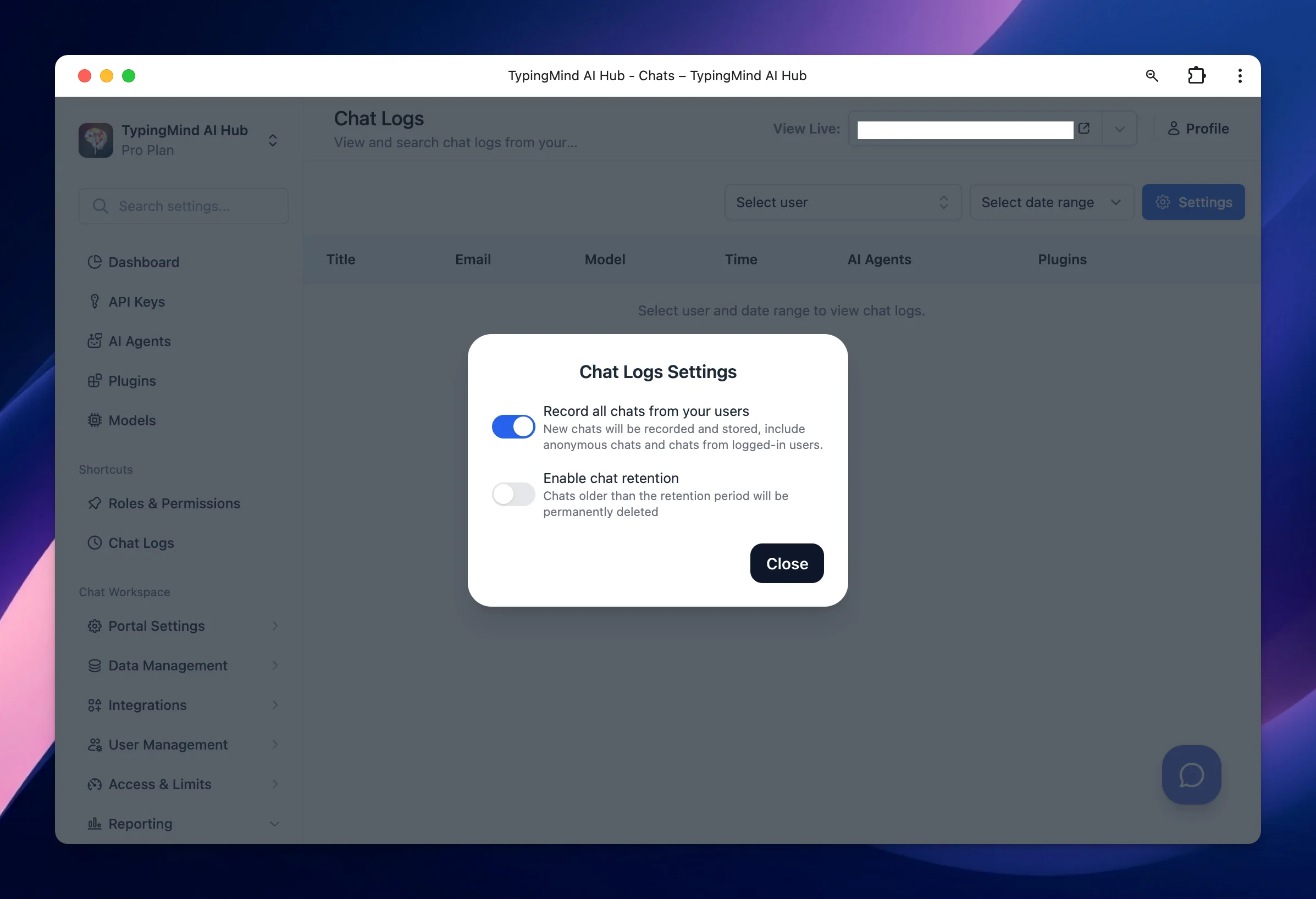
TypingMind Team allows Admins to review chat logs by all users to understand use cases, detect issues, and adjust prompts to better handle user queries.Let’s check out on how to do that!
Regular reviews: make it a routine to check the chat logs to quickly identify and address emerging issues or trends.
Continuously update training data: use insights from the chat logs to update FAQs, user guides, or training data for the AI, improving the accuracy and relevance of its responses.
User engagement: gather information within the chat logs to provide users with the resources that they want.
Was this page helpful?
{"docsConfig":{"theme":"mint","$schema":"https://mintlify.com/docs.json","name":"TypingMind Docs","description":"Your go-to resource for getting the most out of TypingMind","colors":{"primary":"#1539a3","light":"#1e4bd4","dark":"#102c7f"},"logo":{"light":"https://mintcdn.com/typingmind/RaTUOQa09vPhW7_D/images/logo-light(3).svg?fit=max\u0026auto=format\u0026n=RaTUOQa09vPhW7_D\u0026q=85\u0026s=368f39de7ecc6605f73c43c2017546a3","dark":"https://mintcdn.com/typingmind/RaTUOQa09vPhW7_D/images/logo-dark(3).svg?fit=max\u0026auto=format\u0026n=RaTUOQa09vPhW7_D\u0026q=85\u0026s=01a6eb27b4db3af8a1d5557525c579d3","href":"https://www.typingmind.com/?utm_source=docs"},"favicon":"https://mintcdn.com/typingmind/pm53BB_D69NXvWmb/images/logotypingmind3.webp?fit=max\u0026auto=format\u0026n=pm53BB_D69NXvWmb\u0026q=85\u0026s=a689e470c2dc7a6b4fd8efa9a7549ae8","background":{"color":{"light":"#ffffff","dark":"#000000"}},"navbar":{"links":[{"href":"mailto:support@typingmind.com","label":"Support"},{"href":"https://feedback.typingmind.com/changelog","label":"Changelog"}]},"footer":{"socials":{"x":"https://x.com/TypingMindApp","linkedin":"https://www.linkedin.com/company/typingmind","youtube":"https://www.youtube.com/@TypingMind","website":"https://www.typingmind.com/?utm_source=docs"}},"seo":{"indexing":"all"},"icons":{"library":"lucide"},"interaction":{"drilldown":false},"styling":{"latex":true},"navigation":{"pages":[]}},"deployment":{"deploymentMetadataValue":{"subdomain":"typingmind","hasAudioNarration":false,"actualSubdomain":"typingmind","customDomains":["docs.typingmind.com"],"gitSource":{"type":"github","owner":"typingmindinternal","repo":"typingmind-docs","deployBranch":"main","contentDirectory":"","isPrivate":true,"mountPath":"","label":""},"chroma":{"liveDeploymentHistoryId":"6adae4c1f79b00adadc89b15","collectionId":"2f8a5e18-bb89-4161-a3f5-cb166a91cd6a","schemaVersion":"v3","latestBuiltDeploymentHistoryId":"6adae4c1f79b00adadc89b15"},"feedback":{"thumbs":true},"entitlements":{"AI_CHAT":{"status":"DISABLED"}},"buildId":"6adae4c1f79b00adadc89b15","clientVersion":"0.0.3952","searchFilterCounts":[{"language":"default","tag":"Documentation","count":189},{"language":"default","tag":"TypingMind Teams","count":66},{"language":"default","tag":"AI Models","count":37},{"language":"default","tag":"Plugins","count":31},{"language":"default","tag":"Account \u0026 support","count":28},{"language":"default","tag":"Supported Models","count":21},{"language":"default","tag":"Model Context Protocol (MCP)","count":20},{"language":"default","tag":"Get started","count":19},{"language":"default","tag":"Chat Management","count":18},{"language":"default","tag":"Workspace Setup","count":18}]},"assistantConfig":{"enableAskAiButton":false,"enableStarterQuestions":false,"enableContextualStarterQuestions":false,"enableAskAiSearchBar":true},"hasChatPermissions":false,"hasWebMcpPermissions":false,"toggles":[{"name":"kill-isr","enabled":true,"variant":{"name":"disabled","enabled":false,"feature_enabled":true},"impressionData":false},{"name":"agent-mintlify-slack","enabled":true,"variant":{"name":"disabled","enabled":false,"feature_enabled":true},"impressionData":false},{"name":"editor-v7-file-tree","enabled":true,"variant":{"name":"disabled","enabled":false,"feature_enabled":true},"impressionData":false},{"name":"agent-integrations-settings","enabled":true,"variant":{"name":"disabled","enabled":false,"feature_enabled":true},"impressionData":false},{"name":"automations-pr-grouping","enabled":true,"variant":{"name":"disabled","enabled":false,"feature_enabled":true},"impressionData":false},{"name":"custom-prefix","enabled":true,"variant":{"name":"disabled","enabled":false,"feature_enabled":true},"impressionData":false},{"name":"analytics-v7","enabled":true,"variant":{"name":"disabled","enabled":false,"feature_enabled":true},"impressionData":false},{"name":"user-flows-analytics","enabled":true,"variant":{"name":"disabled","enabled":false,"feature_enabled":true},"impressionData":false},{"name":"no-publish-flow","enabled":true,"variant":{"name":"disabled","enabled":false,"feature_enabled":true},"impressionData":false},{"name":"workos-onboarding","enabled":true,"variant":{"name":"disabled","enabled":false,"feature_enabled":true},"impressionData":false},{"name":"llms-txt-v2","enabled":true,"variant":{"name":"disabled","enabled":false,"feature_enabled":true},"impressionData":false},{"name":"pause-universal-search-reconcile","enabled":true,"variant":{"name":"disabled","enabled":false,"feature_enabled":true},"impressionData":false},{"name":"snapshot-serving-live","enabled":true,"variant":{"name":"disabled","enabled":false,"feature_enabled":true},"impressionData":false},{"name":"stripTemperatureMiddleware","enabled":true,"variant":{"name":"disabled","enabled":false,"feature_enabled":true},"impressionData":false},{"name":"per-site-search-delta","enabled":true,"variant":{"name":"disabled","enabled":false,"feature_enabled":true},"impressionData":false},{"name":"support-platform-pylon-zendesk","enabled":true,"variant":{"name":"disabled","enabled":false,"feature_enabled":true},"impressionData":false},{"name":"snapshot-serving","enabled":true,"variant":{"name":"disabled","enabled":false,"feature_enabled":true},"impressionData":false},{"name":"instant-rollback","enabled":true,"variant":{"name":"disabled","enabled":false,"feature_enabled":true},"impressionData":false},{"name":"granular-notifications-server","enabled":true,"variant":{"name":"disabled","enabled":false,"feature_enabled":true},"impressionData":false},{"name":"granular-notifications","enabled":true,"variant":{"name":"disabled","enabled":false,"feature_enabled":true},"impressionData":false},{"name":"editor-private-page-search","enabled":true,"variant":{"name":"disabled","enabled":false,"feature_enabled":true},"impressionData":false},{"name":"automations-fable","enabled":true,"variant":{"name":"disabled","enabled":false,"feature_enabled":true},"impressionData":false},{"name":"fixed-ai-action-pricing","enabled":true,"variant":{"name":"disabled","enabled":false,"feature_enabled":true},"impressionData":false},{"name":"automation-resolve-merge-conflict","enabled":true,"variant":{"name":"disabled","enabled":false,"feature_enabled":true},"impressionData":false},{"name":"scoped-publishing","enabled":true,"variant":{"name":"disabled","enabled":false,"feature_enabled":true},"impressionData":false},{"name":"mintql","enabled":true,"variant":{"name":"disabled","enabled":false,"feature_enabled":true},"impressionData":false},{"name":"page-level-analytics","enabled":true,"variant":{"name":"disabled","enabled":false,"feature_enabled":true},"impressionData":false},{"name":"editor-version-history-v2","enabled":true,"variant":{"name":"disabled","enabled":false,"feature_enabled":true},"impressionData":false},{"name":"editor-nav-generations","enabled":true,"variant":{"name":"disabled","enabled":false,"feature_enabled":true},"impressionData":false},{"name":"billing-page-v2","enabled":true,"variant":{"name":"disabled","enabled":false,"feature_enabled":true},"impressionData":false},{"name":"workspace-projects","enabled":true,"variant":{"name":"disabled","enabled":false,"feature_enabled":true},"impressionData":false},{"name":"assistant-v5","enabled":true,"variant":{"name":"disabled","enabled":false,"feature_enabled":true},"impressionData":false},{"name":"byok-sep-25","enabled":true,"variant":{"name":"disabled","enabled":false,"feature_enabled":true},"impressionData":false},{"name":"fork-pr-previews","enabled":true,"variant":{"name":"disabled","enabled":false,"feature_enabled":true},"impressionData":false},{"name":"revalidation-jwt","enabled":true,"variant":{"name":"disabled","enabled":false,"feature_enabled":true},"impressionData":false},{"name":"vite-origin","enabled":true,"variant":{"name":"disabled","enabled":false,"feature_enabled":true},"impressionData":false},{"name":"editor-agent-model-picker","enabled":true,"variant":{"name":"disabled","enabled":false,"feature_enabled":true},"impressionData":false},{"name":"billing-updated-9-15","enabled":true,"variant":{"name":"disabled","enabled":false,"feature_enabled":true},"impressionData":false},{"name":"hobby-abuse-scan","enabled":true,"variant":{"name":"disabled","enabled":false,"feature_enabled":true},"impressionData":false},{"name":"dashboard-inbox","enabled":true,"variant":{"name":"disabled","enabled":false,"feature_enabled":true},"impressionData":false}],"isAtlas":false,"googleFontsInlined":false},"customCss":[],"page":{"pagePath":"typingmind-team/analytics/view-and-export-user-chat-logs","slug":"/typingmind-team/analytics/view-and-export-user-chat-logs","pageMetadata":{"title":"View User Chat Logs","description":null,"href":"/typingmind-team/analytics/view-and-export-user-chat-logs"},"pageType":"default","mdx":{"mdxSource":{"compiledSource":"\"use strict\";const{Fragment:_Fragment,jsx:_jsx,jsxs:_jsxs}=arguments[0];const{useMDXComponents:_provideComponents}=arguments[0];function _createMdxContent(props){const _components={li:`li`,ol:`ol`,p:`p`,strong:`strong`,ul:`ul`,..._provideComponents(),...props.components},{Frame,Heading,OptimizedImage,Tip}=_components;if(!Frame)_missingMdxReference(`Frame`,true);if(!Heading)_missingMdxReference(`Heading`,true);if(!OptimizedImage)_missingMdxReference(`OptimizedImage`,true);if(!Tip)_missingMdxReference(`Tip`,true);return _jsxs(_Fragment,{children:[_jsx(_components.p,{children:`TypingMind Team allows Admins to review chat logs by all users to understand use cases, detect issues, and adjust prompts to better handle user queries.`}),`\n`,_jsx(OptimizedImage,{src:`https://mintcdn.com/typingmind/__UGFv0s4alBWC5n/typingmind-team/analytics/view-and-export-user-chat-logs/Untitled.webp?fit=max\u0026auto=format\u0026n=__UGFv0s4alBWC5n\u0026q=85\u0026s=f36512f39ada72b82e1d37270336822a`,alt:`Untitled`,\"data-og-width\":`2954`,width:`2954`,\"data-og-height\":`1600`,height:`1600`,\"data-path\":`typingmind-team/analytics/view-and-export-user-chat-logs/Untitled.webp`,\"data-optimize\":`true`,\"data-opv\":`3`,srcset:`https://mintcdn.com/typingmind/__UGFv0s4alBWC5n/typingmind-team/analytics/view-and-export-user-chat-logs/Untitled.webp?w=280\u0026fit=max\u0026auto=format\u0026n=__UGFv0s4alBWC5n\u0026q=85\u0026s=4d9321e9af74828ee6e7abcda07a5814 280w, https://mintcdn.com/typingmind/__UGFv0s4alBWC5n/typingmind-team/analytics/view-and-export-user-chat-logs/Untitled.webp?w=560\u0026fit=max\u0026auto=format\u0026n=__UGFv0s4alBWC5n\u0026q=85\u0026s=f635ea35ca2d8c51f1ec61fd95f9ada3 560w, https://mintcdn.com/typingmind/__UGFv0s4alBWC5n/typingmind-team/analytics/view-and-export-user-chat-logs/Untitled.webp?w=840\u0026fit=max\u0026auto=format\u0026n=__UGFv0s4alBWC5n\u0026q=85\u0026s=b8c132271670fb6db652194945a8e920 840w, https://mintcdn.com/typingmind/__UGFv0s4alBWC5n/typingmind-team/analytics/view-and-export-user-chat-logs/Untitled.webp?w=1100\u0026fit=max\u0026auto=format\u0026n=__UGFv0s4alBWC5n\u0026q=85\u0026s=f652a7d1fa7e0947337253cf1159b73e 1100w, https://mintcdn.com/typingmind/__UGFv0s4alBWC5n/typingmind-team/analytics/view-and-export-user-chat-logs/Untitled.webp?w=1650\u0026fit=max\u0026auto=format\u0026n=__UGFv0s4alBWC5n\u0026q=85\u0026s=a7fc2d966cce46b1932baafd496fd9f3 1650w, https://mintcdn.com/typingmind/__UGFv0s4alBWC5n/typingmind-team/analytics/view-and-export-user-chat-logs/Untitled.webp?w=2500\u0026fit=max\u0026auto=format\u0026n=__UGFv0s4alBWC5n\u0026q=85\u0026s=39f3409e1c6525d925a86d12d6879f1a 2500w`}),`\n`,_jsx(_components.p,{children:`Let’s check out on how to do that!`}),`\n`,_jsx(Heading,{level:`2`,id:`enable-chat-logs-on-admin-panel`,children:`Enable Chat Logs on Admin Panel`}),`\n`,_jsxs(_components.ol,{children:[`\n`,_jsx(_components.li,{children:`Log in to your chat instance`}),`\n`,_jsx(_components.li,{children:`Go to Admin Panel`}),`\n`,_jsxs(_components.li,{children:[`Go to “`,_jsx(_components.strong,{children:`Chat Logs`}),`” menu in the Reporting section`]}),`\n`,_jsxs(_components.li,{children:[`Click the Setting button on the top right corner → Enable `,_jsx(_components.strong,{children:`Record all chats from your users`})]}),`\n`]}),`\n`,_jsx(Frame,{children:_jsx(OptimizedImage,{src:`https://mintcdn.com/typingmind/VAznm0Uo9H9pR4_5/images/chat-log.webp?fit=max\u0026auto=format\u0026n=VAznm0Uo9H9pR4_5\u0026q=85\u0026s=8b87cf27bc5e4cfe6ae4fe3cf21ecb45`,alt:`Chat Log`,\"data-og-width\":`2394`,width:`2394`,\"data-og-height\":`1636`,height:`1636`,\"data-path\":`images/chat-log.webp`,\"data-optimize\":`true`,\"data-opv\":`3`,srcset:`https://mintcdn.com/typingmind/VAznm0Uo9H9pR4_5/images/chat-log.webp?w=280\u0026fit=max\u0026auto=format\u0026n=VAznm0Uo9H9pR4_5\u0026q=85\u0026s=2a4c8e993d97bcb7cc8df111c2cd3f4f 280w, https://mintcdn.com/typingmind/VAznm0Uo9H9pR4_5/images/chat-log.webp?w=560\u0026fit=max\u0026auto=format\u0026n=VAznm0Uo9H9pR4_5\u0026q=85\u0026s=43a57c987af3af32ea2ce3a558d8d65a 560w, https://mintcdn.com/typingmind/VAznm0Uo9H9pR4_5/images/chat-log.webp?w=840\u0026fit=max\u0026auto=format\u0026n=VAznm0Uo9H9pR4_5\u0026q=85\u0026s=e679b90175f54704e08a3f326805371f 840w, https://mintcdn.com/typingmind/VAznm0Uo9H9pR4_5/images/chat-log.webp?w=1100\u0026fit=max\u0026auto=format\u0026n=VAznm0Uo9H9pR4_5\u0026q=85\u0026s=0c24c4ad085ad00b59c359403677f73e 1100w, https://mintcdn.com/typingmind/VAznm0Uo9H9pR4_5/images/chat-log.webp?w=1650\u0026fit=max\u0026auto=format\u0026n=VAznm0Uo9H9pR4_5\u0026q=85\u0026s=bdcb39f29ef249434760e696b119a520 1650w, https://mintcdn.com/typingmind/VAznm0Uo9H9pR4_5/images/chat-log.webp?w=2500\u0026fit=max\u0026auto=format\u0026n=VAznm0Uo9H9pR4_5\u0026q=85\u0026s=51e07458d26279a4aa82e220a1413fdc 2500w`})}),`\n`,_jsx(Tip,{children:_jsx(_components.p,{children:`You can also enable Chat Retention so chats that older than the certain period will be permanently deleted.`})}),`\n`,_jsx(_components.p,{children:`After enabling chat logs, you can view chat logs from all users or selected users.`}),`\n`,_jsx(Heading,{level:`2`,id:`best-practices-for-monitoring-your-chat-logs`,children:`Best practices for monitoring your chat logs`}),`\n`,_jsxs(_components.ul,{children:[`\n`,_jsxs(_components.li,{children:[_jsx(_components.strong,{children:`Regular reviews`}),`: make it a routine to check the chat logs to quickly identify and address emerging issues or trends.`]}),`\n`,_jsxs(_components.li,{children:[_jsx(_components.strong,{children:`Continuously update training data`}),`: use insights from the chat logs to update FAQs, user guides, or training data for the AI, improving the accuracy and relevance of its responses.`]}),`\n`,_jsxs(_components.li,{children:[_jsx(_components.strong,{children:`User engagement`}),`: gather information within the chat logs to provide users with the resources that they want.`]}),`\n`]})]})}function MDXContent(props={}){const{wrapper:MDXLayout}={..._provideComponents(),...props.components};return MDXLayout?_jsx(MDXLayout,{...props,children:_jsx(_createMdxContent,{...props})}):_createMdxContent(props)}return{default:MDXContent};function _missingMdxReference(id,component){throw new Error(`Expected `+(component?`component`:`object`)+\" `\"+id+\"` to be defined: you likely forgot to import, pass, or provide it.\")}","frontmatter":{},"scope":{"config":{},"pageMetadata":{"title":"View User Chat Logs","description":null,"href":"/typingmind-team/analytics/view-and-export-user-chat-logs"}}},"mdxSourceWithNoJs":null},"mdxExtracts":{"tableOfContents":[{"title":"Enable Chat Logs on Admin Panel","slug":"enable-chat-logs-on-admin-panel","depth":2,"children":[]},{"title":"Best practices for monitoring your chat logs","slug":"best-practices-for-monitoring-your-chat-logs","depth":2,"children":[]}],"codeExamples":{}},"jsLinks":["/_mintlify/custom/typingmind/27b7ba6d2da1a086/custom-script.js"],"subdomain":"typingmind","siteName":"TypingMind Docs","title":"View User Chat Logs - TypingMind Docs","navMaps":{"firstHrefInVersion":{},"firstHrefInLanguage":{}},"lastModified":"2026-10-22T10:16:23.120Z","originalFileLocation":"typingmind-team/analytics/view-and-export-user-chat-logs.md"},"headHtml":"\u003cscript data-mint-head>(function(){var d=document.documentElement,p=null;if(!p){try{p=localStorage.getItem(\"isDarkMode\")}catch(e){}if(p==='true')p='dark';else if(p==='false')p='light';if(p!=='light'\u0026\u0026p!=='dark'\u0026\u0026p!=='system')p=\"system\"}var r=p==='system'?(matchMedia(\"(prefers-color-scheme: dark)\").matches?'dark':'light'):p;d.classList.remove(r==='dark'?'light':'dark');d.classList.add(r);d.setAttribute(\"data-theme-preference\",p)})();\u003c/script>\u003cmeta data-mint-head name=\"application-name\" content=\"TypingMind Docs\">\u003cmeta data-mint-head name=\"generator\" content=\"Mintlify\">\u003clink data-mint-head rel=\"icon\" type=\"image/png\" sizes=\"192x192\" href=\"/mintlify-assets/_mintlify/favicons/typingmind/JFYYJ0dnVuWlZb7w/_generated/favicon/android-chrome-192x192.png\" media=\"(prefers-color-scheme: light)\">\u003clink data-mint-head rel=\"apple-touch-icon\" type=\"image/png\" sizes=\"180x180\" href=\"/mintlify-assets/_mintlify/favicons/typingmind/JFYYJ0dnVuWlZb7w/_generated/favicon/apple-touch-icon.png\">\u003clink data-mint-head rel=\"icon\" type=\"image/png\" sizes=\"16x16\" href=\"/mintlify-assets/_mintlify/favicons/typingmind/JFYYJ0dnVuWlZb7w/_generated/favicon/favicon-16x16.png\" media=\"(prefers-color-scheme: light)\">\u003clink data-mint-head rel=\"icon\" type=\"image/png\" sizes=\"32x32\" href=\"/mintlify-assets/_mintlify/favicons/typingmind/JFYYJ0dnVuWlZb7w/_generated/favicon/favicon-32x32.png\" media=\"(prefers-color-scheme: light)\">\u003clink data-mint-head rel=\"shortcut icon\" type=\"image/x-icon\" href=\"/mintlify-assets/_mintlify/favicons/typingmind/JFYYJ0dnVuWlZb7w/_generated/favicon/favicon.ico\" media=\"(prefers-color-scheme: light)\">\u003clink data-mint-head rel=\"icon\" type=\"image/png\" sizes=\"192x192\" href=\"/mintlify-assets/_mintlify/favicons/typingmind/JFYYJ0dnVuWlZb7w/_generated/favicon-dark/android-chrome-192x192.png\" media=\"(prefers-color-scheme: dark)\">\u003clink data-mint-head rel=\"icon\" type=\"image/png\" sizes=\"16x16\" href=\"/mintlify-assets/_mintlify/favicons/typingmind/JFYYJ0dnVuWlZb7w/_generated/favicon-dark/favicon-16x16.png\" media=\"(prefers-color-scheme: dark)\">\u003clink data-mint-head rel=\"icon\" type=\"image/png\" sizes=\"32x32\" href=\"/mintlify-assets/_mintlify/favicons/typingmind/JFYYJ0dnVuWlZb7w/_generated/favicon-dark/favicon-32x32.png\" media=\"(prefers-color-scheme: dark)\">\u003clink data-mint-head rel=\"shortcut icon\" type=\"image/x-icon\" href=\"/mintlify-assets/_mintlify/favicons/typingmind/JFYYJ0dnVuWlZb7w/_generated/favicon-dark/favicon.ico\" media=\"(prefers-color-scheme: dark)\">\u003cmeta data-mint-head property=\"og:title\" content=\"View User Chat Logs - TypingMind Docs\">\u003cmeta data-mint-head property=\"og:site_name\" content=\"TypingMind Docs\">\u003cmeta data-mint-head property=\"og:url\" content=\"https://docs.typingmind.com/typingmind-team/analytics/view-and-export-user-chat-logs\">\u003cmeta data-mint-head property=\"og:type\" content=\"website\">\u003cmeta data-mint-head property=\"og:image\" content=\"https://typingmind.mintlify.app/_mintlify/api/og/v2?division=Chat+Logs\u0026amp;title=View+User+Chat+Logs\u0026amp;theme=a452d800e525a3ae12c1357b\u0026amp;signature=1bbab06dd87829c35a56095e93d6a1e8d631a07063c7e65e4321e8e7a396a137\">\u003cmeta data-mint-head property=\"og:image:width\" content=\"1200\">\u003cmeta data-mint-head property=\"og:image:height\" content=\"630\">\u003cmeta data-mint-head name=\"twitter:card\" content=\"summary_large_image\">\u003cmeta data-mint-head name=\"twitter:title\" content=\"View User Chat Logs - TypingMind Docs\">\u003cmeta data-mint-head name=\"twitter:image\" content=\"https://typingmind.mintlify.app/_mintlify/api/og/v2?division=Chat+Logs\u0026amp;title=View+User+Chat+Logs\u0026amp;theme=a452d800e525a3ae12c1357b\u0026amp;signature=1bbab06dd87829c35a56095e93d6a1e8d631a07063c7e65e4321e8e7a396a137\">\u003cmeta data-mint-head name=\"twitter:image:width\" content=\"1200\">\u003cmeta data-mint-head name=\"twitter:image:height\" content=\"630\">\u003cmeta data-mint-head name=\"msapplication-config\" content=\"/mintlify-assets/_mintlify/favicons/typingmind/JFYYJ0dnVuWlZb7w/_generated/favicon/browserconfig.xml\">\u003cmeta data-mint-head name=\"apple-mobile-web-app-title\" content=\"TypingMind Docs\">\u003cmeta data-mint-head name=\"msapplication-TileColor\" content=\"#1539a3\">\u003clink data-mint-head rel=\"canonical\" href=\"https://docs.typingmind.com/typingmind-team/analytics/view-and-export-user-chat-logs\">\u003clink data-mint-head rel=\"alternate\" type=\"application/xml\" href=\"/sitemap.xml\">\u003clink data-mint-head rel=\"alternate\" type=\"text/markdown\" href=\"/typingmind-team/analytics/view-and-export-user-chat-logs.md\">\u003cscript data-mint-head type=\"application/ld+json\">{\"@context\":\"https://schema.org\",\"@graph\":[{\"@type\":\"Organization\",\"@id\":\"https://docs.typingmind.com/#organization\",\"name\":\"TypingMind Docs\",\"url\":\"https://docs.typingmind.com\",\"logo\":{\"@type\":\"ImageObject\",\"url\":\"https://mintcdn.com/typingmind/RaTUOQa09vPhW7_D/images/logo-light(3).svg?fit=max\u0026auto=format\u0026n=RaTUOQa09vPhW7_D\u0026q=85\u0026s=368f39de7ecc6605f73c43c2017546a3\"}},{\"@type\":\"WebSite\",\"@id\":\"https://docs.typingmind.com#website\",\"name\":\"TypingMind Docs\",\"url\":\"https://docs.typingmind.com\",\"publisher\":{\"@id\":\"https://docs.typingmind.com/#organization\"}},{\"@type\":\"WebPage\",\"@id\":\"https://docs.typingmind.com/typingmind-team/analytics/view-and-export-user-chat-logs#webpage\",\"url\":\"https://docs.typingmind.com/typingmind-team/analytics/view-and-export-user-chat-logs\",\"name\":\"View User Chat Logs\",\"dateModified\":\"2026-10-22T10:16:23.120Z\",\"isPartOf\":{\"@id\":\"https://docs.typingmind.com#website\"},\"breadcrumb\":{\"@id\":\"https://docs.typingmind.com/typingmind-team/analytics/view-and-export-user-chat-logs#breadcrumb\"}},{\"@type\":\"BreadcrumbList\",\"@id\":\"https://docs.typingmind.com/typingmind-team/analytics/view-and-export-user-chat-logs#breadcrumb\",\"itemListElement\":[{\"@type\":\"ListItem\",\"position\":1,\"name\":\"Analytics \u0026 Report\",\"item\":\"https://docs.typingmind.com/typingmind-team/analytics/analytics\"},{\"@type\":\"ListItem\",\"position\":2,\"name\":\"Chat Logs\",\"item\":\"https://docs.typingmind.com/typingmind-team/integrations/export-chat-logs\"},{\"@type\":\"ListItem\",\"position\":3,\"name\":\"View User Chat Logs\",\"item\":\"https://docs.typingmind.com/typingmind-team/analytics/view-and-export-user-chat-logs\"}]},{\"@type\":[\"Article\",\"TechArticle\"],\"@id\":\"https://docs.typingmind.com/typingmind-team/analytics/view-and-export-user-chat-logs#article\",\"headline\":\"View User Chat Logs\",\"name\":\"View User Chat Logs\",\"url\":\"https://docs.typingmind.com/typingmind-team/analytics/view-and-export-user-chat-logs\",\"mainEntityOfPage\":{\"@id\":\"https://docs.typingmind.com/typingmind-team/analytics/view-and-export-user-chat-logs#webpage\"},\"dateModified\":\"2026-10-22T10:16:23.120Z\",\"publisher\":{\"@id\":\"https://docs.typingmind.com/#organization\"},\"isPartOf\":{\"@id\":\"https://docs.typingmind.com#website\"}}]}\u003c/script>\u003cscript data-mint-head type=\"application/ld+json\">{\"@context\":\"https://schema.org\",\"@type\":\"WebSite\",\"name\":\"TypingMind Docs\",\"creator\":{\"@type\":\"Organization\",\"name\":\"Mintlify\",\"url\":\"https://mintlify.com\"}}\u003c/script>","siteName":"TypingMind Docs","nav":{"global":null,"tabs":[{"tab":"Documentation","pages":[{"title":"Documentation","href":""}]},{"tab":"TypingMind Teams","pages":[{"title":"Welcome to TypingMind Teams","icon":"sparkle","href":"/typingmind-teams"},{"group":"Get started","pages":[{"group":"Quickstart","icon":"rocket","pages":[{"title":"Cloud-host","sidebarTitle":"Cloud-host","href":"/typingmind-team/getting-started/cloud-host"},{"title":"Cloud-host vs Self-host","sidebarTitle":"Cloud-host vs Self-host","href":"/typingmind-team/getting-started/cloud-host-vs-self-host"},{"title":"Compare Teams Plans","sidebarTitle":"Compare Teams Plans","href":"/typingmind-team/getting-started/compare-typingmind-team-plans"},{"title":"Terminology","href":"/typingmind-team/getting-started/terminology"},{"title":"API Keys Setup","sidebarTitle":"API Keys Setup","href":"/typingmind-team/getting-started/set-up-api-keys"},{"title":"Use Markdown","href":"/typingmind-team/getting-started/use-markdown"},{"title":"Control the response quality","href":"/typingmind-team/getting-started/control-the-response-quality"}]},{"group":"Teams vs Other Solutions","icon":"columns-3","pages":[{"title":"TypingMind Teams vs ChatGPT for Teams","href":"/typingmind-team/getting-started/typingmind-team-vs.-chatgpt-for-team"},{"title":"TypingMind Teams vs Claude Team","href":"/typingmind-team/getting-started/typingmind-team-vs-claude-team"},{"title":"TypingMind Teams vs LibreChat","href":"/typingmind-team/getting-started/typingmind-team-vs-librechat"},{"title":"TypingMind Teams vs LobeChat","href":"/typingmind-team/getting-started/typingmind-team-vs-lobechat"},{"title":"TypingMind Teams vs Open WebUI","href":"/typingmind-vs-open-webui"}]},{"group":"Self-host","icon":"server","pages":[{"hidden":true,"title":null,"href":"/typingmind-team/self-host-guides"},{"title":"Self-host","sidebarTitle":"Self-host","href":"/typingmind-team/getting-started/self-host-typingmind-team"},{"title":"Installation Instruction (Docker)","sidebarTitle":"Installation Instruction (Docker)","href":"/typingmind-team/self-host-guides/get-started-with-self-host-installation-instruct"},{"title":"External connectors for Knowledge Base","sidebarTitle":"External connectors for Knowledge Base","href":"/typingmind-team/self-host-guides/setup-external-connectors-for-knowledge-base"}]},{"group":"Use Cases","icon":"mouse-pointer","pages":[{"hidden":true,"title":null,"href":"/typingmind-team/use-cases"},{"title":"Build a Customer Support bot","hidden":true,"href":"/typingmind-team/use-cases/build-a-customer-support-bot-exactly-like-typingmi"},{"title":"Build an AI Coaching Agent","href":"/typingmind-team/use-cases/build-an-ai-coaching-agent-for-your-members"}]}]},{"group":"Workspace Setup","pages":[{"title":"Branding and Customizations","hidden":true,"href":"/typingmind-team/branding-and-customizations/branding-and-customizations"},{"group":"Custom Branding","icon":"images","pages":[{"title":"Custom Branding","href":"/typingmind-team/branding-and-customizations/custom-branding"},{"title":"Custom Domain","href":"/typingmind-team/branding-and-customizations/custom-domain"},{"title":null,"href":"/typingmind-team/branding-and-customizations/customize-the-chat-interface"},{"title":"Custom Email Sender via SMTP","href":"/typingmind-team/branding-and-customizations/custom-email-sender-via-smtp"}]},{"group":"Build Workspace Resources","icon":"share-2","pages":[{"title":"System Prompts on Admin Panel","href":"/typingmind-team/branding-and-customizations/system-prompts-on-admin-panel"},{"title":"Build a Shared Prompt Library","href":"/typingmind-team/branding-and-customizations/build-a-shared-prompt-library"},{"title":"Build a Shared AI Agent collection","href":"/typingmind-team/branding-and-customizations/build-a-shared-ai-agent-collection"}]},{"group":"Connect with Your Data","icon":"database-backup","pages":[{"title":"Data Integrations","sidebarTitle":"Data Integrations","href":"/typingmind-team/branding-and-customizations/four-levels-of-data-integrations"},{"title":"Get started with Knowledge Base","href":"/typingmind-team/branding-and-customizations/get-started-with-knowledge-base"},{"title":"How Knowledge Base Works","sidebarTitle":"How Knowledge Base Works","href":"/typingmind-team/branding-and-customizations/how-knowledge-base-works-in-typingmind-team"},{"title":"Connect with Notion pages","sidebarTitle":"Connect with Notion pages","href":"/typingmind-team/branding-and-customizations/connect-with-your-notion-pages"},{"title":"Agents with Knowledge Base","href":"/typingmind-team/branding-and-customizations/connect-knowledge-base-to-your-ai-agents"},{"title":"Training Files vs Knowledge Base","href":"/typingmind-team/branding-and-customizations/training-files-vs-knowledge-base"}]},{"group":"Integrations","icon":"bluetooth-connected","pages":[{"hidden":true,"title":null,"href":"/typingmind-team/integrations"},{"title":"API Integration Overview","href":"/typingmind-team/integrations/api-integration-overview"},{"title":"Embed a Chat Widget (Deprecated)","href":"/typingmind-team/integrations/embed-a-chat-widget"}]},{"title":"enable-llms-to-cite-sources-when-using-rag","hidden":true,"href":"/typingmind-team/branding-and-customizations/enable-llms-to-cite-sources-when-using-rag"}]},{"group":"Analytics \u0026 Report","pages":[{"title":"Analytics","hidden":true,"href":"/typingmind-team/analytics/analytics"},{"title":"Workspace Analytics","icon":"chart-no-axes-combined","sidebarTitle":"Workspace Analytics","href":"/typingmind-team/analytics/chatbot-analytics"},{"group":"Chat Logs","icon":"logs","pages":[{"title":"Export chat logs","description":null,"href":"/typingmind-team/integrations/export-chat-logs"},{"title":"View User Chat Logs","href":"/typingmind-team/analytics/view-and-export-user-chat-logs"}]}]},{"group":"User Management","pages":[{"title":"User Management","hidden":true,"description":null,"href":"/user-management"},{"group":"Users \u0026 Authentication","icon":"users","pages":[{"title":"Invite team members","description":null,"href":"/typingmind-team/user-management/invite-team-members"},{"title":"Manage User Groups","sidebarTitle":"Manage User Groups","href":"/typingmind-team/user-management/create-and-manage-user-groups"},{"title":"Roles \u0026 Permissions","sidebarTitle":"Roles \u0026 Permissions","href":"/typingmind-team/user-management/roles-and-permissions"},{"title":"OAuth 2.0","href":"/typingmind-team/user-management/o-auth-2-0"},{"title":"Single Sign-On (SSO)","href":"/typingmind-team/user-management/single-sign-on-(sso)"},{"title":"SSO via JumpCloud","sidebarTitle":"SSO via JumpCloud","href":"/typingmind-team/user-management/set-up-sso-via-jumpcloud"},{"title":"External Authentication via JWT","href":"/typingmind-team/user-management/external-authentication-via-jwt"},{"title":"Directory Sync (SCIM v2)","href":"/typingmind-team/user-management/directory-sync-(scim-v2)"}]},{"group":"Access Control","icon":"lock-keyhole","pages":[{"title":"Access Control: Private and Authorized Mode","href":"/typingmind-team/user-management/access-control:-private-and-authorized-mode"},{"title":"Usage Limits","sidebarTitle":"Usage Limits","href":"/typingmind-team/user-management/usage-limits"},{"title":"Restrict Model Access","href":"/typingmind-team/branding-and-customizations/restrict-model-access"},{"title":"Restrict Prompt Access","href":"/typingmind-team/branding-and-customizations/restrict-prompt-access"},{"title":"Restrict AI Agents Access","href":"/typingmind-team/branding-and-customizations/restrict-ai-agents-access"},{"title":"Restrict Plugin Access ","href":"/typingmind-team/branding-and-customizations/restrict-plugin-access"}]}]},{"group":"Account Management","pages":[{"group":"Account Management","icon":"user-pen","pages":[{"title":"Account Management","hidden":true,"href":"/typingmind-team/account-management/account-management"},{"title":"Manage Subscription","sidebarTitle":"Manage Subscription","href":"/typingmind-team/account-management/manage-your-subscription"},{"title":"Purchase add-ons (Seats/Training Characters)","href":"/typingmind-team/account-management/purchase-training-characters"},{"title":"Change Workspace Owner","sidebarTitle":"Change Workspace Owner","href":"/typingmind-team/account-management/change-the-owner-email"},{"title":"EU Data Center","href":"/typingmind-team/account-management/eu-data-center"}]},{"group":"Reseller Program (Discontinued)","icon":"heart-handshake","pages":[{"title":"Reseller Program","href":"/typingmind-team/reseller-program"},{"title":"Monetize With TypingMind","href":"/typingmind-team/reseller-program/how-to-monetize-with-typingmind"},{"title":"Reseller License \u0026 Demo Chat Instance","href":"/typingmind-team/reseller-program/reseller-license-and-demo-chat-instance"}]}]},{"group":"Tips","pages":[{"title":"How to Build a Company AI Knowledge Base","href":"/how-to-build-a-company-ai-knowledge-base"}]}]}]},"title":"View User Chat Logs - TypingMind Docs","buildId":"dpl_7GUK3ixdQTF3BSNUQYJm8ibGxQWw","deploymentId":"dpl_7GUK3ixdQTF3BSNUQYJm8ibGxQWw","dynamics":["a74be98ba7","07c022d89b"],"chunks":["zoom-image-lightbox-BVI9Chd9.js","PlusIcon-dPxQtROk.js","lightbox-handle-r17bVUz3.js","Frame-BUwlkhKf.js","DynamicMarkdown-CCag2O17.js"]}
.svg?fit=max&auto=format&n=RaTUOQa09vPhW7_D&q=85&s=368f39de7ecc6605f73c43c2017546a3)
.svg?fit=max&auto=format&n=RaTUOQa09vPhW7_D&q=85&s=01a6eb27b4db3af8a1d5557525c579d3)