.svg?fit=max&auto=format&n=RaTUOQa09vPhW7_D&q=85&s=368f39de7ecc6605f73c43c2017546a3)
.svg?fit=max&auto=format&n=RaTUOQa09vPhW7_D&q=85&s=01a6eb27b4db3af8a1d5557525c579d3)
- Internal audit of the chat conversation
- Monitor the usage and analyze the AI model quality
Step 1: Enable chat logs
By default, your users’ chat conversations are not logged. You can enable this by going to Admin Panel → Reporting → Chat Logs → Settings → Enable Record all chats from your users. Once chat logs is enabled, you can start to see you chat logs via the Admin Panel and export them to an external system automatically via API (next section).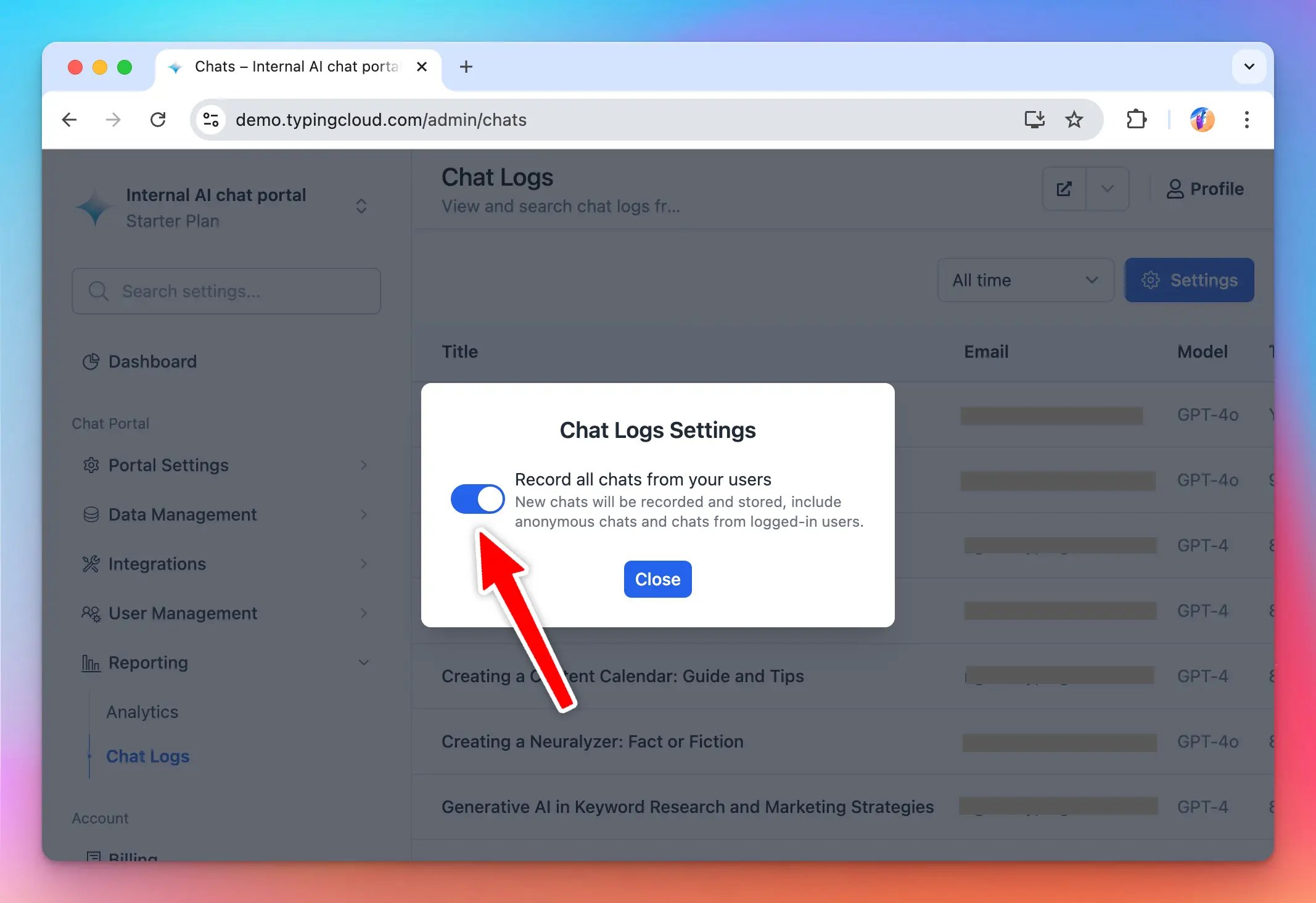
Step 2: Create an API key for integration
Next, create an API key. This API key is needed for the external system to get the chat logs out of TypingMind. Go to Admin Panel → Integrations → API Integration and click “Generate new API Key”. Then copy the newly generated API key, you will need this in the next step.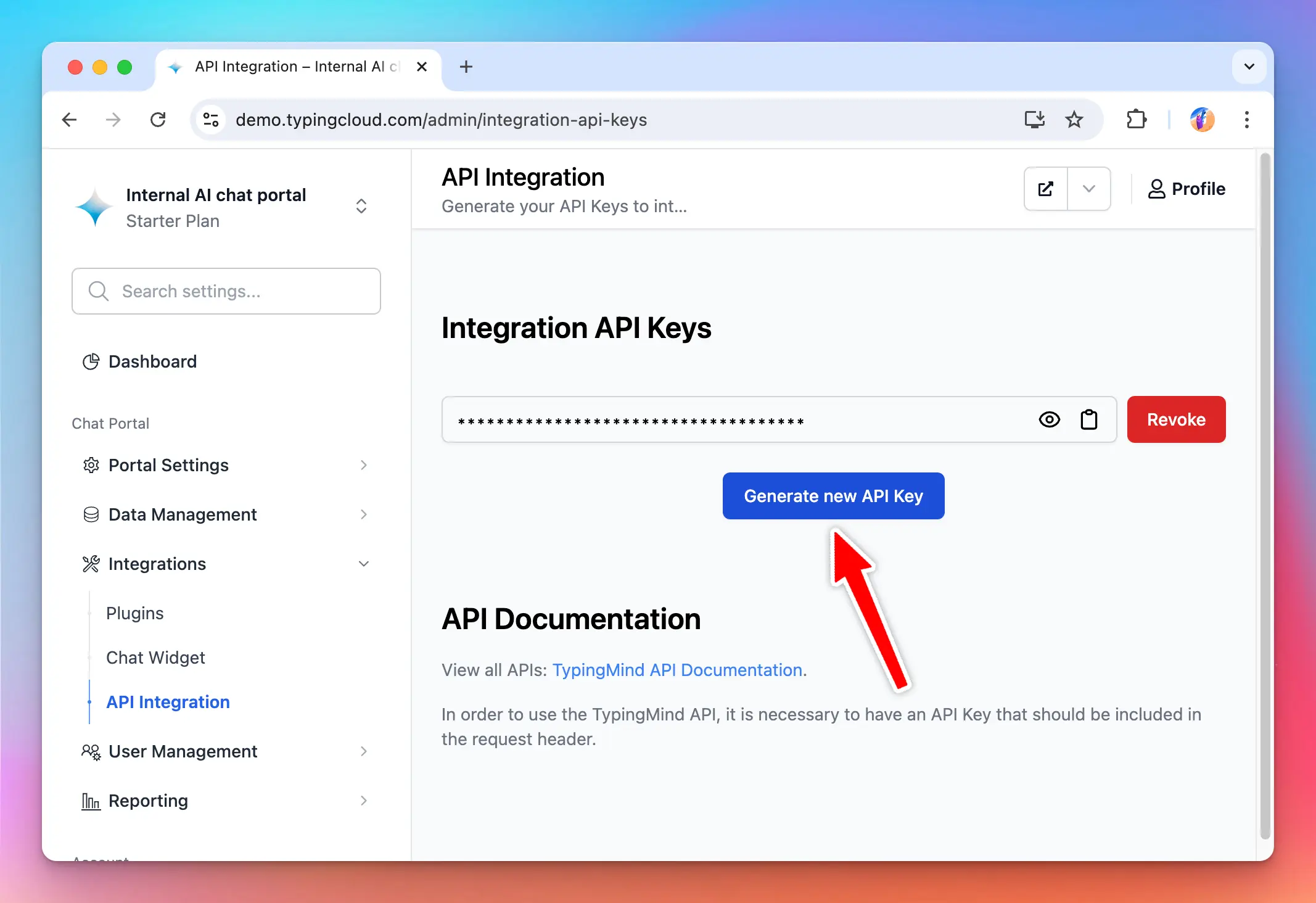
Step 3: Export chat logs via API
Use our Chatlogs API (see API documentation here) to get the chat logs. API Hosts:- For US instances:
https://api.typingmind.com - For EU instances:
https://api.eu.typingmind.com - For self-host instances: use your instance deployment URL.
x-api-key header to authenticate the request.
Example request:
startUnixTime and endUnixTime parameters).
Using this API, you can set an automation to export all of your users’ chats to an external system for auditing or analyzing.