.svg?fit=max&auto=format&n=RaTUOQa09vPhW7_D&q=85&s=368f39de7ecc6605f73c43c2017546a3)
.svg?fit=max&auto=format&n=RaTUOQa09vPhW7_D&q=85&s=01a6eb27b4db3af8a1d5557525c579d3)
In this guide, we will walk you through the process of setting up the access mode for your chat instance.Documentation Index
Fetch the complete documentation index at: https://docs.typingmind.com/llms.txt
Use this file to discover all available pages before exploring further.
Step 1: Log into Your Chat Instance
Start by logging into your chat instance. You can do this by visiting the following link: https://www.typingmind.com/custom/manage.Step 2: Navigate the Access Control Menu
Once you’re logged in, you’ll need to navigate to the Access Control menu. This menu is where you can manage who has access to your chat instance and how they can interact with it.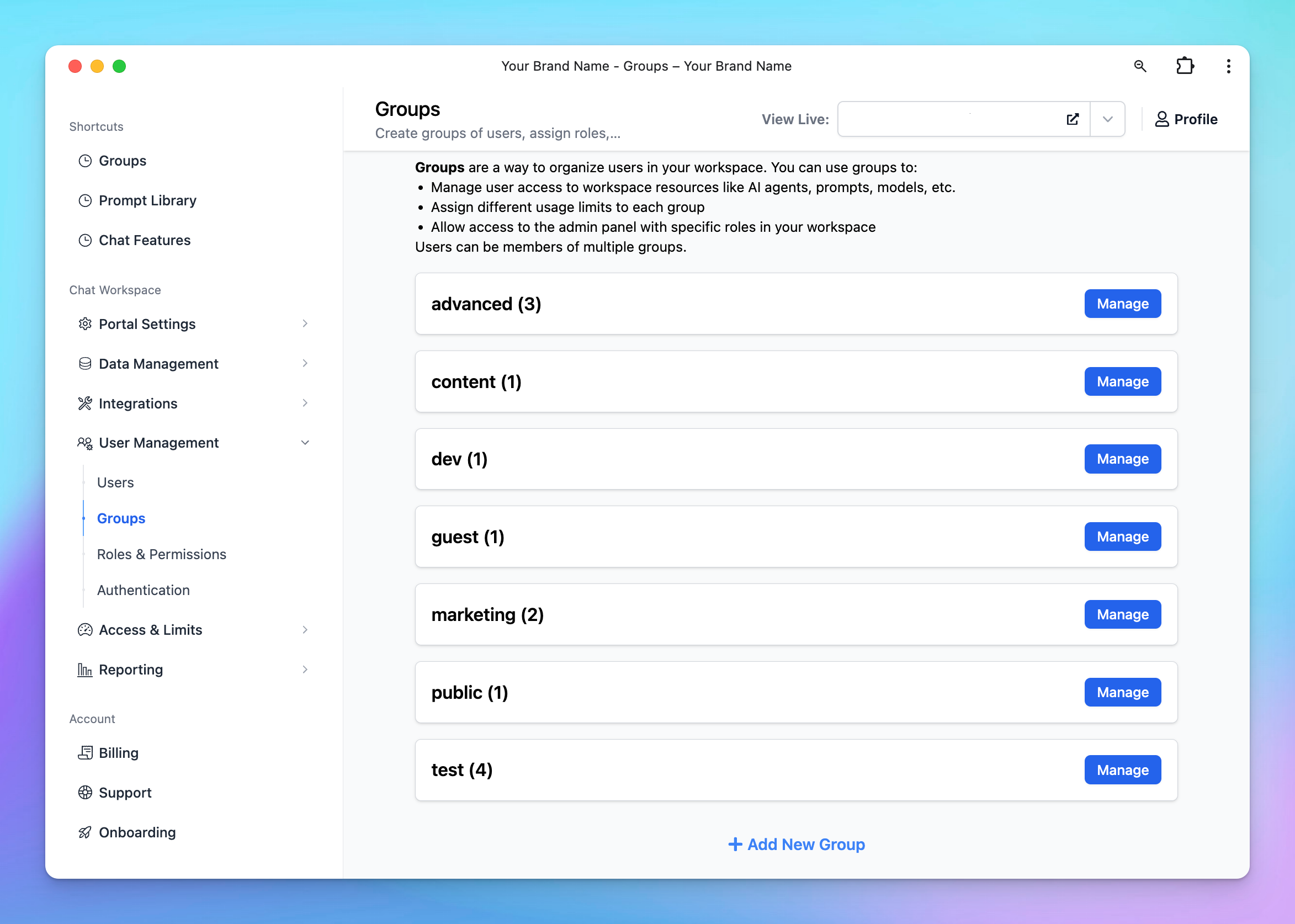
Step 3: Choose the Access Mode
1. Private Mode
Private Mode in chat instances is designed for secure, exclusive communications within a team. This mode is typically used by teams or departments that require a closed communication environment, often for internal communications or collaborative projects.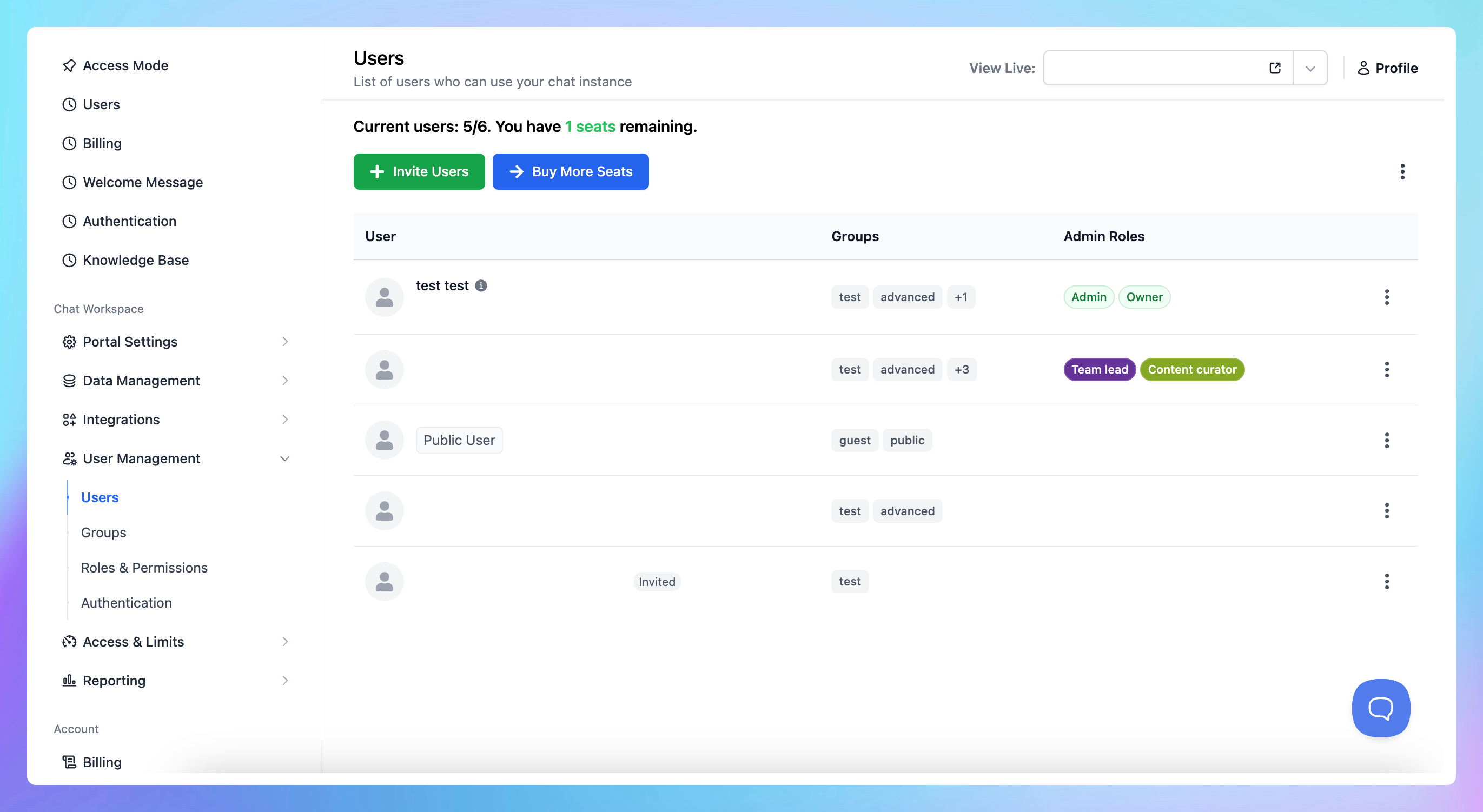
- Accessibility: only members manually added/invited by the chat instance owner or admins can access the chat.
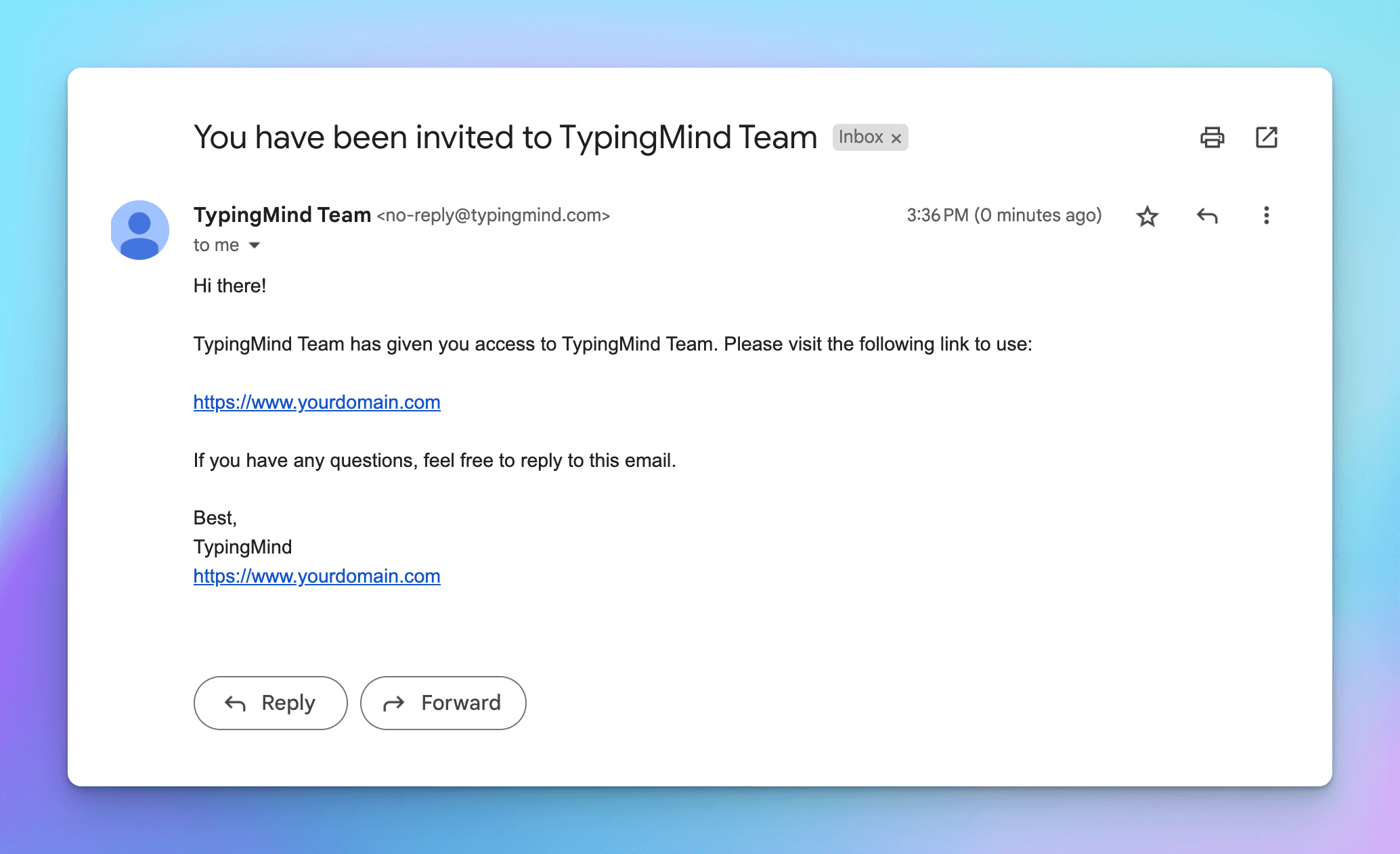
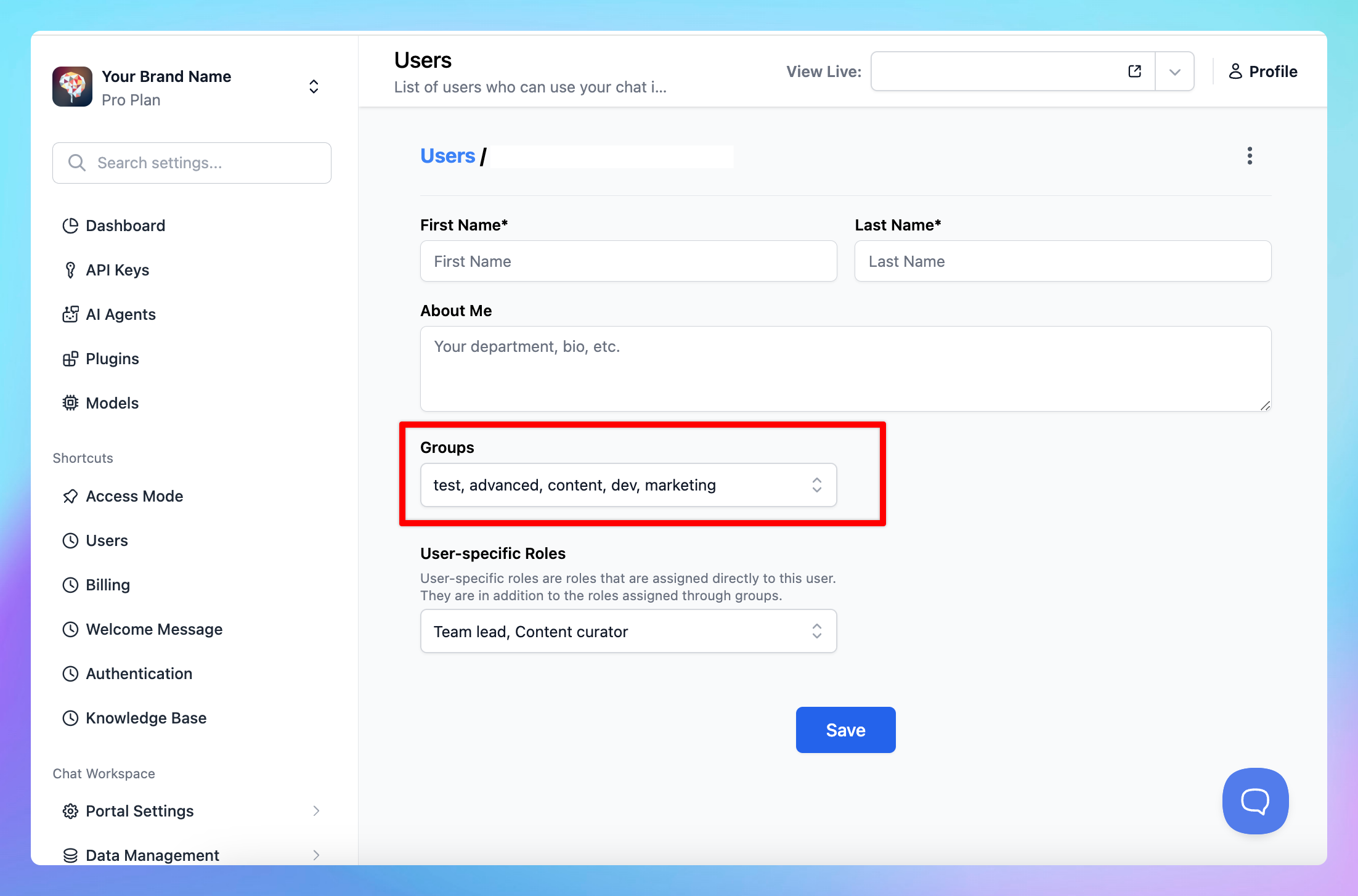 Invited members will receive an invitation with an instance URL to log into the chat instance:
 Go to the instance URL and click Member login using the invited email:
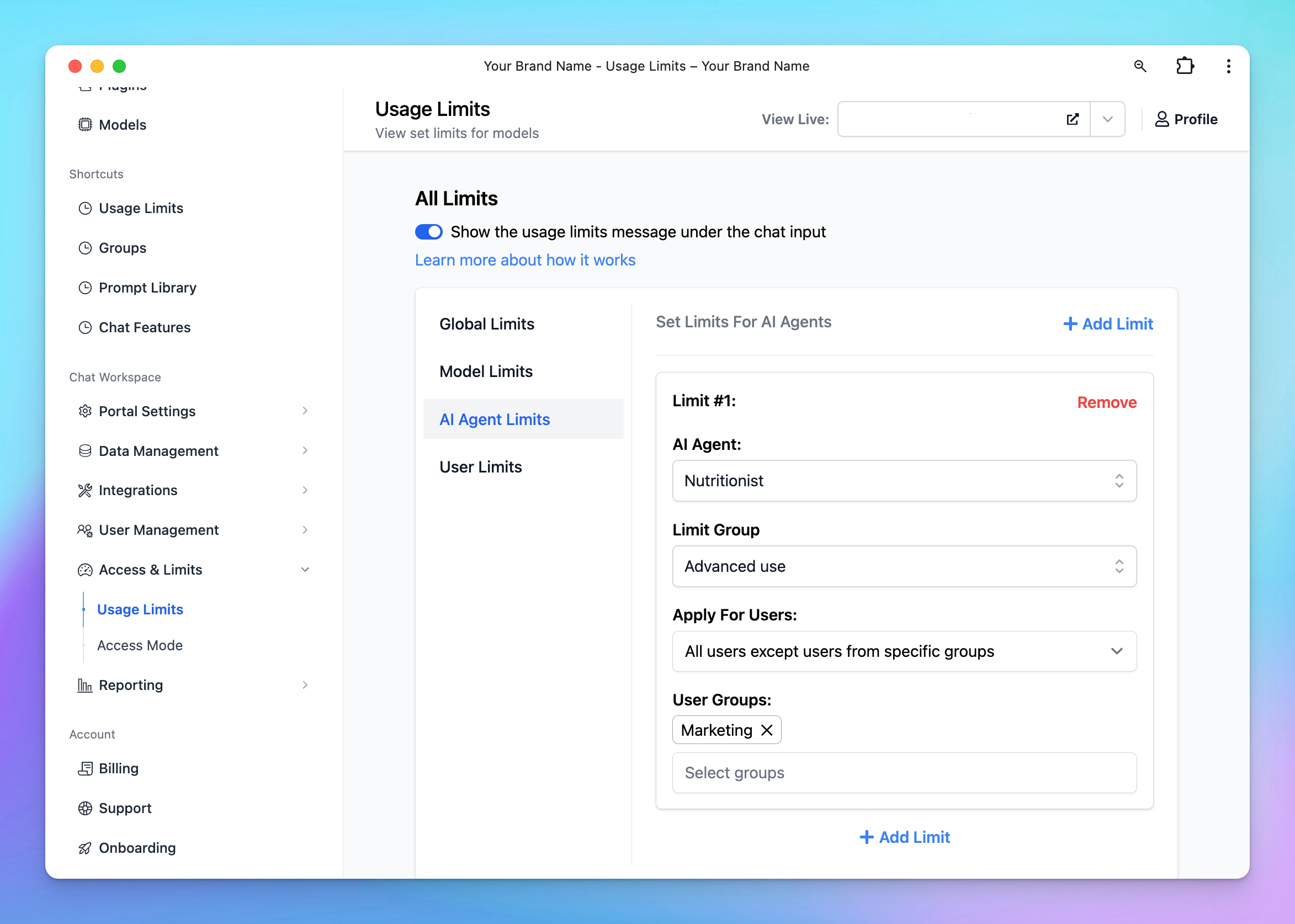
- Who should use: this mode is useful for internal teams. Enhance collaboration and communication between individuals in a team, thus bringing up a seamless workflow.
2. Authorized Mode
Authorized Mode in chat instances is a flexible access control mode that allows anyone to use the chat instance, provided they sign up with their email first.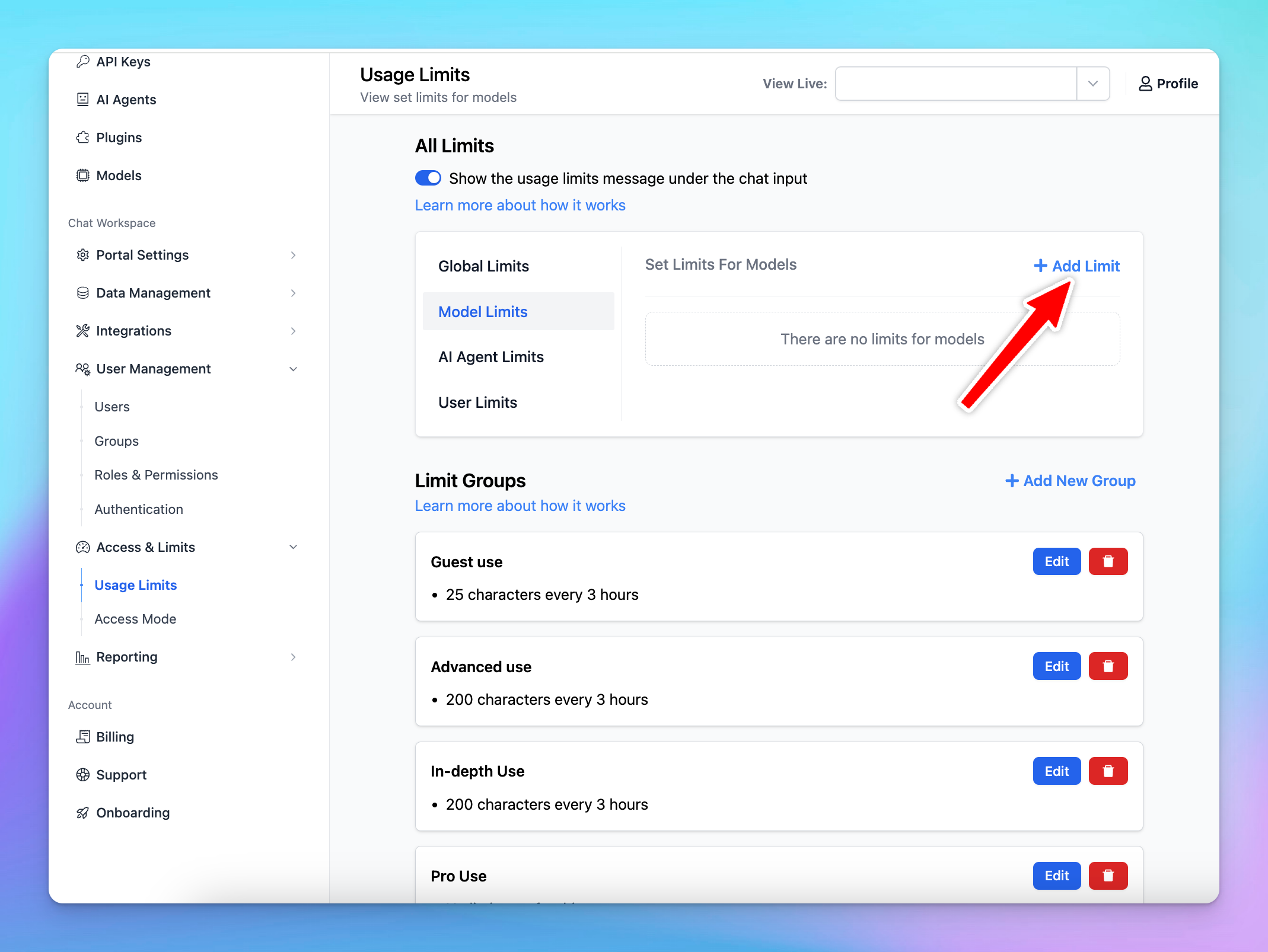
-
Accessibility: anyone can access the chat instance via its URL, but they need to sign up via their email first. This adds a layer of accountability as each user is identifiable through their email.
Admins don’t need to invite manually. Once a user signs up, they’re automatically added to the Member page.
- Who should use: this is a scalable solution for larger teams, communities, or groups. It allows for broader access than Private Mode, accommodating a larger user base while still maintaining some level of control and accountability.