.svg?fit=max&auto=format&n=RaTUOQa09vPhW7_D&q=85&s=368f39de7ecc6605f73c43c2017546a3)
.svg?fit=max&auto=format&n=RaTUOQa09vPhW7_D&q=85&s=01a6eb27b4db3af8a1d5557525c579d3)
- Users to use the chat instance without manually entering an API key.
- Admins to easily control costs and usage.
Note: you must pre-set the API key from the Admin Panel, there’s no option for your users to enter them manually from the chat UI for now.
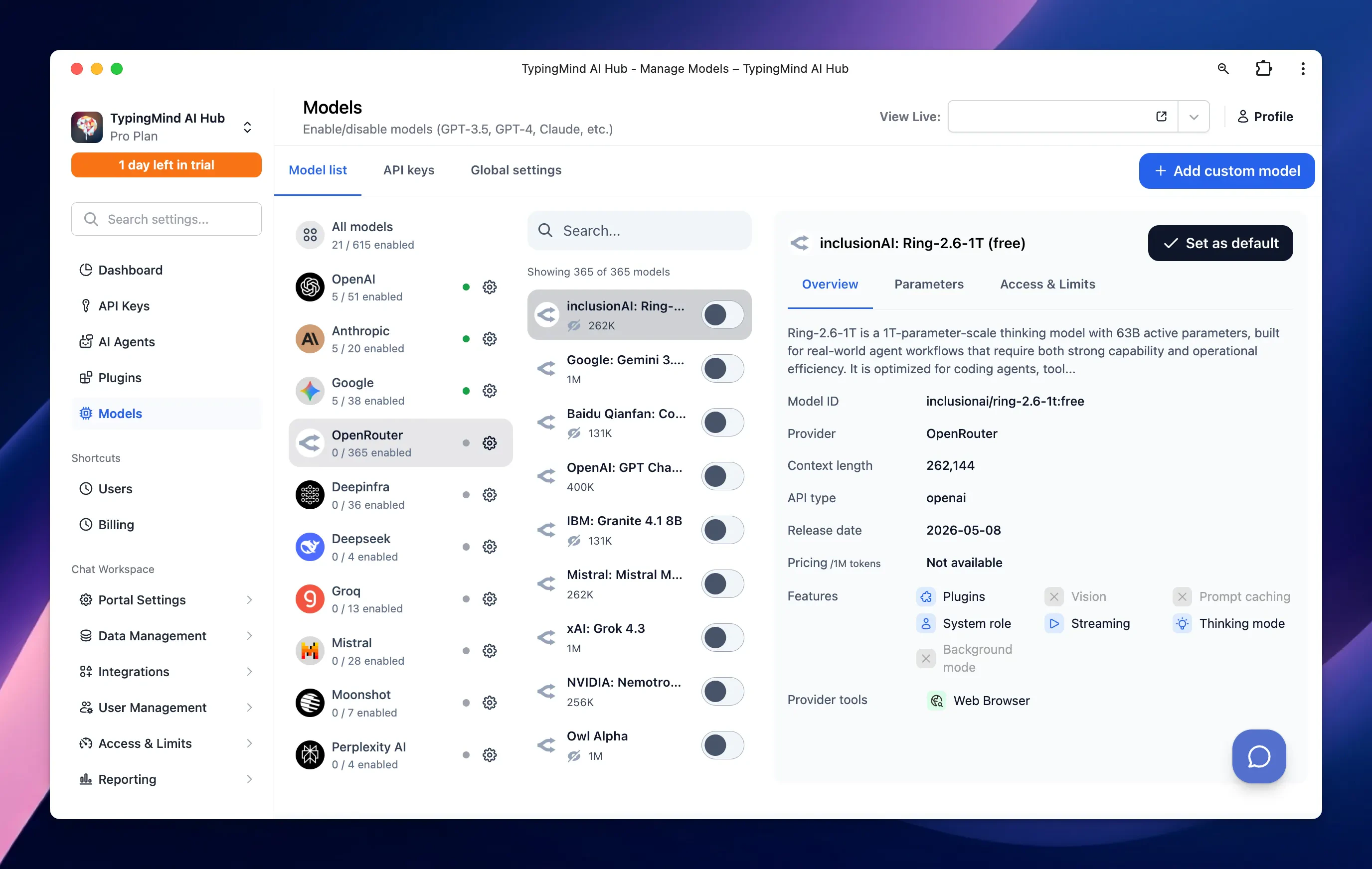
Use available models
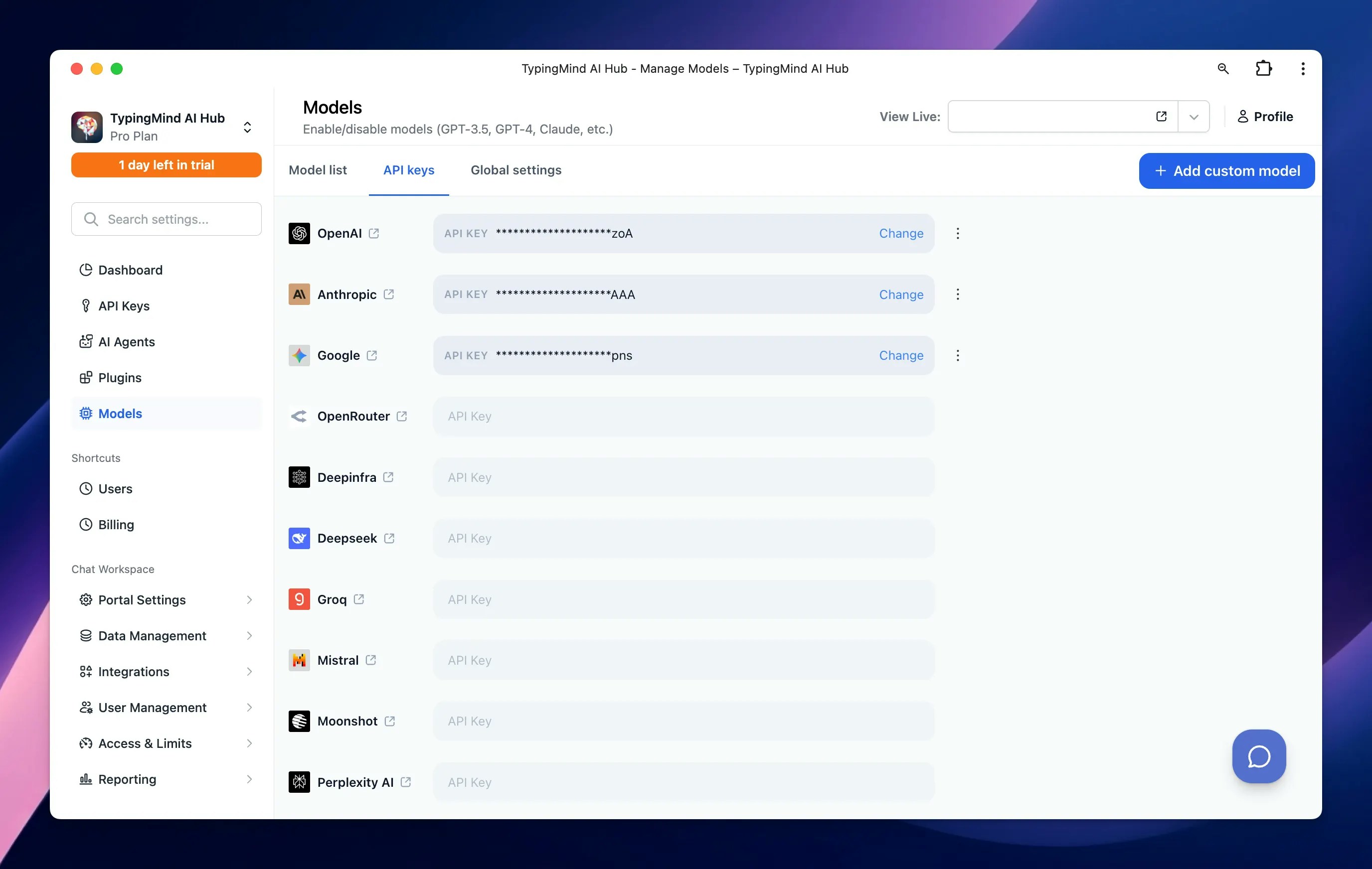
Go to the Models menu → switch to the API key tab → enter the API key for the provider of the models you want to use, such as:- OpenAI: GPT-5, GPT-4.5, GPT-4.1, etc.
- Anthropic Claude: Claude Sonnet 4.5, Claude Haiku 4.5, etc.
- Google Gemini: Gemini 3.1 Pro, Gemini 2.5 Flash, Nano Banana, etc.
- OpenRouter: multiple models from different providers.
- DeepInfra: Llama, Qwen, DeepSeek, etc.
- DeepSeek: DeepSeek V4
- Groq: Llama, Qwen, etc.
- Mistral: Mistral Large, Magistral, Codestral, etc.
- Moonshot: Kimi models, etc.
- Perplexity: Sonar models
- xAI: Grok models
- Z.ai: GLM models, etc.
Use with other models
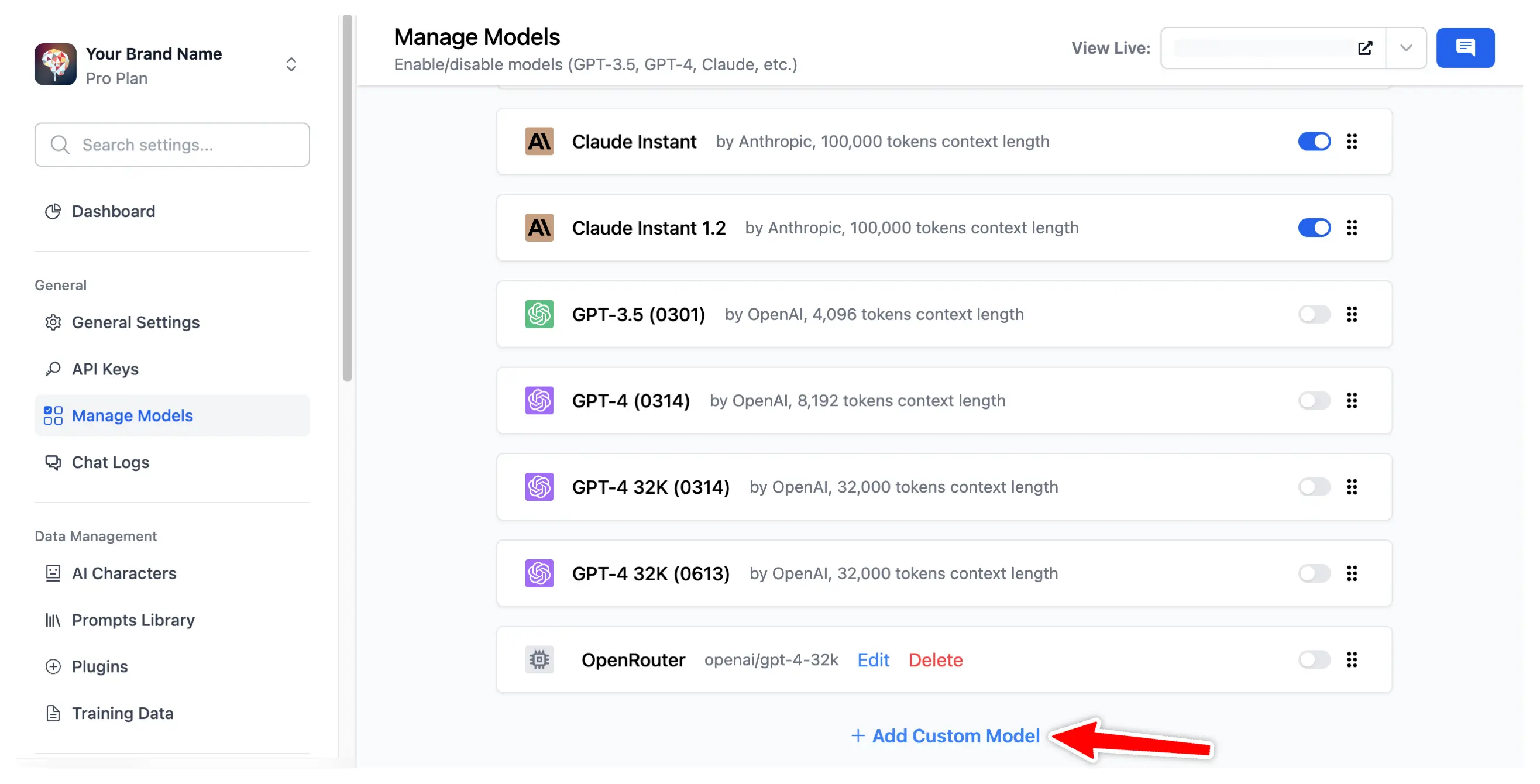
In case you want to use chat models not available within our provided list above, such as Azure OpenAI, Hugging Face, Ollama, etc. you can completely set up these chat models on the Admin Panel by following the steps below:- Click on Models menu
- On the top right corner, click on Add Custom Model
- Set up the custom models for: