.svg?fit=max&auto=format&n=RaTUOQa09vPhW7_D&q=85&s=368f39de7ecc6605f73c43c2017546a3)
.svg?fit=max&auto=format&n=RaTUOQa09vPhW7_D&q=85&s=01a6eb27b4db3af8a1d5557525c579d3)
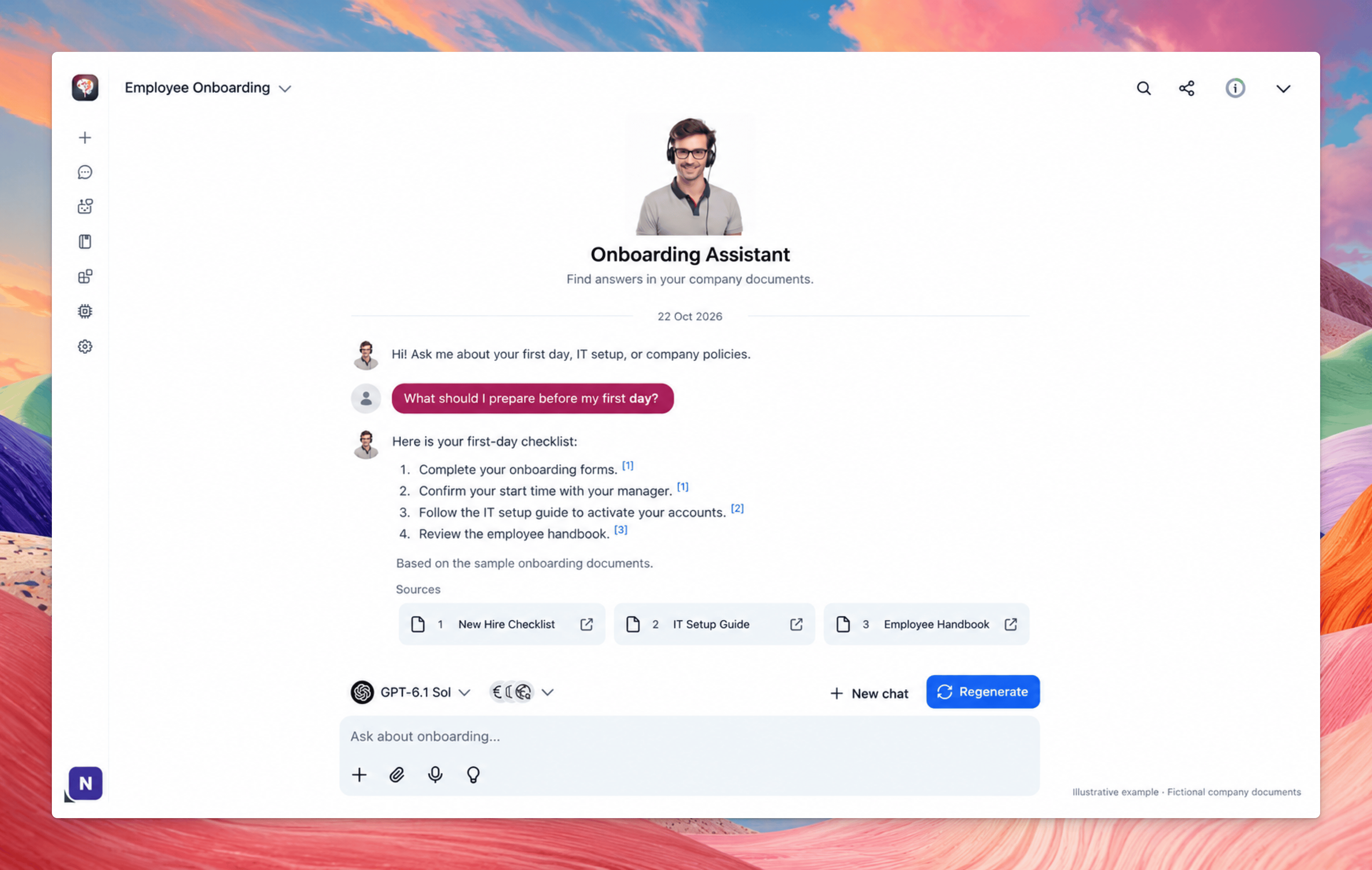
What Is a Company AI Knowledge Base?
A company AI knowledge base connects your organization’s documents to an AI assistant so employees can ask questions about internal processes and information. For example:- What should I complete before my first day?
- How do I request access to our project management tool?
- What information should I include in an IT support request?
- Where can I find the leave request policy?
Step 1: Choose One Workflow to Start With
Start with a specific task rather than uploading every company document. A narrow scope makes it easier to identify missing information, evaluate answers, and correct problems before expanding access. For this walkthrough, we’ll build an employee onboarding assistant. Its initial scope will include:
Write a short purpose statement before configuring the assistant:
Help new employees find onboarding instructions and basic workplace procedures using approved company documents.Use this statement to decide which documents belong in the knowledge base and which questions should be referred to a person.
Step 2: Prepare a Small Set of Reliable Documents
For your first version, prepare four documents:- Employee Handbook.
- New Hire Checklist.
- IT Setup Guide.
- Leave Request Policy.
Before connecting your documents, review them for three common problems.
Outdated or conflicting versions
Remove outdated copies from the initial dataset or clearly identify their status. If two documents describe different approval processes, resolve the conflict before expecting the assistant to provide a reliable answer.Incomplete instructions
“Contact IT if you have a problem” leaves employees with unanswered questions. A useful guide should explain where to submit the request, what information to include, and what to do if the request is urgent.Difficult-to-read content
Use descriptive headings, short sections, and clearly numbered procedures. For scanned documents, check that the text can be extracted accurately. A document that looks readable on screen may still contain little usable text.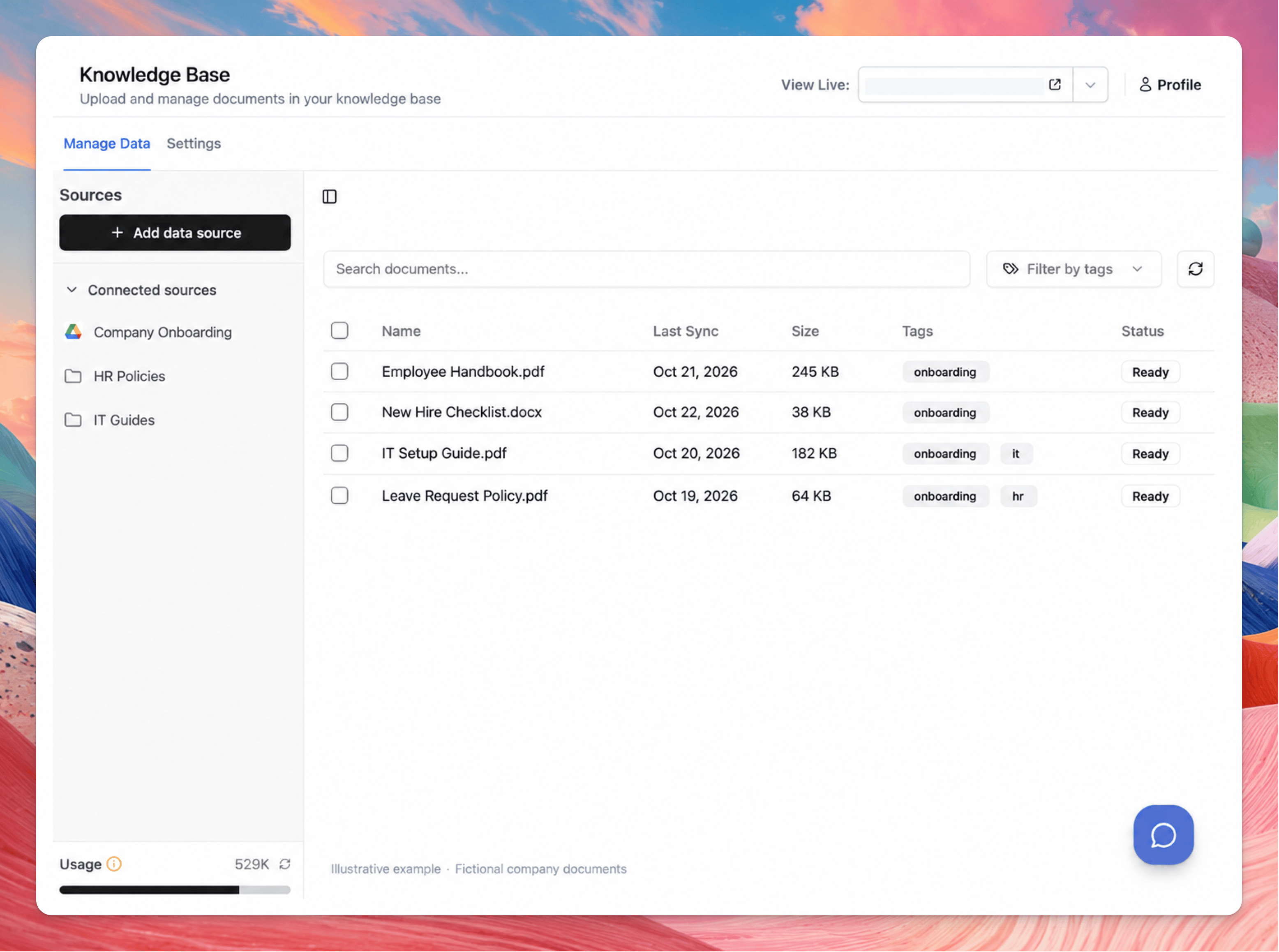
Step 3: Connect Your Documents to TypingMind Teams
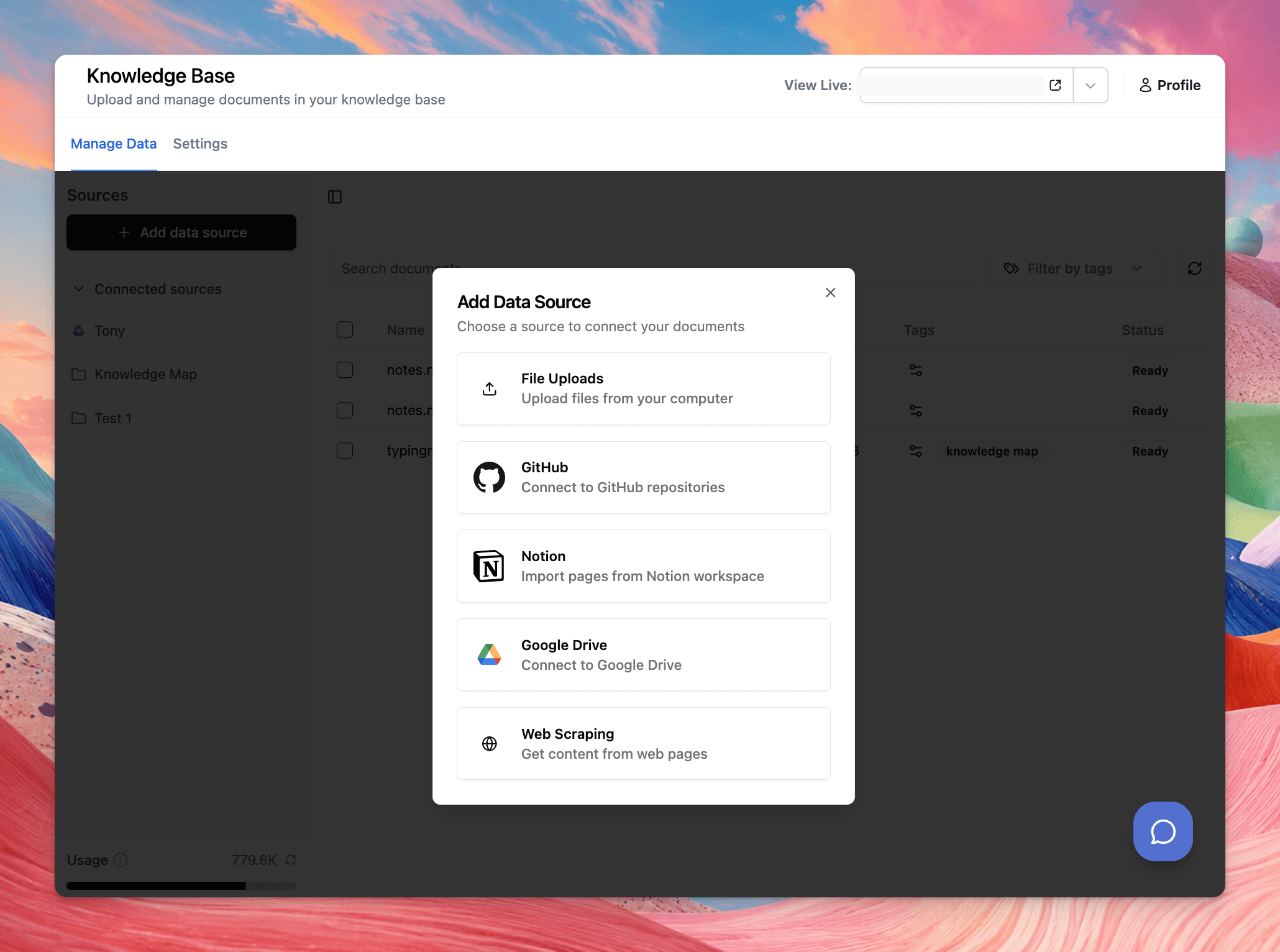
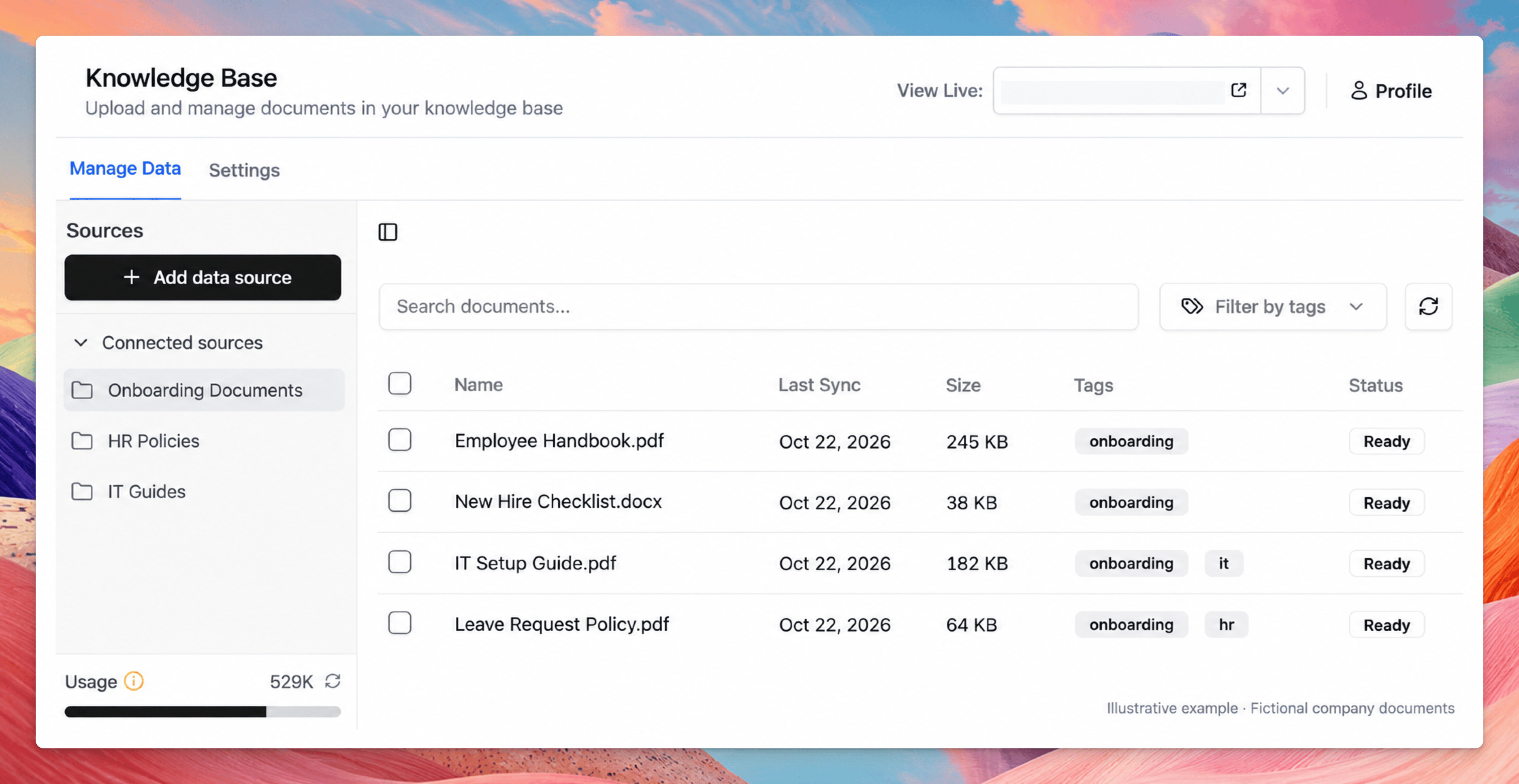
In your TypingMind Teams Admin Panel, open Knowledge Base and select Add Data Source. Menu placement may vary by interface version. See the data source setup instructions You can upload files or connect supported systems such as Google Drive, Notion, Confluence, and GitHub. For an initial pilot, uploading a small document set makes the scope easier to inspect. View supported knowledge sources Work through the following steps:- Select your source type.
- Choose the files or content you want to connect.
- Complete any required authorization.
- Check the processing status.
- Wait until the content is ready before testing questions.
Step 4: Configure an Onboarding Assistant
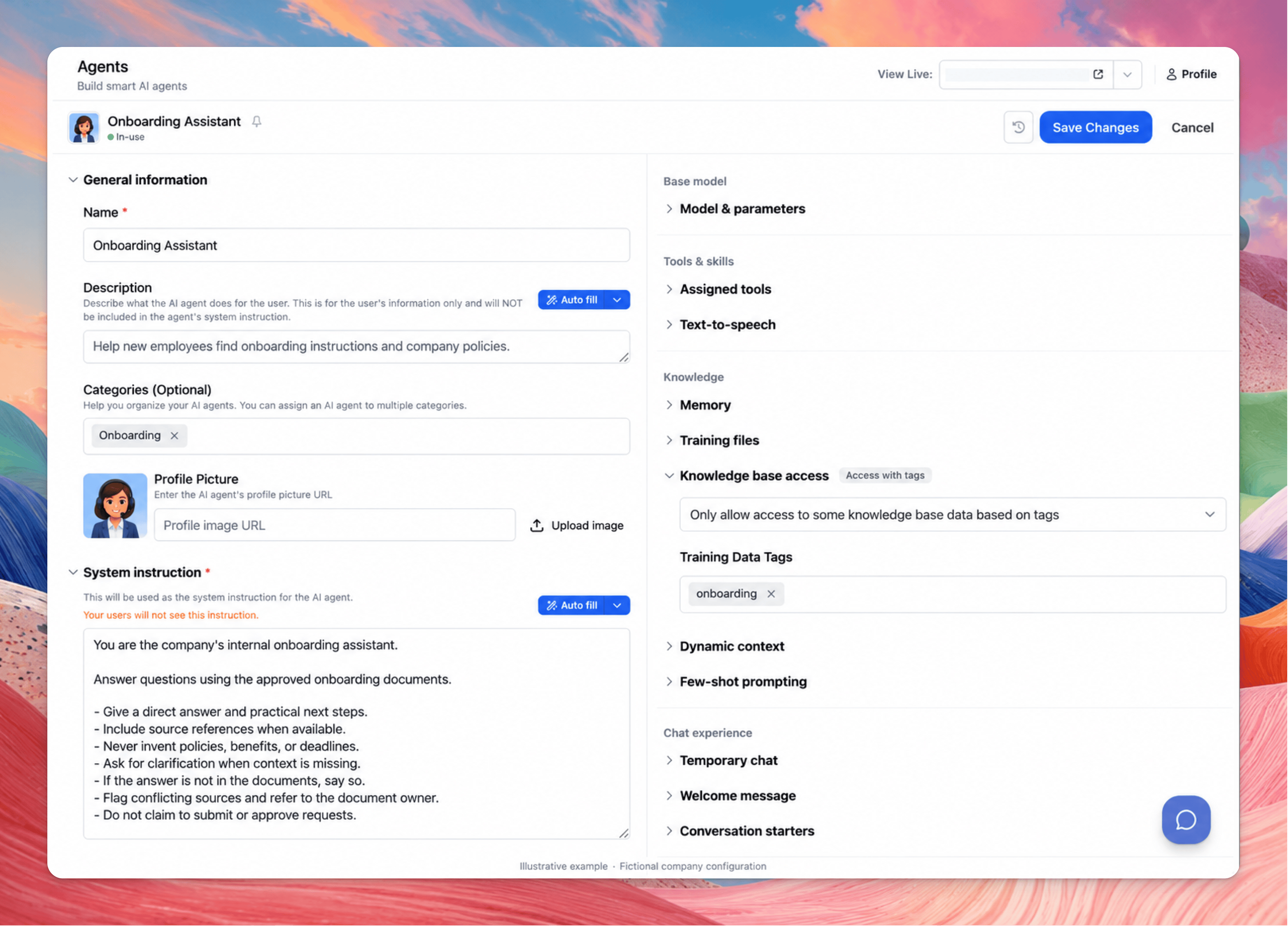
Create an AI Agent called Onboarding Assistant, select an available model configured in your workspace, and define the knowledge it should use. TypingMind Teams supports tagging connected data and assigning relevant tags to agents. Use this to keep the assistant focused on its intended material. Learn about agent knowledge scope Then give the assistant clear instructions. You can adapt the following example:You are the company’s internal onboarding assistant. Help employees understand onboarding tasks and basic workplace procedures. When answering questions about company policies or processes:These instructions guide the assistant’s behavior. Configure access permissions separately through the appropriate administration controls.
- Use the approved knowledge sources available to you.
- Give a direct answer, followed by practical steps when appropriate.
- Include source references when available.
- Do not invent benefits, deadlines, approval requirements, or contact details.
- Ask a clarifying question when the answer depends on missing information.
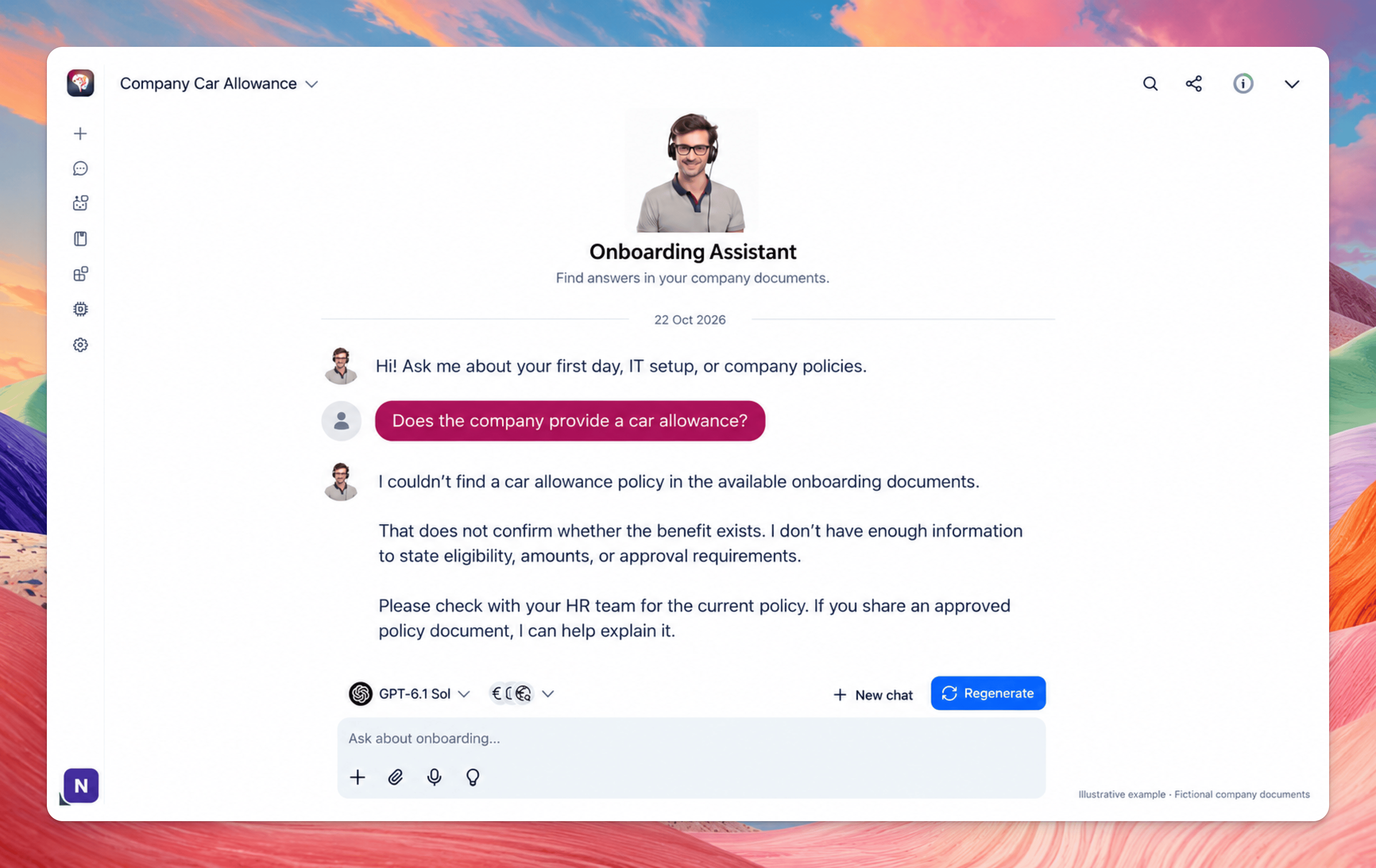
- If the documents do not contain an answer, say that you could not find it.
- If sources conflict, explain the conflict and recommend checking with the documented owner.
- Do not claim that a request has been submitted or approved when you are only providing instructions.
Step 5: Enable Source References
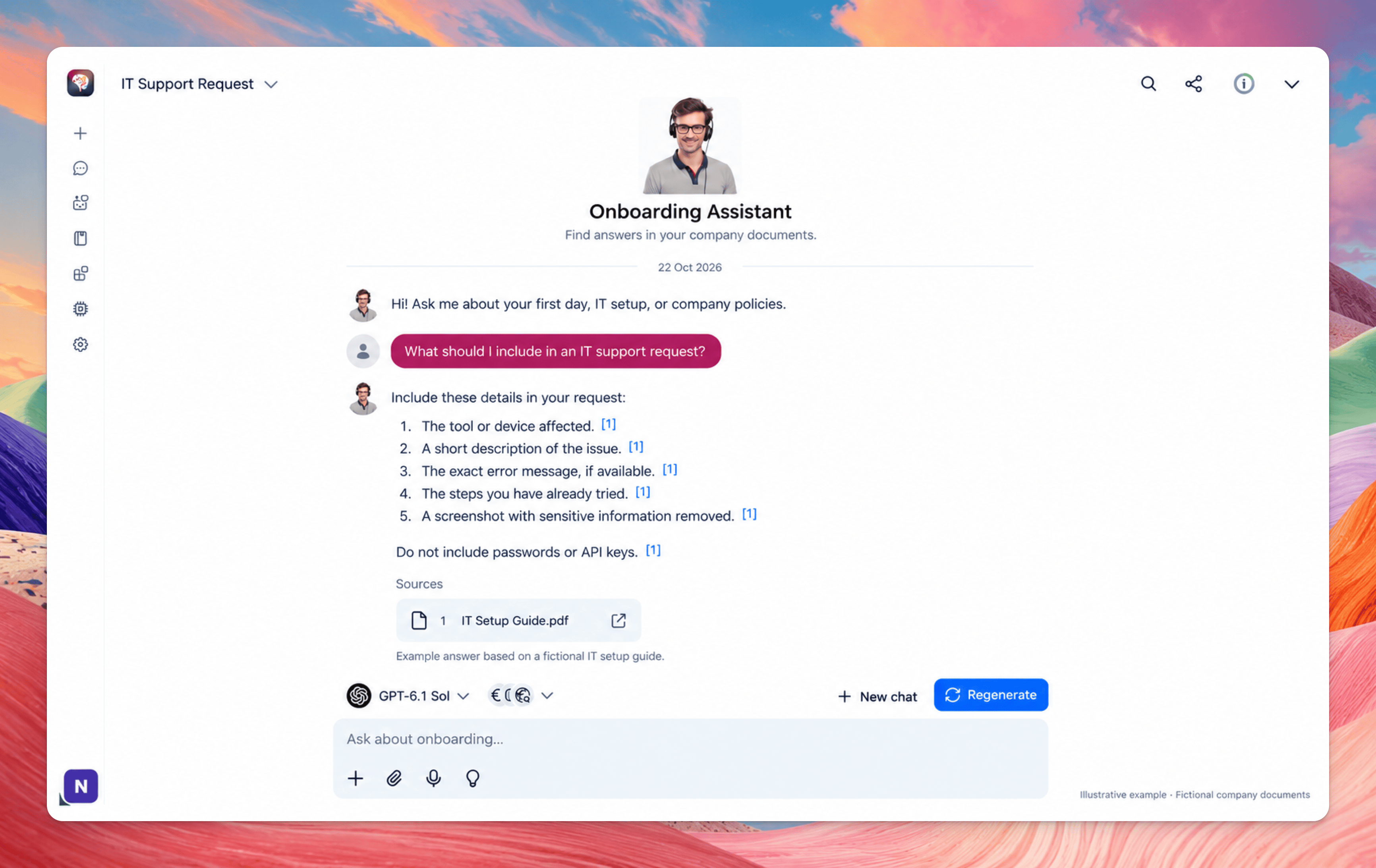
Employees should be able to check where an answer came from. Look for the setting “Show reference sources of training documents to users” in your Knowledge Base configuration, where available. This enables source links in responses. See the reference source setting Test it with a specific question:According to our onboarding checklist, what should I prepare before my first day?Check both the answer and its references:
- Does the answer use the correct document?
- Does the cited material support the statement?
- Can the intended employee open the linked source?
Step 6: Test More Than Straightforward Questions
A useful internal assistant needs to handle missing information and ambiguous questions as well as simple lookups. Prepare your test questions before rolling out the assistant.
Also test different ways of asking the same question. Employees may use abbreviations, informal language, or internal names that differ from the wording in your documents.
Record the results:
Treat this as a repeatable evaluation rather than a one-time demonstration.
Step 7: Fix the Cause of Weak Answers
When an answer is inaccurate, inspect the underlying problem before changing the prompt.Does the source contain the answer?
If the information is missing, update the document. A more detailed prompt cannot supply an unpublished company policy.Is the information clear and consistent?
Rewrite vague instructions, clarify headings, and resolve conflicting versions.Is the assistant using the correct material?
Check the assigned sources, tags, and document processing status.Does the question require clarification?
Some answers depend on location, employment type, department, or request category. The assistant should ask for relevant context instead of making assumptions.Can the assistant acknowledge uncertainty?
Give it a useful way to respond when information is missing, such as identifying the documented owner or pointing to the appropriate process. After each change, rerun the questions that previously failed. This helps establish whether the issue has been resolved consistently.Step 8: Run a Small Pilot
Invite a small group of employees and onboarding owners to try the assistant before expanding it. Ask them:- Was the answer accurate?
- Was it complete enough to take the next step?
- Could they verify the source?
- When the assistant could not answer, did it provide a useful next step?
Step 9: Keep the Knowledge Base Current
Assign an owner to each source document. When a procedure changes, the owner should:- Update the authoritative document.
- Refresh or verify the connected source as required.
- Check that the new information is available to the assistant.
- Rerun the affected test questions.
- Remove or clearly separate superseded information.
How to Measure Whether the Knowledge Base Is Useful
Measure the assistant against the workflow you originally selected.
Compare similar tasks before and after deployment. Avoid publishing time-saving or accuracy claims until you have measured them.