> ## Documentation Index
> Fetch the complete documentation index at: https://docs.typingmind.com/llms.txt
> Use this file to discover all available pages before exploring further.
# Voice Input (Speech to Text)
Voice input on TypingMind allows you to convert spoken language into written text, making it accessible and user-friendly for all users.
We offer 2 speech-to-text providers:
* Web API (Free)
* OpenAI Whisper (Pay as you go)
* Groq Whisper (Pay as you go)
* Azure Whisper (Pay as you go)
Let’s see how to set them up.
## **1. Web API (Free)**
You can use the Web API speech for free. To enable this:
* Go to **Settings** in the workspace bar
* Select **Voice Input**
* Choose **“Web API”** speech-to-text provider from the drop-down list
* Start recording your voice, which will be automatically transcribed into text so you can easily feed the AI model
/image.webp?fit=max&auto=format&n=WjL1vJONkCdYBRi1&q=85&s=0edf0e36675e69037ec365de266af5d6) ## **2. OpenAI Whisper**
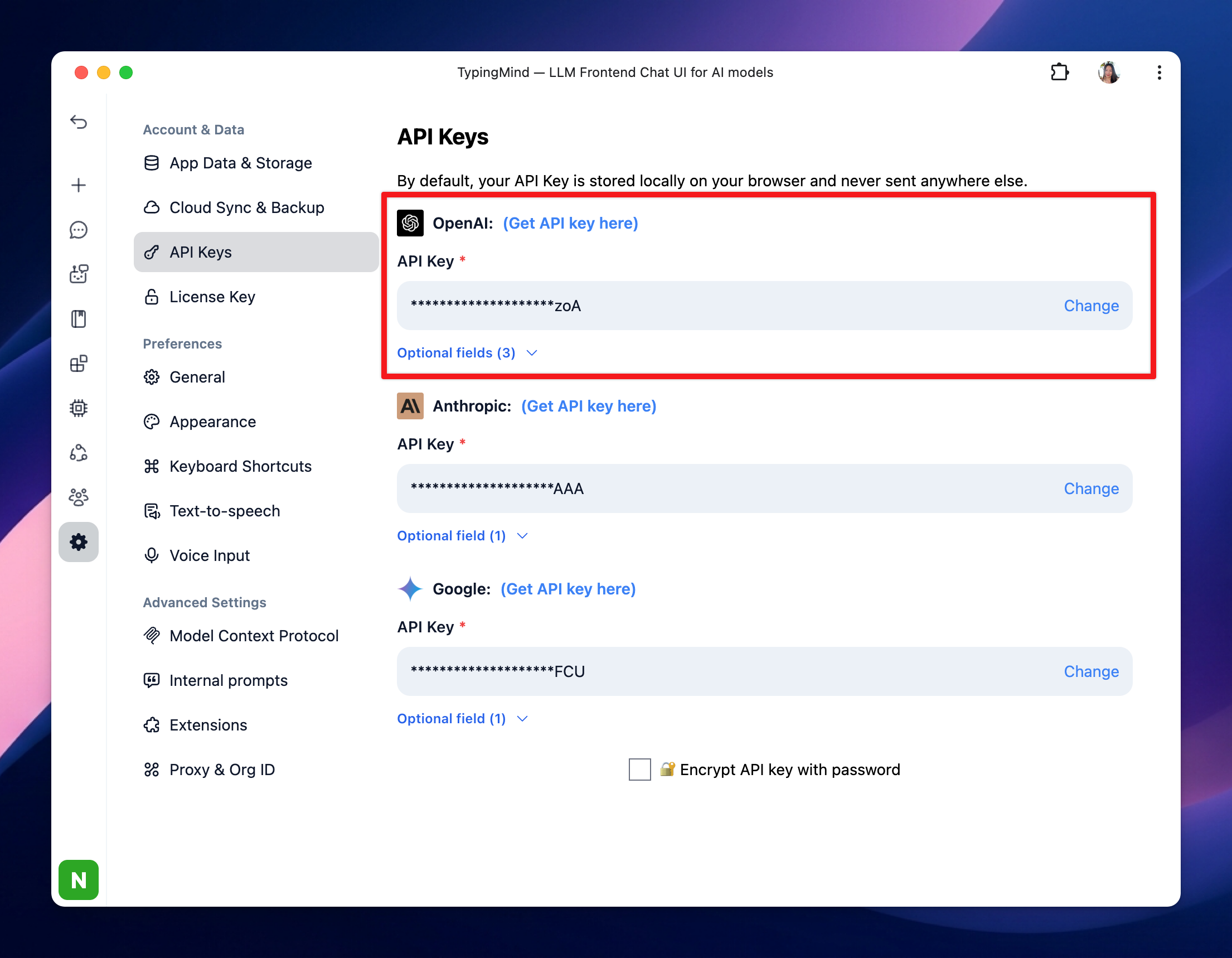
To enable OpenAI Whisper, you **must enter your OpenAI API key:**
* Go to **API key within your Profile**
* Enter your [OpenAI API key](/manage-and-connect-ai-models/openai-\(gpt-5-gpt-4.1\))
## **2. OpenAI Whisper**
To enable OpenAI Whisper, you **must enter your OpenAI API key:**
* Go to **API key within your Profile**
* Enter your [OpenAI API key](/manage-and-connect-ai-models/openai-\(gpt-5-gpt-4.1\))
 Then follow the steps below to enable it:
* Go to **Settings** in the workspace bar
* Select **Voice Input**
* Choose **“OpenAI Whisper”** speech-to-text provider from the drop-down list
* Start recording your voice, which will be automatically transcribed into text so you can easily feed the AI model
You can also upload your recorded meetings/webinars with OpenAI Whisper to get the transcription. Please note that the uploaded file can not be exceeded 25MB
Then follow the steps below to enable it:
* Go to **Settings** in the workspace bar
* Select **Voice Input**
* Choose **“OpenAI Whisper”** speech-to-text provider from the drop-down list
* Start recording your voice, which will be automatically transcribed into text so you can easily feed the AI model
You can also upload your recorded meetings/webinars with OpenAI Whisper to get the transcription. Please note that the uploaded file can not be exceeded 25MB
/image%201.webp) ## **3. Groq Whisper**
To enable Groq Whisper, you must provide your **Groq API key**.
## **3. Groq Whisper**
To enable Groq Whisper, you must provide your **Groq API key**.
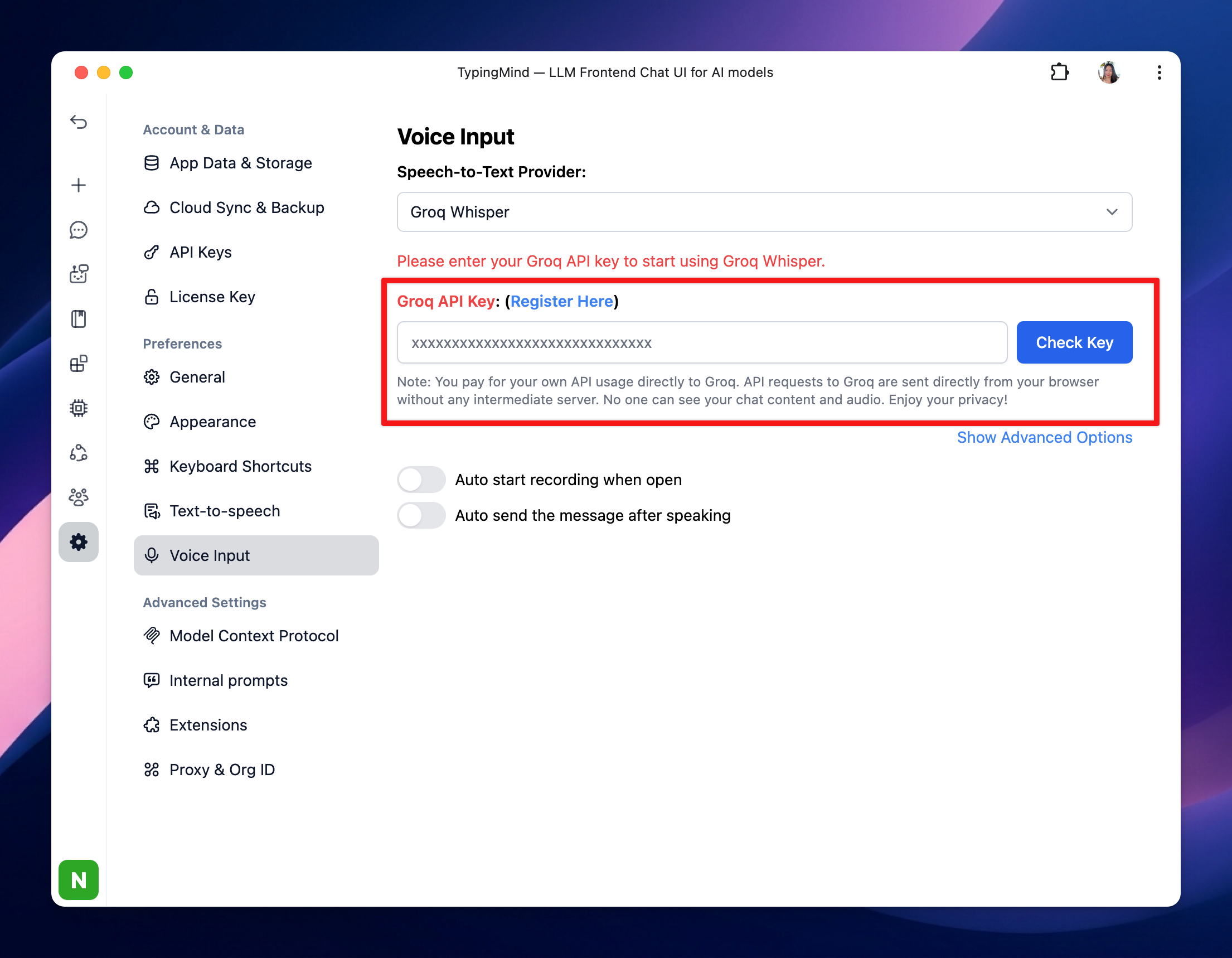 Or, if you are part of a **TypingMind Team**, an administrator can set up the Groq API key in the **API Keys page** of the admin portal.
/Xnapper-2024-12-23-16.44.46.webp?fit=max&auto=format&n=WjL1vJONkCdYBRi1&q=85&s=6626c021d04db668eabe03fd05513880) ## **4. Azure Whisper**
To enable Azure Whisper, you must provide your **Azure Whisper API key** and **API endpoint**.
## **4. Azure Whisper**
To enable Azure Whisper, you must provide your **Azure Whisper API key** and **API endpoint**.
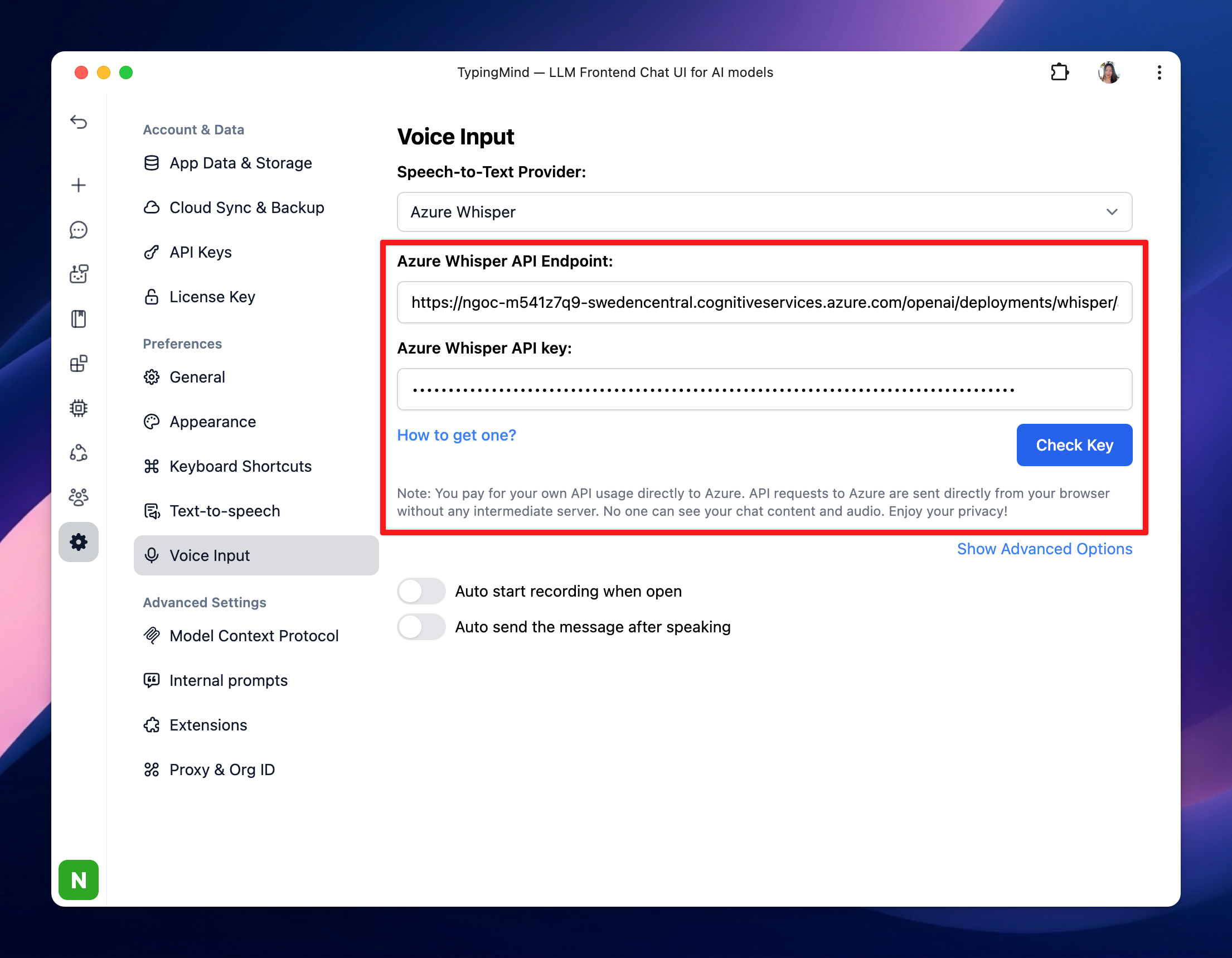 Or, if you are part of a **TypingMind Team**, an administrator can set up the Azure API key and endpoint in the **API Keys page** of the admin portal.
/Xnapper-2024-12-23-16.52.18.webp?fit=max&auto=format&n=WjL1vJONkCdYBRi1&q=85&s=2264e4ac4b56aed5bacb7a9cf8d0a1e6) ### How to get Azure Whisper API Key and Endpoint?
1. If you do not already have an Azure OpenAI account, create one [**here**](https://oai.azure.com/).
2. In the Azure Portal, navigate to the **Deployments** section.
3. Create a new deployment using a **Whisper model**.
### How to get Azure Whisper API Key and Endpoint?
1. If you do not already have an Azure OpenAI account, create one [**here**](https://oai.azure.com/).
2. In the Azure Portal, navigate to the **Deployments** section.
3. Create a new deployment using a **Whisper model**.
/Xnapper-2024-12-23-17.00.37.webp?fit=max&auto=format&n=WjL1vJONkCdYBRi1&q=85&s=d45c2a01c1d2d7600aa31120d3db1d1a) 1. Click on the deployment to view the details, and copy the **API Endpoint (Target URI)** and **API Key**.
1. Click on the deployment to view the details, and copy the **API Endpoint (Target URI)** and **API Key**.
/Xnapper-2024-12-23-17.05.45.webp?fit=max&auto=format&n=WjL1vJONkCdYBRi1&q=85&s=cd1c527489949412e7d5ea850a0274ce)