> ## Documentation Index
> Fetch the complete documentation index at: https://docs.typingmind.com/llms.txt
> Use this file to discover all available pages before exploring further.
# Invite team members
Managing seats and member roles in your chat instance is crucial for effective operation and control.
## Available Seats in a Chat Instance
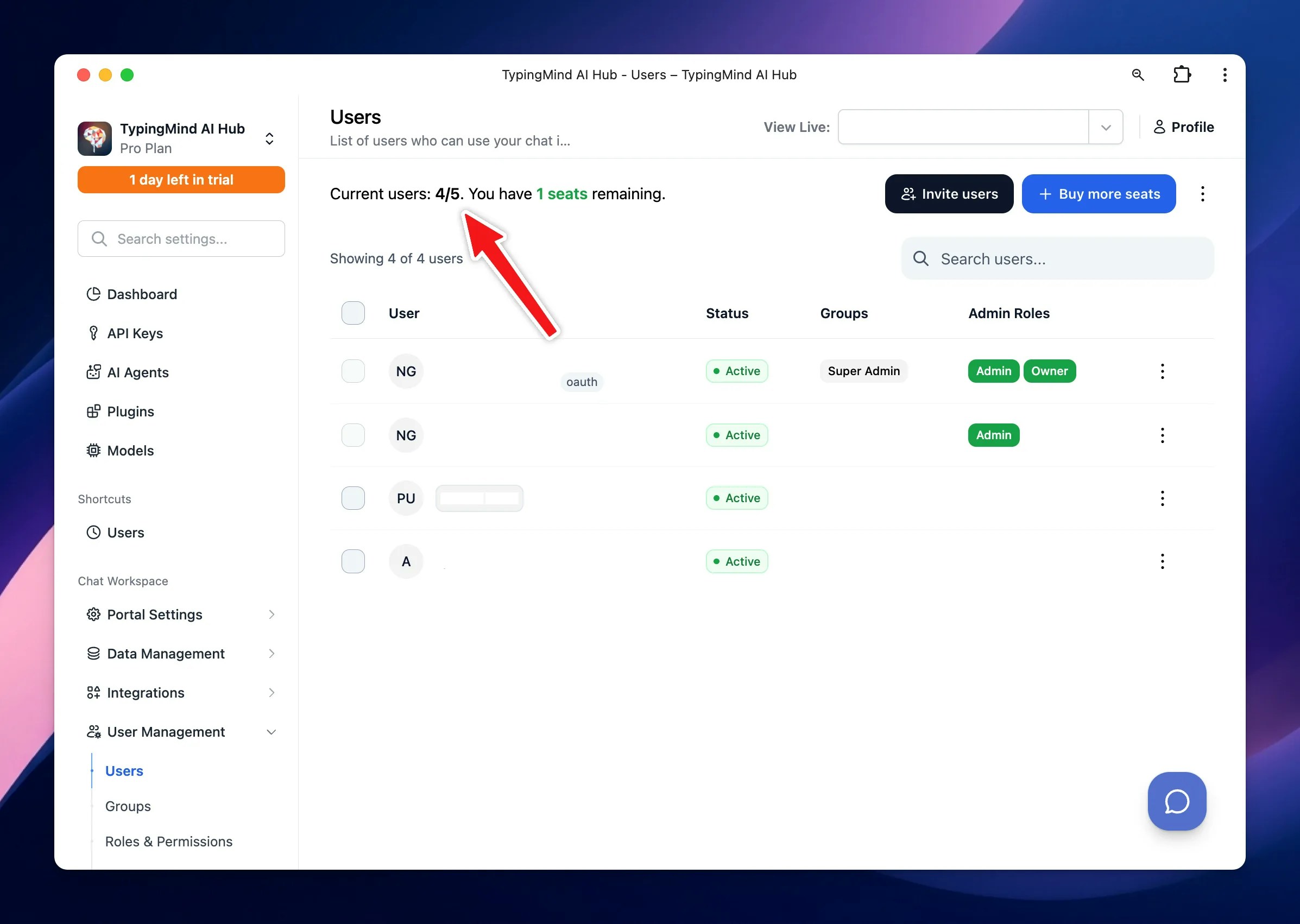
By default, each chat instance comes with 5 available seats. The instance owner, who is the creator of the chat instance, automatically occupies one seat. This leaves a certain number of additional seats that the owner can utilize to invite other members.
 ## Invite Members
To invite new members, follow these steps:
* Under the User Management section, go to **Users** page
* Click **Invite users**
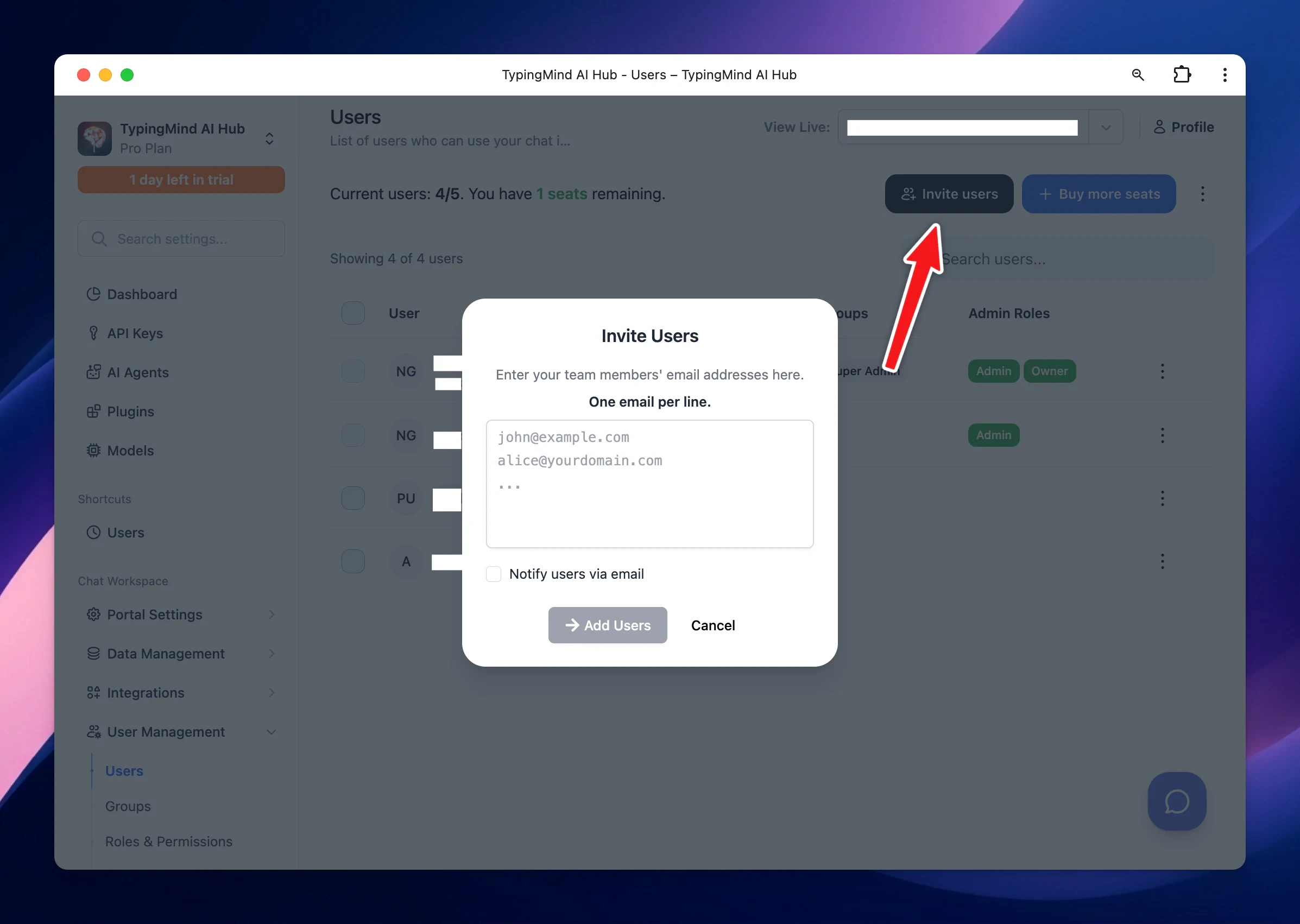
* Enter the **user email** you want to add. One email per line
* Click **Invite users.**
## Invite Members
To invite new members, follow these steps:
* Under the User Management section, go to **Users** page
* Click **Invite users**
* Enter the **user email** you want to add. One email per line
* Click **Invite users.**
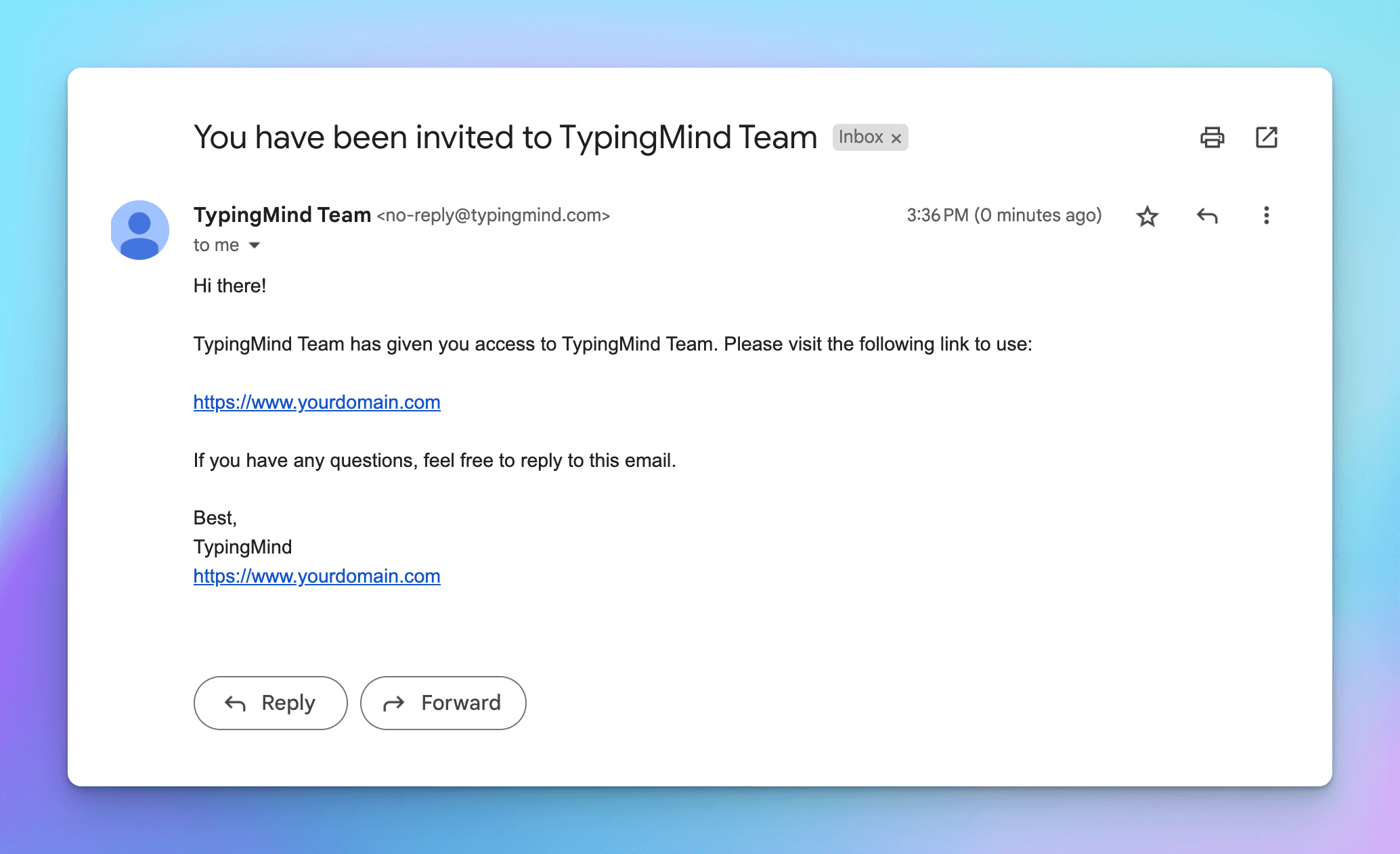
 After that, the invited email will receive an invitation to join your chat instance:
## Adding More Seats
If your requirement exceeds the default number of seats provided in your plan, you can purchase additional seats by:
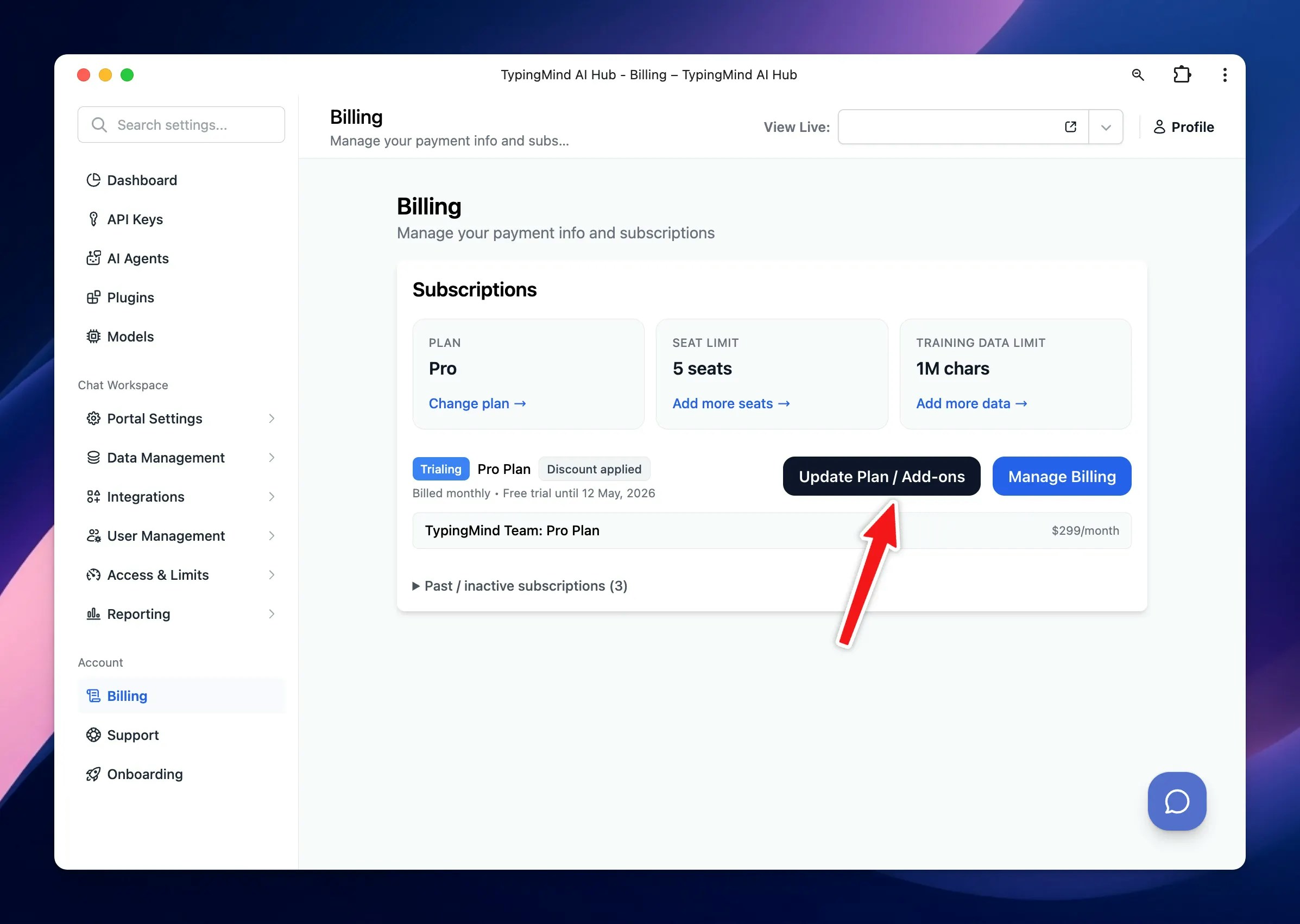
1. Navigate **Billing page**
2. Click **'Update Plan/Add-on'** button
3. Choose the number of seats you want to buy. One email added will be counted as 1 seat.
After that, the invited email will receive an invitation to join your chat instance:

## Adding More Seats
If your requirement exceeds the default number of seats provided in your plan, you can purchase additional seats by:
1. Navigate **Billing page**
2. Click **'Update Plan/Add-on'** button
3. Choose the number of seats you want to buy. One email added will be counted as 1 seat.
 ## User Roles
You can set up different roles with permissions for your users via [Roles and Permissions](/typingmind-team/user-management/roles-and-permissions) page.
## User Roles
You can set up different roles with permissions for your users via [Roles and Permissions](/typingmind-team/user-management/roles-and-permissions) page.