> ## Documentation Index
> Fetch the complete documentation index at: https://docs.typingmind.com/llms.txt
> Use this file to discover all available pages before exploring further.
# Restrict Model Access
With TypingMind Team, you can restrict the visibility and usage of specific AI models for certain groups of users.
Here's how to do that:
## Step 1: Create user groups for your team members
Creating Groups for your team members allows you to categorize them into different groups of users, for example, Private group, Public group, BOD group, etc.
Please follow these steps to create groups for your members:
* Go to the **Admin Panel** in your workspace.
* Navigate to the **Groups** section under **User Management**.
* Click on **Add New Group**.
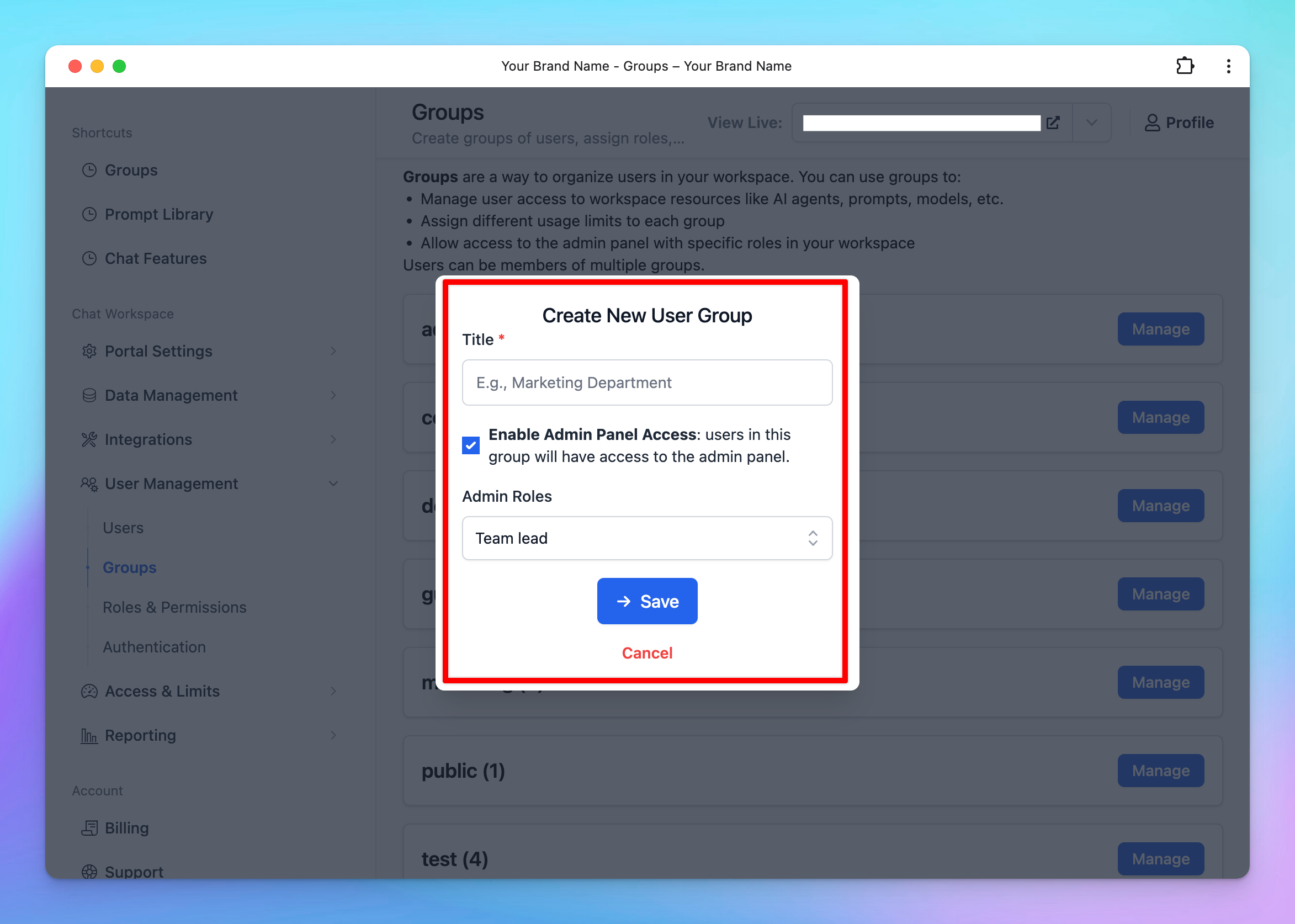
/image%2020.png) * Enter a **Group Name** that reflects the purpose or role of the group.
* *(Optional)* Enable **Admin Access** for this group if they can have access to the admin panel.
* If you enable this option, ensure you assign appropriate **Admin Roles** to the group. These roles should align with the permissions you’ve defined in the [**Roles and Permissions**](/typingmind-team/user-management/roles-and-permissions) settings.
* Enter a **Group Name** that reflects the purpose or role of the group.
* *(Optional)* Enable **Admin Access** for this group if they can have access to the admin panel.
* If you enable this option, ensure you assign appropriate **Admin Roles** to the group. These roles should align with the permissions you’ve defined in the [**Roles and Permissions**](/typingmind-team/user-management/roles-and-permissions) settings.
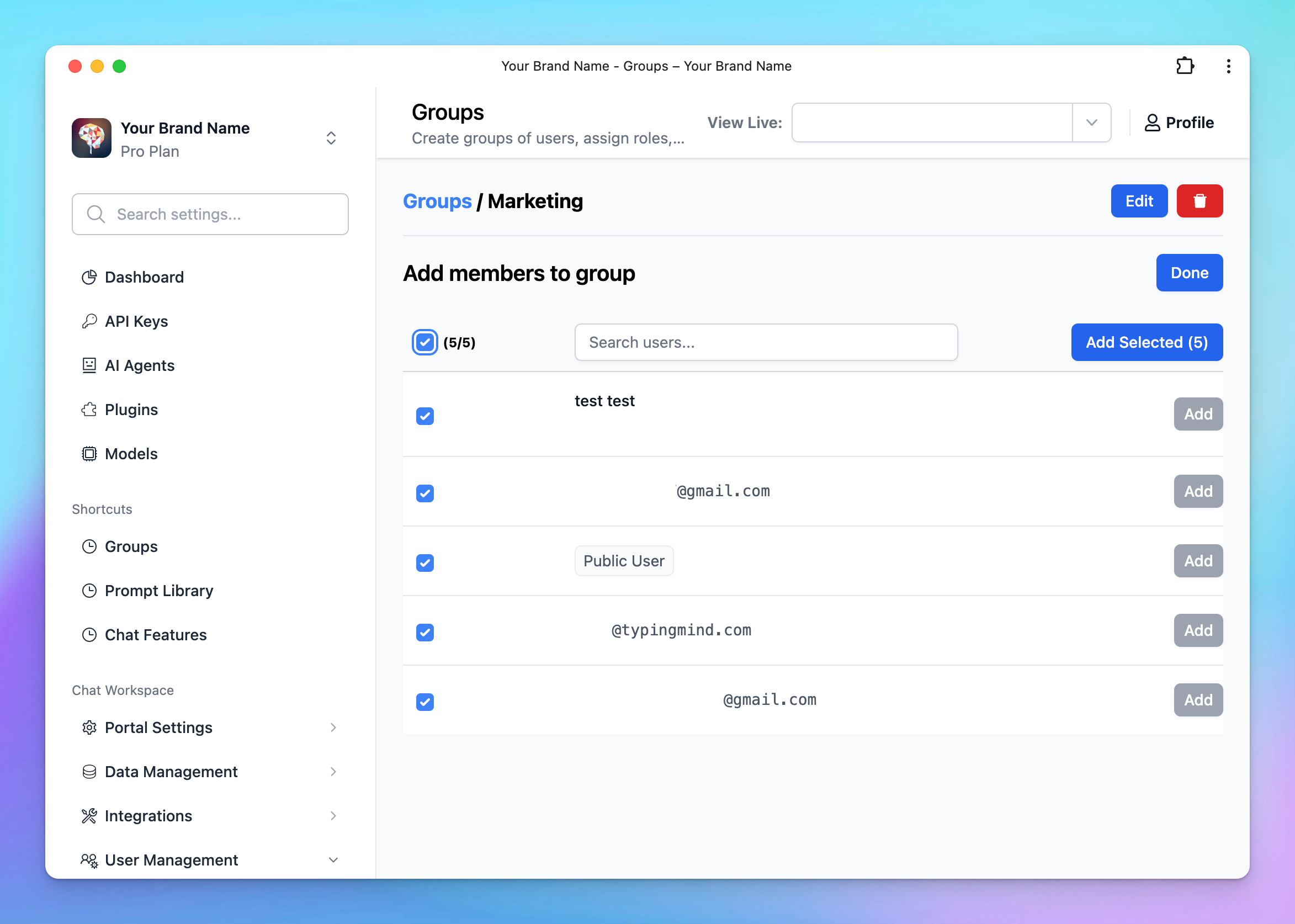
 * Click **Manage** next to the created group
* Click **Add Members**
* Click **Manage** next to the created group
* Click **Add Members**
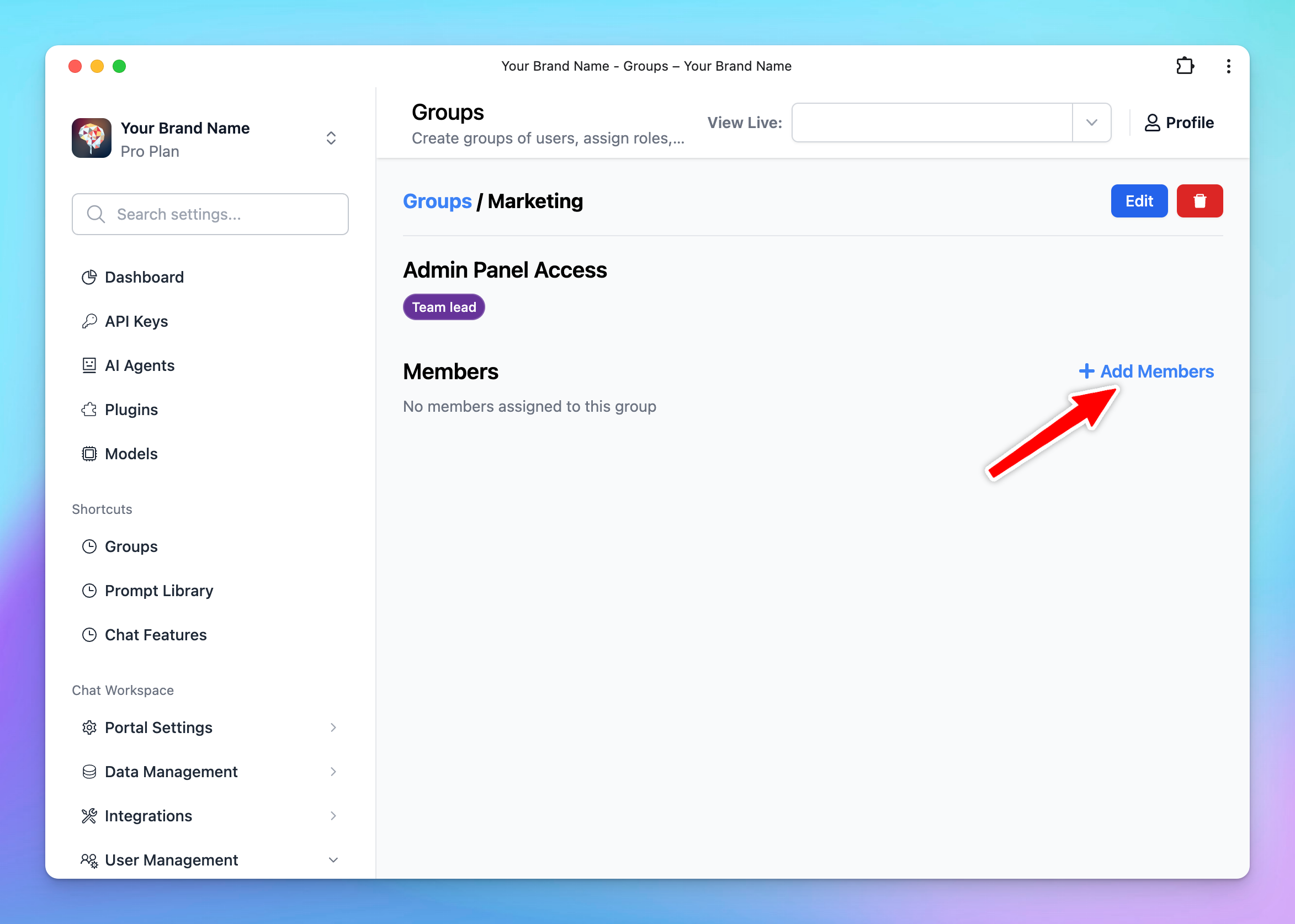 * Select the users you want to include in this group from the list.
 Learn more on [User Groups](/typingmind-team/user-management/create-and-manage-user-groups)
## Step 2: Set up user group limit for specific AI Models
You can manage the AI model visibility and usage limit using User Groups following the below guidelines:
### 1. Manage AI model visibility
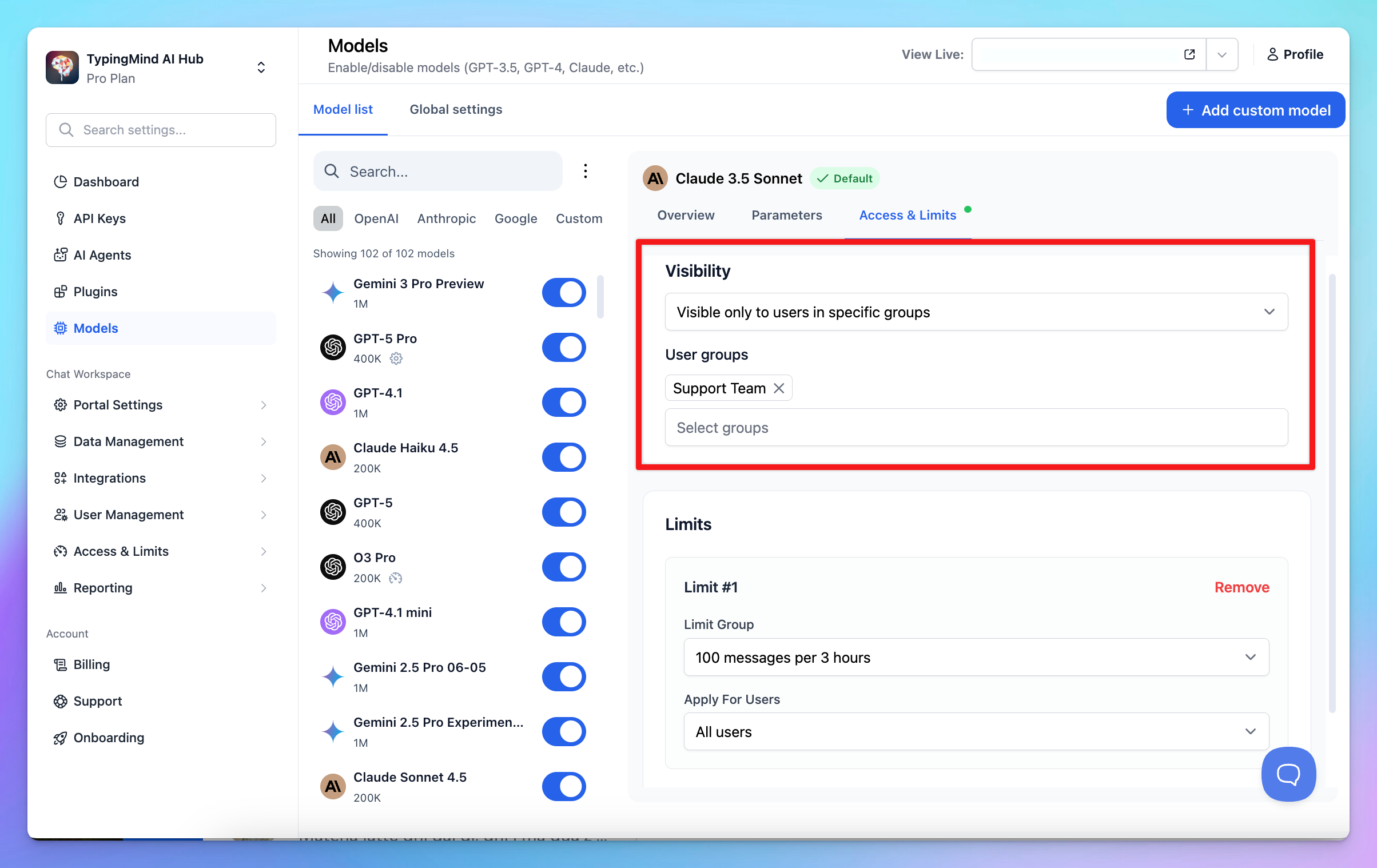
* Go to Models section
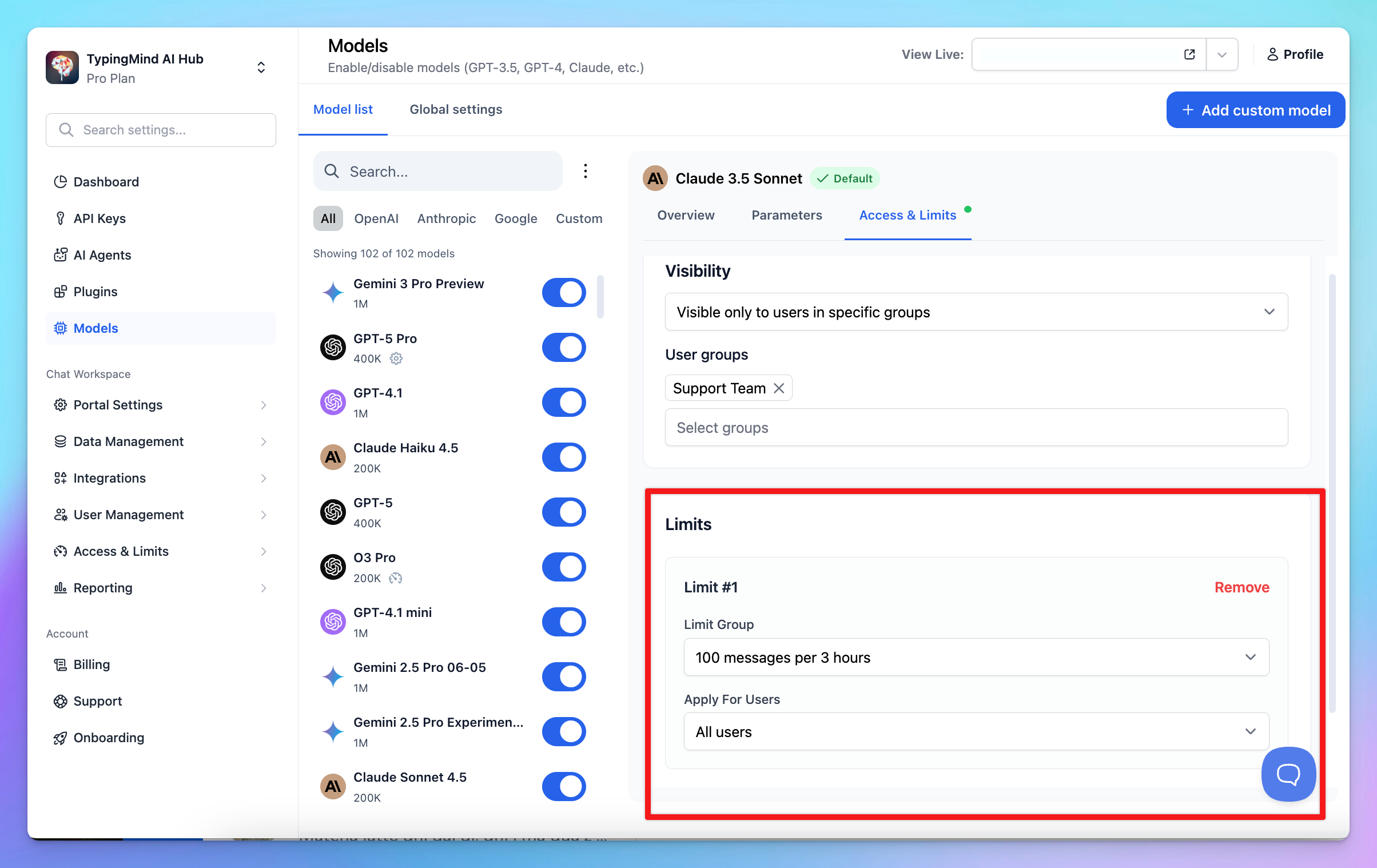
* Select a model, switch to Access & Limits tab, and set up the visibility for specific user groups.
Learn more on [User Groups](/typingmind-team/user-management/create-and-manage-user-groups)
## Step 2: Set up user group limit for specific AI Models
You can manage the AI model visibility and usage limit using User Groups following the below guidelines:
### 1. Manage AI model visibility
* Go to Models section
* Select a model, switch to Access & Limits tab, and set up the visibility for specific user groups.
 ### 2. Manage AI Model Usage Limit
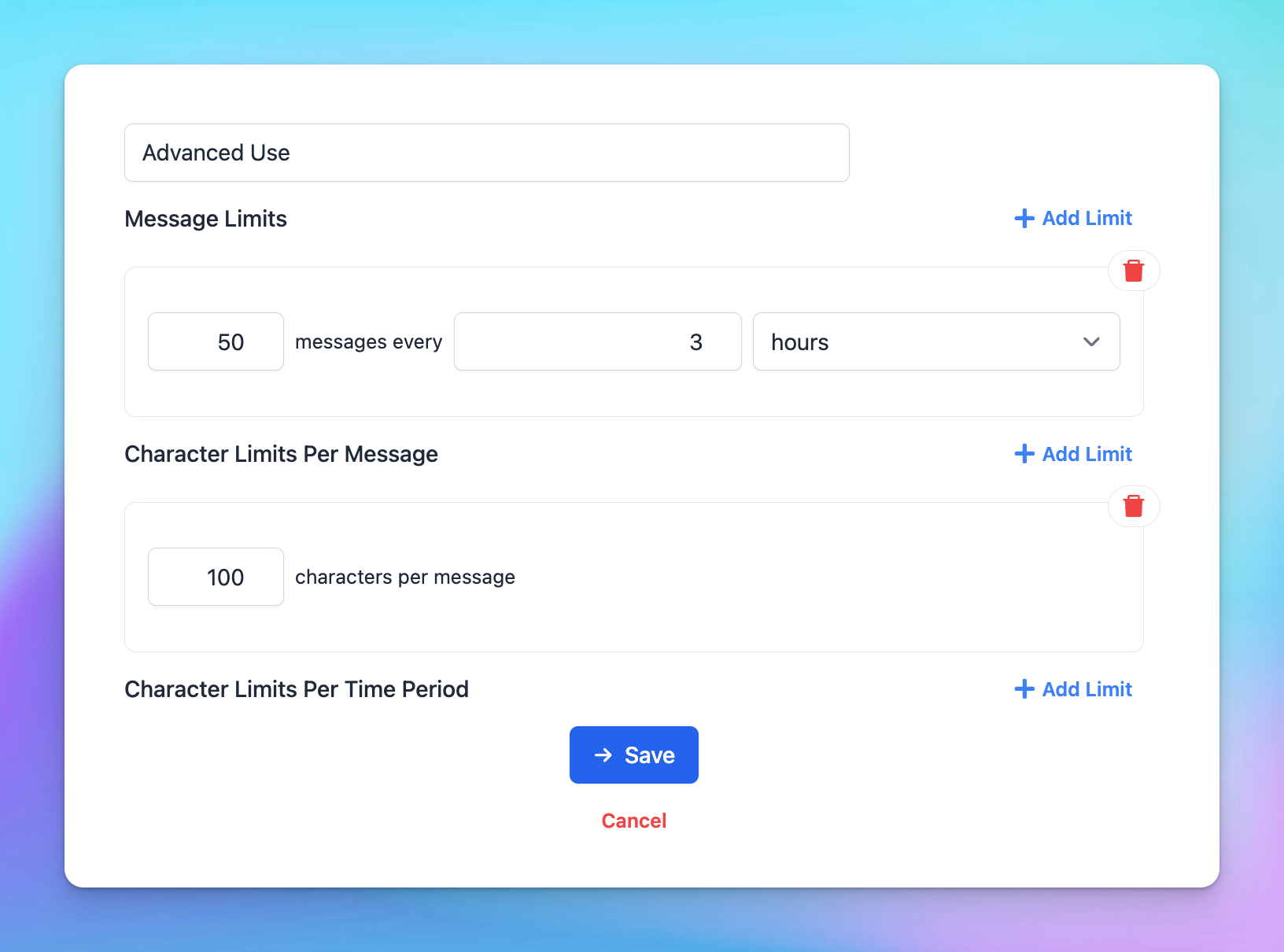
You can control:
* How many messages are sent within a specific period
* How many characters are included in one message
* How many characters are sent within a specific period
Please scroll down to the "**Limit**" section and click on Add Limit
* Click to **Limit Group** —> **Add New Limit Group** —> Add limits for messages and characters
### 2. Manage AI Model Usage Limit
You can control:
* How many messages are sent within a specific period
* How many characters are included in one message
* How many characters are sent within a specific period
Please scroll down to the "**Limit**" section and click on Add Limit
* Click to **Limit Group** —> **Add New Limit Group** —> Add limits for messages and characters