> ## Documentation Index
> Fetch the complete documentation index at: https://docs.typingmind.com/llms.txt
> Use this file to discover all available pages before exploring further.
# Custom Branding
Personalize your chat instance to match your brand identity. From branding elements to custom messages and themes, gain control over how your chat interface should look and feel.
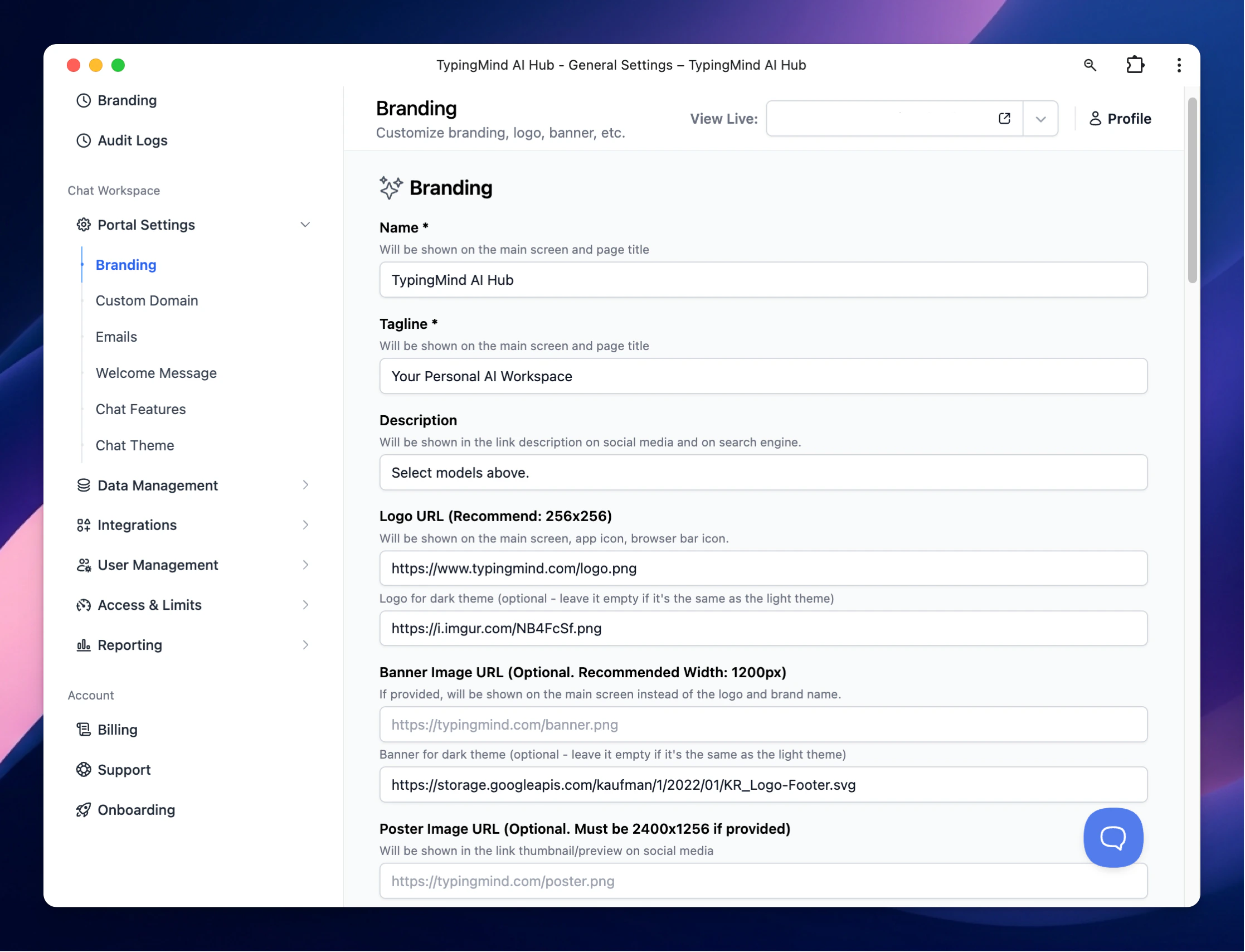
## 1. Brand Your Chat Instance
Start by branding your chat instance with your company's name, logo, and tagline.
Go to **Portal Settings** > Scroll down to the **Branding** section
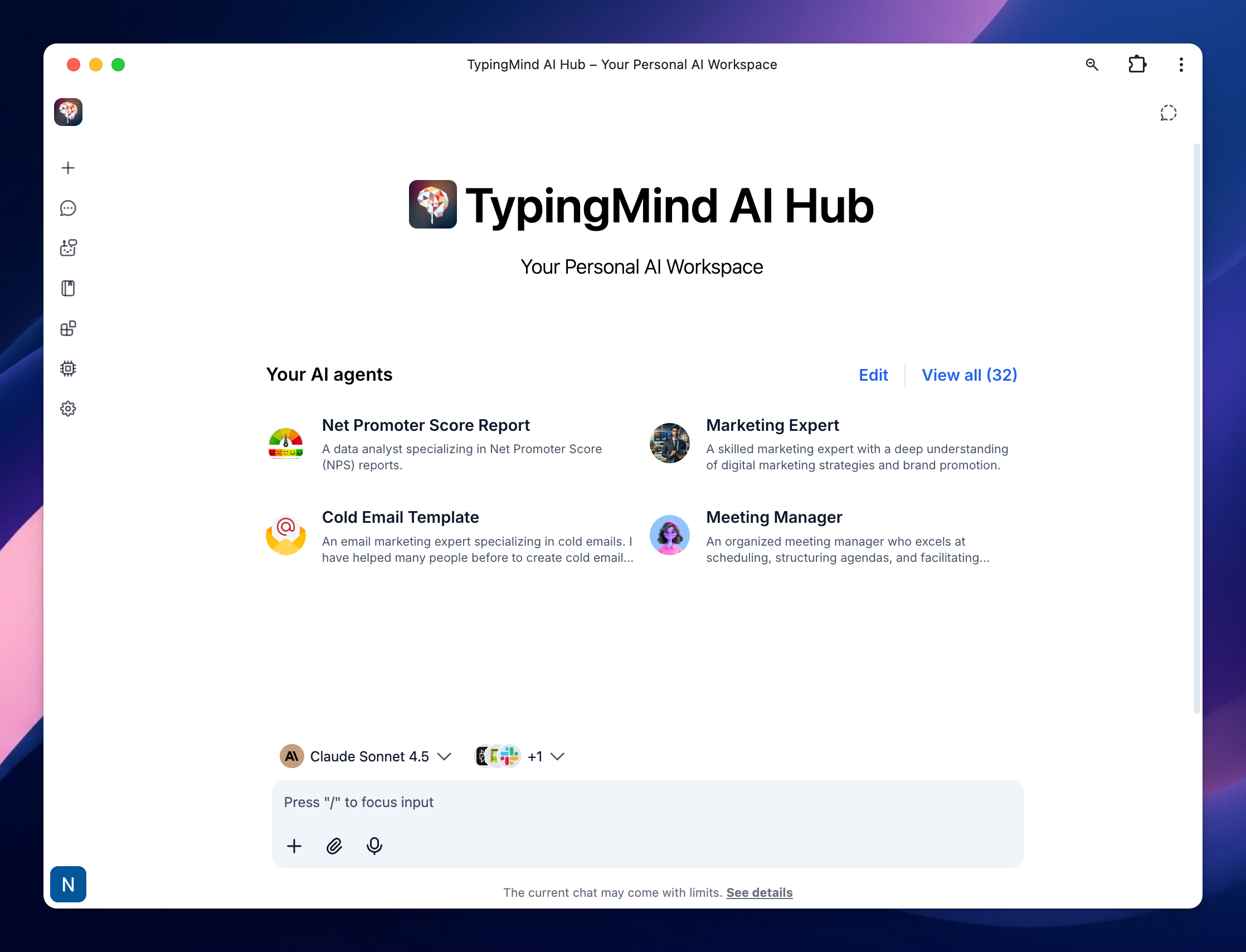
 This is how your branding setups will appear on your Chat Interface:
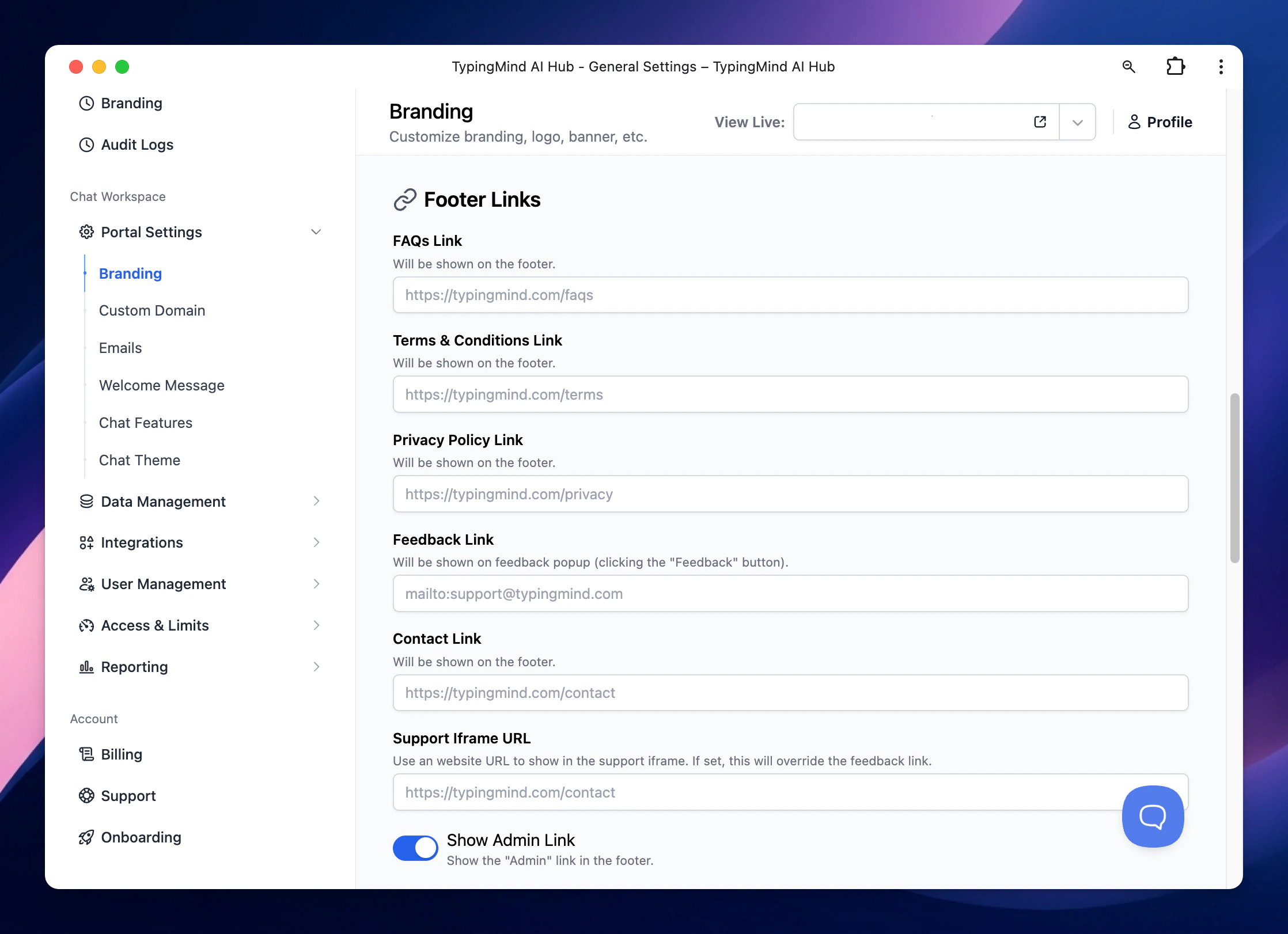
 ## 2. Customize Footer Links
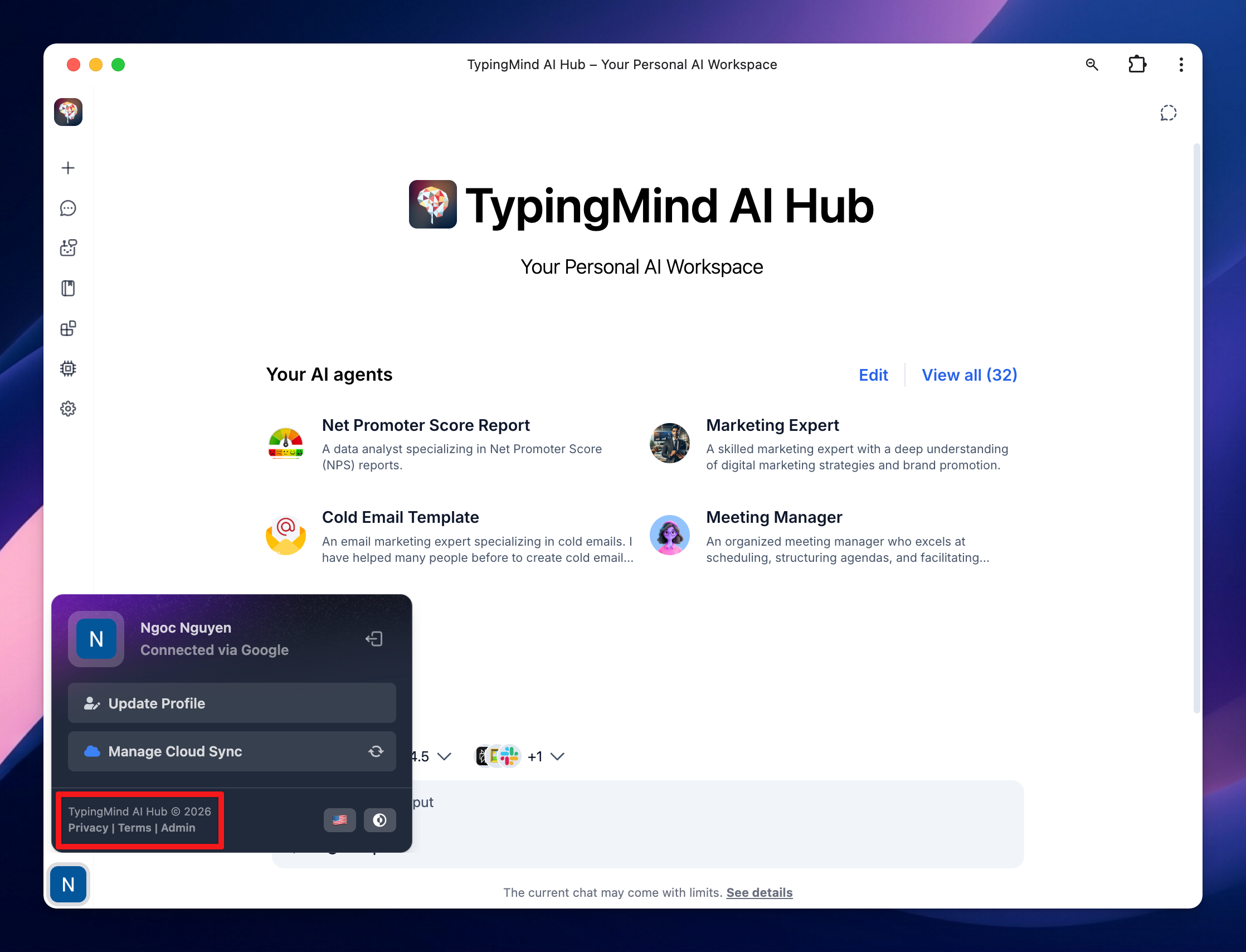
Customize the footer links with your FAQs, Terms & Condition, Privacy Policy, and Feedback email.
Go to **Portal Settings** > Scroll down to the **Links** section
## 2. Customize Footer Links
Customize the footer links with your FAQs, Terms & Condition, Privacy Policy, and Feedback email.
Go to **Portal Settings** > Scroll down to the **Links** section
 Here’s how it looks on the chat UI:
 ## 3.Change the Document Links
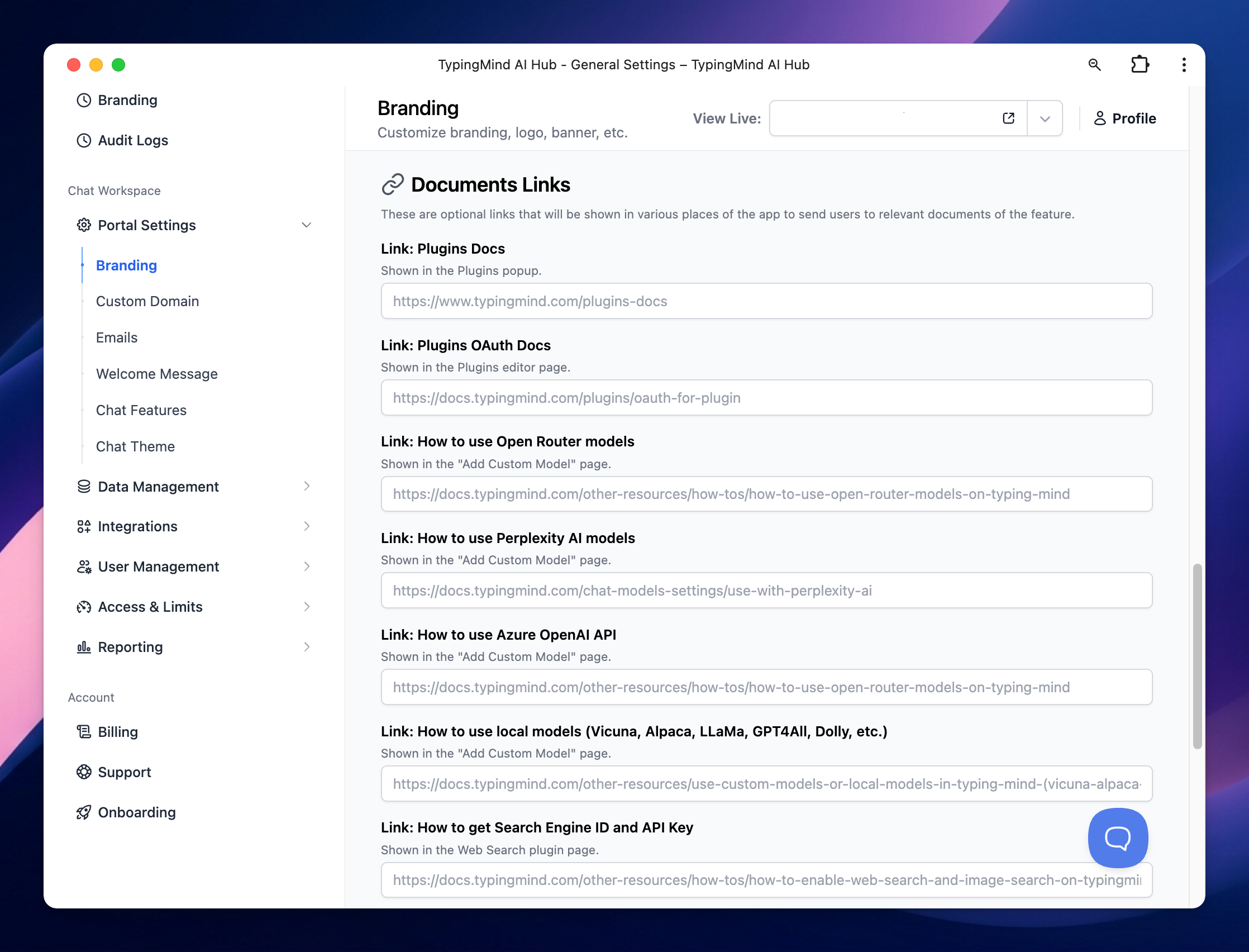
You can change the document links that are included within the chat interface such as Plugins docs, OpenRouter guide, Azure OpenAI guide, etc.
## 3.Change the Document Links
You can change the document links that are included within the chat interface such as Plugins docs, OpenRouter guide, Azure OpenAI guide, etc.
 ## 4. Customize to your local language
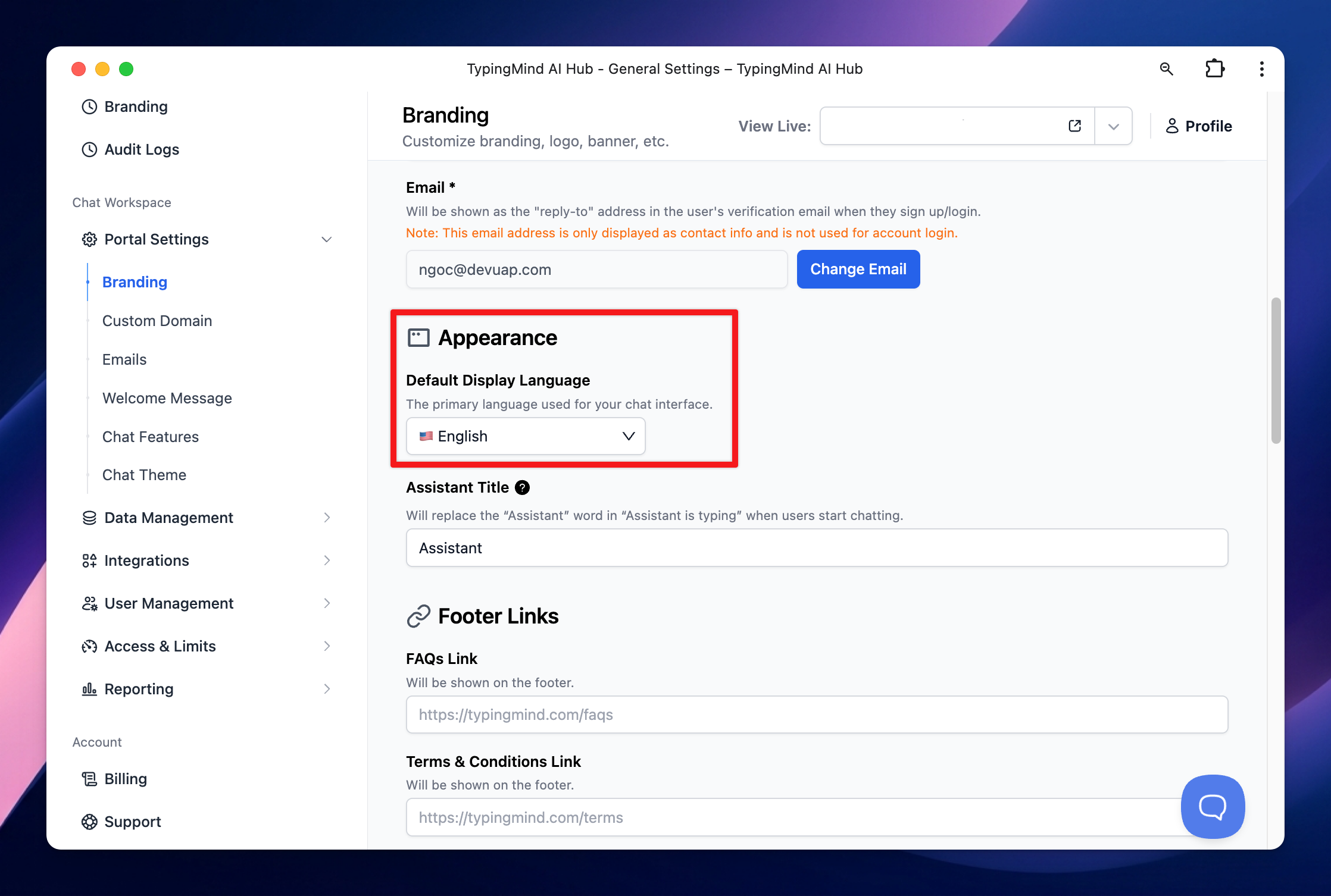
Adapt the chat interface to your local language to enhance user engagement.
Go to **Portal Settings** > Choose your preferred language for the UI
## 4. Customize to your local language
Adapt the chat interface to your local language to enhance user engagement.
Go to **Portal Settings** > Choose your preferred language for the UI
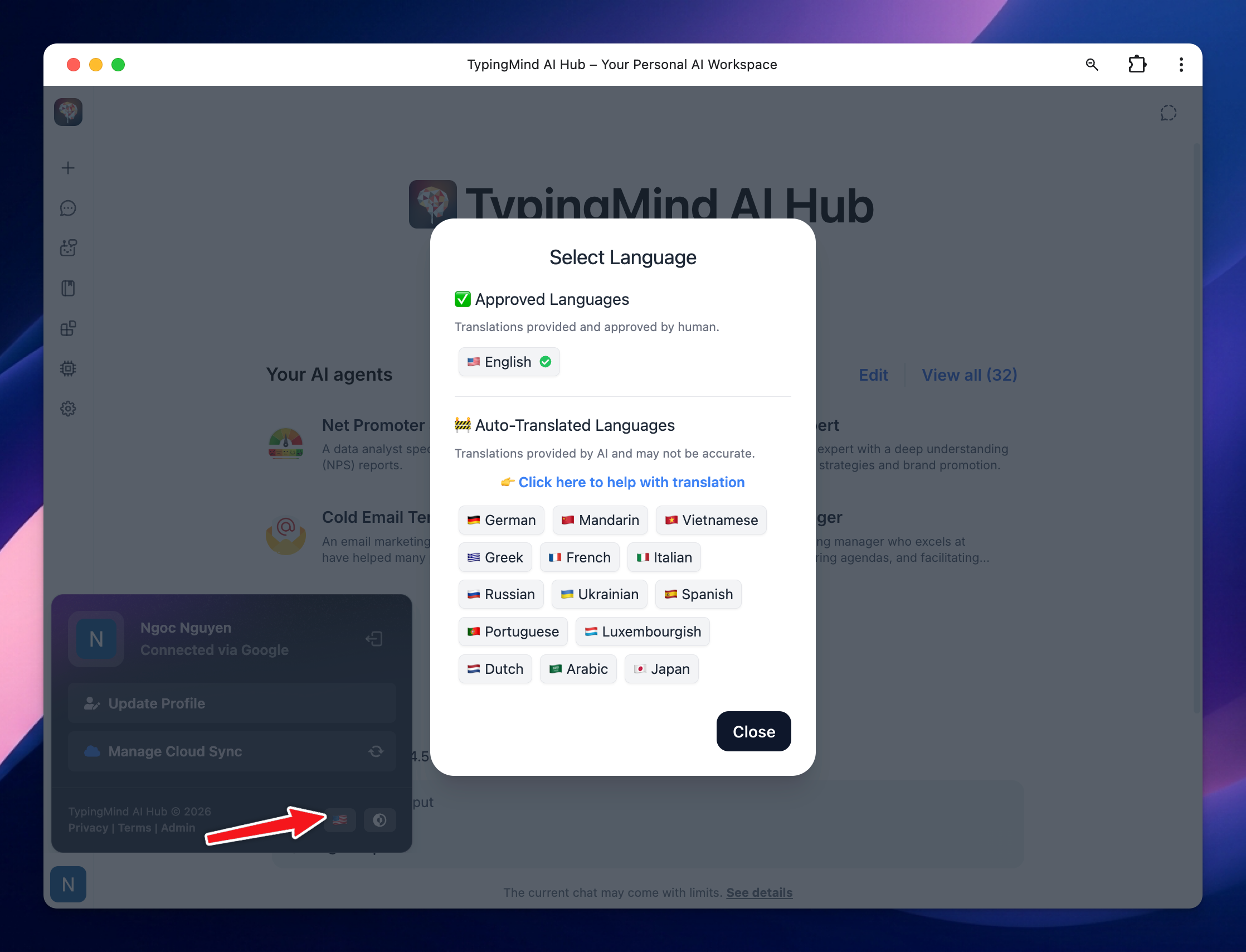
 Here’s how it looks on the chat interface:
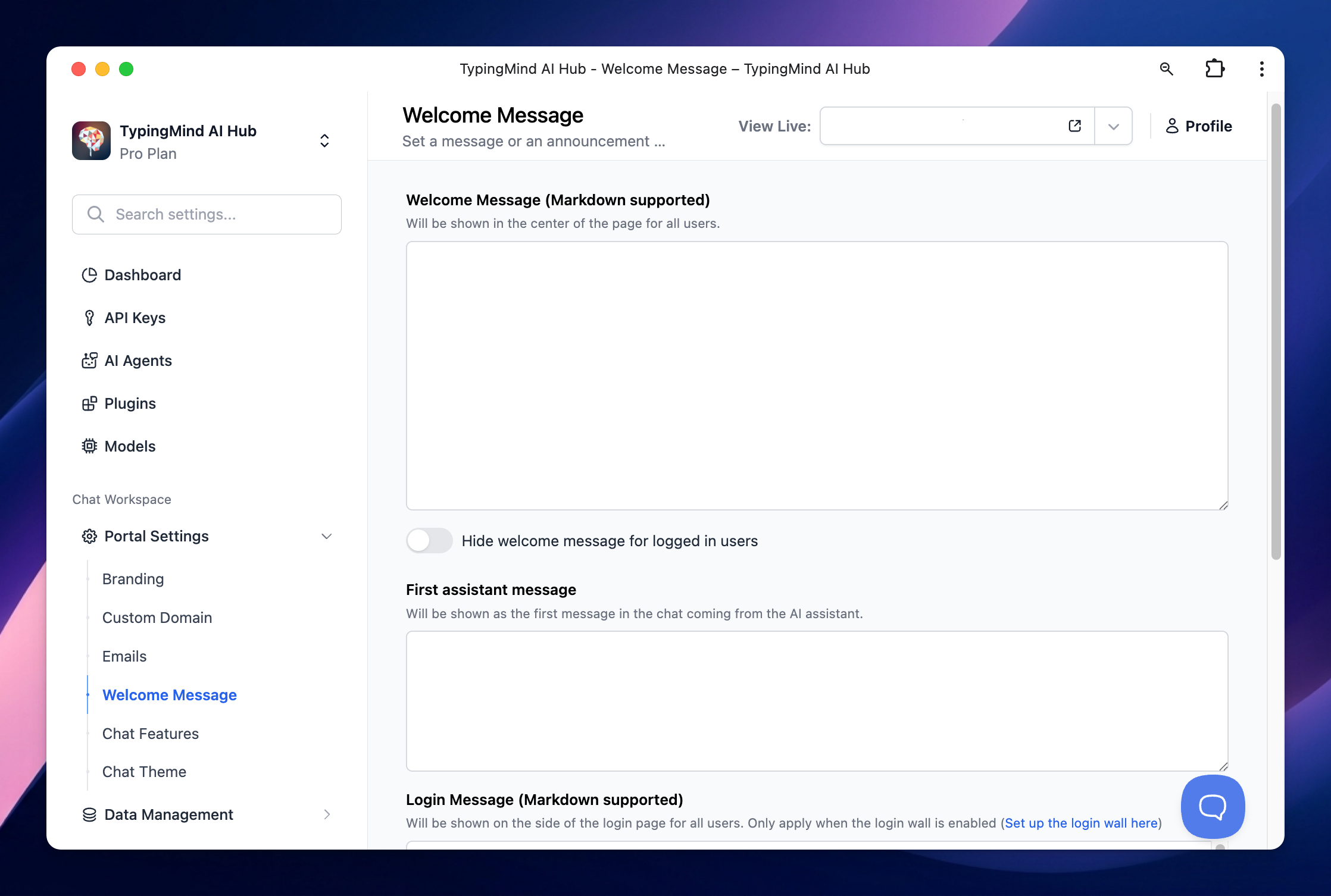
 ## 5. Edit Welcome Messages
Customize the welcome messages to easily onboard your users. You can provide them with guidance on how to use the chat instance.
Go to **Welcome Message** > input your messages
## 5. Edit Welcome Messages
Customize the welcome messages to easily onboard your users. You can provide them with guidance on how to use the chat instance.
Go to **Welcome Message** > input your messages
 ## 6. Use Your Own Domain
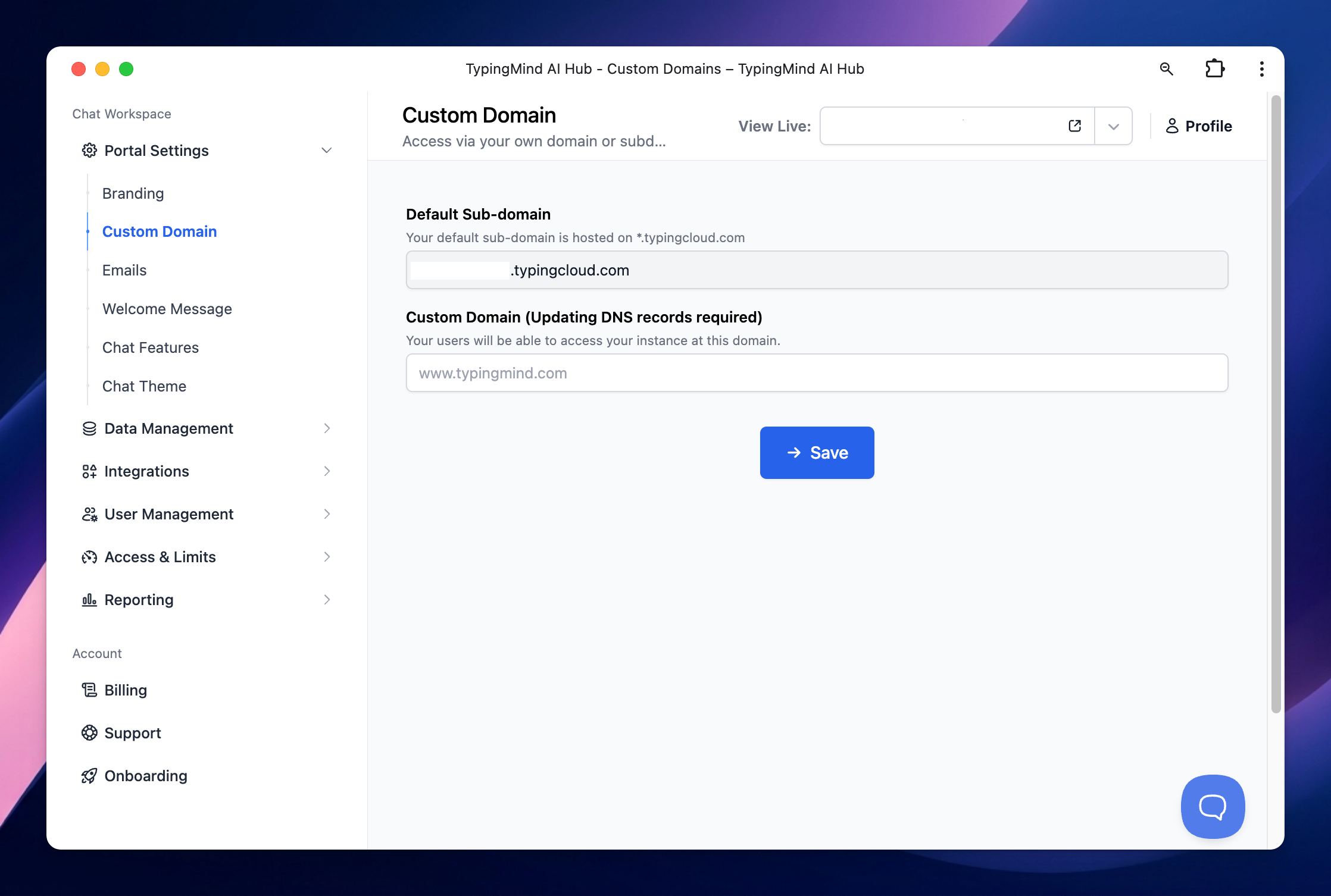
You can set up a custom domain for your chat interface.
Go to **Custom Domain** > Set up your custom domain as instructions in the app.
## 6. Use Your Own Domain
You can set up a custom domain for your chat interface.
Go to **Custom Domain** > Set up your custom domain as instructions in the app.
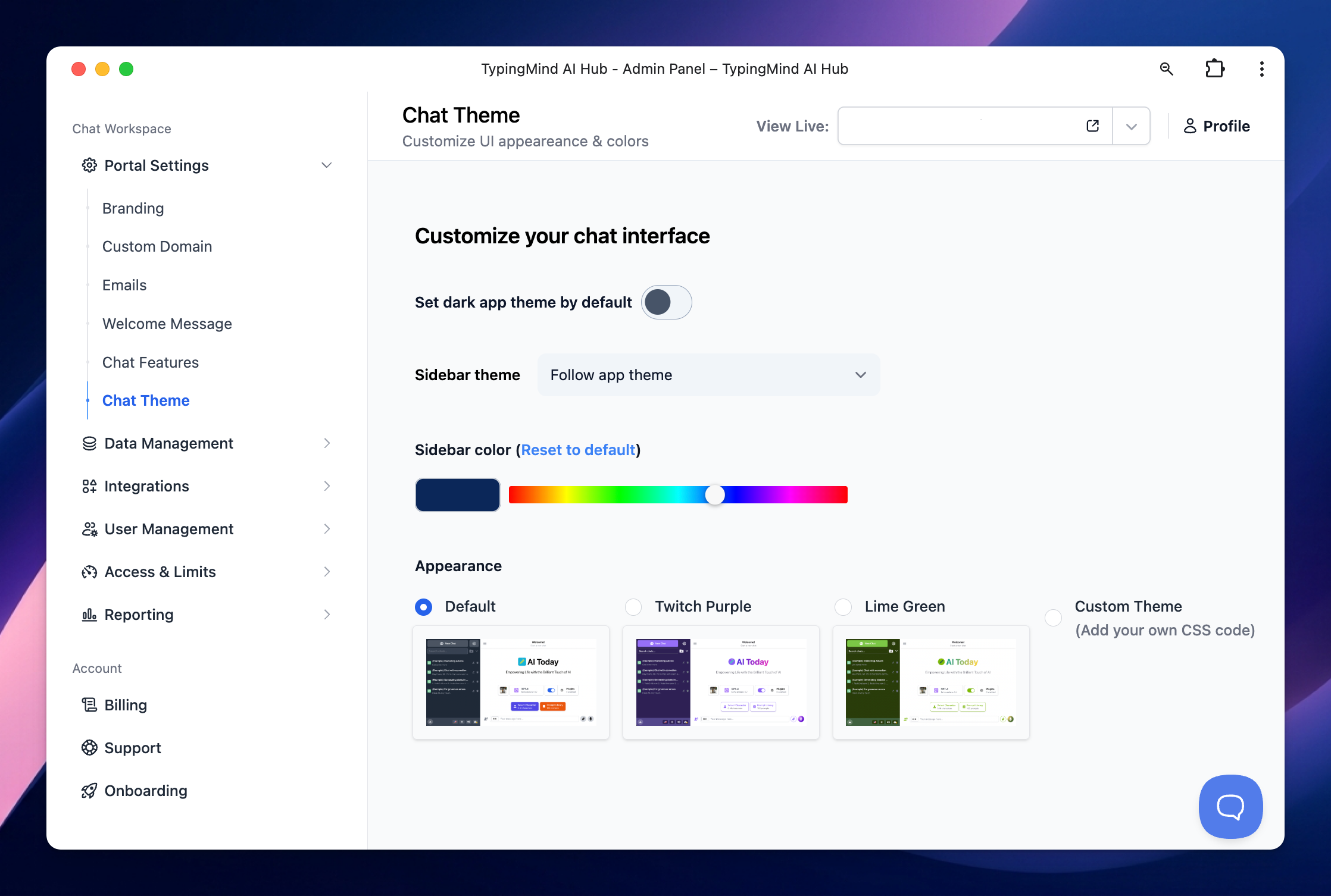
 ## 7. Customize the Chat Interface Theme
Customize the chat interface theme to match your brand color. You can use built-in themes or create a custom theme by adding your CSS code.
This ensures a seamless integration of the chat interface with your brand's visual identity.
Go to **Chat Theme** > Choose your preferred theme or add your custom theme
## 7. Customize the Chat Interface Theme
Customize the chat interface theme to match your brand color. You can use built-in themes or create a custom theme by adding your CSS code.
This ensures a seamless integration of the chat interface with your brand's visual identity.
Go to **Chat Theme** > Choose your preferred theme or add your custom theme