> ## Documentation Index
> Fetch the complete documentation index at: https://docs.typingmind.com/llms.txt
> Use this file to discover all available pages before exploring further.
# Build a Shared Prompt Library
You can create an exclusive built-in prompt for your team members so they can quickly access to the resources without manual creating it from the chat interface.
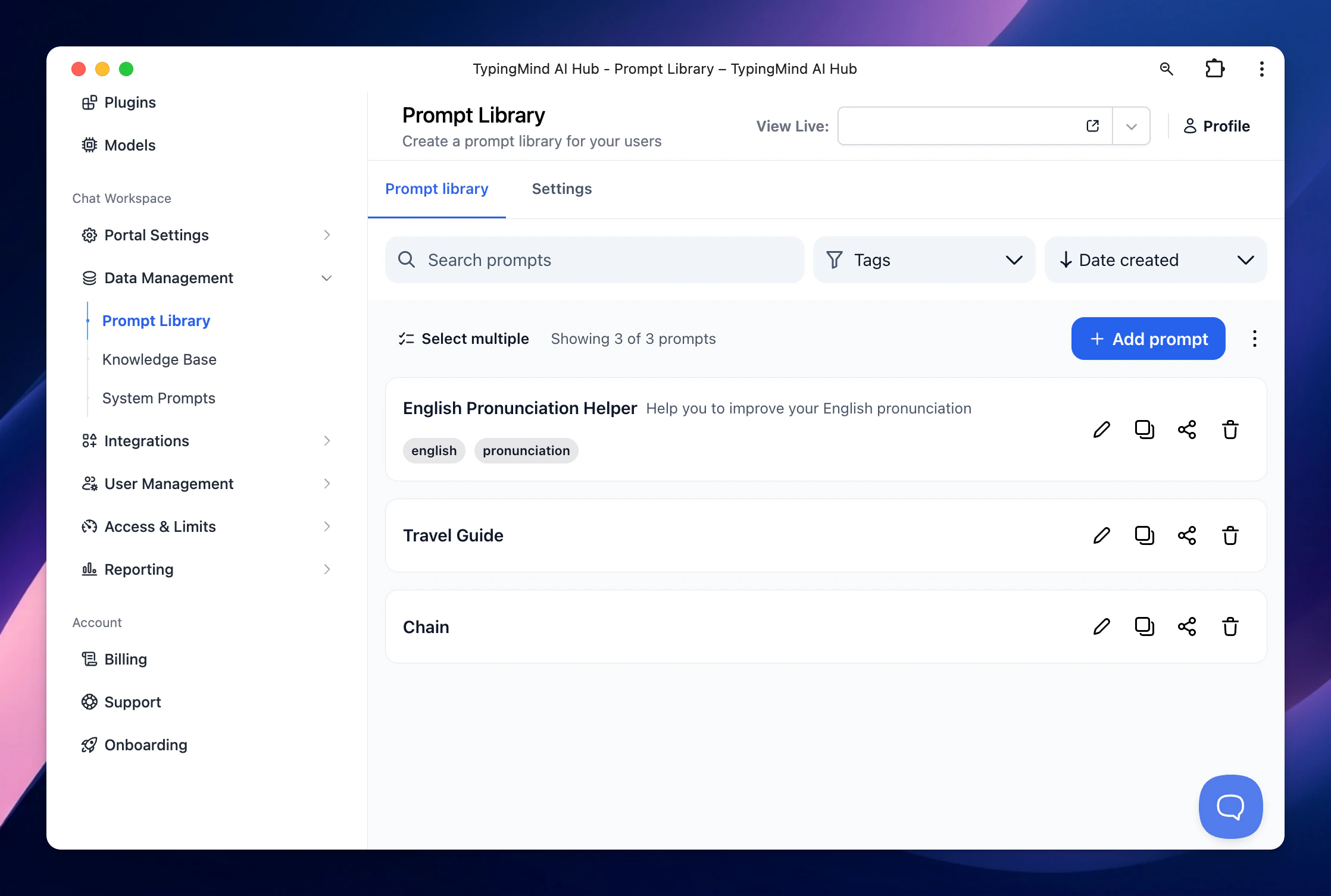
Go to **Data Management** → **Prompts Library** → Click ‘**Add Prompt**’
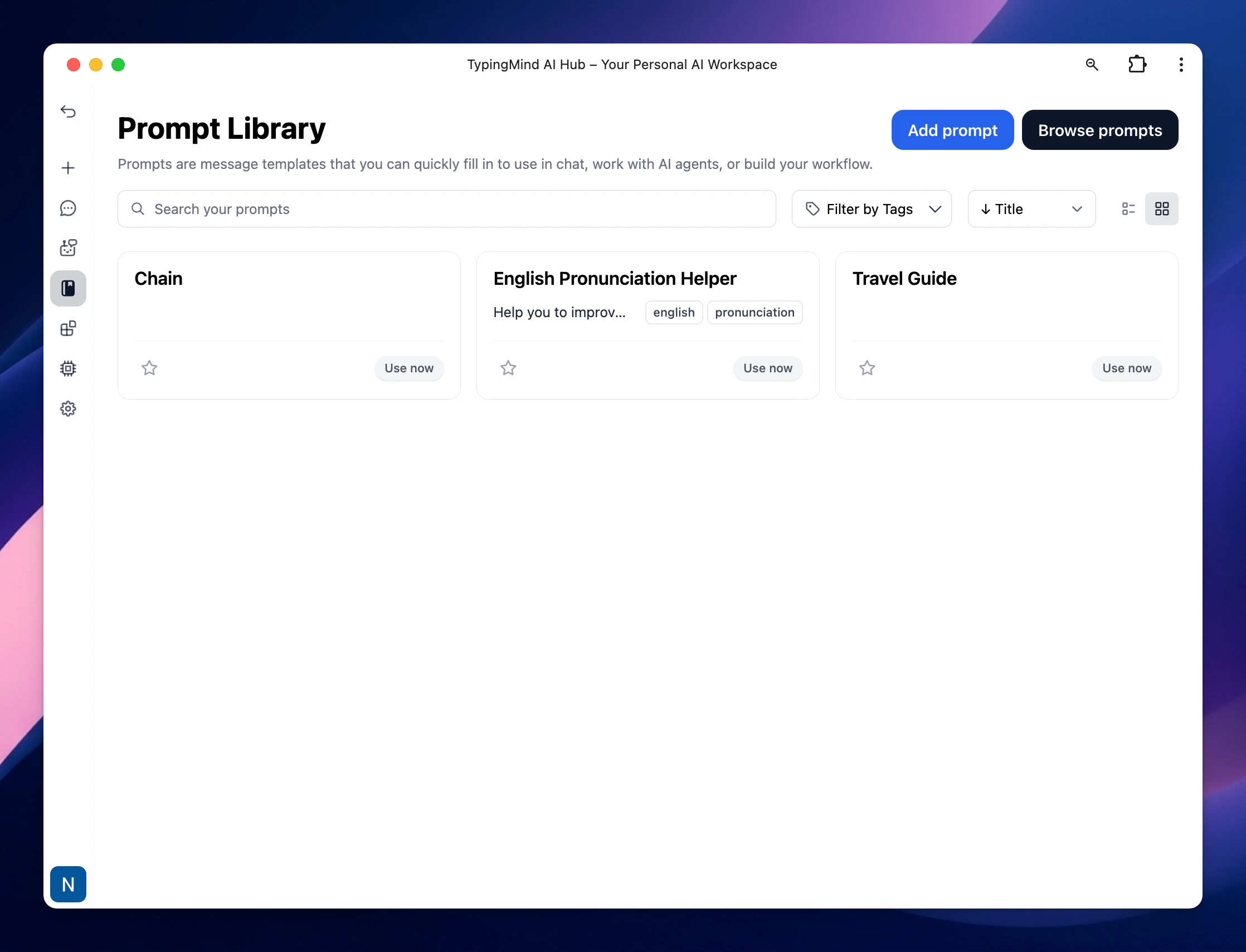
 Your created prompts will be displayed on the chat interface as follow:
 You have the option to control which users / groups can use the created Prompts, check it here: [Restrict Prompt Access](/typingmind-team/branding-and-customizations/restrict-prompt-access)