> ## Documentation Index
> Fetch the complete documentation index at: https://docs.typingmind.com/llms.txt
> Use this file to discover all available pages before exploring further.
# View User Chat Logs
TypingMind Team allows Admins to review chat logs by all users to understand use cases, detect issues, and adjust prompts to better handle user queries.
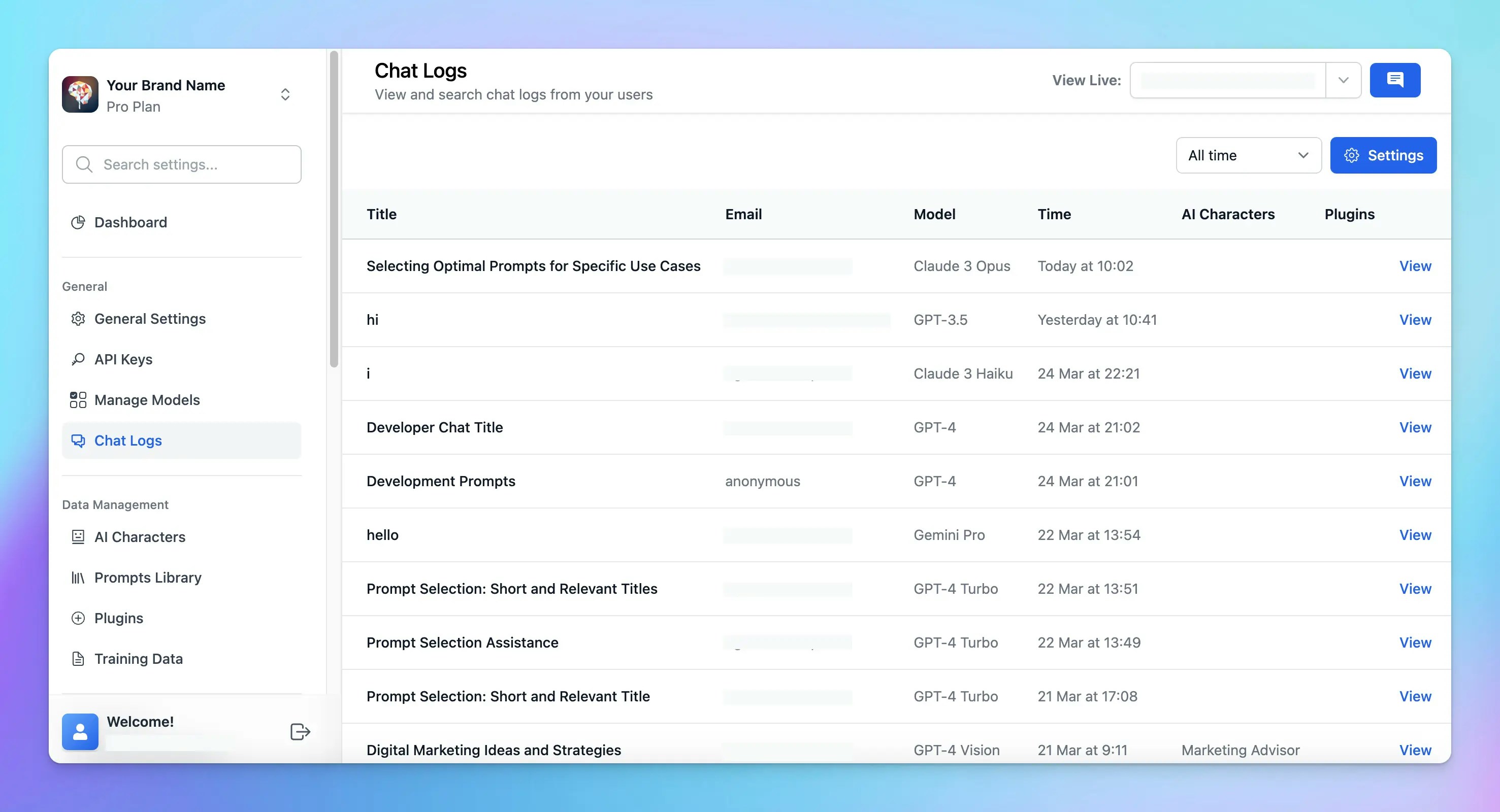 Let’s check out on how to do that!
## Enable Chat Logs on Admin Panel
1. Log in to your chat instance
2. Go to Admin Panel
3. Go to “**Chat Logs**” menu in the Reporting section
4. Click the Setting button on the top right corner → Enable **Record all chats from your users**
Let’s check out on how to do that!
## Enable Chat Logs on Admin Panel
1. Log in to your chat instance
2. Go to Admin Panel
3. Go to “**Chat Logs**” menu in the Reporting section
4. Click the Setting button on the top right corner → Enable **Record all chats from your users**
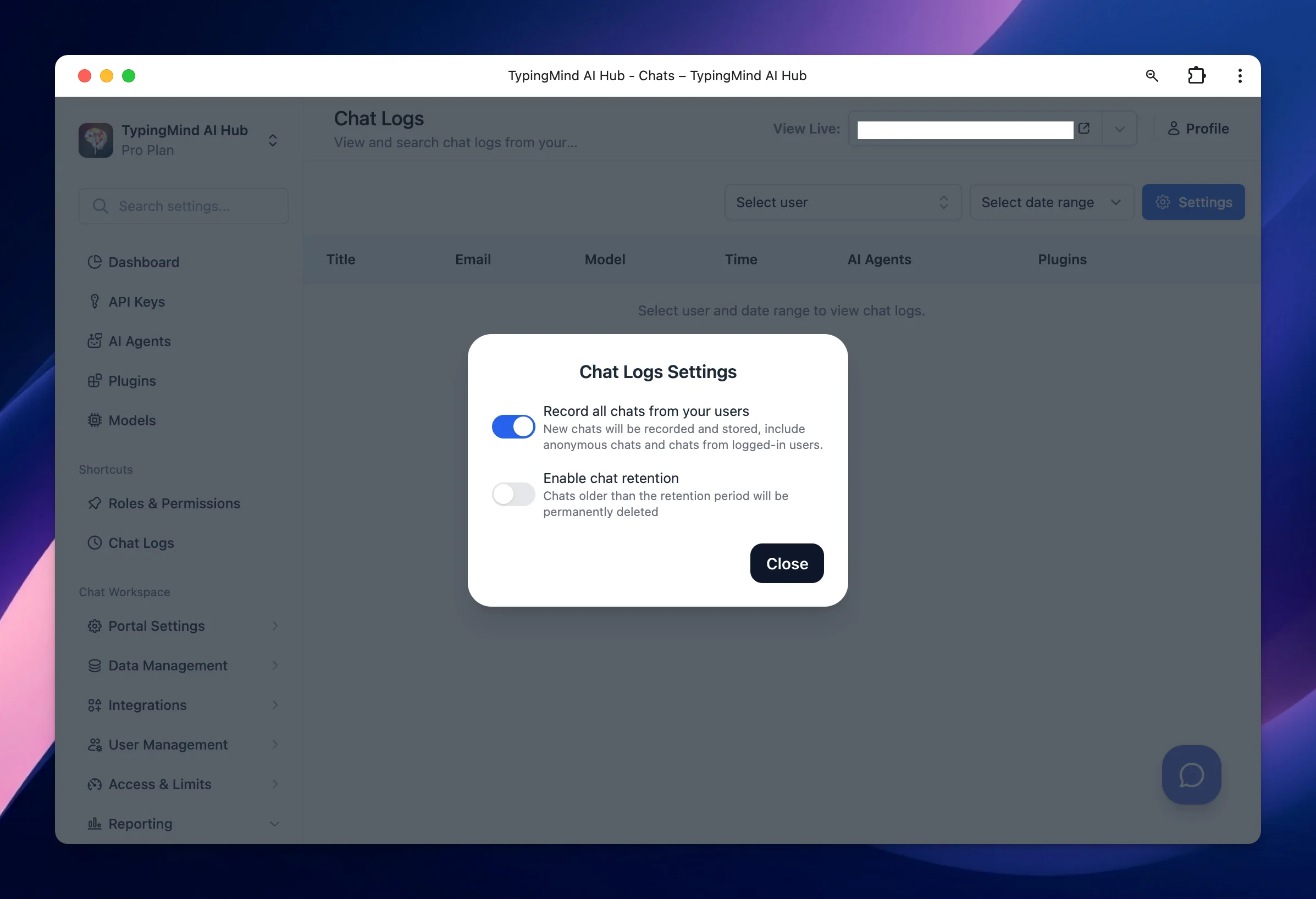 You can also enable Chat Retention so chats that older than the certain period will be permanently deleted.
After enabling chat logs, you can view chat logs from all users or selected users.
## Best practices for monitoring your chat logs
* **Regular reviews**: make it a routine to check the chat logs to quickly identify and address emerging issues or trends.
* **Continuously update training data**: use insights from the chat logs to update FAQs, user guides, or training data for the AI, improving the accuracy and relevance of its responses.
* **User engagement**: gather information within the chat logs to provide users with the resources that they want.
You can also enable Chat Retention so chats that older than the certain period will be permanently deleted.
After enabling chat logs, you can view chat logs from all users or selected users.
## Best practices for monitoring your chat logs
* **Regular reviews**: make it a routine to check the chat logs to quickly identify and address emerging issues or trends.
* **Continuously update training data**: use insights from the chat logs to update FAQs, user guides, or training data for the AI, improving the accuracy and relevance of its responses.
* **User engagement**: gather information within the chat logs to provide users with the resources that they want.