> ## Documentation Index
> Fetch the complete documentation index at: https://docs.typingmind.com/llms.txt
> Use this file to discover all available pages before exploring further.
# Manage Subscription
This guide shows you how to update your subscription, manage add-ons, update your payment method, view past invoices, and add your business tax ID.
You can manage most billing-related settings directly from the **Billing** page in your workspace.
## 1. Update your plan/add-ons
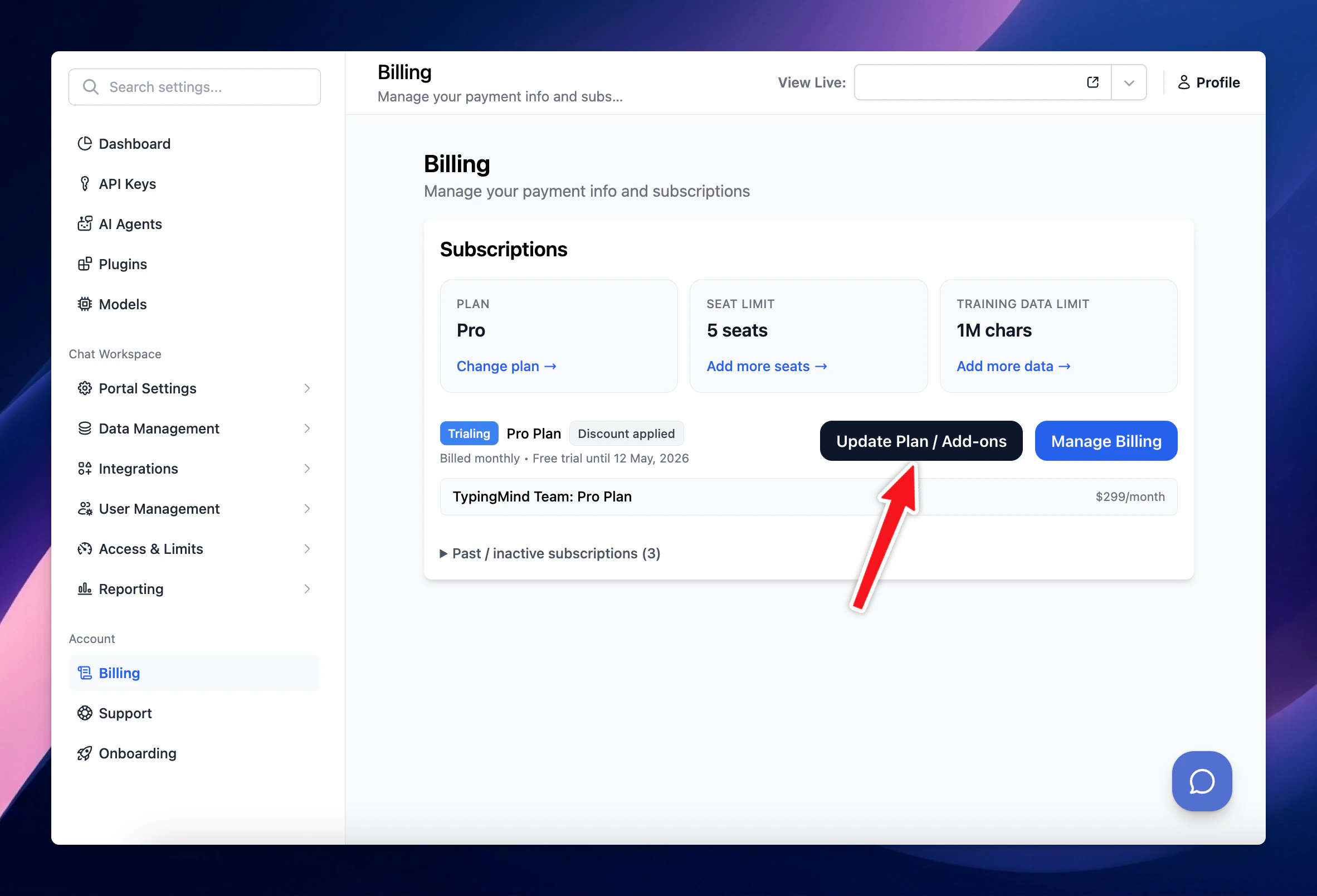
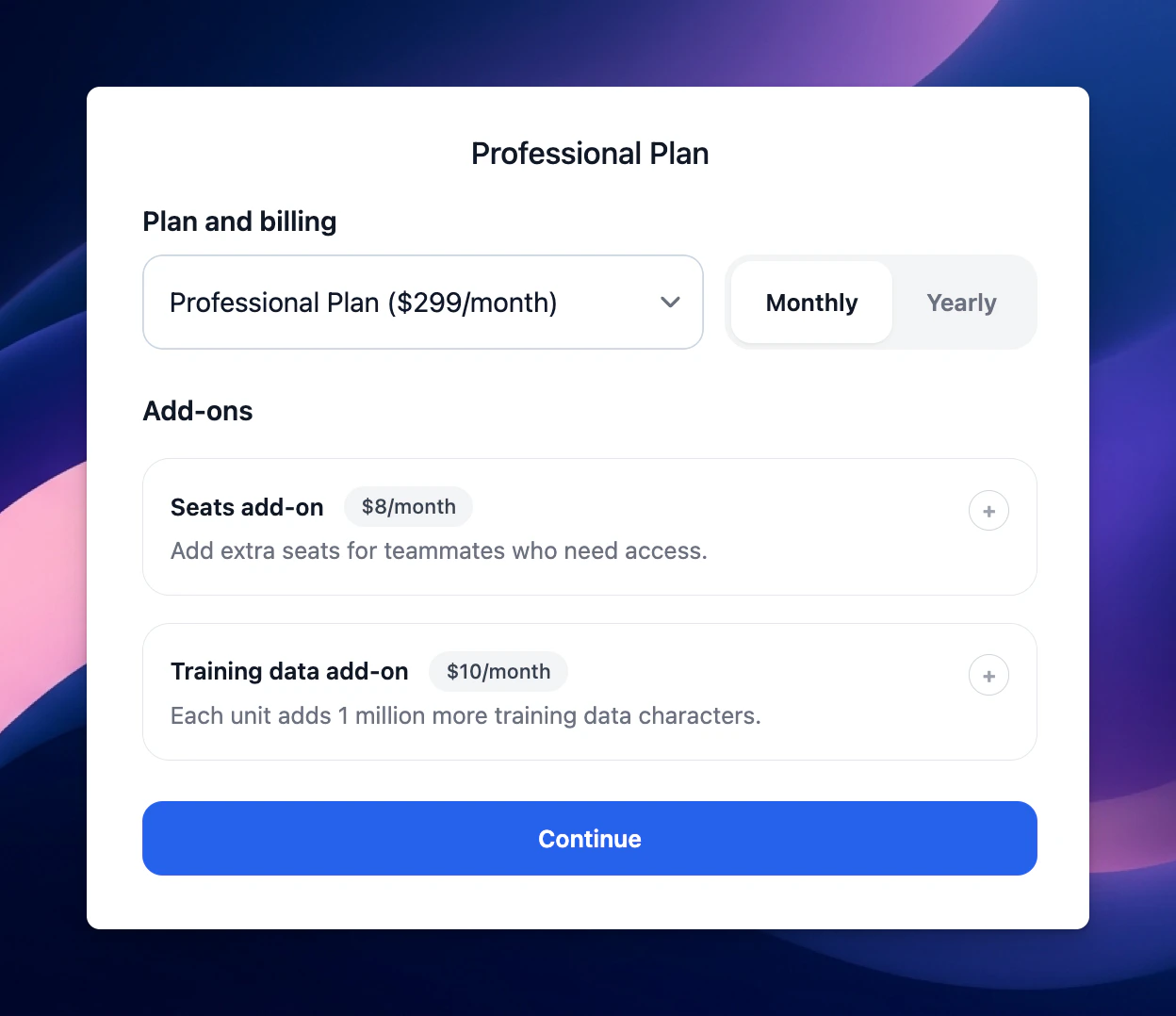
Upgrade your subscription / user seats / training characters as following:
* Go to **Billing**
* **Click on Update Plan / Add ons**
* Update to a new plan or increase/decrease the number of user seats or training characters.
 ## 2. Update payment method/View past invoices
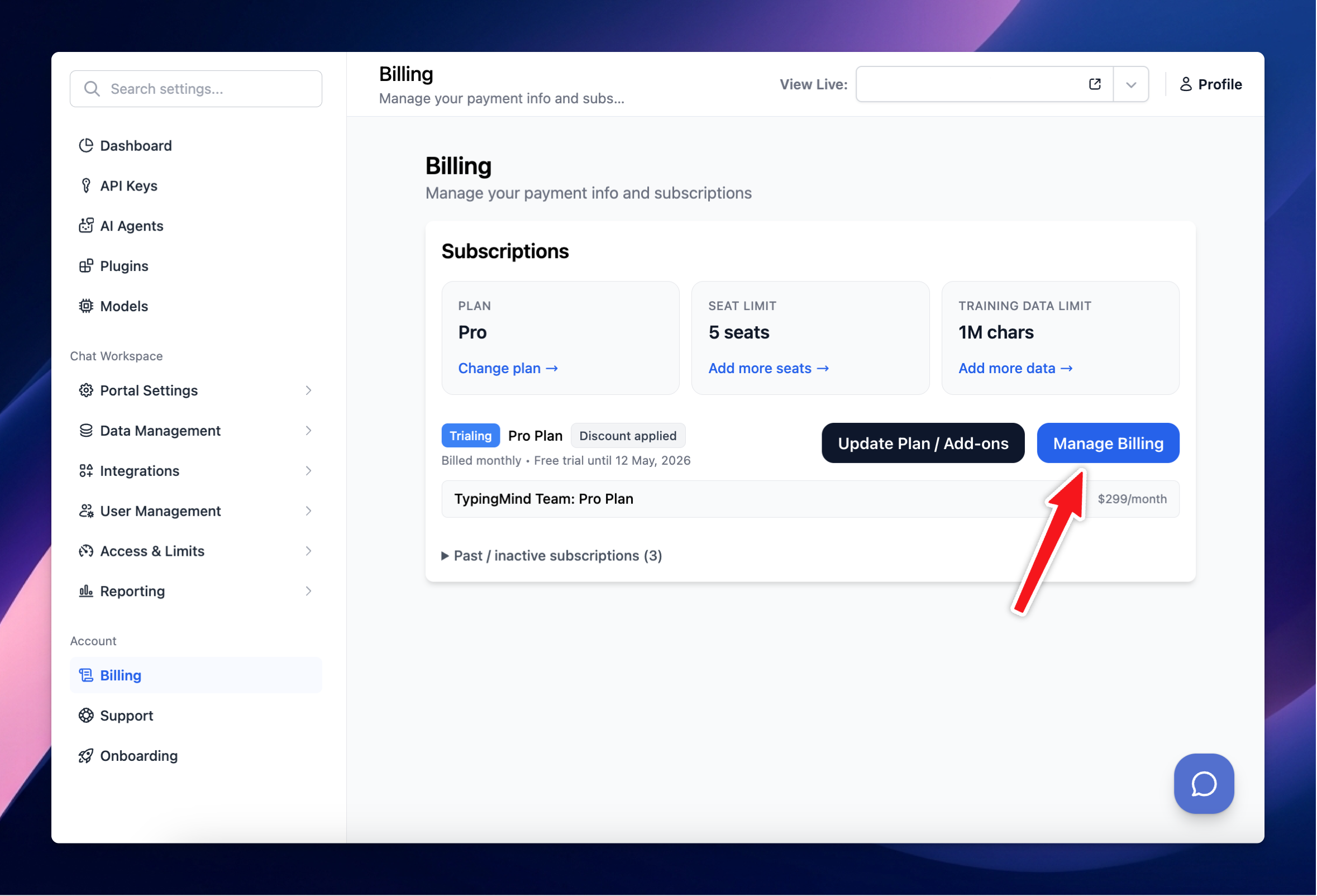
If you want to view past invoices, update your payment method, or add your business tax ID, go to the billing portal:
* Go to **Billing**
* Click on **Manage Billing**
* **Open Billing portal**
## 2. Update payment method/View past invoices
If you want to view past invoices, update your payment method, or add your business tax ID, go to the billing portal:
* Go to **Billing**
* Click on **Manage Billing**
* **Open Billing portal**