> ## Documentation Index
> Fetch the complete documentation index at: https://docs.typingmind.com/llms.txt
> Use this file to discover all available pages before exploring further.
# View Console Logs
When using TypingMind, we may occasionally ask you to provide a screenshot or a saved copy of your Console logs. This helps us identify the cause of an issue and troubleshoot it more effectively.
## On Web App
Here are the steps on how to do it using Google Chrome Developer Tool:
1. Go to [**TypingMind.com**](http://TypingMind.com) and repeat the steps that caused the issue.
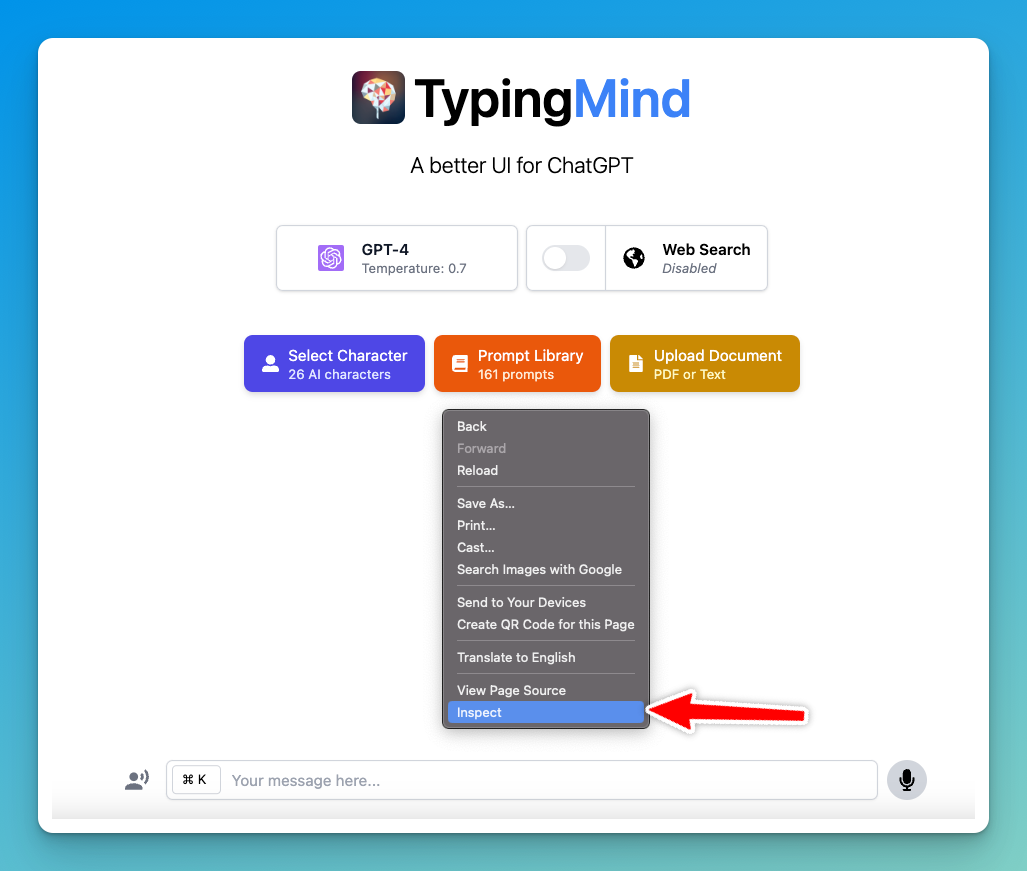
2. **Open Developer Tools**: Right-click anywhere on the webpage and select **Inspect** from the context menu.
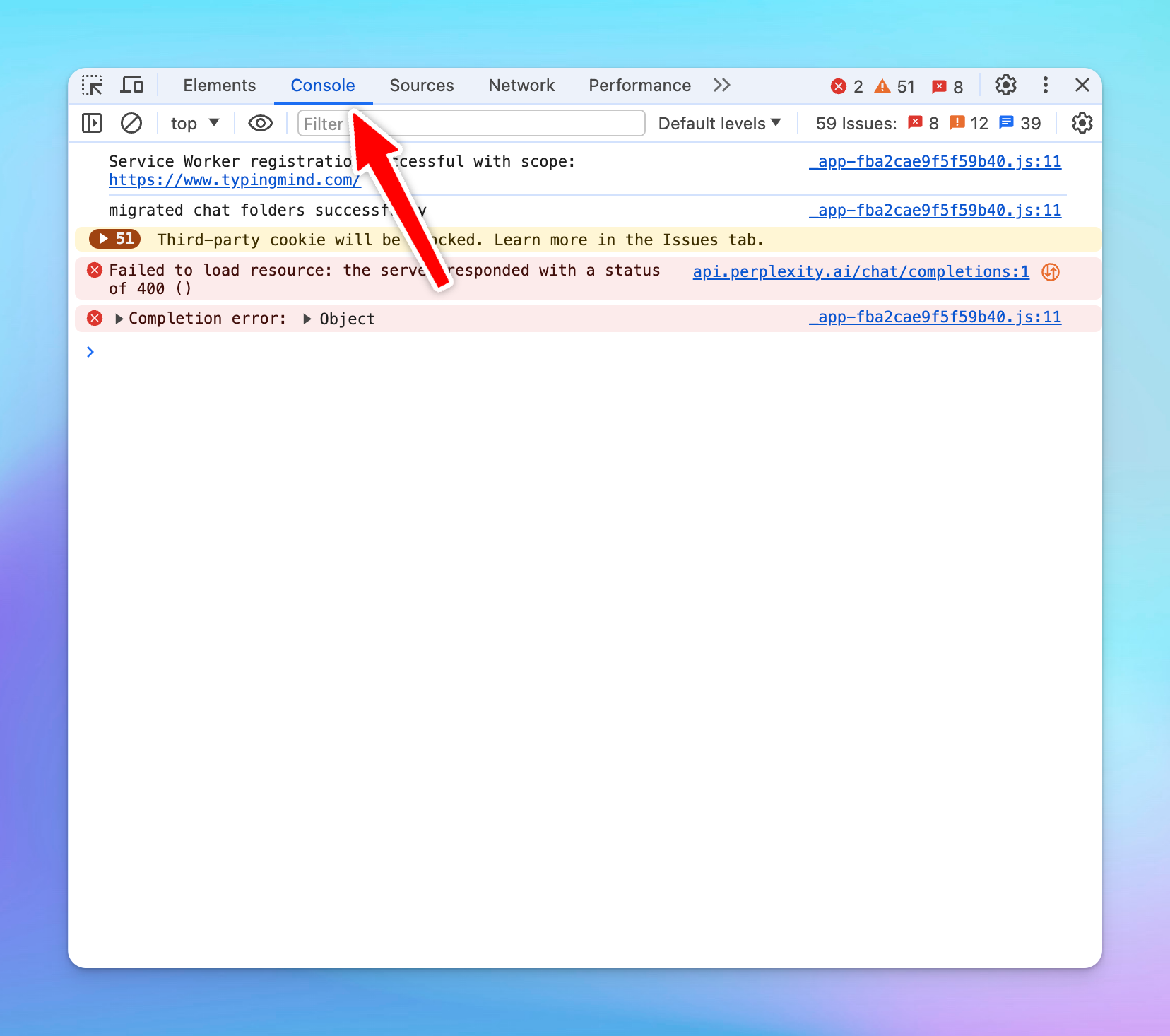
 3. **Select the Console Tab**: a Developer Tools panel will appear on the side or at the bottom of your screen. Click the **Console** tab.
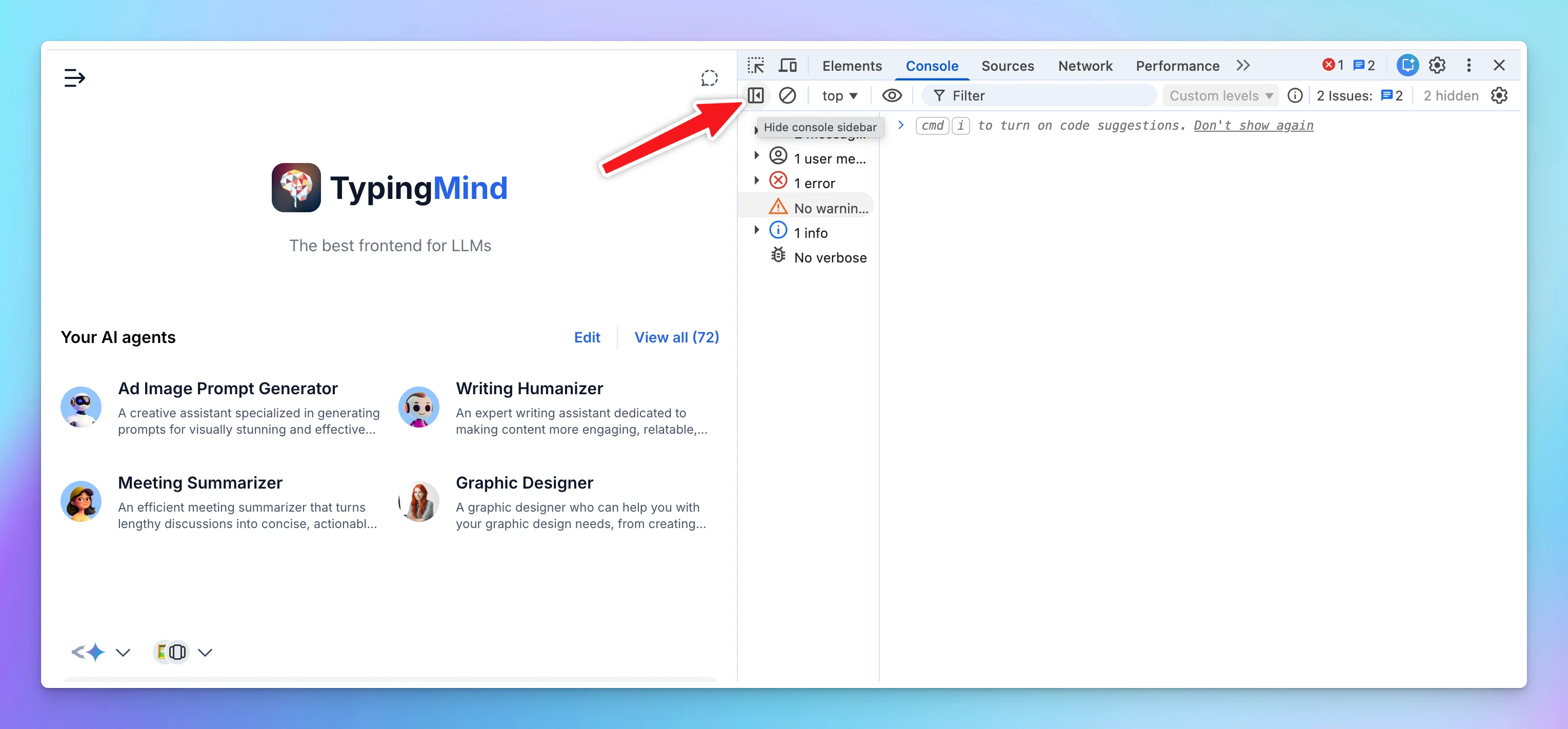
 **Note: Make sure all Console logs are visible -** If the Console sidebar is open on the left, click the **Console sidebar** icon in the top-left corner to close it.
 4. Right-click anywhere in the Console output area and select **Save as...** to save the logs to your computer.
5. Send to [**support@typingmind.com**](mailto:support@typingmind.com)
## On SetApp
Here are steps to get Console log info if you are using the app through MacApp or SetApp:
1. Open TypingMind app
4. Right-click anywhere in the Console output area and select **Save as...** to save the logs to your computer.
5. Send to [**support@typingmind.com**](mailto:support@typingmind.com)
## On SetApp
Here are steps to get Console log info if you are using the app through MacApp or SetApp:
1. Open TypingMind app
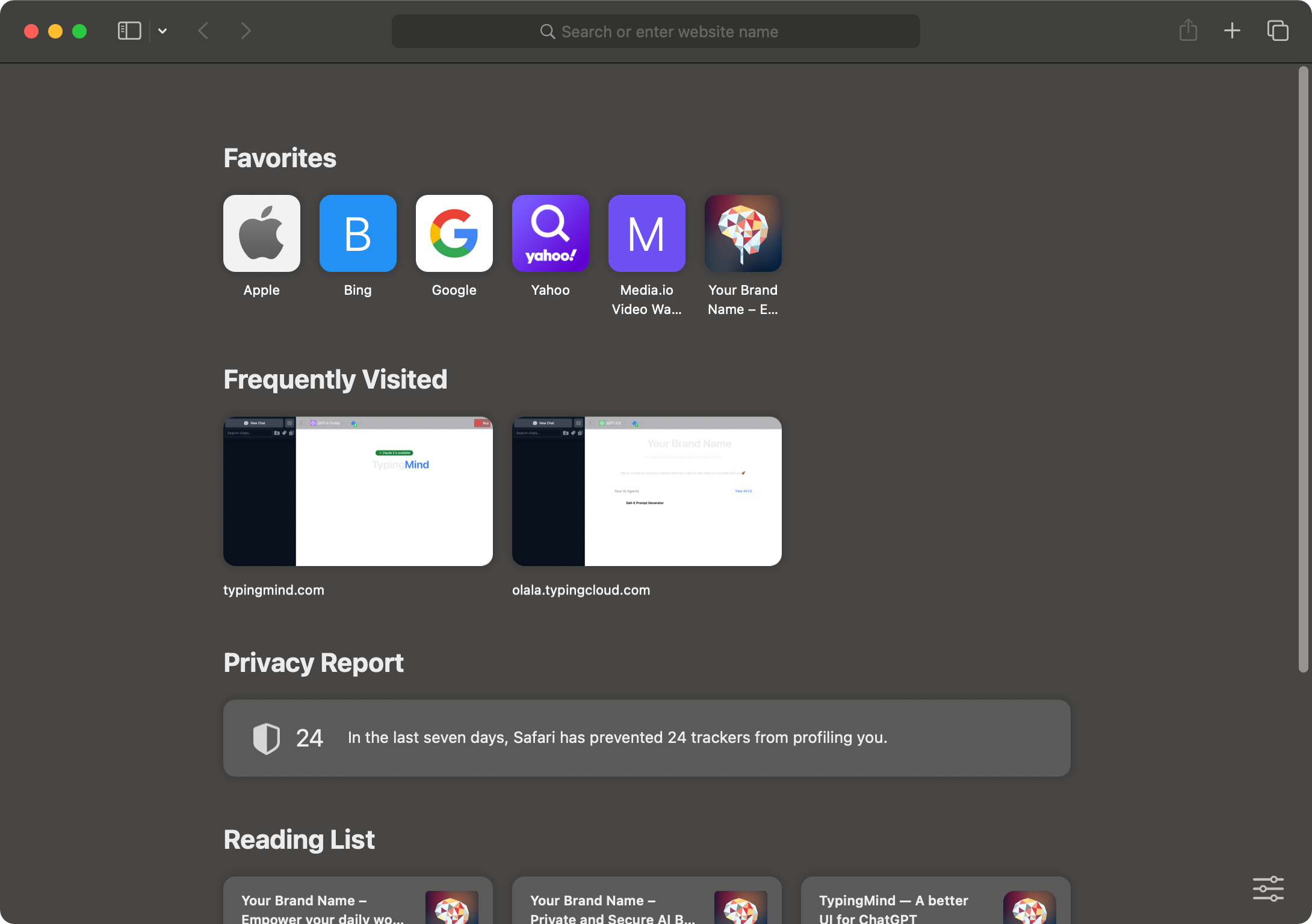
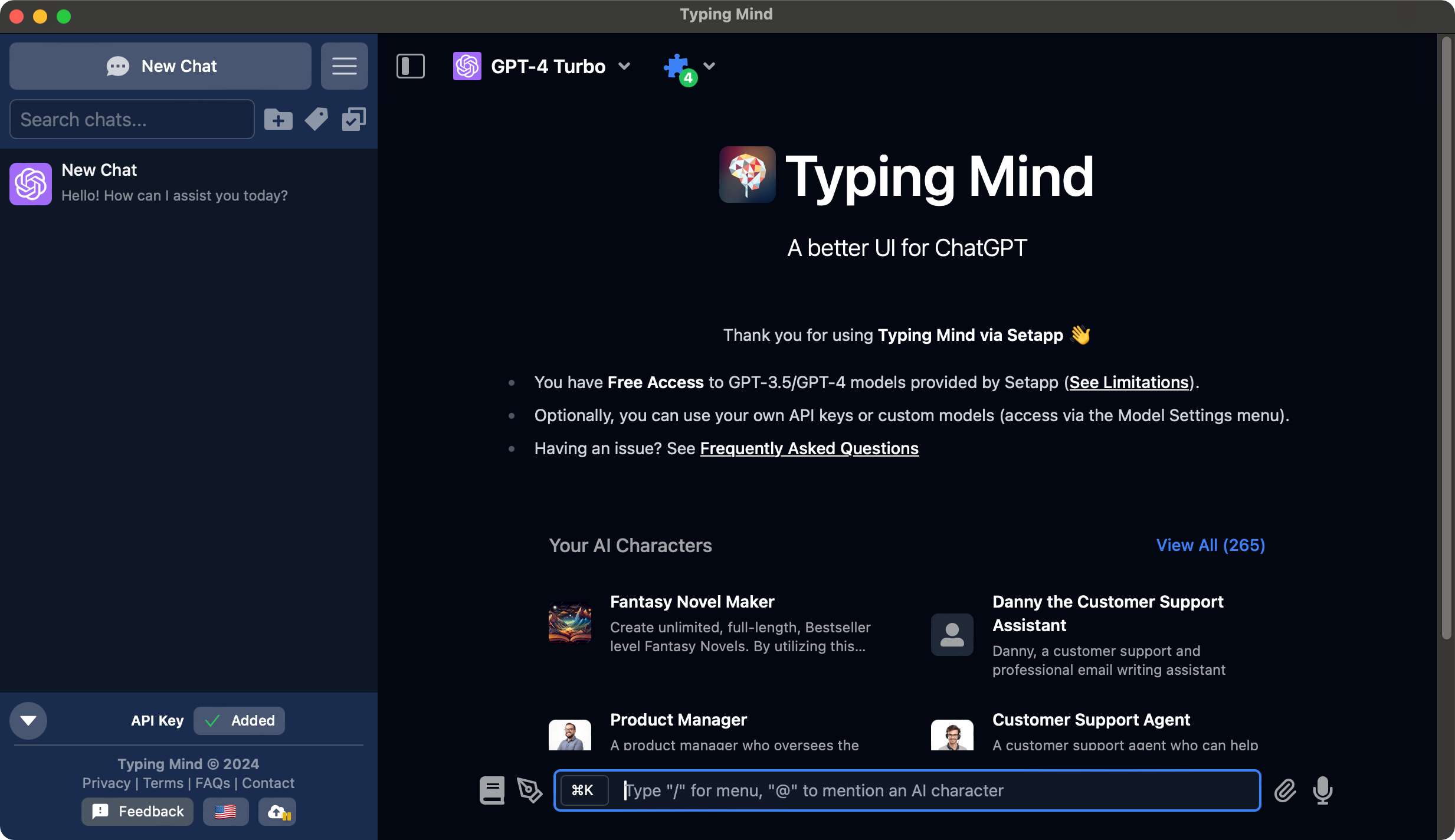 2. Open Safari (it must be Safari, you can not use other browsers like Chrome)
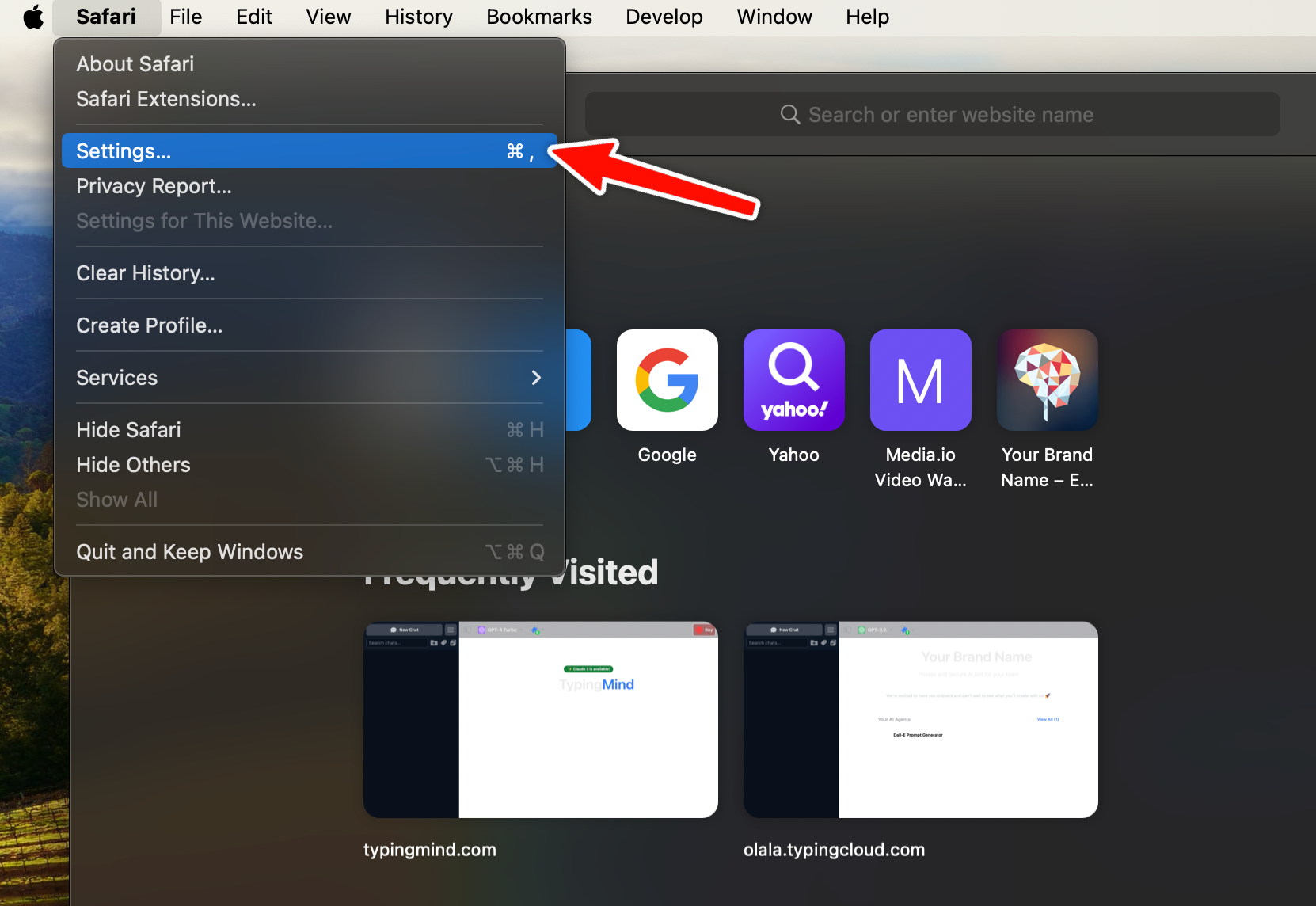
 3. Click **Safari** on the status bar and choose **Settings** to open the Safari Setting panel
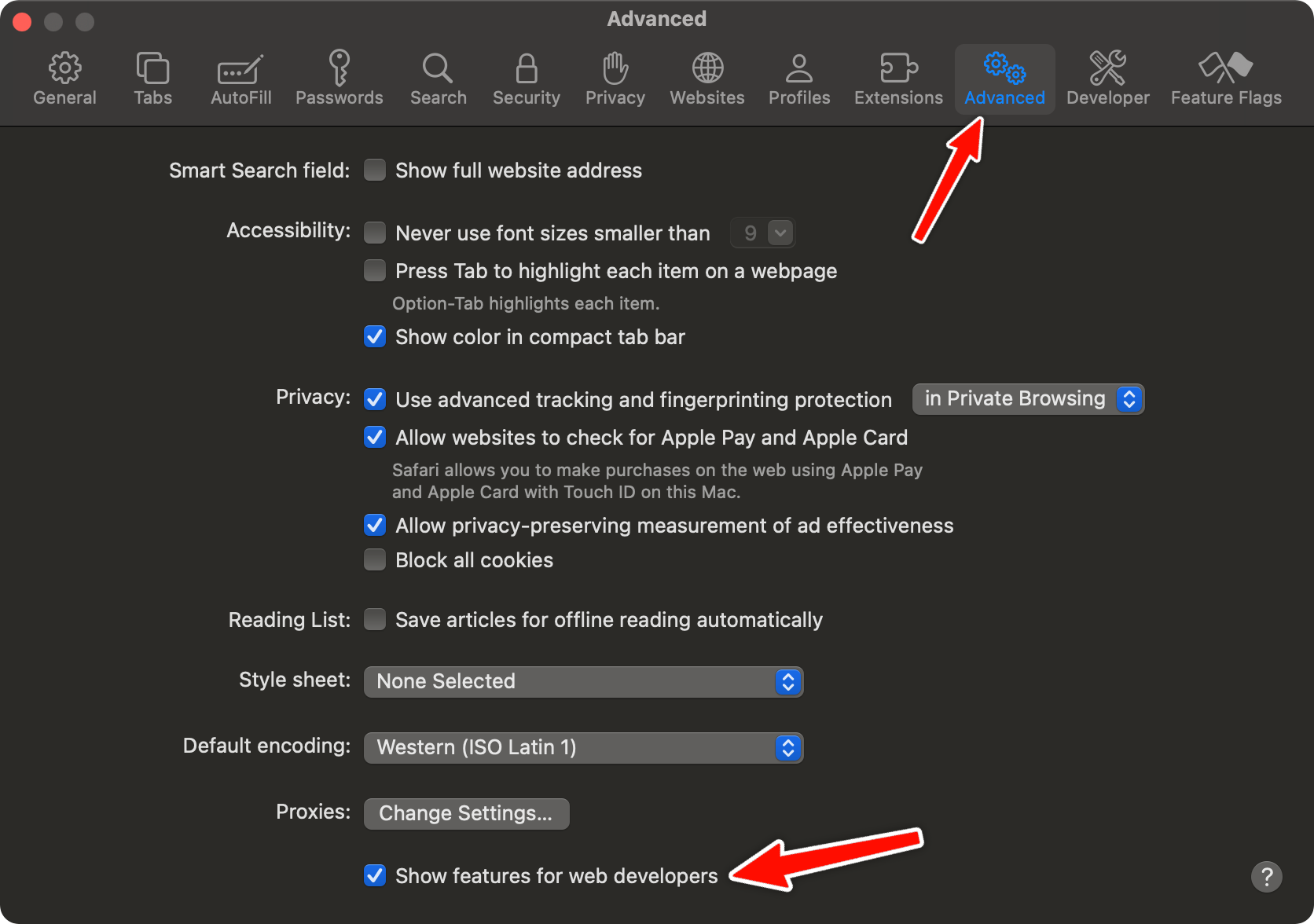
 4. Switch to **Advanced** tab and tick on the checkbox “**Show features for web developers**”. This allows you to access the Develop tab within Safari (*Skip this step if you already have the Develop tab on the status bar*)
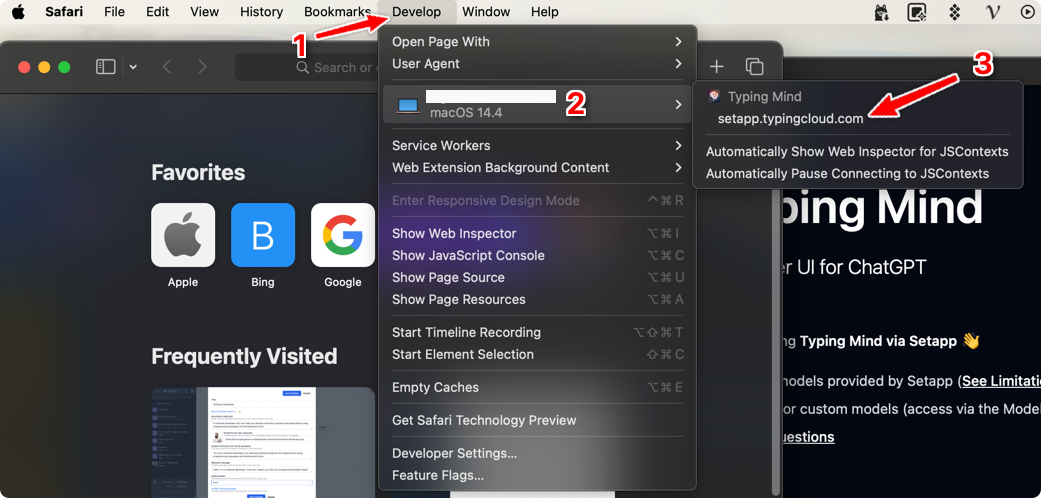
 5. Click on **Develop** > **Select your Macbook** > click on [**setapp.typingcloud.com**](http://setapp.typingcloud.com)\*\* i\*\*f you are using SetApp or click on [\*\*typingmind.com](http://typingmind.com)\*\* if you are using TypingMind Mac App
 6. **The Web Inspector will appear, switch to Console Tab**
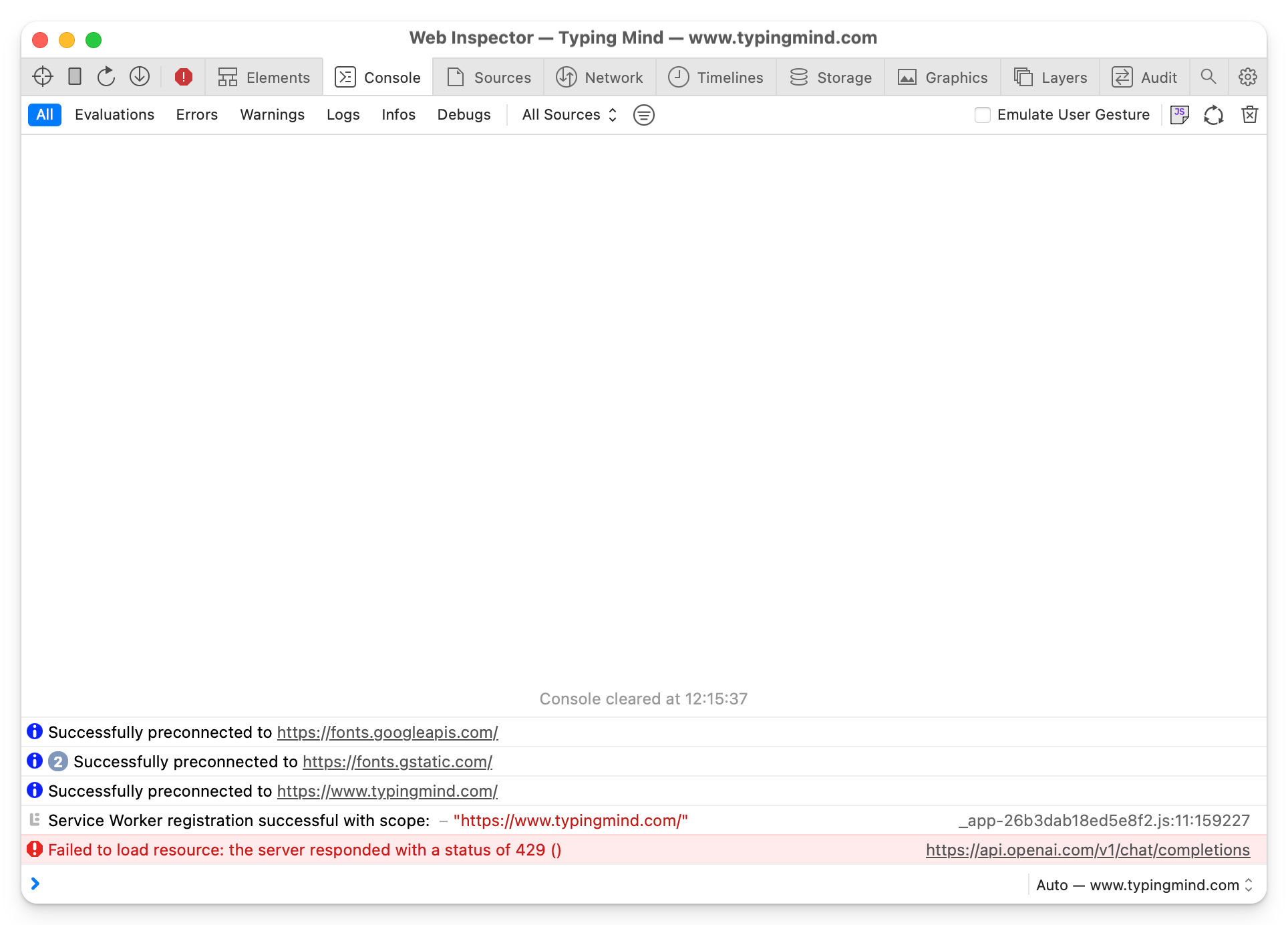 7. **Cmd + R** to refresh the TypingMind Macapp
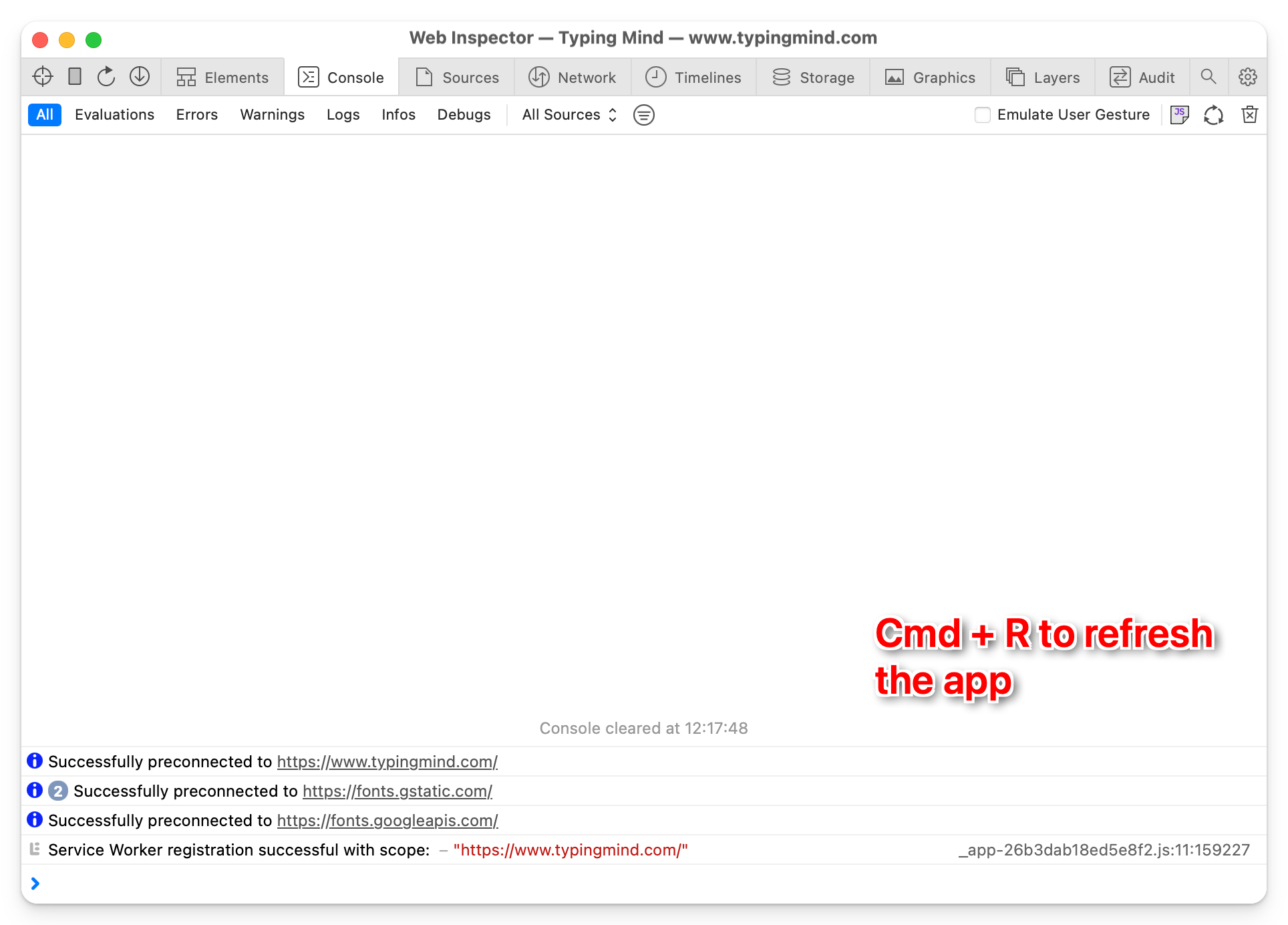 8. Back to the app and reproduce the issue on your app. Then go to the Web Inspector → Right-click anywhere in the console output area and select **"Save as..."** from the context menu.
9. Send it to [**support@typingmind.com**](mailto:support@typingmind.com)
8. Back to the app and reproduce the issue on your app. Then go to the Web Inspector → Right-click anywhere in the console output area and select **"Save as..."** from the context menu.
9. Send it to [**support@typingmind.com**](mailto:support@typingmind.com)