> ## Documentation Index
> Fetch the complete documentation index at: https://docs.typingmind.com/llms.txt
> Use this file to discover all available pages before exploring further.
# Connect to LlamaIndex
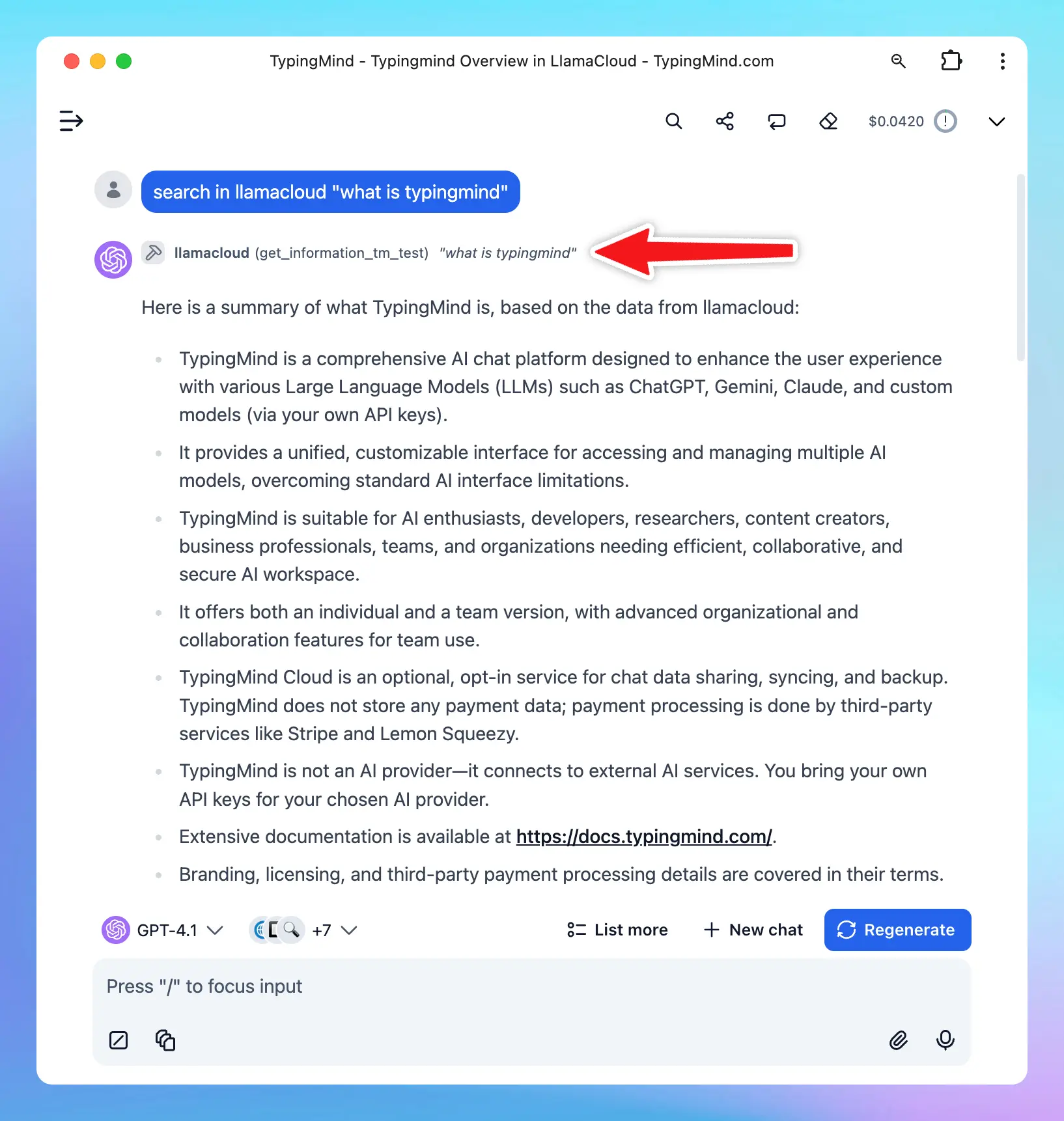
You can connect your **LlamaIndex data sources** to **TypingMind** to look up and query information directly from your own data. This integration uses **MCP (Model Context Protocol)** to act as a bridge between TypingMind and LlamaIndex.
## What is LlamaIndex?
[LlamaIndex](https://www.llamaindex.ai/?utm_source=chatgpt.com) is a data framework that lets you connect AI models to your private or organizational data. By creating an **index**, you can structure and retrieve information from multiple data sources such as documents, databases, or APIs.
When connected to TypingMind, you can ask questions and run deep research across your own indexed data.
 ## How to set up LlamaIndex on TypingMind
You can connect LlamaIndex on TypingMind using MCP server.
### Step 1: Create an Index in LlamaIndex
1. **Sign up** for a [LlamaIndex account](https://www.llamaindex.ai/signup) (if you don’t already have one).
2. Go to **Index** and create a new index.
## How to set up LlamaIndex on TypingMind
You can connect LlamaIndex on TypingMind using MCP server.
### Step 1: Create an Index in LlamaIndex
1. **Sign up** for a [LlamaIndex account](https://www.llamaindex.ai/signup) (if you don’t already have one).
2. Go to **Index** and create a new index.
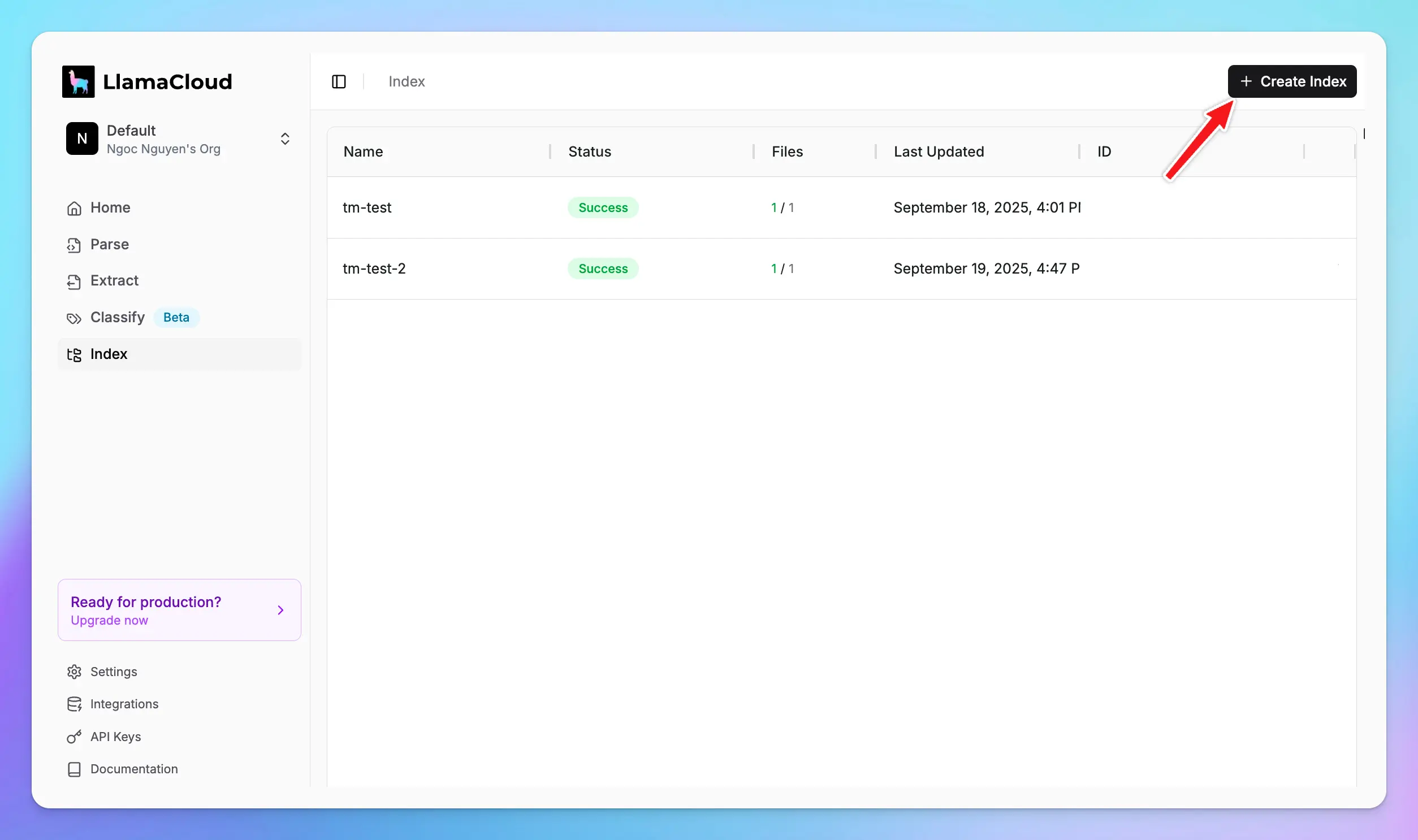 1. Connect your index to your data sources (e.g., Google Drive, Notion, databases, and more)
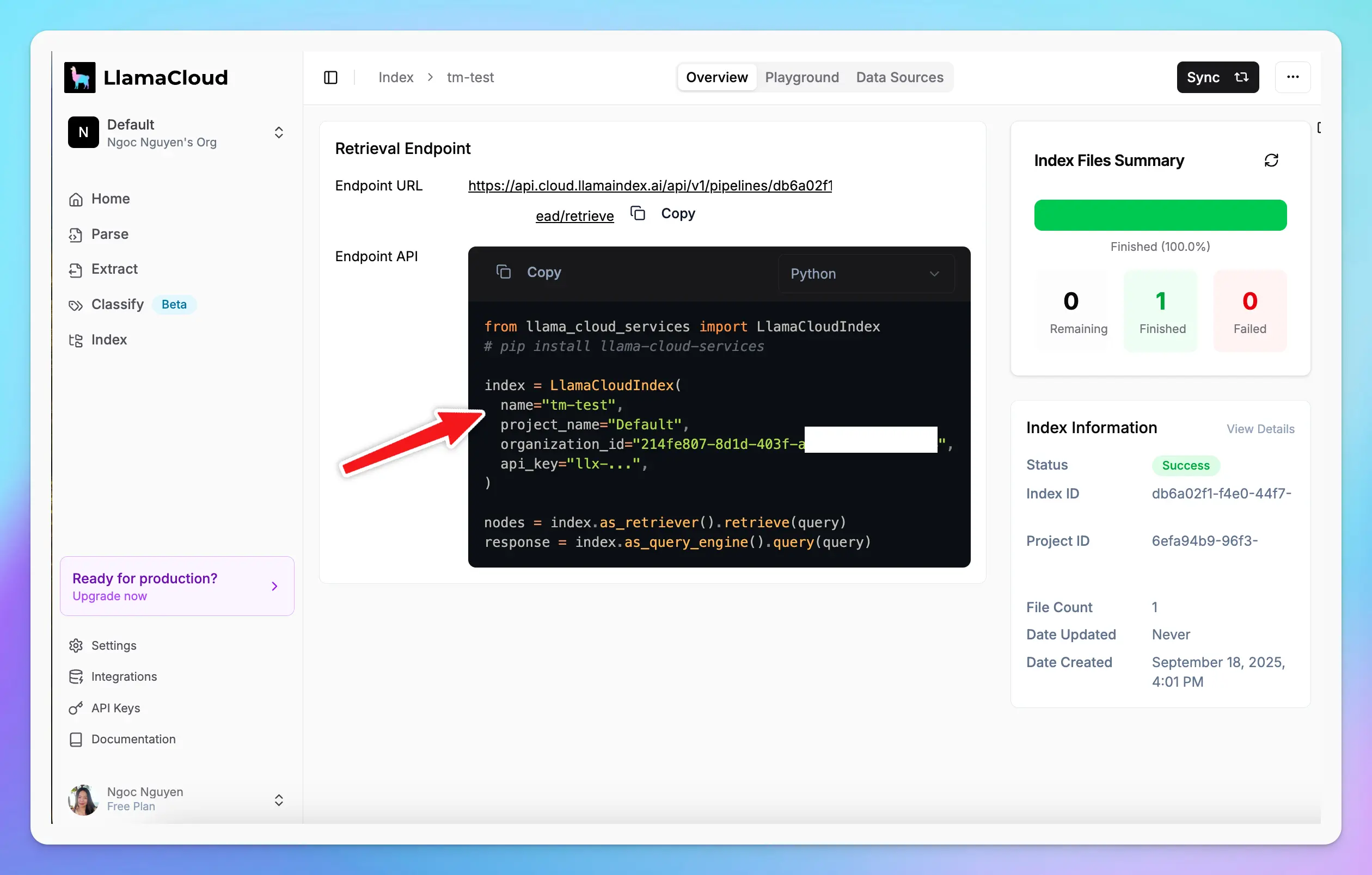
2. Once created, note down your:
* **Index name**
* **Project name**
* **Organization ID**
👉 If you already have an index, click into it to review its details and data source connections.
1. Connect your index to your data sources (e.g., Google Drive, Notion, databases, and more)
2. Once created, note down your:
* **Index name**
* **Project name**
* **Organization ID**
👉 If you already have an index, click into it to review its details and data source connections.
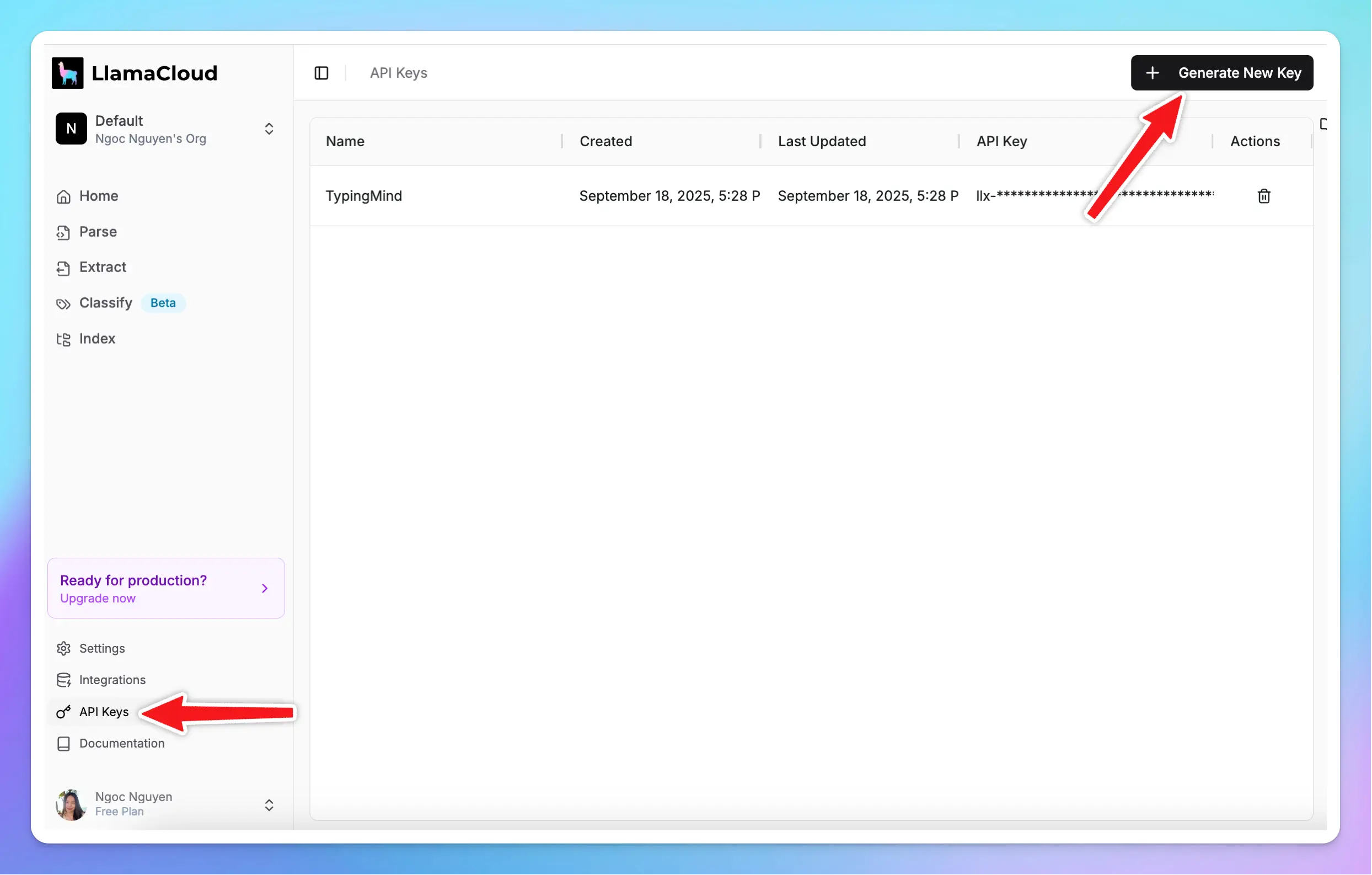
 ### Step 2: Get your LlamaIndex API Key
* Go to API Keys
* Generate New Key
### Step 2: Get your LlamaIndex API Key
* Go to API Keys
* Generate New Key
 ### Step 3: Set up MCP Connectors on TypingMind
In TypingMind, go to Settings → Advanced Settings → Model Context Protocol to start setup your MCP connector. The MCP Connector acts as the bridge between TypingMind and the MCP servers.
MCP servers require a server to run on. TypingMind allows you to connect to the MCP servers via:
* Your own local device
* Or a private remote server.
### Step 3: Set up MCP Connectors on TypingMind
In TypingMind, go to Settings → Advanced Settings → Model Context Protocol to start setup your MCP connector. The MCP Connector acts as the bridge between TypingMind and the MCP servers.
MCP servers require a server to run on. TypingMind allows you to connect to the MCP servers via:
* Your own local device
* Or a private remote server.
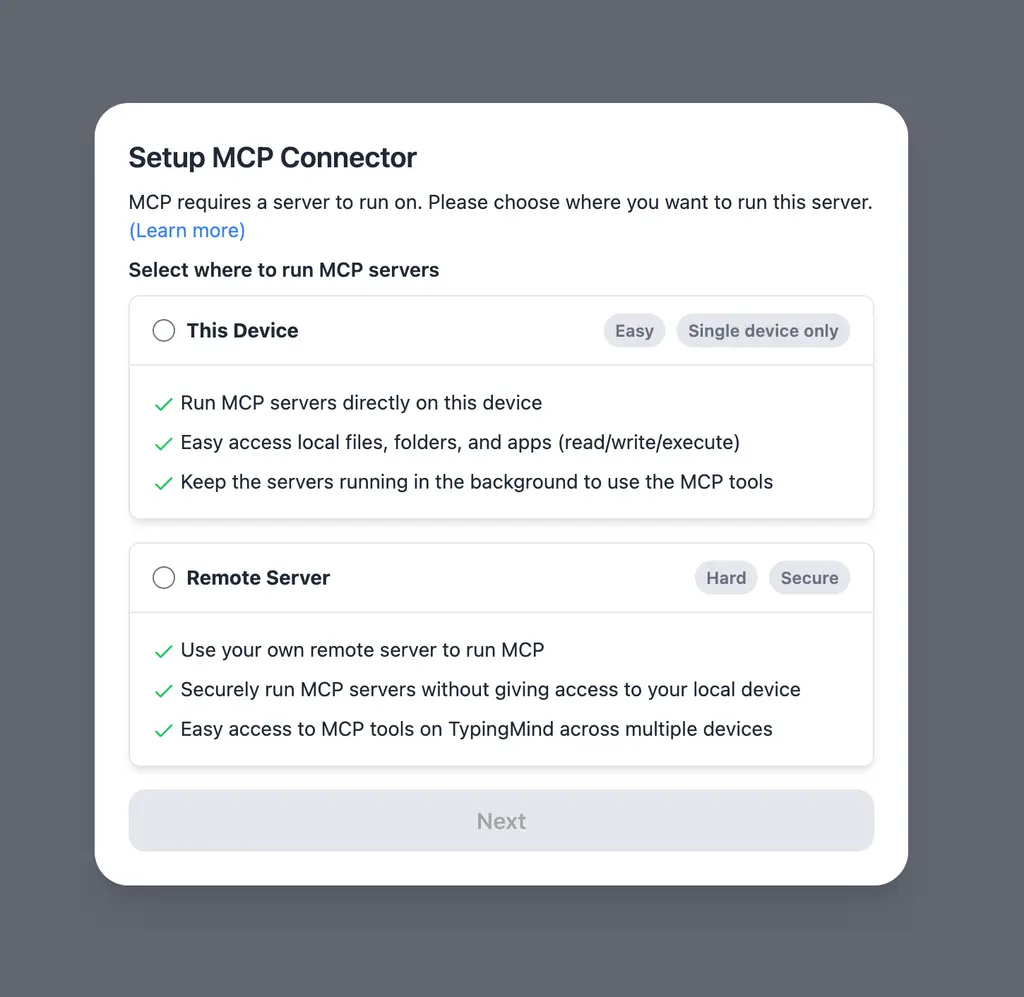 If you choose to run the MCP servers on your device, run the command displayed on the screen.
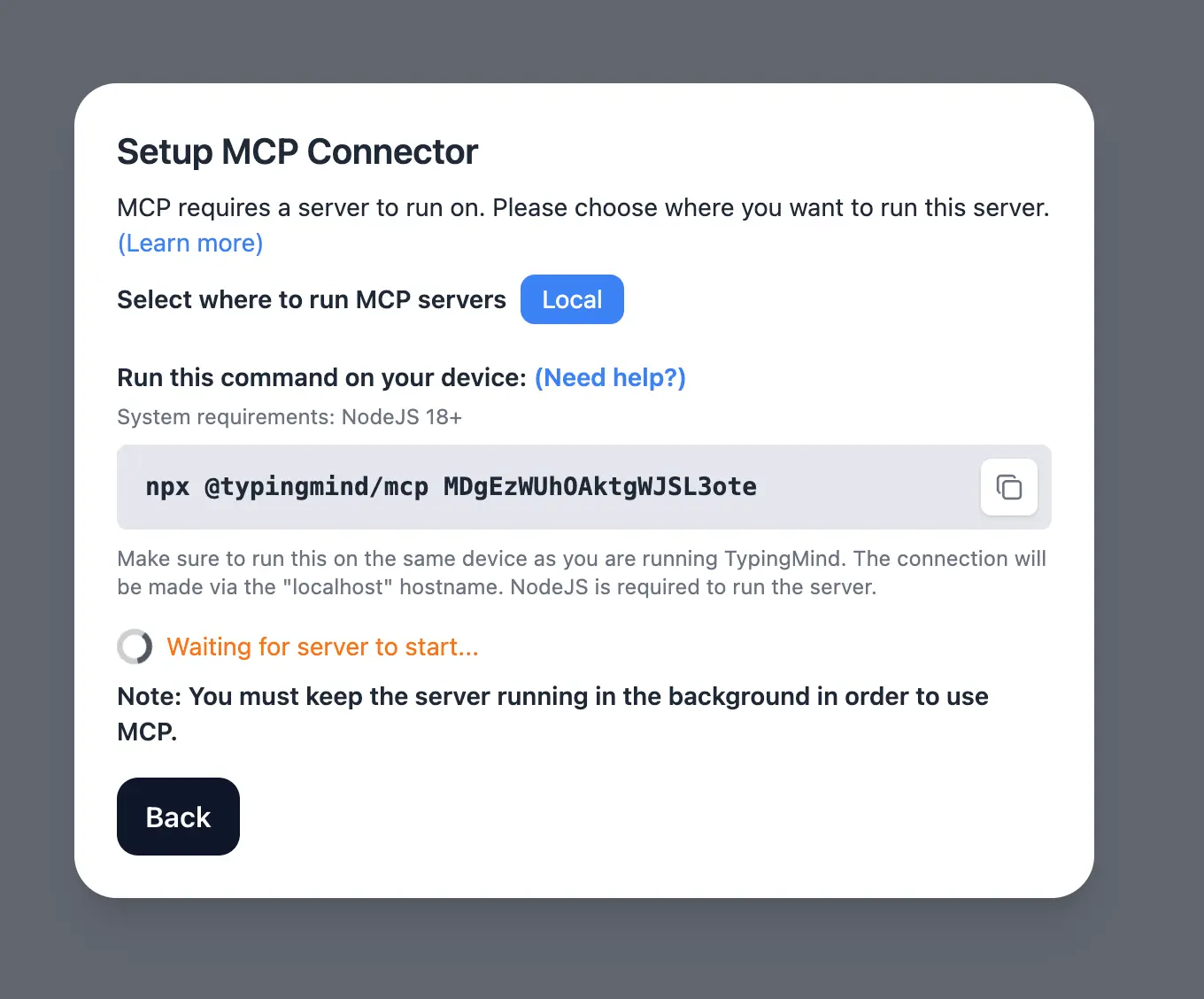 Detail setup can be found at [https://docs.typingmind.com/model-context-protocol-in-typingmind](https://docs.typingmind.com/model-context-protocol-in-typingmind)
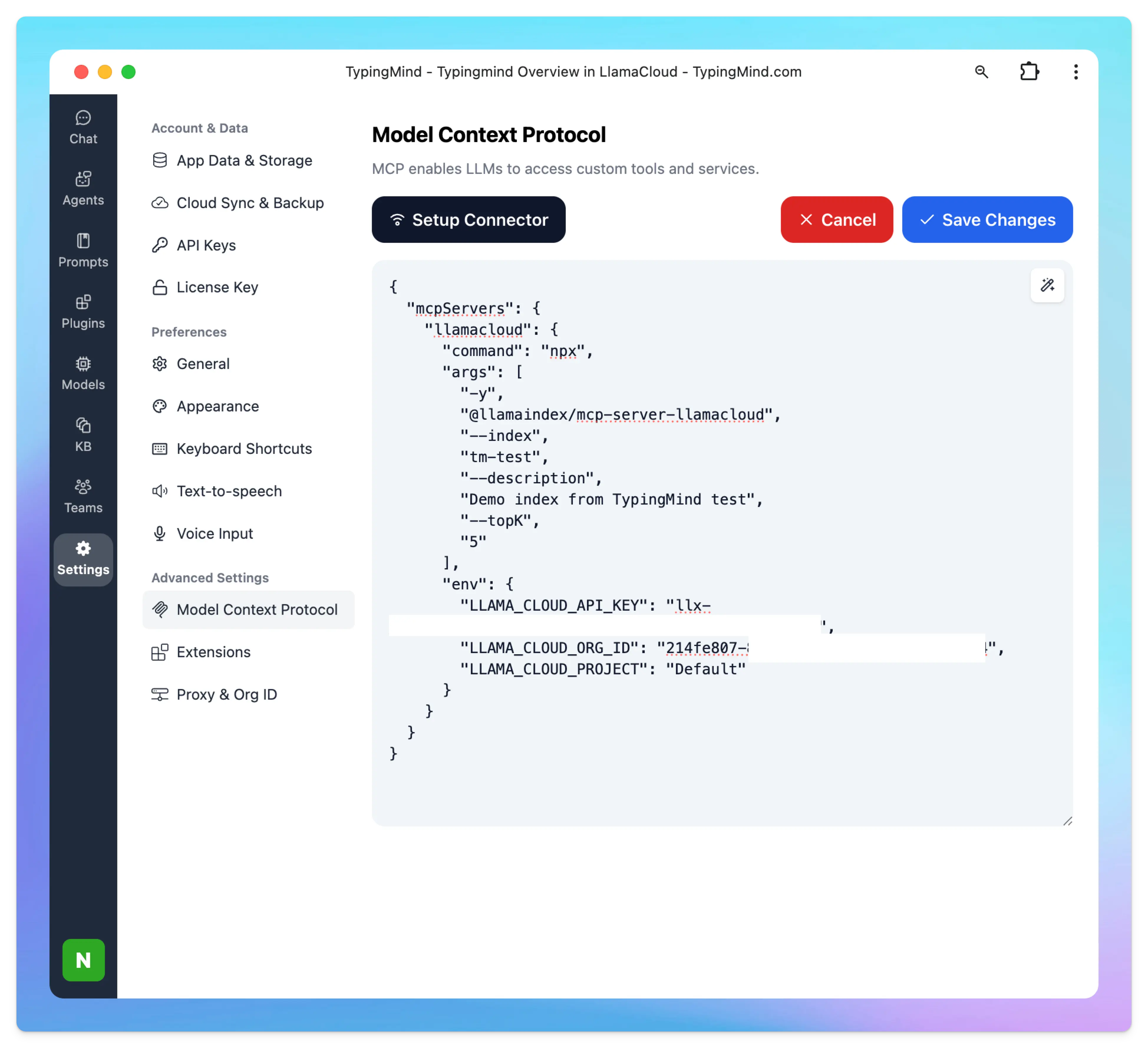
### Step 4: Configure LlamaCloud MCP on TypingMind
Add the following JSON configuration under **MCP Servers** in TypingMind settings:
```json theme={null}
{
"mcpServers": {
"llamacloud": {
"command": "npx",
"args": [
"-y",
"@llamaindex/mcp-server-llamacloud",
"--index",
"",
"--description",
"",
"--topK",
"5",
"--index",
"",
"--description",
""
],
"env": {
"LLAMA_CLOUD_API_KEY": "",
"LLAMA_CLOUD_ORG_ID": "",
"LLAMA_CLOUD_PROJECT": ""
}
}
}
}
```
* Replace `` and `` with your actual index details in step 1.
* You can add multiple indexes by repeating the `-index` and `-description` arguments.
* Replace `` with your **Llama Cloud API key** in step 2.
* You can also optionally specify `--topK` to limit the number of results.
* The `LLAMA_CLOUD_PROJECT_NAME` environment variable is optional and defaults to `Default` if not set.
Detail setup can be found at [https://docs.typingmind.com/model-context-protocol-in-typingmind](https://docs.typingmind.com/model-context-protocol-in-typingmind)
### Step 4: Configure LlamaCloud MCP on TypingMind
Add the following JSON configuration under **MCP Servers** in TypingMind settings:
```json theme={null}
{
"mcpServers": {
"llamacloud": {
"command": "npx",
"args": [
"-y",
"@llamaindex/mcp-server-llamacloud",
"--index",
"",
"--description",
"",
"--topK",
"5",
"--index",
"",
"--description",
""
],
"env": {
"LLAMA_CLOUD_API_KEY": "",
"LLAMA_CLOUD_ORG_ID": "",
"LLAMA_CLOUD_PROJECT": ""
}
}
}
}
```
* Replace `` and `` with your actual index details in step 1.
* You can add multiple indexes by repeating the `-index` and `-description` arguments.
* Replace `` with your **Llama Cloud API key** in step 2.
* You can also optionally specify `--topK` to limit the number of results.
* The `LLAMA_CLOUD_PROJECT_NAME` environment variable is optional and defaults to `Default` if not set.
 More information about [LlamaCloud MCP](https://github.com/run-llama/mcp-server-llamacloud)
### Step 5: Enable and Use LlamaIndex in TypingMind
After saving your MCP configuration:
1. **Enable LlamaCloud** plugin in TypingMind.
2. Start asking questions and running research directly on your indexed data.
More information about [LlamaCloud MCP](https://github.com/run-llama/mcp-server-llamacloud)
### Step 5: Enable and Use LlamaIndex in TypingMind
After saving your MCP configuration:
1. **Enable LlamaCloud** plugin in TypingMind.
2. Start asking questions and running research directly on your indexed data.