> ## Documentation Index
> Fetch the complete documentation index at: https://docs.typingmind.com/llms.txt
> Use this file to discover all available pages before exploring further.
# Prompt Library
TypingMind app allows you to build your own prompt collection so you can make use of them anytime.
* You can choose to add prompts from TypingMind’s built-in prompts
* Or create your own prompts
A prompt refers to a conversation starter or a task you provide to the model to guide its conversation
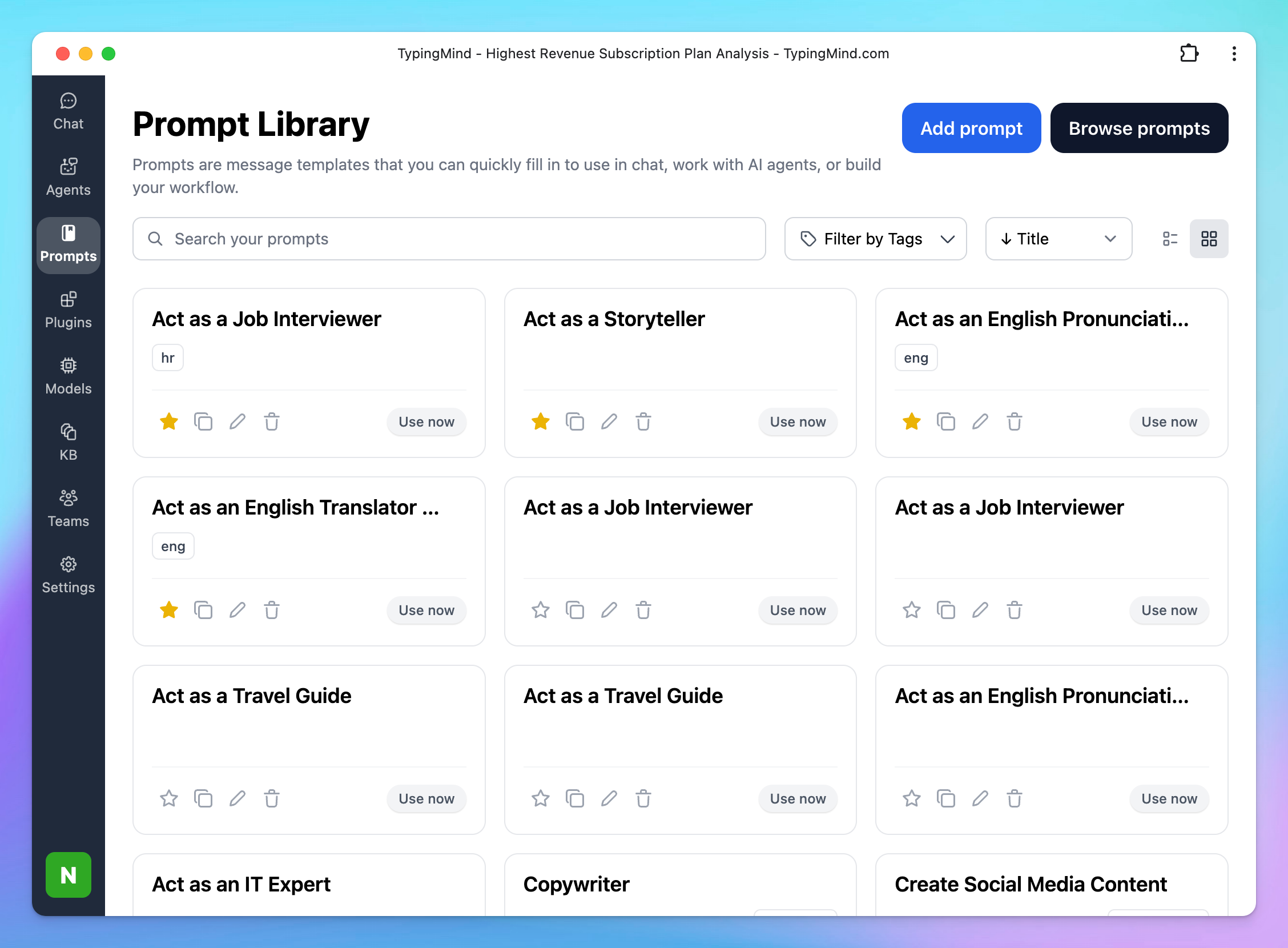 ## Choose from Built-in Prompts
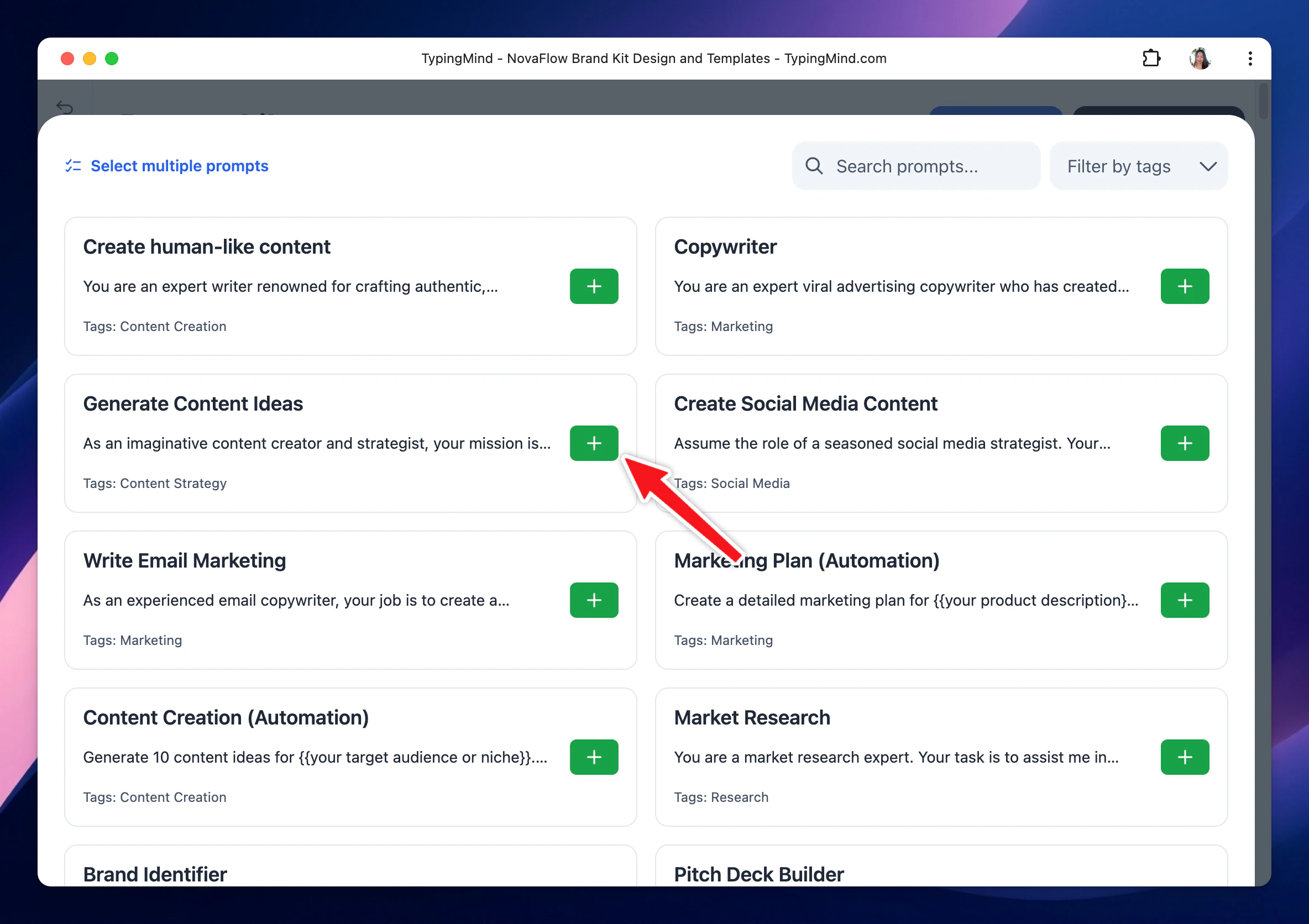
TypingMind offers more than 160 pre-built prompts. Here’s how to add them to your library:
* Click “**Prompt Library**” in the left workspace bar
* Click on “**Browse prompts**”
* **“Add”** prompts that you find most useful to your personal prompt list.
## Choose from Built-in Prompts
TypingMind offers more than 160 pre-built prompts. Here’s how to add them to your library:
* Click “**Prompt Library**” in the left workspace bar
* Click on “**Browse prompts**”
* **“Add”** prompts that you find most useful to your personal prompt list.
 ## Create Your Own Prompts
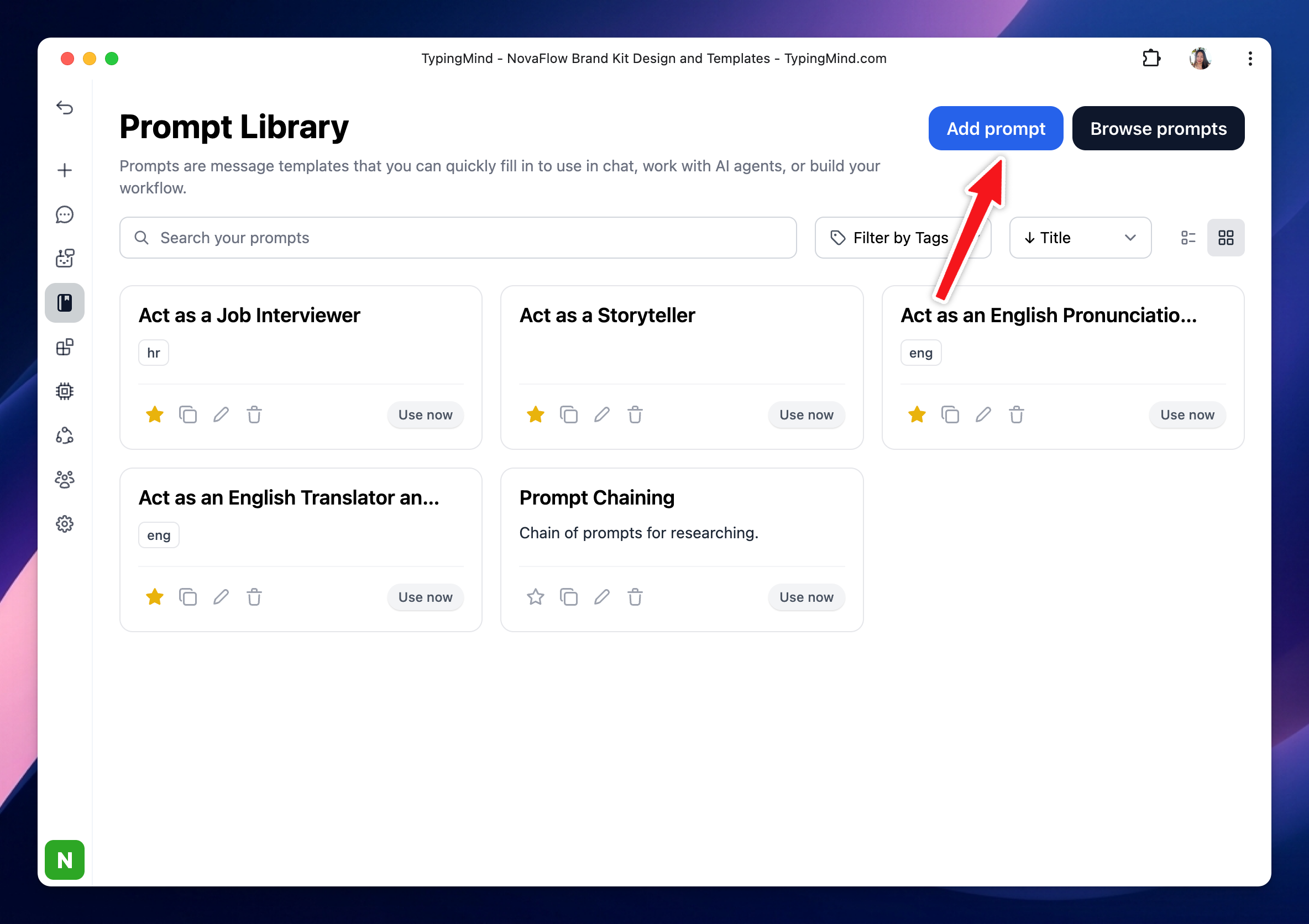
You can easily create your own prompt or save your commonly used prompts as follows:
* Open **Prompt Library** in the left workspace bar
* Click “**Add Prompt**” button
* Fill in the necessary details - your prompt title, description, actual prompt content, etc.
## Create Your Own Prompts
You can easily create your own prompt or save your commonly used prompts as follows:
* Open **Prompt Library** in the left workspace bar
* Click “**Add Prompt**” button
* Fill in the necessary details - your prompt title, description, actual prompt content, etc.
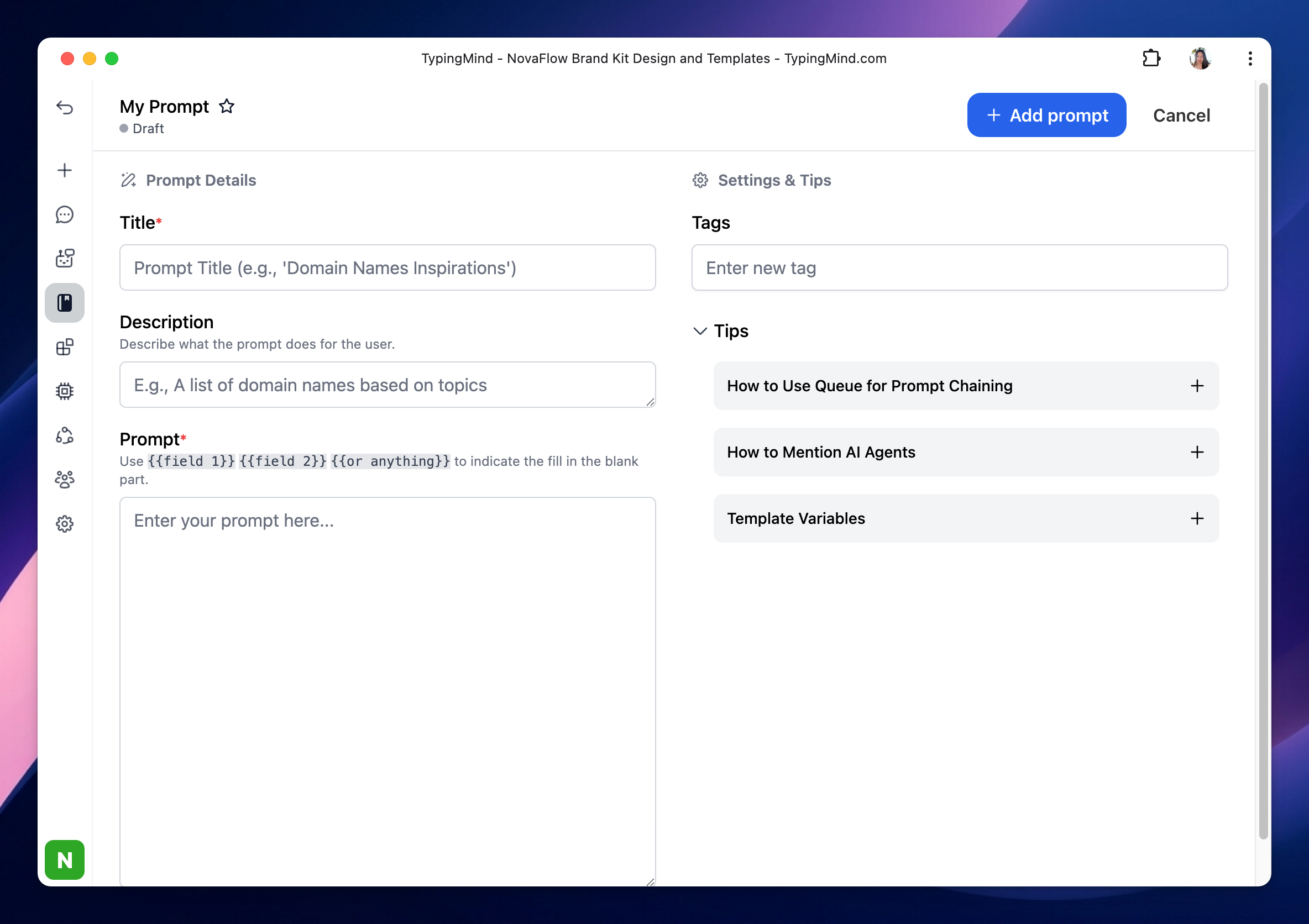 Create prompt template: Use `{{field 1}}` `{{field 1}}` `{{or anything}}` to indicate the fill in the blank part.
Tip: You can type / within the message area to quickly search your prompts or open your prompts library too.
Create prompt template: Use `{{field 1}}` `{{field 1}}` `{{or anything}}` to indicate the fill in the blank part.
Tip: You can type / within the message area to quickly search your prompts or open your prompts library too.