> ## Documentation Index
> Fetch the complete documentation index at: https://docs.typingmind.com/llms.txt
> Use this file to discover all available pages before exploring further.
# Web search & Image search (Deprecated)
To enable the Web Search feature on [TypingMind.com](http://TypingMind.com) with the Programmable Search Engine, you need to get the following info:
* Search Engine ID.
* Custom Search API Key.
Here is how to do it.
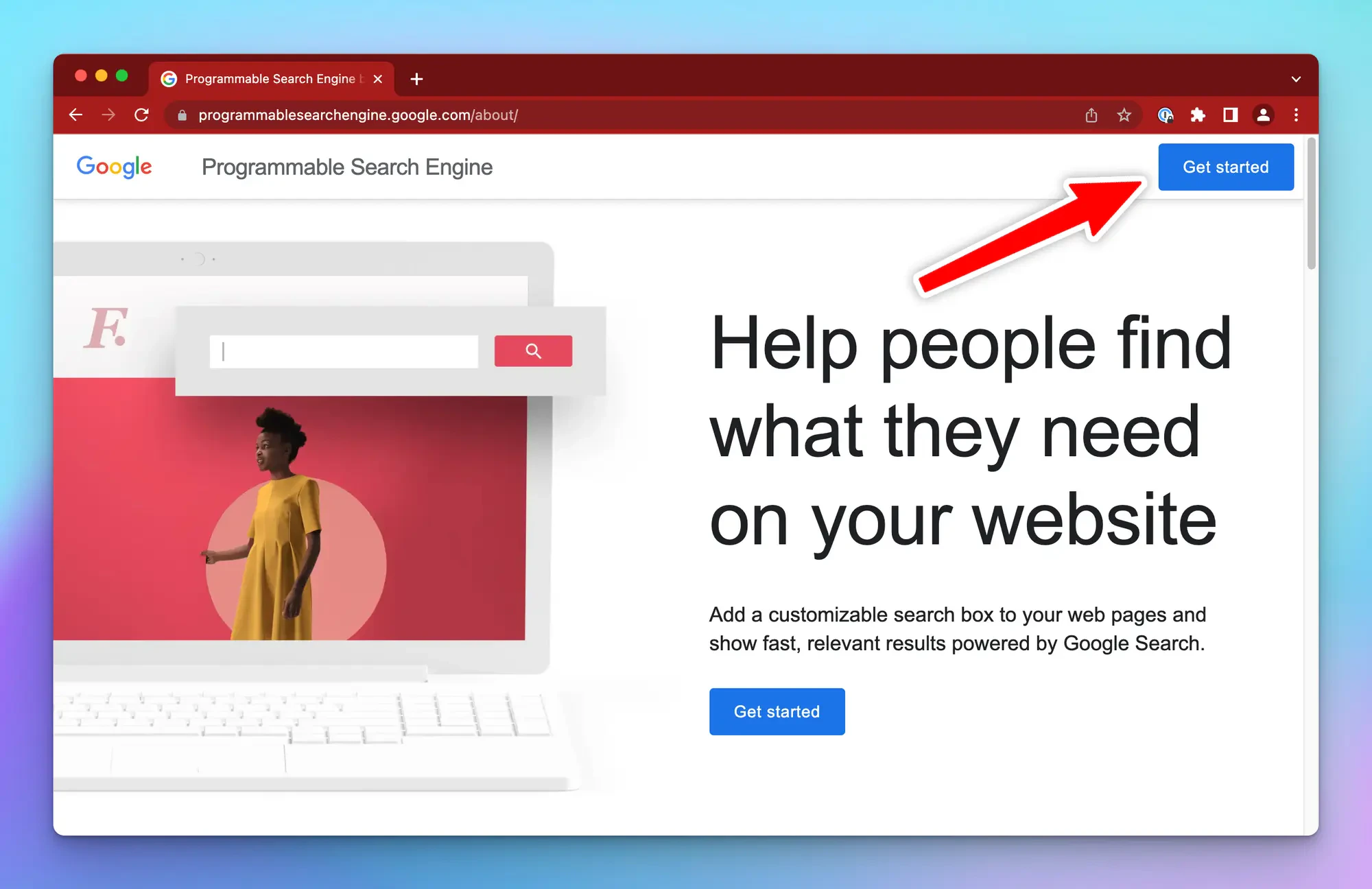
1. Go to [https://programmablesearchengine.google.com](https://programmablesearchengine.google.com/about/), click **Get Started.**
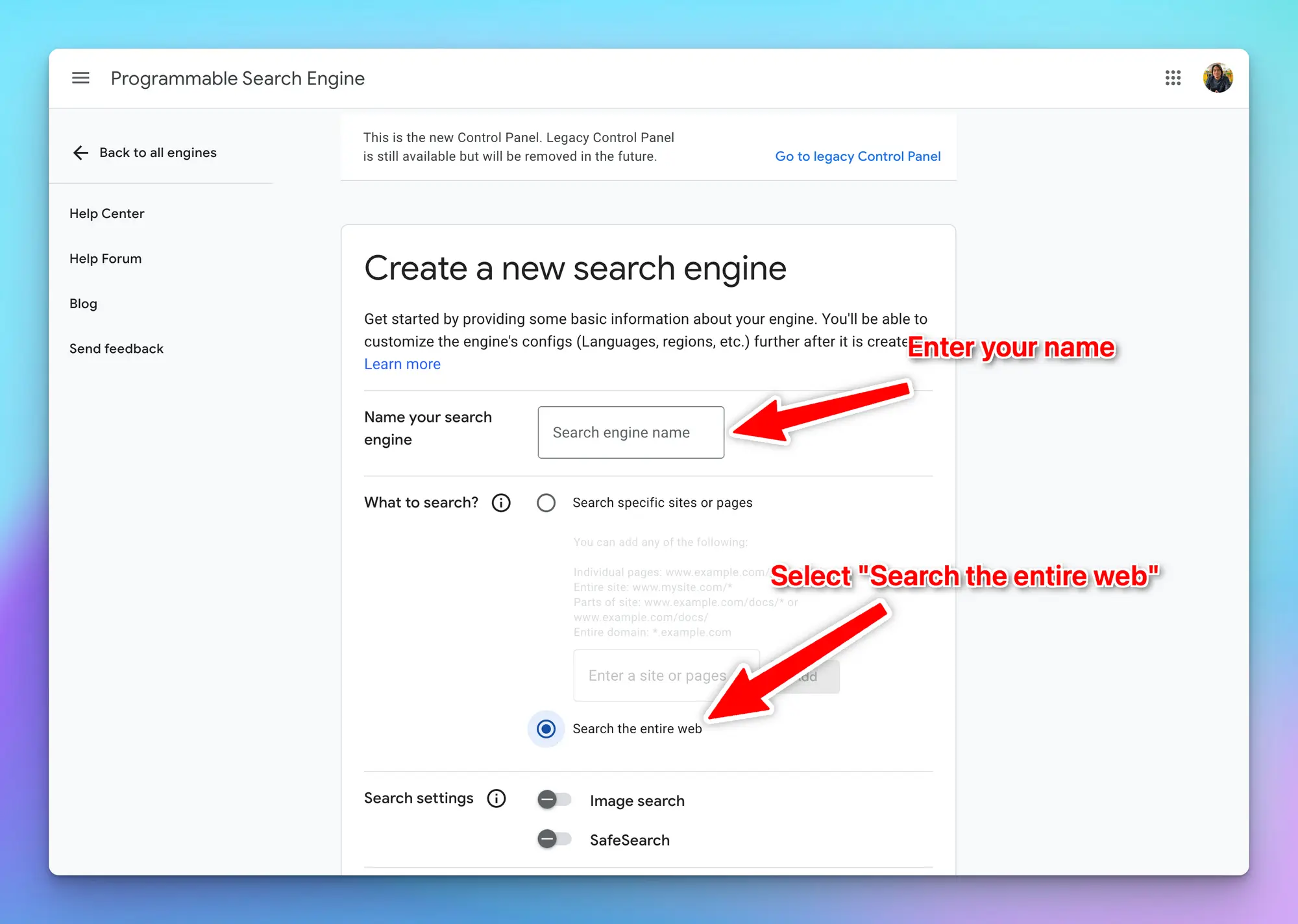
1. Create a new search engine and give it a name
In the **Want to search?** section, select **Search the Entire web**
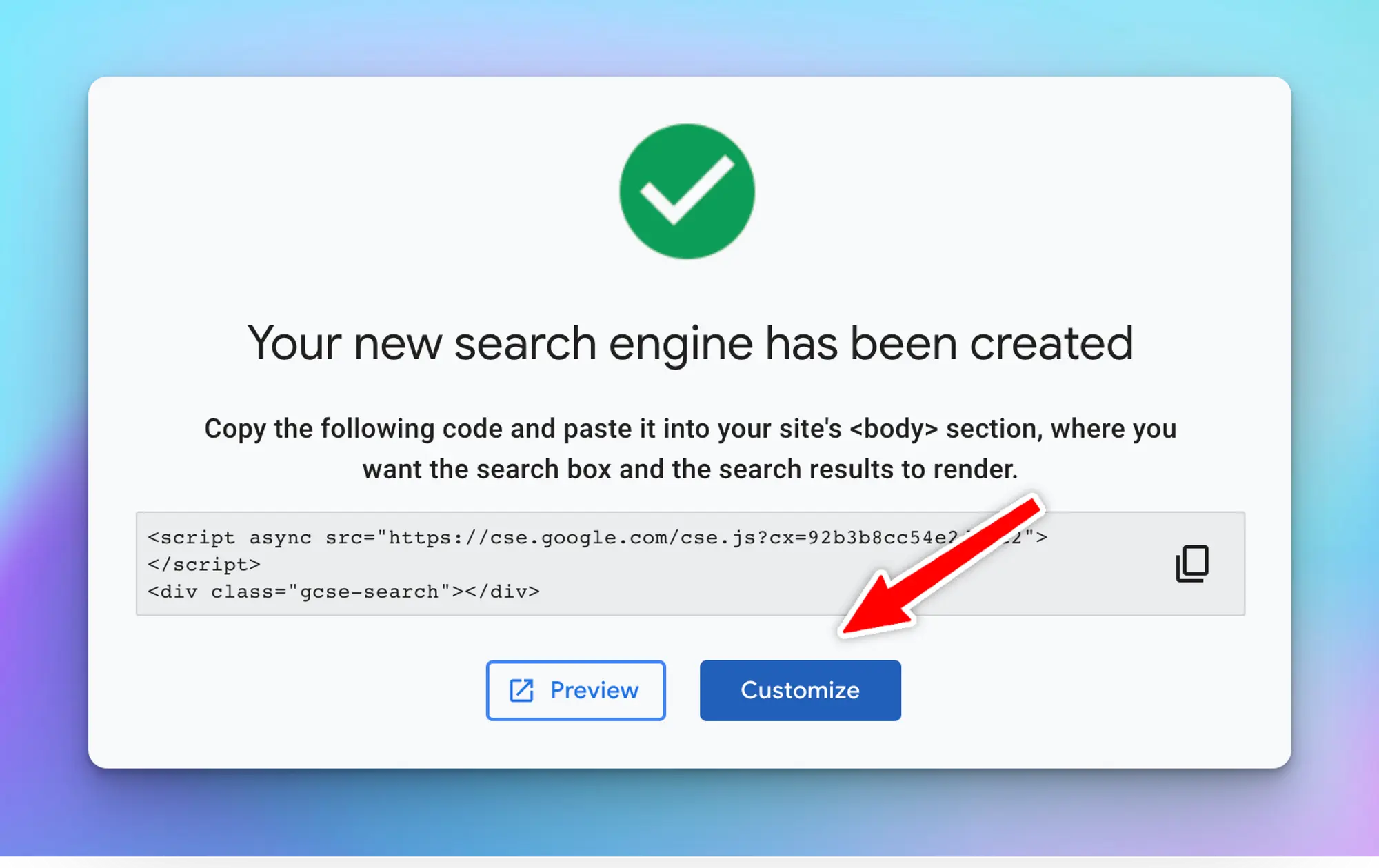
1. Once your new search engine is created, click **Customize**
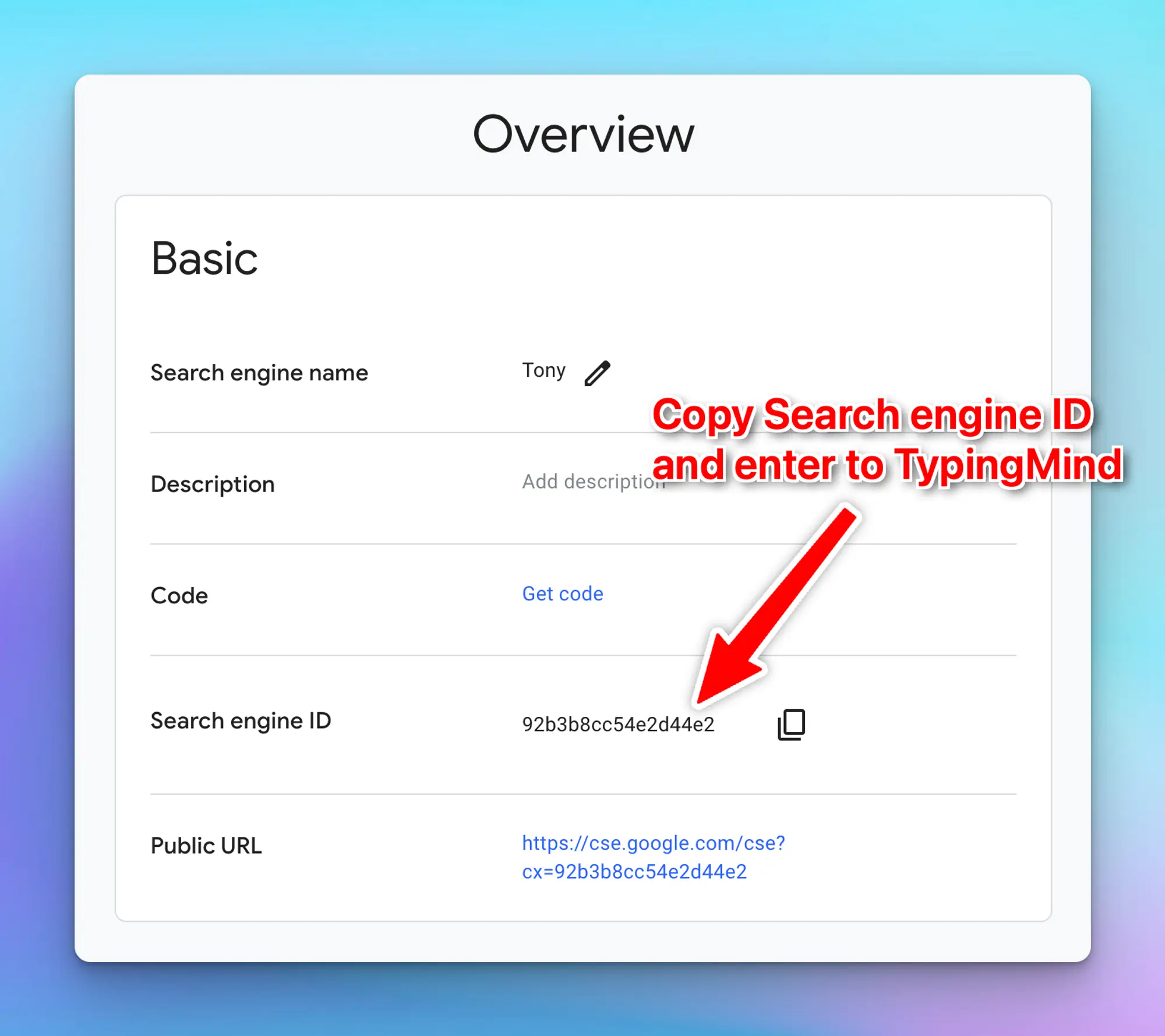
1. **Copy the search engine ID** and save it into a safe place for later use on TypingMind
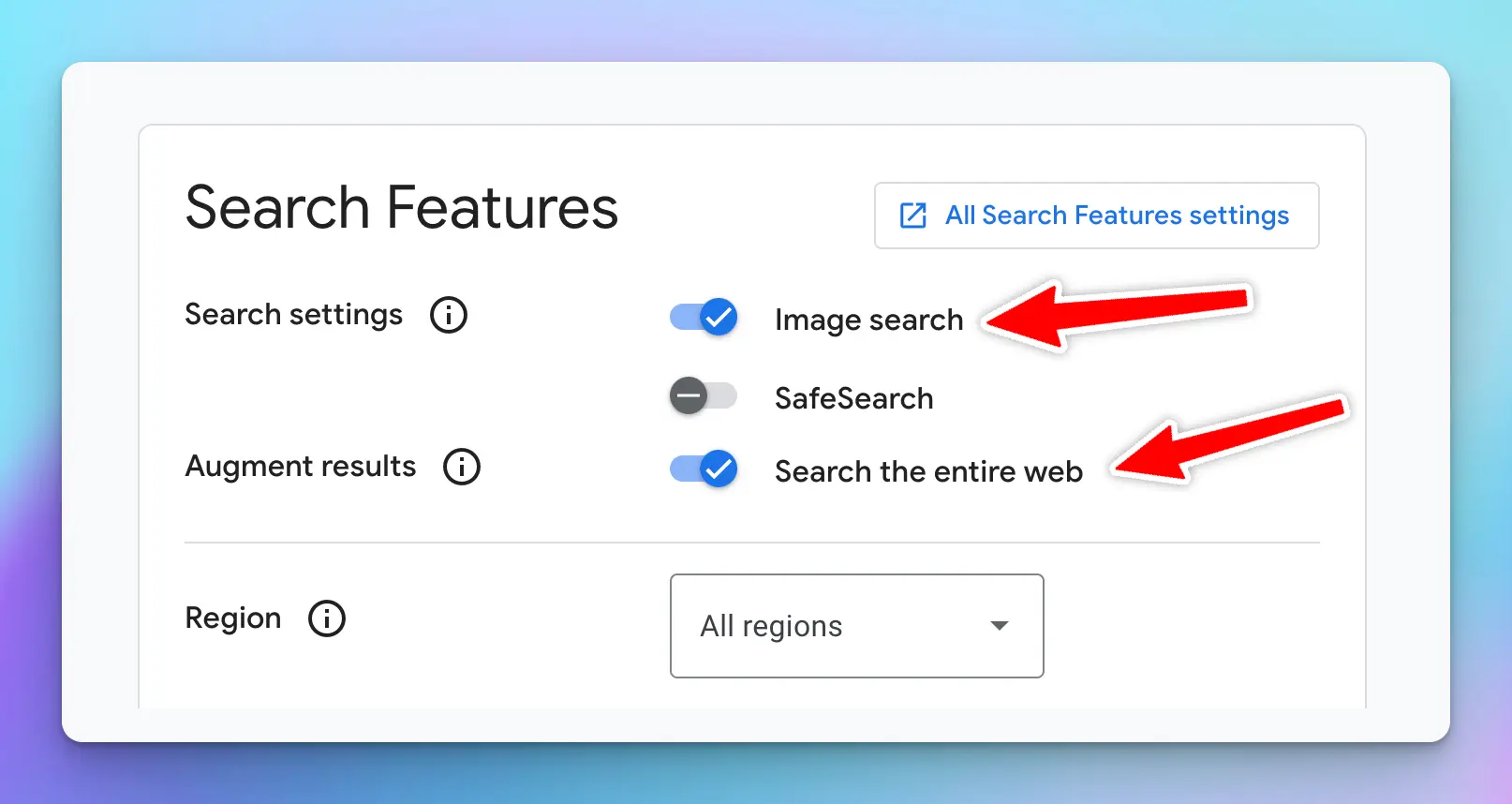
1. Scroll down, under the **Search features** section, enable **both Image Search and Web Search.**
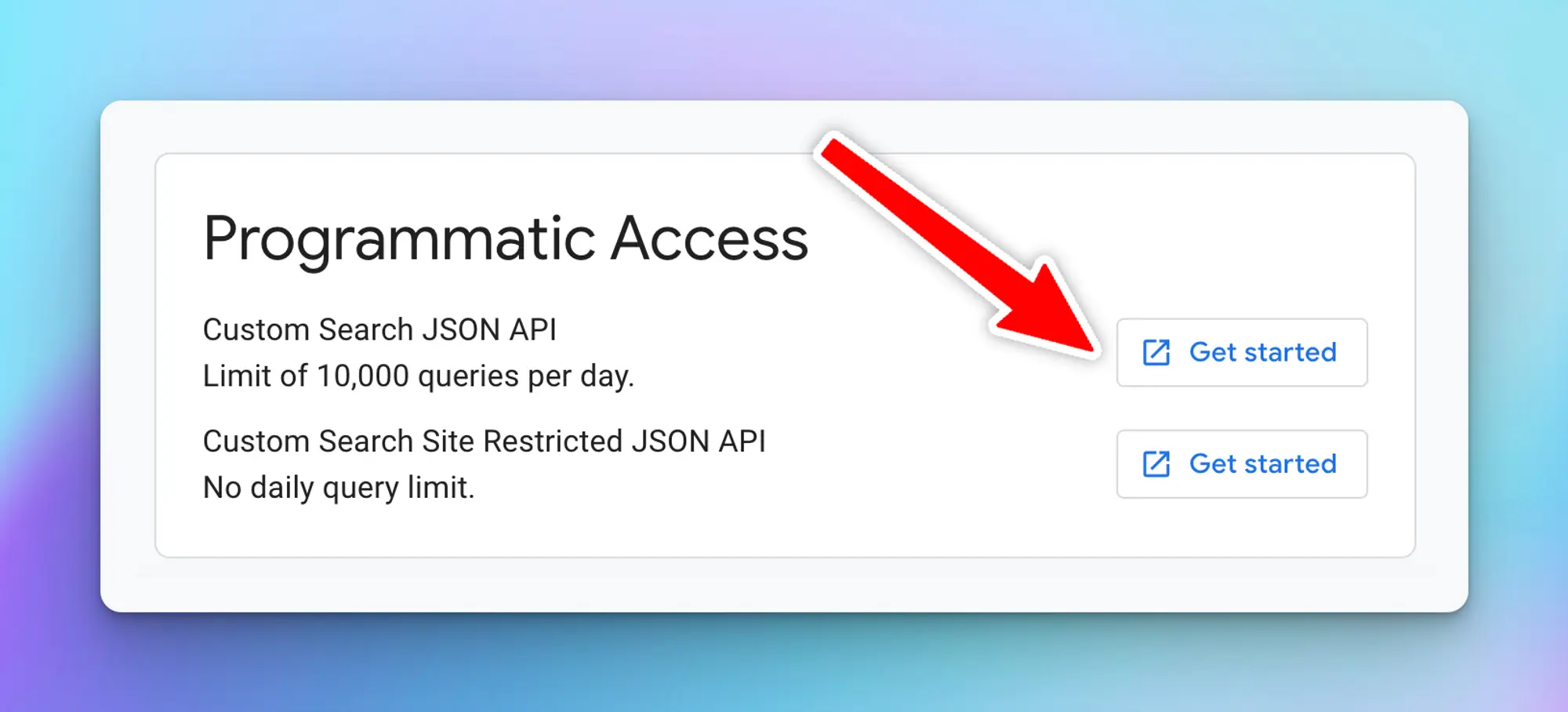
1. Scroll down to “**Programmatic Access**” and click “**Get started**”
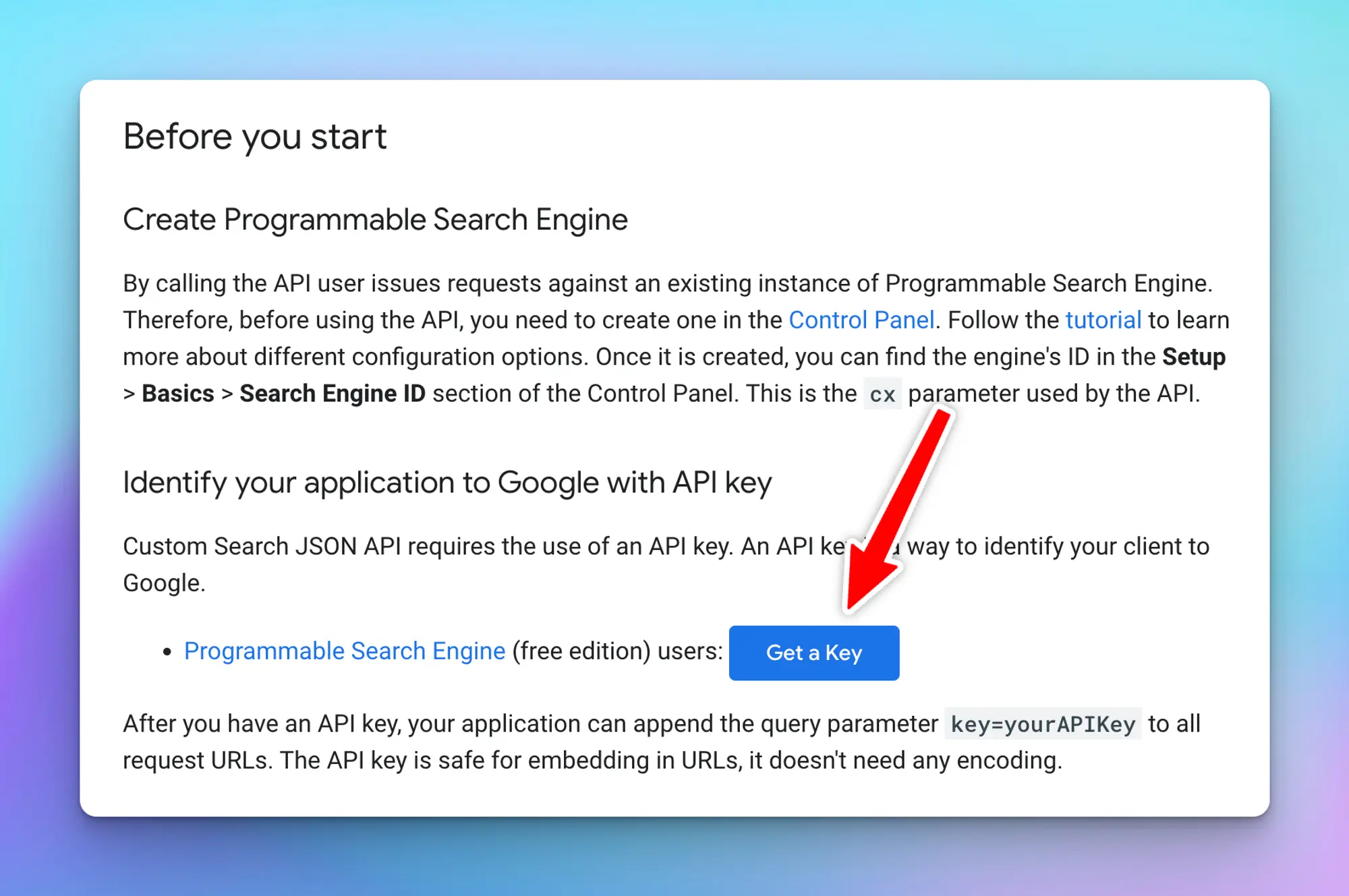
1. Click “**Get a Key**” to get your search API key
1. **Create a new project**
1. Click **Next**, an API key will be generated, copy and also save into a safe place.
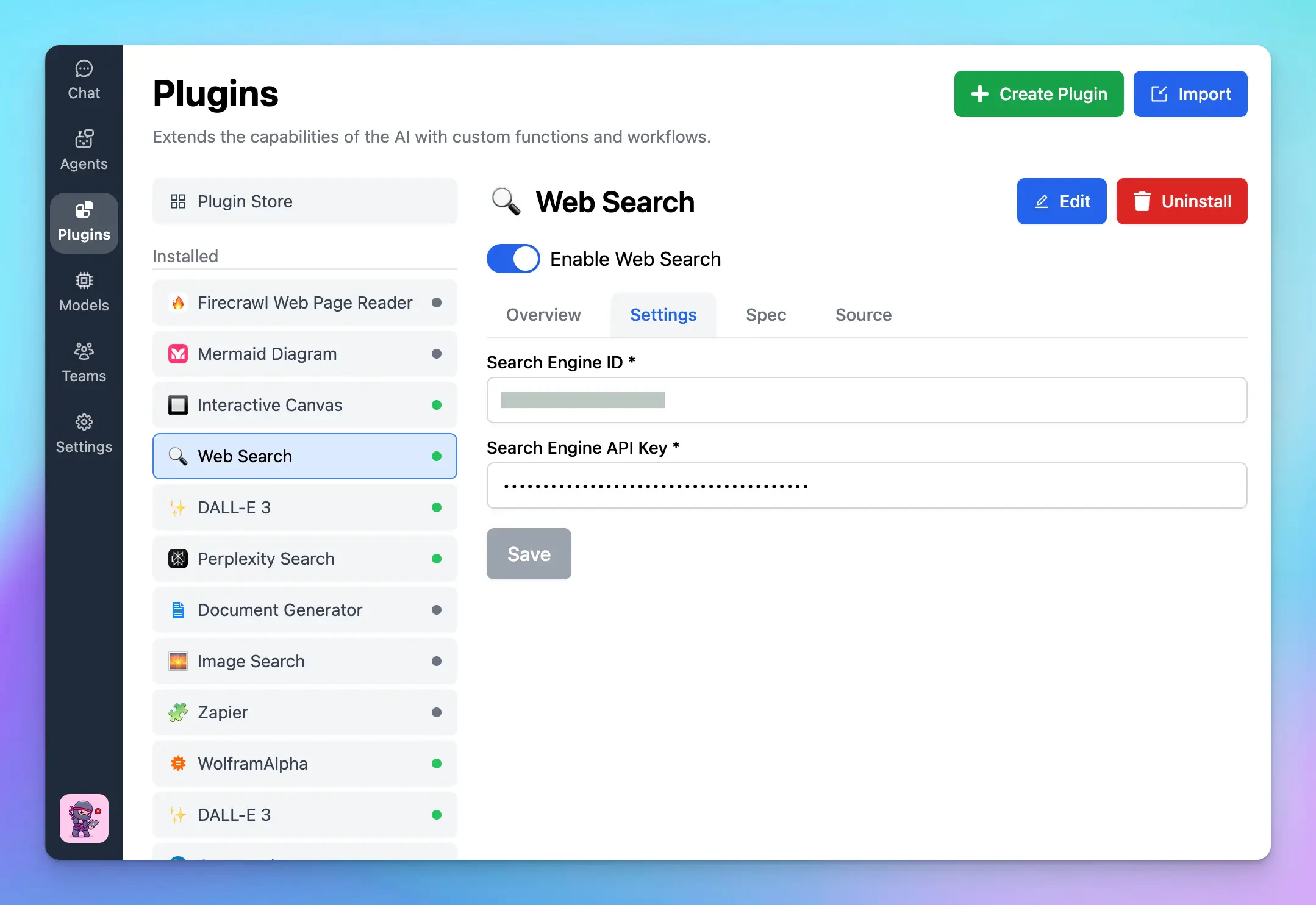
1. **Enter the Search Engine ID and API key on TypingMind**
* Click the **Plugin** menu on the left workspace bar
* Choose **Web Search** to open the plugin settings
* Switch to the tab **Settings** and enter your Search **Engine ID and API key**.
 1. Create a new search engine and give it a name
In the **Want to search?** section, select **Search the Entire web**
1. Create a new search engine and give it a name
In the **Want to search?** section, select **Search the Entire web**
 1. Once your new search engine is created, click **Customize**
 1. **Copy the search engine ID** and save it into a safe place for later use on TypingMind
 1. Scroll down, under the **Search features** section, enable **both Image Search and Web Search.**
 1. Scroll down to “**Programmatic Access**” and click “**Get started**”
 1. Click “**Get a Key**” to get your search API key
 1. **Create a new project**
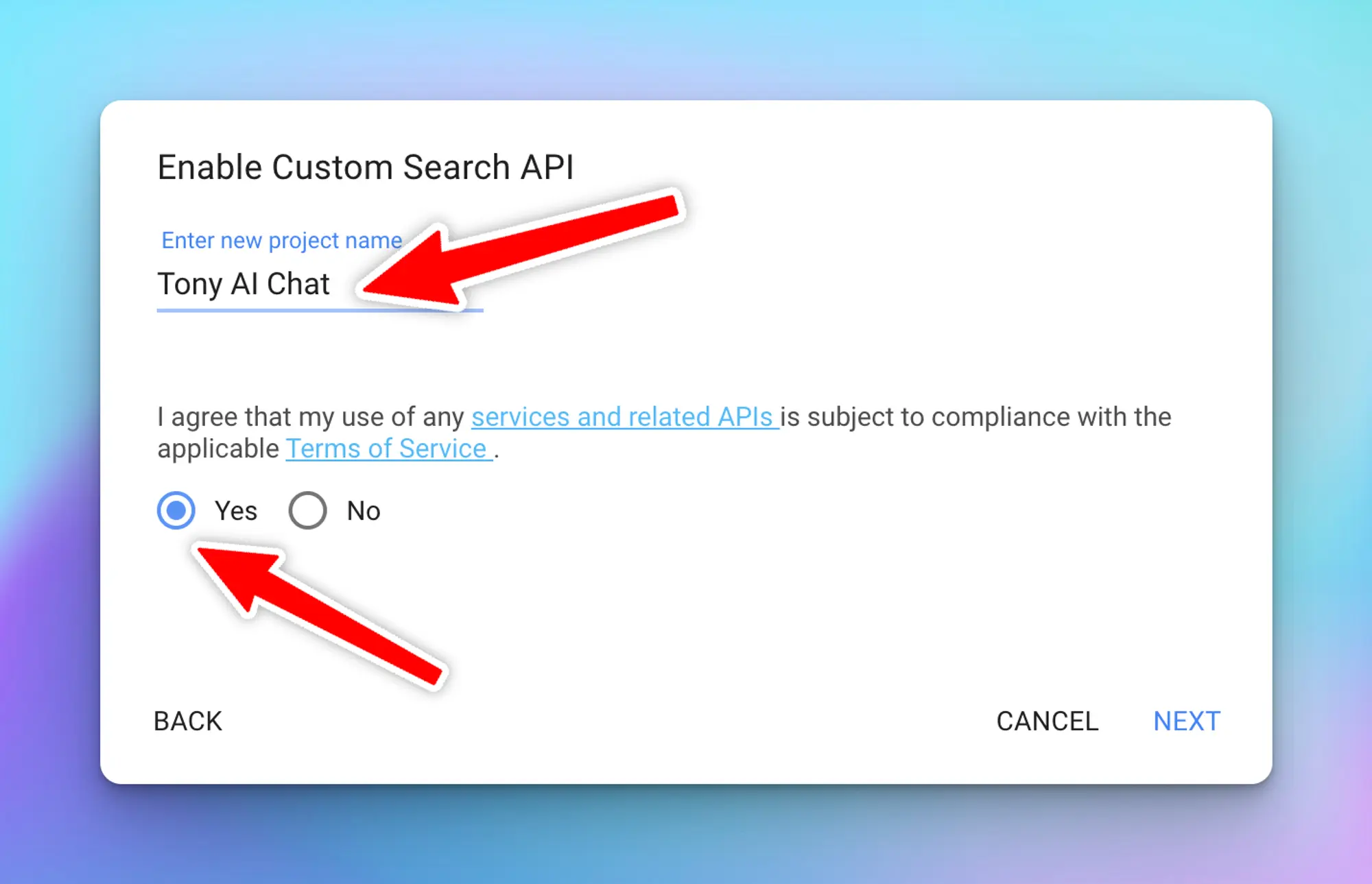 1. Click **Next**, an API key will be generated, copy and also save into a safe place.
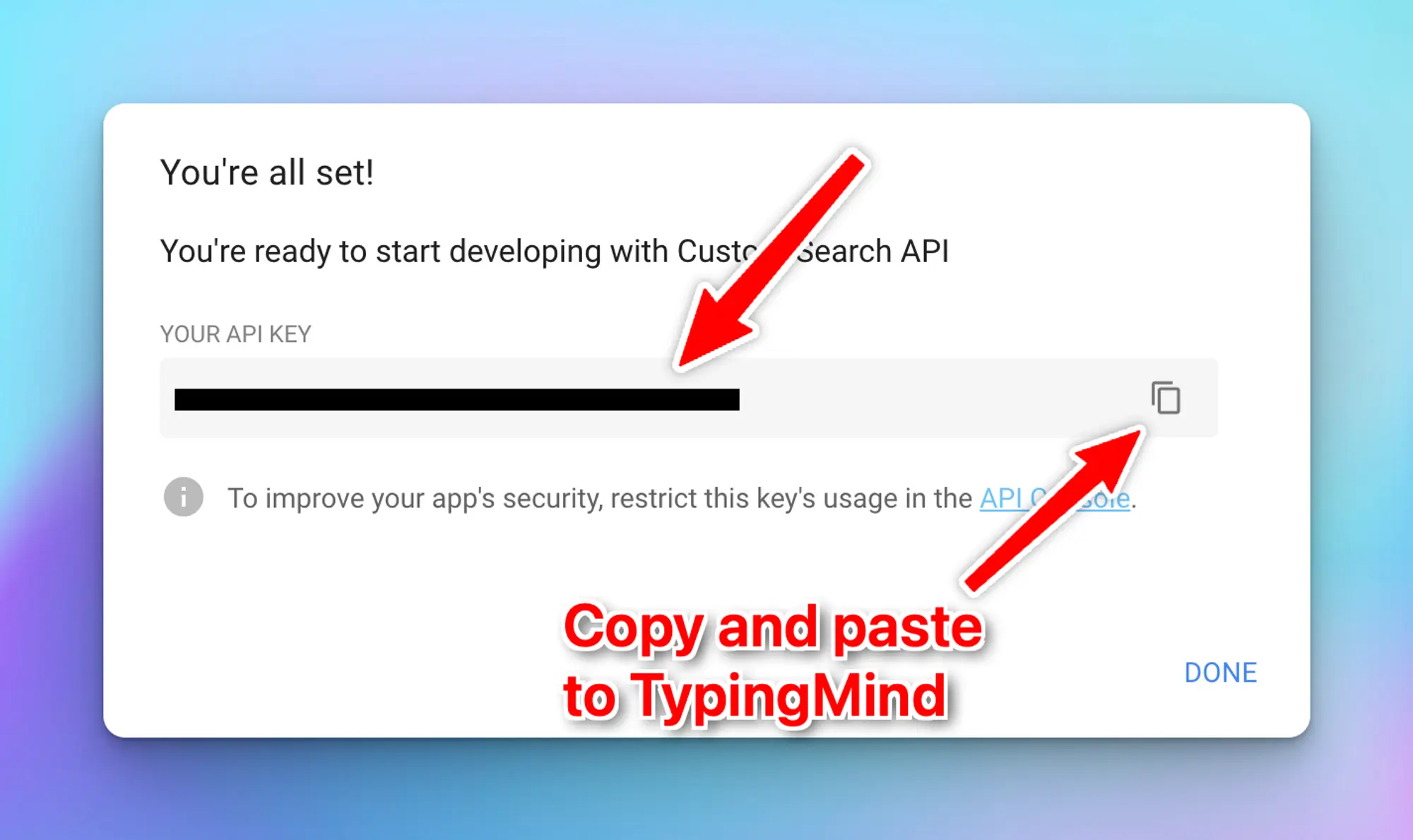 1. **Enter the Search Engine ID and API key on TypingMind**
* Click the **Plugin** menu on the left workspace bar
* Choose **Web Search** to open the plugin settings
* Switch to the tab **Settings** and enter your Search **Engine ID and API key**.
1. **Enter the Search Engine ID and API key on TypingMind**
* Click the **Plugin** menu on the left workspace bar
* Choose **Web Search** to open the plugin settings
* Switch to the tab **Settings** and enter your Search **Engine ID and API key**.