> ## Documentation Index
> Fetch the complete documentation index at: https://docs.typingmind.com/llms.txt
> Use this file to discover all available pages before exploring further.
# Toolbox
**TypingMind Toolbox** is a built-in plugin that extends what your AI can do beyond text conversations.
## What is Toolbox
Toolbox is a free, built-in TypingMind plugin that lets your AI actually work with files: read them, analyze data, run code, and hand back finished documents, charts, and media. Instead of only describing what to do, the AI writes Python or JavaScript, runs it, and gives you the result in the chat.
Three things make it different from a typical code tool:
* **Runs in your browser.** Code executes locally on your device. There is no server to set up and no external service processing your files.
* **Private by default.** Network access is disabled by default, so code running in Toolbox cannot send your data anywhere.
* **Free with TypingMind.** No extra subscription or API key is needed for Toolbox itself. You only pay for the AI model you already use.
**Most important:** It works with any model (that supports plugins) you pick in TypingMind.
## Getting started
Turning Toolbox on takes about 30 seconds and only needs to be done once.
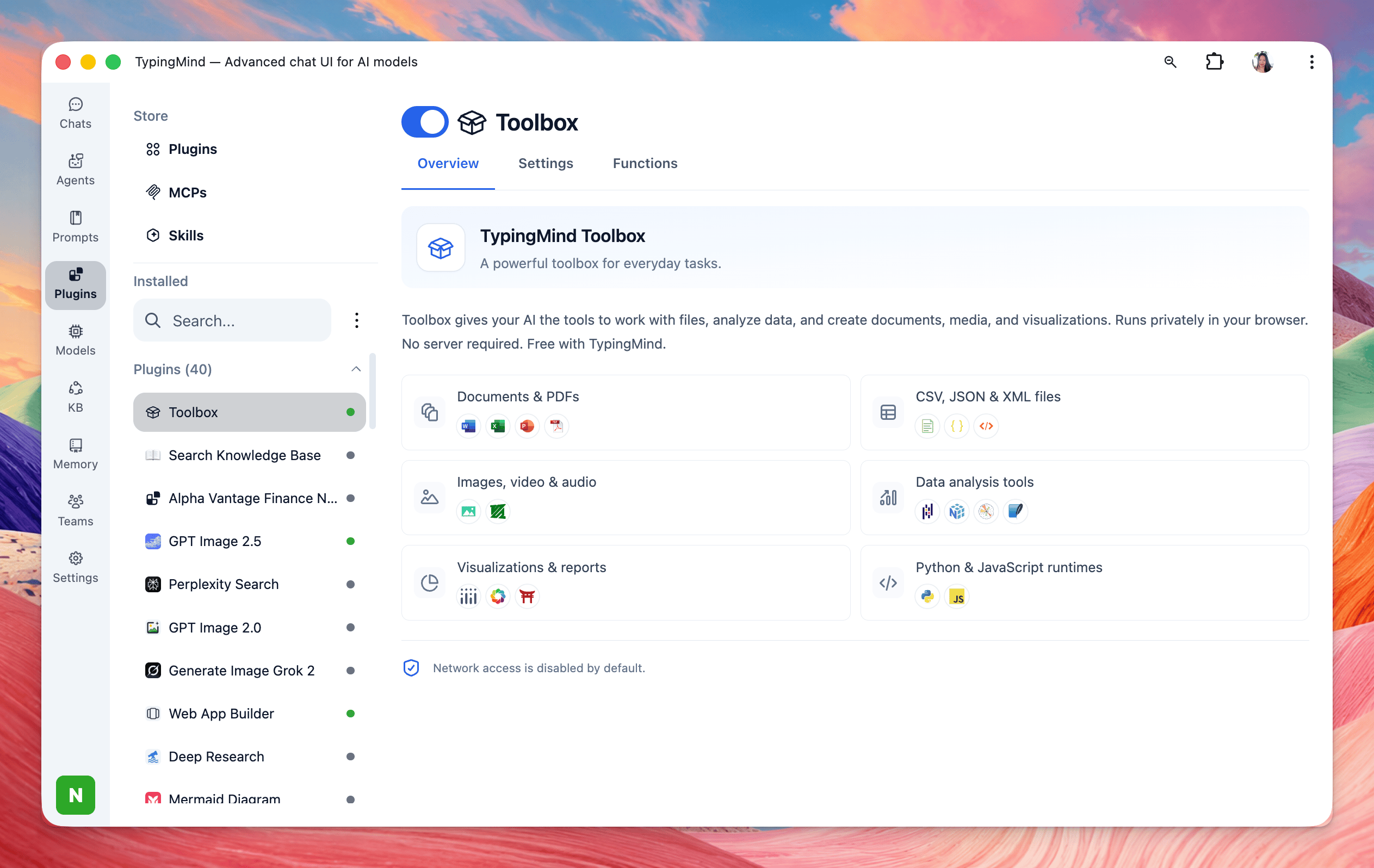
1. Click **Plugins** in the left sidebar.
2. Under **Installed**, select **Toolbox** from your plugin list.
3. Flip the toggle next to the Toolbox title so it turns blue.
4. Network access is disabled by default for this plugin. If you want to enable it, please switch to Settings tab to enable.
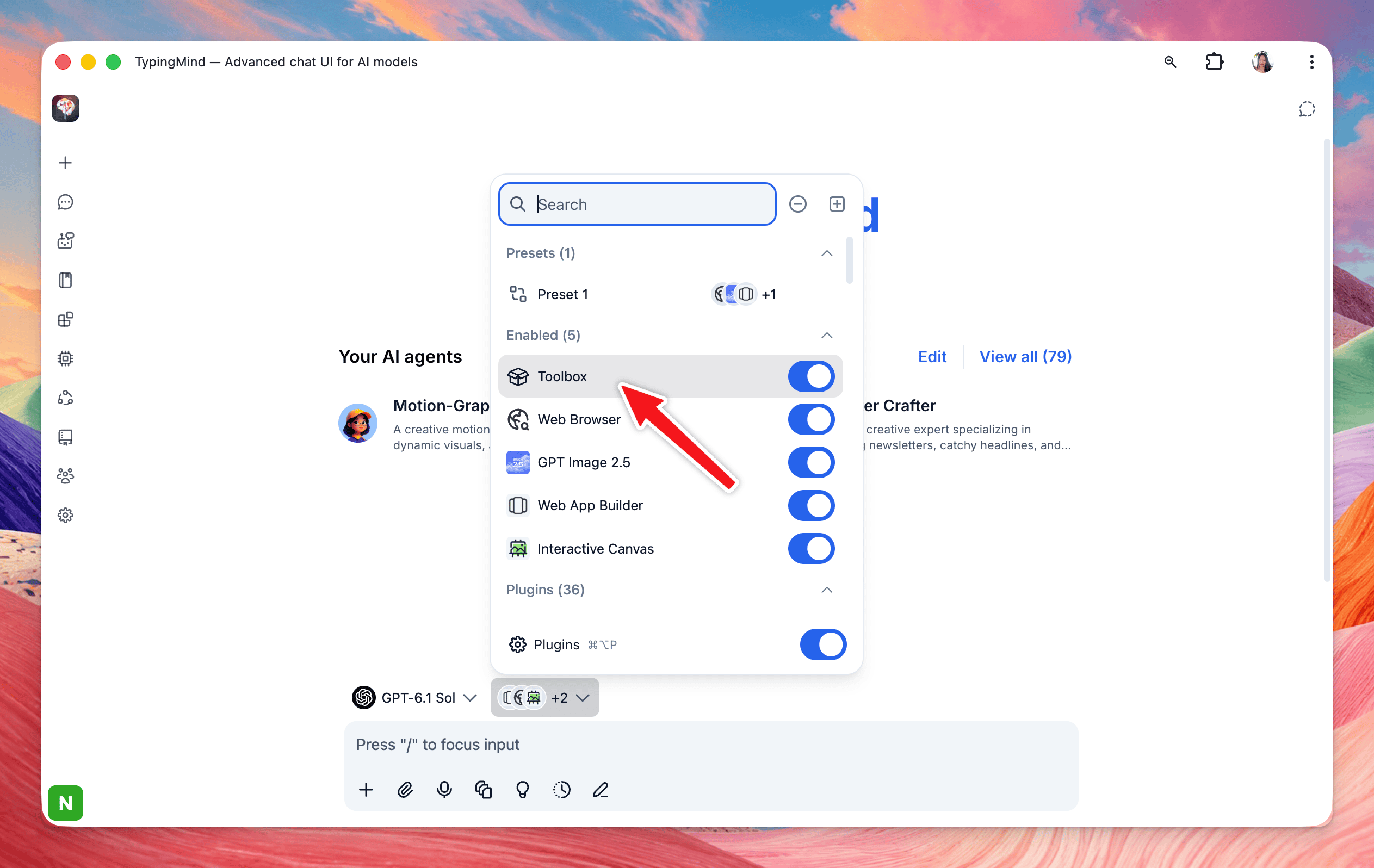
 Or you can enable Toolbox directly in chat. Open Plugin Selector next to Model Selector (above the chat input box) → Enable Toolbox:
 ## What Toolbox can do
Toolbox covers six areas, from reading office files to running full Python data analysis. Each area below lists the formats and libraries shown in the Toolbox panel.
| Area | Formats and libraries | Typical jobs |
| :- | :- | :- |
| Documents & PDFs | Word, Excel, PowerPoint, PDF | Read, summarize, edit, merge, or generate office files and PDFs, including new files in the style of your own template |
| CSV, JSON & XML files | CSV, JSON, XML | Clean, reshape, convert, validate, and combine structured data |
| Images, video & audio | PNG, JPG & GIF; FFmpeg | Resize, watermark, convert, and compress images; clip, crop, compress, and join videos; make GIFs and slideshows; extract, clean up, and convert audio |
| Data analysis tools | pandas, NumPy, Matplotlib, SQLite | Filter, join, aggregate, run statistics, query data with SQL |
| Visualizations & reports | Plotly, Bokeh, Jinja2 | Build charts, dashboards, and templated HTML reports |
| Python & JavaScript runtimes | Python, JavaScript | Run any custom logic the task needs, in either language |
You don't need to know any of these libraries. Describe the result you want in plain language, and the AI picks the right tool.
## How it works in a chat
You ask in plain language; the AI writes and runs code in Toolbox, checks the result, and keeps going until the output is ready.
1. **You ask.** Attach your files (Excel, CSV, PDF, Word, PPTX images, video, audio) and describe the outcome you want.
2. **The AI plans and runs code.** Each step appears in the chat as a tool call, for example `Toolbox Run Python Inspecting PowerPoint template`
3. **It checks its own work.** For bigger jobs you'll see many small steps ("Check page space", "Check watermark coordinates", "Test copying pages") before the final output. A "Worked for 2m 23s" label summarizes the run; click it to expand every step.
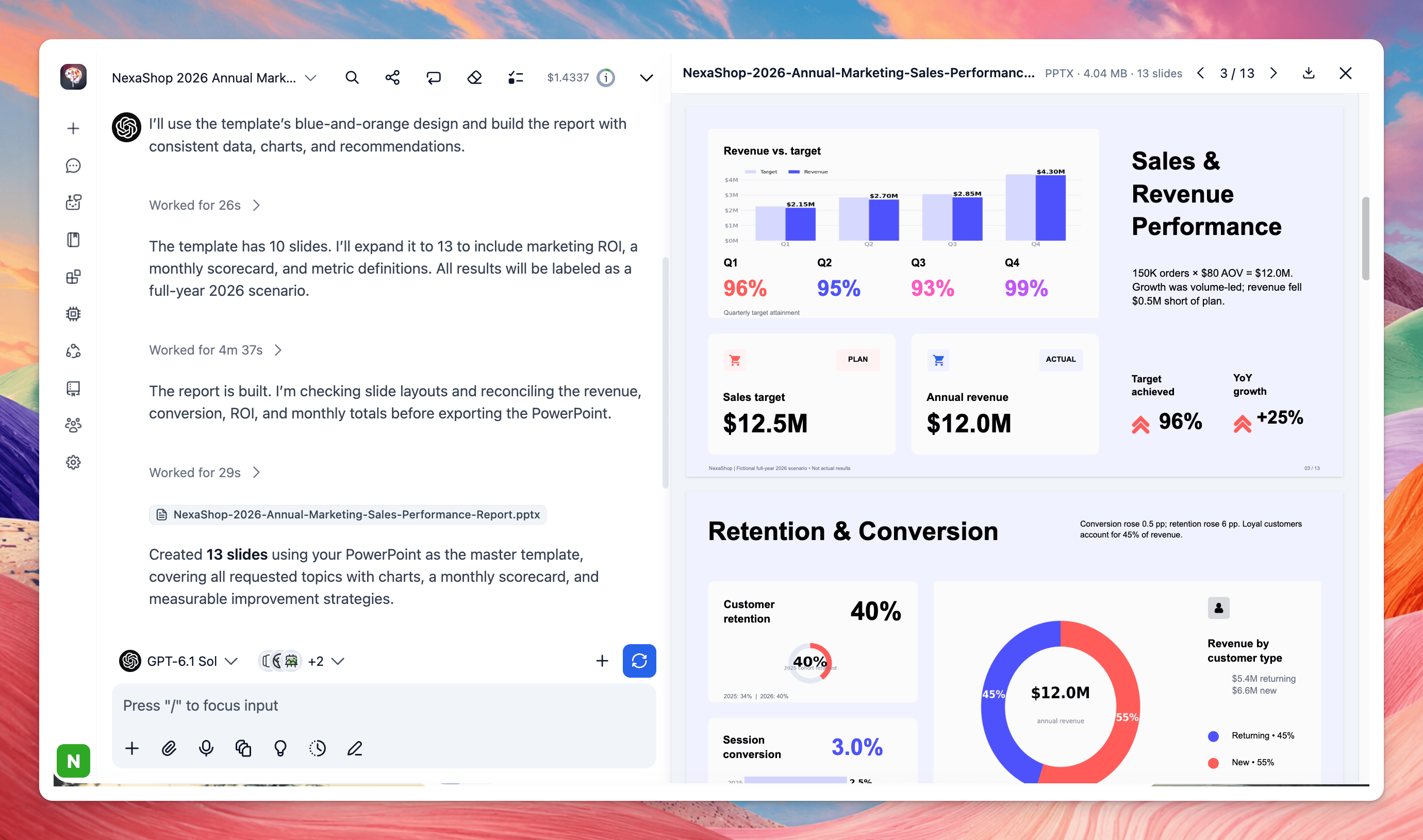
4. **You get the result.** Charts appear inline in the reply. Files appear as cards showing the file name, type, and size.
5. **Previewing and downloading files:** Click a file card to open it in the preview panel on the right. From there you can:
* Page through PDFs/slides and switch between sheets in a spreadsheet using the tabs at the bottom.
* Download the file with the download icon.
* Close the panel with the X.
## What Toolbox can do
Toolbox covers six areas, from reading office files to running full Python data analysis. Each area below lists the formats and libraries shown in the Toolbox panel.
| Area | Formats and libraries | Typical jobs |
| :- | :- | :- |
| Documents & PDFs | Word, Excel, PowerPoint, PDF | Read, summarize, edit, merge, or generate office files and PDFs, including new files in the style of your own template |
| CSV, JSON & XML files | CSV, JSON, XML | Clean, reshape, convert, validate, and combine structured data |
| Images, video & audio | PNG, JPG & GIF; FFmpeg | Resize, watermark, convert, and compress images; clip, crop, compress, and join videos; make GIFs and slideshows; extract, clean up, and convert audio |
| Data analysis tools | pandas, NumPy, Matplotlib, SQLite | Filter, join, aggregate, run statistics, query data with SQL |
| Visualizations & reports | Plotly, Bokeh, Jinja2 | Build charts, dashboards, and templated HTML reports |
| Python & JavaScript runtimes | Python, JavaScript | Run any custom logic the task needs, in either language |
You don't need to know any of these libraries. Describe the result you want in plain language, and the AI picks the right tool.
## How it works in a chat
You ask in plain language; the AI writes and runs code in Toolbox, checks the result, and keeps going until the output is ready.
1. **You ask.** Attach your files (Excel, CSV, PDF, Word, PPTX images, video, audio) and describe the outcome you want.
2. **The AI plans and runs code.** Each step appears in the chat as a tool call, for example `Toolbox Run Python Inspecting PowerPoint template`
3. **It checks its own work.** For bigger jobs you'll see many small steps ("Check page space", "Check watermark coordinates", "Test copying pages") before the final output. A "Worked for 2m 23s" label summarizes the run; click it to expand every step.
4. **You get the result.** Charts appear inline in the reply. Files appear as cards showing the file name, type, and size.
5. **Previewing and downloading files:** Click a file card to open it in the preview panel on the right. From there you can:
* Page through PDFs/slides and switch between sheets in a spreadsheet using the tabs at the bottom.
* Download the file with the download icon.
* Close the panel with the X.
 ## Privacy, security and network access
Toolbox runs code inside your browser, and network access is off by default, so the code it runs cannot reach the internet.
* **Where code runs:** on your own device, in a sandbox inside the browser tab. TypingMind does not run your files on a server.
* **What the AI model sees:** the AI provider you chose still receives your messages and whatever the AI reads from your files in order to reason about them, the same as any chat. Toolbox doesn't change your model provider's data policy.
* **Network access:** disabled by default. With it off, code can't download packages, call APIs, or fetch web pages. If you need data from the web, save the page or file and attach it instead (see the "Saved web page → pricing analysis" use case).
* **Sensitive files:** because processing happens locally, Toolbox is a good fit for financial data, customer lists, and internal documents. Still follow your organization's rules about which AI models may see that data.
## Practical use cases to try
Below are some common use cases, each with a ready-to-paste prompt. Attach your own file, change the names, numbers, and timestamps to match it, and send.
### Data analysis
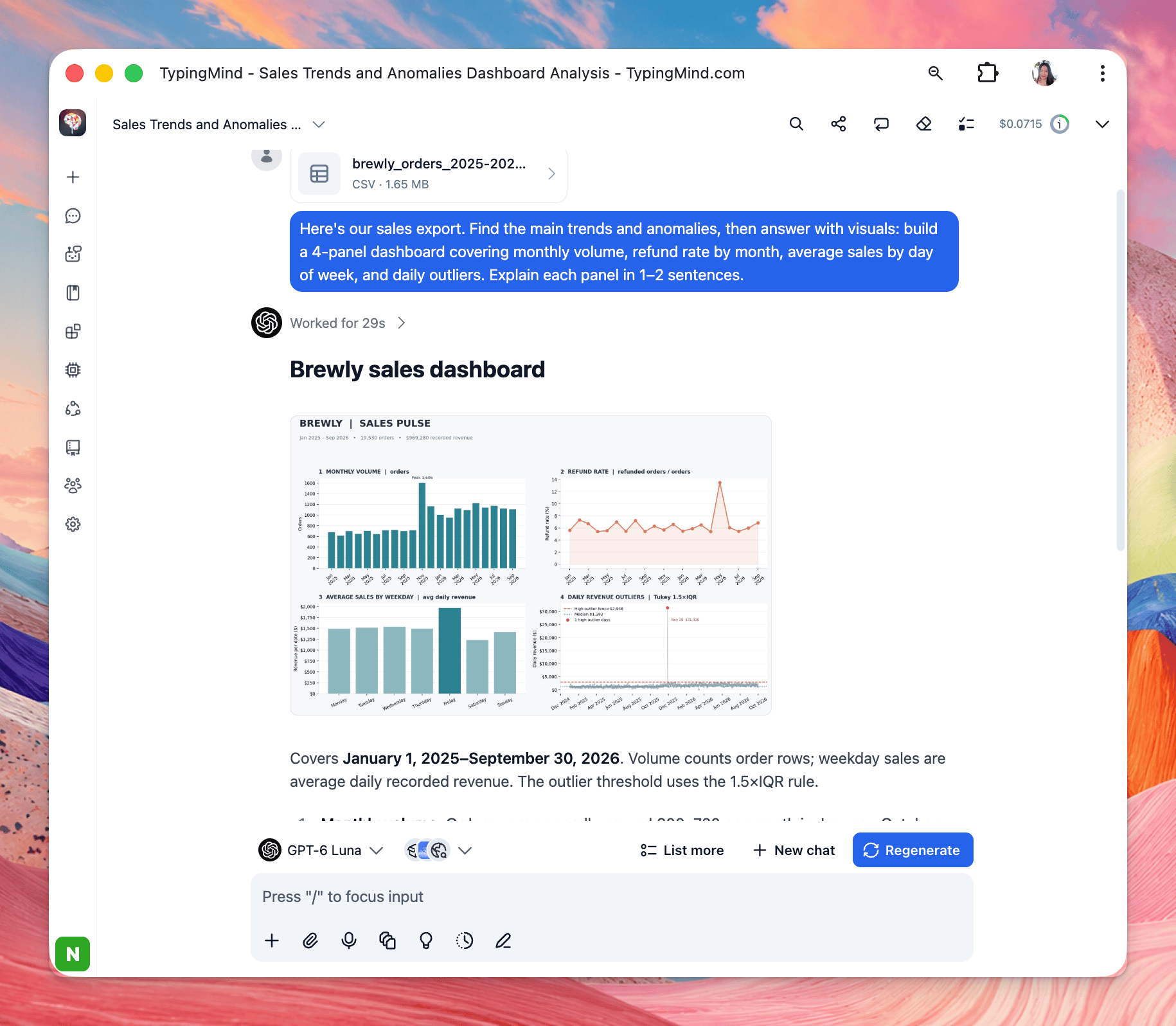
**1. Insights dashboard from a sales export.** Attach a CSV or Excel export of orders, sign-ups, or licenses. You get a multi-panel chart plus a short explanation of each finding.
```text theme={null}
Here's our sales export. Find the main trends and anomalies, then answer with visuals: build a 4-panel dashboard covering monthly volume, refund rate by month, average sales by day of week, and daily outliers. Explain each panel in 1–2 sentences2
```
## Privacy, security and network access
Toolbox runs code inside your browser, and network access is off by default, so the code it runs cannot reach the internet.
* **Where code runs:** on your own device, in a sandbox inside the browser tab. TypingMind does not run your files on a server.
* **What the AI model sees:** the AI provider you chose still receives your messages and whatever the AI reads from your files in order to reason about them, the same as any chat. Toolbox doesn't change your model provider's data policy.
* **Network access:** disabled by default. With it off, code can't download packages, call APIs, or fetch web pages. If you need data from the web, save the page or file and attach it instead (see the "Saved web page → pricing analysis" use case).
* **Sensitive files:** because processing happens locally, Toolbox is a good fit for financial data, customer lists, and internal documents. Still follow your organization's rules about which AI models may see that data.
## Practical use cases to try
Below are some common use cases, each with a ready-to-paste prompt. Attach your own file, change the names, numbers, and timestamps to match it, and send.
### Data analysis
**1. Insights dashboard from a sales export.** Attach a CSV or Excel export of orders, sign-ups, or licenses. You get a multi-panel chart plus a short explanation of each finding.
```text theme={null}
Here's our sales export. Find the main trends and anomalies, then answer with visuals: build a 4-panel dashboard covering monthly volume, refund rate by month, average sales by day of week, and daily outliers. Explain each panel in 1–2 sentences2
```
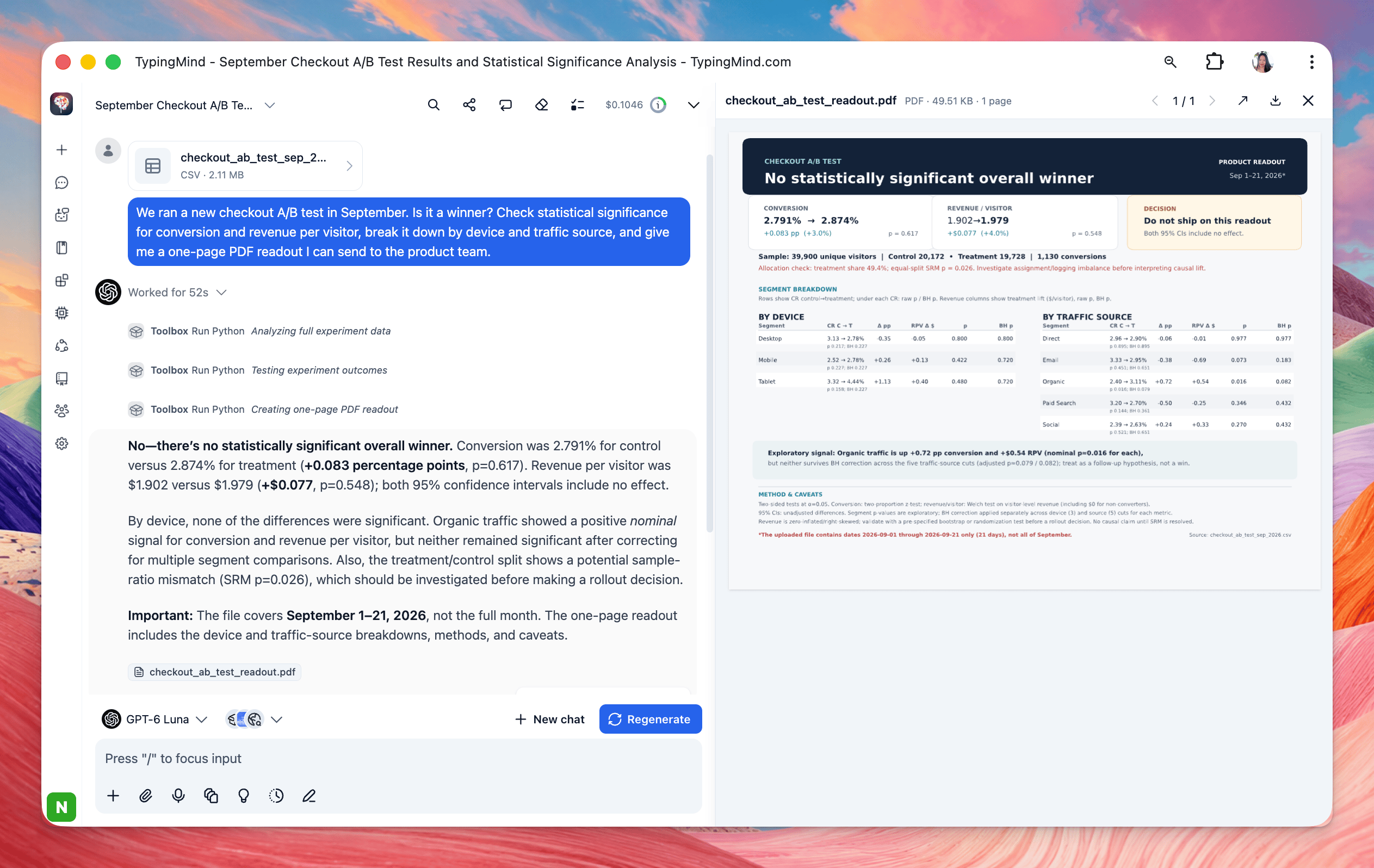
 **2. A/B test with a one-page PDF readout.** Attach test results with variant, conversions, revenue, device, and traffic source. You get a verdict with statistical significance and a shareable PDF.
```text theme={null}
We ran a new checkout A/B test in September. Is it a winner? Check statistical significance for conversion and revenue per visitor, break it down by device and traffic source, and give me a one-page PDF readout I can send to the product team.
```
**2. A/B test with a one-page PDF readout.** Attach test results with variant, conversions, revenue, device, and traffic source. You get a verdict with statistical significance and a shareable PDF.
```text theme={null}
We ran a new checkout A/B test in September. Is it a winner? Check statistical significance for conversion and revenue per visitor, break it down by device and traffic source, and give me a one-page PDF readout I can send to the product team.
```
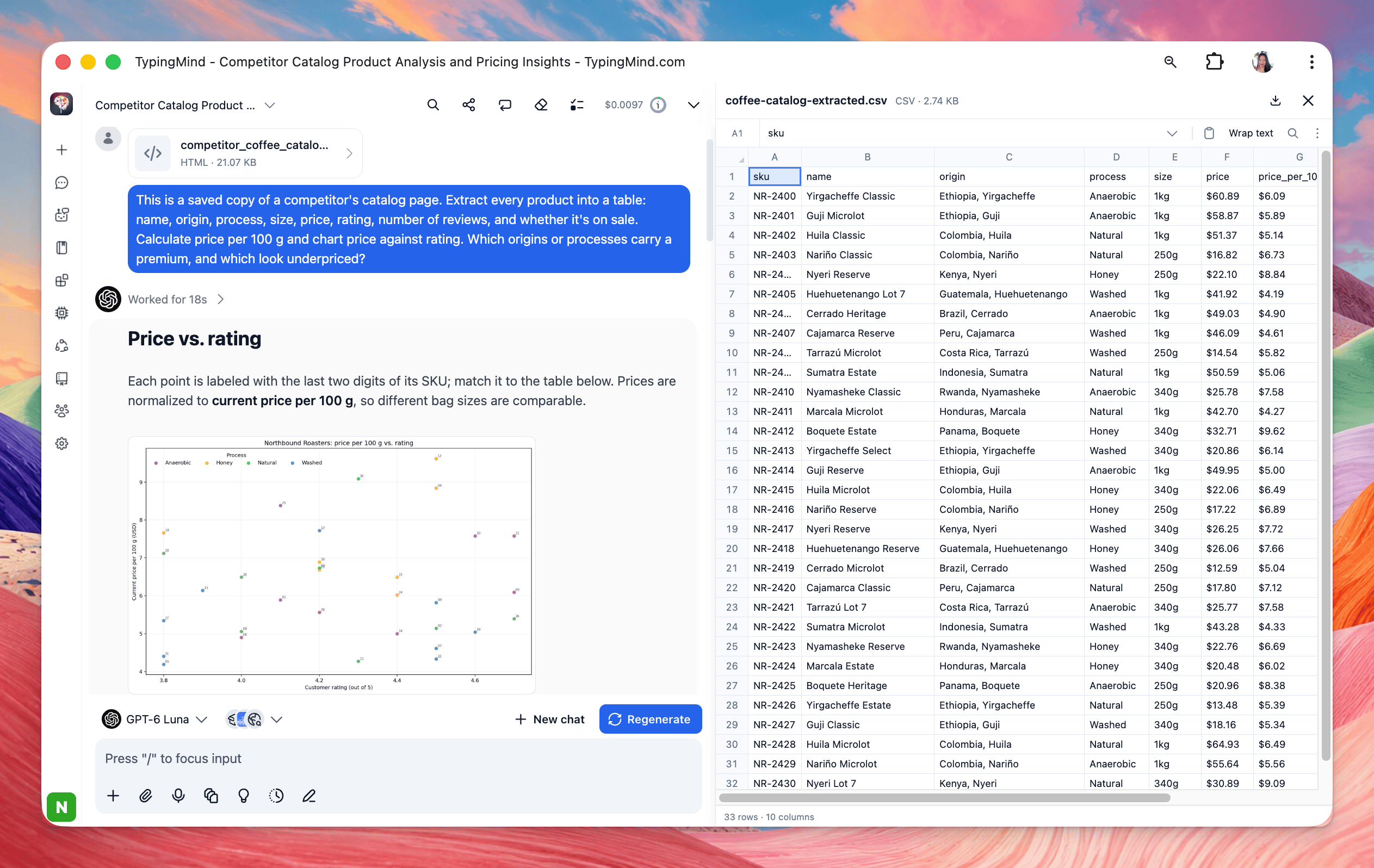
 **3. Saved web page to pricing analysis.** Save a competitor's product page in your browser (File → Save Page As) and attach it. Toolbox extracts the products and analyzes them without any network access.
```text theme={null}
This is a saved web page of a competitor's coffee catalog. Extract every product with price, origin, process, rating, and review count into a spreadsheet. Then chart price vs. rating and average price per 100g by process, and point out where we could price above or below them.
```
**3. Saved web page to pricing analysis.** Save a competitor's product page in your browser (File → Save Page As) and attach it. Toolbox extracts the products and analyzes them without any network access.
```text theme={null}
This is a saved web page of a competitor's coffee catalog. Extract every product with price, origin, process, rating, and review count into a spreadsheet. Then chart price vs. rating and average price per 100g by process, and point out where we could price above or below them.
```
 ### Documents, PDFs and reports
Generate downloadable files such as PDFs, XLSXs, PPTXs, DOCXs, ZIPs and more. You can also upload a template and ask the AI model to match the style of your templates (including fonts, headings, colors, designs)
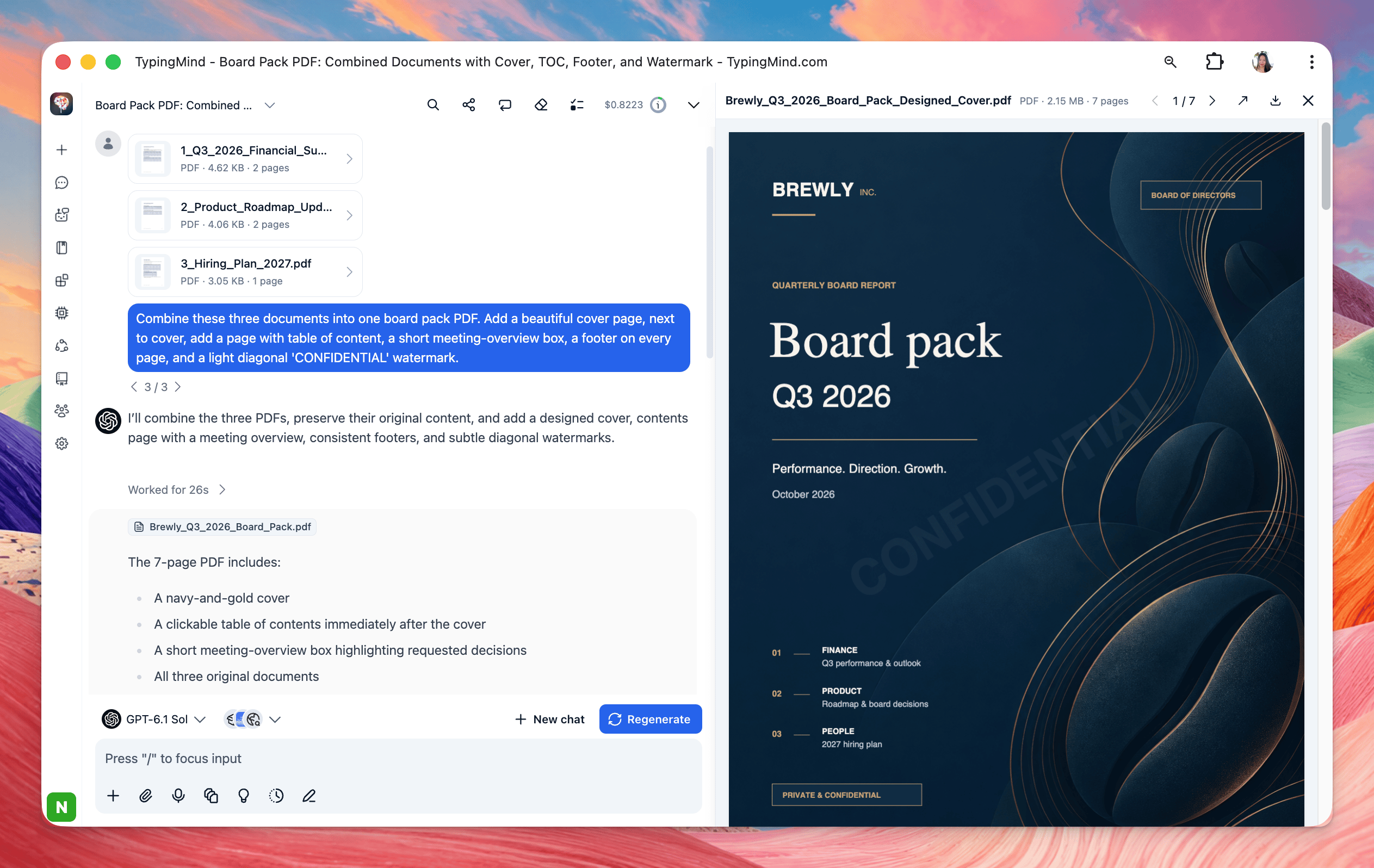
**4. Combine documents into one polished PDF pack.** Attach the source documents. You get a single PDF with a cover page, table of contents, footers, and a watermark.
```text theme={null}
Combine these three documents into one board pack PDF. Add a beautiful cover page, next to cover, add a page with table of content, a short meeting-overview box, a footer on every page, and a light diagonal 'CONFIDENTIAL' watermark.
```
### Documents, PDFs and reports
Generate downloadable files such as PDFs, XLSXs, PPTXs, DOCXs, ZIPs and more. You can also upload a template and ask the AI model to match the style of your templates (including fonts, headings, colors, designs)
**4. Combine documents into one polished PDF pack.** Attach the source documents. You get a single PDF with a cover page, table of contents, footers, and a watermark.
```text theme={null}
Combine these three documents into one board pack PDF. Add a beautiful cover page, next to cover, add a page with table of content, a short meeting-overview box, a footer on every page, and a light diagonal 'CONFIDENTIAL' watermark.
```
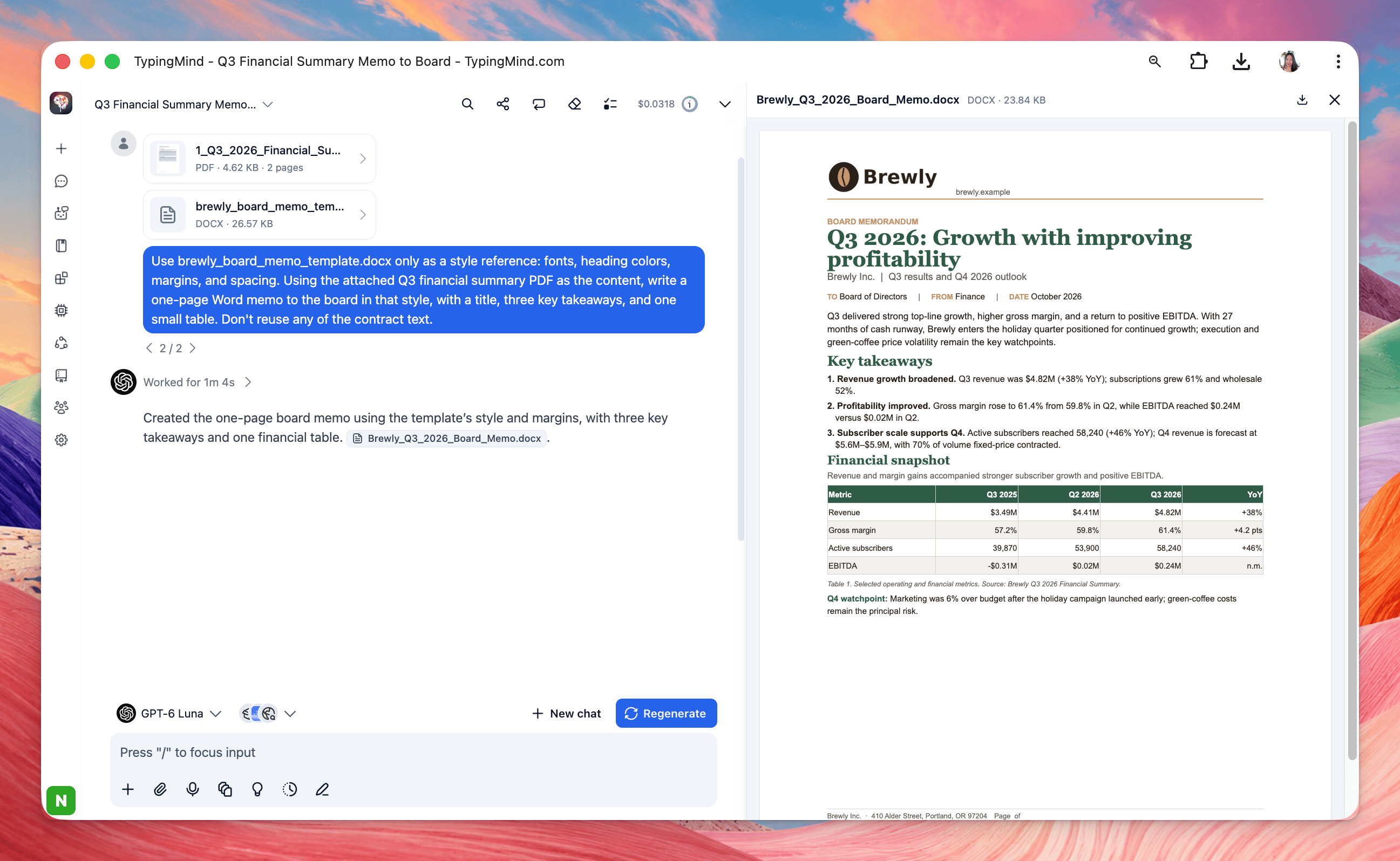
 **5. A new document in your template's style.** Give Toolbox one file for the look and another for the content
```text theme={null}
Use your_template.docx only as a style reference: fonts, heading colors, margins, and spacing. Using the attached Q3 financial summary PDF as the content, write a one-page Word memo to the board in that style, with a title, three key takeaways, and one small table. Don't reuse any of the contract text.
```
**5. A new document in your template's style.** Give Toolbox one file for the look and another for the content
```text theme={null}
Use your_template.docx only as a style reference: fonts, heading colors, margins, and spacing. Using the attached Q3 financial summary PDF as the content, write a one-page Word memo to the board in that style, with a title, three key takeaways, and one small table. Don't reuse any of the contract text.
```
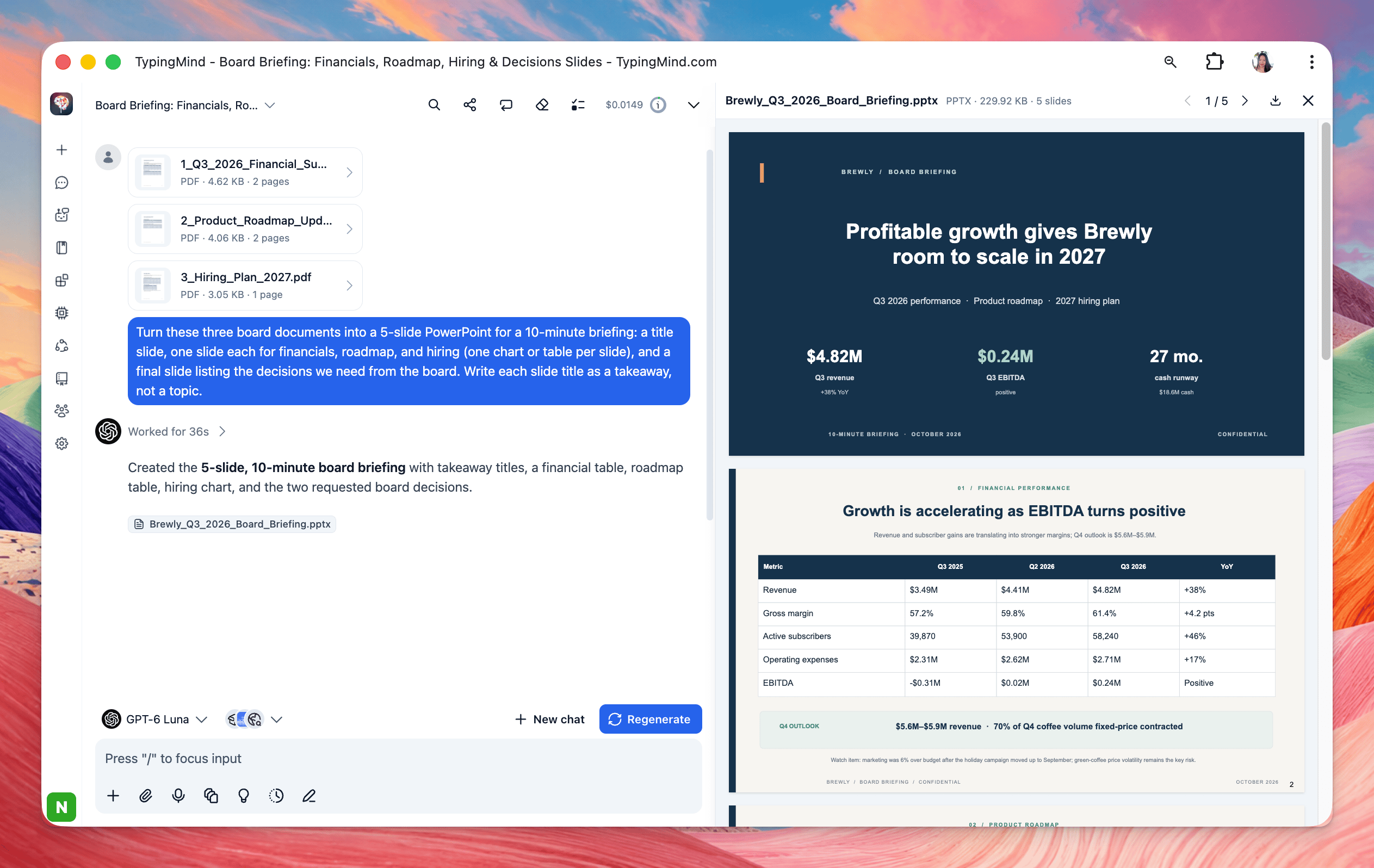
 **6. From documents to a slide deck.** Condense long source material into a short briefing.
```text theme={null}
Turn these three board documents into a 5-slide PowerPoint for a 10-minute briefing: a title slide, one slide each for financials, roadmap, and hiring (one chart or table per slide), and a final slide listing the decisions we need from the board. Write each slide title as a takeaway, not a topic.
```
**6. From documents to a slide deck.** Condense long source material into a short briefing.
```text theme={null}
Turn these three board documents into a 5-slide PowerPoint for a 10-minute briefing: a title slide, one slide each for financials, roadmap, and hiring (one chart or table per slide), and a final slide listing the decisions we need from the board. Write each slide title as a takeaway, not a topic.
```
 ### Images, Videos and audio
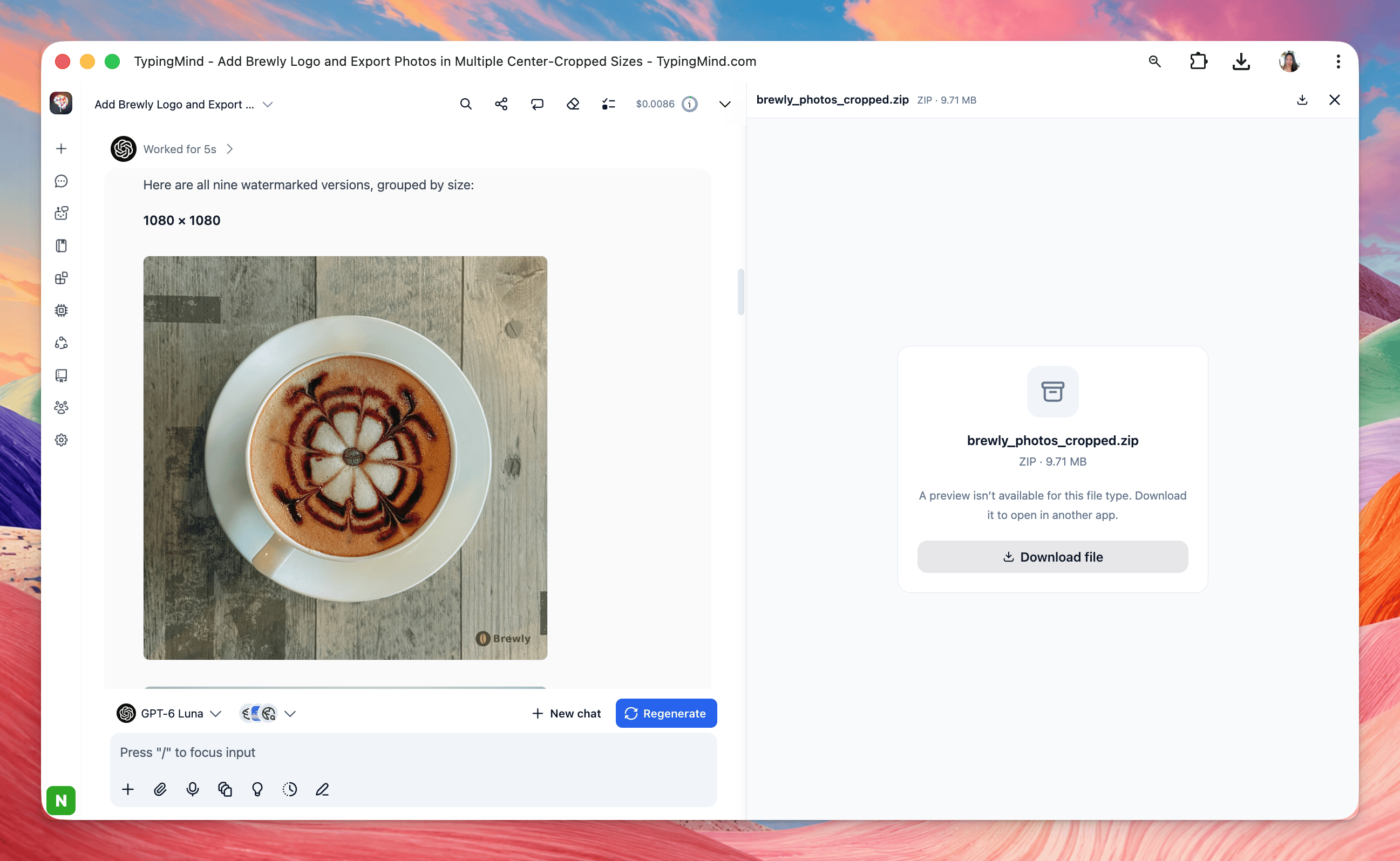
**7. Batch watermark and resize images.** Attach your images (and a logo, if you have one). You get every image watermarked in the same spot.
```text theme={null}
Place brewly_logo.png in the bottom-right corner of every photo at about 15% of the image width and 70% opacity. Then export each photo in three center-cropped sizes: 1080x1080, 1080x1920, and 1200x630. Put each size in its own folder inside one ZIP, and keep the original file names.
```
### Images, Videos and audio
**7. Batch watermark and resize images.** Attach your images (and a logo, if you have one). You get every image watermarked in the same spot.
```text theme={null}
Place brewly_logo.png in the bottom-right corner of every photo at about 15% of the image width and 70% opacity. Then export each photo in three center-cropped sizes: 1080x1080, 1080x1920, and 1200x630. Put each size in its own folder inside one ZIP, and keep the original file names.
```
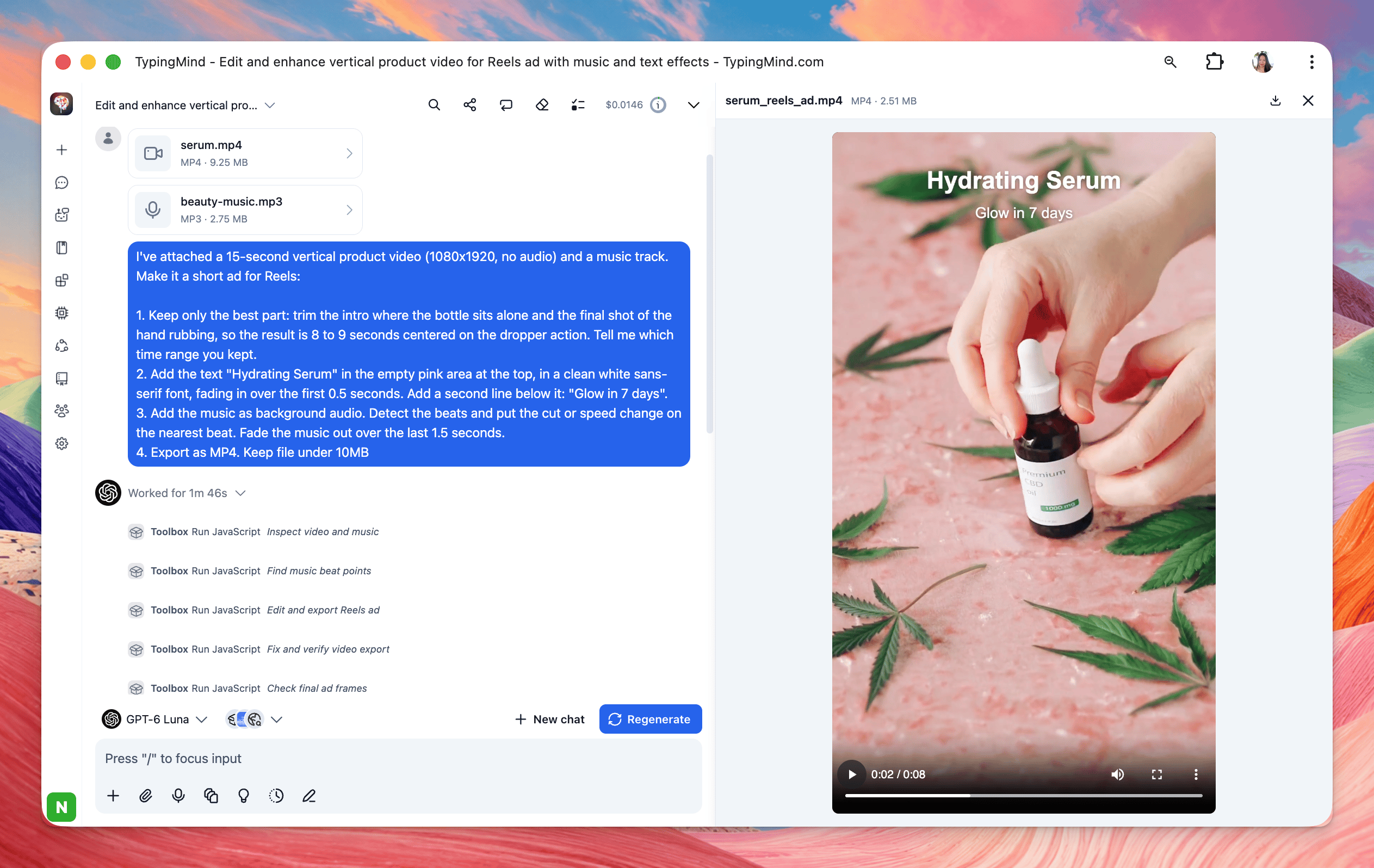
 **8. Clip a long video for social.** Attach a video. You get a short, vertical clip ready to post.
```text theme={null}
I've attached a 15-second vertical product video (1080x1920, no audio) and a music track. Make it a short ad for Reels:
1. Keep only the best part: trim the intro where the bottle sits alone and the final shot of the hand rubbing, so the result is 8 to 9 seconds centered on the dropper action. Tell me which time range you kept.
2. Add the text "Hydrating Serum" in the empty pink area at the top, in a clean white sans-serif font, fading in over the first 0.5 seconds. Add a second line below it: "Glow in 7 days".
3. Add the music as background audio. Detect the beats and put the cut or speed change on the nearest beat. Fade the music out over the last 1.5 seconds.
4. Export as MP4. Keep file under 10MB
```
**8. Clip a long video for social.** Attach a video. You get a short, vertical clip ready to post.
```text theme={null}
I've attached a 15-second vertical product video (1080x1920, no audio) and a music track. Make it a short ad for Reels:
1. Keep only the best part: trim the intro where the bottle sits alone and the final shot of the hand rubbing, so the result is 8 to 9 seconds centered on the dropper action. Tell me which time range you kept.
2. Add the text "Hydrating Serum" in the empty pink area at the top, in a clean white sans-serif font, fading in over the first 0.5 seconds. Add a second line below it: "Glow in 7 days".
3. Add the music as background audio. Detect the beats and put the cut or speed change on the nearest beat. Fade the music out over the last 1.5 seconds.
4. Export as MP4. Keep file under 10MB
```
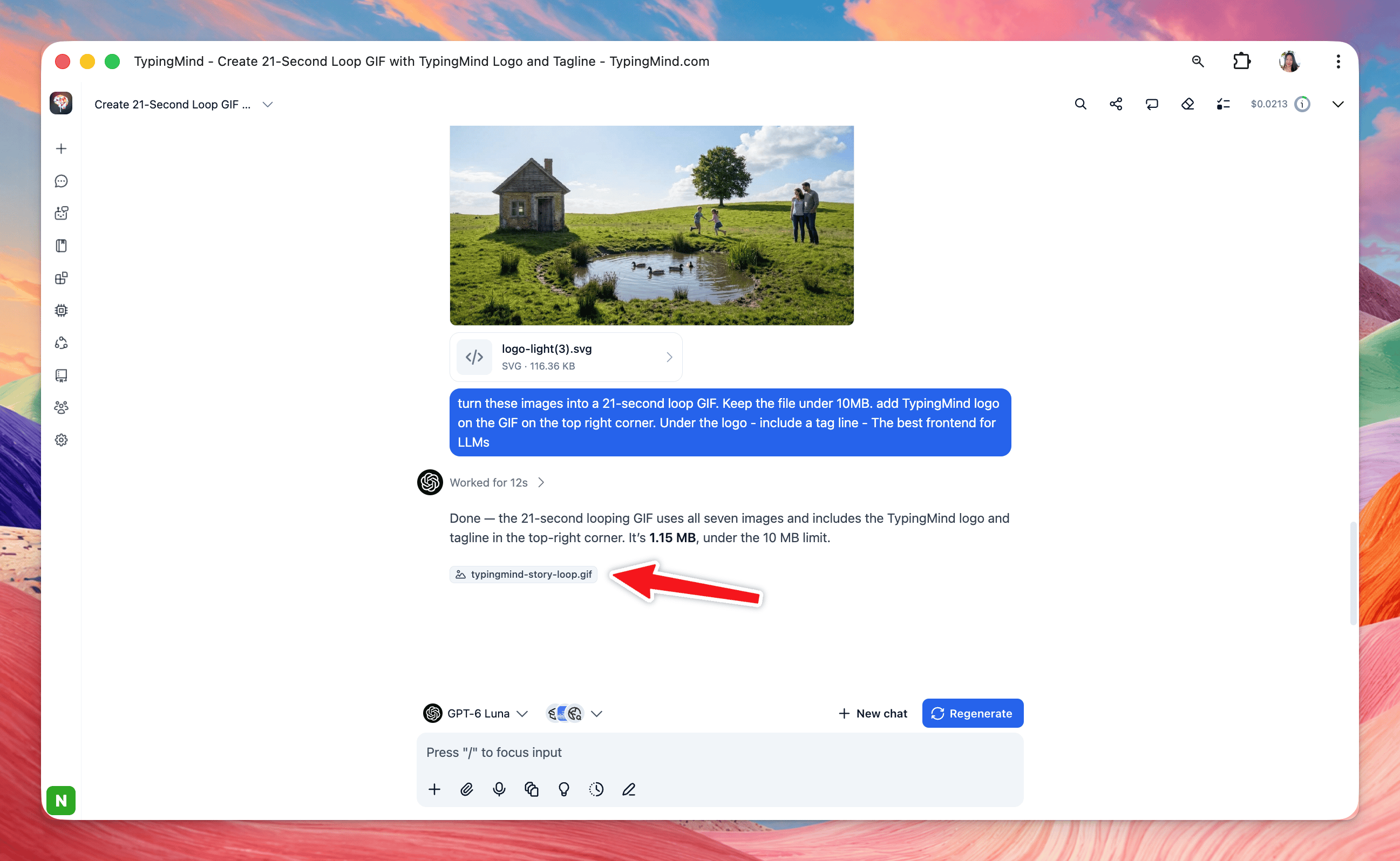
 **9. High-quality GIF.** Turn a list of images into GIF.
```text theme={null}
turn these images into a 21-second loop GIF. Keep the file under 10MB. add TypingMind logo on the GIF on the top right corner. Under the logo - include a tag line - The best frontend for LLMs
```
**9. High-quality GIF.** Turn a list of images into GIF.
```text theme={null}
turn these images into a 21-second loop GIF. Keep the file under 10MB. add TypingMind logo on the GIF on the top right corner. Under the logo - include a tag line - The best frontend for LLMs
```
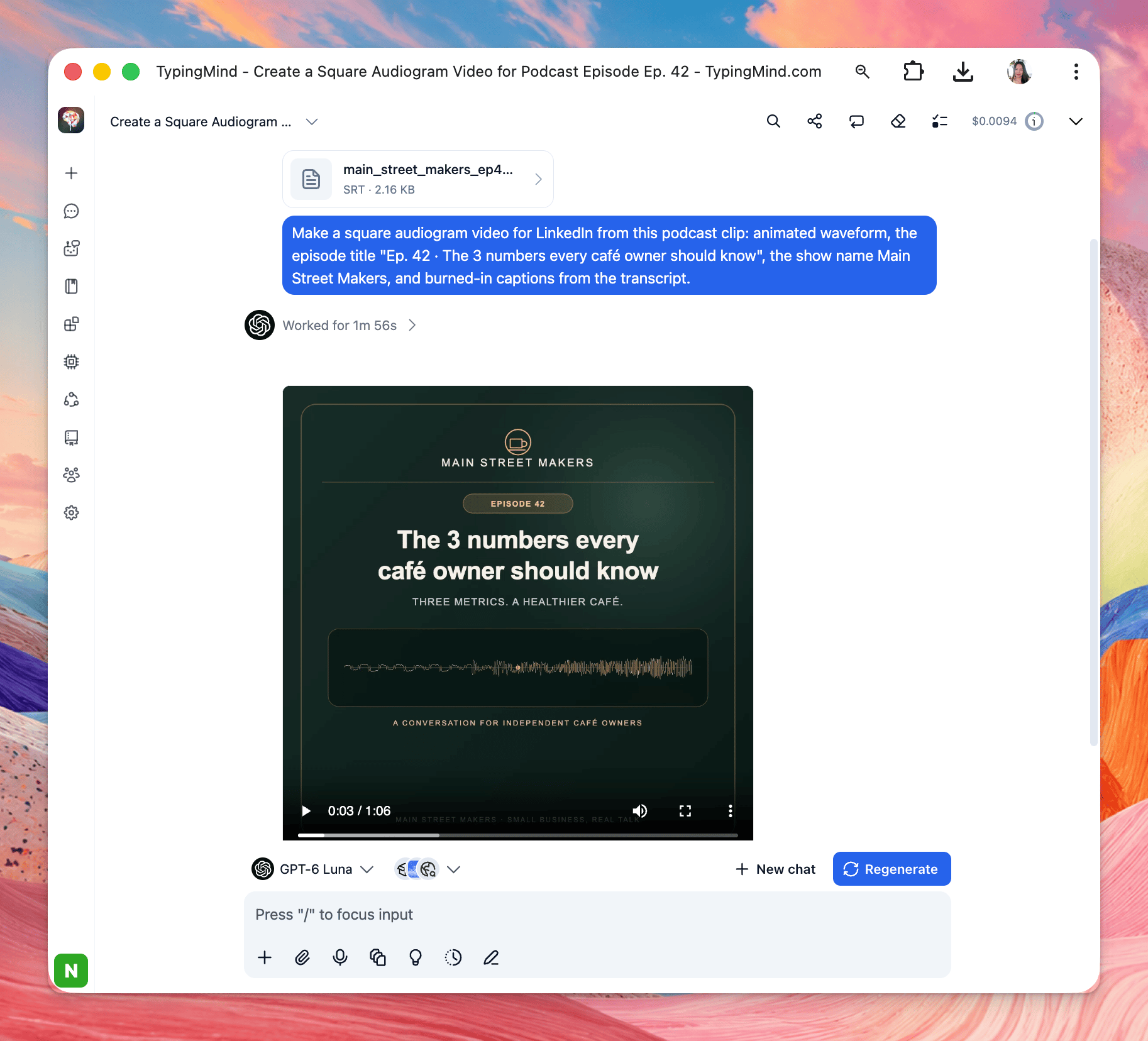
 **10. Generate podcast video.** Attach a webinar or interview recording or a transcript. You get an MP3/video ready for a podcast feed.
```text theme={null}
Make a square audiogram video for LinkedIn from this podcast clip: animated waveform, the episode title "Ep. 42 · The 3 numbers every café owner should know", the show name Main Street Makers, and burned-in captions from the transcript.
```
**10. Generate podcast video.** Attach a webinar or interview recording or a transcript. You get an MP3/video ready for a podcast feed.
```text theme={null}
Make a square audiogram video for LinkedIn from this podcast clip: animated waveform, the episode title "Ep. 42 · The 3 numbers every café owner should know", the show name Main Street Makers, and burned-in captions from the transcript.
```
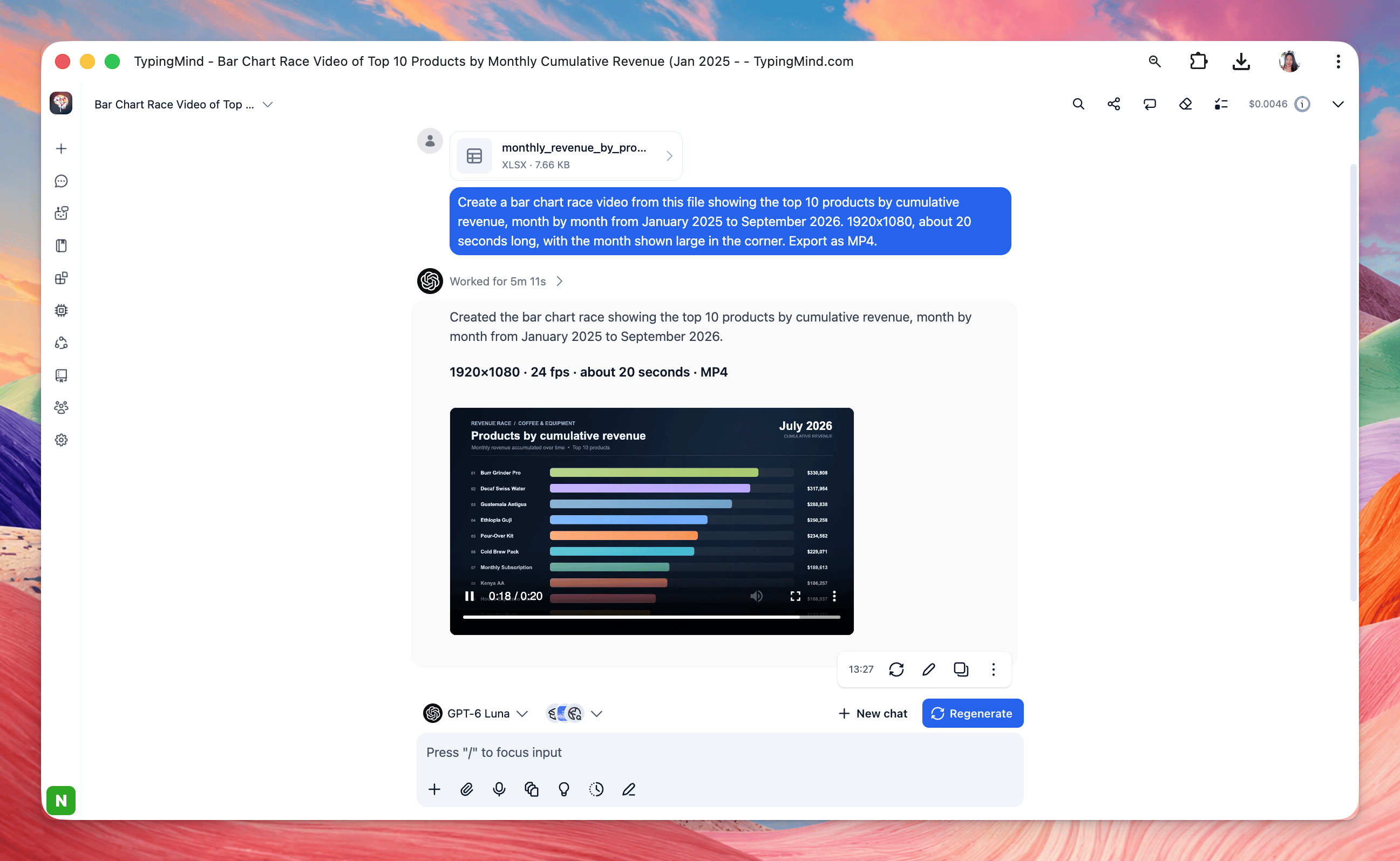
 **11. Animated bar chart race.** Attach monthly numbers by category. You get an MP4 of bars racing over time, ready for social or a presentation.
```text theme={null}
Create a bar chart race video from this file showing the top 10 products by cumulative revenue, month by month from January 2025 to September 2026. 1920x1080, about 20 seconds long, with the month shown large in the corner. Export as MP4.
```
**11. Animated bar chart race.** Attach monthly numbers by category. You get an MP4 of bars racing over time, ready for social or a presentation.
```text theme={null}
Create a bar chart race video from this file showing the top 10 products by cumulative revenue, month by month from January 2025 to September 2026. 1920x1080, about 20 seconds long, with the month shown large in the corner. Export as MP4.
```
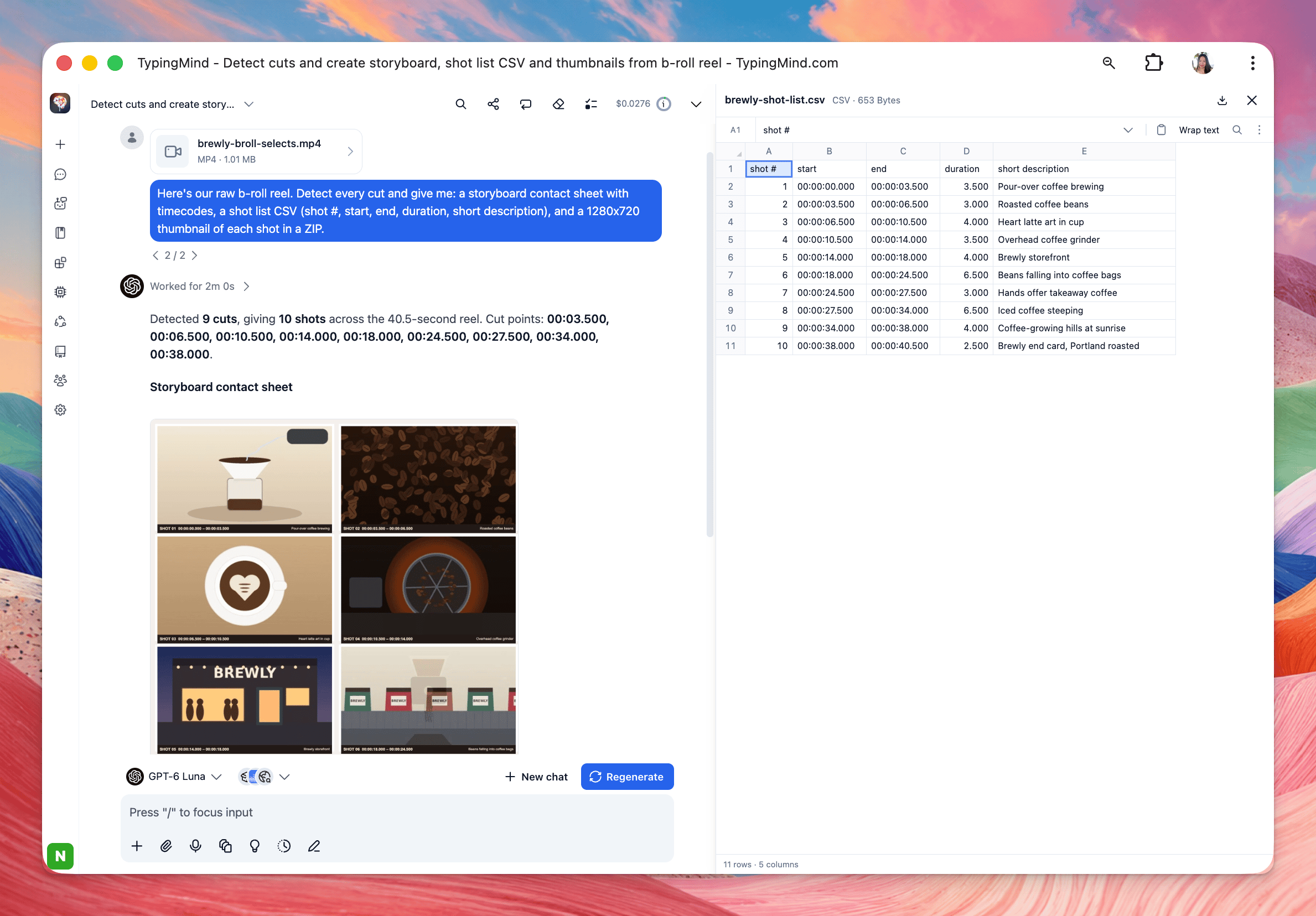
 **12. Video to Storyboard.** Automatically detect scene cuts in a video and generate a storyboard contact sheet, timestamped shot list (CSV), and individual thumbnails.
 ## Tips for best results
The clearer you are about the final output, the better Toolbox performs.
* **Name the deliverable.** Say "give me an Excel file", "a one-page PDF", or "answer with visuals". Without it, you may get a text answer only.
* **Say who it's for.** "A readout I can send to the product team" or "for the board" changes the tone, length, and polish.
* **Ask the real business question.** "Did the January loyalty program improve retention?" gets a direct verdict, not just a chart.
* **Explain your data.** Mention what key columns mean, the date range, and known quirks ("refunds appear as negative amounts", "the West file has a footer row").
* **Be precise with media.** Give exact timestamps ("02:15 to 02:45"), pixel sizes or aspect ratios ("1080x1920", "9:16"), the output format, and a target file size ("under 25 MB").
* **Ask it to flag problems.** "Add a sheet flagging anything that looks off" surfaces duplicates, missing values, and mismatched totals.
* **Iterate in small steps.** Get the analysis right first, then ask for styling, extra sheets, or a PDF version.
* **Pick a capable model for big jobs.** Multi-step work (merging files, building PDFs, statistics) goes best with stronger models. Lighter models are fine for quick conversions.
* **Check the numbers that matter.** Expand the "Worked for…" steps to see what was calculated, and spot-check key totals against your source.
## Limitations and troubleshooting
Most issues come from Toolbox being off for the chat, a request that doesn't ask for an output, or a file too large for the browser.
| Problem | What to try |
| :- | :- |
| The AI answers in text and never runs code | Check that the Toolbox toggle is on in Plugins and that Toolbox is active in the chat's Toolbox dropdown. Then ask explicitly for a file or chart. |
| "Can't access the internet" or a fetch fails | Network access is disabled by default. Download the data yourself and attach it. |
| A step fails partway through | The AI usually retries on its own. If it stops, reply "continue" or describe the error. You can also hit Regenerate or switch to a stronger model. |
| The chart or document isn't quite right | Reply with specific changes. Small, concrete requests work better than "make it better". |
| Numbers look wrong | Expand the run's steps to see the calculation, then point out the issue ("amounts are in cents", "exclude test orders"). |
Toolbox can only use the libraries it ships with, since packages can't be downloaded while network access is off. The Overview tab shows the full list.
**Media limits:** Toolbox edits and converts images, video, and audio you already have; it doesn't generate new images with AI. Tasks that need a specialized AI model, such as removing photo backgrounds, transcribing speech to text, or recognizing people in a video, are not built in.
## FAQs
**Does Toolbox cost extra?** No. Toolbox is free with TypingMind. You only pay for the AI model usage you already have.
**Do I need to know Python or JavaScript?** No. Describe what you want in plain language. The code is visible if you're curious, but you never have to write or read it.
**Which AI models work with Toolbox?** It works with the models you use in TypingMind, including GPT, Gemini, and Claude models. Stronger models handle long, multi-step tasks more reliably.
**Are my files uploaded to a TypingMind server?** No. Toolbox runs code in your browser, so files are processed on your device. The AI model you chose still sees the content it reads in order to answer.
**Can Toolbox browse the web or call APIs?** Not by default; network access is disabled. Save web pages or export data and attach them instead.
**What file types can I give it?** Word, Excel, PowerPoint, PDF, CSV, JSON, XML, and common image formats (PNG, JPG, GIF), plus audio and video through FFmpeg.
**What can it give back?** Charts inline in the chat, and downloadable files such as Excel workbooks, PDFs, Word documents, PowerPoint decks, CSVs, Zips, images, and HTML reports.
**Can Toolbox create images or transcribe audio?** No. It edits, converts, and combines media you attach, and it can draw charts and simple graphics from data. For AI image generation, use an image-generation plugin in TypingMind; transcription needs a speech-to-text tool.
**Can I turn Toolbox off?** Yes. Flip the toggle in Plugins → Toolbox, or deactivate it for a single chat from the Toolbox dropdown next to the model picker.
This documentation is built and hosted on [Mintlify](https://mintlify.com), a developer documentation platform.
## Tips for best results
The clearer you are about the final output, the better Toolbox performs.
* **Name the deliverable.** Say "give me an Excel file", "a one-page PDF", or "answer with visuals". Without it, you may get a text answer only.
* **Say who it's for.** "A readout I can send to the product team" or "for the board" changes the tone, length, and polish.
* **Ask the real business question.** "Did the January loyalty program improve retention?" gets a direct verdict, not just a chart.
* **Explain your data.** Mention what key columns mean, the date range, and known quirks ("refunds appear as negative amounts", "the West file has a footer row").
* **Be precise with media.** Give exact timestamps ("02:15 to 02:45"), pixel sizes or aspect ratios ("1080x1920", "9:16"), the output format, and a target file size ("under 25 MB").
* **Ask it to flag problems.** "Add a sheet flagging anything that looks off" surfaces duplicates, missing values, and mismatched totals.
* **Iterate in small steps.** Get the analysis right first, then ask for styling, extra sheets, or a PDF version.
* **Pick a capable model for big jobs.** Multi-step work (merging files, building PDFs, statistics) goes best with stronger models. Lighter models are fine for quick conversions.
* **Check the numbers that matter.** Expand the "Worked for…" steps to see what was calculated, and spot-check key totals against your source.
## Limitations and troubleshooting
Most issues come from Toolbox being off for the chat, a request that doesn't ask for an output, or a file too large for the browser.
| Problem | What to try |
| :- | :- |
| The AI answers in text and never runs code | Check that the Toolbox toggle is on in Plugins and that Toolbox is active in the chat's Toolbox dropdown. Then ask explicitly for a file or chart. |
| "Can't access the internet" or a fetch fails | Network access is disabled by default. Download the data yourself and attach it. |
| A step fails partway through | The AI usually retries on its own. If it stops, reply "continue" or describe the error. You can also hit Regenerate or switch to a stronger model. |
| The chart or document isn't quite right | Reply with specific changes. Small, concrete requests work better than "make it better". |
| Numbers look wrong | Expand the run's steps to see the calculation, then point out the issue ("amounts are in cents", "exclude test orders"). |
Toolbox can only use the libraries it ships with, since packages can't be downloaded while network access is off. The Overview tab shows the full list.
**Media limits:** Toolbox edits and converts images, video, and audio you already have; it doesn't generate new images with AI. Tasks that need a specialized AI model, such as removing photo backgrounds, transcribing speech to text, or recognizing people in a video, are not built in.
## FAQs
**Does Toolbox cost extra?** No. Toolbox is free with TypingMind. You only pay for the AI model usage you already have.
**Do I need to know Python or JavaScript?** No. Describe what you want in plain language. The code is visible if you're curious, but you never have to write or read it.
**Which AI models work with Toolbox?** It works with the models you use in TypingMind, including GPT, Gemini, and Claude models. Stronger models handle long, multi-step tasks more reliably.
**Are my files uploaded to a TypingMind server?** No. Toolbox runs code in your browser, so files are processed on your device. The AI model you chose still sees the content it reads in order to answer.
**Can Toolbox browse the web or call APIs?** Not by default; network access is disabled. Save web pages or export data and attach them instead.
**What file types can I give it?** Word, Excel, PowerPoint, PDF, CSV, JSON, XML, and common image formats (PNG, JPG, GIF), plus audio and video through FFmpeg.
**What can it give back?** Charts inline in the chat, and downloadable files such as Excel workbooks, PDFs, Word documents, PowerPoint decks, CSVs, Zips, images, and HTML reports.
**Can Toolbox create images or transcribe audio?** No. It edits, converts, and combines media you attach, and it can draw charts and simple graphics from data. For AI image generation, use an image-generation plugin in TypingMind; transcription needs a speech-to-text tool.
**Can I turn Toolbox off?** Yes. Flip the toggle in Plugins → Toolbox, or deactivate it for a single chat from the Toolbox dropdown next to the model picker.
This documentation is built and hosted on [Mintlify](https://mintlify.com), a developer documentation platform.