> ## Documentation Index
> Fetch the complete documentation index at: https://docs.typingmind.com/llms.txt
> Use this file to discover all available pages before exploring further.
# GPT Image Editor
**OpenAI Image Generation is available on TypingMind via the GPT Image Editor plugin.**
With this plugin, you can:
* Generate and edit images using the `gpt-image-1` and `gpt-image-2`API (just like ChatGPT’s native image generation)
* Use image generation with any LLM—not limited to OpenAI models
## Step 1: Open GPT Image Editor plugin setting
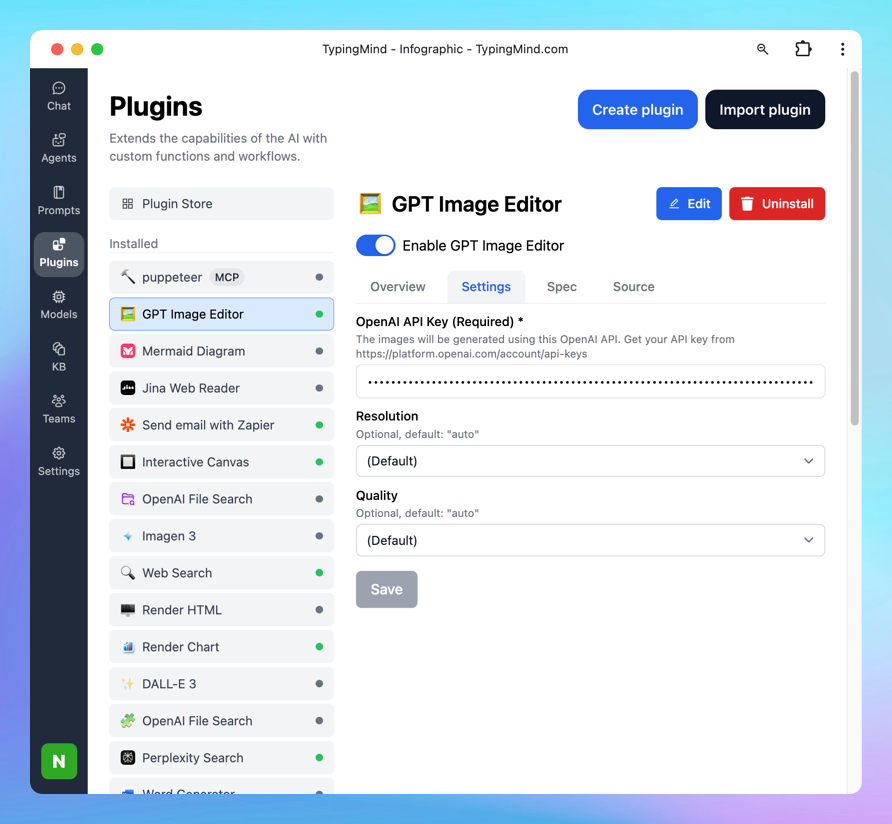
* On TypingMind.com, navigate the plugin menu on the left workspace bar of the app (next to the sidebar)
* Click on Plugin Store and install GPT Image Editor.
* Click on the installed GPT Image Editor plugin to open its settings.
 ## Step 2: Enter your OpenAI API key
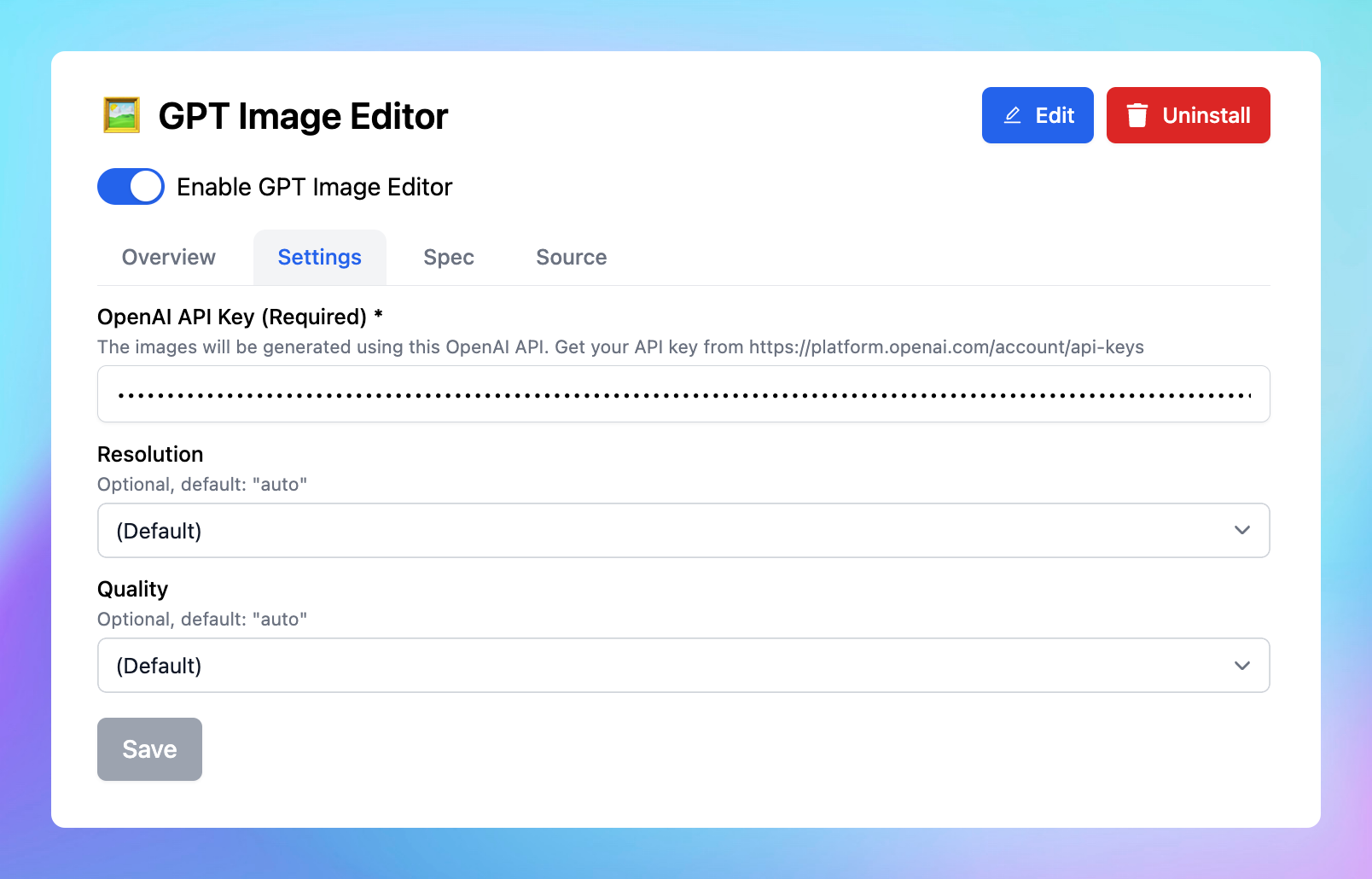
* Switch tab to the Settings tab
* Enter your [OpenAI API key](/manage-and-connect-ai-models/openai-\(gpt-5-gpt-4.1\))
* Set up image generated resolution and quality as you want.
## Step 2: Enter your OpenAI API key
* Switch tab to the Settings tab
* Enter your [OpenAI API key](/manage-and-connect-ai-models/openai-\(gpt-5-gpt-4.1\))
* Set up image generated resolution and quality as you want.
 ## Step 3: Start prompting the AI model to generate images
You can:
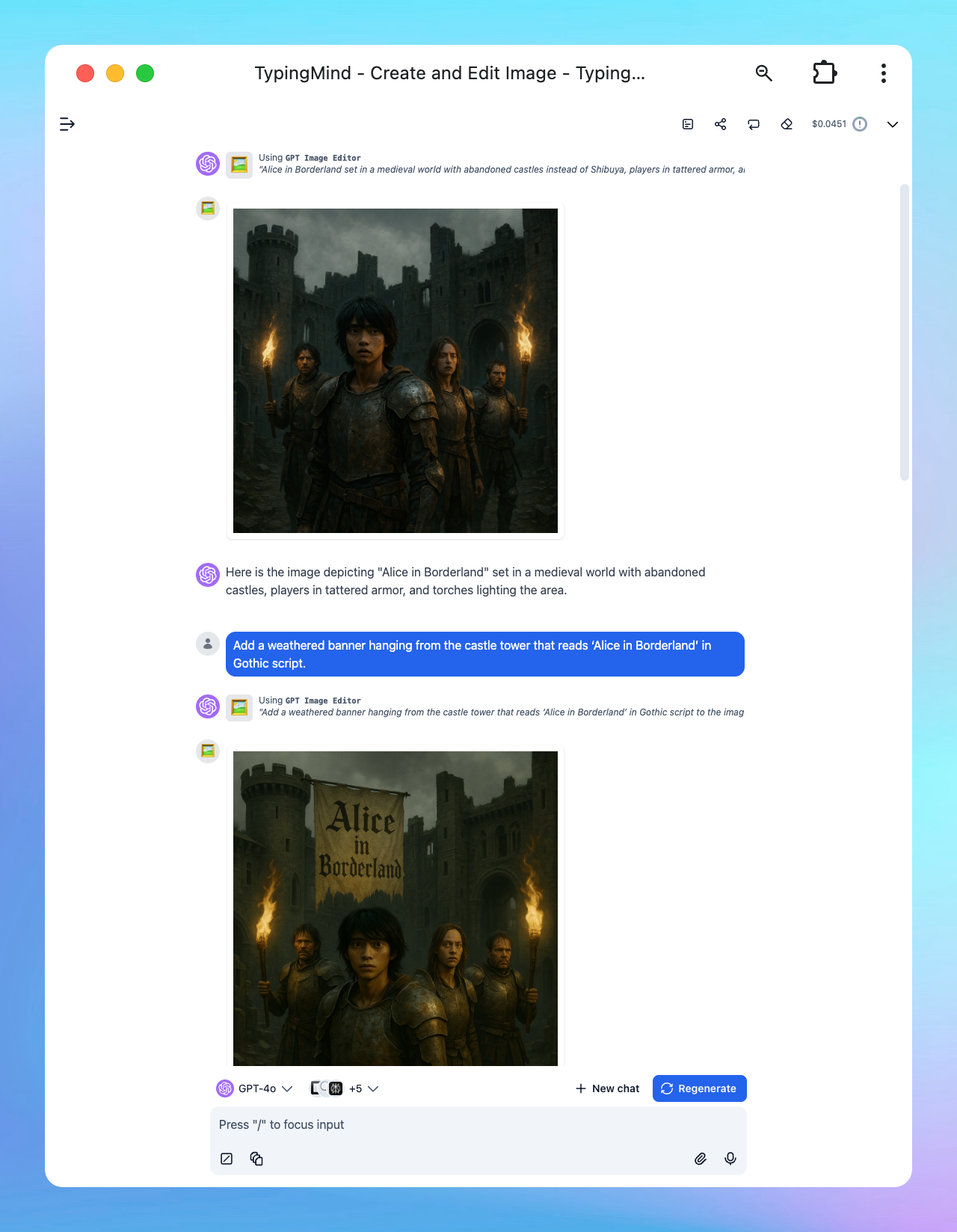
* Create and edit image
## Step 3: Start prompting the AI model to generate images
You can:
* Create and edit image
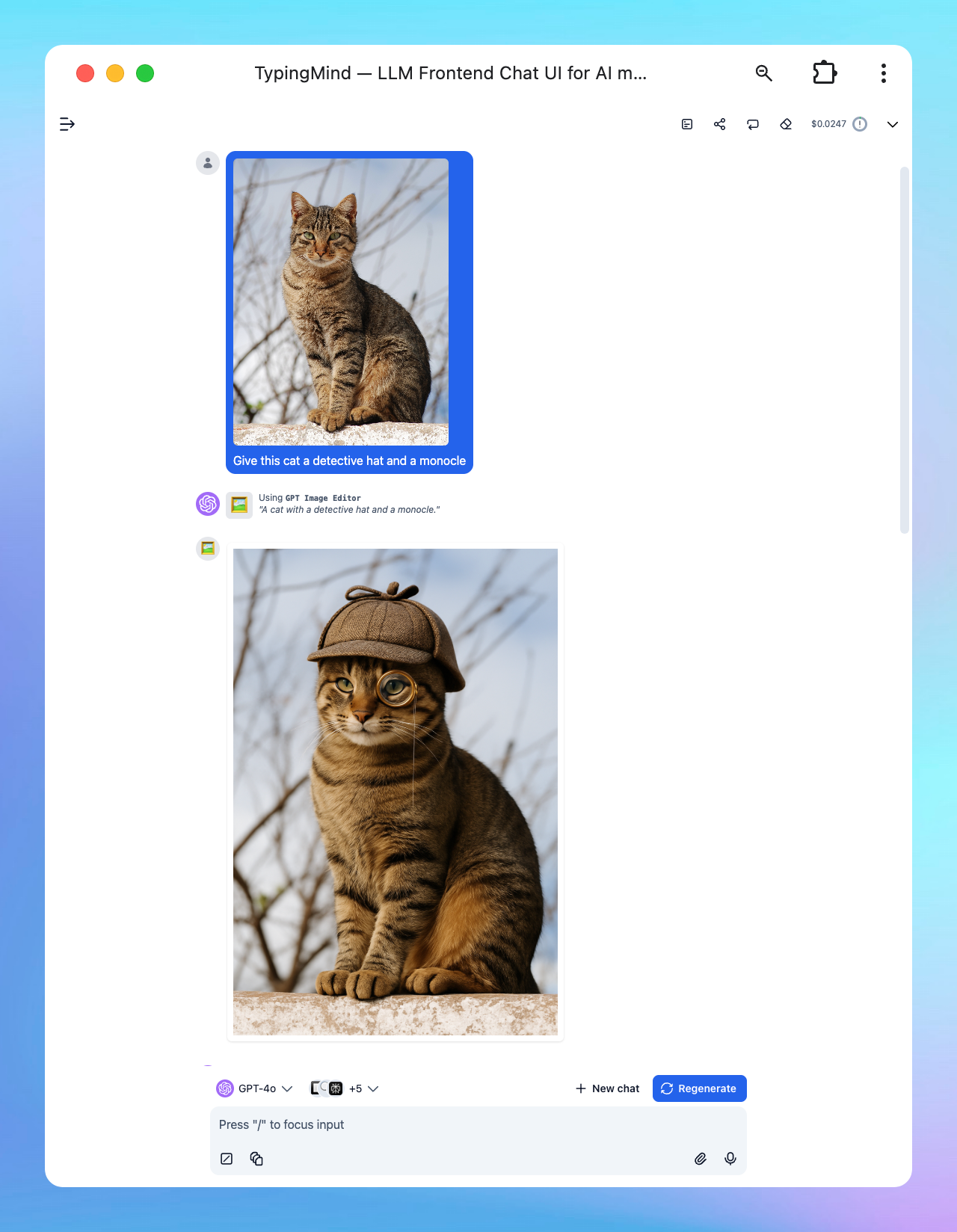
 * Upload image and edit from your image file
 * Create infographic
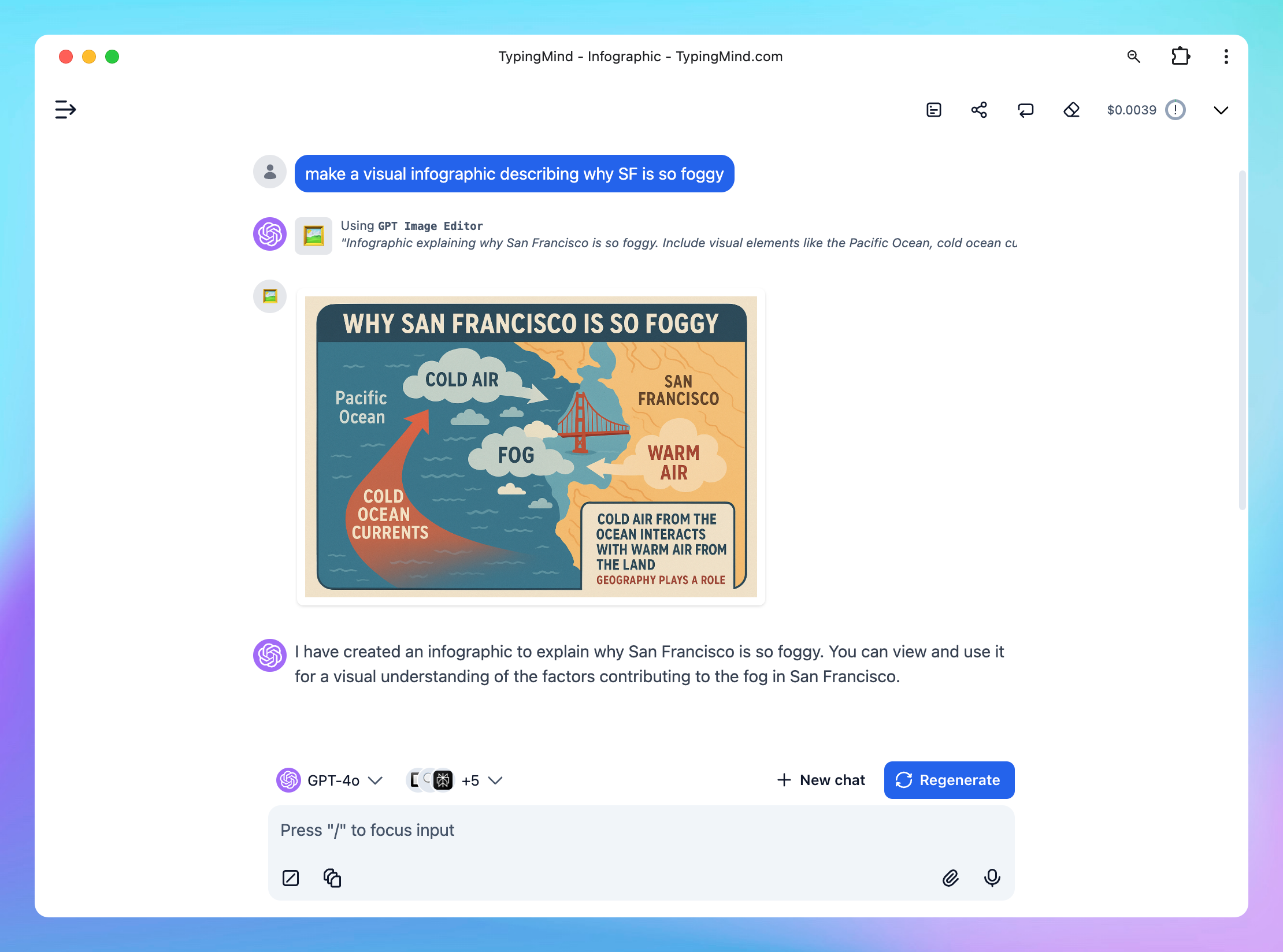 * And more!
## Image Generation Prompt Tips
Tips from the OpenAI community, read more [here](https://community.openai.com/t/dalle3-prompt-tips-and-tricks-thread/498040)
1. **Be Specific and Detailed**: The more specific your prompt, the better the image quality. Include details like the setting, objects, colors, mood, and any specific elements you want in the image.
2. **Mood and Atmosphere**: Describe the mood or atmosphere you want to convey. Words like “serene,” “chaotic,” “mystical,” or “futuristic” can guide the AI in setting the right tone.
3. **Use Descriptive Adjectives**: Adjectives help in refining the image. For example, instead of saying “a dog,” say “a fluffy, small, brown dog.”
4. **Consider Perspective and Composition**: Mention if you want a close-up, a wide shot, a bird’s-eye view, or a specific angle. This helps in framing the scene correctly.
5. **Specify Lighting and Time of Day**: Lighting can dramatically change the mood of an image. Specify if it’s day or night, sunny or cloudy, or if there’s a specific light source like candlelight or neon lights.
6. **Incorporate Action or Movement**: If you want a dynamic image, describe actions or movements. For instance, “a cat jumping over a fence” is more dynamic than just “a cat.”
7. **Avoid Overloading the Prompt**: While details are good, too many can confuse the AI. Try to strike a balance between being descriptive and being concise.
8. **Use Analogies or Comparisons**: Sometimes it helps to compare what you want with something well-known, like “in the style of Van Gogh” or “resembling a scene from a fantasy novel.”
9. **Specify Desired Styles or Themes**: If you have a particular artistic style or theme in mind, mention it. For example, “cyberpunk,” “art deco,” or “minimalist.”
10. **Iterative Approach**: Sometimes, you may not get the perfect image on the first try. Use the results to refine your prompt and try again.
**OpenAI Image Generation is available on TypingMind via the GPT Image Editor plugin.**
With this plugin, you can:
* Generate and edit images using the `gpt-image-1`, `gpt-image-1.5`, `gpt-image-2` API (just like ChatGPT’s native image generation)
* Use image generation with any LLM—not limited to OpenAI models
* And more!
## Image Generation Prompt Tips
Tips from the OpenAI community, read more [here](https://community.openai.com/t/dalle3-prompt-tips-and-tricks-thread/498040)
1. **Be Specific and Detailed**: The more specific your prompt, the better the image quality. Include details like the setting, objects, colors, mood, and any specific elements you want in the image.
2. **Mood and Atmosphere**: Describe the mood or atmosphere you want to convey. Words like “serene,” “chaotic,” “mystical,” or “futuristic” can guide the AI in setting the right tone.
3. **Use Descriptive Adjectives**: Adjectives help in refining the image. For example, instead of saying “a dog,” say “a fluffy, small, brown dog.”
4. **Consider Perspective and Composition**: Mention if you want a close-up, a wide shot, a bird’s-eye view, or a specific angle. This helps in framing the scene correctly.
5. **Specify Lighting and Time of Day**: Lighting can dramatically change the mood of an image. Specify if it’s day or night, sunny or cloudy, or if there’s a specific light source like candlelight or neon lights.
6. **Incorporate Action or Movement**: If you want a dynamic image, describe actions or movements. For instance, “a cat jumping over a fence” is more dynamic than just “a cat.”
7. **Avoid Overloading the Prompt**: While details are good, too many can confuse the AI. Try to strike a balance between being descriptive and being concise.
8. **Use Analogies or Comparisons**: Sometimes it helps to compare what you want with something well-known, like “in the style of Van Gogh” or “resembling a scene from a fantasy novel.”
9. **Specify Desired Styles or Themes**: If you have a particular artistic style or theme in mind, mention it. For example, “cyberpunk,” “art deco,” or “minimalist.”
10. **Iterative Approach**: Sometimes, you may not get the perfect image on the first try. Use the results to refine your prompt and try again.
**OpenAI Image Generation is available on TypingMind via the GPT Image Editor plugin.**
With this plugin, you can:
* Generate and edit images using the `gpt-image-1`, `gpt-image-1.5`, `gpt-image-2` API (just like ChatGPT’s native image generation)
* Use image generation with any LLM—not limited to OpenAI models