> ## Documentation Index
> Fetch the complete documentation index at: https://docs.typingmind.com/llms.txt
> Use this file to discover all available pages before exploring further.
# TypingMind MCP + FileSystem
This guide walks you through setting up the **FileSystem MCP server** so your AI assistant in **TypingMind** can read and interact with files stored locally on your computer.
## Why access your local files?
* **Read and write files**: Summarize documents, edit notes, or generate new content directly into local files.
* **Create, list, and delete directories**: Organize your folders automatically based on tasks or projects.
* **Move files and directories**: Help clean up, archive, or reorganize data as needed.
* **Search files by name or content**: Quickly locate the documents or data you’re looking for.
* **Retrieve file metadata**: Get information like last modified date, file size, or file type.
## Step-by-step to install
### Step 1: Set up MCP Connectors
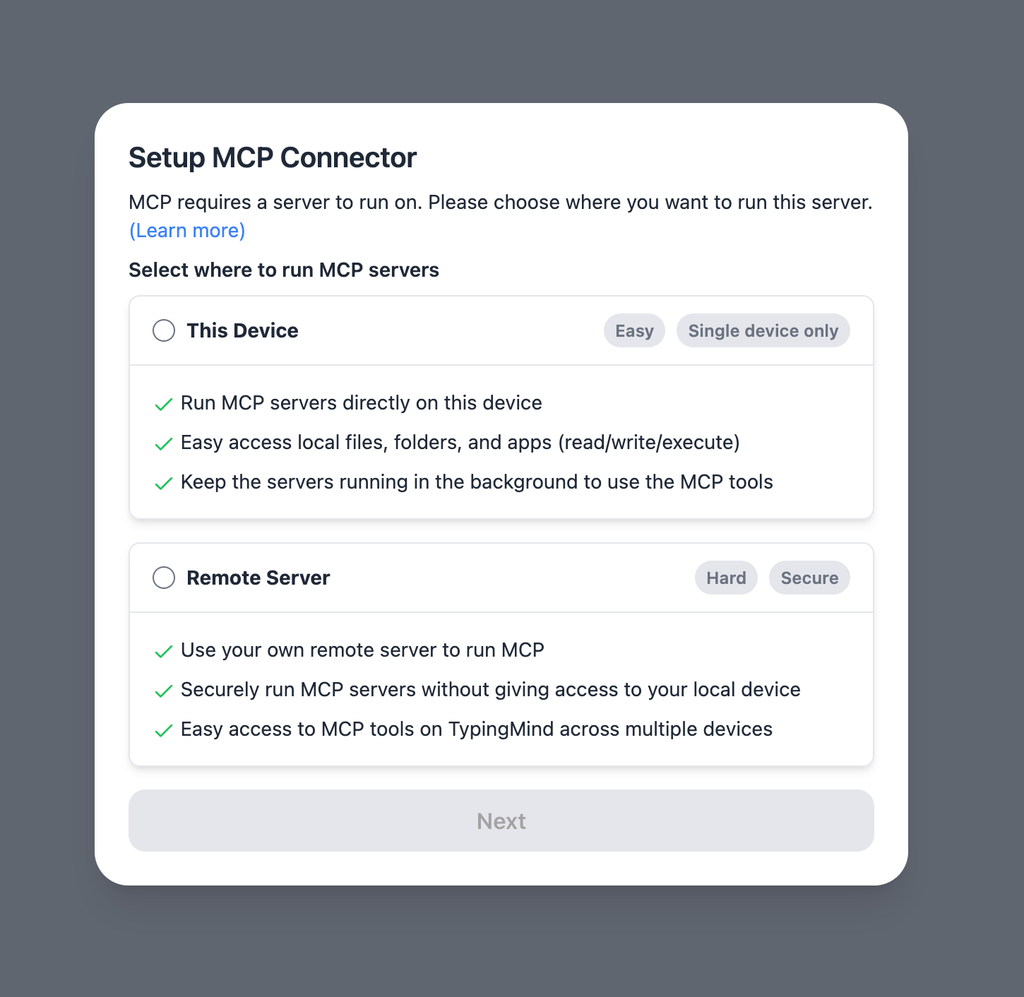
In TypingMind, go to Settings → Advanced Settings → Model Context Protocol to start setup your MCP connector. The MCP Connector acts as the bridge between TypingMind and the MCP servers.
MCP servers require a server to run on. TypingMind allows you to connect to the MCP servers via:
* Your own local device
* Or a private remote server.
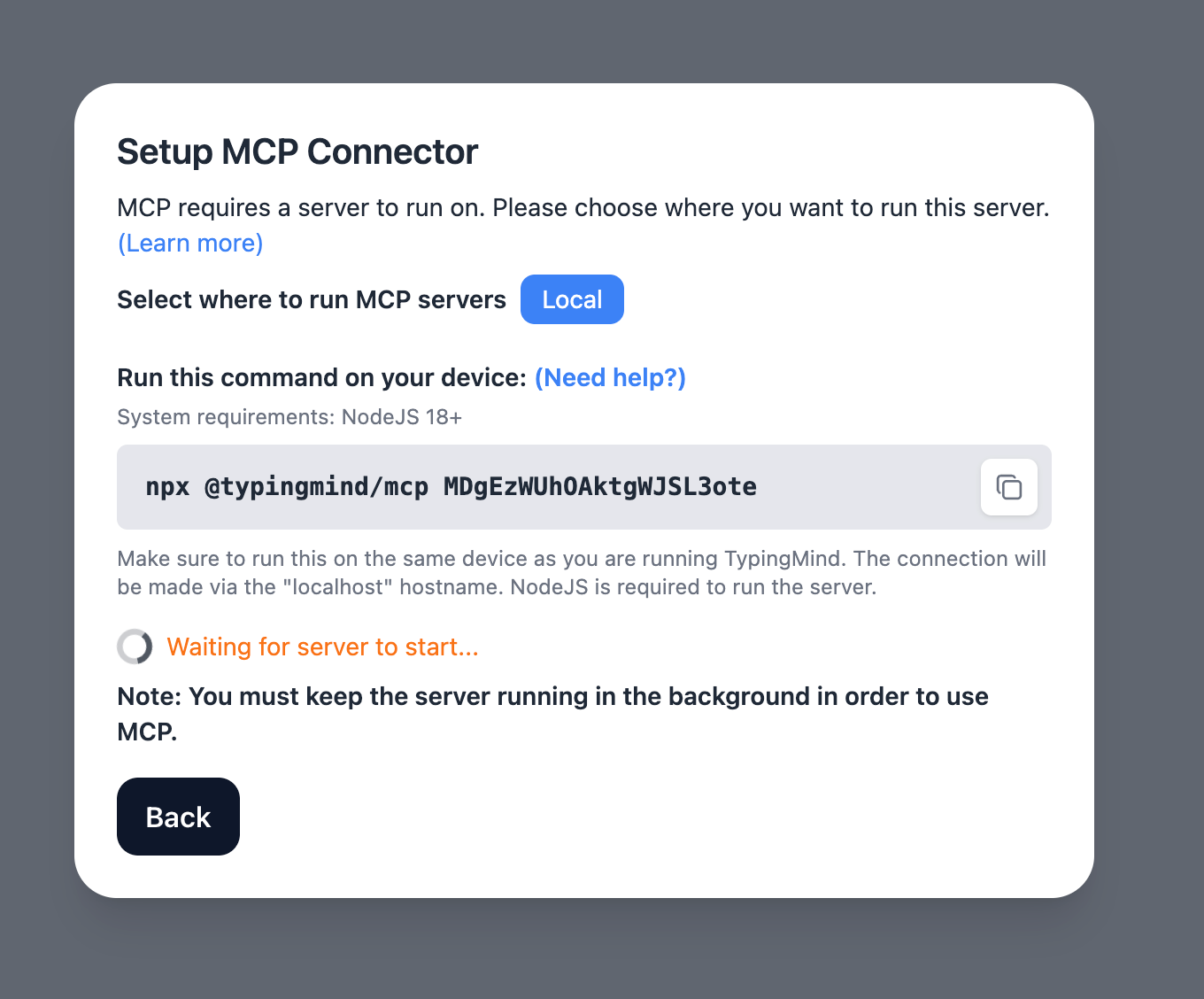
 If you choose to run the MCP servers on your device, run the command displayed on the screen.
 Detail setup can be found at [https://docs.typingmind.com/model-context-protocol-in-typingmind](https://docs.typingmind.com/model-context-protocol-in-typingmind)
### Step 2: Add the FileSystem MCP Server
* Click on Edit Servers to add MCP server
* Add the following JSON to configure the FileSystem MCP server:
```json theme={null}
{
"mcpServers": {
"filesystem": {
"command": "npx",
"args": [
"-y",
"@modelcontextprotocol/server-filesystem",
"/Users/username/Desktop",
"/path/to/other/allowed/dir"
]
}
}
}
```
Replace the folder paths with those you want the AI to access. Make sure these folders exist on your device.
Detail setup can be found at [https://docs.typingmind.com/model-context-protocol-in-typingmind](https://docs.typingmind.com/model-context-protocol-in-typingmind)
### Step 2: Add the FileSystem MCP Server
* Click on Edit Servers to add MCP server
* Add the following JSON to configure the FileSystem MCP server:
```json theme={null}
{
"mcpServers": {
"filesystem": {
"command": "npx",
"args": [
"-y",
"@modelcontextprotocol/server-filesystem",
"/Users/username/Desktop",
"/path/to/other/allowed/dir"
]
}
}
}
```
Replace the folder paths with those you want the AI to access. Make sure these folders exist on your device.
-in-typingmind/typingmind-mcp-filesystem/image.png) Github Reference: [Official FileSystem MCP Server on GitHub](https://github.com/modelcontextprotocol/servers/tree/main/src/filesystem)
* Click Save changes to save the MCP server
Github Reference: [Official FileSystem MCP Server on GitHub](https://github.com/modelcontextprotocol/servers/tree/main/src/filesystem)
* Click Save changes to save the MCP server
-in-typingmind/typingmind-mcp-filesystem/image%201.png) ### Step 3: Enable filesystem via Plugin section
After the MCP servers are added successfully, it will show up in your **Plugins** page to be used like plugin. You can use the MCP tools directly or assign them to AI agent like other plugins.
* Go to the **Plugins** section in TypingMind.
* You should see a new plugin called **"filesystem"**.
* Enable the plugin
### Step 3: Enable filesystem via Plugin section
After the MCP servers are added successfully, it will show up in your **Plugins** page to be used like plugin. You can use the MCP tools directly or assign them to AI agent like other plugins.
* Go to the **Plugins** section in TypingMind.
* You should see a new plugin called **"filesystem"**.
* Enable the plugin
-in-typingmind/typingmind-mcp-filesystem/image%202.png) ### Step 4: Start chatting
You can now interact with your local files through natural language. For example:
* “List all the files on my Desktop.”
* “Open and summarize the file ‘ProjectProposal.docx’.”
* “Move the file ‘New’ to folder ‘MCP’ ”
Ensure that the files are inside one of the directories you added in Step 2.
### Step 4: Start chatting
You can now interact with your local files through natural language. For example:
* “List all the files on my Desktop.”
* “Open and summarize the file ‘ProjectProposal.docx’.”
* “Move the file ‘New’ to folder ‘MCP’ ”
Ensure that the files are inside one of the directories you added in Step 2.
-in-typingmind/typingmind-mcp-filesystem/image%203.png) You can find more MCP servers at [https://github.com/modelcontextprotocol/servers](https://github.com/modelcontextprotocol/servers)
## Use cases to use File System
* **Desktop Organization**: automatically sort files, manage folders, and streamline your desktop layout.
* **File Management Automation**: create, edit, move, or delete files using natural language.
* **Enhanced AI Assistance**: give TypingMind contextual awareness of your local files for smarter support.
* **Workflow Integration**: automate project organization, backups, and document processing.
* **Development Support**: manage code, test environments, and generate documentation efficiently.
You can find more MCP servers at [https://github.com/modelcontextprotocol/servers](https://github.com/modelcontextprotocol/servers)
## Use cases to use File System
* **Desktop Organization**: automatically sort files, manage folders, and streamline your desktop layout.
* **File Management Automation**: create, edit, move, or delete files using natural language.
* **Enhanced AI Assistance**: give TypingMind contextual awareness of your local files for smarter support.
* **Workflow Integration**: automate project organization, backups, and document processing.
* **Development Support**: manage code, test environments, and generate documentation efficiently.