> ## Documentation Index
> Fetch the complete documentation index at: https://docs.typingmind.com/llms.txt
> Use this file to discover all available pages before exploring further.
# TypingMind MCP + Airbnb
This guide will help you set up the Airbnb **MCP server**, provides AI assistants on TypingMind with the ability to search Airbnb listings with advanced filtering capabilities and detailed property information retrieval.
## Why setting Airbnb MCP on TypingMind?
Connecting the **Airbnb MCP server** to TypingMind lets your AI assistant directly access Airbnb data in real time.
With this setup, you can:
* Search Airbnb listings by location, date, price, or amenities.
* Retrieve detailed property information such as reviews, host data, and availability.
* Automate property discovery and comparison using natural language prompts.
* Integrate Airbnb search results into larger workflows when using TypingMind with other MCP servers (like Notion or n8n).
## Step-by-step to install Airbnb MCP on TypingMind
### Step 1: Set up MCP Connectors
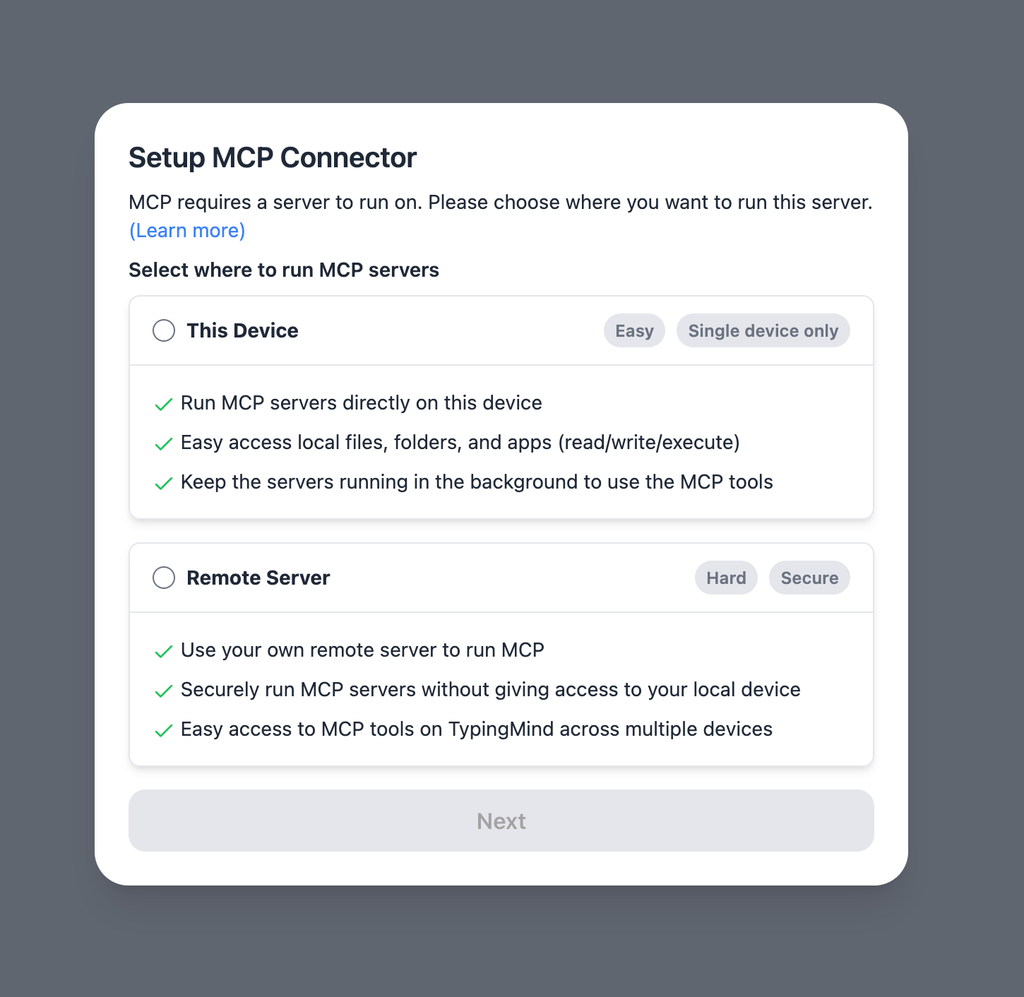
In TypingMind, go to Settings → Advanced Settings → Model Context Protocol to start setup your MCP connector. The MCP Connector acts as the bridge between TypingMind and the MCP servers.
MCP servers require a server to run on. TypingMind allows you to connect to the MCP servers via:
* Your own local device
* Or a private remote server.
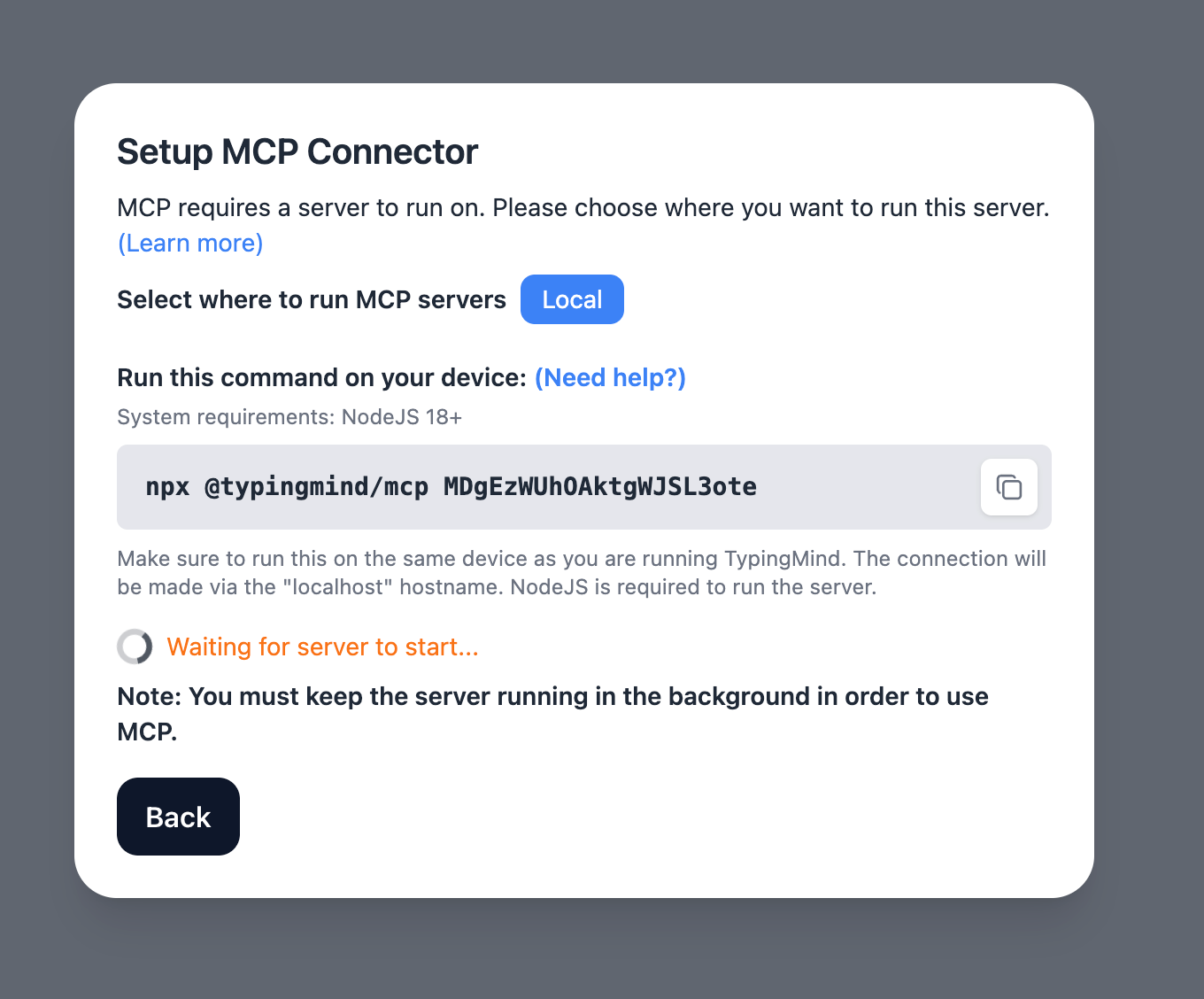
If you choose to run the MCP servers on your device, run the command displayed on the screen.
### Step 2: Add the Airbnb MCP Server to TypingMind
* Click on Edit Servers to add MCP server
* Add the following JSON to configure the Airbnb MCP server:
```json theme={null}
{
"mcpServers": {
"airbnb": {
"command": "npx",
"args": [
"-y",
"@openbnb/mcp-server-airbnb",
"--ignore-robots-txt"
]
}
}
}
```
More information about Airbnb mcp: [https://github.com/openbnb-org/mcp-server-airbnb](https://github.com/openbnb-org/mcp-server-airbnb)
### Step 3: Enable Airbnb via Plugin section
After the MCP servers are added successfully, it will show up in your **Plugins** page to be used like plugin. You can use the MCP tools directly or assign them to AI agent like other plugins.
* Go to the **Plugins** section in TypingMind.
* You should see a new plugin called **"airbnb"**.
* Enable the plugin
### Step 4: Start chatting
You’re all set! Now you can search Airbnb listings and plan your trip instantly!
 If you choose to run the MCP servers on your device, run the command displayed on the screen.
 ### Step 2: Add the Airbnb MCP Server to TypingMind
* Click on Edit Servers to add MCP server
* Add the following JSON to configure the Airbnb MCP server:
```json theme={null}
{
"mcpServers": {
"airbnb": {
"command": "npx",
"args": [
"-y",
"@openbnb/mcp-server-airbnb",
"--ignore-robots-txt"
]
}
}
}
```
More information about Airbnb mcp: [https://github.com/openbnb-org/mcp-server-airbnb](https://github.com/openbnb-org/mcp-server-airbnb)
### Step 2: Add the Airbnb MCP Server to TypingMind
* Click on Edit Servers to add MCP server
* Add the following JSON to configure the Airbnb MCP server:
```json theme={null}
{
"mcpServers": {
"airbnb": {
"command": "npx",
"args": [
"-y",
"@openbnb/mcp-server-airbnb",
"--ignore-robots-txt"
]
}
}
}
```
More information about Airbnb mcp: [https://github.com/openbnb-org/mcp-server-airbnb](https://github.com/openbnb-org/mcp-server-airbnb)
-in-typingmind/typingmind-mcp-airbnb/image.png) ### Step 3: Enable Airbnb via Plugin section
After the MCP servers are added successfully, it will show up in your **Plugins** page to be used like plugin. You can use the MCP tools directly or assign them to AI agent like other plugins.
* Go to the **Plugins** section in TypingMind.
* You should see a new plugin called **"airbnb"**.
* Enable the plugin
### Step 3: Enable Airbnb via Plugin section
After the MCP servers are added successfully, it will show up in your **Plugins** page to be used like plugin. You can use the MCP tools directly or assign them to AI agent like other plugins.
* Go to the **Plugins** section in TypingMind.
* You should see a new plugin called **"airbnb"**.
* Enable the plugin
-in-typingmind/typingmind-mcp-airbnb/image%201.png) ### Step 4: Start chatting
You’re all set! Now you can search Airbnb listings and plan your trip instantly!
### Step 4: Start chatting
You’re all set! Now you can search Airbnb listings and plan your trip instantly!
-in-typingmind/typingmind-mcp-airbnb/image%202.png)