> ## Documentation Index
> Fetch the complete documentation index at: https://docs.typingmind.com/llms.txt
> Use this file to discover all available pages before exploring further.
# Z.ai
This guide shows you how to connect your [Z.ai](http://Z.ai) API key to TypingMind so you can use [Z.ai](http://Z.ai) models directly in your TypingMind workspace.
## Step 1: Log in to [Z.ai](http://Z.ai) API
Log in to your [Z.ai](http://Z.ai) account at [**https://z.ai/subscribe**](https://z.ai/subscribe).
 ## Step 2: Create an API key
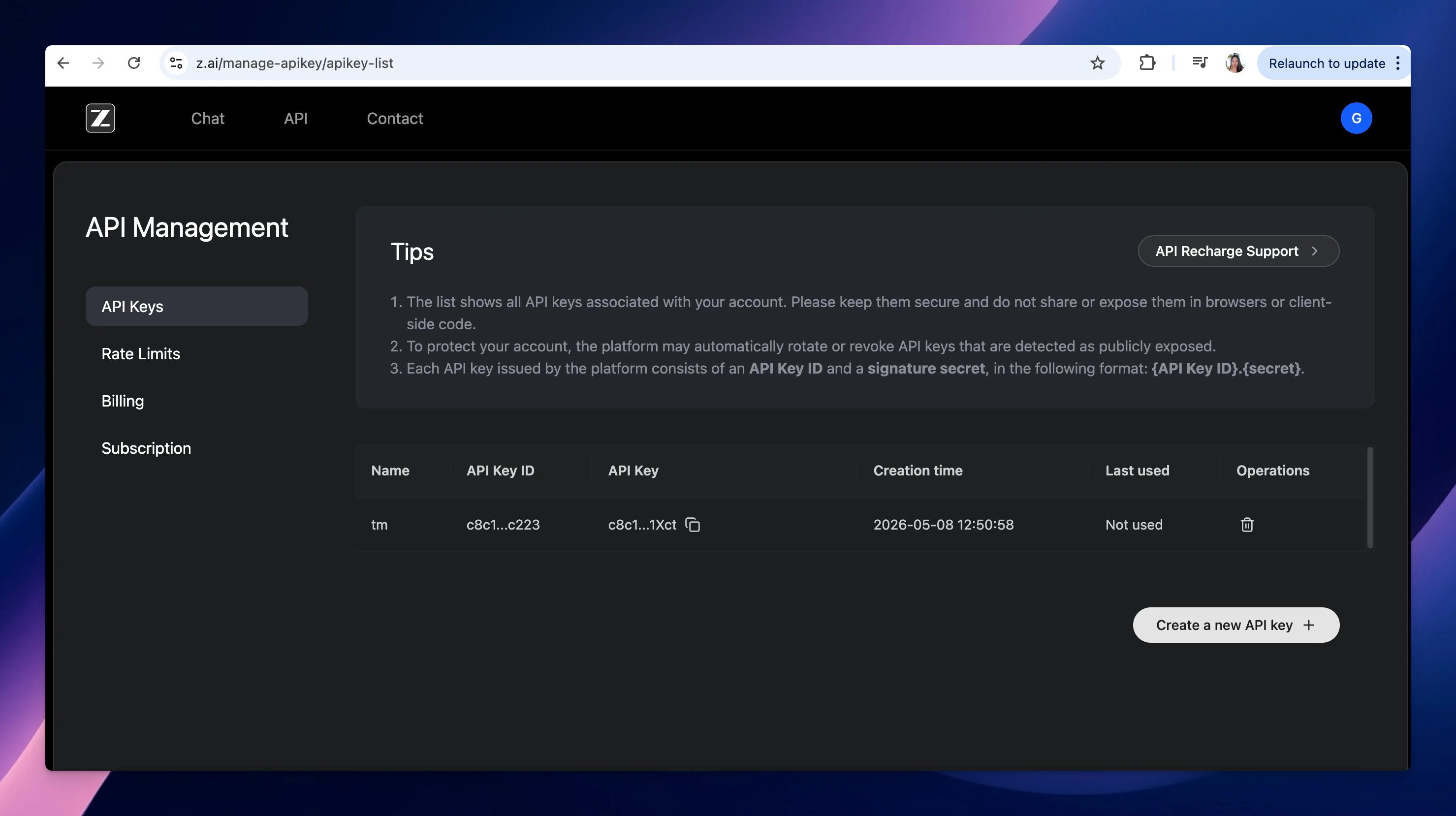
After logging in, go to the API Key page: [**https://z.ai/manage-apikey/apikey-list**](https://z.ai/manage-apikey/apikey-list) → Create a new API key, then copy it.
## Step 2: Create an API key
After logging in, go to the API Key page: [**https://z.ai/manage-apikey/apikey-list**](https://z.ai/manage-apikey/apikey-list) → Create a new API key, then copy it.
 Keep this key private. Do not share it publicly or expose it in client-side code.
## Step 3: Add the API key to TypingMind
* Go to [**typingmind.com**](http://typingmind.com)
* Navigate the Models menu on the left sidebar → Switch to API key tab
* Input the copied API key for Zai.
Keep this key private. Do not share it publicly or expose it in client-side code.
## Step 3: Add the API key to TypingMind
* Go to [**typingmind.com**](http://typingmind.com)
* Navigate the Models menu on the left sidebar → Switch to API key tab
* Input the copied API key for Zai.
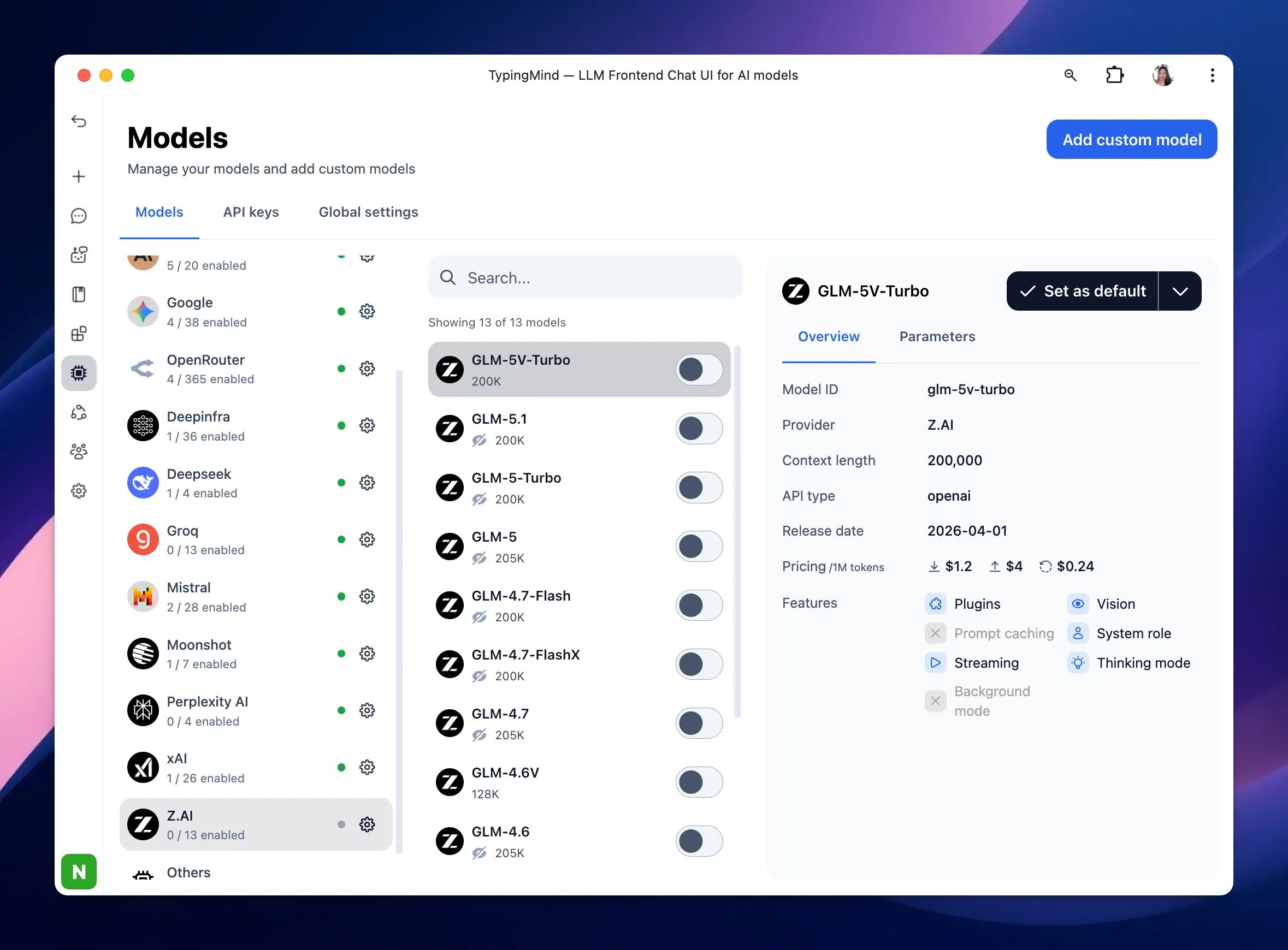
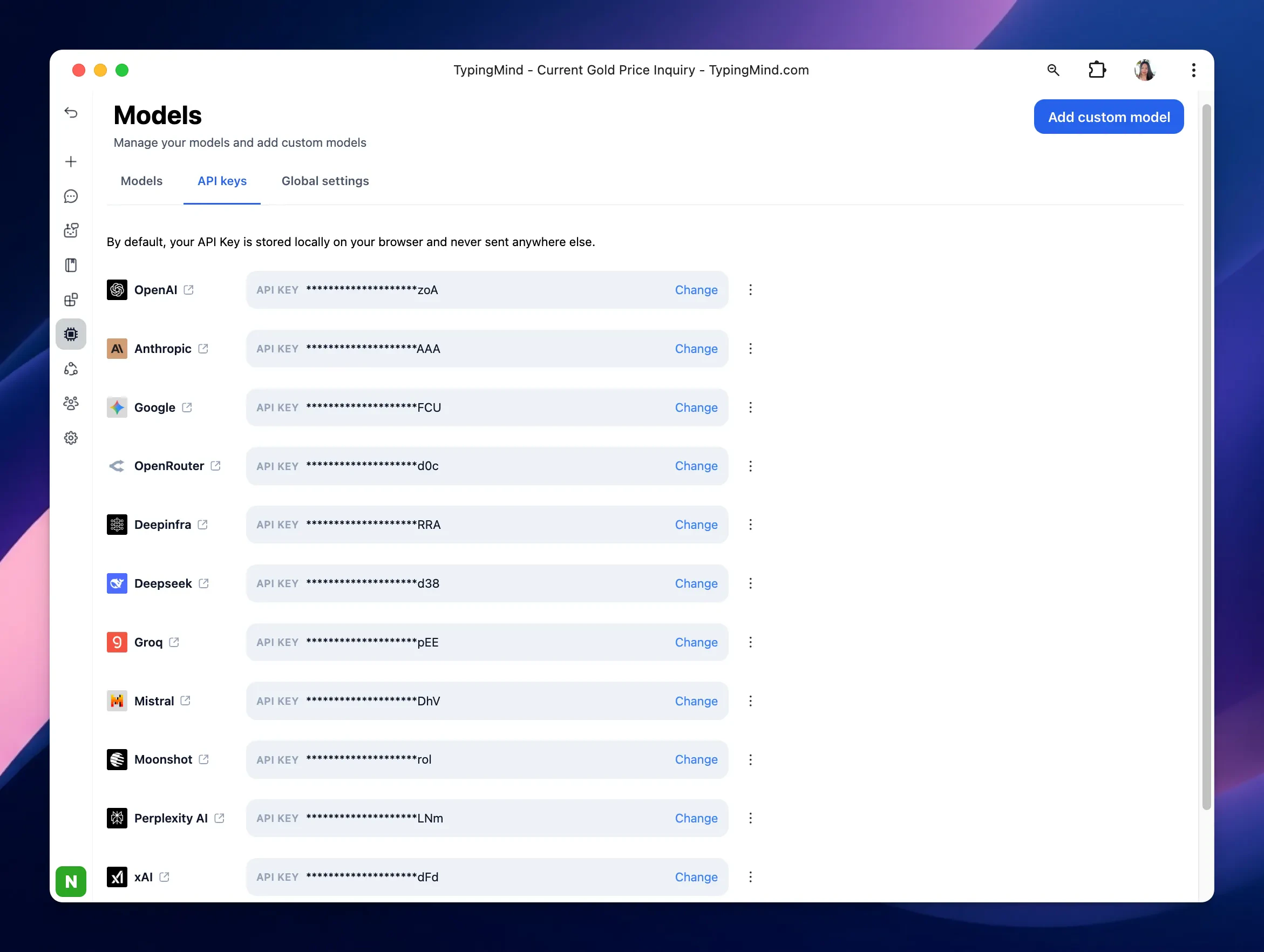 After entering the API key for Zai, switch back to Models tab → select Zai → enable Zai models you want to chat with.