> ## Documentation Index
> Fetch the complete documentation index at: https://docs.typingmind.com/llms.txt
> Use this file to discover all available pages before exploring further.
# API Keys Setup
## For available models
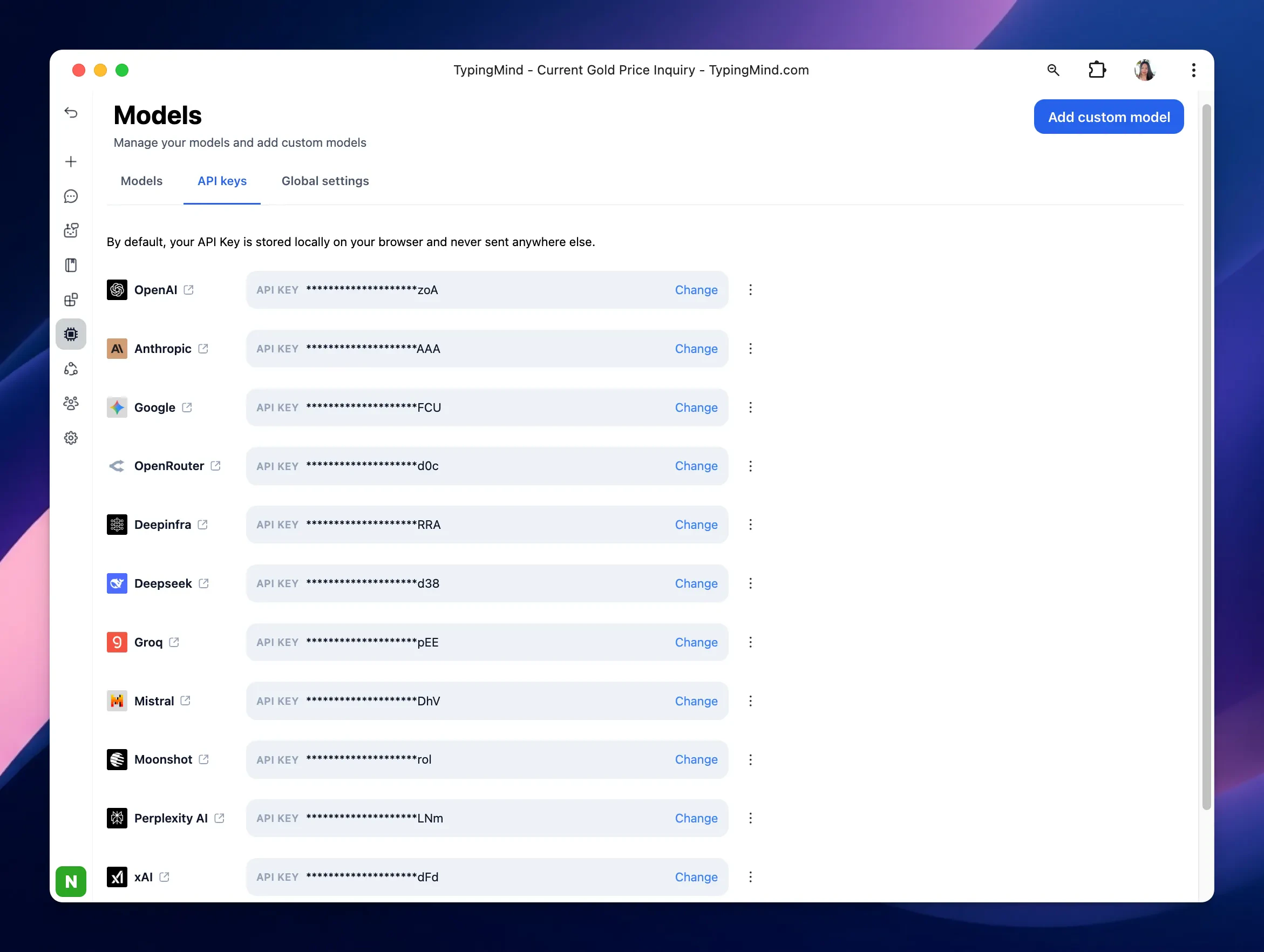
We provide chat models from the following providers:
* [OpenAI](/manage-and-connect-ai-models/openai-\(gpt-5-gpt-4.1\))
* [Anthropic Claude](/manage-and-connect-ai-models/anthropic-claude)
* [Google Gemini](/manage-and-connect-ai-models/google-gemini-\(gemini-3.1-nano-banana\))
* [OpenRouter](/manage-and-connect-ai-models/openrouter)
* [DeepInfra](/manage-and-connect-ai-models/deepinfra)
* [DeepSeek](/manage-and-connect-ai-models/deepseek-ai)
* [Groq](/manage-and-connect-ai-models/groq-api-\(llama-3-mixtral-8x7b-gemma-7b\))
* [Mistral](/manage-and-connect-ai-models/mistral-ai)
* [Moonshot](/manage-and-connect-ai-models/moonshot-ai)
* [Perplexity](/manage-and-connect-ai-models/perplexity-ai)
* [xAI](/manage-and-connect-ai-models/xai-\(grok-ai\))
* [Z.ai](http://Z.ai)
* and more to come!
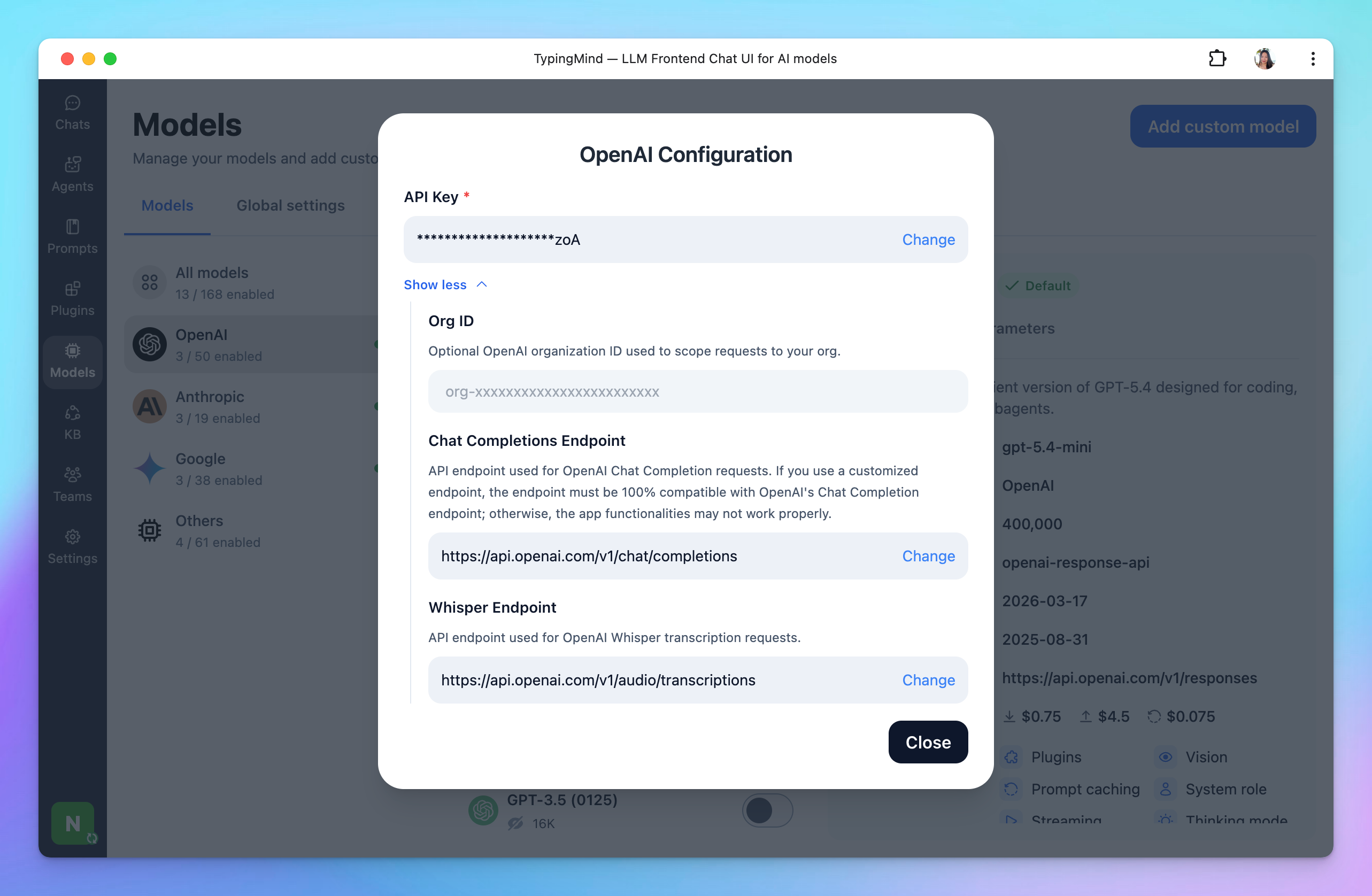
You can add or manage API keys as following:
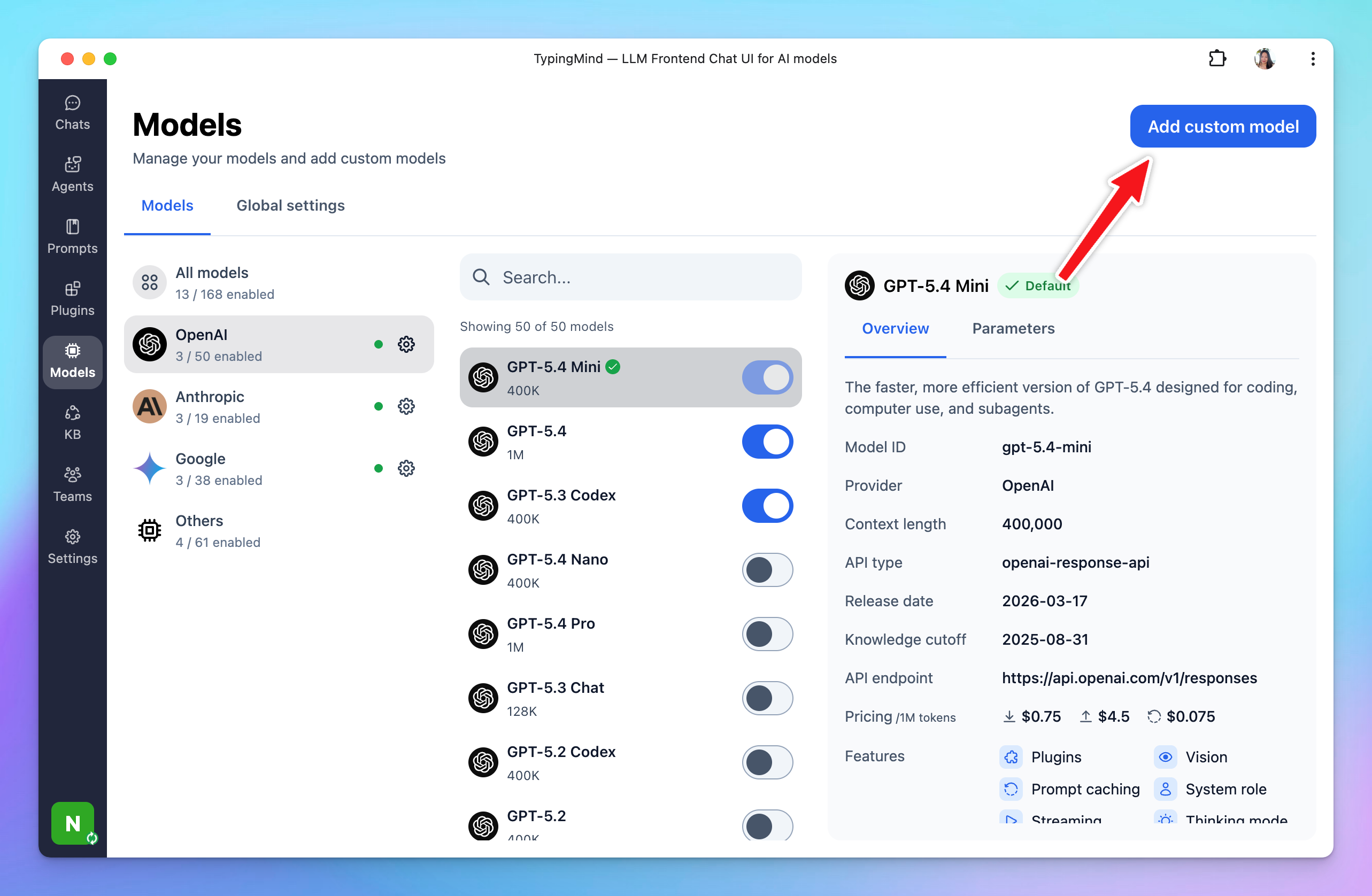
* Click **Models** in the left sidebar, then click the gear icon next to the AI provider you want to connect with.
* or Click **Models** in the left sidebar, then switch to API keys tab to enter your API keys.
 ## For other models
In case you want to use chat models not available within our provided list above, such as models from Azure Foundry, HuggingFace, etc. you can completely set up these chat models on TypingMind by following the steps below:
* Open the Model settings on the left side panel.
* Click on **Add Custom Models**.
* Set up the custom models for:
* [Azure OpenAI](https://docs.typingmind.com/chat-models-settings/use-azure-openai)
* [Minimax](/manage-and-connect-ai-models/minimax)
* [Jina](/manage-and-connect-ai-models/jina-deep-research)
* [LMStudio](/manage-and-connect-ai-models/lmstudio-\(phi-3-llama-3-falcon-gemma-gpt-neo-x\))
More guides can be found at [https://docs.typingmind.com/manage-and-connect-ai-models](https://docs.typingmind.com/manage-and-connect-ai-models)
## For other models
In case you want to use chat models not available within our provided list above, such as models from Azure Foundry, HuggingFace, etc. you can completely set up these chat models on TypingMind by following the steps below:
* Open the Model settings on the left side panel.
* Click on **Add Custom Models**.
* Set up the custom models for:
* [Azure OpenAI](https://docs.typingmind.com/chat-models-settings/use-azure-openai)
* [Minimax](/manage-and-connect-ai-models/minimax)
* [Jina](/manage-and-connect-ai-models/jina-deep-research)
* [LMStudio](/manage-and-connect-ai-models/lmstudio-\(phi-3-llama-3-falcon-gemma-gpt-neo-x\))
More guides can be found at [https://docs.typingmind.com/manage-and-connect-ai-models](https://docs.typingmind.com/manage-and-connect-ai-models)