> ## Documentation Index
> Fetch the complete documentation index at: https://docs.typingmind.com/llms.txt
> Use this file to discover all available pages before exploring further.
# OpenRouter
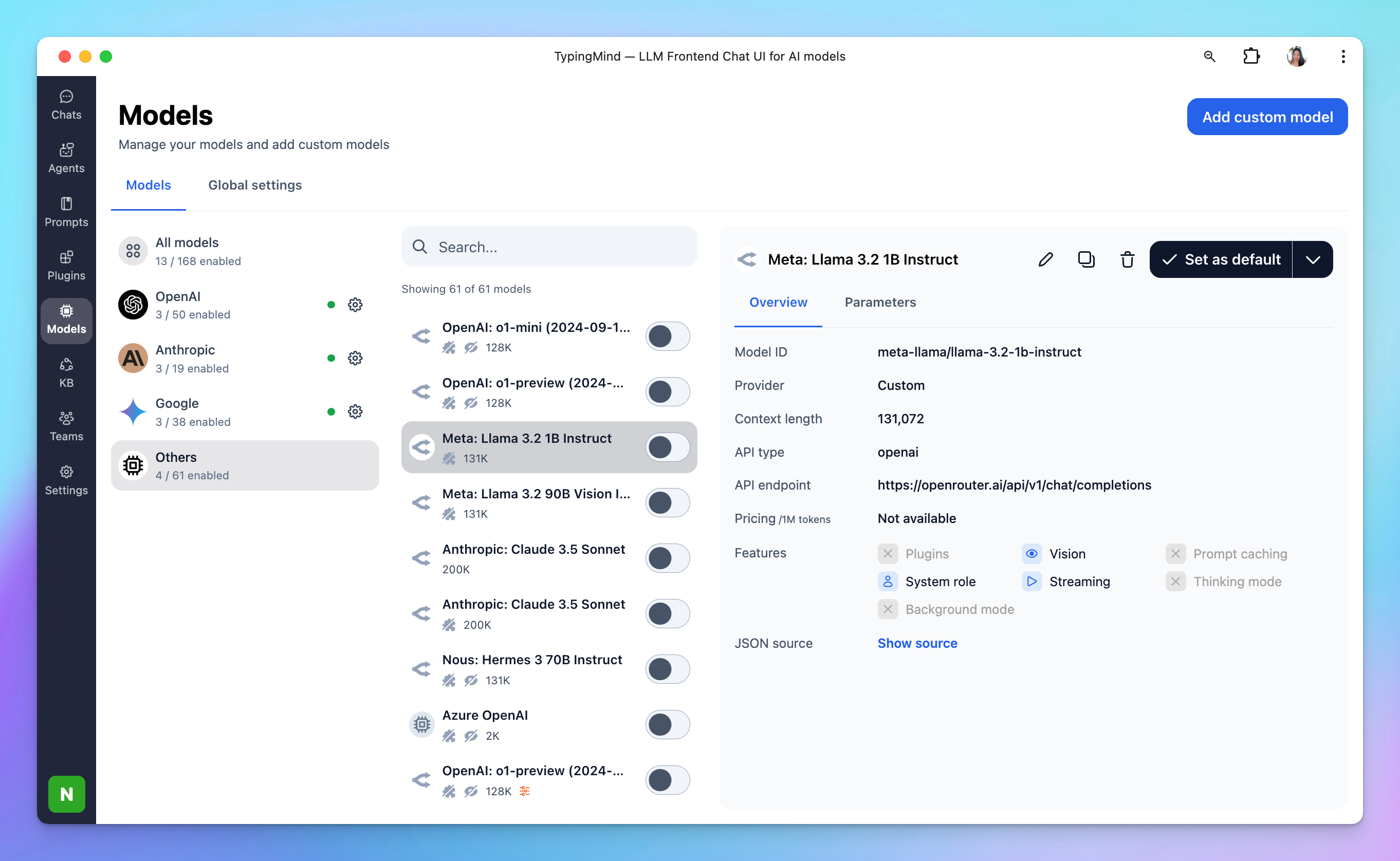
[OpenRouter](https://openrouter.ai/) is a platform/API layer that lets yoiu access many different AI models from different providers such as OpenAI, Anthropic Claude, Minimax, Moonshot, Deepseek, etc.
Here is how to use OpenRouter models on Typing Mind.
 ## 1. Create an account
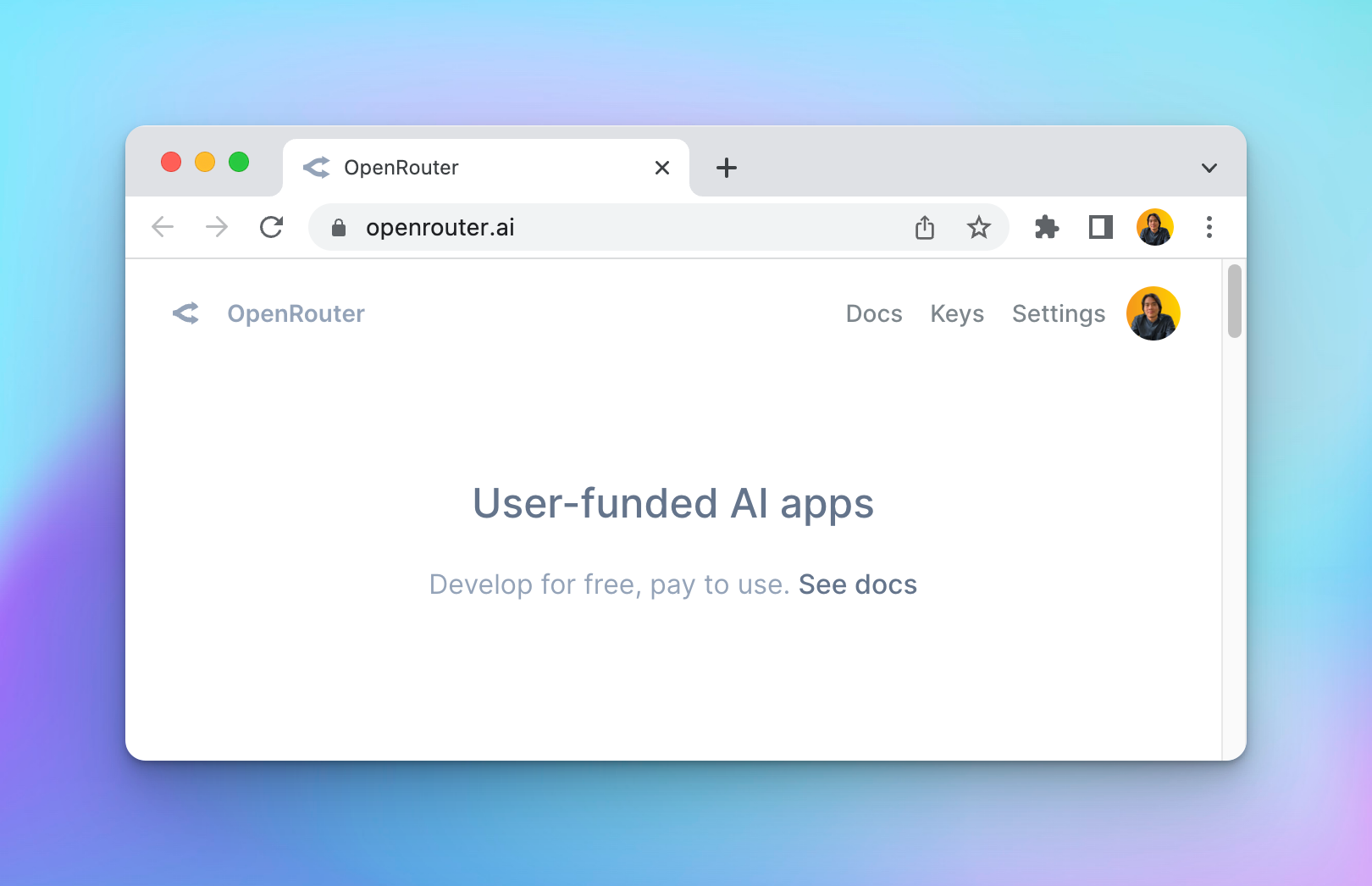
Go to [openrouter.ai](https://openrouter.ai) and create an account. Open Router allows you to use some model for free, or you can buy more credits to use the premium models.
## 1. Create an account
Go to [openrouter.ai](https://openrouter.ai) and create an account. Open Router allows you to use some model for free, or you can buy more credits to use the premium models.
 ## 2. Create an API key
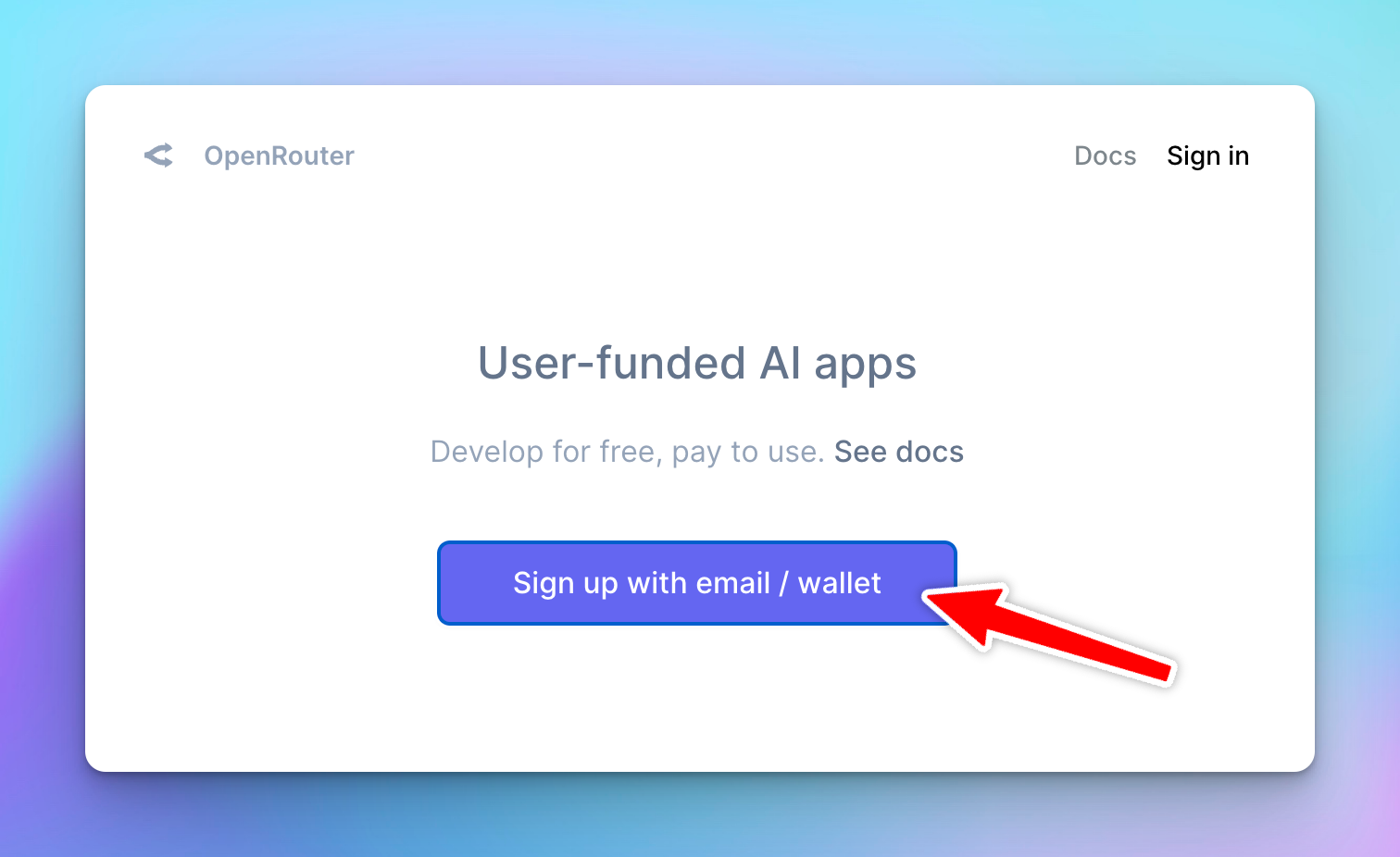
After signing up, go to [https://openrouter.ai/keys](https://openrouter.ai/keys) to create an API key.
Enter “Typing Mind” to the name field. Leave the “Credit limit” empty to set the limit to unlimited.
## 2. Create an API key
After signing up, go to [https://openrouter.ai/keys](https://openrouter.ai/keys) to create an API key.
Enter “Typing Mind” to the name field. Leave the “Credit limit” empty to set the limit to unlimited.
 ## 3. Add Credits
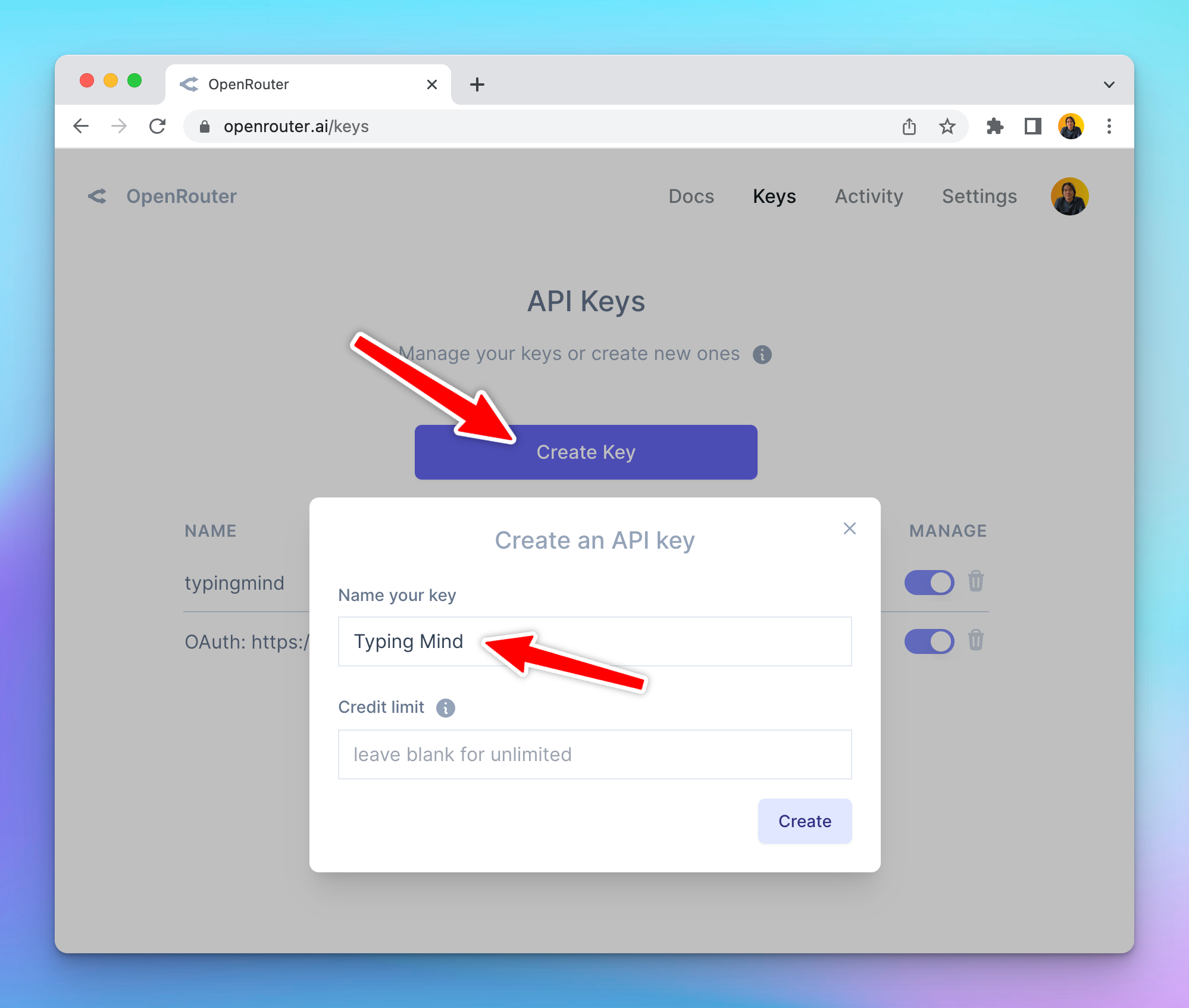
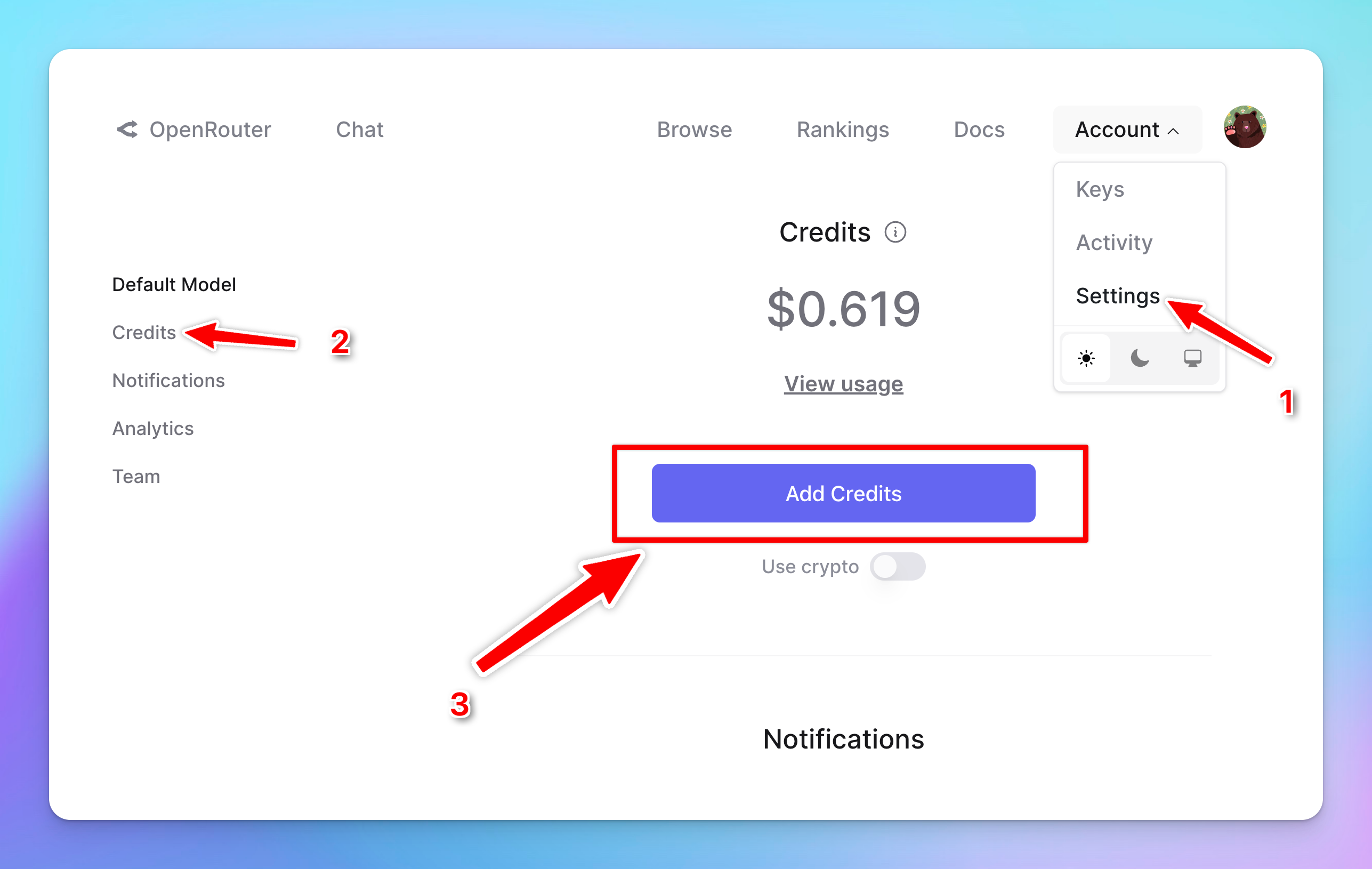
Go to **Account** > **Settings**, scroll down to the credit section to **Add Credits** so you can use the generated API keys.
## 3. Add Credits
Go to **Account** > **Settings**, scroll down to the credit section to **Add Credits** so you can use the generated API keys.
 ## 4. Enter OpenRouter API key to TypingMind
* Go to [**typingmind.com**](http://typingmind.com)
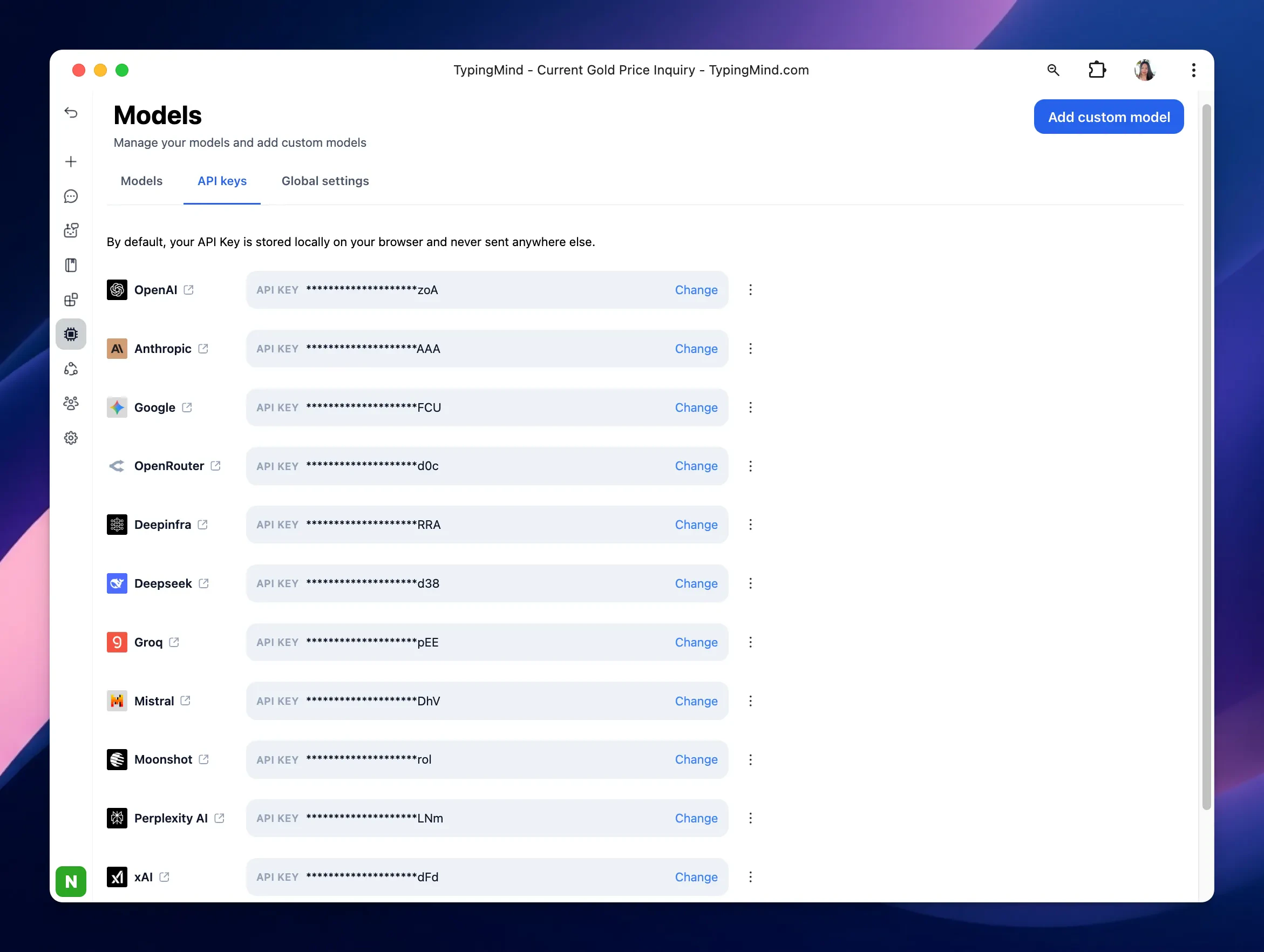
* Navigate the Models menu on the left sidebar → Switch to API key tab
* Input the copied API key
## 4. Enter OpenRouter API key to TypingMind
* Go to [**typingmind.com**](http://typingmind.com)
* Navigate the Models menu on the left sidebar → Switch to API key tab
* Input the copied API key
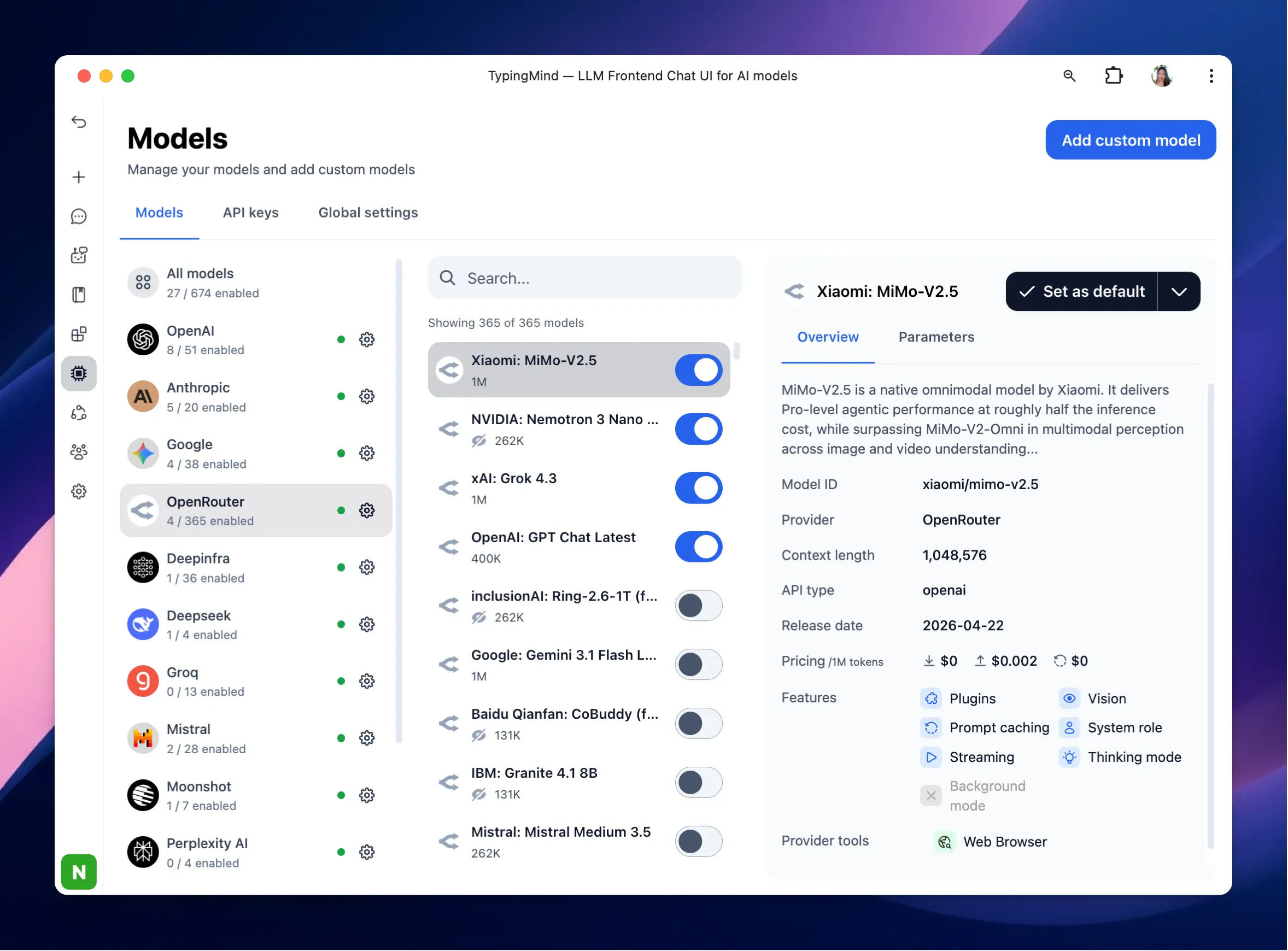
 After entering the API key for OpenRouter, switch back to Models tab → select OpenRouter → enable OpenRouter models you want to chat with.
 ## 5. Use the model
Now you can select the newly added custom model and start chatting:
## 5. Use the model
Now you can select the newly added custom model and start chatting: