> ## Documentation Index
> Fetch the complete documentation index at: https://docs.typingmind.com/llms.txt
> Use this file to discover all available pages before exploring further.
# OpenCode Go
Set up and use OpenCode Go models on TypingMind.
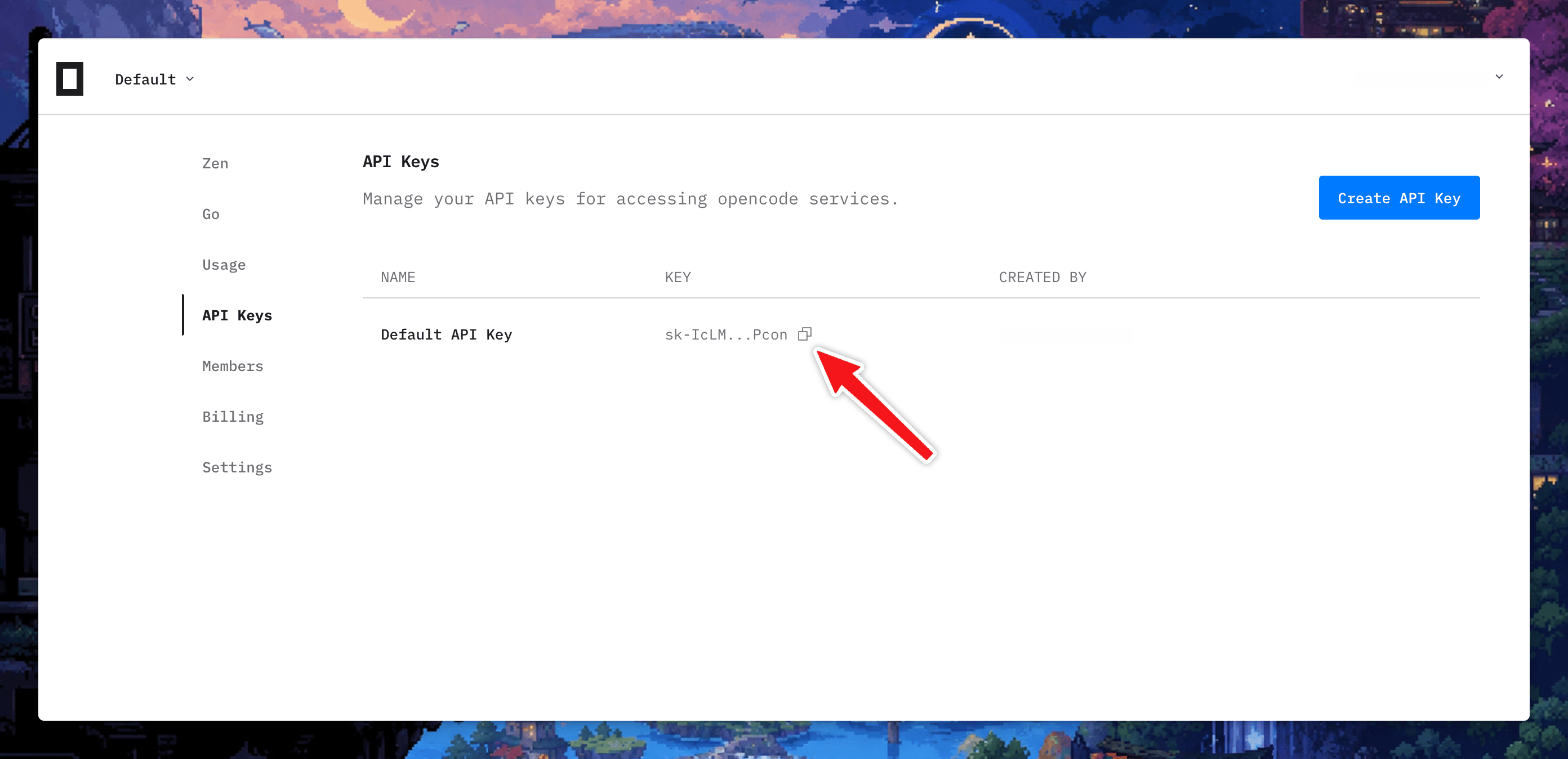
## 1. Get OpenCode API key
Sign in to [**OpenCode Zen**](https://opencode.ai/auth), subscribe to Go, copy your API key and save to safe place.
 ## 2. Set up OpenCode Go in TypingMind
* Go to [typingmind.com](http://typingmind.com)
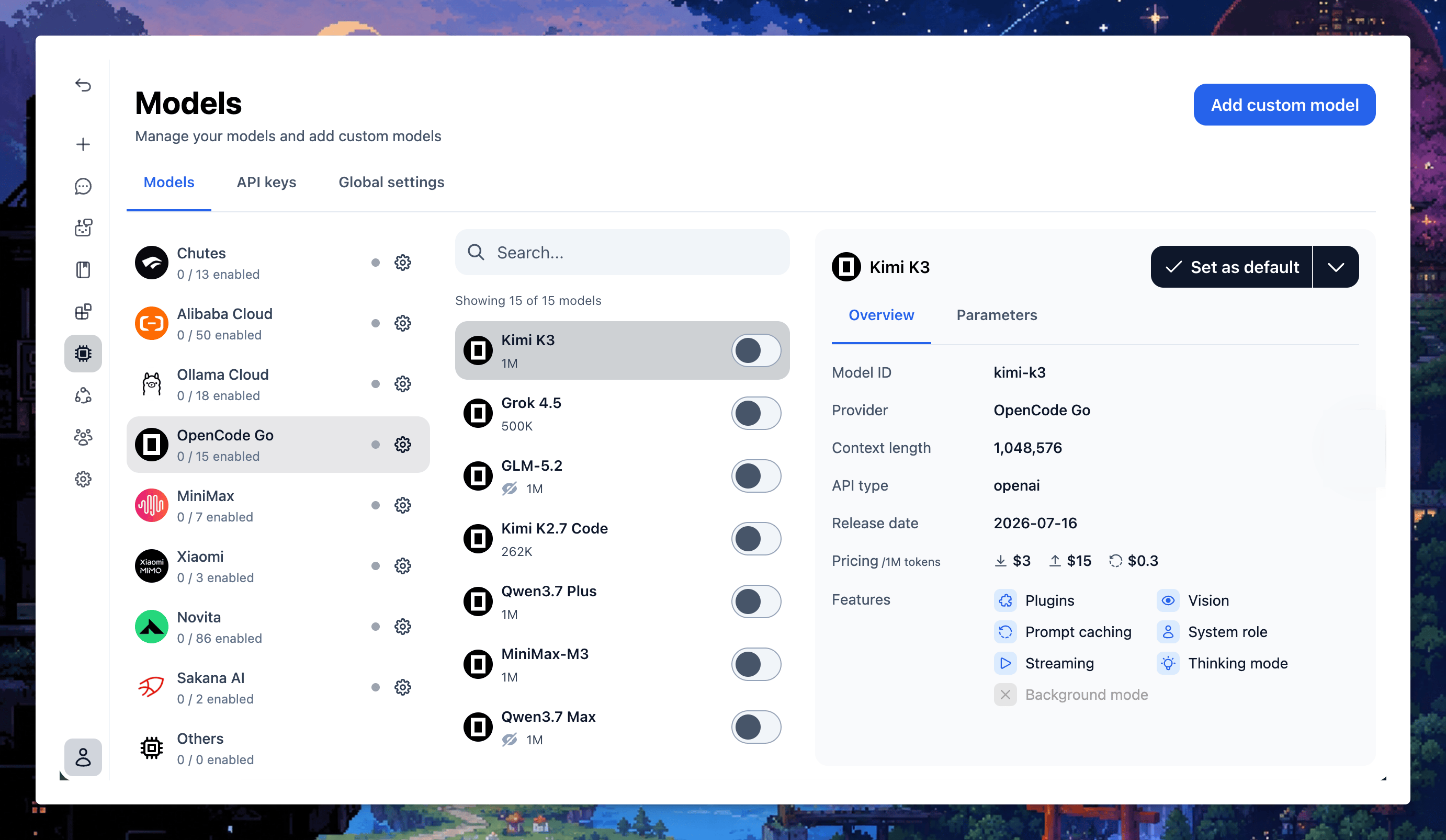
* Select Models → API key tab to enter the coped API key for OpenCode Go
Switch back to Models tab → Select OpenCode Go to enable the OpenCode Go models you want to chat with.
## 2. Set up OpenCode Go in TypingMind
* Go to [typingmind.com](http://typingmind.com)
* Select Models → API key tab to enter the coped API key for OpenCode Go
Switch back to Models tab → Select OpenCode Go to enable the OpenCode Go models you want to chat with.